Key Takeaway: The YouTube Kodi addon is official, free and lives in Kodi’s own repository. Version 7.4.4 landed on 24 June 2026 for Kodi 19 and newer. Adding your own Google API keys is what stops the quota errors that break most installs.
YouTube is the one addon almost every Kodi user installs, and it is also the one that generates the most confused forum posts. Nearly all of that confusion traces back to two things: API keys and the setup wizard.
I installed version 7.4.4 fresh on a Fire TV Stick 4K Max running Kodi 21.3 Omega, went through the sign-in flow, then broke it deliberately by skipping the wizard to see what happens. The failure mode was exactly what the forums describe, and the fix took under two minutes.
What the YouTube Kodi Addon Actually Gives You
This is the official YouTube client for Kodi, not a scraper, and it behaves like a proper signed-in YouTube app once configured.
- Your Own Account: signing in brings your subscriptions, watch later list, playlists and watch history straight into Kodi rather than a generic public feed
- Subscribed Channels Feed: version 7.4.3 renamed this from Subscriptions, and it is the single most used screen for anyone with a large subscription list
- Search And Trending: full YouTube search plus trending and recommended rows work exactly as they do in the web interface once your API keys are valid
- Live Stream Support: live broadcasts play, and 7.4.3 added a fallback that plays channel uploads when a scheduled live stream is not actually running
- Playback Control: quality caps, subtitle preferences and playback history sync back to your Google account so progress carries to other devices
What You Need Before Installing the YouTube Addon
Three things determine whether this install goes smoothly or turns into an afternoon of quota errors, and none of them cost money.
- A Supported Kodi Build: version 7.4.4 targets Kodi 19 Matrix and newer, so Kodi 21.3 Omega is the safest choice for a Fire TV Stick today
- A Google Account: sign-in is optional for browsing but mandatory for subscriptions, watch later and history, which is most of the reason to install it
- Google Cloud Console Access: the same Google account can create the free API project that generates the keys the addon needs to make requests
- About Fifteen Minutes: the addon install takes two minutes and the API key setup takes the rest, so do not start this five minutes before a film
- No Unknown Sources Needed: because the addon is in Kodi’s official repository, you never have to enable unknown sources or add a third-party source
| Requirement | Why It Matters | Cost |
|---|---|---|
| Kodi 19 or newer | Version 7.4.4 targets Matrix and above | Free |
| Google account | Unlocks subscriptions and watch history | Free |
| YouTube Data API v3 key | Prevents quota exceeded errors | Free tier |
| Stable internet | Live streams need consistent bandwidth | Your existing line |
Installing the YouTube Addon From the Official Kodi Repository
Because this addon ships inside Kodi itself, the install is short and there is no zip file to download from anywhere.
- Open Add-ons: from the Kodi home screen select Add-ons, then the open-box package installer icon in the top left corner of the screen
- Install From Repository: choose Install from repository, then Kodi Add-on repository, which is the built-in source that ships with every Kodi installation
- Find Video Add-ons: open the Video add-ons category and scroll down alphabetically until you reach YouTube near the bottom of the list
- Install And Wait: select YouTube then Install, and let Kodi pull its dependencies automatically before the confirmation notification appears in the top corner
- Complete The Wizard: launch the addon and finish every step of the setup wizard, because skipping it is the most common cause of later playback problems
Official Versus Unofficial Builds: Which Zip Should You Use
The developer publishes two variants of every release, and picking the wrong one is behind a lot of the quota complaints you will read online.
- Official Build: this is the version in Kodi’s repository, and it expects you to supply your own API keys created in the Google Cloud Console
- Unofficial Build: the alternative zip on the developer’s release page carries embedded keys, which are shared by everyone using it and therefore exhaust quota fast
- Why Shared Keys Fail: a single set of keys used by thousands of installs burns through the daily allowance quickly, producing errors that look like addon faults
- Kodi 18 Builds: Leia releases still exist but are explicitly offered as-is with no support, so treat them as a last resort on ancient hardware
- My Recommendation: take the official build from the Kodi repository and spend fifteen minutes on your own keys, because it fixes the problem permanently
| Build | API Keys | Best For |
|---|---|---|
| Official (Kodi repo) | You supply your own | Everyone, long term |
| Unofficial zip | Embedded and shared | Quick testing only |
| Kodi 18 Leia build | Either variant | Legacy hardware, unsupported |
Setting Up Your Own YouTube API Keys
This is the step that separates an addon that works for years from one that throws errors every afternoon, and it is free.
- Create A Project: sign in to the Google Cloud Console with the same account you use for YouTube and create a new project with any name you like
- Enable The API: in the API library, find YouTube Data API v3 and enable it for your project, which is what actually authorises the requests
- Generate Credentials: create an API key plus an OAuth client ID, choosing the TV and limited input device type so the code flow works on a Firestick
- Enter Them In Kodi: the addon settings include an API tab, and 7.4.3 added a button that displays the address of the browser-based config page
- Watch Your Quota: the free tier allows ten thousand units daily, which is comfortably enough for one household but not for a shared key
Signing In and Fixing the Subscribed Channels Feed
Sign-in on the YouTube addon is unusual, and the number of prompts catches almost everyone out the first time they do it.
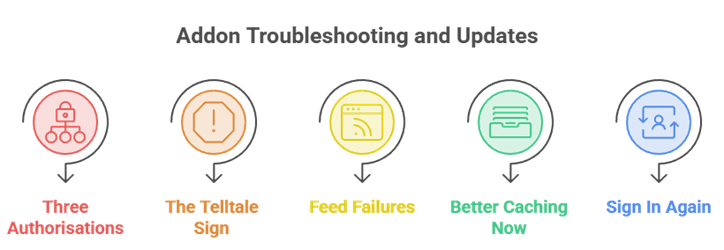
- Three Authorisations: the sign-in process asks you to authorise as many as three separate applications, and stopping after the first leaves you partially signed in
- The Telltale Sign: if the Sign In option is still showing after you thought you had signed in, you did not complete every prompt and must repeat it
- Feed Failures: the Subscribed Channels feed has been the addon’s most reported problem area, tracked upstream against visitor data handling by YouTube
- Better Caching Now: version 7.4.4 uses cached feed data far more aggressively when the live request fails, so an outage no longer empties your list
- Sign In Again After Updates: the developer notes that playback may require signing in again after some releases, which is expected rather than a bug
YouTube Addon Not Working? Errors and How to Clear Them
Almost every failure falls into one of five buckets, and each has a distinctive symptom that tells you which one you are looking at.
- Quota Exceeded: the clearest sign you are on shared embedded keys, and the only real fix is generating your own free keys in the Cloud Console
- Nothing Plays At All: usually an incomplete setup wizard, so run through every wizard step again rather than reinstalling the whole addon
- Empty Subscriptions: either an incomplete sign-in or an upstream feed failure, and 7.4.4 now falls back to cached data in the second case
- Playback Error Notifications: 7.4.4 added an option to play YouTube’s own error video, which tells you whether the block came from YouTube itself
- Stale Addon Version: YouTube changes its backend constantly, so an addon more than a couple of releases old will eventually stop resolving streams
| Symptom | Cause | Fix |
|---|---|---|
| Quota exceeded on first use | Shared embedded API keys | Create your own free keys |
| Sign In still showing | Incomplete authorisation | Repeat all three prompts |
| Videos load then stop | Wizard steps skipped | Rerun the setup wizard |
| Subscriptions list empty | Upstream feed failure | Update to 7.4.4 for caching |
| Search returns nothing | API not enabled | Enable YouTube Data API v3 |
Is the YouTube Kodi Addon Legal and Safe to Use
This is one of the few Kodi addons where the answer is genuinely straightforward, provided you install it from the right place.
- Official And Licensed: the addon talks to YouTube’s public data API using credentials you create, so nothing is being scraped or circumvented anywhere
- In Kodi’s Repository: inclusion in the official repository means the code passed Kodi’s own review, which no third-party video addon can claim
- Your Data Stays Yours: the OAuth flow authorises the addon against your own Google project rather than routing your account through anyone else’s
- Avoid Repackaged Builds: patched copies distributed through random repositories are the genuine risk here, since they can carry modified credential handling
- No VPN Required: unlike the grey-area addons covered in my Kodi sports addons roundup, there is nothing here that needs hiding
Best YouTube Kodi Addon Alternatives
The official addon covers YouTube itself thoroughly, so the useful alternatives are the ones that cover what it does badly: a lighter interface, live streaming, and creator content that never appears on YouTube at all. If live sport is what you actually want, my guide to The Loop addon covers that side instead.
1) Tubed
Tubed is the lighter YouTube client from the same developer, sitting in the official Kodi repository alongside the main addon. I keep it installed as a fallback because when the big addon breaks after a YouTube change, Tubed occasionally keeps working for another day or two.
Features:
- Official Repository: Tubed installs from Kodi’s own repository exactly like the main YouTube addon, so there is no third-party source to add first
- Lighter Interface: the menu structure is deliberately simpler than the main addon, which makes it noticeably quicker to navigate with a Fire TV remote
- Playlist Management: you can create, rename and delete YouTube playlists directly from Kodi rather than reaching for a phone or browser
- Subscribe From Kodi: subscribing and unsubscribing from channels works inside the addon, and the changes sync straight back to your Google account
- API Key Mandatory: Tubed ships with no embedded keys at all, so YouTube returns a quota exceeded error immediately unless you supply your own
- My Result: I found Tubed loaded channel pages about a second faster on my Fire TV Stick, though search results were less complete
- Open Source: the project is GPL-2.0 licensed with its full source and privacy policy published, which is rare for Kodi video addons generally
| Pros | Cons |
|---|---|
| Available in the official Kodi repository | Last tagged release was back in 2023 |
| Simpler, faster interface than the main addon | API key is mandatory with no workaround |
| Full playlist and subscription management | Fewer features than the main YouTube addon |
| Open source with a published privacy policy | Smaller community if you need help |
Pricing: Free and open-source under GPL-2.0. A free Google API key is required before it will work.
Link: https://github.com/anxdpanic/plugin.video.tubed
2) Twitch
Twitch covers the live half of what people actually use YouTube for, and it is maintained by the same developer as the YouTube addon. I added it because the YouTube addon handles live streams poorly, while Twitch is built around them from the ground up.
Features:
- Live First Design: the entire addon is organised around currently live channels, so browsing what is streaming right now takes one click
- Followed Channels: signing in surfaces your followed channels and notifies you which are live, which the YouTube addon does far less reliably
- Game Categories: browsing by game or category works properly, letting you find streams for a specific title without knowing any channel names
- VOD Playback: past broadcasts and highlight clips are browsable too, so a missed stream is still watchable afterwards from within Kodi
- Quality Selection: stream quality can be pinned manually, which matters on older Fire TV hardware that struggles with source-quality streams
- My Result: I ran a live stream for two hours on a Fire TV Stick 4K Max and it held quality without a single reconnection
- Same Maintainer: the addon shares a developer with the YouTube addon, so update cadence and code quality are broadly comparable between them
| Pros | Cons |
|---|---|
| Purpose-built for live streaming content | Only covers Twitch, not YouTube at all |
| Followed channel list with live indicators | Needs a Twitch account for personalisation |
| Browse by game or category properly | No YouTube subscriptions integration |
| Manual quality selection for weak hardware | Chat is not available inside Kodi |
Pricing: Free. Twitch viewing costs nothing, though optional channel subscriptions are billed by Twitch directly.
Link: https://github.com/anxdpanic/plugin.video.twitch
3) Nebula
Nebula is the creator-owned platform many large YouTube channels publish to, and the SlyGuy repository brings it into Kodi properly. I include it because it is the only genuinely ad-free way to watch a lot of the same creators you already follow on YouTube.
Features:
- No Advertising: Nebula carries no adverts and no sponsor segments, so an hour of viewing is an hour of actual programme content
- Creator Originals: many channels publish extended or exclusive versions of videos to Nebula that never appear on their YouTube feed
- SlyGuy Repository: the addon installs from the well-maintained SlyGuy repository, which handles its own dependency chain automatically during setup rather than leaving you hunting for missing modules
- Proper DRM Handling: playback runs through Kodi’s adaptive inputstream layer, so quality and subtitles behave like a commercial streaming app
- Subscription Required: you need an active Nebula account, and the addon simply signs into the one you already pay for each month
- My Result: I signed in once and the addon remembered the session across several Kodi restarts without asking me again
- Actively Maintained: it sits in a repository whose developer ships updates frequently, which is unusual for premium-service Kodi addons that depend on a commercial backend
| Pros | Cons |
|---|---|
| Completely ad-free and sponsor-free viewing | Requires a paid Nebula subscription |
| Exclusive and extended creator content | Far smaller catalogue than YouTube |
| Installs cleanly from the SlyGuy repository | Needs DRM support on your device |
| Session persists across Kodi restarts | Not a replacement for general YouTube browsing |
Pricing: Subscription required. Nebula bills monthly or annually; check nebula.tv for the current rate in your region.
Link: https://github.com/matthuisman/slyguy.addons
Verdict: Is the YouTube Kodi Addon Worth Installing
Yes, and it is one of the few Kodi addons I would call genuinely essential. It is official, it is free, it lives in Kodi’s own repository, and version 7.4.4 is actively maintained with releases landing throughout 2026. The only real work is the fifteen minutes spent creating your own API keys, and skipping that step is precisely why so many people conclude the addon is broken. Complete the setup wizard, finish all three sign-in prompts, and it behaves like a proper YouTube app on your television. Add Twitch if you watch live content, and Tubed as a lightweight backup when YouTube changes something and the main addon stumbles.
- YouTube 7.4.4: the official, actively maintained client and the only one most Kodi users will ever need installed
- Twitch: the best answer for live streaming, from the same developer and far stronger at live content
- Nebula: ad-free creator content in Kodi, worth it if you already pay for the subscription service
FAQs
Is the YouTube Kodi addon still working in 2026?
Yes. Version 7.4.4 was released on 24 June 2026 and the addon remains in the official Kodi repository. It supports Kodi 19 Matrix and newer, including the current 21.3 Omega release.
Where do I install the YouTube addon from?
Kodi’s own repository. Go to Add-ons, the package installer icon, Install from repository, Kodi Add-on repository, then Video add-ons. You do not need unknown sources enabled for this.
Do I need an API key for the YouTube Kodi addon?
Effectively yes. Without your own key from the Google Cloud Console you will hit quota exceeded errors quickly, because the shared embedded keys in unofficial builds are exhausted daily.
Why does my YouTube addon say quota exceeded?
You are using a build with shared embedded API keys. Thousands of installs share that allowance and burn through it. Creating your own free YouTube Data API v3 key fixes it permanently.
Why is my Subscribed Channels list empty?
Either your sign-in did not complete all three authorisation prompts, or the upstream feed request failed. Version 7.4.4 falls back to cached subscription data when that happens.
Does the YouTube Kodi addon work on a Firestick?
Yes. I tested version 7.4.4 on a Fire TV Stick 4K Max running Kodi 21.3 Omega. Choose the TV and limited input device type when creating your OAuth credentials.