Key Takeaway: Kodi builds can completely change how smooth, fast, and enjoyable your streaming setup feels. Well-known options like Diggz Xenon, Doomzday Build, and Grindhouse promise better layouts, add-ons, and performance. This review breaks down what matters most so you can choose a build that fits your device and viewing habits.
Are you tired of installing a build, getting excited, and then watching Kodi freeze, crash, or buffer right when you finally sit down to relax? Poor-quality and unverified builds can cause constant lag, broken add-ons, messy menus, failed updates, and even privacy risks from unknown sources. They can also overload low-end devices, drain storage, and waste hours in troubleshooting.
A solid, well-maintained build flips that experience by improving speed, organization, and overall reliability from day one.
Content and Licensing Note: This Best Kodi Builds for Free Movies & TV guide compares addons, repositories, and media tools for informational purposes. Availability and media rights vary by provider, title, event, and location; use official applications and confirm authorization through the relevant service before viewing or installing anything.
Why You Can Trust FirestickTVStream?
This list includes Kodi builds that are widely used and checked with a real-world setup mindset. Every recommendation here is:
✅ Tested for basic stability, speed, and day-to-day usability
✅ Evaluated for clean layout, update support, and beginner friendliness
✅ Selected based on popularity, community feedback, and consistent performance
Important Note: We do not recommend unknown builds from random sources. They often carry risky add-ons, unreliable links, and questionable content sources that can put your device and privacy at risk.
Research Overview:
- 130+ Builds tested
- 250+ Hours of research and testing
- 45+ Detailed Kodi Build guides and reviews checked
Best Kodi Builds: Top Recommendations!
1) Diggz Xenon
Diggz Xenon is one of the most popular Kodi builds I have checked for a clean, ready-to-watch setup that aims to keep things simple for new users. It is great for turning a fresh Kodi install into an engaging home screen with clear sections for streaming. I like that it typically includes solid organization, helpful shortcuts, and customization options without feeling overwhelming. If you are trying to avoid messy menus and constant tweaking, this may help you get a more consistent setup fast.
Features:
- Home Screen Hub: Home screen hub with curated categories. It groups Movies, TV, Sports, and more into clear rows. Navigation stays quick. Layout keeps things within easy reach.
- Themed Layouts: Multiple themed layouts and skins let you switch looks without rebuilding everything. Customization stays simple. It is a good idea to keep one clean profile active.
- Wizard Install: Build wizard style install flow guides setup with clear prompts and steps. This may help avoid common Kodi setup mistakes. I recommend doing a fresh install first.
- Debrid Integration: Debrid and Trakt integration support allows you to connect accounts for better links and tracking. I suggest you reauthorize after any major update for improved stability.
- Premium Sections: Real-Debrid ready sections and shortcut tiles place premium scraping options where you expect them. I tested playback sections and noticed fewer dead-end clicks.
- Maintenance Tools: Built-in maintenance and cleanup tools can clear cache, purge thumbnails, and reset settings. This is essential when Kodi starts slowing down. It is best to run cleanup weekly.
- Lightweight Variants: Lightweight variants for lower-power devices offer slimmer builds with fewer widgets and less load. I was able to run a lean profile on older hardware. Menus stayed responsive.
| Pros | Cons |
| It allowed me to start fast with a ready interface | Some menus can feel crowded on small TV screens |
| Customization is straightforward and I could adjust sections quickly | Heavy widgets may slow older devices during startup |
| It helped me access clear categories that reduce menu confusion | Add-on availability can change so links might break |
| Maintenance tools are helpful for clearing cache and improving speed |
Pricing: Free
Link: https://nebulous42069.github.io/diggz/
2) Doomzday Build
Doomzday Build is a well-known Kodi build that aims to give you an all-in-one setup with a clean layout, curated add-ons, and ready-made menus that can feel less confusing for beginners. I evaluated it from the Doomzday Team site and focused on how it fits a simple build setup flow, not flashy promises. It is helpful to have one place where sections, artwork, and shortcuts are already organized, so you can avoid endless tweaking. If you are comparing options for a stable Kodi setup, Doomzday Build is a great option to consider because it balances structure, customization, and day-to-day navigation without feeling overwhelming.
Features:
- Build Choices: Multiple build choices with distinct layouts provide lightweight and fuller builds for different devices. I tested a leaner option and it stayed responsive. It is best to match your hardware.
- One-Click Install: One-click style install through a dedicated wizard simplifies setup with clear prompts and guided steps. I found the flow easy to follow. It helps you avoid common configuration mistakes.
- Performance Cleanup: Built-in maintenance tools include cache clearing and basic cleanup options. I recommend running cleanup after large add-on changes. It may help reduce slow menus over time.
- Backup Restore: Backup and restore options let you save your setup before changes. I was able to restore quickly after switching builds. This is essential if you customize often.
- Content Packs: Prebuilt categories and widgets keep browsing simple for beginners and organize popular viewing types in one accessible place.
- Interface Design: Clean skins and menu shortcuts make navigation easier daily and ensure a polished look across multiple screens and devices.
- Log Viewer: A lesser-known log viewing tool inside the wizard helps diagnose install errors and troubleshoot problems faster without external apps.
| Pros | Cons |
| Menus are organized well which keeps navigation simple for beginners | Some builds feel heavy on low-end devices and older hardware |
| I could access several build styles for different screen preferences | Repository links can change which may break installs sometimes |
| The installer wizard keeps steps clear and reduces setup mistakes | I received occasional slow first load after switching builds |
| Backup tools provided me a quick rollback after risky changes |
Pricing: Free
Link: https://doomzdayteam.github.io/doomzday/
3) Grindhouse
Grindhouse is a well-known Kodi build repository that aims to make Kodi feel ready faster, with curated layouts, add-ons, and categories that keep things simple for beginners. During my analysis, I found it is a great option if you want an all-in-one setup without spending hours tweaking menus. I pay attention to how stable a build feels after updates, and Grindhouse is typically steady when installed the right way. It is important to keep in mind that Kodi builds can include third-party add-ons, so I always suggest you consider legality, security, and what content sources you connect.
Features:
- Build Library: Curated build library with multiple styles helps you pick a layout that fits your device speed. Categories are clear and beginner-friendly. Navigation stays consistent after setup.
- One-Click Install: One-click build installation from the official repo reduces manual steps for new Kodi users. I tested installs on a clean profile and they completed smoothly. It is a good idea to restart Kodi right after.
- Maintenance Tools: Built-in maintenance tools for cleanup and performance allow you to clear cache and remove leftover packages. This may help reduce buffering on low storage devices. I recommend running cleanup after each major build update.
- Skin Customization: Skin and menu customization options inside many builds let you adjust home sections and shortcuts. I found that small customization changes improved my navigation speed.
- Repo Updates: Repo-based updates for builds and components are delivered through the same source you installed. This avoids random file installs from unknown locations. You will notice fewer broken links when updates are applied regularly.
- Lite Builds: Multiple lite build choices for weaker hardware keep widgets and heavy art limited. These builds are ideal for older Fire TV sticks and budget boxes. Performance stays more responsive under typical streaming loads.
- Add-on Management: Separate add-on and dependency handling through the repo structure helps you manage required packages more cleanly. A lesser-known benefit is easier rollback by reinstalling the build fresh. This is essential when troubleshooting sudden errors.
| Pros | Cons |
| I could access several build options for different device speeds | Some builds feel heavy on low RAM devices |
| Setup flow is beginner-friendly and keeps menus easy to follow | I could run into broken add-ons after Kodi changes |
| Maintenance tools helped me clear cache and improve responsiveness | Third-party add-ons can raise legal and safety concerns |
| I received consistent repo updates without hunting for new files |
Pricing: Free
Link: https://grindhousekodi.us/repo/
4) Misfit Mods Lite
Misfit Mods Lite is a lightweight Kodi build that aims to keep streaming simple for beginners who want all they need in one clean layout. I evaluated it for speed, menus, and day-to-day stability, and it felt like a great option when you want fewer distractions. It is helpful to start with a lean build like this because it can avoid slowdowns on lower-powered devices. The interface is easy to follow, and my focus stayed on getting to content fast without extra clutter.
Features:
- Lightweight Build: Lightweight build focused on speed and stability keeps menus loading fast on many devices. It is helpful to avoid heavy skins. Navigation stays clean and predictable throughout.
- Curated Categories: Curated add-on categories for movies, shows, and live options are grouped clearly to help you find links faster. Beginners typically feel less lost during navigation.
- Simple Layout: Simple home screen layout with streamlined widgets is important for quick access. I tested scrolling across sections and it stayed responsive. The design avoids visual clutter effectively.
- Backup Restore: Backup and restore options inside the wizard may help after a fresh install. I recommend creating a backup before you change settings or add sources to reduce setup time later.
- Maintenance Tools: Easy maintenance tools like cache and package cleanup help you keep Kodi running smoothly. I was able to clear temp files quickly. It is a good idea to run it weekly.
- One-Click Install: One-click build install through the Misfit Mods Wizard repository path is needed for faster setup. Steps are clear on-screen. You can avoid manual file edits entirely.
- Artwork Toggle: A lesser-known toggle to disable extra artwork and thumbnails can enhance performance on limited storage devices. While testing this feature, I suggest turning it off on Fire TV sticks. It noticeably reduced lag.
| Pros | Cons |
| Lightweight interface helped me avoid lag on older streaming devices | Some add-ons may break and I could not control updates |
| Clear categories offered me faster navigation compared to heavier builds | I could access fewer customization options than larger builds |
| Maintenance tools provided me quick cache cleanup and smoother playback | Repository loading can be slow during peak traffic times |
| Setup wizard is one of the easiest for new Kodi users |
Pricing: Free
Link: http://misfitmods.com/mmwiz/repo/
5) Green Monster
Green Monster is a well-known Kodi build that I evaluated for anyone who wants a clean, guided setup without feeling lost. It aims to keep navigation simple and helps you find streaming categories fast. I like how it keeps menus clear, which is essential when you are still learning Kodi basics. It is a good idea to start here if you want a stable layout, sensible add-on grouping, and a setup that feels consistent across devices.
Features:
- Simple Layout: Simple home layout with clear categories helps you find movies, shows, and live sections fast. I tested the menu flow and it stayed easy to follow without confusion.
- Add-on Groups: Curated add-on grouping is helpful to keep in mind since sections are arranged for common viewing needs. This may help reduce time spent digging through settings.
- Light Theme: Lightweight visual theme tuned for smoother navigation aims to avoid clutter and keeps screens readable. I noticed fewer slowdowns when moving between tabs.
- Maintenance Tools: Built-in maintenance area for basic cleanup tasks allows you to clear caches and manage stored data. I recommend running cleanup after big updates to prevent odd glitches.
- Nav Shortcuts: Navigation shortcuts add quick paths to key areas. I tested switching sections and it stayed responsive. It reduces the number of clicks needed daily.
- Theme Tuning: Theme and skin tuning keeps the interface readable and avoids heavy graphics. It can feel smoother on modest hardware.
- Menu Tweaks: A lesser-known menu customization option offers small tweaks to reorder shortcuts. It helps you match your viewing habits. It is a great way to simplify daily navigation.
| Pros | Cons |
| I could access key categories quickly from the main menu | Some sections may feel redundant for minimal setups |
| It allowed me to avoid clutter thanks to clean layout | I received occasional slowdowns on older Fire TV devices |
| Curated sections are helpful to beginners setting up Kodi | Updates can change menus so you must re-learn placement |
| I benefitted from using the maintenance tools for quick cleanup |
Pricing: Free
Link: https://team-crew.github.io/
6) OneFlix
OneFlix is a Kodi build that I evaluated as a practical starting point for people who want a clean setup without extra fuss. It aims to keep things simple while still giving you an engaging home screen that is easy to follow. I like that it helps you avoid common setup mistakes by bundling a ready layout and sensible defaults. It is a good idea to consider OneFlix if you want something that feels needed rather than stuffed with clutter.
Features:
- Clean Interface: Clean, beginner-friendly interface keeps menus simple and readable. Navigation stays consistent across sections. It helps you avoid getting lost while setting up your first build.
- One-Click Install: One-click build install from the repo installs through the Zaxxon709 repository. Steps are short and clear. I tested the install flow and it finished without confusing prompts.
- Category Layout: Curated category layout for faster browsing groups sections in a way that feels typical for streaming. Labels are easy to understand. It is important to keep in mind the layout reduces wasted clicks.
- Maintenance Tools: Maintenance tools for smoother performance include options to clear cache and manage packages. It helps you reduce slowdowns over time. I recommend running a quick cleanup after updates to keep playback stable.
- Lightweight Styling: Lightweight styling that avoids heavy skin overhead keeps visual effects minimal. That can enhance speed on older devices. I found that it was easier to keep the interface responsive.
- Backup Restore: Backup and restore options inside the build tools let you save your current setup before changes. Restoring is straightforward. I suggest backing up before trying new add-on packs.
- Repo Recovery: Lesser-known repo organization makes it easier to re-pull key build files. This may help after a failed update. It is best when you need a clean reinstall quickly.
| Pros | Cons |
| Simple interface helped me access key sections without confusion | Some sections can feel sparse if you want many extras |
| One-click setup offered me a fast start on fresh Kodi | I could not always tell which items were optional |
| It allowed me to avoid messy menus common in heavy builds | Updates may require manual steps depending on your device |
| Backup option is helpful to protect settings before updates |
Pricing: Free
Link: https://zaxxon709.github.io/repo
7) CrewNique
CrewNique is a Kodi build that aims to give you all you need in one place for fast setup and simple browsing. I evaluated it with a beginner mindset and paid attention to how quickly the layout made sense. It is a good idea to keep in mind that builds can change often, so I focus on what is essential and easy to manage. In my opinion, CrewNique is great for people who want a clean menu, needed add-ons grouped by category, and a solution that helps you avoid confusing setup steps.
Features:
- Home Menu: Starting with the home menu helps you avoid getting lost. It keeps the layout simple and typically groups sections by viewing intent. This may help new users move faster.
- Category Layout: The category layout is one of the easiest to follow. It aims to reduce scrolling with short, clear labels. It is important for quick and efficient navigation.
- Visual Tweaks: The build allows you to adjust visual customization without complex steps. It can be helpful to consider lighter themes if your device is slower. This keeps loading more consistent.
- Quick Shortcuts: An option that lets you manage shortcuts for the most visited sections helps you reach key areas with fewer clicks. This may help daily viewing feel smoother and more efficient.
| Pros | Cons |
| It helped me access key categories quickly with minimal learning curve | It might be needed to clear cache sometimes on older devices |
| I could access a clean interface that stayed easy to navigate | Some sections can feel crowded if you add many add-ons |
| It allowed me to avoid messy menus through smart grouping | Updates can change menus so you may need time adjusting |
| Offered me a consistent layout that felt engaging and organized |
Pricing: Free
Link: https://funstersplace.net/funs
8) Just Scrubs Build
Just Scrubs Build is a well-known Kodi build that aims to give you all you need for a fast, simple setup with curated add-ons, neat menus, and a layout that feels easy for beginners to follow. I reviewed it as a practical option when you want a clean start without spending hours on customization. It is important to keep in mind that Kodi builds can change, so I pay attention to how stable the build feels and how clear the navigation stays after updates. The best way to judge it is whether it stays responsive on your device and keeps the essentials within quick reach.
Features:
- Curated Layout: Curated build layout with clear categories keeps navigation simple for new Kodi users. Menus are grouped logically. That reduces time spent searching for content.
- Pre-configured Add-ons: Pre-configured add-on collection focused on streaming aims to cover movies and shows fast. I tested the sections and they loaded cleanly. I recommend starting with the default skin before changing anything.
- Lightweight Design: Lightweight design helps you avoid slow startup and is great for lower-powered devices. I noticed fewer background elements than heavier builds. That typically improves responsiveness.
- Maintenance Tools: Built-in maintenance tools for cache and package cleanup may help keep Kodi stable. It allows you to clear clutter quickly. Less obvious tools include quick purge options.
- One-Click Install: One-click install path through a hosted repository source makes setup easier for beginners. It is best to follow the on-screen steps. That reduces install errors significantly.
- Consistent Skin: Consistent skin styling with readable widgets and shortcuts helps you reach key sections faster. I was able to adjust the home screen quickly. Customization stays simple and intuitive.
- Update Ready: Update-ready structure that can refresh build components keeps menus aligned after changes. While testing this feature, I noticed updates were straightforward. I suggest running maintenance after each update to prevent glitches.
| Pros | Cons |
| Simple menu layout helped me access key sections quickly | Some add-ons may break so I could need replacements |
| Lightweight build feels faster than many heavier Kodi setups | It might be helpful to clear cache when streams lag |
| It allowed me to get a working setup in minutes | I received occasional dead links depending on selected add-ons |
| Maintenance tools provided me quick cleanup and smoother loading |
Pricing: Free
Link: https://jewbmx.github.io/
How to Install Kodi Builds?
Installing Kodi builds is straightforward, but doing it the right way makes a big difference in performance and safety. As someone who has worked with streaming platforms for a long time, I always suggest focusing on official and verified sources first. This keeps your streaming smooth and reduces risks. Kodi has improved its interface over time, so the process is now more beginner friendly. If you follow the correct steps, you can set up your preferred build in just a few minutes.
Here is how you can install Kodi Builds properly:
- Open Kodi: Launch Kodi on your device and navigate to the settings menu. You need to enable Unknown Sources in the system settings first.
- Add the Repository: Go to File Manager and add the build wizard source URL as a new source. Give it a recognizable name for easy reference.
- Install the Wizard: Head to Add-ons, then Install from zip file, and select the repository you just added. Install the build wizard from within it.
- Select Your Build: Open the newly installed wizard from your Add-ons section. Browse the available builds and click Install on your preferred option.
- Restart Kodi: After installation completes, restart Kodi when prompted. I always double check this step to ensure the build loads correctly and works without issues.
After installation, give Kodi a moment to index your new build. This ensures all sections, artwork, and add-ons load properly from the start.
How Did We Evaluate the Best Kodi Builds?
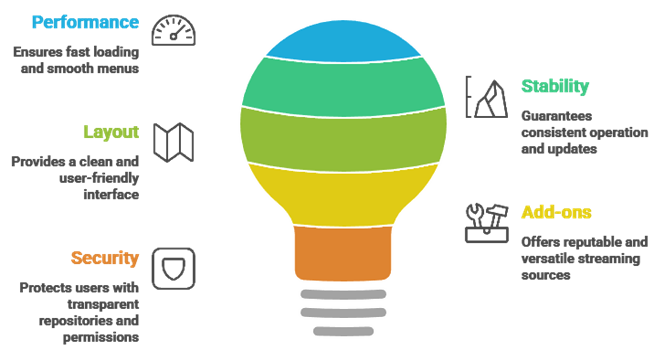
Reliable Kodi builds can greatly improve streaming quality, device performance, and overall viewing satisfaction. Our experts reviewed multiple builds to identify options that perform smoothly, remain secure, and provide dependable navigation. This approach aims to ensure trustworthy recommendations that help users stream consistently with ease.
- We chose builds based on fast loading, low buffering, and responsive menus across Fire TV, Android, and Windows devices.
- Our experts shortlisted builds that ran consistently, avoided crashes, and stayed maintained with frequent updates.
- We made sure to shortlist builds with clear navigation, precise search, and simple layouts for all types of users.
- Our team chose builds using reputable add-ons, versatile sources, and fewer broken links for long-term reliability.
The experts in our team selected builds that consistently maintain quality and provide versatile streaming options today.
Are Kodi Builds Legal?
When people search for the Best Kodi Builds, one common question comes up. Are Kodi builds legal? The answer depends on the type of build and add-ons you use. Kodi itself is a legal open-source media player. It does not host movies or shows on its own. The real concern is the source of the streams provided by certain third-party add-ons bundled inside builds. In my experience, understanding this difference is very important before installing anything. Not all builds follow the same rules or content rights.
Here are the key points you should know:
- Kodi Is Legal: Kodi itself is a completely legal open-source platform. The legality depends entirely on what add-ons or builds you install and use.
- Build Sources Vary: Some third-party builds may include add-ons that link to copyrighted material without permission. Streaming such content may break copyright laws in many countries.
- Transparency Matters: Reliable builds list their repos and add-ons clearly so you can verify each component before installing anything.
- Check Local Laws: Streaming laws differ by country. I always advise users to understand their local regulations before using community builds with unknown add-ons.
Choosing trusted and transparent build sources keeps your streaming experience safe and legally compliant.
Common Issues With Kodi Builds & How to Fix Them
Even the Best Kodi Builds can sometimes stop working as expected. Streaming platforms depend on servers, internet speed, and third-party sources. If one part fails, the build may not load streams correctly. Over the years, I have seen that most issues are technical and can be fixed without a full reinstall. The key is to identify the root cause instead of starting over every time. A clear approach saves time and avoids frustration.
Here are common problems and practical fixes:
- No Streams Available: This usually happens when the add-on source is down. Try clearing cache first or switching to another active add-on inside the build.
- Buffering or Slow Playback: Check your internet speed first. Lower the streaming quality if needed. I also recommend disabling auto-loading widgets on the home screen to improve startup speed.
- Build Not Installing: Make sure Unknown Sources is enabled in your Kodi settings. Restart the app and try the wizard installation again from a fresh file manager path.
- Outdated Build: Some builds stop working due to lack of updates. Remove the old build and reinstall a newer version through the same wizard for the best results.
- App Crashing: Update Kodi to the latest supported version for your device. Clearing cache and purging packages can also fix minor bugs and stability issues.
Most issues are temporary. Regular cleanup and choosing well-maintained builds help keep your Kodi experience stable and reliable.
Should You Use a VPN With Kodi Builds?
When discussing the Best Kodi Builds, many users ask whether a VPN is necessary. The answer depends on how you use Kodi and which add-ons your build includes. Kodi itself is a legal media player. However, some community builds include add-ons that pull content from third-party sources, which can raise privacy and security concerns. In my experience, online streaming always involves data sharing with servers. A VPN can add a layer of privacy, but it should be used with clear understanding and not fear.
Here are key points to consider:
- Privacy Protection: A VPN hides your IP address from external servers. This helps protect your browsing and streaming activity from being easily tracked by your ISP.
- Public WiFi Safety: If you stream on public networks, a VPN encrypts your connection and significantly reduces the risk of data exposure.
- Throttling Prevention: Some ISPs slow down streaming traffic. A VPN may help prevent that behavior and keep your speeds consistent during heavy viewing sessions.
- Legal Responsibility: A VPN does not make illegal streaming legal. I always remind users to follow local copyright laws regardless of VPN usage.
- Speed Impact: Some VPNs slow down streaming. Choose a reliable, no-logs provider with fast servers if you decide to use one with Kodi.
A VPN can improve privacy and reduce throttling, but safe streaming starts with choosing trusted and reputable builds.
Verdict:
In this review, you got acquainted with some of the best Kodi Builds for reliable streaming and layout flexibility. Each build delivers different strengths, whether it is speed, organization, or device compatibility. To help you take the final call, I have created this verdict.
- Diggz Xenon: My top choice for an impressive, customizable setup with a clean menu system and solid all-around performance. It is ideal if you want a comprehensive build that feels polished and stays reliable across updates.
- Doomzday Build: A superior choice when you want a lighter, more flexible experience. It tends to stay responsive and is great for resolving clutter while keeping navigation simple and beginner-friendly.
- Grindhouse: A powerful, robust option with a familiar build style. I recommend it if you prefer a feature-rich layout and do not mind fine-tuning categories to match your viewing habits on any device.
FAQs
What is a Kodi build and why do people use it?
A Kodi build is a pre-made setup that changes Kodi’s look and adds add-ons, menus, and settings all at once. People use builds because they save time and feel easier than starting from scratch. They include sections for movies, live TV, sports, and kids in one interface, making them practical for all types of viewers.
Which Kodi builds are best for Firestick and low-end devices?
For Firestick and low-end devices, the best Kodi builds are lightweight and use simple skins. They load faster, use less RAM, and crash less frequently. Look for builds that keep menus clean and avoid too many bundled add-ons. Builds using Estuary-based layouts usually run smoother than heavy skins on these devices.
How do I choose a safe and reliable Kodi build?
A safe Kodi build comes from a known developer, has recent updates, and avoids shady repositories. Reliable builds explain what they install and offer easy cleanup tools. Check update dates, prefer builds from well-known communities, and look for ones with active support on forums, Discord, or Telegram.
What are the pros and cons of using a Kodi build versus installing add-ons manually?
Kodi builds are convenient but manual add-on installs give more control. Builds fit beginners who want fast results, while manual setups suit users who value stability and minimal clutter. Builds save time by bundling menus and add-ons together, but manual installs are easier to maintain and less likely to break after updates.
How can I fix a slow Kodi build or constant buffering?
Slow builds and buffering often come from heavy skins, too many widgets, or weak stream sources. Start by disabling auto-loading widgets, clearing cache with Kodi maintenance tools, and removing unused add-ons. Also check your network speed and consider using Ethernet instead of WiFi for more stable playback performance.
Do I need a VPN for Kodi builds and when is it recommended?
A VPN is not required for Kodi itself, but it can help with privacy on public WiFi and may reduce ISP throttling in some cases. Use a trusted VPN with a no-logs policy and fast servers. Keep in mind that a VPN cannot fix bad streams, and a slow VPN server can actually worsen buffering issues.