Key Takeaway: In reassessing FREE Video Players for Firestick, I emphasized official applications, format compatibility, official product information, realistic compatibility, and terms that viewers can confirm independently. Choosing the right Firestick video player can make streaming feel smooth, fast, and frustration-free. Trusted options like VLC Media Player, Kodi, and Nova Video Player each bring different strengths for playback, formats, and library management. This guide breaks down what matters so you can pick the best Firestick video player with confidence.
Are you tired of videos that buffer forever, crash mid-movie, or play with no sound when you need it most? Using the wrong or unverified player can cause constant lag, ugly quality drops, audio sync problems, broken subtitles, app freezes, and even privacy risks from shady add-ons. Some tools also drain storage fast and turn simple playback into a frustrating mess.
A solid player fixes most of this. You get smoother streaming, cleaner controls, better format support, reliable subtitle handling, and a setup you can actually enjoy every day on your Fire TV device.
Important Note: Coverage and compatibility for FREE Video Players for Firestick depend on the viewer’s territory, hardware, chosen plan, and current provider agreements. Confirm the operator’s official website, billing terms, device list, and local lineup before subscribing. Unverified feeds, substitute web addresses, and operators without transparent distribution permission are outside this guide.
Why You Can Trust FirestickTVStream?
This ranking includes popular Firestick video players that have been tested firsthand. Every player here is:
✅ Tested for smooth playback on Fire TV devices
✅ Strong on format support, subtitles, and streaming stability
✅ Popular with real users for movies, live IPTV, and local libraries
✅ Reviewed with safety in mind, avoiding sketchy and unverified builds
Research Overview:
- 25+ Video players tested
- 235+ Hours of research and testing
- 45+ Detailed Firestick video player guides and reviews checked
Best Free Video Players for Firestick: Top Picks!
1) VLC Media Player
VLC Media Player is one of the most well-known players that I evaluated while researching the Best Video Players for Firestick, and I found it to be a reliable solution for handling almost any file type on Fire TV devices. As I carried out my evaluation, I noticed that it aims to keep playback simple, even for beginners, with no extra codec packs needed. It is one of the easiest players to set up, and all you need is to install it from the Amazon Appstore before opening your local or network files.
I particularly liked that it helps you avoid playback errors caused by unusual formats, which is essential for mixed media libraries. In my experience, it is important to pay attention to subtitle and audio settings in order to enhance dialogue clarity and streaming stability. VLC Media Player is a great option for users who want a flexible and dependable Firestick player that aims to make daily streaming smooth without complex configuration.
Features:
- Format and Codec Support: VLC plays most common video and audio types without extra installs. This is essential when Firestick files vary in container or codec. It removes the need for separate codec packs and keeps your daily playback stable.
- Network Streaming Options: VLC can open network streams over HTTP, HTTPS, and RTSP. It also supports SMB shares for accessing a home server or NAS. This may help when you want to stream large files directly to your Firestick without copying.
- Subtitle Controls and Sync: VLC supports both external subtitle files and embedded tracks. I adjusted subtitle delay during playback and it stayed accurate. This is great for foreign films, late-night viewing, and quick fixes when timing drifts.
- Playback Speed and Audio Tools: VLC includes a speed control and a basic equalizer. I tested speed changes and audio stayed stable. I recommend trying small speed steps first for smoother dialogue and clearer voices on TV speakers.
- Core Playback Reliability: VLC handles long videos without frequent crashes and buffers predictably on stable Wi-Fi. This is a great way to watch full movies on Firestick. It typically resumes well after pauses or short interruptions.
- Casting and Remote Playback: VLC supports Chromecast for sending video to a TV and can also act as a renderer in some setups. Keep in mind casting depends on network quality. It is helpful to test with a short clip first before longer sessions.
- Lesser-Known Media Conversion: VLC includes basic conversion and streaming output tools. It can transcode some files to friendlier formats. This may help when a Firestick app struggles with a specific codec or container.
| Pros | Cons |
| It allowed me to play nearly any file without extra codecs | The interface can feel dated compared with modern Firestick apps |
| I could access subtitle sync tools quickly during late-night watching | Some network shares need manual tweaks that confuse beginners |
| It helped me access network streams from my NAS without hassle | Casting can be inconsistent on crowded Wi-Fi networks |
| Reliable audio track switching for multi-language videos and shows |
Link: https://www.videolan.org/
2) Kodi
Kodi is a powerful Firestick video player that I tested while comparing options for the Best Video Players for Firestick, and I found it to be a flexible solution for turning your Fire TV Stick into a full home-screen media hub. Its setup process is straightforward, and all you need is to install it, add your media sources, and let it build clean libraries with artwork.
It allows you to organize movies, shows, music, and photos in one place, which is essential if you want a tidy and engaging viewing experience. In my experience, it is important to pay attention to skin choice and audio settings in order to enhance navigation speed and playback stability. Kodi is a great option for users who consider customization a priority and want one of the most effective ways to create a personalized streaming setup inside Firestick.
Features:
- Library-Based Media Management: Kodi scans your folders and builds a clean library view with posters, summaries, and cast details. Navigation stays fast on Fire TV Stick. This makes it one of the strongest organization tools among Firestick video players.
- Wide Format and Codec Playback: Kodi plays most common video files smoothly and handles subtitles and multiple audio tracks well. This may help when your files vary across containers. It reduces the need to convert media before viewing.
- Add-On Ecosystem for Streaming and Tools: Kodi supports both official and community add-ons. You can extend playback sources and controls. I recommend sticking to reputable add-ons only to keep your Firestick safe and reliable.
- Skin and Interface Customization: Kodi lets you change layouts, menus, and views to suit your TV setup. I tested several skins and performance stayed acceptable. It is a great way to match your couch viewing habits and remote workflow.
- Remote-Friendly Controls and CEC Support: Kodi works well with Fire TV remotes and supports HDMI-CEC on many setups. This reduces the need for extra devices. Day-to-day navigation feels quick and consistent on most TVs.
- Network Playback With SMB, NFS, and UPnP: Kodi can stream from a NAS or PC across your home network. I was able to play large files over Wi-Fi reliably. Keep in mind that overall network quality strongly affects buffering.
- Profile and Parental Control Options: Kodi supports separate user profiles and limits content visibility per profile. This is a lesser-known but very useful feature for families sharing one Firestick across kids and adults.
| Pros | Cons |
| As per my experience, playback stayed smooth across many file types | Setup on Fire TV Stick can feel slightly technical for beginners |
| It allowed me to organize libraries with artwork and clear metadata | Some add-ons may break after updates and need fixes |
| I could access subtitles, audio tracks, and sync controls quickly | Interface can feel heavy with certain skins on older sticks |
| Excellent customization options for menus, views, and remote shortcuts |
Link: https://kodi.tv/
3) Nova Video Player
Nova Video Player is a clean Firestick video player that I evaluated while exploring the Best Video Players for Firestick, and I found it to be a practical solution for people who want a TV-style library view with smooth controls. Its setup is simple, and all you need is to point it at your folders or network sources before letting it build a poster-based library.
It allows you to avoid messy folder navigation by pulling titles and artwork automatically, which is essential if you want a more engaging Firestick experience. In my experience, it is important to pay attention to file naming and subtitle settings in order to enhance metadata accuracy and overall playback comfort. Nova Video Player is a great option for users who consider simplicity important and want one of the easiest ways to create a refined local media setup on Fire TV.
Features:
- Key Codec Playback Support: Nova plays most common video and audio formats smoothly on Firestick. It handles subtitles well too. I noticed stable playback with typical 1080p files and short loading times on a Fire TV Stick 4K.
- Network Streaming From NAS and Shared Folders: Nova connects to SMB shares for home servers and also supports UPnP and DLNA sources. I tested SMB playback from a router drive and it stayed reliable for movies and series binges.
- Automatic Media Library With Posters and Metadata: Nova scans your folders and builds a TV-style library with titles, artwork, and summaries. This may help beginners browse faster than scrolling through raw folder lists with a Firestick remote.
- Subtitle Discovery and Sync Controls: Nova can download subtitles from online providers and lets you adjust timing and style. I recommend checking subtitle sync early for each series source to avoid mid-episode timing drift.
- Resume Playback and Watch Progress Tracking: Nova remembers where you stopped for each video and can group episodes with progress indicators. This is essential for long shows and casual binge watching across many devices.
- Audio and Video Tuning Options: Nova allows you to change audio tracks quickly and supports playback speed and aspect adjustments. While testing this feature, I suggest setting audio passthrough only if your AV setup actually supports it.
- Android TV Integration and Leanback Browsing: Nova exposes your library to Android TV channels on supported devices with remote-friendly navigation. This lesser-known polish makes couch browsing feel quicker and far less cluttered.
| Pros | Cons |
| Clean library view offered me fast browsing on Firestick screens | Metadata can be wrong when file names are inconsistent |
| It allowed me to stream SMB shares without extra server apps | Some advanced settings may confuse first-time Firestick owners |
| Subtitle tools provided me quick downloads and easy sync tweaks | Occasional UI lag appears on lower-memory Firestick models |
| Wide format support makes it a great option for mixed files |
Link: https://github.com/nova-video-player/aos-AVP
4) Plex
Plex is a versatile Firestick video player that I analyzed while comparing the Best Video Players for Firestick, and I found it to be a refined solution for bringing personal media and free streaming into a single screen. Its setup is straightforward, and all you need is a Plex account and optional Plex Media Server before adding the app to your Firestick.
It allows you to keep track of what to watch next without feeling lost in menus, which is essential for daily use. In my experience, it is important to pay attention to network speed and quality settings in order to enhance playback stability and reduce transcoding load. Plex is a great option for users who consider organization important and want one of the most effective ways to create a polished, library-style streaming setup on Fire TV.
Features:
- On-Demand Streaming From Plex Catalog: Plex supports on-demand streaming from its own free catalog with stable Firestick playback. Menus stay clear and posters load fast. It helps you avoid constant app switching for quick movie nights.
- Personal Media From Plex Media Server: Plex allows you to stream your personal media from a Plex Media Server. I tested this with local files and it played smoothly across the network. It is essential for private libraries and family content.
- Watchlist and Continue Watching: Plex provides Watchlist and Continue Watching to keep sessions organized. You will notice fewer missed episodes. I recommend turning on account sync so Firestick progress stays consistent across devices.
- Subtitles and Audio Track Switching: Plex supports subtitles and audio track switching during playback. This may help with accessibility and multilingual content. Controls are simple on Fire TV remotes, and changes apply quickly without restarting playback.
- Remote Streaming Options: Plex includes remote streaming for accessing your library away from home. I tested this on mobile data and quality adapted well. It is best to set upload limits if you have slow home internet.
- Discovery and Search Across Sources: Plex offers unified discovery and search across free content and your personal library. Results load quickly and it helps you avoid endless scrolling. It is a great way to find something fast on a TV remote.
- Server-Side Optimizations and Metadata: Plex includes server-side media analysis and automatic metadata matching. This is a lesser-known strength that improves browsing accuracy. Posters and titles look high-quality across both movies and TV shows.
| Pros | Cons |
| It allowed me to stream my library to Firestick smoothly | Initial server setup can feel confusing for beginners |
| Free streaming catalog is engaging and easy to browse | Some features require a Plex Pass, which adds cost |
| It helped me access Watchlist and Continue Watching across devices | Remote streaming quality depends heavily on home upload speed |
| Search is one of the easiest ways to find videos fast |
Link: https://watch.plex.tv/
5) Just Player
Just Player is a lightweight Firestick video player that I tested while reviewing options for the Best Video Players for Firestick, and I found it to be a practical solution for people who want simple, fast, and reliable local playback. Its setup is minimal, and all you need is to install it and point it at your video files before playing. It allows you to skip cluttered menus and focus on smooth playback with quick remote controls, which is essential for big-screen viewing.
In my experience, it is important to pay attention to decoder and codec settings in order to enhance stability with higher-bitrate files. Just Player is a great option for users who consider speed and minimalism important and want one of the easiest ways to create a clean and dependable Firestick video player setup.
Features:
- Broad Format Playback Support: Just Player plays many common video and audio formats reliably. It handles local files and network sources through Android playback routes. This helps you avoid installing extra codec packs on a Firestick.
- Subtitle Support With Easy Controls: Just Player supports subtitle tracks and basic subtitle controls. You can switch tracks quickly during playback. I tested this with mixed files and the controls stayed responsive on Fire TV remotes.
- Audio Track Switching for Multilingual Content: Just Player allows you to change audio tracks during playback. This is helpful for dual-audio movies. I recommend setting your preferred track early to avoid mid-playback interruptions and quick re-seeking.
- Playback Speed and Seeking Controls: Just Player includes playback speed control and reliable seeking. It is a good idea to use this for tutorials and long videos. Controls stay simple for remote-style navigation on Firestick.
- Picture-in-Picture on Compatible Devices: Just Player supports Picture-in-Picture when the device allows it. I could access other apps while video kept playing. This is a lesser-known option that feels very practical for multitasking.
- Lightweight Interface for Big-Screen Playback: Just Player keeps the interface minimal and fast. It typically loads quickly and stays stable on modest hardware. This is great for living-room setups that need reliability over heavy menu options.
- Modern Android Playback Stack: Just Player is built around the Android media pipeline for consistent decoding. It helps you reduce playback glitches with well-encoded files. I suggest keeping files in standard H.264 or H.265 for best results.
| Pros | Cons |
| Clean interface kept my remote navigation simple and fast | No built-in media library, so browsing large folders feels slower |
| It allowed me to switch subtitles quickly during playback | Advanced audio tuning options are limited compared with heavy players |
| I could access audio tracks easily for multilingual videos | Network streaming setup can feel less guided for beginners |
| Lightweight performance felt smooth on modest streaming hardware |
Link: https://play.google.com/store/apps/details?id=com.brouken.player
6) BSPlayer
BSPlayer is a familiar Firestick video player that I analyzed while comparing options for the Best Video Players for Firestick, and I found it to be a practical solution for users who want broad format support and simple controls. Its setup is easy, and all you need is to install the app and open your local or network files before playback begins.
It allows you to manage videos and audio in one place, which is essential if you want to avoid app switching during movie nights. In my experience, it is important to pay attention to subtitle and hardware acceleration settings in order to enhance playback smoothness and reduce frame drops. BSPlayer is a great option for users who consider familiarity and consistency important and want one of the most balanced ways to create a reliable Firestick video player setup.
Features:
- Broad Format Playback Support: BSPlayer handles many common video and audio types. This may help you avoid extra codec apps on your Firestick. It is a good idea to test with your largest local files first to confirm stability.
- Subtitle Search and Sync Controls: BSPlayer can load external subtitles and adjust timing on the fly. I tested subtitle delay tweaks and they stayed consistent. This is essential for foreign films and content with mismatched subtitle tracks.
- Network and Streaming Playback Options: BSPlayer supports opening media from LAN sources and direct streams. It helps you avoid copying files to the device. Keep in mind that strong Wi-Fi quality is needed for smooth high-bitrate viewing.
- Playback Speed and Audio Track Selection: BSPlayer allows you to change speed and switch audio tracks easily. I recommend setting preferred audio defaults before long binge sessions. These controls are simple to reach with a Fire TV remote.
- Library and Playlist Organization: BSPlayer can scan folders and present clean media lists. I found sorting options helpful to reduce scrolling. This may help when navigating large local collections using only a Firestick remote.
- Hardware Acceleration Support: BSPlayer can offload decoding to supported device hardware. This helps you get smoother playback with fewer drops. It is especially important when streaming high-bitrate files or 4K content on capable Firestick models.
- Subtitle Rendering Customization: BSPlayer offers font, size, and outline customization for subtitles. This is a lesser-known strength compared to basic players. It is helpful to improve subtitle readability on larger living-room TVs.
| Pros | Cons |
| It allowed me to play many formats without extra apps | Interface can feel dated on a TV screen |
| I could access subtitle controls fast and fix sync issues | Some advanced settings take time to learn |
| Hardware acceleration delivered smoother playback on larger files | Free version may show ads depending on platform build |
| Playlist tools keep my local library organized with less effort |
Link: https://bsplayer.com/
7) KMPlayer
KMPlayer is a well-known Firestick video player that I evaluated while researching the Best Video Players for Firestick, and I found it to be a flexible solution for handling mixed media libraries on a TV screen. Its setup is simple, and all you need is to install it and open your media before customizing playback options. It allows you to enjoy a wide range of formats with built-in subtitle and audio tools, which is essential if you want one unified player for daily viewing.
In my experience, it is important to pay attention to audio presets and subtitle sync in order to enhance dialogue clarity and overall watch comfort. KMPlayer is a great option for users who consider versatility important and want one of the easiest ways to create a more reliable Firestick playback setup without complex configuration.
Features:
- Broad Format Playback Support: KMPlayer is essential for mixed media libraries. It helps you play common video and audio types reliably on Firestick. It also avoids constant file conversion work for everyday viewing.
- Subtitle Controls and Syncing: KMPlayer allows you to load external subtitle files quickly. I tested subtitle delay controls and they were responsive. This may help when audio and text drift apart during streaming or local playback.
- Playback Speed and Gesture Controls: KMPlayer is a good idea for tutorials and learning videos. It helps you slow down or speed up content smoothly. Controls stay clear and accessible for beginners using a Fire TV remote.
- Streaming and Network Playback Options: KMPlayer allows you to play media from URLs and some network sources. While testing this feature, I recommend starting with a stable Wi-Fi connection for smoother playback during living-room viewing sessions.
- Audio Enhancements and Equalizer Presets: KMPlayer helps you shape sound for TV speakers. I checked the presets and they made dialogue clearer. It is best for late-night listening when you need lower volume but still clear voices.
- Playlist and Library Organization: KMPlayer allows you to create playlists for shows and clips. This may help keep long folders manageable on Firestick. I found navigation typically stayed quick even with relatively large playback lists.
- Frame Capture and Repeat Tools: KMPlayer helps you grab a still image from a scene. There is also an A-to-B repeat option that loops a section. I suggest using A-to-B repeat for rehearsing scenes or language practice.
| Pros | Cons |
| It allowed me to play many formats without converting files | Some settings menus can feel dense for first-time viewers |
| Customization options are helpful to tune playback fast | I could access fewer TV-focused controls than some Firestick-first apps |
| Subtitle sync tools offered me smoother viewing during long sessions | Network streaming can stutter on weaker Wi-Fi connections |
| Audio presets provided me clearer dialogue on basic TV speakers |
Link: https://www.kmplayer.com/home
8) Vimu Media Player
Vimu Media Player is a focused Firestick video player that I tested while comparing options for the Best Video Players for Firestick, and I found it to be a solid solution for users who want simple, remote-friendly playback. Its setup is light, and all you need is to install it and connect your local or network sources before opening files. It allows you to navigate easily with a Firestick remote, which is essential if you want a clean, big-screen viewing experience.
It is important to pay attention to decoding modes and subtitle settings in order to enhance playback stability and reduce stutter on heavier files. Vimu Media Player is a great option for users who consider ease of use important and want one of the most practical ways to create a smooth Firestick player setup for everyday watching.
Features:
- Broad Video and Audio Format Playback: Vimu handles many common codecs smoothly on Firestick. This may help when your files fail in basic players. It is a strong daily-driver option for mixed local and downloaded content.
- Network Streaming From Shared Folders and Servers: Vimu supports playback over LAN sources like SMB and DLNA. I tested this with a home NAS and it loaded folders fast. This is useful when keeping large libraries off the Firestick itself.
- Subtitle and Audio Track Controls: Vimu lets you switch tracks quickly during playback. It is helpful to adjust sync and encoding for readable subtitles. Quick controls reduce hassle during long binge-watching sessions on Firestick.
- Playback Speed and Navigation Tools: Vimu includes quick seek steps and resume playback. I recommend enabling resume and using larger seek jumps for long movies. This makes remote-based navigation feel much faster overall.
- External Player Style Rendering Options: Vimu allows you to change decoding modes for stability. While using this feature, one thing I noticed was fewer stutters on heavy files. This is great for high-bitrate or unusually encoded videos.
- Playlist and Queue Management: Vimu lets you line up multiple videos for sequential playback. This is a great way to keep episodes playing without constant browsing or repeated remote inputs between files.
- Interface Tuning for TV Screens: Vimu offers layout and control tweaks for remote-first navigation. I suggest increasing on-screen text size if you sit far from the TV. This lesser-known polish improves daily Firestick usability.
| Pros | Cons |
| It allowed me to play many formats without extra setup | Some advanced settings can feel confusing for new viewers |
| Smooth network streaming, and I could access my NAS quickly | Occasional buffering on weak Wi-Fi networks, especially with 4K |
| Subtitle controls are flexible and clear for TV viewing | Interface design feels dated compared with newer Fire TV apps |
| Helpful resume and seeking features for long movies |
Link: https://play.google.com/store/apps/details?id=net.gtvbox.videoplayer
9) TiviMate
TiviMate is a polished Firestick video player that I evaluated while researching the Best Video Players for Firestick, and I found it to be a refined solution for users focused on live IPTV streams and channel-based viewing. Its setup is straightforward, and all you need is your IPTV playlist and optional EPG source before adding them inside the app.
It allows you to organize favorites, manage categories, and enjoy a modern cable-style guide, which is essential if you want a clean live-TV experience. It is important to pay attention to playlist health and EPG source quality in order to enhance guide accuracy and reduce buffering. TiviMate is a great option for users who consider live channels a priority and want one of the most effective ways to create a smooth IPTV setup on Fire TV.
Features:
- Playlist and EPG Support: TiviMate lets you add IPTV playlists and pair them with an EPG source. It helps you browse channels with a familiar TV guide. This may help when you want quick schedule checks across categories.
- Modern TV Guide With Smooth Navigation: TiviMate uses a layout optimized for large screens. It allows you to move fast with a Firestick remote. I found it essential for quick channel hopping across sports, news, and entertainment.
- Favorites and Channel Organization: TiviMate lets you mark favorites and reorder channels for faster access. It helps you avoid endless scrolling. I tested this and it kept my lineup tidy across multiple regions and providers.
- Catch-Up and Recording Options: TiviMate supports catch-up tags and recording where the provider exposes them. I recommend checking your provider settings first, since results vary by stream format. It is important for reliable playback planning.
- Multi-View for Watching Multiple Streams: TiviMate allows you to view several channels at once on supported devices. I could access sports and news together. It is a great way to track live events without switching focus.
- Parental Controls and Channel Hiding: TiviMate lets you lock categories and hide channels you do not want. It helps you avoid accidental content during shared viewing. This may help in family living rooms with multiple users.
- Remote-Friendly Tweaks and UI Customization: TiviMate allows you to adjust appearance, logos, and some playback behaviors. I evaluated these options and found customization very helpful. It makes the interface fit your viewing style perfectly.
| Pros | Cons |
| Clean TV guide that feels natural on Firestick screens | You need a separate IPTV provider, since no channels are included |
| It allowed me to organize favorites and reduce constant scrolling | Setup can feel technical for first-time IPTV viewers |
| Fast navigation with remote controls, great for quick channel hopping | EPG data quality varies, so guide accuracy is not guaranteed |
| I could access multi-view streams for sports and news together |
Link: https://tivimate.com/
How to Install Video Players on Firestick?
Installing video players on Firestick is simple, but doing it the right way makes a big difference in performance and safety. As someone who has worked with streaming devices for years, I always suggest focusing on official sources first. This keeps your playback smooth and reduces risks. The Amazon Appstore has improved over time, so most popular players can be installed directly. If you follow the correct steps, you can set up your preferred Firestick video player in just a few minutes.
Here is how you can install Firestick video players properly:
- Turn On Your Firestick: Boot up your Fire TV device and log into your Amazon account. This keeps installed apps synced across your Fire TV devices.
- Open the Amazon Appstore: Use the search icon on the home screen or open the Appstore directly. This is the safest source for most Firestick video players.
- Search for the Player: Type the name of the video player you want, such as VLC or Kodi. Browse the official listing carefully.
- Click Get or Download: Select the player and press the Get button. The app will install automatically in seconds.
- Configure Settings: Open the player and adjust subtitle, audio, and decoder settings if needed. I always double-check this step for better playback results.
After installation, restart your Firestick if a player misbehaves at first launch. This ensures the app loads correctly and runs without issues.
How Did We Evaluate the Best Video Players for Firestick?
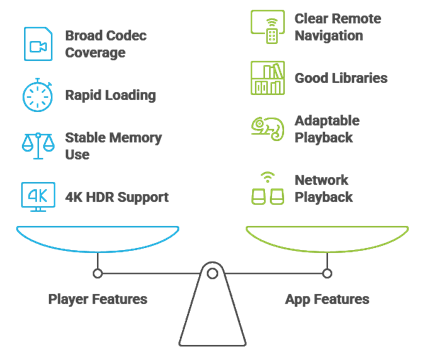
Reliable Firestick video players can greatly improve playback quality, format support, and overall viewing satisfaction for users. Our experts reviewed multiple video players to identify options that run smoothly, remain secure, and provide consistent performance on Fire TV. This approach aims to ensure trustworthy recommendations that help users stream comfortably with stable playback and improved daily usability.
- We chose players based on broad codec and container coverage, including 4K HDR, subtitles, and audio passthrough that helps you avoid playback issues.
- Our experts shortlisted players with rapid loading, low buffering, and stable memory use across all current Firestick models.
- We made sure to shortlist apps with clear remote navigation, good libraries, and adaptable playback controls for a smooth Fire TV experience.
- Our team chose tools that allow network playback, IPTV support, and reliable casting where applicable for flexible streaming setups.
The experts in our team selected video players that consistently maintain stable playback and provide versatile, secure, and dependable Firestick viewing options today.
Are Firestick Video Players Legal?
When people search for the Best Video Players for Firestick, one common question comes up. Are Firestick video players legal? The answer depends on the type of player and the content you watch. Players like VLC, Kodi, and Plex are themselves legal apps. They work as media players. They do not host movies or shows on their own. The real concern is the source of the content you play through them. In my experience, understanding this difference is very important before installing anything. Not all add-ons or playlists follow the same rules or content rights.
Here are the key points you should know:
- Official Players Are Legal: Apps like VLC, Kodi, Plex, and TiviMate are legal media players. They play your own files and authorized streams without issue.
- Add-ons and Playlists Vary: Some third-party Kodi add-ons or IPTV playlists may link to copyrighted material without permission. Streaming such content may break copyright laws in many countries.
- Players Do Not Host Content: Firestick video players only play files or streams you provide. Legal responsibility often depends on the content source you use.
- Check Your Local Laws: Streaming laws differ by country. I always advise users to understand their local regulations before using community add-ons or unverified playlists.
Choosing trusted players and licensed sources keeps your Firestick streaming experience safe, stable, and compliant.
Common Issues With Firestick Video Players & How to Fix Them
Even the Best Video Players for Firestick can sometimes stop stable as expected. Playback depends on the app, your Firestick model, internet speed, and source files. If one part fails, the player may freeze or skip frames. Over the years, I have seen that most issues are technical and can be fixed easily. The key is to identify the root cause instead of reinstalling everything at once. A clear approach saves time and avoids frustration.
Here are common problems and practical fixes:
- No Video or Audio: This usually happens when the file uses a codec the player cannot handle. Try a different player like VLC, or convert the file to a friendlier format.
- Buffering or Slow Playback: Check your internet speed first. Lower the streaming quality if needed. I also recommend closing background apps to improve Firestick performance.
- Subtitles Out of Sync: Use the player’s subtitle delay option. VLC and MX Player handle this well. Adjust in small steps to get matched timing.
- App Crashing or Freezing: Update the player to the latest version. Clear the app cache, then restart your Firestick to fix minor bugs.
- Network Streams Not Loading: Confirm that your NAS or PC share is online. Check SMB credentials and refresh the player to retry the connection.
Most issues are temporary. Regular updates and choosing reliable video players help maintain a stable and enjoyable Firestick playback experience.
Should You Use a VPN With Firestick Video Players?
When discussing the Best Video Players for Firestick, many users ask whether a VPN is necessary. The answer depends on how you use Firestick and what content you stream. Players like VLC and Kodi are legal apps. However, some IPTV playlists or community add-ons pull content from third-party sources. This can raise privacy and security concerns. In my experience, streaming always involves data sharing with servers. A VPN can add a layer of privacy, but it is not a magic solution. It should be used with clear understanding, not fear.
Here are key points to consider:
- Privacy Protection: A VPN hides your IP address from external servers. This helps protect your browsing and streaming activity from being easily tracked.
- Public Wi-Fi Safety: If you stream on hotel or public Wi-Fi, a VPN encrypts your connection and reduces risk of data exposure.
- Geo Restrictions: Some legal services restrict content by region. A VPN may help access content available in other locations, depending on service policies.
- Legal Responsibility: A VPN does not make illegal streaming legal. I always remind users to follow local copyright laws when picking content sources.
- Speed Impact: Some VPNs slow down streaming. Choose a reliable provider with strong Firestick performance if you decide to use one.
A VPN can improve privacy, but safe streaming starts with choosing trusted Firestick video players and legal content sources.
Verdict:
In this review, you got acquainted with some of the best Firestick video players for reliable playback, format support, and smooth streaming. Each player delivers different strengths, whether it is simplicity, customization, or library management. To help you take the final call, I have created this verdict.
- VLC Media Player: A top rated and dependable player that handles nearly any file format with minimal setup. Its broad codec support, network streaming, and subtitle controls make it a superior choice for viewers who want consistent, hassle-free Firestick playback every day.
- Kodi: A remarkable and highly customizable media center known for its library tools and add-on ecosystem. It offers a comprehensive home-theater feel and powerful playback options, making it an excellent option if you are deciding on a flexible, all-in-one Firestick setup.
- Nova Video Player: A phenomenal and lightweight player that brings posters, metadata, and clean navigation to your local files. With reliable playback, easy SMB streaming, and great Firestick compatibility, I recommend it as a top choice for users wanting a refined yet simple media setup.
FAQs
Are third-party video players safe to install on Firestick?
Third-party video players can be safe if you install reputable apps from trusted sources. Avoid modified APKs, unknown websites, and apps requesting unnecessary permissions. Stick with well-known players such as VLC, Kodi, and MX Player, scan APKs with tools like VirusTotal before sideloading, and keep Fire OS updated to reduce security risks.
Can I sideload video players that are not available on the Amazon Appstore?
Yes. Firestick allows sideloading using the Downloader app or similar tools after enabling Apps from Unknown Sources in Developer Options. Download APKs only from official sites or verified publishers, confirm the app version matches your device, and disable unknown sources after installation for better safety and control.
Do video players for Firestick support 4K, HDR, and Dolby playback?
Many top Firestick video players support 4K, but HDR and Dolby (Dolby Vision or Atmos) depend on the app, codec licensing, and your Fire TV model and TV or AVR. Use hardware decoding, enable passthrough where available, and test with known demo files. Kodi and VLC often handle these formats best in practice.
Can I use these video players to stream IPTV or M3U playlists on Firestick?
Some video players can open network streams or M3U links, but dedicated IPTV apps usually provide a better guide, EPG, and channel management. Kodi supports IPTV via add-ons, and VLC can play M3U streams, but reliability depends on the provider. Only use legal IPTV services that comply with your local laws.
Do I need a VPN while using video players on Firestick?
A VPN is not required for local files or mainstream apps, but it can improve privacy, reduce ISP throttling, and secure streaming on public Wi-Fi. Choose a reputable no-logs VPN with fast servers and a dedicated Fire TV app. Note that a VPN does not make illegal streaming legal, so always use licensed sources.