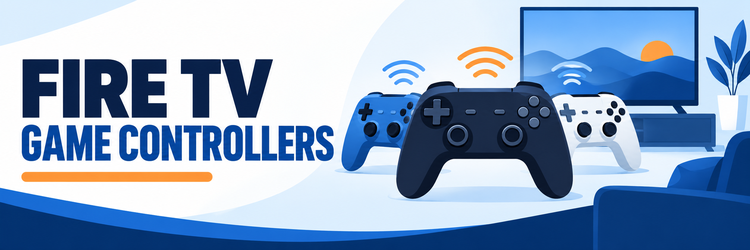
Key Takeaway: The Amazon Luna Controller is the easiest Fire TV-first choice for Luna cloud gaming. The Xbox Wireless Controller offers the broadest familiar compatibility, while the PlayStation DualSense is a strong option for households that already own one.
Best Fire TV Game Controllers: Top Recommendations
| Controller | Best For | Connection | Get Started |
|---|---|---|---|
| Amazon Luna Controller | Fire TV and Luna | Cloud Direct Wi-Fi, Bluetooth, USB | Visit Site |
| Xbox Wireless Controller | Best all-rounder | Bluetooth | Visit Site |
| PlayStation DualSense | PS5 households | Bluetooth | Visit Site |
| 8BitDo Pro 2 | Retro games and customization | Bluetooth, USB-C | Visit Site |
| GameSir Nova Lite | Budget Bluetooth | Bluetooth, USB, dongle | Visit Site |
A good Fire TV controller should pair without a USB receiver, expose a standard gamepad layout, and stay comfortable through a full cloud-gaming session. The difficult part is that Bluetooth pairing alone does not guarantee perfect behavior. Fire TV can recognize standard Bluetooth gamepads, but every game decides which buttons, sticks, triggers, and optional features it supports.
This guide compares nine current options using Amazon’s Fire TV documentation and each manufacturer’s connection, platform, battery, and pricing information. I give Fire TV-first choices priority, then rank versatile Bluetooth controllers that publish Android support. Treat advanced haptics, gyro, audio jacks, remapping software, and back buttons as controller features rather than guaranteed Fire TV features.
1) Amazon Luna Controller
Amazon Luna Controller is the safest first choice when Fire TV cloud gaming is the main goal. Its Cloud Direct mode sends inputs over Wi-Fi to Luna instead of routing them through the streamer, while Bluetooth and USB broaden device support. I rank it first because Amazon designs the controller, service, and Fire TV integration as one system.
Features:
- Cloud Direct: Wi-Fi sends Luna inputs directly to Amazon’s cloud service, reducing the extra Bluetooth hop through the Fire TV hardware during supported sessions.
- Three Connections: Cloud Direct Wi-Fi, Bluetooth, and USB cover Fire TV, Luna, computers, phones, and compatible games beyond a single television setup.
- Familiar Layout: Offset sticks, conventional face buttons, triggers, bumpers, menu controls, and a central Luna button make the controller immediately understandable.
- Alexa Access: The built-in microphone button can reach Alexa features within the supported Luna environment without requiring a separate Fire TV voice remote.
- Headset Jack: A 3.5mm connection supports compatible wired headsets in supported modes, although audio routing can vary by platform and application.
- Replaceable Power: Two AA batteries avoid permanent battery aging and allow an immediate swap, but rechargeable cells must be purchased separately if preferred.
- Best Fit: I would choose it for regular Luna play because its unique Wi-Fi path matters more there than its otherwise conventional hardware.
| Pros | Cons |
| Purpose-built for Luna on Fire TV | Uses AA batteries |
| Cloud Direct can reduce input path latency | Best advantages are Luna-specific |
| Bluetooth and USB provide fallback options | |
| Standard, comfortable control layout |
Pricing:
- Controller: $69.99 official list price.
- Power: Two AA batteries are required; rechargeable cells cost extra.
- Service: Prime includes rotating Luna games, while other access can require separate purchases.
Link: https://www.amazon.com/dp/B07P989QT
2) Xbox Wireless Controller
Xbox Wireless Controller is the most versatile recommendation for buyers who also play on Xbox, Windows, Android, or iOS. Microsoft publishes broad Bluetooth support, and Amazon’s current Fire TV streaming documentation lists Xbox input as fully supported in relevant clients. I favor its familiar mapping because many games already present Xbox-style button prompts.
Features:
- Broad Bluetooth: Microsoft officially supports wireless pairing with Android, iOS, Windows, and Xbox hardware, making this controller useful far beyond Fire TV.
- Standard Prompts: The asymmetric stick layout and ABXY labels match the control hints commonly used by cloud, PC, and Android games.
- Long Battery: Microsoft rates standard AA batteries for up to 40 hours, although headsets, vibration, cell quality, and usage affect runtime.
- Textured Grip: Sculpted handles, textured triggers, bumpers, and rear surfaces help maintain control during long sessions without adding premium-controller complexity.
- Easy Switching: A dedicated pairing control simplifies moving between remembered devices, useful when the same gamepad serves Fire TV and another platform.
- Headset Port: The 3.5mm socket accepts compatible wired headsets, but Fire TV applications do not always guarantee controller-based audio routing.
- Practical Choice: I rank it above most third-party pads because replacement parts, instructions, and compatible-device guidance are easier to find.
| Pros | Cons |
| Excellent cross-platform usefulness | Rechargeable pack costs extra |
| Familiar Xbox-style button mapping | Advanced remapping needs another platform |
| Up to 40 hours on AA batteries | |
| Widely available replacement option |
Pricing:
- Robot White: $64.99 on Microsoft’s current controller store.
- Other Colors: Standard colors and special editions can cost more.
- Rechargeable Pack: Optional battery kits are sold separately.
Link: https://www.xbox.com/en-US/accessories/controllers/xbox-wireless-controller
3) PlayStation DualSense
DualSense is the logical Fire TV controller for households that already own a PlayStation 5. It pairs over Bluetooth and provides a comfortable symmetrical-stick layout, rechargeable battery, touchpad, and modern build quality. I place it third because basic input can work well, but Fire TV games usually do not expose its signature adaptive triggers or advanced haptics.
Features:
- Bluetooth Pairing: The controller can enter wireless pairing mode without a PlayStation console, allowing compatible Fire TV devices to discover it as an accessory.
- Rechargeable Battery: USB-C charging avoids disposable cells, though a charging cable, power source, and battery condition still affect everyday convenience.
- Comfortable Shape: Full-size grips, precise sticks, a responsive directional pad, and large triggers suit longer sessions better than phone-based controls.
- Partial Support: Amazon’s current streaming input matrix lists DualSense as partially supported in relevant Fire TV WebView clients rather than feature-complete.
- Feature Limits: Adaptive trigger resistance, detailed haptics, speaker output, microphone, light bar, and touchpad behavior require explicit game and platform support.
- PS5 Reuse: One controller can serve both the console and Fire TV, although switching between paired devices may require repeating the connection process.
- Best Audience: I recommend reusing an existing DualSense before buying another controller, because its premium features are reduced on Fire TV.
| Pros | Cons |
| Excellent build and familiar PlayStation layout | Premium features rarely carry over |
| Built-in rechargeable battery | Costs more than budget Bluetooth pads |
| Useful across PS5, PC, mobile, and Fire TV | |
| Strong option when already owned |
Pricing:
- Standard Controller: Available from $74.00 through PlayStation’s current accessories listing.
- Special Editions: Limited colors and designs can cost more.
- Charging: A separate charging dock is optional.
Link: https://www.playstation.com/en-us/accessories/dualsense-wireless-controller/
4) 8BitDo Pro 2
8BitDo Pro 2 blends a retro-friendly symmetrical layout with modern Hall Effect sticks, rear paddles, profiles, and Android support. Its physical mode switch is valuable when one controller moves between several systems. I rank it as the best customizable midrange option, with the warning that Fire TV cannot run 8BitDo’s full configuration software directly.
Features:
- Android Mode: 8BitDo officially lists Android 9.0 or newer, providing a documented Bluetooth mode relevant to many Fire OS-based devices.
- Hall Sticks: Magnetic Hall Effect sensors reduce physical contact inside the stick modules, addressing a common source of long-term analog drift.
- Four Modes: A rear selector changes controller protocols quickly, helping the same gamepad serve Switch, Windows, Android, Apple devices, and Fire TV.
- Profile Controls: Three saved profiles, rear paddles, mapping, stick curves, trigger ranges, vibration, and macros can be configured on supported companion platforms.
- Rechargeable Pack: The removable 1000mAh battery is rated for approximately 20 play hours and can be charged through the included USB-C cable.
- Strong D-pad: The traditional cross design favors platformers, fighting games, and retro collections where precise directional taps matter more than analog movement.
- Setup Advice: I would update firmware and create profiles on a phone or computer before pairing, because Fire TV offers no equivalent configuration app.
| Pros | Cons |
| Hall Effect sticks and excellent D-pad | Configuration software runs elsewhere |
| Useful protocol mode switch | Button labels may not match every game prompt |
| Rear paddles and saved profiles | |
| Rechargeable and replaceable battery pack |
Pricing:
- Hall Effect Model: $49.99 on the official 8BitDo store.
- Special Editions: Sale pricing and colors vary.
- Mobile Clip: Optional accessory sold separately.
Link: https://shop.8bitdo.com/products/8bitdo-pro-2-bluetooth-controller
5) GameSir Nova Lite
GameSir Nova Lite is the strongest low-cost specification sheet in this lineup. It combines Bluetooth, Hall Effect sticks, analog triggers, dual vibration motors, and official Android support at a notably low direct price. I recommend it for budget experimentation, provided you accept that its dongle and vibration features may not operate through a Fire TV connection.
Features:
- Three Connections: Bluetooth, a wireless USB dongle, and wired USB broaden platform support, although Firestick models normally rely on Bluetooth rather than receivers.
- Hall Sticks: Contactless analog sensors aim to improve longevity and reduce drift risk compared with conventional potentiometer-based modules at this price.
- Android Support: GameSir officially lists Android alongside PC, Steam, iOS, and Switch, making Bluetooth pairing a documented part of its design.
- Analog Triggers: Full trigger travel suits racing and action games better than digital-only shoulder controls when the Fire TV game reads those axes.
- Turbo Control: A 20Hz turbo option and multifunction button offer quick adjustments, but competitive games may restrict automated input behavior.
- Included Case: Current direct packages list a carrying case and wireless dongle, adding value for travel or use with another supported system.
- Budget Verdict: I would start here when price matters most, then return it if the intended Fire TV game maps inputs incorrectly.
| Pros | Cons |
| Very low direct price | Fire TV compatibility is not manufacturer-certified |
| Hall Effect sticks and analog triggers | Some features depend on platform support |
| Bluetooth, wired, and dongle modes | |
| Case and dongle included |
Pricing:
- Nova Lite: $24.99 from GameSir’s official store.
- Included Extras: Current package lists a dongle and carrying case.
- Availability: Color and warehouse stock vary by region.
Link: https://gamesir.com/products/gamesir-nova-lite/buy
6) Xbox Elite Wireless Controller Series 2
Xbox Elite Wireless Controller Series 2 is a premium cross-platform choice for players who already value adjustable sticks, rear paddles, trigger stops, and saved profiles. Bluetooth support reaches Android devices, but its customization workflow depends on Xbox or Windows. I include it for committed owners, not as the sensible first purchase for casual Firestick gaming.
Features:
- Premium Controls: Adjustable-tension thumbsticks, shorter trigger locks, rubberized wraparound grips, interchangeable parts, and optional paddles target players who tune every input.
- Bluetooth Support: Microsoft confirms wireless connections with Android and other supported devices, while Fire TV game behavior still depends on individual software.
- Saved Profiles: Hardware profile switching preserves several layouts after configuration, useful when Fire TV cannot run the Xbox Accessories customization application.
- Rechargeable Battery: An integrated battery replaces AA cells and supports long sessions, but eventual battery wear is less convenient than swapping standard cells.
- Charging Case: The complete Series 2 package includes a charging dock and case, while Core editions omit several interchangeable components and paddles.
- Trigger Stops: Shortened trigger travel can improve rapid inputs, although some streaming games still interpret triggers through their own fixed control scheme.
- Value Check: I recommend it only if you also use Xbox or PC, because Fire TV alone cannot justify the premium customization cost.
| Pros | Cons |
| Excellent materials and adjustable controls | Very expensive for Fire TV use |
| Saved hardware profiles | Customization requires Xbox or Windows |
| Rear paddles and trigger stops | |
| Bluetooth plus wired connectivity |
Pricing:
- Series 2: $179.99 estimated retail price on Xbox’s official Elite page.
- Core Edition: Starts lower but omits the full component pack.
- Accessories: Replacement component packs cost extra.
Link: https://www.xbox.com/en-US/accessories/xbox-elite-controllers
7) 8BitDo Ultimate 2 Wireless
8BitDo Ultimate 2 Wireless targets buyers who want a modern Xbox-style shape, charging dock, Hall Effect controls, extra buttons, and multi-device support. Its Android Bluetooth mode makes it relevant to Fire TV, while the receiver serves supported computers. I place it below Pro 2 because the simpler mode switch and retro D-pad matter more to many television games.
Features:
- Modern Layout: Offset sticks and Xbox-style face positioning match common cloud-game prompts more naturally than 8BitDo’s symmetrical retro-inspired Pro 2 design.
- Hall Controls: Magnetic sticks and triggers reduce internal friction and provide consistent analog sensing, although Fire TV games decide how much precision they read.
- Android Bluetooth: The supported wireless mode pairs with Android devices without a receiver, which is the practical route for most Fire TV hardware.
- Charging Dock: The included stand keeps the controller stored and powered between sessions, reducing the chance of finding an empty battery at game time.
- Extra Inputs: Rear paddles and additional shoulder controls expand customization after setup through supported 8BitDo software on another compatible device.
- Wireless Receiver: A 2.4GHz dongle supports compatible computers, but standard Fire TV sticks do not provide a normal full-size USB port.
- Household Fit: I prefer it when the same controller will rotate between Fire TV, Android, and PC while living on one charging dock.
| Pros | Cons |
| Hall Effect sticks and triggers | Full customization requires another device |
| Convenient charging dock | Receiver is not useful on most Firesticks |
| Android Bluetooth mode | |
| Extra rear and shoulder buttons |
Pricing:
- Controller and Dock: $59.99 on the official 8BitDo store.
- Included Receiver: The 2.4GHz adapter is part of the package.
- Colors: Pricing may vary by edition and promotion.
Link: https://shop.8bitdo.com/products/8bitdo-ultimate-2
8) SteelSeries Stratus+
SteelSeries Stratus+ is an Android-focused Bluetooth controller with an unusually long advertised battery rating and a full-size layout. It avoids the uncertainty of a Switch-only protocol by documenting Android and Chromebook support directly. I include it for endurance, but the older design and inconsistent direct-store availability make it less compelling than newer Hall Effect alternatives.
Features:
- Android Focus: SteelSeries positions Stratus+ specifically for Android and Chromebook devices, supporting Bluetooth LE without depending on a proprietary console wireless protocol.
- Battery Rating: The manufacturer advertises up to 90 hours per charge, giving infrequent players weeks of use between USB-C charging sessions.
- Full-size Shape: Substantial grips, symmetrical sticks, a broad D-pad, triggers, bumpers, and familiar face buttons suit couch play better than compact travel pads.
- USB-C Charging: Modern charging simplifies cable sharing, while wired Windows support provides another purpose when the controller is not paired with Fire TV.
- Phone Mount: An adjustable slim-fit mount is included for supported Android phones, adding value beyond the television even though Fire TV never needs it.
- Conventional Sensors: The product page does not advertise Hall Effect sticks, so buyers focused on drift resistance may prefer a newer alternative.
- Availability Check: I would compare current stock and warranty terms before buying because official regional pricing is not consistently displayed.
| Pros | Cons |
| Official Android Bluetooth LE support | No Hall Effect sticks advertised |
| Up to 90-hour battery rating | Direct price and stock vary |
| Comfortable full-size layout | |
| Phone mount included |
Pricing:
- Manufacturer Price: No stable direct USD price was displayed during research.
- Retail Stock: Confirm current authorized-retailer pricing before purchase.
- Included Accessory: The adjustable phone mount is part of the package.
Link: https://steelseries.com/gaming-controllers/stratus?model=Plus
9) Luna Phone Controller
Luna Phone Controller turns a compatible iPhone or Android phone into a no-cost controller for supported Luna play on Fire TV. It is not a replacement for tactile sticks during demanding action games, but it removes the hardware purchase from casual sessions. I include it as the best trial and guest option, especially for family game nights.
Features:
- No Hardware Purchase: A compatible smartphone provides the controls, allowing eligible Luna users to try supported Fire TV games before buying a physical gamepad.
- Quick Guests: Visitors can join supported local experiences without keeping several charged controllers in a drawer, provided enough compatible phones are available.
- Luna Integration: Amazon designed the mobile controller specifically for its cloud service, making setup more direct than generic touch-remapping applications.
- Touch Layout: On-screen buttons and sticks provide basic input, but flat glass lacks the tactile landmarks needed for precise blind movement.
- Phone Dependence: Battery level, notifications, screen size, Wi-Fi stability, and incoming calls can interrupt or distract from a television gaming session.
- Limited Scope: The phone controller belongs to the Luna workflow and should not be treated as a universal input method for every Fire TV game.
- Trial Pick: I recommend starting here when curiosity is high but purchase confidence is low, then upgrading only after confirming game availability.
| Pros | Cons |
| No controller purchase required | No physical buttons or sticks |
| Useful for guests and game nights | Limited to supported Luna experiences |
| Official Amazon solution | |
| Good way to test cloud gaming |
Pricing:
- Controller App: Free download for compatible phones.
- Phone: A compatible iPhone or Android device is required.
- Games: Prime or separate Luna content access may be required.
Link: https://www.amazon.com/luna
How We Ranked Controllers for Fire TV
Fire TV compatibility is more than a Bluetooth logo. The ranking gives priority to documented platform support, practical television pairing, predictable layouts, current availability, and value outside one app. No controller receives credit for features that Fire TV does not clearly expose.
- Fire TV Path: Amazon-first controllers and documented Bluetooth gamepad behavior rank above products that depend on USB receivers, adapters, or unsupported companion software.
- Protocol Evidence: Official Android or Bluetooth HID support matters because Fire OS uses Android input classes to recognize gamepads and joystick sources.
- Game Mapping: Familiar ABXY layouts score well, but every recommendation carries the warning that individual apps define their own button and trigger behavior.
- Ownership Value: Controllers useful on consoles, computers, or phones rank higher than single-purpose hardware when their Fire TV experience is otherwise similar.
- Price Transparency: Official direct prices are used where available, while unstable stock, optional accessories, and service costs are stated instead of guessed.
Check Fire TV and Game Compatibility Before Buying
Amazon documents broad support for compatible Bluetooth game controllers, but that statement does not certify every retail pad or guarantee every game feature. Check the Fire TV model, Fire OS version, game listing, and controller protocol together. A controller can navigate menus successfully while a game ignores triggers, swaps face buttons, or lacks multiplayer support.
- Device Generation: Current Fire TV Stick HD and 4K Max models list Bluetooth game controllers, while older hardware can use earlier Bluetooth versions and slower processors.
- Game Listing: Open the Amazon Appstore title and check its Works With or controller requirement before assuming a paired pad will provide complete playability.
- Cloud Service: Luna, browser-based streaming, sideloaded apps, and native Fire TV games can use different input layers and publish different supported-controller lists.
- Optional Features: Gyro, touchpads, headset audio, adaptive triggers, detailed haptics, macros, and back paddles require explicit support rather than ordinary Bluetooth pairing.
- Return Window: Test pairing, every stick, all triggers, Home and Back behavior, sleep reconnection, and the intended game before the seller’s return period expires.
How to Pair a Bluetooth Game Controller
Pair one controller at a time and keep it close to Fire TV. The exact menu label can differ across Fire OS versions, but Amazon places gamepads under Controllers & Bluetooth Devices. Put the controller into genuine Bluetooth pairing mode, not console-only or 2.4GHz receiver mode, then confirm its name on the television.
- Update First: Install current Fire TV software and update controller firmware through the manufacturer’s supported console, phone, or computer application before troubleshooting compatibility.
- Open Settings: From Fire TV Home, choose Settings, then Controllers & Bluetooth Devices, and open Game Controllers or Other Bluetooth Devices.
- Start Pairing: Follow the controller manual to enter Bluetooth discovery mode; a flashing status light normally indicates it is waiting for a host.
- Select Carefully: Choose the exact controller name shown on Fire TV and wait for the paired or connected confirmation before leaving settings.
- Test in Game: Launch one controller-supported title and check both sticks, D-pad, face buttons, bumpers, triggers, menu controls, sleep, and reconnection.
Reduce Input Lag and Connection Drops
Controller delay can originate in the game stream, internet route, television processing, crowded radio spectrum, low batteries, or the Bluetooth link. Change one layer at a time. A faster controller cannot repair a distant cloud server, and faster internet cannot remove a television’s heavy picture-processing delay.
- Enable Game Mode: Select the television’s low-latency picture setting for the Fire TV HDMI input, because display processing can add noticeable delay after inputs arrive.
- Improve Network: Luna and other cloud services need stable low-latency internet; use strong Wi-Fi or supported Ethernet and pause competing large downloads.
- Shorten Distance: Keep the controller within the room, remove dense obstacles, and move unnecessary Bluetooth devices away when dropouts begin during busy sessions.
- Refresh Power: Replace weak AA cells or fully recharge the controller, because low voltage can shorten range, interrupt pairing, or trigger repeated reconnects.
- Choose Better Games: Start with controller-ready titles from our best games for Firestick guide before blaming hardware for touch-only or remote-only controls.
Fix a Controller That Pairs but Does Not Work
A successful pairing message only proves that Fire TV accepted the Bluetooth connection. It does not prove the app reads every input. Diagnose the smallest failing layer: controller mode, Fire TV connection, game support, button mapping, or cloud-service session. Avoid buying adapters until the Bluetooth and software checks are complete.
- Wrong Mode: Forget the device, switch the controller to its documented Android or Bluetooth mode, and pair again rather than using a Switch or receiver-only protocol.
- One Game Fails: Test another controller-supported title; success there points to the original game’s mapping rather than a broken Bluetooth radio or controller.
- Buttons Swapped: Check the game settings and controller profile, but remember that Fire TV may not run the manufacturer’s remapping application or expose console layouts.
- Reconnect Loop: Restart Fire TV, recharge the controller, remove old duplicate pairings, update both devices, and pair at close range without other active hosts.
- Unsupported Extras: Treat missing rumble, audio, gyro, touchpad, paddles, or adaptive triggers as platform limitations unless the app explicitly promises those features.
Verdict: Which Fire TV Controller Should You Choose?
Choose for the games and services you will actually use. Amazon Luna Controller has the clearest Fire TV-first advantage through Cloud Direct, Xbox Wireless Controller is the strongest general-purpose buy, and DualSense is excellent when it is already in the house. 8BitDo and GameSir deliver better value for buyers comfortable verifying Android-style Bluetooth behavior.
- Amazon Luna Controller: best for regular Luna play on Fire TV and buyers who value its direct Wi-Fi input path.
- Xbox Wireless Controller: best all-rounder for familiar mapping, broad platform support, easy availability, and long AA battery life.
- PlayStation DualSense: best reuse option for PS5 owners who accept limited advanced features on Fire TV.
Frequently Asked Questions
Do all Bluetooth controllers work with Firestick?
No. Fire TV supports compatible Bluetooth game controllers, especially standard HID gamepads, but each controller mode and game mapping still matters. Check the exact Fire TV model, product manual, and intended game before purchasing.
What is the best controller for Amazon Luna on Fire TV?
Amazon Luna Controller is the most integrated choice because Cloud Direct sends inputs over Wi-Fi to Luna. Xbox Wireless Controller is the strongest familiar alternative when you also want broad console, PC, and mobile use.
Can I use a PS5 DualSense controller on Fire TV?
Compatible Fire TV hardware can pair Bluetooth gamepads, and Amazon’s current streaming input documentation lists DualSense with partial support in relevant Fire TV clients. Do not expect adaptive triggers, advanced haptics, speaker, or touchpad features in every game.
Can I use an Xbox controller with Firestick?
Yes, current Bluetooth Xbox Wireless Controllers are strong candidates for compatible Fire TV models and controller-ready games. Older Xbox controllers without Bluetooth require different hardware and should not be assumed to pair directly.
Can a game controller replace the Fire TV remote?
A paired gamepad can navigate many screens, but it does not fully replace television power, volume, Alexa, or every app-specific remote function. Keep the Fire TV remote nearby; use our Firestick keyboard options guide when text entry is the real problem.
Why does my controller work in menus but not in a game?
Fire TV accepted the Bluetooth connection, but the game may not implement that controller profile or may expect different button codes. Test another supported game, switch to Android mode, update firmware, and recheck the title’s controller requirements.