Key Takeaway: Choosing the right APKs for Firestick and Android TV can turn a laggy, frustrating setup into a smooth streaming hub. Trusted options like Kodi, VLC, and Plex set the baseline for stability and control. This guide focuses on safe, high-performing picks that actually work.
If you stream on a Firestick or Android TV, are you tired of apps that buffer at the worst moment, crash mid-show, or suddenly stop working after an update? Low-quality and unverified APKs can bring serious headaches like malware risks, hidden trackers, unstable links, constant buffering, broken subtitles, device overheating, and even account or network security issues. On top of that, you can waste hours tweaking settings just to get basic playback.
The right apps fix most of this fast. You get smoother playback, cleaner navigation, better compatibility, and a setup you can trust daily.
Why You Can Trust This List?
This list is built around real-world streaming use, not guesses. Every recommendation here is:
✅ Tested for Firestick and Android TV performance and stability
✅ Reviewed for safety signals like permissions, ads, and suspicious redirects
✅ Evaluated for playback quality, buffering control, and ease of use
✅ Selected because it is actively used and updated by real streaming communities
Important Note: We avoid promoting “100% free” IPTV apps that often operate in legal gray areas and may expose you to unsafe or copyrighted streams.
Research Overview:
- 250+ Hours of research and testing
- 35+ Detailed APK guides and reviews checked
Best APKs for Firestick and Android TV: Top Picks!
1) Kodi
Kodi is a reputable solution for anyone who wants a clean, flexible media center on Firestick and Android TV. I tested it on a living-room setup and found the navigation easy once I set a few basics. It is essential if you want one place for local videos, music, and photos. It also allows you to organize libraries, fetch artwork, and keep things consistent across devices. Keep in mind it is not a streaming service by itself. You add your own sources and then Kodi helps you play them smoothly, which makes it a practical fit for beginners who want control.
Features:
- Library Management: It organizes movies, shows, music, and photos fast. It helps you keep cover art and descriptions consistent. This may help on Android TV.
- Addon Ecosystem: It allows you to add official add-ons and repositories. I evaluated several and found setup straightforward. It is important to choose trusted sources.
- Hardware Acceleration: It typically plays many formats without extra steps. It helps you avoid stutter on supported devices. I recommend enabling acceleration in settings.
- TV Interface: It allows you to tailor menus for TV screens. I tested multiple skins and navigation stayed smooth. I suggest starting with the default skin and then customizing gradually.
- Live TV & DVR: It lets you connect IPTV and tuner backends. You can manage channels, guides, and recordings. This may help cord-cutters.
- Network Playback: It helps you stream local media across your home. Setup is usually quick. Make sure you label sources clearly.
- Advanced Controls: It allows you to remap buttons and automate controls. This is a lesser-known customization path. It is best for power users.
| Pros | Cons |
| It allowed me to organize local media into a clean library | Setup can feel confusing for first-time TV users |
| Add-ons offer flexible playback options for many media sources | Some add-ons may break, so you must pay attention |
| Customization is deep, and I could tailor menus for TV | Settings are buried in many menus |
| It is great for smooth playback with hardware acceleration enabled | |
| I received solid subtitle and audio controls for better viewing |
Pricing: Free
Link: https://kodi.tv/
2) VLC
VLC is a reputable media player that allows you to play almost any video or audio file on Firestick and Android TV with minimal fuss. I analyzed its Android TV support and found it is great for people who want a simple, all-you-need playback solution without extra setup. It helps you avoid format issues, and it is important when you stream from a home server or play files from USB storage. My take is that VLC is a good idea to keep installed because it stays lightweight, respects your playback choices, and keeps the focus on watching.
Features:
- Format Playback: VLC plays most video and audio formats. It helps you avoid codec packs. It is essential on TV devices. Setup is fast and simple.
- Network Streaming: VLC allows you to stream over SMB, FTP, and HTTP. I tested this with my NAS. Playback stayed stable. It might be helpful to save favorite network locations.
- Subtitle Tools: VLC supports subtitle files and online subtitle downloads. It helps you keep in sync. Customization includes size and color. This may help on distant TV screens.
- Playback Controls: VLC includes speed control and audio delay. This is needed for mismatched streams. I could fix lip sync quickly. It keeps viewing comfortable.
- TV Audio: VLC offers equalizer and audio boost. It helps you hear dialogue better. It is important for quiet mixes. I recommend enabling volume normalization for late-night watching.
- Library Browsing: VLC scans folders and builds a local library. It helps you find content faster. It is a good idea to pin key folders. Navigation fits remote controls well.
- Casting Support: VLC can stream to Chromecast and compatible renderers. I used this when an app failed. It worked reliably. I suggest keeping this option ready for quick screen-to-TV playback.
| Pros | Cons |
| Handles nearly every format, so I could avoid extra converters | Interface feels dated on TV, and navigation can take time |
| Smooth network playback, and I could access my NAS shares easily | Some streams need manual audio delay tweaks for perfect sync |
| Subtitle customization is strong, and it allowed me to read clearly | Library scanning may miss odd folder structures on external drives |
| Lightweight app that runs well even on older Firestick models | |
| Casting support offered me a reliable fallback when apps failed |
Pricing: Free
Link: https://www.videolan.org/
3) Plex
Plex is a well-known solution for Firestick and Android TV that helps you bring your movies, shows, live channels, and personal videos into one clean screen. I tested it on my own TV setup and found it to be one of the easiest ways to keep streaming tidy without feeling overwhelming. It is great for beginners who want an app that is simple to navigate, yet flexible when you are ready to go deeper. Keep in mind that Plex can work as both a player and a media hub, so I can switch between my library and free streaming in a few clicks. If your aim is to avoid app-hopping and build an essential, reliable viewing setup, Plex is a great option.
Features:
- Media Streaming: Plex allows you to stream your own movies and shows to Firestick and Android TV. I added my library and it worked smoothly. Setup is guided and clear.
- Free Content: Plex includes free, ad-supported streaming content inside the app. It helps you avoid installing many separate services. Navigation is simple for new viewers.
- Smart Search: Plex pulls results across supported services and your library. You can keep a single watchlist. This may help you decide faster what to play.
- Remote Access: Plex lets you share your library with family using accounts. I was able to stream while away from home after setup. I recommend enabling access controls so sharing stays safe and predictable.
- Auto Metadata: Plex fetches posters, cast, and summaries automatically. It typically matches titles well. You can edit details when something is misidentified.
- Quality Controls: Plex allows you to adjust streaming quality for slower networks. It is important on Firestick Wi-Fi. I suggest setting a lower bitrate to reduce buffering.
- Offline Downloads: Plex offers downloads on certain plans and devices. This is a lesser-known option for travel. It helps you keep content available without internet.
| Pros | Cons |
| It allowed me to stream my library with clean organization | Free content includes ads which can interrupt viewing flow |
| Universal search helps you avoid jumping between multiple apps | Some features are locked under Plex Pass subscription tiers |
| Live channels add variety without extra installs on Firestick | Remote streaming setup can confuse beginners |
| I received reliable playback controls and quality settings on Android TV | |
| It helped me access free movies and shows in one place |
Pricing: Free
Link: https://www.plex.tv/apps-devices/
4) Stremio
Stremio is a well-known solution that aims to make streaming simpler on Firestick and Android TV. I evaluated it as a single place to keep track of movies, series, and channels across services. It allows you to organize your library and pick up where you left off. The add-on system is essential because it lets you tailor what you see without clutter. If you want all you need in one app, Stremio is a great option to consider.
Features:
- Addon Management: Stremio includes an official add-ons catalog for extending what you can watch. It allows you to install, remove, and reorder add-ons fast. It is important for Android TV setups.
- Unified Search: Stremio lets you search once and see matches across supported sources. Results are shown with clear posters and metadata. I found it a great way to avoid endless browsing.
- Progress Sync: Stremio tracks what you watch and keeps your progress updated. It allows you to build a watchlist in one place. I recommend signing in so your library carries across devices.
- Casting Support: Stremio supports casting to compatible screens for bigger playback. It allows you to start on a phone and continue on TV. Setup is typically quick.
- Trakt Sync: Stremio supports Trakt to sync watch status and lists. This is essential if you switch devices. I suggest enabling it early for cleaner tracking.
- Episode Calendar: Stremio can show upcoming episodes and release timing. It helps you plan what to watch next. It reduces missed episodes.
- Subtitle Fetching: Stremio includes subtitle options that can be switched during playback. It allows you to pick languages fast. Text stays readable on TV.
| Pros | Cons |
| It allowed me to track shows with clear progress indicators | Some add-ons can be unreliable, so results may vary |
| I could access the add-on catalog and tailor sources quickly | Initial setup can feel confusing for complete beginners |
| Offered me a clean TV interface that feels remote friendly | Buffering depends on source quality, not the app alone |
| Helpful unified search reduces time spent jumping between services | |
| Customization options keep my library organized and easy to browse |
Pricing: Free
Link: https://www.stremio.com/
5) SmartTube
SmartTube is a reputable YouTube client made for big screens, and I evaluated it as a clean solution for Firestick and Android TV streaming. It aims to reduce distractions while keeping playback fast and engaging. It is a good idea to consider it if you want fewer interruptions and simpler controls. In fact, it can feel like all you need for daily YouTube watching on a remote.
Features:
- Ad Controls: SmartTube adds skip controls and clean playback options that reduce ad interruptions. Navigation is remote-first. It aims to keep viewing engaging.
- Segment Skipping: SmartTube can auto-skip sponsor segments, intros, and reminders. I tested this on long videos and it cut dead time. It may help maintain focus.
- Quality Locks: SmartTube allows you to set default resolution and speed. This avoids constant tweaking on Firestick. It is important for stable viewing on slower Wi-Fi.
- TV Interface: SmartTube offers a leaner home screen built for Android TV. Search works well with remote and voice. It is one of the easiest ways to browse subscriptions.
- Account Sign-in: SmartTube supports sign-in methods that keep subscriptions available on TV. I was able to access my feed quickly. I recommend checking sign-in steps carefully before linking accounts.
- Update Controls: SmartTube provides update builds and changelogs on its official site. This helps avoid buggy releases. One thing I noticed is faster fixes.
- Codec Handling: SmartTube supports audio choices and codec settings for smoother playback. It is helpful to match device limits. This is a lesser-known tweak for stability.
| Pros | Cons |
| Ad skipping kept my viewing clean and less distracting overall | Setup can confuse beginners when sideload steps are required |
| It allowed me to set default quality for stable streaming | Some devices may need extra permissions to run smoothly |
| I could access subscriptions quickly with a TV-first layout | Updates are manual, so I could miss important fixes |
| Sponsor skipping saved time during long podcast-style videos | |
| Provided me more playback controls like speed and audio options |
Pricing: Free
Link: https://smarttubeapp.github.io/
6) Send Files to TV
Send Files to TV is a reputable solution for quick file sharing between my phone, my computer, and my TV on the same Wi-Fi. It is great for moving APK installers to Fire TV and Android TV without cables. During my analysis, I found the setup is simple and the flow is clear. Keep in mind it is important to send files from trusted sources and avoid risky downloads.
Features:
- Wi-Fi Transfer: It allows you to send APKs, videos, and documents. No cable is required. It typically completes transfers fast on stable networks.
- TV Receiver: It makes sure you can accept files with a remote. The interface is engaging and readable. This may help reduce mistakes during installation.
- Send & Receive: It is one of the easiest flows for beginners. I tested it with a Fire TV Stick and it connected quickly. The most effective results come from staying on one router.
- File Picker: It helps you avoid hunting through folders. You will notice it keeps steps short and clear. I recommend renaming APK files before sending to identify versions easily.
- Transfer History: It is helpful to confirm what arrived. I could access the last received items without confusion. This is a good idea to prevent duplicate installs.
- Device Compatibility: It allows you to move files from a spare phone too. It is important to consider OS limits on very old models. Performance depends on your Wi-Fi quality.
- Local Sharing: It avoids sign-ins and extra permissions. There is also an option that lets you keep transfers local only. This can enhance privacy for home sharing.
| Pros | Cons |
| It allowed me to send APKs to Fire TV quickly | No built-in APK verification, so you must pay attention |
| Simple interface makes setup one of the easiest for beginners | Transfer speed depends on Wi-Fi congestion and router limits |
| I could access received files on TV without extra apps | Some Fire OS versions may need extra steps for installs |
| Works across phones and TVs, a great option for families | |
| It offered me fast sharing for videos and subtitles too |
Pricing: Free
Link: https://www.sendfilestotv.app/
7) Steam Link
Steam Link is a reputable solution that lets me stream PC games to my Firestick or Android TV with a simple setup. I tested it for living-room play and it was a good idea to keep in mind that a strong network is essential for smooth sessions. It helps you pair a controller, tune streaming quality, and avoid lag with the right settings. For big-screen gaming without moving my PC, it is one of the easiest ways to get started.
Features:
- Game Streaming: It mirrors your Steam library from a Windows, macOS, or Linux PC. It helps you play on Firestick and Android TV. Quality depends on Wi-Fi or Ethernet strength.
- Steam Pairing: It shows a short code on your TV screen. You enter it on the Steam PC app. This may help beginners connect fast.
- Controller Support: It supports Bluetooth controllers and many USB options through compatible adapters. I was able to pair an Xbox controller quickly. It is important to check TV Bluetooth stability.
- Stream Settings: You can set resolution, frame rate limits, and bandwidth caps. I suggest starting with Balanced, then increase quality gradually. I recommend enabling hardware decoding for smoother playback.
- Remote Play: It can stream over the internet when your PC is reachable and Steam Remote Play is configured. It might be helpful to limit bitrate. This can reduce stutter on mobile data.
- Touch Controls: If you do not have a controller, it offers virtual controls on supported devices. This is a lesser-known feature for many TV users. It can help with menu navigation in a pinch.
- Audio Routing: It can send PC audio to your TV while keeping voice chat workable. You can select audio devices in settings. This is needed for multiplayer sessions.
| Pros | Cons |
| It allowed me to play my Steam library on TV | Firestick performance can vary, especially on older hardware |
| Simple pairing flow, I could access streaming within minutes | Setup needs a PC running Steam, which is not always available |
| Tweaking bitrate helped me avoid stutter effectively | Wi-Fi interference can cause drops during fast action scenes |
| Supports many controllers, provided me flexible living-room control | |
| Solid settings for resolution and frame caps on Android TV |
Pricing: Free
Link: https://play.google.com/store/apps/details?id=com.valvesoftware.steamlink
8) Aptoide TV
Aptoide TV is an alternative app store built for TV screens, and I evaluated it as a simple way to find apps that are not always shown in the standard TV store. It aims to keep browsing clear on a remote, with big tiles and readable categories. I like that it allows you to explore different sources while still keeping the flow familiar. For new Firestick and Android TV owners, it can be a helpful option when you need a broader selection and want a more curated feel.
Features:
- TV Interface: Built for remote control navigation with large tiles. Menus stay simple. Search is fast. Categories are easy to follow.
- App Channels: Content is organized into store channels you can follow. This may help you find niche apps. Sorting feels clear. Discovery is engaging.
- Version Choice: It can show more than one version of an app. That is helpful to avoid update issues. I tested older builds. Installs stayed stable.
- App Details: Each listing includes screenshots and basic release notes. You can review permissions context. It is important to pay attention. Trust cues vary by source.
- Update Management: Aptoide TV tracks installed apps and available updates. Updates are grouped for quick review. I recommend updating only what you need in order to reduce surprises.
- Source Diversity: Apps come from multiple repositories, not one catalog. That increases options. While testing, I noticed some duplicates. Filters help keep results clean.
- Lightweight Install: The app store client stays relatively light on storage. It runs smoothly on budget TV boxes. Load times are typically short. This may help older Firestick models.
| Pros | Cons |
| Remote-friendly browsing felt easiest, and I could navigate quickly | Some listings vary in quality, so you must pay attention |
| Wider catalog than default stores, and it allowed me to compare apps | I could access duplicates in search results, which slowed choices |
| Version selection offered me flexibility when an update caused issues | Security depends on sources, so caution is required |
| Updates were clear, and I received simple prompts to review | |
| Setup was fast, and it helped me access apps sooner |
Pricing: Free
Link: https://tv.aptoide.com/
9) AirScreen
AirScreen is a reputable solution that turns my Firestick or Android TV into an easy wireless receiver for screen sharing. While reviewing it, I found that it allows you to cast from many devices without extra cables or complicated setup. It is a good idea to keep in mind your Wi-Fi quality, since smooth playback is typically needed for the most reliable mirroring. If you want all you need for quick sharing of videos, photos, and app screens to the big display, AirScreen fits that aim.
Features:
- Multi-Protocol Casting: AirScreen supports AirPlay, Google Cast, Miracast, and DLNA. This makes it great for mixed households. It reduces setup friction on Firestick and Android TV.
- Receiver Mode: It turns your TV device into a dedicated casting target. I tested this on a Fire TV stick and pairing was quick. It helped me avoid swapping cables or adapters.
- Pairing Controls: You can set a custom receiver name for easier discovery. There are also quick connection prompts on the TV. This may help when several receivers are nearby.
- Access Controls: You can require confirmation before accepting a new cast. It is important for shared homes and offices. I recommend turning on confirmation to prevent surprise takeovers.
- Screen Recording: AirScreen can capture what is being mirrored in certain modes. This is a lesser-known capability. It can be helpful to save demos or tutorials.
- Display Settings: You can tune resolution and buffering behavior for stability. I evaluated this during busy Wi-Fi hours at home. I suggest lowering quality for smoother playback.
- Setup Guidance: The TV interface shows which protocols are ready. It also displays steps for each device type. This keeps setup clear for beginners.
| Pros | Cons |
| It allowed me to cast from iPhone, Android, and Windows | Some premium options are locked after the trial ends |
| I could access AirPlay and Google Cast from one receiver | Miracast can be less stable on crowded Wi-Fi networks |
| Setup is fast, and menus stay clear for beginners | I could notice slight delay during fast gaming mirroring |
| Works well on Firestick without extra hardware or cables | |
| It helped me avoid app switching by mirroring directly |
Pricing: Free
Link: https://www.airscreen.app/
10) LeanKey Keyboard
LeanKey Keyboard is a reputable on-screen keyboard made for Android TV and Fire TV style devices, and I evaluated it for easier typing on big screens. It is great for entering search terms, passwords, and app logins without the usual frustration. It aims to keep navigation fast with a clean layout and smart suggestions. In fact, I found it essential when setting up streaming and utility apps where text entry is needed.
Features:
- TV Layout: The keys are sized for a remote. Navigation stays predictable on a big screen. It helps you type with fewer wrong presses.
- Predictive Text: It offers word suggestions as you type. This may help reduce clicks. I tested it in search boxes and it felt faster.
- Language Support: It supports several languages and layouts. Switching is simple from the keyboard settings. It is important when different profiles share one device.
- D-pad Controls: It is built around D-pad selection. This avoids awkward pointer modes. I recommend enabling the best matching layout for your remote to improve accuracy.
- Voice Input: It can work alongside system voice typing. That is helpful to enter long searches quickly. You still keep a keyboard fallback when voice fails.
- Key Customization: You can adjust key behavior and layout choices. It allows you to fit different screen sizes. I could keep typing consistent across apps with small tweaks.
- App Behavior: It can behave better in tricky fields like password boxes. That is a lesser-known strength on TV. I suggest checking secure fields in your key apps first.
| Pros | Cons |
| Remote-friendly keys made typing on my TV far less painful | Some apps may not trigger the keyboard consistently every time |
| Predictive suggestions helped me finish searches with fewer clicks | I received occasional lag on older Android TV boxes |
| I could access quick language switching for multi-user households | Customization menus can feel dense for first-time users |
| Clean layout keeps focus and reduces accidental key presses | |
| It allowed me to enter passwords more accurately in login screens |
Pricing: Free
Link: https://play.google.com/store/apps/details?id=org.liskovsoft.androidtv.rukeyboard
How to Install APKs on Firestick and Android TV?
Installing APKs on Firestick and Android TV is straightforward when you follow the right steps. As someone who has worked with streaming platforms for years, I always suggest using official sources first. This keeps your device safe and reduces risks from tampered files.
Here is how you can install APKs properly:
- Enable Unknown Sources: Go to Settings, then My Fire TV, then Developer Options, and enable Apps from Unknown Sources. This is required before sideloading any APK.
- Install Downloader: Search for the Downloader app in the Amazon Appstore and install it. This is the most reliable tool for fetching APK files.
- Enter the APK URL: Open Downloader, type in the direct download link for your chosen APK, and press Go. The file will download automatically.
- Install the APK: Once the download finishes, tap Install when prompted. The process completes in seconds.
- Launch the app: After installation, open the app directly or find it in your app library. Some apps may need basic configuration before use.
Always download APKs from trusted developer websites and verify the source before installing. This reduces risk and keeps your streaming setup safe.
How Did We Evaluate the Best APKs for Firestick and Android TV?
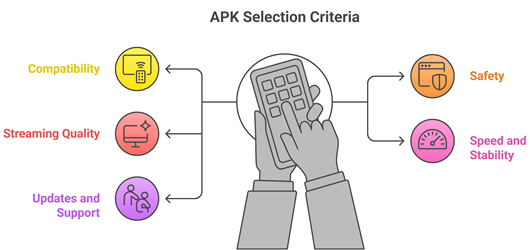
Reliable APKs can greatly improve streaming quality, content access, and overall viewing satisfaction for users. Our experts reviewed multiple options to identify APKs that perform smoothly, remain secure, and provide dependable experiences across devices.
- We chose APKs based on remote-friendly navigation, Android TV layouts, and consistent performance on Fire OS versions.
- Our experts shortlisted APKs with clear permissions, secure signing, and reputable sources to avoid tampered builds.
- We made sure to shortlist apps supporting 4K HDR, captions, and adaptive bitrate for reliable playback.
- Our team chose based on rapid launch times, low buffering, and fewer crashes during long sessions.
The experts in our team selected APKs that consistently maintain quality and provide versatile streaming options today.
Are APKs Safe to Use on Firestick and Android TV?
A common question when exploring APKs for Firestick is whether they are safe. The answer depends entirely on the source and type of APK you install. Firestick and Android TV run Fire OS, which is Android-based, so APKs work just like on any Android device. The safety concern is not the format itself but where the file comes from and what permissions it requests.
Here are the key points you should know:
- Use Trusted Sources: Prefer Google Play, Amazon Appstore, or the developer’s official site for cleaner downloads. Avoid random third-party mirrors.
- Check Permissions: Avoid apps asking for contacts or SMS access, unless the feature truly requires it. Unnecessary permissions are a warning sign.
- Verify Updates: Choose apps updated in the last year, since old APKs can break and add security risks.
- Scan Files: Upload APKs to VirusTotal before installing, and keep Play Protect enabled when possible.
- Watch for Clones: Fake copies are common, so match the package name, website, and developer signature carefully.
Choosing trusted and verified sources keeps your streaming experience safe and your device protected.
Common Issues With APKs on Firestick & Android TV
Even the best APKs for Firestick and Android TV can sometimes run into problems. Streaming devices depend on internet speed, app updates, and server availability. If one part of that chain breaks, playback suffers. Over the years, I have seen that most issues are simple to fix once you identify the root cause. Jumping straight to uninstalling wastes time and often does not solve anything. A calm, step-by-step approach gets things working again faster.
Here are common problems and practical fixes:
- App Not Opening: Force stop the app from Settings and relaunch it. If that fails, clear the app cache and try again. Restarting the device often resolves this instantly.
- APK Not Installing: Make sure Unknown Sources or Apps from Unknown Sources is enabled in Developer Options. Also confirm the APK file downloaded fully without errors.
- Buffering or Slow Playback: Check your internet speed first. I recommend closing background apps and switching to a 5GHz Wi-Fi band or a wired Ethernet connection for better stability.
- App Crashing Frequently: Update the APK to the latest version from the official source. Clearing cached data under Settings can also fix minor bugs causing repeated crashes.
- No Sound or Video: Check codec support for your media format. Apps like VLC handle most formats natively. Switching players often resolves audio and video sync issues quickly.
Most APK problems are temporary and fixable without a full reinstall. Keeping your apps updated and your device storage clear goes a long way toward a stable experience.
Should You Use a VPN With APKs?
When people explore APKs for Firestick and Android TV, the question of whether to use a VPN comes up often. The answer depends on how you use your device and which apps you install. Firestick itself is a legitimate device. However, some APKs pull content from third-party sources, which can raise privacy concerns. In my experience, a VPN adds a useful layer of protection but should be seen as one part of a broader safe streaming approach, not a fix for everything.
Here are key points to consider:
- Privacy Protection: A VPN hides your IP address from external servers and your ISP. This helps keep your browsing and streaming activity private on shared or public networks.
- ISP Throttling: Some internet providers slow down streaming traffic. A VPN can help bypass throttling and deliver more consistent speeds during peak hours.
- Geo Restrictions: Certain legal apps and content libraries are locked by region. A VPN may help you access content available in other locations, depending on service policies.
- Legal Responsibility: A VPN does not make illegal streaming legal. I always remind users to follow their local copyright laws regardless of whether a VPN is active.
- Speed Impact: Some VPNs reduce streaming speed depending on server distance and encryption settings. Always choose a provider with fast servers and a reliable Android TV app.
A VPN can improve your privacy and streaming consistency, but safe streaming always starts with choosing trusted, legal, and well-maintained APKs.
Verdict:
In this review, you got acquainted with some of the best APKs for Firestick and Android TV for reliable streaming and performance. Each APK delivers different strengths, whether it is format support, customization, or ease of use. To help you take the final call, I have created this verdict.
- Kodi: My top choice if you are deciding on a customizable, library-first setup. Kodi is powerful for local media and add-ons, but it takes more tuning, and the wrong add-ons can raise privacy and reliability concerns.
- VLC: The most popular, cost-effective pick for quick, reliable playback. VLC handles formats smoothly, stays lightweight on Firestick, and is ideal when you just want dependable streaming without managing a media server.
- Plex: A superior choice for a polished, user-friendly experience across devices. Plex shines with a robust server-client model and remote access, but it depends on your server performance and often feels best with premium features enabled.
FAQs
What are APKs and why are they used on Firestick?
APKs (Android Package Kits) are the installation files for Android apps. Firestick runs Fire OS, which is Android-based, so many Android TV apps can be installed as APKs. People use APKs to access apps not available in the Amazon Appstore, get newer versions, or install specialized streaming tools.
Can I install APKs without jailbreaking my Firestick?
Yes. You can sideload APKs without jailbreaking by enabling Developer Options and allowing installs from Unknown Apps via Downloader. This is a standard Fire OS setting. Only download APKs from reputable sources and verify the app publisher when possible to reduce security risks and avoid tampered files.
Are free streaming apps better than paid ones?
It depends on your priorities. Paid apps often offer better reliability, fewer ads, stronger support, and more consistent streaming quality. Free apps can be useful but may include aggressive ads, unstable links, or higher risk of unsafe clones. Choose legal services and prioritize apps with good updates and transparent privacy policies.
Do these apps work on all Android TV devices?
Most popular APKs work on many Android TV devices, but not all. Compatibility depends on Android version, CPU architecture, Google Play services requirements, and remote-control support. Some apps are phone-first and do not scale well to TV screens. Check the supported Android version and test on your device model.
Why is my streaming app buffering or not working?
Buffering is usually caused by slow internet, weak Wi-Fi signal, VPN issues, overloaded servers, or app cache problems. Try restarting your Firestick or Android TV, switching to 5GHz Wi-Fi or Ethernet, clearing cache, updating the app, and testing your speed. Aim for 25 Mbps or more for 4K streaming.