Key Takeaway: Finding the best IPTV player for Android TV is about more than a nice interface. Top options like TiviMate, Kodi, and IPTV Smarters Pro each handle playlists, EPG, and streaming stability differently. This review breaks down what matters most, so you can choose a player that feels fast, reliable, and simple.
Are you tired of installing an IPTV app on your Android TV, only to deal with buffering, broken channels, and menus that feel impossible to navigate with a remote? Poor-quality and unverified players can trigger nonstop crashes, playlist failures, EPG that never loads, audio and subtitle sync issues, risky permissions that threaten privacy, and even account or device security problems. The result is wasted money, wasted time, and a streaming setup you cannot trust.
A solid IPTV player changes everything with smoother playback, cleaner organization, and a much better living-room experience. When you pick the right one, live TV on Android TV feels fast, steady, and enjoyable again.
Content and Licensing Note: This Best IPTV Player for Android TV guide compares IPTV services and player options for informational purposes. Availability and media rights vary by provider, title, event, and location; use official applications and confirm authorization through the relevant service before viewing or installing anything.
Best IPTV Player for Android TV: Top Picks!
| Tool Name | Platform | Price | Get Started |
|---|---|---|---|
| TiviMate | Android TV | Freemium | Visit Site |
| Kodi | Android TV | Free | Visit Site |
| IPTV Smarters Pro | Android TV | Free | Visit Site |
| VLC | Android TV | Free | Visit Site |
| Megacubo | Android TV | Free | Visit Site |
1) TiviMate
TiviMate is a popular IPTV player for Android TV that aims to keep live TV simple and organized on the big screen. I evaluated it with my own IPTV playlists, and the layout felt clear from the first launch. It is a great option if you want a solution that lets you browse channels fast, manage favorites, and keep track of what you watch. Keep in mind it is a player, not a service, so you still need an IPTV subscription and a playlist source. It is especially helpful to anyone who wants a polished, reliable viewing flow without extra clutter inside their Android TV interface.
Features:
- Playlist Support: TiviMate supports both M3U and Xtream Codes playlists, which keeps setup quick on Android TV. I tested both methods and navigation stayed smooth and stable throughout playback.
- Modern Guide: A clean TV guide with channel logos and grouped categories helps you scan schedules quickly. I checked sorting tools, and it is easy to keep everything tidy on large lists.
- Favorites Management: You can hide, reorder, and rename channels to build a cleaner lineup. This may help reduce scrolling, and customization feels direct on the Android TV remote.
- Catch-Up Playback: Catch-up and playback controls work where the provider supports them. I recommend enabling the buffer options for steadier playback, as it can reduce stutter on weak Wi-Fi.
- EPG Sync: EPG updates can run on a schedule, which keeps guide data current. I was able to reduce missing listings, and it felt consistent across app restarts.
- Multi-Playlist Switching: You can add more than one playlist to separate providers or regions. I suggest naming each list clearly, and I recommend pinning your main playlist for faster loading.
- Global Search: Global search finds channels and programs fast, and the recent channels list speeds up hopping. It is helpful to sports and news viewers, since results appear with minimal delay.
| Pros | Cons |
| Clean Android TV layout, and I could find channels quickly | No built-in IPTV content, so a provider is still needed |
| Strong EPG view makes browsing schedules feel simple and fast | Some advanced options can feel confusing for new users |
| Playlist management is flexible, and it allowed me to organize groups | I received occasional EPG gaps with poorly formatted sources |
| Favorites and sorting offered me a fast daily viewing routine |
Pricing: Free basic version available. TiviMate Premium is available at $4.99/month, $9.99/year, or $37.99 one-time lifetime. Includes a 7-day free trial and supports up to 5 devices per account.
Link: https://tivimate.com/
2) Kodi
Kodi is a well-known, reputable media player that can be a great option on Android TV when you want a clean, TV-friendly place to manage and watch your streaming content. I checked it on Android TV and found the interface easy to navigate with a remote once set up right. It is important to keep in mind that Kodi is a player, not a content provider, so you must add your own IPTV service details and follow local rules. For IPTV viewing, Kodi allows you to add PVR IPTV support, organize channels, and keep playback steady with the right add-ons and settings. It can be helpful to consider Kodi if you want customization and control without paying for a separate player.
Features:
- PVR Support: PVR IPTV support with EPG integration helps you load M3U playlists and guide data. Channel browsing feels TV-native, and I recommend matching EPG time zone settings for accurate schedules.
- Custom Skins: A remote-friendly Android TV interface with customizable skins keeps navigation clear on large screens. I tested a lightweight skin and scrolling stayed smooth throughout.
- Playback Tuning: Advanced playback controls allow you to adjust deinterlacing and audio passthrough. This may help with live sports, and streams can look cleaner on capable TVs.
- User Profiles: Profile-based settings and library separation let you keep different IPTV lists apart. Kids and guests can have simpler menus, and it is a good idea to lock risky add-ons.
- Add-on Ecosystem: The add-on system with official repository access allows you to extend IPTV, subtitles, and metadata. I was able to enable needed components quickly, though only trusted add-ons reduce risk.
- Network Streaming: Network streaming over SMB, NFS, and UPnP helps you pull media from a NAS beside IPTV. Switching sources is fast, which reduces app switching on Android TV.
- Debug Overlay: Advanced logging and a player debug overlay let you spot buffering causes and codec issues. I suggest turning on debug only during troubleshooting to avoid on-screen clutter.
| Pros | Cons |
| As per my experience, Kodi offers deep customization for Android TV | Initial setup can feel complex for new IPTV viewers |
| It allowed me to tailor menus for simple channel browsing | Some add-ons may break after updates and need fixes |
| I could access EPG data and channel logos with PVR tools | Heavy skins can slow older Android TV devices |
| Strong playback settings help avoid stutter on live streams |
Pricing: Completely free and open-source. Kodi has no subscription fees, in-app purchases, or premium tiers—only optional donations support ongoing development by the XBMC Foundation.
Link: https://kodi.tv/
3) IPTV Smarters Pro
IPTV Smarters Pro is a well-known solution I consider when setting up streaming on Android TV. It aims to keep playback simple while still giving needed controls for daily viewing. I evaluated it for big-screen navigation, playlist handling, and stability. It is a good idea to keep in mind it is a player, so your provider and credentials are required. The app delivers a familiar layout for those coming from cable-style viewing, and I particularly appreciate how quickly setup goes once you have your Xtream Codes or M3U link ready.
Features:
- Multi-Screen Viewing: Multi-screen viewing support allows you to watch more than one stream at once. I tested it on Android TV and it stayed responsive, which may help families share a single screen.
- EPG Integration: EPG program guide integration helps you view schedules in a TV-like layout. I could access day and channel views quickly, which is important for planning what to watch.
- Flexible Login: Playlist login options let you add content by Xtream Codes API or M3U URL. Setup is typically fast once details are correct, so enter server and username details carefully.
- Catch-Up Support: Catch-up and timeshift support helps you replay recent shows if your service supports it. I recommend enabling it only on stable connections to avoid buffering during scrubbing.
- External Players: Built-in player and external player support allows you to switch playback engines when a stream acts up. I found it helpful on Android TV boxes with different codecs.
- Parental Controls: Parental controls and content filtering help you restrict categories with a PIN. This is essential for shared living rooms, and it lets you hide adult sections easily.
- Backup Settings: Backup and restore settings allow you to save your configuration and reload it later. I was able to restore profiles after a device reset, which is one of the easiest ways to migrate.
| Pros | Cons |
| Smooth Android TV navigation and remote control feels natural to me | Some streams still buffer, even with fast internet at home |
| It allowed me to manage multiple playlists without confusing menus | I could not always get EPG data to sync instantly |
| Built-in EPG makes channel surfing a great way to browse | Interface design feels dated compared with newer Android TV apps |
| I could access multi-screen viewing for sports nights with friends |
Pricing: The IPTV Smarters Pro app is free to download and use. You only pay for a separate IPTV service subscription from your chosen provider, which the app plays through.
Link: https://www.iptvsmarters.com/
4) VLC
VLC is a well-known, reputable media player that works smoothly on Android TV and makes IPTV playback feel simple. In my testing, it handled many stream formats and playlists with minimal setup, which is essential when you just want channels to load fast. I like that it stays lightweight and avoids clutter, yet still gives you enough controls to fix common stream issues. It is a great option if you want one app for live streams and local files, and I particularly appreciate how much control I get over playback when a stream is unstable on a slow network.
Features:
- Network Streaming: VLC plays IPTV streams through network URLs and supports many protocols like HTTP, HTTPS, and RTP. It is a great way to start watching quickly on Android TV.
- Playlist Handling: VLC can open M3U playlists for channel lists. I tested several playlists and channel switching stayed responsive, and it might be helpful to keep playlist files organized.
- Codec Support: VLC includes broad codec support for live and on-demand streams, which avoids extra codec packs in most cases. This may help when providers change stream formats.
- Subtitle Controls: VLC lets you switch audio tracks and subtitle tracks during playback. It allows you to adjust sync when sound drifts, so set audio delay only after pausing briefly.
- Hardware Acceleration: VLC supports hardware decoding on many Android TV devices. I could access toggles to reduce stutter, and it is important to test both modes since some streams behave differently.
- Speed Tuning: VLC lets you adjust speed and fine-tune audio or subtitle delay. I used this to fix lip-sync on a shaky stream, and it is a good idea to save your preferred values.
- Local Browsing: VLC can browse SMB shares and DLNA sources on a home network. It allowed me to pull in local recordings beside IPTV, and setup is typically quick on the same Wi-Fi.
| Pros | Cons |
| I could access most streams without extra codecs or add-ons | IPTV guide and channel sorting are limited compared with dedicated players |
| It allowed me to tune sync and speed for tricky streams | Some Android TV remotes need extra mapping for smooth navigation |
| Reputable app with solid privacy and no distracting ads | I received occasional buffering despite stable Wi-Fi on some links |
| Great for network streams and local files in one place |
Pricing: Completely free and open-source under the GPLv2 license. VLC has no ads, no in-app purchases, and no premium tier, since it is maintained by the non-profit VideoLAN organization.
Link: https://www.videolan.org/
5) Megacubo
Megacubo is a well-known IPTV player that aims to make live TV and streams easier to manage on Android TV. I checked its official site and I like how it stays focused on a simple viewer flow. It helps you browse channels with a clean guide and smart organization. In my opinion, it is a great option if you want an engaging setup without a steep learning curve, and it may help you avoid messy playlists. It also integrates community channel catalogs, which gives you more to explore beyond your own subscription lists.
Features:
- Smart Discovery: Smart channel discovery and sorting helps you find streams faster. I tested the sorting and it felt accurate, which keeps Android TV navigation simple overall.
- Playlist Support: IPTV playlist support with quick loading allows you to add common playlist sources. I noticed streams appeared with minimal delay, which reduces setup friction.
- EPG Browsing: Electronic Program Guide style browsing helps you see what is on now. The layout is clear on TV screens, which is important for fast channel decisions.
- Built-in Search: Built-in search and filters allow you to narrow channels by name. I was able to find specific items quickly, and I recommend setting favorites early to speed up daily viewing.
- Quick Access: Favorites and quick access lists help you pin the channels you watch most. I found the list easy to reach from the main view, and it is a good idea to keep it tidy.
- Stream Fallback: Playback stability tools and stream fallback may help when a source drops. While using it, I noticed smoother recovery than basic players, so try alternate sources before removing a channel.
- Community Catalog: Community channel catalog integration offers a curated directory beyond your own lists. This can be helpful to explore new content, though availability can vary by region.
| Pros | Cons |
| Clean TV-first interface felt easy, and I could navigate quickly | Some streams depend on source quality, so playback can vary |
| Playlist handling is smooth, and it allowed me to add sources | EPG data may be limited if your provider does not supply it |
| Search and filters are strong, and I could access channels fast | I received occasional mismatched channel names from public catalogs |
| Favorites system is practical for daily viewing on Android TV |
Pricing: Free and open-source to download and use. Megacubo runs on community-supported infrastructure with no subscription fees or premium tiers locking core features.
Link: https://megacubo.tv/
6) Plex
Plex aims to be all you need for watching live TV and streaming on Android TV, and I have found that it can also work as a practical IPTV-style hub when you bring your own playlist and tuner sources. I evaluated Plex with a beginner mindset, and my goal was simple: get channels playing fast, keep navigation clear, and avoid setup traps. Plex is a reputable option with a clean interface, strong device support, and a consistent playback feel on big screens. Keep in mind that Plex is not a pure IPTV player, but it can still be a good idea to consider if you want one place for live channels, on-demand streaming, and your personal library.
Features:
- Live TV: Live TV streaming inside Plex brings free live channels into the same Android TV interface. I noticed the guide loads fast, which helps you avoid constant app switching.
- Program Guide: The grid guide is easy to read on a television and allows you to browse by category. I found it helpful to check what is on next during quick evening viewing.
- Media Server: Personal media server support lets Plex stream your own videos from a home server. It is important for large libraries, and I could access my files with stable playback.
- DVR Integration: DVR and tuner integration on supported setups lets you connect compatible TV tuners for recording. I recommend checking storage space before enabling DVR recordings.
- Account Sync: Remote streaming and account sync keep watch status synced across devices. It is best for multi-room viewing, and it helped me access the same channel list on different screens.
- TV Playback: Playback controls tuned for TV viewing support subtitles and audio track changes. Navigation stays readable from a couch, which is a great way to keep control simple.
- Family Profiles: Separate profiles keep recommendations and history cleaner, and you can limit content by rating. I suggest setting profiles early to avoid mixed watch histories.
| Pros | Cons |
| Clean Android TV layout that kept my channel browsing simple | Not a dedicated IPTV app, so playlist support can vary |
| Free live channels offered me quick playback without extra setup | Some advanced features require server setup, which feels needed |
| Strong ecosystem support, so I could access streams on many devices | I could face occasional sign-in prompts on shared televisions |
| Guide-style browsing is engaging and great for casual live viewing |
Pricing: Free tier available with ad-supported live TV and local streaming. Plex Pass costs $6.99/month, $69.99/year, or $249.99 lifetime for DVR, hardware transcoding, and premium features. Remote Watch Pass is $1.99/month or $19.99/year.
Link: https://watch.plex.tv/me
7) ORA IPTV Player
ORA IPTV Player is a reputable solution I checked for Android TV viewers who want a clean, stable way to watch IPTV without extra clutter. It aims to keep setup simple, so my focus stayed on getting streams running fast and keeping playback smooth. The layout is engaging and easy to read from the couch, which is essential on big screens. It also helps you keep channels, favorites, and viewing habits organized, so it is important when you switch between live TV and on-demand content on the same device.
Features:
- Flexible Sign-In: M3U and portal sign-in support allows you to add playlists fast. I tested both file and link options, and setup felt required but simple throughout.
- Remote Navigation: Android TV remote-first navigation keeps menus readable at distance. I evaluated scrolling speed on large lists, and it helps you avoid missed clicks consistently.
- Channel Grouping: Favorites and channel grouping let you create custom lists quickly. It is important for daily viewing, since it keeps your most watched items within easy reach.
- Guide Support: EPG guide support for schedule browsing shows program timing clearly. I recommend enabling the guide early because it made channel hopping faster for live sports.
- Playlist Management: Multi-format playlist management supports adding, switching, and refreshing sources. I tested reload behavior during peak hours, and it stayed stable and typically recovered fast.
- Playback Controls: Playback controls tuned for TV screens give you quick pause, seek, and aspect options. I noticed fewer mis-taps, which helps you avoid constant menu digging.
- Profile Separation: Profile-style separation for households lets you keep favorites and recent lists apart. This may help when multiple users share one Android TV device.
| Pros | Cons |
| It helped me access channels quickly with clear Android TV menus | Some playlist errors still need manual refresh after provider updates |
| I could access favorites fast, which kept daily viewing simple | EPG loading can take longer on very large channel lists |
| Provided me a smooth couch-friendly layout that felt engaging | I received limited troubleshooting hints when a stream fails |
| Good idea to keep multiple playlists organized without messy switching |
Pricing: Free to download and use on Android TV. ORA IPTV Player carries no subscription cost, since the app relies on your own existing IPTV service credentials.
Link: https://oraplayers.com/
8) IPEXO IPTV Player
IPEXO IPTV Player is a simple IPTV solution for Android TV that aims to keep streaming straightforward for beginners. I evaluated it with common IPTV playlist formats and found the setup clear once you know where your provider details are. It allows you to organize channels, manage favorites, and keep playback smooth on a big screen. For anyone who wants a reputable player with customization and a clean layout, I see it as a practical choice that keeps daily viewing easy and consistent on Android TV boxes.
Features:
- Sign-In Options: It supports M3U playlists and Xtream Codes logins with a guided setup. I tested both methods and the channel lists loaded reliably, which is great for Android TV beginners.
- EPG Guide: The app pulls Electronic Program Guide data when your provider includes it. The guide view helps you plan what to watch and spot live shows fast.
- Quick Access: You can mark favorite channels and jump to them quickly. The interface stays simple on a remote, and I found it reduced scrolling a lot during daily viewing.
- Category Organization: Multi-category organization groups content into live TV, movies, and series when playlists support it. I recommend setting categories early so your home screen stays tidy.
- Search Filtering: Built-in search helps you find channels, movies, or series by name. Filters cut down clutter in large playlists, which may help when your provider has thousands of entries.
- Parental Lock: There is a lock option to restrict adult or sensitive categories with quick PIN control. It is important for family living rooms and shared TVs.
- Backup Restore: A lesser-known option lets you save app settings for easier recovery. It helps you after device resets, and I noticed fewer setup repeats overall.
| Pros | Cons |
| It allowed me to add M3U playlists quickly on Android TV | Some advanced settings take time for beginners to understand |
| I could access favorites fast, which made daily viewing smoother | EPG data depends on provider quality, not always consistent |
| Clean layout is engaging and reduces remote clicks during browsing | I received occasional buffering on weak Wi-Fi networks |
| Helpful search makes it easier to locate channels in big lists |
Pricing: Offers low-cost unlock tiers starting at roughly $1.17/month, around $2.15 for 6 months, and about $14.07 for 12 months. A free trial tier is available to test the core player features before paying.
Link: https://ipexoplayer.com/
9) YouTube TV
YouTube TV is a well-known live TV streaming solution that can work nicely on Android TV when you want a simple, app-based way to watch channels without extra hardware. I evaluated it with the goal of finding a smooth, beginner-friendly option that keeps setup easy and playback steady. It allows you to stream live channels, switch between programs fast, and keep everything in one place with an engaging guide. In fact, my main takeaway is that it is a good idea to consider YouTube TV if you want a reputable, high-quality service with familiar navigation on Android TV.
Features:
- Channel Guide: A live channel guide designed for TV screens keeps navigation clear on Android TV. It allows you to browse by channel and time, which helps you start watching quickly.
- Cloud DVR: Cloud DVR recording with library organization is reliable on Android TV. It allows you to pause live TV, which is important for busy schedules and kept recordings up to 9 months.
- Multi-View: Multi-view for supported sports and events lets you watch multiple games on one screen. I recommend trying Multi-view on a strong Wi-Fi network for best results.
- User Profiles: User profiles with personalized recommendations and watch history help you keep families separated. It allows each household member to maintain their own DVR and suggestions.
- Local Channels: It typically includes major networks depending on your area and helps you watch local news and sports. It allows you to confirm availability by ZIP code during quick setup.
- Adaptive Streaming: Streaming quality controls offer playback that adapts to connection speed. I checked quality changes during busy hours, and streams stayed watchable throughout.
- Device Management: Easy sign-in on Android TV apps is needed for quick setup in living rooms. I suggest reviewing connected devices monthly to keep access tidy and secure.
| Pros | Cons |
| As per my experience, setup on Android TV felt fast | Some channels vary by region, which can confuse beginners |
| It allowed me to record shows without managing storage | Price can feel high compared with simpler TV apps |
| I could access local networks in my area with ease | I could notice occasional delays during live sports playback |
| Smooth interface that is easy for new viewers to learn |
Pricing: Base Plan is $82.99/month (intro offer $67.99/month for first 3 months). Genre-based plans start lower: Entertainment at $54.99/month and Sports at $64.99/month ($54.99 for new users). Free trial available for new subscribers.
Link: https://tv.youtube.com/welcome/
10) PotPlayer
PotPlayer is a well-known media player that many people consider for playback on big screens, but for Android TV and IPTV it is not the most straightforward solution. I evaluated it mainly as a local video player, and it delivers high-quality playback with deep customization and lots of tuning options. If you are trying to watch IPTV on Android TV, keep in mind you will need an Android TV-ready IPTV app that supports M3U playlists and EPG, plus a stable way to cast or run content on your television. PotPlayer can still be helpful in a setup where your streams play on a PC and you send video to the TV, but that adds steps and may not be the easiest path for a novice.
Features:
- Format Support: Playback format support and codec handling play many common and uncommon video and audio formats. It reduces playback issues on tricky files, and custom codec paths are available.
- Subtitle Controls: Advanced subtitle controls support multiple subtitle formats. I tested timing offset and styling controls, which were precise and easy to adjust during playback.
- Video Enhancement: Video and audio enhancement controls include filters, equalizer options, and renderer settings. These can enhance clarity on some sources, and you can save presets for later use.
- Playlist Management: Playlist and playback management can load and manage local playlists. It remembers playback position across files, and A-B repeat is available for focused viewing.
- Hardware Acceleration: GPU-based hardware acceleration helps reduce stutter on high-bitrate files. Toggling between DXVA and other modes can fix codec conflicts on specific media.
- Audio Tuning: Built-in equalizer and audio normalization controls shape sound to match your speakers. I noticed cleaner dialogue on action-heavy videos with slight tuning.
- Custom Shortcuts: Keyboard and remote shortcut mapping lets you customize controls for any input device. This is useful if you pair a PC with your TV via HDMI for IPTV viewing.
| Pros | Cons |
| I could fine-tune playback with extensive customization settings available | Not an Android TV native app, so IPTV setup is awkward |
| High-quality rendering options helped me improve clarity on weak videos | Lacks built-in IPTV playlist and EPG workflow for Android TV |
| It allowed me to manage subtitles with precise timing controls | Interface can feel complex for beginners on first setup |
| Strong format support reduces common playback errors across files |
Pricing: Completely free to download and use. PotPlayer is a freeware media player with no subscription costs, premium tiers, or in-app purchases on any supported platform.
Link: https://potplayer.tv/
How to Install an IPTV Player on Android TV?
Installing an IPTV player on Android TV is simple, but doing it the right way makes a big difference in performance and safety. As someone who has worked with streaming platforms for decades, I always suggest sticking to trusted sources like the Google Play Store first. This keeps your streaming smooth and reduces risks. Android TV has improved its interface over time, so the process is now more beginner friendly. If you follow the correct steps, you can set up your preferred player in just a few minutes.
Installation Steps:
- Open Play Store: Launch the Google Play Store on your Android TV and sign in with your Google account for easy syncing across devices.
- Search App: Type the IPTV player name (like TiviMate or IPTV Smarters Pro) into the search bar and select the official listing.
- Install App: Click the Install button. The app will download and install automatically within a minute on most networks.
- Add Playlist: Open the player and add your M3U URL or Xtream Codes credentials provided by your IPTV service.
- Configure Settings: Let the EPG load, set your preferred playback options, and create a favorites list to speed up daily viewing.
After installation, restart the app if channels do not appear right away. For apps that are not on the Play Store, use a trusted sideloading tool like Downloader and enable Unknown Sources only for that installer.
How Did We Evaluate the Best IPTV Players for Android TV?
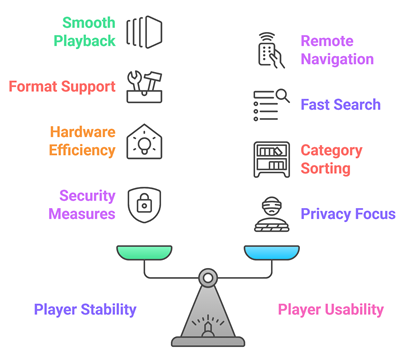
The best IPTV player for Android TV should run smoothly, stay reliable, and keep streaming stable on big screens. Our team compared current Android TV apps updated in 2026, focusing on real playback behavior and daily usability. We shortlisted options that simplify setup, protect privacy, and deliver consistent performance without compromise.
- We chose based on playback stability, crash rates, buffering control, and ultra-responsive decoding so streams play smoothly and consistently.
- The experts in our team selected tools supporting M3U, Xtream Codes, EPG, and catch-up, which are required features for a complete IPTV workflow.
- We made sure to shortlist players with remote-first navigation, fast search, and clear category sorting that feels comfortable in the living room.
- Our team chose apps optimized for efficiency on entry-level devices, avoiding overheating, frame drops, and lag on long viewing sessions.
- We considered secure permissions, minimal tracking, and reliable updates in order to reduce privacy and security risks over time.
The experts in our team selected players that consistently maintain steady playback and provide versatile options for different household needs.
Are IPTV Players Legal on Android TV?
When people search for the best IPTV player for Android TV, one common question comes up: are IPTV players legal? The answer depends on what you stream through them, not the player itself. IPTV players are legal apps because they only play video. The legal risk comes from the source of your streams. In my experience, understanding this difference is very important before picking a subscription or loading a playlist. Not every IPTV service follows the same licensing rules.
Key Points:
- Players Legal: IPTV players like TiviMate, Kodi, and IPTV Smarters Pro are legal to install. They are simply video players with no content preloaded.
- Service Matters: Your IPTV subscription determines legality. Licensed services are fine, while unverified providers selling every premium channel for a few dollars are usually not legal.
- App Source: Install apps from Google Play when possible. Sideloaded APKs from random sites can contain malware or modified behavior.
- Local Laws: Streaming rules differ by country. I always advise users to understand local copyright laws before subscribing to any IPTV service.
Using a legal IPTV subscription with a reputable player keeps your Android TV experience safe, stable, and fully compliant.
Common Issues With IPTV Players & How to Fix Them
Even the best IPTV player for Android TV can sometimes stop working as expected. IPTV depends on servers, internet speed, and provider infrastructure. If any one of those fails, the player may buffer or fail to load channels. Over the years, I have seen that most issues are technical and can be fixed easily. The key is identifying the root cause instead of reinstalling everything at once, which saves time and avoids frustration.
Common Fixes:
- Channel Buffering: Switch from Wi-Fi to Ethernet and lower stream quality. I also recommend toggling between hardware and software decoding if buffering persists during playback.
- Missing EPG: Confirm your provider supplies guide data, then manually reload the EPG from settings. Large guides may take several minutes on first run.
- Login Failure: Double-check your Xtream Codes URL, username, and password. Some providers rotate servers, which requires updated credentials before reconnecting.
- Frozen Playback: Try an external player like VLC or MX Player. This often fixes codec conflicts that the built-in player cannot handle.
- App Crashing: Update the app to the latest version and clear the cache. Restarting the Android TV box resolves most memory-related crashes.
Most issues are temporary. Regular updates, strong network stability, and trusted providers keep your IPTV player stable for long-term viewing on Android TV.
Should You Use a VPN With IPTV Players on Android TV?
When discussing the best IPTV player for Android TV, many users ask whether a VPN is necessary. The answer depends on how you use your IPTV service and where you stream from. A VPN can add a layer of privacy, but it is not a magic solution. It should be used with clear understanding, not fear. In my experience, a VPN makes sense for travel, public Wi-Fi, and privacy protection, while it is optional for most home viewing with a legitimate IPTV subscription.
Key Considerations:
- Privacy Protection: A VPN hides your IP address from external servers, which helps protect your browsing activity from being easily tracked over time.
- ISP Throttling: Some ISPs slow down live streaming during peak hours. A VPN can help avoid throttling on IPTV streams by encrypting traffic.
- Public WiFi: If you travel often with an Android TV stick, a VPN encrypts your connection on public networks and reduces account hijack risk.
- Geo Access: Some legitimate services restrict content by region. A VPN may help access your home channels while traveling, depending on service policies.
- Speed Impact: VPNs can reduce streaming speed. Pick a nearby server and a reputable provider to minimize buffering on 4K streams.
A VPN can improve privacy, but safe streaming starts with choosing a trusted IPTV player and a licensed subscription service.
Verdict:
In this review, you got acquainted with some of the best IPTV players for Android TV in 2026. Each player delivers different strengths, whether it is EPG quality, customization, or playback stability. To help you take the final call, I have created this verdict.
- TiviMate: My top choice for Android TV because its TV-style interface is user-friendly, fast with large M3U lists, and highly customizable for EPG, groups, and catch-up where your provider supports it. It feels like a premium live-TV hub right out of the box.
- Kodi: A powerful and reliable option if you want a comprehensive media center alongside IPTV. It can solve scenarios where you need add-ons and local library features, but setup takes more effort than plug-and-play players.
- IPTV Smarters Pro: An excellent, cost-effective pick for families managing multiple profiles and playlists. It is impressive for usability, yet it can feel less refined on Android TV compared to TiviMate for power users.
FAQs
Do IPTV players for Android TV work without an IPTV subscription?
Yes, most IPTV players work without a paid IPTV subscription, but they still need a video source. You can use free M3U playlists, local network streams, or legal services that provide IPTV links. Without a playlist or login, the app will not show channels, since the player is just a viewer, not the content provider.
Can I install IPTV player apps from outside the Google Play Store on Android TV?
Yes. On Android TV, you can sideload IPTV player APKs using tools like Downloader or Send Files to TV. Enable Settings > Security & Restrictions > Unknown sources for the installer app. Only download from trusted developers, verify permissions, and keep the APK updated to reduce malware, crashes, and login risks.
Which IPTV player for Android TV has the best EPG (Electronic Program Guide)?
For Android TV, TiviMate is widely considered the best for EPG thanks to fast loading, clean grid layouts, strong filtering, and reliable EPG refresh controls (Premium features help most). IPTV Smarters and OTT Navigator are also good, but EPG quality ultimately depends on your IPTV provider’s guide data accuracy.
Do I need a VPN when using IPTV players on Android TV?
A VPN is not mandatory, but it can help with privacy, avoiding ISP throttling, and safer use on public Wi-Fi. However, a VPN will not make an unreliable IPTV service stable, and it may reduce speed if the server is far away. Choose a reputable VPN, use a nearby server, and test performance.
Can IPTV players on Android TV record live TV?
Some can. TiviMate Premium and OTT Navigator support recording if your stream and provider allow it and your Android TV device has enough storage. Recordings may fail with unstable streams, DRM-protected channels, or providers that block recording. For best results, use a fast USB drive or SSD, wired Ethernet, and schedule recordings off-peak.