Key Takeaway: A Firestick cannot receive a Google Cast signal on its own, but you can still “Chromecast” your phone, tablet, or computer to it. The quickest route is the free AirScreen app, which turns your Fire TV into a receiver for casting and screen mirroring in about five minutes.
If you have searched for how to Chromecast to a Firestick, you have probably found that the two devices speak different languages. Amazon’s Fire TV runs Fire OS and does not include Google’s Cast receiver, so the “Cast” button in your favourite app will not see it by default. The good news is that a small free app closes that gap and lets you mirror almost anything to the screen.
I set this up on a Fire TV Stick 4K Max, a Stick Lite, and a Fire TV Cube, casting from a Pixel phone, an iPhone 14, and a Windows laptop. AirScreen handled all three without a single paid upgrade, and once I moved my router to the 5GHz band the mirroring felt smooth enough for photos, web pages, and casual video. Here is the exact process I followed.
How to Chromecast to Firestick (Step by Step)
Because there is no native Cast receiver, we will install AirScreen first and then cast to it. AirScreen supports Google Cast, AirPlay, Miracast, and DLNA in one app, which makes it the most reliable single tool for the job. The whole setup takes only a few minutes.
Part 1: Install the AirScreen App
- From the Fire TV home screen, highlight the Find tile or the search icon at the top-left, then type AirScreen with the on-screen keyboard.
- Select AirScreen from the suggestions, open its listing, and choose Get or Download. The app is free and installs in under a minute on most connections.
- When the download finishes, choose Open and accept the on-screen permissions so AirScreen can advertise your Fire TV to other devices on the network.
Part 2: Start the Receiver on Your Firestick
- Launch AirScreen and select Start (labelled Confirm on some versions). A status screen appears showing a receiver name such as AS-AFTT-xxxx.
- Leave this screen open in the foreground. AirScreen only accepts incoming connections while the receiver is visible, so do not press the Home button yet.
- If you want a walkthrough, scroll to the on-screen QR code and help panel, which explains the exact steps for Android, iPhone, and Windows.
Part 3: Cast or Mirror From Your Device
- On an Android phone, open Settings > Connected devices > Cast, or swipe down and tap the Screen cast tile, then pick the AirScreen receiver.
- On an iPhone or iPad, open Control Center, tap Screen Mirroring, and select the AirScreen (AirPlay) name shown on your TV.
- Your device screen now appears on the Firestick. Open photos, a browser, or a streaming app and it mirrors to the big screen in real time.
For the smoothest result, connect both devices to the same router and use the 5GHz band where possible. It carries far less interference than 2.4GHz, which keeps casting lag low.
Can You Actually Chromecast to a Firestick?
Before you start, it helps to understand what is really happening. “Chromecasting” to a Firestick is not the same as casting to a Google Chromecast dongle, but the end result looks almost identical once you know the trick.
- No Native Cast: Fire OS does not ship with a Google Cast receiver, so the Cast icon inside apps like YouTube will not detect a stock Firestick on its own.
- AirScreen Bridges It: A receiver app such as AirScreen adds Cast, AirPlay, and Miracast support, letting your phone see the Firestick as a valid casting target.
- Built-in Mirroring: Most Fire TV devices already include Miracast display mirroring, which works out of the box for many Android phones and Windows PCs without any app.
- App-Level Casting: Some services simply want you to open the same app on the Firestick and sign in, which streams natively and beats mirroring for quality.
- No Extra Dongle: You do not need to buy a physical Chromecast; the Firestick you already own becomes the receiver once the right method is set up.
Casting Methods for Firestick Compared
There is more than one way to get your screen onto a Firestick, and the best choice depends on the device you are casting from. This table sums up the realistic options so you can pick quickly.
| Method | Works With | Setup Effort | Best For |
|---|---|---|---|
| AirScreen app | Android, iPhone, Windows, Mac | Low | All-round casting and mirroring |
| Built-in Miracast | Android, Windows | Very low | Quick screen mirroring, no app |
| App casting (open on TV) | Netflix, Prime, Disney+ | Low | Best video quality |
| DLNA media apps | Local photos and video | Medium | Playing files stored on your phone |
If you only ever mirror an Android phone, the built-in option is fastest. For a mix of Apple and Android devices, AirScreen is the one app that covers everyone.
How to Mirror an Android Phone Using Built-in Miracast
If your Android phone and Fire TV both support Miracast, you can skip extra apps entirely. This native route is the fastest way to throw an Android screen onto the Firestick.
- On the Firestick, press and hold the Home button for about five seconds, then choose Mirroring from the quick menu. The TV shows a “ready to connect” screen.
- Alternatively, go to Settings > Display & Sounds > Enable Display Mirroring to put the Firestick into the same waiting state.
- On your Android phone, open the quick settings and tap Smart View, Cast, or Screen cast depending on your brand.
- Select your Fire TV from the list of nearby devices and confirm. Your phone screen appears on the TV within a few seconds.
Samsung, Google Pixel, and most modern Android phones support this. If your phone has no cast tile, fall back to the AirScreen method described above.
How to Cast From an iPhone or iPad to Firestick
Apple devices use AirPlay rather than Google Cast, and a stock Firestick does not accept AirPlay either. AirScreen solves both problems, so iPhone owners follow a slightly different path.
- Install AirScreen First: Because iOS relies on AirPlay, you must run AirScreen on the Firestick so your iPhone has a compatible receiver to send its screen to.
- Same Wi-Fi Network: Keep the iPhone and Fire TV on the same router; AirPlay discovery fails instantly if they sit on separate 2.4GHz and 5GHz names.
- Use Screen Mirroring: Open Control Center, tap Screen Mirroring, and select the AirScreen device to push your entire iPhone display to the TV.
- Expect Slight Lag: Mirroring adds a small delay, so it suits photos, browsing, and presentations better than fast-paced gaming or live sport.
- Prefer Native Apps: For Netflix or AirPlay on Firestick workflows, opening the app directly on Fire TV gives sharper video than mirroring the phone.
What You Need Before You Start Casting
Casting is simple once a few basics are in place. Run through this quick checklist so you are not troubleshooting a dropped connection halfway through.
| Requirement | Why It Matters |
|---|---|
| A Fire TV device | Any Firestick, Stick 4K, or Fire TV Cube works as the receiver |
| Same Wi-Fi network | Casting only discovers devices on one shared network |
| 5GHz band (ideal) | Cuts interference and keeps mirroring smooth and responsive |
| Updated Fire OS | Newer builds fix casting bugs and improve device discovery |
| AirScreen (for Apple) | Adds the AirPlay and Cast receiver a stock Firestick lacks |
How to Cast From a Windows PC or Mac
Computers can mirror to a Firestick too, which is handy for slideshows, video calls on the big screen, or showing a browser tab to a room. The route differs between Windows and macOS.
- Windows Miracast: Press Windows + K to open the Cast panel, then choose your Fire TV or AirScreen receiver from the list of wireless displays.
- Enable Mirroring First: Put the Firestick into its waiting state with Display Mirroring or AirScreen before you search from the PC, or nothing appears.
- Mac Uses AirPlay: macOS has no Miracast, so run AirScreen on the Firestick and pick it from the AirPlay menu in the Mac’s Control Center.
- Wired Backup: If wireless casting stutters, an HDMI cable is still the most stable way to get a laptop screen onto a television.
- Close Heavy Apps: Mirroring shares your PC’s bandwidth, so shutting down large downloads keeps the casted picture from freezing.
Casting to Firestick Not Working? Try These Fixes
Most casting problems come down to networks and app states rather than the Firestick itself. Match your symptom below and work through the fix before assuming the device is faulty.
| Symptom | Likely Cause | Fix |
|---|---|---|
| Firestick not found | Devices on different networks | Put both on the same 5GHz Wi-Fi name |
| Connects then drops | Weak signal or 2.4GHz noise | Move closer to the router or switch bands |
| Black screen with audio | App blocks mirroring (DRM) | Open the app natively on Fire TV instead |
| Laggy or choppy video | Bandwidth congestion | Close downloads and pause other streams |
| No AirPlay option | AirScreen not running | Relaunch AirScreen and keep it in the foreground |
If everything still fails, a quick restart of both the Firestick and your phone clears most stubborn discovery glitches. You can also fix buffering on Firestick using the same network tips.
Is Screen Mirroring to Firestick Safe and Legal?
Casting your own screen to a device you own is completely legal, but a few sensible cautions keep the experience safe and private.
- Legal by Default: Mirroring your phone or PC to your own Firestick breaks no rules; you are simply moving your display to a bigger screen.
- Content Still Counts: What you stream matters more than how you cast it, so stick to services and files you are entitled to view.
- Trusted Apps Only: Install receiver apps like AirScreen from the official Amazon Appstore, not sideloaded copies that may bundle unwanted code.
- Guard Your Network: Casting exposes a receiver on your Wi-Fi, so use a private, password-protected network rather than open public hotspots.
- Review Permissions: Say no to any casting app that demands contacts, messages, or logins it has no genuine reason to need.
How to Cast YouTube to a Firestick
YouTube is the one app where casting behaves almost exactly like a real Chromecast, because Google builds pairing straight into it. This makes it the easiest place to start.
- Open YouTube on Firestick: Launch the YouTube app on your Fire TV first so it is ready to receive a link from your phone or tablet.
- Match Your Accounts: Sign in to the same Google account on both devices, which lets YouTube pair them automatically over your home network.
- Tap the Cast Icon: In the phone app, tap the cast icon and choose your Fire TV; the video then plays natively on the TV in full quality.
- Use the TV Code: If pairing fails, open YouTube settings on the TV, find “Link with TV code”, and enter that code in the phone app instead.
- Keep Native Quality: Because this streams the video directly rather than mirroring your screen, you get sharp playback with no phone-screen lag.
This same “open the app on the TV and link” pattern works for a growing number of Fire TV apps, so always check for it before falling back to full screen mirroring.
How to Cast Photos and Local Videos From Your Phone
Casting is not just for streaming apps. It is a great way to throw holiday photos or home videos stored on your phone onto the big screen for everyone to see.
- Use Screen Mirroring: With AirScreen running, mirror your phone and open your gallery; every photo and clip appears on the TV as you swipe.
- Try a DLNA App: Apps like iMediaShare stream individual files to the Firestick over DLNA without mirroring your whole screen.
- Keep Files Local: Casting local media does not upload anything to the cloud, so your private photos stay on your own network.
- Rotate for Video: Turn your phone to landscape before casting a clip so it fills the television screen rather than sitting in a narrow strip.
- Mind the Resolution: Very large 4K phone videos can stutter over Wi-Fi, so the 5GHz band helps keep high-resolution playback smooth.
For a slideshow at a gathering, mirroring is simplest, but for a single long video a DLNA app usually gives steadier playback with less battery drain on your phone.
How to Cast for Presentations and Video Calls
A Firestick can double as a wireless projector for a home office. Casting a slideshow or a video call to the TV turns any room into a simple meeting space.
- Mirror the Full Screen: Use AirScreen and full screen mirroring so slides, documents, and call windows all appear exactly as they do on your device.
- Cast From a Laptop: Windows users can press Windows + K to send a presentation wirelessly, which is cleaner than trailing an HDMI cable across a room.
- Watch the Audio: Some video-call apps keep audio on your phone during mirroring, so test sound routing before an important meeting.
- Reduce the Lag: Presentations tolerate a little delay, but for live calls sit close to the router and use 5GHz to keep the picture in step.
- Have a Backup: Keep an HDMI cable handy as a fallback, since wired mirroring never drops out at the worst possible moment during a call.
Casting works well for slides and demos, but for a mission-critical video call a wired connection remains the most dependable choice on any streaming stick.
How to Change AirScreen Settings for Better Quality
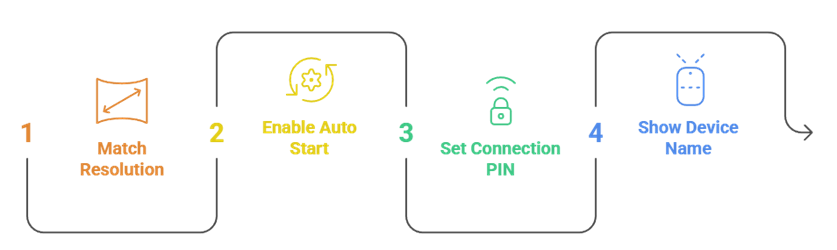
AirScreen works out of the box, but a few settings tweaks improve stability and picture quality. It is worth a two-minute visit to its options screen.
- Open AirScreen and select the Settings gear, then find the Resolution option and match it to your TV, usually 1080p for the best balance.
- Enable Auto Start so the receiver launches with the Firestick and is always ready to accept a cast without opening the app first.
- Set a connection PIN if you share your home with others, so only approved devices can mirror to your TV.
- Turn on the on-screen device name so you can always see which receiver to pick from your phone’s cast list.
Lowering the resolution from 4K to 1080p often cures stuttering on busy networks, trading a little sharpness for a far smoother, more reliable mirror.
Casting vs a Physical Chromecast: Key Differences
It helps to know exactly how casting to a Firestick differs from owning a real Chromecast, so your expectations match reality before you start.
- Receiver Type: A Chromecast is built to receive Google Cast natively, while a Firestick needs an app like AirScreen to accept the same signal.
- App Support: Some apps only cast to certified Chromecast targets, so a handful will not see a Firestick even with a receiver app installed.
- Quality Ceiling: Native casting streams the source directly, whereas mirroring re-encodes your screen and can look slightly softer as a result.
- Cost: Using your Firestick as a receiver is free, saving you buying a second dongle just to cast the occasional video.
- Everyday Result: For photos, browsing, and most video, the experience feels close enough that the difference rarely matters in daily use.
If you cast constantly and rely on apps that demand certified Cast targets, a real Google TV device is worth it; for occasional casting, the Firestick handles it well.
How to Reduce Lag and Improve Casting Quality
Nothing spoils casting like a laggy, stuttering picture. Almost every quality problem traces back to your network, and these fixes make the biggest difference.
- Switch to 5GHz: The 5GHz Wi-Fi band carries far less interference than 2.4GHz, which is the single most effective way to cut mirroring lag.
- Sit Near the Router: Distance and walls weaken the signal, so casting close to the router keeps the connection strong and the video fluid.
- Free Up Bandwidth: Pause large downloads and other streams in the house so your casting session gets the bandwidth it needs.
- Lower the Resolution: Dropping the receiver from 4K to 1080p reduces the data being sent, which smooths playback on congested networks.
- Restart Both Devices: A quick reboot of the Firestick and your phone clears memory and often resolves stubborn stutter that fixes alone will not.
Work through these in order and most casting quality issues disappear, since the Firestick itself is rarely the bottleneck compared with the wireless link.
How to Cast From a Chromebook to a Firestick
Chromebooks lean heavily on Google Cast, so casting one to a Firestick takes the same receiver-app approach as a phone. It is a handy way to put a Chromebook tab on the big screen.
- Run AirScreen First: Start AirScreen on the Firestick so your Chromebook has a compatible Cast target to send its screen or tab to.
- Cast a Tab: In Chrome, open the three-dot menu, choose Cast, and pick the AirScreen receiver to send just the current browser tab.
- Cast the Desktop: Select “Cast desktop” instead to mirror the entire Chromebook screen, which suits slideshows and full-screen apps.
- Same Network Rule: Keep the Chromebook and Firestick on the same Wi-Fi, ideally 5GHz, or the Cast menu will not find the receiver.
- Watch for DRM: Some streaming sites block casting a protected tab, so open those services natively on the Firestick for the best result.
Casting a single tab uses less bandwidth than mirroring the whole desktop, so choose tab casting whenever you only need to share one web page or video.
Does Screen Mirroring Drain Your Phone Battery?
Screen mirroring is more demanding than normal phone use, and it does affect battery life. A few habits keep your phone from dying mid-session.
- Yes, It Uses Power: Mirroring keeps the screen and Wi-Fi radio working hard, so expect noticeably faster battery drain than standard streaming.
- Keep It Plugged In: For long sessions like films or presentations, connect your phone to a charger so mirroring never cuts out unexpectedly.
- Dim the Screen: Lowering your phone’s brightness during mirroring saves power without affecting how the picture looks on the television.
- Prefer Native Apps: Opening an app directly on the Firestick avoids mirroring entirely, which saves your phone battery for other tasks.
- Close Background Apps: Shutting other apps on your phone reduces heat and power draw, keeping mirroring stable for longer stretches.
If you regularly mirror for hours, native Firestick apps are kinder to your battery; save mirroring for content that has no dedicated Fire TV app.
How to Stop Casting and Disconnect Cleanly
Ending a cast the right way avoids the receiver hanging on and blocking the next connection. It only takes a moment and prevents common reconnection headaches.
- Disconnect on the Phone: Open the cast or screen-mirroring menu again and select Disconnect to end the session cleanly from your device.
- Close AirScreen: Press the Firestick Home button to exit AirScreen, which stops the receiver from advertising itself on your network.
- Toggle Wi-Fi if Stuck: If a device will not reconnect later, turning your phone’s Wi-Fi off and on clears a lingering cast session fast.
- Restart for Ghosts: A quick Firestick restart removes any stuck receiver state that occasionally survives after an abrupt disconnection.
- Free the Bandwidth: Ending casting also returns that bandwidth to your network, which helps other streams and downloads run smoothly again.
Getting into the habit of disconnecting properly means the next cast starts first time, rather than fighting a receiver that thinks it is still busy.
Best Alternatives to AirScreen for Casting
AirScreen is our first pick, but a few other tools do a similar job if you want options. Each has a slightly different strength depending on your devices.
- AirBeamTV: A polished mirroring app for iPhone and Mac that focuses on Apple devices, with a clean interface and reliable AirPlay-style casting to Fire TV.
- iMediaShare: A lightweight option for pushing local photos and video from your phone to the Firestick over DLNA without full screen mirroring.
- A Real Google TV Device: If you cast constantly, a Chromecast with Google TV adds native Cast support and pairs well with our best Chromecast alternatives roundup.
- Miracast Dongle: A dedicated wireless display adapter plugs into a spare HDMI port and mirrors phones without touching your Firestick at all.
- Native App Sign-In: For the streaming services in our best IPTV for Chromecast guide, logging in on the Fire TV app beats mirroring every time.
Conclusion
You cannot Chromecast to a Firestick in the literal Google Cast sense, but you absolutely can get your phone, tablet, or computer screen onto it. Installing AirScreen is the most flexible route because it covers Android, iPhone, Windows, and Mac in a single free app. If you only ever mirror an Android device, the built-in Miracast option is even faster. Whichever method you choose, keep both devices on the same 5GHz network, open the receiver first, and prefer native apps when you care about video quality. With that in place, your Firestick doubles as a capable casting target for the whole household.
FAQs
Does Firestick support Google Chromecast?
Not natively. A stock Firestick runs Fire OS and has no Google Cast receiver, so casting apps will not detect it until you install a bridge app such as AirScreen, which adds Cast, AirPlay, and Miracast support in one place.
Can I cast from my iPhone to a Firestick?
Yes, but you need AirScreen on the Firestick first because iPhones use AirPlay, which Fire TV does not accept by default. Once AirScreen is running, use Screen Mirroring in Control Center and pick the receiver.
Is there a free Chromecast app for Firestick?
AirScreen is free and is the closest thing to a Chromecast receiver for Fire TV. It covers Google Cast, AirPlay, Miracast, and DLNA, so you rarely need a paid alternative for everyday mirroring.
Why is my casting lagging on the Firestick?
Lag almost always comes from Wi-Fi congestion. Move both devices to the 5GHz band, sit closer to the router, and close any large downloads or extra streams that are eating bandwidth during the mirror session.
Do I need Wi-Fi to cast to a Firestick?
Yes. Casting and mirroring rely on both devices sitting on the same local network to discover each other. Without a shared Wi-Fi connection, your phone or computer cannot find the Firestick to cast to.
Can I cast Netflix or Disney+ to a Firestick?
You can, but screen mirroring these apps often shows a black screen because of copy protection. The better option is to open Netflix or Disney+ directly on the Firestick and sign in for full-quality native playback.
Can I cast to a Firestick without installing an app?
Sometimes. Many Android phones and Windows PCs can mirror to a Firestick using built-in Miracast, no app needed. For iPhones, Macs, or Google Cast from apps, you will need a receiver app like AirScreen.
Does AirScreen cost money?
AirScreen is free to download and use for casting and mirroring. There is an optional paid upgrade that removes ads and adds extras, but the free version handles everyday casting to a Firestick perfectly well.