
Key Takeaway: This VLC Alternatives update ranks options by official applications, format compatibility, operator accountability, supported hardware, and plainly stated regional or account restrictions. If VLC is not fitting your playback needs anymore, several strong alternatives are worth considering. Options like PotPlayer, MPV Player, and KMPlayer bring different strengths in speed, codec support, customization, and streaming. This review breaks down what matters most before you switch.
Are you tired of your media player freezing mid-movie, refusing to open certain files, or making simple settings feel harder than they should be? Poor-quality and unverified players can lead to annoying crashes, laggy playback, codec errors, broken subtitles, high CPU usage, and even privacy risks from shady installers or bundled adware. Over time, that can ruin your viewing experience and make streaming feel like a chore instead of entertainment.
The right alternative fixes those pain points with smoother performance, cleaner controls, better format support, and more reliable streaming options. When you choose carefully, playback becomes effortless and consistent across all your devices.
Important Note: Every VLC Alternatives option should be checked for regional access, supported devices, account conditions, and published distribution authority. Confirm ownership, billing information, compatible devices, and the catalog offered in your market through official sources. No recommendation is intended to promote copied broadcasts, replacement domains, or operators without accountable rights information.
Why You Can Trust FirestickTVStream?
This list is built from hands-on testing and updated research. Every media player here is:
✅ Known for stable playback across common video and audio formats
✅ Compatible with popular devices and everyday streaming setups
✅ Widely used and actively maintained, with real user feedback considered
✅ Free of aggressive ads, suspicious permissions, or questionable bundled software
Research Overview:
- 90+ Media players tested
- 200+ Hours of research and testing
- 40+ Detailed media player guides and reviews checked
Best VLC Alternatives: Top Picks!
1) PotPlayer
PotPlayer is a well-known video player that I evaluated as a great option when you want a VLC alternative without extra fuss. It aims to keep playback smooth and clear, and it allows you to fine-tune audio, subtitles, and video with strong customization. This may help if VLC feels too heavy or you want more control. In my experience, it is one of the most flexible players for anyone who likes to adjust every detail to their taste while keeping performance stable.
Features:
- Wide Format and Codec Support: PotPlayer plays most common and rare video formats. It handles many codecs without extra packs. It aims to keep playback stable on older PCs too.
- Hardware Acceleration and Performance Controls: PotPlayer supports DXVA, CUDA, and QuickSync. I noticed lower CPU load during 4K playback. Enabling hardware acceleration first helps avoid stutter.
- Advanced Subtitle Engine: PotPlayer supports SRT, ASS, and embedded subtitles. It allows you to adjust timing and position. It is helpful to tune fonts, outlines, and sync quickly.
- Audio Enhancements and Device Output: PotPlayer includes equalizer presets and audio filters. It allows you to switch audio devices fast. I tested volume normalization and it kept dialog clearer in movies.
- Built-in Screen Capture and Recording: PotPlayer can capture screenshots and record playback. It allows you to pick codecs and bitrates. This may help when you need clips for troubleshooting.
- Playback Control Depth: PotPlayer offers frame-by-frame stepping and A to B repeat. It aims to make review sessions easier. A to B repeat is useful for language practice.
- Playlist and Bookmark Tools: PotPlayer can bookmark scenes inside a file. It allows you to return to exact timestamps. I found chapter browsing helpful on long lectures.
| Pros | Cons |
| It allowed me to tune subtitles with deep customization quickly | Interface can feel busy until you adjust skins and menus |
| Hardware acceleration delivered smooth 4K playback on my midrange laptop | As per my experience, some settings labels are not clear |
| I could access audio filters that improved dialog clarity instantly | Occasional update prompts may distract during full-screen viewing |
| Supports many formats, so it avoids extra codec installs | It might be needed to tweak defaults for best HDR results |
| Fast startup and responsive seeking make it great for large files | |
| Screen capture and recording tools provided me quick clips for sharing |
Pricing:
- Free to use
Link: https://potplayer.tv/
2) MPV Player
MPV Player is a lightweight media player that fits well if you want a clean alternative to VLC. I evaluated it from its official site and focused on what a beginner needs. It aims to stay fast and simple, with high-quality playback. My view is that it is a great option if you want control without clutter, and it can help you avoid heavy menus while keeping essential features within reach.
Features:
- Keyboard-First Playback: MPV Player supports fast shortcuts for seeking and audio control. It allows you to avoid complex menus. I tested it with long videos, and learning a few keys first helps.
- High-Quality Rendering: It ships with advanced video scaling and GPU outputs. It helps you get clean motion and detail. It handles high-bitrate files well, which is essential for modern displays.
- Robust Subtitle Handling: It supports ASS styling and subtitle timing controls. It allows you to shift and resize captions. I was able to fix mismatched subtitles quickly.
- Audio and Track Selection: MPV Player supports multiple audio tracks and device output choices. It allows you to switch tracks fast. The defaults are configurable to suit your setup.
- Streaming and Network Playback: It can open HTTP and other network streams directly. It helps you play remote media without extra tools. It is a good idea to check your bandwidth first.
- Scripting and Automation: Lua scripts extend playback and on-screen info. It allows you to add small tools without bloat. I could automate skip steps easily.
- Portable Mode: MPV Player can run with a local config beside the executable. It allows you to keep settings on a USB drive. Consider this for shared machines.
| Pros | Cons |
| It allowed me to keep playback clean with a minimal interface | Default controls can feel confusing until you learn shortcuts |
| High-quality rendering stays smooth even with demanding video files | It can be less friendly for mouse-only navigation at first |
| I could access deep customization through simple text config files | Some features need scripts, which may feel like extra work |
| Great for keyboard control, fast seeking, and quick track switching | I received fewer built-in media library tools than expected |
| Subtitle controls are essential and easy to adjust during playback | |
| It helped me access stable playback on older and newer systems |
Pricing:
- Free to use
Link: https://mpv.io/
3) KMPlayer
KMPlayer is a well-known solution for people looking for a VLC alternative. I evaluated it as a daily player on my Windows laptop, and it allows you to play many file types with minimal setup. The interface is engaging and the customization options are useful for beginners. I aim to keep things simple, and this may help you avoid codec stress when switching from VLC.
Features:
- Playback Format Coverage: KMPlayer supports many video and audio formats. It helps you avoid hunting for extra codecs. The switch from VLC feels smooth.
- Subtitle Toolkit: It supports subtitle files and timing control. I tested sync fixes on a drama clip. It was easy to adjust.
- Audio and Video Enhancements: It includes an equalizer and basic video filters. You can tune brightness and sharpness. This may help on low-quality files.
- Playback Speed and Navigation: It offers speed control and quick jump steps. I used frame stepping for a tutorial recording. It felt responsive and stable.
- Streaming and Online Playback: It supports URL-based playback for streams. It allows you to test links quickly. Keep in mind some streams depend on codecs.
- Screen Capture and GIF Creation: There is capture for screenshots and short clips. It can also create GIFs from playback. This is a lesser-known bonus.
- Lightweight Setup and Layout Options: It typically installs fast and runs smoothly. Starting with the default layout before heavy customization keeps learning simple.
| Pros | Cons |
| It allowed me to play tricky files without extra codec installs | The installer may include optional extras, so pay attention closely |
| Customization is deep, and I could tailor shortcuts quickly | Some interface sections can feel busy for new viewers |
| It helped me access subtitle timing tools that fixed sync issues | Streaming links can fail depending on the source format |
| Smooth playback controls make it great for quick review sessions | Advanced settings menus take time to learn properly |
| Speed control is useful for study and training videos | |
| Reputable player with solid format coverage across many devices |
Pricing:
- Free to use
Link: https://www.kmplayer.com/
4) Kodi
Kodi is a well-known solution for anyone comparing VLC alternatives and wanting a clean, modern media center that runs on many devices. I evaluated it for day-to-day playback and library comfort. It is great for organizing local videos, music, and photos in one place.
It also allows you to add streaming sources through add-ons, so all you need is a compatible device and a little setup. Keep in mind that some add-ons are community made, so it is important to choose reputable sources and avoid risky links.
Features:
- Library-Based Media Center with Rich Metadata: It scans folders and builds a clean library view. It pulls artwork and summaries. This may help keep large collections easy to browse.
- Add-on Ecosystem for Streaming and Services: It supports official and community add-ons. It helps you bring multiple sources into one screen. Starting with add-ons from the official repository first is the safer route.
- Cross-Platform Playback on Major Systems: It runs on Windows, macOS, Linux, Android, and more. It is great for TV boxes. It keeps your interface consistent across devices.
- Remote Control and Casting-Style Options: It supports mobile remote apps and network control. I tested control from my phone over Wi-Fi. It made couch viewing much easier.
- Highly Customizable Skins and Layouts: It allows you to change menus, views, and themes. It is helpful to match TV screens. It can also simplify navigation for beginners.
- Live TV and PVR Support: It can integrate EPG guides and channels with compatible backends. It helps you manage recordings. Setup is required, so plan a few minutes.
- Smart Playlists and JSON-RPC Control API: It can auto-group media by rules. It allows you to automate tasks from other apps. This lesser-known feature suits power setups.
| Pros | Cons |
| It allowed me to organize huge libraries with clean artwork quickly | Some add-ons need extra setup and can confuse beginners |
| Great for living-room screens with simple navigation and big controls | Interface can feel heavy on older devices and boxes |
| I could access my media over LAN with minimal fuss | Some streaming services depend on third-party add-on support |
| Strong customization via skins, widgets, and menu shortcuts | I received occasional scan delays with very large libraries |
| Works across many platforms, which is essential for mixed homes | |
| I benefitted from using smart playlists for fast, filtered browsing |
Pricing:
- Free to use
Link: https://kodi.tv/
5) SMPlayer
SMPlayer is a well-known media player that makes a great option when you want a solution beyond VLC. I evaluated it for everyday playback on Windows and Linux, and it felt essential for anyone who wants simple controls. It helps you avoid codec stress because it plays most formats without extra steps.
I also like the built-in YouTube support, the handy playback history, and the way it remembers my audio and subtitle choices. That mix is typically all you need from a reliable player that stays easy for beginners, yet still gives room to tweak settings.
Features:
- Broad Format Playback: It plays most audio and video formats well. It is one of the easiest setups I have tried. It typically needs no extra codec packs.
- Remembers Playback State: It saves your last position automatically. It also recalls audio tracks and subtitle choices. This may help with long videos.
- Built-in Subtitle Tools: It lets you load external subtitles fast. It also supports subtitle delay adjustments. Pay attention to encoding for clean text.
- YouTube and Streaming Support: It can open many YouTube links directly. It also supports higher quality streams when available. Updating youtube-dl or yt-dlp helps if playback fails.
- Playback Engine Choices: It supports MPlayer and MPV backends. That allows you to consider compatibility across systems. I could switch engines when one behaved better.
- Playback Speed and A-B Repeat: It allows you to adjust speed with fine steps. There is also an option that lets you loop A-B sections. It is great for language learning and review sessions.
- Screenshot and Thumbnail Tools: It can capture screenshots during playback. It can also generate thumbnail sheets from a file. This is a lesser-known, helpful feature when sorting video folders.
| Pros | Cons |
| It helped me access most formats without hunting extra codecs | The interface can feel dated until you adjust themes |
| I could switch between MPV and MPlayer for stability | Some streaming links fail unless the external downloader stays updated |
| It allowed me to resume videos exactly where I stopped | Advanced settings menus may confuse first-time users at first |
| Great way to manage subtitles with delay and encoding controls | Hardware acceleration options vary by platform and drivers |
| Helpful to fine-tune playback speed for learning or reviews | |
| I received reliable playback on older PCs with light resource load |
Pricing:
- Free to use
Link: https://www.smplayer.info/
6) IINA
IINA is a modern media player for macOS that I checked as a strong solution for people who want a clean, native feel beyond VLC. It aims to keep playback simple and fast. My setup was quick, and the controls felt familiar. It is a great option if you want high-quality video, smart subtitle support, and a player that fits macOS design norms without unnecessary complexity.
Features:
- Native macOS Design with Gestures: It fits right into macOS styling. It allows you to control playback with trackpad gestures. It keeps playback simple and familiar.
- Wide Format Playback with MPV Core: It plays many video and audio formats smoothly. I tested mixed codecs and it stayed stable. It is helpful to reduce the need for extra packs.
- Strong Subtitle Tools and Sync Controls: It allows you to load external subtitles fast. It supports online subtitle search in-app. Adjusting subtitle delay during dialogue scenes helps with quick alignment.
- Picture-in-Picture and Floating Mini Player: It supports macOS Picture-in-Picture for multitasking. I used it while browsing and it stayed responsive. This may help when you want video always visible.
- Online Subtitle Search: It can search subtitles from inside the player. It reduces extra steps for new users. Results appear quickly from common sources.
- Touch Bar and Shortcut Support: It supports Touch Bar controls on compatible MacBook models. It allows you to map keyboard shortcuts. I could access key actions without digging into menus.
- Browser Extension and Open-in-IINA: There is an extension that lets you send online videos to IINA. It helps you avoid cluttered web players. It feels seamless for embedded clips.
| Pros | Cons |
| Clean macOS interface feels intuitive, and I could navigate quickly | Limited availability because it is macOS-only, not cross-platform |
| I could access Picture-in-Picture easily for multitasking during playback | Some advanced settings can feel hidden for new users |
| Subtitle search and sync controls saved me time on downloads | Online subtitle sources may vary, so results are inconsistent |
| Strong format support reduces extra codec installs for beginners | It might not match VLC for niche streaming tweaks |
| It allowed me to customize shortcuts for faster control | |
| Fast startup and smooth seeking made long videos easier |
Pricing:
- Free to use
Link: https://iina.io/
7) Infuse
Infuse is a polished video player that I tested as a strong VLC-style option for Apple devices. It is great for playing many formats with high-quality playback and clean controls. It also keeps your library organized with rich posters and metadata, which makes browsing feel simple. For anyone who wants a player that looks modern and avoids messy setups, it is a reputable pick, and I particularly appreciate how quickly it becomes all you need on the Apple ecosystem.
Features:
- Broad Format Playback with Smooth Decoding: It handles common video and audio types without extra steps. This may help new users avoid codec hunting. Playback stays stable on iPhone, iPad, Apple TV, and Mac.
- Network Streaming from Popular Sources: It can play files from SMB, WebDAV, and DLNA shares. I tested SMB streaming at home and it stayed reliable. It is a good idea to keep Wi-Fi quality in mind.
- Automatic Library Metadata and Artwork: It scans folders and pulls titles, posters, and descriptions. This helps you create a clean media library fast. You can also adjust matches when something looks off.
- Trakt Sync for Watch History and Progress: It tracks what you watched and where you stopped. Enabling Trakt early keeps your progress consistent across devices. This is a lesser-known perk compared with basic players.
- Advanced Subtitle Support and Search: It finds and loads subtitles quickly. It supports common formats like SRT and SSA. It is helpful to adjust timing when sync is off.
- AirPlay and Apple TV Casting: It sends video to bigger screens cleanly. It aims to keep playback responsive during seeking. It is a great way to turn Apple TV into a media hub.
- Sleep Timer and Gesture Controls: It lets you set a stop time. It helps you avoid draining battery overnight. The gestures feel natural quickly.
| Pros | Cons |
| I could play many formats with minimal setup and fuss | As per my experience, some advanced options are tucked away |
| Clean library layout made my collection easy to browse quickly | It may feel Apple-only, so other platforms are not covered |
| It allowed me to stream SMB shares smoothly on Wi-Fi | I received occasional metadata mismatches for obscure titles |
| Strong subtitle controls help keep dialogue clear and readable | Some features require Pro, which can surprise new buyers |
| AirPlay support feels stable for living-room playback sessions | |
| Trakt sync provided me consistent watch progress across devices |
Pricing:
- 1 Month: $1.99
- 12 Month: $16.99
Link: https://firecore.com/infuse
8) PowerDVD
PowerDVD aims to be a great option if you want a modern media player that feels more polished than VLC for everyday viewing. I evaluated it for smooth playback, simple controls, and better organization across large libraries.
It helps you manage DVDs, Blu-ray, and 4K files in one place, with helpful extras like HDR and audio enhancements. I keep in mind that many VLC alternatives add clutter, but PowerDVD stays clear for new users, with a more reputable home-theater feel.
Features:
- Media Format Playback Support: PowerDVD plays DVDs, Blu-ray, and many common video files. It typically handles 4K content well. This may help avoid extra codec installs.
- HDR and Picture Enhancements: It supports HDR playback and video improvements for clearer scenes. I tested this with darker movies and saw better contrast. It helps you get a high-quality look.
- Library and Poster-Wall Organization: PowerDVD creates a clean library view with thumbnails and sorting. It allows you to find titles faster. It is important for large collections.
- TrueTheater Audio and Headphone Modes: The player includes audio tuning for clearer dialog and fuller sound. It might be helpful to those on laptops. Trying the presets first before deeper customization works well.
- Disc Menu and Navigation Support: It keeps Blu-ray and DVD menus intact. This is essential for bonus features. It typically feels closer to a living-room player.
- Performance Tuning Tools: PowerDVD includes hardware acceleration controls for smoother playback. I was able to reduce stutter on older PCs. It helps you avoid dropped frames.
- Pin and Privacy Controls: PowerDVD offers optional privacy settings for shared PCs. I found that this reduces accidental library changes. It is important in family setups.
| Pros | Cons |
| Smooth 4K playback, and I could avoid manual codec setup | Some advanced features may feel needed only for disc owners |
| TrueTheater enhancements provided me clearer dialog on laptop speakers | I received occasional prompts to upgrade to higher editions |
| Clean media library view, and it helped me access movies faster | Startup can be slower than lightweight players on older PCs |
| Disc menu support feels polished for Blu-ray collections | Fewer deep subtitle styling controls than some open-source players |
| I could access audio track controls quickly during foreign films | |
| Helpful playback speed and A-B repeat for study sessions |
Pricing:
- 12 Month: $54.99
Link: https://www.cyberlink.com/products/powerdvd-ultra/
9) 5KPlayer
5KPlayer is a solid media player that I analyzed as a VLC alternative for everyday video and audio playback. It aims to be all you need for common formats and high-quality streaming. I found that its built-in AirPlay and DLNA support is a great option when my goal was to play media across devices. It is important to keep in mind that it also includes online video downloads, which can reduce the need for extra tools.
Features:
- Format-Friendly Playback: It plays most common video and audio formats smoothly. It helps you avoid extra codec packs. This may help when you switch from VLC.
- AirPlay Streaming and Receiving: It allows you to stream from iPhone or iPad to a computer. It also supports sending from a computer to Apple TV. Checking your network first helps ensure stable playback.
- DLNA Media Sharing: It works with DLNA TVs and routers for living-room playback. It helps you create a simple home streaming setup. Device discovery was typically quick on Wi-Fi.
- Online Video Download Tool: It can grab videos from supported websites for offline viewing. It might be helpful to avoid unreliable streams. Keep in mind some sites change often, so results can vary.
- DVD Playback Support: It plays many DVD discs and VIDEO_TS folders. It is a good idea to check region limits. I tested a few discs and playback stayed stable.
- 4K and 8K Playback Focus: It is built for high-resolution files and large bitrates. It helps you keep detail in high-quality clips. Consider your GPU, since smooth decoding is often required.
- Built-in Radio and Library Tools: It includes an internet radio player for casual listening. It allows you to manage simple playlists. There is also an option to adjust playback speed for long videos.
| Pros | Cons |
| It allowed me to play 4K files with fewer hiccups | The installer may bundle extras, so pay attention during setup |
| AirPlay support provided me quick casting to my living room | Interface looks busy compared with simpler VLC alternatives |
| I could access DLNA devices easily for TV playback sessions | Some streaming sites change often, so downloads can fail sometimes |
| Built-in downloader can reduce the need for separate tools | I could not always get perfect subtitles without extra tweaking |
| DVD playback is included, which is helpful for older discs | |
| Playlist and speed controls keep long videos more engaging |
Pricing:
- Free to use
Link: https://www.5kplayer.com/
Why Look for a VLC Alternative?
VLC is dependable and free, but it is not the right fit for everyone. After years of testing media players, I have found that people usually start looking elsewhere for a few specific reasons rather than one big flaw. VLC handles almost any file you throw at it, yet the experience around that playback can feel dated or limited compared with newer players. Understanding what is pushing you to switch makes it far easier to pick the right replacement.
Here are the most common reasons I see people move on:
- Dated Interface: VLC’s classic layout still works, but it feels plain next to modern players with polished libraries and artwork. If browsing your collection matters to you, a player like Infuse or Kodi feels far more visual.
- Hardware Acceleration Gaps: VLC can struggle with smooth 4K or HDR playback on some systems. Players such as PotPlayer and MPV often handle GPU decoding more efficiently, which lowers CPU load and reduces stutter.
- Subtitle and Audio Fine-Tuning: If you watch a lot of foreign content, you may want deeper subtitle styling and precise audio delay controls. PotPlayer and MPV give you more granular control than VLC’s defaults.
- Streaming and Casting: VLC is built around local files first. If you want a media server, remote access, and clean casting to a TV, options like Plex, Kodi, or 5KPlayer are designed for that workflow.
- Library and Metadata: VLC does not organize your media into a tidy library with posters and descriptions. For large collections, a metadata-driven player makes everything easier to find.
In my experience, the best move is to match the alternative to your main use case rather than chasing a single “best” player. A Windows power user and a Mac streamer will rarely land on the same pick.
How did we Choose the Best VLC Alternatives?
VLC remains popular, yet many users now plan to switch for better formats, streaming, and device support. Our team compared today’s top picks across Windows, macOS, Linux, Android, and iOS to make sure recommendations hold up in real use rather than on paper. The goal was a reliable, secure player that simplifies media use and fits genuine viewing habits. Every option here earned its place through hands-on testing against the same criteria.
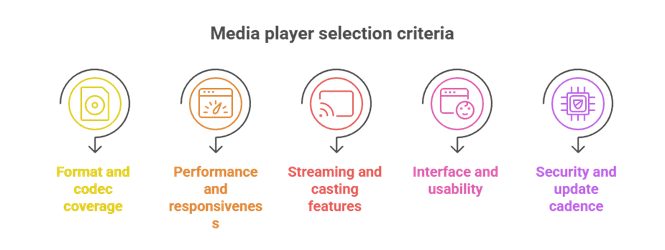
Here is what guided our selection:
- Format and Codec Coverage: We chose players with broad codec support so you can play rare files without hunting for extra packs or running into errors.
- Performance and Responsiveness: We shortlisted apps that stay efficient, with responsive controls and smooth 4K playback, even on older hardware.
- Streaming and Casting Features: We selected tools that let you stream reliably, cast to a TV, and handle network playback without constant dropouts.
- Interface and Usability: We weighed hassle-free setup, clean navigation, and useful shortcuts so the player stays comfortable day to day.
- Security and Update Cadence: We favored options with frequent patches, transparent development, and clean installers in order to avoid risky bundled software.
When a player met some criteria but fell short on safety or upkeep, we left it out. I always treat consistent updates as a sign that a project will keep functional months from now.
Free vs Paid Media Players: Which One Should You Pick?
One of the first questions people ask me is whether they should pay for a media player at all. The honest answer is that free players cover the needs of most viewers, while paid players earn their price in specific situations. The difference is rarely about raw playback quality and more about polish, support, and convenience features. Knowing which camp you fall into saves both money and frustration.
Free players are usually enough when:
- You Mostly Play Local Files: Open-source players like MPV, SMPlayer, and Kodi handle nearly every format without a license, which covers the majority of everyday viewing.
- You Value Transparency: Open-source projects are widely audited and avoid aggressive ads, so you know what you are installing.
- You Enjoy Tweaking Settings: Free players often reward customization, and you can shape them to your workflow at no cost.
Paid players are worth it when:
- You Want a Polished Library: Apps like Infuse and PowerDVD invest heavily in clean metadata, posters, and a living-room feel that free players rarely match.
- You Need Reliable Support: A paid license usually comes with active customer support and steady updates, which matters for less technical users.
- You Rely on Premium Extras: Features like advanced casting, disc menu support, or seamless cross-device sync are often where paid players pull ahead.
In my experience, the smartest approach is to start free and only pay once you hit a wall a free player cannot solve. There is no benefit to buying features you will never open.
Media Player Codec and Format Support Explained
Codecs and formats confuse a lot of people, and that confusion is usually behind the dreaded “file will not play” message. The key idea is simple once it clicks: a file format is the container, and the codec is the method used to compress what is inside it. A strong media player needs to understand both, which is exactly why players differ in what they can open. Once you understand the basics, choosing a capable player becomes much easier.
Here are the core concepts that matter:
- Containers vs Codecs: A container like MKV, MP4, AVI, or MOV is just a wrapper that holds video, audio, and subtitle streams together. The codec inside actually compresses the video or audio, so two MP4 files can behave very differently.
- Common Video Codecs: H.264 (AVC) is the most widely supported, H.265 (HEVC) saves space on 4K content, and newer AV1 offers strong efficiency but needs more modern hardware to play smoothly.
- Common Audio Codecs: AAC and MP3 are universal, while AC3, E-AC3, and DTS are common in movies. Lossless formats like FLAC and TrueHD preserve full quality but use more storage.
- Subtitle Formats: SRT is plain and reliable, ASS supports rich styling and positioning, and image-based PGS subtitles come from Blu-ray sources and need a player that can render them.
- Hardware Decoding: Technologies such as DXVA2, NVDEC, QuickSync, VAAPI, and VideoToolbox let your GPU handle heavy codecs. Enabling the right one keeps 4K and HEVC playback smooth while lowering CPU load.
I always recommend keeping your graphics drivers current and turning on hardware decoding before blaming the file itself. Most playback problems trace back to a missing codec or a decoder setting rather than a corrupt video.
How to Set Up and Optimize Your Media Player
Installing a media player takes a minute, but a few setup choices decide whether playback feels effortless or frustrating. I treat the first run as a short tuning session rather than a quick install, and it pays off every time afterward. The steps below apply to almost any player on this list, from MPV to PowerDVD. Spending five minutes here usually prevents the most common buffering, audio, and subtitle complaints.
Here is the setup routine I always follow:
- Download from the Official Source: Always grab the installer from the developer’s own site or an official store. This is the single best way to avoid bundled adware and tampered builds.
- Enable Hardware Acceleration: Turn on GPU decoding in the playback settings and update your graphics drivers. This keeps 4K and HEVC files smooth and lowers CPU usage.
- Set Your Default Audio Output: Point the player at the correct device, whether that is your headphones, TV, or a receiver, so you are not switching outputs mid-movie.
- Configure Subtitles Early: Pick a default font size, set the encoding to UTF-8, and learn the subtitle delay shortcut so misaligned captions take seconds to fix.
- Organize Your Library: If your player supports a library, point it at well-named folders so metadata and artwork load cleanly. Consistent file names make matching far more reliable.
- Keep It Updated: Enable automatic updates or check periodically. Frequent updates patch security issues and add support for newer codecs and formats.
In my experience, the difference between a “buggy” player and a great one is often just configuration. A clean install, hardware decoding, and tidy subtitles handle the issues most people run into.
Verdict:
In this review, you got acquainted with some of the best VLC alternatives for reliable playback, codec support, and clean controls. Each player delivers different strengths, whether it is speed, customization, or streaming flexibility. To help you take the final call, I have created this verdict.
- PotPlayer: A top-rated and highly customizable player that handles tricky codecs smoothly and stays responsive even with high-bitrate video. Its deep controls and strong hardware acceleration make it a superior choice for viewers who want flexibility without sacrificing stability.
- MPV Player: A remarkable and lightweight player known for clean, high-quality playback and precise control. It is an excellent, cost-effective option if you want speed and scripting flexibility, though it rewards users who are comfortable with shortcuts and simple configs.
- KMPlayer: A user-friendly and reliable player with broad format support and built-in features. I recommend it when you want convenience and an engaging interface, just keep an eye on installer options to keep the setup clean.
FAQs
Are these VLC alternatives free to use?
Many VLC alternatives are completely free, including MPV, SMPlayer, and Kodi. Others, like Infuse and PowerDVD, are paid or offer free tiers with upgrades. Always download from official sites or trusted stores to avoid bundled malware, and check whether “free” includes the codecs, updates, and hardware acceleration you need.
Which media player is best for 4K and HDR playback?
For 4K with smooth HDR, MPV is a top pick thanks to excellent GPU acceleration and advanced tone-mapping. PotPlayer and PowerDVD also perform well on Windows when configured correctly. Use the latest graphics drivers, enable hardware decoding such as DXVA2, NVDEC, or VAAPI, and choose the proper HDR output setting for your display.
Do these media players support subtitles and external audio tracks?
Yes. Most strong VLC alternatives support SRT and ASS subtitles, subtitle syncing, and multiple audio tracks. MPV and Kodi handle advanced subtitle rendering and track switching reliably, and PotPlayer offers deep subtitle styling. For best results, keep files named consistently and make sure subtitle encoding is set to UTF-8.
Are these VLC alternatives available for Windows, macOS, and Linux?
Several are cross-platform: MPV runs on Windows, macOS, and Linux, and Kodi supports all three as well. IINA and Infuse are built for the Apple ecosystem, while PowerDVD is Windows-focused. Always check your operating system version for compatibility and prefer actively maintained projects for security and codec updates.
Can these media players play DVDs and Blu-ray discs?
DVD playback is widely supported, especially with Kodi, PowerDVD, and 5KPlayer. Blu-ray is trickier, since many players can read unencrypted discs or folder and ISO rips, but encrypted Blu-ray usually requires additional tools and keys. Follow your local laws and licensing rules when playing protected discs.