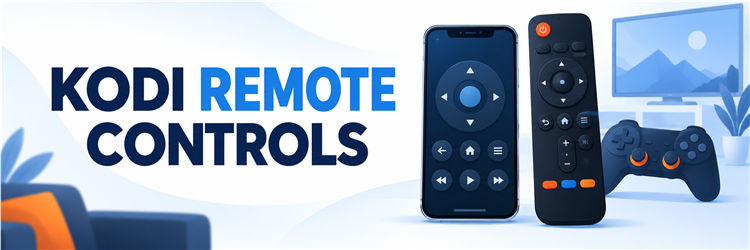
Key Takeaway: Kore Official Remote for Kodi is the simplest free Android choice. Official Kodi Remote is the best match for iPhone and iPad, while Yatse offers the deepest Android customization.
Best Kodi Remote Apps and Controllers: Top Recommendations
| Remote | Best For | Platform or Connection | Get Started |
|---|---|---|---|
| Kore Official Remote | Most Android users | Android over local network | Visit Site |
| Official Kodi Remote | iPhone and iPad | iOS and iPadOS over local network | Visit Site |
| Yatse | Advanced Android control | Android, Wear OS, local network | Visit Site |
| Chorus2 Web Interface | No-install browser control | Modern web browser | Visit Site |
| HDMI-CEC TV Remote | One-remote simplicity | Compatible TV, receiver, and Kodi host | Visit Site |
The best Kodi remote depends on where Kodi runs and what you want to control. Phone apps add library browsing and text entry, a web interface works without an installation, and hardware controllers keep navigation familiar from the sofa. Every network remote requires Kodi and the controller to communicate through the same trusted local network.
This guide compares nine current options using Kodi documentation, official app listings, and manufacturer specifications. I prioritize reliable navigation, clear setup guidance, supported platforms, and sensible cost. Network tools rank above niche hardware for most households, while physical controllers remain useful for HTPCs, televisions, Raspberry Pi systems, and Kodi gaming.
1) Kore Official Remote for Kodi
Kore is the Kodi Foundation’s free Android remote and the safest starting point for most Android users. It handles basic navigation, playback, library browsing, playlists, subtitles, PVR controls, and text entry without ads or a paid tier. I rank it first because its official status, simple interface, and open-source license reduce unnecessary setup decisions.
Features:
- Official Android App: Kodi Foundation publishes Kore on Google Play, providing a direct support path and an open-source Apache 2.0 codebase.
- Full Navigation: Directional controls, back, home, context actions, playback keys, and volume commands cover the everyday tasks of a living-room remote.
- Library Browser: Browse movies, television shows, music, pictures, and add-ons with artwork and metadata before starting playback on the connected Kodi system.
- Playlist Tools: Queue items, inspect the current playlist, change subtitles or audio streams, and send supported online videos to Kodi from Android.
- PVR Support: Live television users can browse channels, trigger recordings, and manage supported PVR functions without navigating every Kodi screen manually.
- Privacy Position: The current Google Play disclosure says Kore collects no data and shares no data with third parties through the application.
- Best Fit: I recommend Kore when free, official control matters more than casting, automation, wearable support, or extensive interface customization.
| Pros | Cons |
| Official Kodi Foundation Android remote | No iPhone or iPad version |
| Free, open source, and ad-free | Fewer advanced integrations than Yatse |
| Strong library and playback controls | |
| Clear privacy disclosures |
Pricing:
- Android App: Free on Google Play.
- Subscription: No subscription is required.
- Source Code: Open source under the Apache 2.0 license.
Link: https://play.google.com/store/apps/details?id=org.xbmc.kore
2) Official Kodi Remote for iPhone and iPad
Official Kodi Remote brings Kodi Foundation control to iPhone and iPad with a polished library browser and support for multiple Kodi hosts. It handles navigation, playback, search, favorites, PVR, settings, Wake-on-LAN, and detailed media views. I place it second because it is the direct, free choice for Apple households rather than a cross-platform compromise.
Features:
- Apple Support: The current listing supports iPhone and iPad on version 12 or later, with additional compatibility on supported Apple-silicon Macs.
- Multiple Hosts: Save and switch between more than one Kodi installation, useful for households with separate living-room, bedroom, or travel systems.
- Rich Browsing: Search and sort movies, shows, music, files, favorites, and add-ons while viewing artwork, cast images, details, and playlists.
- System Actions: Access Kodi settings, clean or refresh libraries, switch live television channels, manage recordings, and send Wake-on-LAN commands remotely.
- Remote Views: Traditional buttons and gesture-oriented controls remain close to the library interface, reducing repeated jumps between discovery and playback screens together.
- Privacy Disclosure: Apple’s current app listing says the developer does not collect or share data through Official Kodi Remote.
- Best Fit: I would choose it for an Apple household that wants official support, strong browsing, and no purchase before considering alternatives.
| Pros | Cons |
| Official Kodi Foundation app for Apple devices | No Android version |
| Free with multiple-host support | Remote access still needs Kodi network setup |
| Detailed library and PVR controls | |
| Wake-on-LAN and settings access |
Pricing:
- iPhone and iPad App: Free from Apple’s App Store.
- Subscription: No subscription is required.
- Compatibility: Requires iOS or iPadOS 12.0 or later.
Link: https://apps.apple.com/us/app/official-kodi-remote/id520480364
3) Yatse: Kodi Remote and Cast
Yatse is the most capable Android choice for users who want more than directional control. Its free tier provides a complete ad-free Kodi remote, while optional Pro features add casting, offline media, cloud backup, custom commands, and broader media-server support. I rank it third because the depth is excellent, but newcomers may prefer Kore’s simpler scope.
Features:
- Free Core Remote: Yatse’s current listing describes the free version as a fully functional, ad-free Kodi remote with an optional Pro upgrade.
- Media Casting: Pro functions can stream or cast supported media among Kodi, local Android storage, Chromecast, Fire TV, Roku, and compatible receivers.
- Advanced Commands: Custom commands, Tasker integration, widgets, voice actions, notification forwarding, and power controls support elaborate home-media workflows across devices.
- Wear OS Access: A companion experience can place basic playback and remote actions on a supported watch without reopening the phone application.
- Host Discovery: Zeroconf can find Kodi automatically, while manual setup accepts a hostname, webserver port, login, and password for reliable connections.
- Optional Helper: Yatse’s open-source Kodi add-on improves link sharing and metadata handling, but basic remote control does not depend on installing it.
- Power-User Pick: I recommend Yatse when automation, casting, custom commands, or several media servers justify learning its broader interface and paid options.
| Pros | Cons |
| Feature-rich free Kodi remote | Android only |
| Powerful automation and casting options | Advanced functions require Pro |
| Wear OS and widget support | |
| Excellent multi-host flexibility |
Pricing:
- Core Remote: Free without ads.
- Pro Features: Available through an in-app Unlocker purchase.
- Final Cost: Regional Google Play pricing can vary; confirm the displayed checkout amount.
Link: https://play.google.com/store/apps/details?id=org.leetzone.android.yatsewidgetfree
4) Chorus2 Web Interface
Chorus2 is Kodi’s default web interface, turning a modern browser into a remote and library manager without a dedicated app. It is especially convenient on laptops, Chromebooks, tablets, or borrowed devices already connected to the trusted network. I rank it fourth because installation is unnecessary, although browser access needs Kodi’s webserver configured securely.
Features:
- No App Install: Open Kodi’s local IP address and configured webserver port in a modern browser after enabling the built-in HTTP control service.
- Default Interface: Kodi currently identifies Chorus2 as the default web interface, so a separate repository download is normally unnecessary for basic use.
- Library Management: Browse movies, shows, and music, manage playlists, inspect artwork, start playback on Kodi, or stream compatible media through the browser.
- Cross-Platform Reach: Windows, macOS, Linux, ChromeOS, Android, and iOS devices can participate when their browser reaches the Kodi host’s local address.
- Shared Device Access: A guest can control playback temporarily without installing an app, provided the owner shares only the protected local web address.
- Security Requirement: Kodi recommends authentication and warns never to expose remote-control interfaces directly to the public internet under any circumstances.
- Best Use: I favor Chorus2 for occasional laptop control or library editing when installing another phone application would add little value.
| Pros | Cons |
| Works through a modern browser | Requires Kodi webserver configuration |
| Included as Kodi’s default web interface | Less convenient than a phone remote on the sofa |
| Strong library and playlist management | |
| Useful across many operating systems |
Pricing:
- Web Interface: Included with Kodi at no extra charge.
- Browser: Any compatible modern browser can be used.
- Network: No cloud subscription is required for local control.
Link: https://kodi.wiki/view/Settings/Services/Control
5) HDMI-CEC TV Remote
HDMI-CEC lets a compatible television remote pass navigation and playback commands through the HDMI connection to Kodi. It can deliver the cleanest living-room setup because the same remote may handle television power, receiver volume, input switching, and Kodi menus. I rank it fifth because support depends heavily on the television, receiver, cable, and Kodi host.
Features:
- One Remote: Directional, select, back, playback, volume, and power commands can travel through HDMI when every component implements compatible CEC behavior.
- Built-In Kodi Support: Kodi uses libCEC to translate commands among televisions, receivers, adapters, and supported hosts without a phone application.
- Raspberry Pi Advantage: Raspberry Pi hardware includes strong CEC support, making an existing television remote particularly attractive for compact Kodi systems.
- Automatic Actions: Compatible setups can switch inputs, wake devices, enter standby, or control receiver volume alongside ordinary Kodi navigation and playback.
- Vendor Names: Television menus may label CEC as Anynet+, BRAVIA Sync, SimpLink, VIERA Link, EasyLink, or another manufacturer-specific name instead.
- Adapter Option: Computers without CEC wired to HDMI can use a compatible USB-CEC adapter, adding cost and another installation step.
- Compatibility Advice: I would test built-in CEC before buying hardware because vendor implementations and supported buttons vary considerably between devices.
| Pros | Cons |
| Uses the television remote already nearby | CEC behavior varies by manufacturer |
| Can coordinate power, input, and volume | Many computers require an adapter |
| Excellent fit for Raspberry Pi | |
| No phone battery or network app required |
Pricing:
- Built-In CEC: No extra cost when the television and Kodi host already support it.
- Adapter: A USB-CEC adapter costs extra when the host lacks native support.
- Final Cost: Confirm current manufacturer pricing before buying an adapter.
Link: https://kodi.wiki/view/CEC
6) Flirc USB Receiver
Flirc USB converts button presses from an infrared remote into keyboard commands that Kodi and the host operating system can understand. Its pairing software includes Kodi and media-center profiles, then stores the configuration on the receiver. I place it sixth because it reuses a favorite remote elegantly, but setup requires a computer and line-of-sight infrared control.
Features:
- Remote Reuse: Pair buttons from most infrared remotes, allowing one familiar handset to control Kodi without replacing the entire living-room setup.
- Kodi Profile: Flirc’s configuration software includes a Kodi pairing profile alongside Fire TV, Shield, media keys, keyboard, and other device templates.
- Stored Configuration: Mappings live on the USB receiver, so the programmed remote can move to another supported machine without installing background software.
- Advanced Mapping: Long presses, macros, and hundreds of stored keys support customized shortcuts beyond ordinary direction, select, back, and playback commands.
- Cross-Platform Setup: Official configuration software is available for Windows, macOS, and Linux, covering the common computers used to prepare Kodi hardware.
- Infrared Limits: The receiver needs a visible path to the remote and cannot provide Bluetooth-style control through walls or closed equipment cabinets.
- Best Audience: I recommend Flirc for HTPC or Raspberry Pi owners who already have an excellent infrared or universal remote.
| Pros | Cons |
| Reuses almost any infrared remote | Needs line of sight |
| Stores mappings on the receiver | Initial pairing uses desktop software |
| Kodi-specific setup profile | |
| Supports macros and long presses |
Pricing:
- Flirc USB: $24.95 on the current official product page.
- Remote: A compatible infrared remote is required and may already be owned.
- Software: Flirc configuration software is available without a subscription.
Link: https://flirc.tv/products/flirc-usb-receiver
7) MCE Remote with USB Receiver
An MCE-style remote remains a practical Kodi controller for Windows and Linux media PCs. Most packages include a USB infrared receiver, and Kodi recognizes many standard navigation, playback, and Media Center commands immediately. I rank this category seventh because inexpensive models vary in build, key codes, and driver behavior despite their familiar plug-and-play promise.
Features:
- Kodi-Friendly Standard: Kodi documentation says most MCE remote buttons work immediately on Windows and Linux without editing a custom keymap.
- Receiver Included: Typical bundles contain a USB infrared receiver, making them suitable for desktop computers that have no built-in remote sensor.
- Media Buttons: Direction, select, back, play, pause, stop, skip, information, and volume keys match the layout expected from television equipment.
- Keyboard Emulation: Many inexpensive models send keyboard shortcuts or multimedia commands that Kodi already understands through the host operating system.
- Custom Keymaps: Kodi’s Keymap Editor or manual keymap files can change buttons when a command is missing, duplicated, or assigned poorly.
- Model Variation: RC6, eHome, keystroke, and generic Media Center implementations behave differently, so product documentation and return terms matter substantially.
- Buying Advice: I would choose a documented receiver bundle over a no-name listing that omits its operating-system and protocol support.
| Pros | Cons |
| Traditional sofa-friendly layout | Quality varies widely by model |
| Many buttons work in Kodi immediately | Infrared requires line of sight |
| USB receiver often included | |
| Custom keymaps remain possible |
Pricing:
- Remote Bundle: Pricing varies by manufacturer, receiver type, and availability.
- Software: Kodi does not charge for MCE remote support.
- Before Buying: Confirm that the listing includes a compatible USB receiver.
Link: https://kodi.wiki/view/MCE_remote_controls
8) Logitech K400 Plus Wireless Touch Keyboard
Logitech K400 Plus combines a compact wireless keyboard, touchpad, media keys, and USB receiver for Kodi systems that need frequent searching or configuration. It is better for text entry and desktop access than a button-only remote. I place it eighth because Kodi discourages mouse-first navigation, yet the keyboard remains extremely useful on a full HTPC.
Features:
- Integrated Touchpad: The right-side touch surface and click buttons remove the need to balance a separate mouse on a sofa or coffee table.
- Full Text Entry: A physical keyboard speeds searches, passwords, file names, network setup, and maintenance compared with Kodi’s on-screen character grid.
- Media Controls: Dedicated volume and playback-oriented keys provide quick access to common entertainment functions directly without reaching for operating-system menus.
- USB Receiver: The included wireless receiver suits computers and compatible Kodi boxes that expose a standard USB port for keyboard input.
- Android Compatibility: Logitech lists familiar hotkeys for Windows and Android users, although exact touchpad behavior depends on the connected host device.
- Living-Room Shape: Its compact body is easier to store than a desktop keyboard while remaining large enough for occasional two-handed typing.
- Best Use: I recommend it for HTPC owners who regularly search, configure add-ons, browse files, or leave Kodi for desktop tasks.
| Pros | Cons |
| Excellent for search and setup | Bulkier than a handheld remote |
| Keyboard and touchpad in one device | Requires a free USB port |
| Dedicated media controls | |
| Useful beyond Kodi |
Pricing:
- Keyboard: $34.99 on Logitech’s current United States product page.
- Receiver: The USB wireless receiver is included.
- Software: Basic keyboard operation does not require a subscription.
Link: https://www.logitech.com/en-us/shop/p/k400-plus-touchpad-keyboard
9) Xbox Wireless Controller
Xbox Wireless Controller is the strongest dual-purpose choice when Kodi navigation and gaming share one screen. Kodi can use a configured game controller as a remote, while Microsoft’s current model adds Bluetooth, familiar buttons, broad device support, and long battery life. I rank it ninth because ordinary media navigation is secondary to its full-size gaming design.
Features:
- Kodi Navigation: Kodi’s input settings include an option to use a game controller as a remote for interface navigation and media selection.
- Bluetooth Support: Microsoft’s current controller connects wirelessly to supported Windows, Android, iOS, and Xbox devices using Bluetooth or platform-specific wireless technology.
- Familiar Layout: Offset sticks, ABXY buttons, triggers, bumpers, menu keys, and a hybrid directional pad suit both gaming and Kodi control.
- Long Battery: Microsoft rates standard AA batteries for up to 40 hours, although vibration, headsets, cell quality, and usage change runtime.
- Controller Mapping: Kodi can configure attached controllers inside its settings when the host operating system and drivers recognize the hardware correctly.
- Media Limits: A gamepad lacks dedicated television power, channel, number, and receiver controls found on conventional living-room remotes at all.
- Best Audience: I would choose it when Kodi games matter as much as video playback, avoiding a separate controller for each activity.
| Pros | Cons |
| Handles Kodi navigation and gaming | Oversized for simple media control |
| Broad Bluetooth platform support | Lacks television-specific keys |
| Familiar button layout | |
| Up to 40 hours on AA batteries |
Pricing:
- Robot White: $64.99 on Microsoft’s current controller store.
- Other Colors: Standard colors and special editions can cost more.
- Rechargeable Pack: Optional battery kits are sold separately.
Link: https://www.xbox.com/en-US/accessories/controllers/xbox-wireless-controller
How We Ranked Kodi Remote Apps and Controllers
The ranking starts with the choices that solve everyday Kodi navigation for the most people, then moves toward specialized hardware for particular hosts and rooms.
- Platform Fit: Each option receives credit for documented support across Android, Apple devices, browsers, televisions, Windows, Linux, Raspberry Pi, or gaming hosts.
- Control Depth: Navigation, playback, library browsing, text entry, power functions, automation, and gaming support are weighted according to the option’s intended audience.
- Setup Clarity: Official discovery steps, connection requirements, authentication guidance, drivers, adapters, and configuration tools determine how predictably a reader can begin.
- Security and Privacy: Local-only operation, authentication support, official privacy disclosures, and warnings against public exposure influence network-remote positions significantly here.
- Value: Free official software ranks highly, while paid hardware must deliver durable controls, broader compatibility, or meaningful convenience beyond an existing remote.
Enable Remote Control in Kodi Safely
Phone apps and Chorus2 need Kodi’s control services enabled before discovery or manual connection can work. Keep the configuration limited to a trusted home network.
- Open Control Settings: In Kodi, visit Settings, Services, then Control; change the settings level when an expected option is hidden.
- Enable HTTP: Turn on control through HTTP, note the selected port, and create a username plus a strong password for browser and app access.
- Allow Other Systems: Enable application control from other systems only on a trusted local network, because connected clients can control the entire Kodi interface.
- Use Discovery: Enable service announcements when convenient so compatible remotes can find Kodi through Zeroconf without manually entering the host address.
- Check Firewall Rules: Permit the configured HTTP port, commonly 8080 TCP, and event port 9777 UDP only within the private local network.
Choose an App, TV Remote, Keyboard, or Gamepad
The right control type depends on how often you search, manage libraries, play games, or operate equipment beyond Kodi itself.
- Phone App: Choose Kore, Official Kodi Remote, or Yatse for artwork, playlists, text entry, and detailed library control from a personal device.
- Browser Interface: Use Chorus2 when a laptop or tablet needs occasional control without installing another application or creating a separate device workflow.
- Television Remote: Prefer HDMI-CEC when compatible equipment already passes the essential direction, select, back, playback, volume, power, and input commands reliably.
- Keyboard or IR: Pick K400 Plus, Flirc, or an MCE remote for an HTPC that needs physical keys, desktop access, or custom shortcuts.
- Game Controller: Enable Kodi controller support when gaming matters too; the Fire TV game controller guide covers device-specific buying considerations.
Protect Kodi Remote Access on Your Network
Remote control is convenient because it grants meaningful access. A few network boundaries keep that convenience from becoming an unnecessary exposure.
- Stay Local: Never forward Kodi’s HTTP, JSON-RPC, WebSocket, or event-server ports from the router directly to the public internet.
- Require Credentials: Set a unique username and strong password for HTTP control, then save those values only on trusted household devices.
- Separate Guests: Keep Kodi hosts and remote apps away from untrusted guest or public Wi-Fi networks that allow clients to reach one another.
- Reserve the Address: A router DHCP reservation keeps Kodi on the same local IP, reducing failed connections without exposing it beyond the home network.
- Review Old Clients: Remove saved hosts, forgotten apps, and unnecessary control services when a phone, tablet, computer, or household setup changes.
Fix a Kodi Remote That Will Not Connect
Most failures come from network separation, changed addresses, disabled services, incorrect credentials, or hardware that the host system never recognized.
- Confirm Kodi Works: Start Kodi fully and verify local control first; follow the Kodi installation guide for Firestick when the application itself is missing or damaged.
- Match the Network: Put the phone or browser and Kodi host on the same private network, avoiding isolated guest Wi-Fi and cellular data.
- Recheck Address: Compare Kodi’s current IP, HTTP port, username, and password with the saved host details inside the remote application.
- Inspect the Firewall: Allow Kodi and its configured local ports through the operating-system firewall, then test discovery and manual entry separately.
- Validate Hardware First: For USB, Bluetooth, infrared, or game controllers, confirm the operating system recognizes every button before troubleshooting Kodi mappings.
Verdict: Which Kodi Remote Should You Choose?
Choose the control method that matches the device already in your hand and the depth of control you actually need:
- Kore Official Remote is the best free Android starting point.
- Official Kodi Remote is the strongest iPhone and iPad choice.
- Yatse is the best Android upgrade for automation and advanced control.
Frequently Asked Questions
What is the best Kodi remote app for Android?
Kore is the best starting point because it is free, official, open source, and focused completely on Kodi. Choose Yatse when casting, automation, Wear OS, custom commands, or advanced media-server integrations matter more than simplicity.
What is the best Kodi remote app for iPhone or iPad?
Official Kodi Remote from Kodi Foundation is the direct choice for iPhone and iPad. It supports navigation, multiple hosts, detailed library browsing, playlists, PVR functions, settings, and Wake-on-LAN without an app purchase.
Can I control Kodi without installing an app?
Yes. Enable Kodi’s HTTP webserver and open the Kodi host’s local IP address plus port in a modern browser. Chorus2 is the default web interface. Add authentication and never expose the control port directly to the internet.
Why can my Kodi remote app not find Kodi?
Confirm that both devices share the same private network, Kodi is running, HTTP and application control are enabled, the firewall allows local traffic, and the saved IP, port, username, and password still match Kodi. If Kodi is not installed or will not open, follow the Kodi installation guide for Firestick before troubleshooting remote access.
Can I use my television remote to control Kodi?
Yes, when the television, receiver, HDMI path, and Kodi host support compatible HDMI-CEC behavior. Enable the manufacturer’s CEC setting, test navigation and playback, and consider a USB-CEC adapter only when the host lacks native support.
Can a game controller work as a Kodi remote?
Yes. Kodi includes a setting to use a game controller for interface navigation and can configure recognized controllers. The operating system must detect the hardware first, and a gamepad still lacks many television-specific buttons.