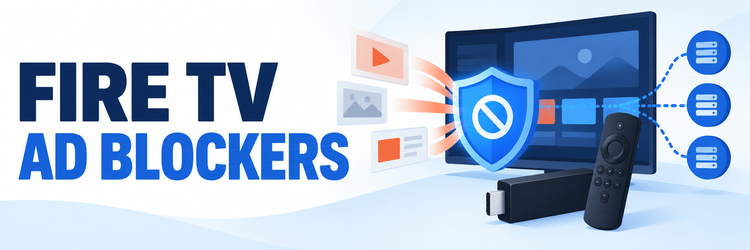
Key Takeaway: The best ad blockers for Firestick depend on your model and the kind of ads you want to filter. For an older Android-based Fire TV Stick, AdGuard for Android TV is the most direct app-based pick, while NextDNS gives you flexible filtering through your router. SmartTube is a separate YouTube-focused option for compatible Fire OS models. DNS filters cannot remove every ad, especially ads delivered from the same domain as a video.
The right blocker depends on your Fire TV’s operating system and where you see ads. An Android TV app can filter more traffic on compatible Fire OS models, while a DNS service blocks known advertising and tracking domains for devices that use it. Network-level tools cover every stick connected to that network, but no one method reliably removes all streaming-service ads.
Best Firestick Ad Blockers: Top Recommendations
| Tool | Best For | Filtering Method | Get Started |
|---|---|---|---|
| AdGuard for Android TV | Compatible Fire OS devices | On-device app and DNS filtering | Visit Site |
| NextDNS | Custom blocklists and profiles | Configurable DNS | Visit Site |
| Control D Free DNS | Simple no-account filtering | Public DNS resolver | Visit Site |
| AdGuard DNS | Easy public DNS filtering | Public DNS resolver | Visit Site |
| SmartTube | YouTube on compatible Fire TV | Alternative video client | Visit Site |
1) AdGuard for Android TV
AdGuard is my first choice if you have a Fire TV device that still runs a compatible Android-based Fire OS version and want an on-device interface. It offers app and DNS controls, but it requires a license and does not block YouTube ads. Amazon’s Vega OS models are not Android TV devices, so check compatibility before trying to install it.
Features:
- App filtering: AdGuard for Android TV can filter traffic from selected apps and browsers on a supported Android TV system, which gives you more control than a DNS address alone.
- DNS protection: It can route domain requests through filtering DNS and supports encrypted DNS protocols, adding a choice for users who want private resolver traffic.
- App management: Its television interface lets you choose which apps use protection, helping you troubleshoot a service without disabling filtering across the entire device.
- Web protection: AdGuard documents protection from malicious and phishing destinations, so its purpose extends beyond removing advertising requests from supported apps.
- YouTube limit: AdGuard states its Android TV app cannot block YouTube ads, so I would not choose it as a complete YouTube ad solution.
- Model check: Fire OS is Android-based, but new Vega OS sticks are not; confirm your model’s system software before relying on Android TV installation steps.
- Trial and license: The TV app requires an AdGuard license and offers a limited trial, so compare current license terms before deciding whether its controls justify the cost.
| Pros | Cons |
|---|---|
| On-device controls for compatible TV apps | Requires a paid license after trial |
| Filtering DNS and threat protection options | Cannot block YouTube ads |
| App-by-app protection settings | Not a Vega OS app |
| TV-oriented interface |
Pricing:
- Trial: AdGuard offers a limited trial for the Android TV app.
- License: A paid AdGuard license is required afterward; current plans depend on duration and device count.
- Extra cost: No separate Fire TV fee is listed, but check the license terms for your account.
Link: https://adguard.com/en/adguard-android-tv/overview.html
2) NextDNS
NextDNS is my pick for people who want to tune filtering without maintaining a server. Create a profile, select blocklists, and point the router or a compatible network device to its resolver. This can cover a Firestick regardless of its app ecosystem, though the free tier has a monthly query limit and DNS filtering cannot reliably remove same-domain video ads.
Features:
- Custom profiles: NextDNS lets you create separate configurations, so you can apply a lighter rule set to a television and stricter filtering to other household devices.
- Blocklists: Its dashboard supports selecting blocklists for advertising, trackers, and security threats, with controls to adjust the filtering to your household.
- Allow and deny rules: You can permit a domain that breaks an app or add a domain to a denylist without changing the entire network configuration.
- Router setup: Configure the resolver in your router to cover the Firestick using its normal Wi-Fi connection; the exact menus depend on the router model.
- Usage limit: The free plan allows up to 300,000 DNS queries monthly; after the cap, filtering features pause until reset unless you use a paid plan.
- Privacy controls: NextDNS offers optional query logs and analytics, so review the logging settings and retention choices when creating your profile.
- My best use: I would choose NextDNS when device-specific settings and visible logs matter more than a simple plug-in address with no dashboard.
| Pros | Cons |
|---|---|
| Flexible profiles and blocklists | Free filtering has a query cap |
| Allowlist and denylist controls | Router setup varies |
| Can cover multiple devices | Not a visual or cosmetic blocker |
| Dashboard helps troubleshoot requests |
Pricing:
- Free: Up to 300,000 queries monthly with filtering features.
- Paid: Unlimited queries are available on a subscription plan; check NextDNS for current pricing.
- Hardware: A router or compatible DNS client is needed for simple whole-network setup.
Link: https://nextdns.io/
3) Control D Free DNS
Control D Free DNS is a practical no-account option when you want a ready-made resolver rather than another app on the stick. It provides public endpoints with optional ad and tracker filtering. I like it for a simple router-level trial, but its free resolvers do not include the fine-grained device profiles and historical reporting available in the paid dashboard service.
Features:
- Public resolver: Free endpoints can be used without creating an account, making this an easy way to test DNS-based ad filtering through your home router.
- Filter choices: Control D publishes distinct resolver presets, including an AdGuard filter option and other curated filtering combinations for different preferences.
- Encrypted DNS: Its free service supports encrypted DNS protocols such as DNS-over-HTTPS, DNS-over-TLS, and DNS-over-QUIC when your router supports them.
- No query logs: Control D says its free public resolvers do not store individual browsing history or query logs, which simplifies privacy choices.
- Network coverage: A router setting can apply the resolver to the Firestick and other connected equipment without installing a client app on each device.
- Fewer controls: Free endpoints do not provide custom rules or per-device profiles, so I would move to a configurable service if one app needs an exception.
- Filtering caveat: Some lists can block a domain that an app needs, and DNS filtering cannot hide ads embedded in an allowed video stream.
| Pros | Cons |
|---|---|
| No account for public endpoints | Limited control without paid service |
| Several filtering resolver choices | Occasional false positives |
| Encrypted DNS on compatible routers | Does not remove same-domain video ads |
| Can cover the whole home network |
Pricing:
- Free public resolvers: Available without an account.
- Advanced controls: Paid Control D service offers profiles and finer configuration.
- Setup: No Fire TV app is needed when configured at the router.
Link: https://docs.controld.com/docs/free-dns
4) AdGuard DNS
AdGuard DNS is a straightforward starting point if you want a public DNS resolver from a dedicated ad-blocking provider. You can choose a default filtering server or a family option, then set it on a router that supports custom DNS. For a single Firestick, the router route is usually simpler than sideloading software, but it offers less per-app control.
Features:
- Default filtering: AdGuard’s default public DNS blocks known advertising and tracking domains, which can reduce requests across devices using that resolver.
- Family option: A separate family endpoint adds adult-content filtering and safe-search support where the destination service makes that possible.
- Router coverage: Set DNS on a compatible router to protect the Firestick without installing an application or depending on its operating system.
- Encrypted protocols: AdGuard documents DNS-over-HTTPS, DNS-over-TLS, DNS-over-QUIC, and DNSCrypt endpoints for equipment that supports encrypted resolvers.
- Free access: The public DNS endpoints can be used without purchasing an app license or creating a per-device account.
- Fewer analytics: A public resolver is simpler than a custom profile service, but it does not give the same device-specific reporting and rules.
- My recommendation: I would start with the default resolver, then switch back quickly if a streaming app or Fire TV feature stops loading.
| Pros | Cons |
|---|---|
| Free, simple public filtering DNS | Few per-device controls |
| Family filtering endpoint available | May break app requests |
| Multiple encrypted DNS protocols | Not a cosmetic browser filter |
| Router-based use fits newer OS models |
Pricing:
- Public DNS: Free to use.
- Managed profiles: AdGuard’s private DNS product has separate plans and limits.
- Hardware: Router support for custom DNS varies by make and firmware.
Link: https://adguard-dns.io/en/public-dns.html
5) SmartTube
SmartTube is not a system-wide blocker; it is a free, open-source alternative YouTube client for supported Android TVs and older Android-based Fire TV devices. It includes SponsorBlock for skipping marked sponsor segments, and the project’s compatibility notice excludes Vega OS models. I would consider it only for YouTube viewing on a compatible stick and install it from the official project.
Features:
- YouTube focus: SmartTube provides a TV-oriented video client rather than filtering every app, browser, or home-screen advertisement on a Firestick.
- SponsorBlock: Its optional integration can skip community-marked sponsor segments inside videos; that feature is separate from blocking advertising requests.
- Remote interface: The project focuses on Android TV and TV boxes, so navigation is designed for a television remote rather than a touchscreen.
- Free software: SmartTube is free and open source, with project releases and code published on its official GitHub repository.
- Older Fire TV support: The project lists Fire TV devices released before October 2025 as supported when they run Android-based software.
- Vega exclusion: SmartTube’s maintainers say Fire TV 4K Select and newer Vega OS devices are not compatible, so I would check the exact model first.
- Safe source: Download only from the official project; the maintainer warns against unofficial app stores and third-party APK websites.
| Pros | Cons |
|---|---|
| YouTube-focused viewing client | Does not block ads system-wide |
| SponsorBlock integration | Unsupported on Vega OS devices |
| Free and open source | Requires sideloading |
| Remote-friendly television interface |
Pricing:
- App: Free.
- Optional donations: The project accepts voluntary support.
- Compatibility: No purchase can make it run on an unsupported Vega OS Fire TV.
Link: https://github.com/yuliskov/SmartTube
6) AdGuard Home
AdGuard Home is a free, open-source DNS server for people who would rather manage filtering on their own network. Run it on compatible Linux hardware, a NAS, or a supported container host, then point the router or Firestick network to it. Its dashboard and allowlists make it easier to diagnose than a bare public resolver, but someone must maintain it.
Features:
- Whole-network DNS: AdGuard Home filters requests for connected devices through a central server, so the Firestick does not need a compatible client app.
- Open source: The project is free software with public source code, issue tracking, and documentation maintained by the AdGuard team.
- Query visibility: Its web interface shows DNS activity and blocked requests, helping you identify which domain might be causing a streaming app problem.
- Custom rules: You can allow or deny domains and choose blocklists, giving more control than a fixed public resolver.
- Hosting choices: It supports several installation approaches, including Linux and Docker, so you can use hardware already running in your home.
- Maintenance: I would choose this only if I can keep the host powered, updated, and reachable whenever the Firestick needs DNS.
- Streaming limits: Domain filtering cannot remove every ad and can disrupt apps that rely on a blocked analytics or content domain.
| Pros | Cons |
|---|---|
| Free network-wide DNS filtering | Requires a home server |
| Local query logs and rule controls | Needs ongoing maintenance |
| Can run on Linux or Docker | False positives can break apps |
| No Fire TV client app needed |
Pricing:
- Software: Free and open source.
- Hardware: A suitable always-on computer, NAS, or supported host may have a cost.
- Power and upkeep: Your server remains part of the home network and needs maintenance.
Link: https://github.com/AdguardTeam/AdGuardHome
7) Pi-hole
Pi-hole is a strong fit if you already use a Raspberry Pi, NAS, virtual machine, or small Linux computer and want DNS filtering across the home. It can block many known ad and tracker domains before devices connect to them, with a useful query log for troubleshooting. Setup takes more work than changing a public DNS address, and it cannot strip ads delivered with the video itself.
Features:
- Network-wide filtering: Pi-hole acts as a DNS sinkhole, letting several devices use one local blocker without separate Fire TV software.
- Hardware flexibility: The project supports Linux installation and Docker, so a Raspberry Pi is one option rather than a strict requirement.
- Query log: The dashboard shows which devices requested domains and whether Pi-hole blocked them, which can help pinpoint a broken Fire TV app.
- Allow and deny: Administrators can permit a blocked domain or add new rules when an app needs a service that a list catches.
- Router integration: You can set the router’s DNS or use Pi-hole’s DHCP features, depending on the network setup and administrator preference.
- My setup choice: I would reserve Pi-hole for homes with an always-on host and someone comfortable checking its updates and DNS settings.
- Known limit: Pi-hole blocks domains, not video frames, so it usually cannot remove ads served from the same domain as a program.
| Pros | Cons |
|---|---|
| Free network-wide DNS sinkhole | Needs separate hardware or host |
| Detailed device query log | Setup is less beginner-friendly |
| Broad Linux and Docker support | May need app-specific allow rules |
| Works with Fire OS and Vega via DNS |
Pricing:
- Software: Free and open source.
- Hardware: The computer or network storage used to host it may cost extra.
- Optional support: Donations are voluntary and are not needed for the core software.
Link: https://docs.pi-hole.net/
How I Ranked These Firestick Ad Blockers
I ranked each option by Fire TV compatibility first, then by the range of traffic it can filter, setup effort, control over false positives, and ongoing cost. I gave DNS options credit for working across operating systems, but not for removing ads they cannot technically see. Direct Fire TV apps rank well for convenience only when the exact device software supports them.
- Compatibility: Does the tool run directly on a compatible Fire TV model, or can the Firestick use it through network DNS?
- Coverage: Does it target a browser, one video app, selected device apps, or DNS requests for the whole network?
- Controls: Can you review logs, choose lists, or allow a domain when filtering stops a service from loading?
- Maintenance: Does the setup require a paid license, account, router access, always-on server, or manual APK installation?
- Limitations: Does the product explain which ads it cannot block, including ads served from the same domain as video content?
What Can an Ad Blocker Actually Remove on Firestick?
Most DNS blockers compare the requested domain with a list of known advertising, tracking, or malicious domains. If an app serves content and ads from the same approved domain, DNS cannot separate the ad segment from the video. A blocker may also stop an app’s analytics call that the app needs to launch or play content, so more filtering is not always better.
- Browser banners: A browser-specific content blocker can remove some page elements when it supports the browser and its extension model.
- Separate ad domains: DNS filtering can block requests sent to known ad and tracking hosts used by an app.
- Video ads: YouTube and subscription services can deliver ads through the same infrastructure as video, limiting domain-level filtering.
- Home-screen promotions: Device settings and operating system controls can reduce some recommendations, but an ad blocker may not remove every promoted row.
- App errors: If a service stops working, temporarily restore automatic DNS, restart the app, and add only a verified required domain to an allowlist.
Which Fire TV Models Support App-Based Blockers?
Fire OS generations are Android-based, while Amazon’s newer Vega OS devices use a different application platform. Amazon identifies the Fire TV Stick 4K Select as a Vega OS device, and the SmartTube project warns that its Android app does not support Vega OS. Check each model’s own specifications because Fire TV platforms vary by generation. This makes router DNS a more portable option, although it still has the same content-level limits.
- Check the system page: Open Settings and find the About section to identify the model and software family before installing an APK.
- Use official compatibility notes: Compare the exact model against the app developer’s current supported-device list rather than assuming all Fire TV sticks run Android.
- Prefer router DNS on Vega: A compatible router can supply filtering DNS to Vega OS devices without installing an Android application on the stick.
- Do not sideload random files: Download an app only from its official developer or verified project release, and avoid repackaged APKs from blogs.
- Keep a rollback route: Note your original router DNS settings before changing them so you can restore normal connectivity if a service fails.
How to Set Up DNS Ad Blocking for a Firestick
For most homes, set the chosen resolver in the router rather than trying to edit DNS on each Firestick. The labels differ between routers, and some internet providers lock these settings. Use one DNS filtering service at a time, make a note of the original values, and verify that the stick receives the intended resolver after reconnecting to Wi-Fi.
- Choose a resolver: Start with a public option such as AdGuard DNS or Control D, or create a profile with NextDNS for more control.
- Find the router settings: Use the router’s official guide to locate Internet, WAN, DHCP, or DNS settings; the correct menu varies by model.
- Enter supported addresses: Copy the exact IPv4, IPv6, or encrypted DNS endpoint from the provider’s official setup page and avoid mixing unrelated resolvers.
- Reconnect the Firestick: Restart Wi-Fi or the streaming stick so it requests network settings again, then try the apps you use most.
- Undo or allow carefully: If playback or login breaks, revert to automatic DNS first; only add an allow rule after identifying the domain responsible.
Is a Free DNS Ad Blocker Enough?
A free resolver is often enough to reduce requests to known ad and tracker domains on a home network. It is less useful when you need to see which individual device made a request, manage exceptions for a single app, or filter a device while travelling. In that case, a configurable DNS profile or a self-hosted server gives you more visibility.
- Choose free public DNS: Best when you want a quick test and do not need individual device controls.
- Choose NextDNS: Useful for profiles, selectable blocklists, and domain-level exceptions, with attention to the free monthly quota.
- Choose a local server: Pi-hole or AdGuard Home suits a household that has a home server and wants local query logs.
- Choose AdGuard Android TV: Consider it for a supported Fire OS model when you want on-device app controls and accept its license requirement.
- Skip unnecessary purchases: An ad blocker cannot guarantee ad-free viewing in every service, so avoid buying a tool based on that promise.
Verdict
AdGuard for Android TV is the most direct choice for a compatible older Fire OS stick, while NextDNS offers the best balance of configurable filtering and device coverage. Control D and AdGuard DNS make simple free starting points, and Pi-hole or AdGuard Home are better for technically confident households with an always-on server. SmartTube is a separate YouTube client, not a universal Firestick blocker.
- AdGuard for Android TV: Best when your Fire TV runs a compatible Android-based Fire OS version and you want app-level controls.
- NextDNS: Best for custom DNS filters, profiles, and domain exceptions across devices on a supported router.
- Control D Free DNS: Best for a quick no-account DNS trial when advanced reporting and per-device rules are not required.
FAQs
What is the best ad blocker for Firestick?
AdGuard for Android TV is the most direct app option for a compatible Android-based Fire OS device. NextDNS is a flexible DNS option for router setup, and SmartTube can change YouTube viewing on older supported Fire TV models. The best choice depends on your device’s operating system and the ads you want to reduce.
Can a Firestick ad blocker remove YouTube ads?
DNS blockers cannot reliably remove YouTube ads because video and advertising can share domains. AdGuard’s Android TV support page says its TV app does not block YouTube ads. SmartTube is a separate client for compatible Android-based devices, but it is not supported on Vega OS Fire TV models.
Will an ad blocker stop ads in every Firestick app?
No. DNS filters block known domains and may miss ads delivered from the same domain as content. An app may also stop working if a required service is blocked. Test the services you use and undo the DNS change if core features fail.
Can I install Android ad-blocker APKs on a 2026 Fire TV Stick?
Some newer Fire TV models use Vega OS rather than Android-based Fire OS, so Android APK compatibility cannot be assumed. Check Amazon’s model specifications and the app developer’s supported-device notes before installing anything. Router-level DNS filtering does not rely on an Android app on the stick.
Is AdGuard DNS free to use on Firestick?
AdGuard provides free public DNS endpoints that block advertising and tracking domains. You can configure a compatible router to share that resolver with a Firestick, but managed profiles and the separate AdGuard Android TV application have different product terms.
How do I fix a streaming app that stops working after changing DNS?
Restore automatic DNS or your router’s previous settings first, then restart the Firestick and affected app. If the service works again, use the DNS provider’s query log to identify the blocked host and allow only that domain if you trust it. Our Firestick Wi-Fi troubleshooting guide also covers connection checks.
Does Firestick have built-in ad privacy settings?
Fire TV includes privacy and advertising preferences that can limit certain data uses and interest-based ads, but those settings are not a replacement for network filtering. See Amazon’s support instructions and our Firestick apps guide for other ways to adjust your setup.