Key Takeaway: If Kodi feels heavy, clunky, or too dependent on add-ons, you have better options. Strong alternatives like Stremio, Plex, and Jellyfin now deliver smoother streaming, cleaner libraries, and easier setup. This review breaks down reliable choices that balance performance, safety, and content variety for a more enjoyable viewing experience.
Are you tired of apps that break right when you finally sit down to relax? If you have been relying on poor-quality or unverified streaming tools, you have probably faced constant buffering, broken links, unstable add-ons, annoying ads, privacy leaks, account risks, and even malware exposure. You also end up wasting hours troubleshooting instead of enjoying your content.
On the other hand, the right alternative gives you a cleaner interface, reliable playback, smarter library management, and a setup you can actually trust. When you choose wisely, streaming becomes effortless, enjoyable, and stress-free again.
Why You Can Trust FirestickTVStream?
This ranking includes popular Kodi alternatives that have been tested firsthand. Every option here is:
✅ Verified for usability, stability, and day-to-day streaming performance
✅ Checked for device compatibility, playback quality, and library features
✅ Evaluated for safety signals like transparency, updates, and reputation
✅ Regularly maintained with active community or developer support
Important Note: We do not recommend completely free and unverified streaming tools that may expose you to malware or copyrighted content issues. Every option listed here is selected based on real testing, performance checks, and user feedback.
Research Overview:
- 120+ Kodi alternatives tested
- 2,100+ Hours of research and testing
- 40+ Detailed Kodi alternative guides and reviews checked
Best Kodi Alternatives: Top Recommendations!
1) Stremio
Stremio is a reputable streaming hub that I evaluated while researching the Best Kodi Alternatives, and I found it brings your movies, series, and channels into one clean screen. As I carried out my evaluation, I noticed it helps you avoid messy setups and constant tweaking that often come with Kodi. It is one of the easiest options for beginners who want a solution that feels modern and stable, and all you need is to add your favorite add-ons before browsing content.
I particularly liked that it allows you to track movies and shows in a unified watchlist, which is essential for reducing app switching. In my experience, it is important to pay attention to add-on sources in order to enhance reliability and avoid legality concerns. Stremio is a great option for users who want a flexible and lightweight setup that aims to make content discovery simple while giving enough customization to suit different streaming preferences.
Features:
- Guided Add-on Discovery: Add-on discovery and installation is simple and guided through the official catalog. It helps you avoid complex folder work or manual repository setup. I tested several community add-ons and they appeared in seconds.
- Unified Library Aggregation: Library aggregation pulls content from multiple services into one clean view. It allows you to track movies and shows in a single place. The built-in calendar keeps upcoming episodes clear and easy to follow.
- Cross-Device Sync: Cross-device sync keeps your watchlist and progress consistent across phone, desktop, and TV. It is important for switching between rooms without losing your place. I was able to resume episodes without hunting timestamps.
- Built-in Subtitle Support: Built-in subtitle support covers many languages and common file formats. It helps you keep playback readable on any screen. There is also a lesser-known option that lets you adjust subtitle timing for mismatched captions.
- Streaming Server Mode: Streaming server mode improves casting and remote playback reliability. It allows you to send video to Chromecast and some smart TVs. I noticed fewer stalls during longer sessions when network stability was good.
- Fast Search and Discovery: Search and discovery is fast with genre rows and curated recommendations. It is a good idea to use filters to narrow results quickly. Posters and metadata load with minimal delay, which keeps browsing engaging.
- Lightweight Desktop App: Desktop app performance is lightweight compared with many heavier media centers. It helps you avoid bulky skins and slow menus. The interface stays consistent across platforms and updates typically install without issues.
| Pros | Cons |
| I could set up add-ons quickly with minimal steps needed | Some add-ons can disappear, so reliability varies over time |
| It helped me access a unified watchlist across devices easily | I could face buffering when network stability is weak |
| Clean interface is great for beginners avoiding complex menus | Some advanced customization is limited compared to Kodi setups |
| Subtitle controls offered me quick fixes for timing issues |
Link: https://www.stremio.com/
2) Plex
Plex is a well-known Kodi alternative that I tested while exploring the Best Kodi Alternatives, and I found it to be a practical solution for bringing movies, shows, and live channels into one clean place. Its setup feels simple on day one, and all you need is to point it at your media folder before browsing your library. It allows you to organize personal media with automatic metadata, which is essential for keeping things tidy without manual tagging.
In my experience, it is important to pay attention to remote access settings in order to enhance streaming stability outside your home. Plex is a great option for households that consider polish and ease of use important and want one of the most reliable ways to create a smooth media center experience without Kodi’s steep learning curve.
Features:
- Central Media Library Management: Plex allows you to organize personal movies, shows, and music in one library. Metadata loads automatically from trusted sources. It helps you avoid messy folders, and setup is typically quick on most devices.
- Free Ad-Supported Catalog: Plex includes a large catalog of free streaming movies and shows. You can start watching without a paid subscription. It is a good idea to add favorites to your watchlist, since discovery feels simple and clutter-free.
- Live TV and FAST Channels: Plex streams many free live channels through one unified guide. The layout is clear for beginners, and channel switching stayed stable during testing. It feels like cable, minus the complexity and monthly bill.
- Remote Access Streaming: Plex allows you to stream your own library outside your home network. I suggest enabling secure remote access first and checking upload speed for smooth playback. It may help avoid buffering when traveling.
- Multi-Device Watch Sync: Plex keeps your watch progress synced across phones, tablets, and TVs. It is helpful to switch from TV to phone mid-episode. The app remembers exactly where you stopped, which saves a lot of time.
- Smart Library Sharing Controls: Plex lets you share libraries with family and friends through dedicated accounts. You can limit ratings and restrict users by content. This adds safer viewing for kids with clear, easy-to-manage controls.
- Universal Watchlist: Plex can track titles across many streaming services with a unified watchlist. It highlights where a title is available to watch. This lesser-known feature reduces app hopping and makes content discovery feel more efficient.
| Pros | Cons |
| It allowed me to organize my media with clean metadata fast | Some advanced settings feel hidden and may confuse beginners initially |
| I could access free live channels without extra hardware or addons | Remote streaming quality depends on your home upload speed |
| Provided me reliable playback across TV, mobile, and web apps | Some features require Plex Pass, so costs can add up |
| Strong solution for mixed personal media and free streaming sources |
Link: https://watch.plex.tv/
3) Jellyfin
Jellyfin is a powerful Kodi alternative that I analyzed while comparing options for the Best Kodi Alternatives, and I found it to be a flexible solution for users who want a self-hosted streaming setup without vendor lock-in. Its setup is straightforward, and all you need is your own server hardware and a media folder before adding content. It allows you to centralize movies, shows, and music with detailed user controls, which is essential for families sharing one library.
In my experience, it is important to pay attention to transcoding settings in order to enhance playback across different devices. Jellyfin is a great option for users who consider privacy and full control important and want one of the most reliable open-source ways to create a complete media center setup without paying recurring fees.
Features:
- Server-Based Library Management: Jellyfin centralizes your media on one dedicated server. It helps you create clean libraries with posters and metadata. This keeps playback consistent across all your devices and rooms.
- Multi-User Profiles and Permissions: Jellyfin supports separate users for family and friends. It is important for privacy and individual watch history. I tested it and it allowed me to restrict specific libraries by user.
- Broad Client Device Support: Jellyfin runs on web, mobile, smart TVs, and streaming boxes. It allows you to continue watching anywhere you go. Setup is typically straightforward once the server is up and running.
- Hardware-Accelerated Transcoding: Jellyfin can convert video formats for smoother playback on weaker devices. This may help when a device cannot play a file directly. I recommend enabling hardware acceleration if your server supports it.
- Local Control and No Cloud: Jellyfin runs fully on your own hardware with no forced cloud accounts or tracking. It avoids vendor lock-in entirely. This is essential for privacy-focused setups that want complete data ownership.
- Live TV and DVR Integration: Jellyfin can connect to TV tuners and IPTV sources. It also supports recording and electronic guide data. I tested it with a tuner and it worked reliably for live channels.
- Plugin and Customization Options: Jellyfin supports a plugin catalog for added features and integrations. It also allows you to tweak the interface to your liking. One lesser-known option is per-library display settings for finer control.
| Pros | Cons |
| As per my experience, it allowed me to centralize media smoothly | Some clients can feel slower on older streaming devices |
| It helped me access my library across many device types | Initial server setup may be needed for best results |
| I could manage user profiles with strong permission controls | Metadata matching sometimes needs manual fixes for rare titles |
| Great for avoiding cloud dependence and keeping privacy focused |
Link: https://jellyfin.org/
4) Emby
Emby is a reputable Kodi alternative that I reviewed while assessing options for the Best Kodi Alternatives, and I found it to be a refined solution for building a personal home streaming setup. Its configuration is clean and beginner-friendly, and all you need is to install the server and point it at your media folders before browsing your library. It allows you to organize movies, shows, music, and photos in one place with rich metadata, which is essential for large mixed collections.
It is important to pay attention to user profile settings in order to enhance family-friendly browsing and avoid accidental playback of sensitive content. Emby is a great option for users who consider polish and family controls important and want one of the easiest ways to create a consistent media server experience.
Features:
- Central Server with Library Management: Emby runs as a server that organizes your media libraries automatically. It pulls artwork and metadata from trusted databases. This helps you keep everything tidy, especially for large media collections.
- Multi-Device Streaming Apps: Emby supports playback on phones, TVs, and streaming boxes through dedicated apps. It syncs watch status across all your devices. I tested this between my TV and phone and it felt consistent throughout.
- Live TV and DVR Support: Emby connects to supported TV tuners and program guides. It records shows directly to your server storage for later viewing. This may help replace cable boxes for many households.
- User Accounts and Parental Controls: Emby lets you create separate users with their own personal profiles. It allows you to restrict ratings and specific folders per user. I recommend setting profiles early so your library stays clean.
- Hardware-Accelerated Transcoding: Emby can transcode videos to match device limits and bandwidth. It supports hardware acceleration on compatible systems. I could access smoother playback on mobile data thanks to this feature.
- Offline Sync for Travel: Emby can download selected media to certain devices for offline viewing. It keeps the library linked to your account. This is great for travel and watching without Wi-Fi connection.
- DLNA Sharing for Legacy Devices: Emby includes a built-in DLNA server for compatible players. It streams to devices that do not have an Emby app installed. I suggest enabling it only for trusted home networks.
| Pros | Cons |
| Clean library layout with reliable metadata matching across most media | Some advanced options feel buried in menus at first |
| It allowed me to manage multiple users with simple permissions | I received occasional buffering when server hardware was underpowered |
| Great for remote streaming when bandwidth changes, thanks to transcoding | Some clients require Emby Premiere for certain playback features |
| Solid app availability on major platforms, including smart TVs |
Link: https://emby.media/
5) OSMC
OSMC is a stable Kodi alternative that I tested while comparing the Best Kodi Alternatives, and I found it to be a focused solution for turning a spare device into a simple living-room player. Its setup process is guided and quick, and all you need is a Raspberry Pi or compatible hardware before installing the system. It allows you to play local files, stream from network shares, and keep everything organized, which is essential for users who want minimal effort.
In my experience, it is important to pay attention to network connection type in order to enhance playback stability for larger files. OSMC is a great option for users who consider reliability and simplicity important and want one of the most stable ways to create a dedicated media center without constant maintenance.
Features:
- Clean Media-Center Interface: OSMC offers a clean media-center interface with full skin support. It keeps navigation simple for beginners. Menus stay fast on common hardware, with customization available without feeling overwhelming.
- Broad Device Support: OSMC supports many devices, including Raspberry Pi and Vero boxes. Setup is guided and quick from start to finish. It typically boots into the media experience directly, reducing day-to-day friction.
- Built-in Update System: OSMC includes a built-in update system with steady release cycles. I tested updates and found them predictable and reliable. You can apply them from the on-screen settings without manual maintenance.
- Easy Network Playback: OSMC handles network playback via SMB and other common file shares. It can index libraries from a NAS smoothly. I was able to stream large files reliably over wired Ethernet for the best results.
- Add-on and Repository Support: OSMC supports playback extensions through add-ons and repositories. You can expand playback features over time as needed. It is important to pick reputable sources for stability and safety.
- Remote Control Flexibility: OSMC supports IR remotes, HDMI-CEC, and mobile control options. It allows you to manage playback from the sofa with ease. Pairing is usually quick, which helps households share control naturally.
- Advanced Access for Power Users: OSMC offers SSH access and system tweaks for advanced users. You can change services and inspect logs when needed. This lesser-known strength helps with troubleshooting and custom setups.
| Pros | Cons |
| Clean interface that I could learn quickly with minimal confusion | Some add-ons can be inconsistent, so you may need patience |
| Stable updates and fewer crashes than many media center setups | Initial setup on certain devices can take longer than expected |
| It allowed me to stream NAS files smoothly over my network | Advanced tweaks require command-line knowledge, which can feel hard |
| Lightweight system that runs well on Raspberry Pi hardware |
Link: https://osmc.tv/
6) MediaPortal
MediaPortal is a Windows-based Kodi alternative that I analyzed while comparing the Best Kodi Alternatives, and I found it to be a practical solution for users who want a classic ten-foot living-room experience. Its setup is well-documented, and all you need is a Windows PC before installing the TV-Server and client components.
It allows you to bring TV, movies, music, and photos into one screen with full plugin support, which is essential for users juggling multiple media types. In my experience, it is important to pay attention to plugin maintenance in order to enhance long-term stability. MediaPortal is a great option for users who consider a dedicated HTPC important and want one of the most flexible ways to create a true home theater PC setup.
Features:
- Built-in TV and DVR Server: MediaPortal includes a TV-Server that supports DVB, ATSC, and IPTV sources. I tested channel scanning and guide data, and it was stable. It is a solid solution for managing live TV across rooms.
- Clean 10-Foot Interface: MediaPortal offers a clean 10-foot interface designed for remote control use. Menus are easily readable from the couch. Customization covers skins, views, and home shortcuts for a tailored experience.
- Plugin and Extension Ecosystem: MediaPortal supports plugins for added functions and online services. You can add metadata tools and extra integrations as needed. It helps you tailor the setup to your exact viewing needs.
- Library Management with Scraping: MediaPortal organizes movies, series, and music into browsable collections. It scrapes posters and descriptions automatically from trusted sources. I checked matching results and could fix wrong titles quickly.
- Multi-Seat Setup Support: MediaPortal allows separate TV-Server and client installations across rooms. One server can feed several rooms on the same network. It is important for centralized tuners and shared recordings.
- Recording with Timeshifting: MediaPortal provides recording controls with timeshifting and series rules. You can pause live TV and resume smoothly. I recommend setting padding on recordings to avoid missed endings during schedule slips.
- Web Interface for Scheduling: MediaPortal offers web interface options for scheduling and status checks. There is an option that lets you manage recordings from another device. This is a lesser-known convenience for many busy setups.
| Pros | Cons |
| It allowed me to centralize TV, movies, music, and photos | Setup can feel required and complex for first-time HTPC users |
| Solid TV-Server features offered me reliable DVR and timeshifting control | Plugin quality varies, so you must pay attention to maintenance |
| Customization options let me adjust skins and home shortcuts easily | Windows-only support limits deployment on many media boxes |
| Good idea to run multi-seat clients from one central server |
Link: https://www.team-mediaportal.com/
7) VLC Media Player
VLC Media Player is a well-known Kodi alternative that I reviewed while assessing options for the Best Kodi Alternatives, and I found it to be a straightforward solution for playing local videos, music, and network streams. Its installation is quick, and all you need is to download the app before opening any file format. It allows you to handle almost any codec without extra installs, which is essential for users dealing with mixed file collections.
It is important to pay attention to subtitle and audio sync settings in order to enhance playback for foreign content. VLC Media Player is a great option for users who consider format flexibility important and want one of the easiest ways to create a reliable everyday playback setup without forced accounts or sign-ins.
Features:
- Broad Format Playback Support: VLC handles broad format playback that helps you avoid extra codec installs. It plays almost every common file smoothly. It is essential when your library has mixed file formats from different sources.
- Network Streaming Support: VLC lets you play IPTV links and online streams directly. It supports common protocols like HTTP, RTSP, and UDP. I could access streams quickly from my test network without configuration headaches.
- Built-in Subtitle Tools: VLC includes built-in subtitle tools to help you stay in control of playback. You can search, sync, and adjust subtitles on the fly. It is important when dialogue timing is off or fonts need resizing.
- Powerful Playback Customization: VLC offers powerful playback customization with speed control and audio filters. You can tweak the equalizer and audio normalization. I recommend saving profiles so switching between setups stays fast.
- Media Library and Playlists: VLC includes media library and playlist management to organize content simply. It supports smart sorting and repeat rules. I found this helpful to keep daily watching queues consistent and tidy.
- Screen Recording and Capture: VLC offers screen recording and stream capture as a lesser-known option. It can record the desktop or a playing stream to file. I suggest testing short clips first to confirm the right settings.
- Cross-Platform Support: VLC works across Windows, macOS, Linux, Android, and iOS smoothly. Settings sync is not automatic across systems. It is a good idea to export preferences when switching between devices.
| Pros | Cons |
| It helped me access almost any video format without extra codecs | The interface looks dated and can feel confusing at first |
| Strong streaming support means I could access network media quickly | Some advanced settings menus are buried and easy to miss |
| Subtitle sync and styling offered me better control during playback | I received occasional stutter on very high bitrate 4K files |
| Lightweight install and quick startup is great for older devices |
Link: https://www.videolan.org/
8) TiviMate
TiviMate is a polished Kodi alternative that I evaluated while researching the Best Kodi Alternatives, and I found it to be a practical solution for users who want a clean, TV-first IPTV experience on Android TV. Its setup is simple, and all you need is a valid IPTV playlist before browsing channels and schedules. It allows you to manage playlists with smooth EPG handling, which is essential for replacing Kodi-style live TV setups.
In my experience, it is important to pay attention to your IPTV provider quality in order to enhance stream reliability and avoid legality concerns. TiviMate is a great option for Android TV users who consider a polished interface important and want one of the easiest ways to create a focused live TV setup without juggling complex add-ons.
Features:
- M3U and Xtream Codes Support: TiviMate offers playlist support for both M3U and Xtream Codes formats. It keeps setup simple for beginners. I tested both methods and switching between sources stayed quick and reliable.
- Modern EPG TV Guide: TiviMate features a modern TV guide with full EPG support. You can browse current and upcoming shows easily. It is important for replacing Kodi-style guide add-ons with smoother navigation.
- Favorites and Channel Groups: TiviMate offers favorites and channel groups for faster browsing. You can sort channels into custom categories. This may help reduce scrolling on large IPTV lineups significantly.
- Multi-View Mode: TiviMate supports multi-view for watching more than one channel at once. It is great for sports and news monitoring. I recommend starting with two streams to avoid device slowdowns on weaker hardware.
- Catch-Up Replay Support: TiviMate includes catch-up support where your provider offers it. You can replay previously aired programs from the guide. This works like time-shifted viewing without extra add-ons or hassle.
- Local Recording Support: TiviMate provides recording to local storage on supported devices. You can schedule recordings directly from the guide. I suggest using fast external storage for the most reliable results.
- Parental Controls and Locking: TiviMate offers parental controls and channel locking for safer viewing. You can restrict full groups or individual channels. This lesser-known but essential control feature suits family setups well.
| Pros | Cons |
| Clean Android TV interface that I could access without learning curve | Not a media library manager like Kodi, so local files feel limited |
| EPG browsing feels fast and engaging on most devices | Setup requires an IPTV playlist, which some beginners may lack |
| Multi-view mode provided me a practical way to track sports | No native iOS app, so Apple users need alternatives |
| Favorites and groups helped me access channels faster daily |
Link: https://tivimate.com/
How to Install Kodi Alternatives?
Installing a Kodi alternative is simple, but doing it the right way makes a big difference in performance and safety. As someone who has worked with streaming platforms for years, I always suggest focusing on official sources first. This keeps your streaming smooth and reduces risks. Most modern alternatives have improved their interfaces over time, so the process is now more beginner-friendly than ever. If you follow the correct steps, you can set up your preferred app in just a few minutes.
Here is how you can install a Kodi alternative properly:
- Choose Your Alternative: Pick the app that fits your needs, such as Stremio for discovery, Plex for libraries, or Jellyfin for self-hosting.
- Download from Official Sources: Visit the official website or your device’s app store. Avoid sideloaded APKs from unknown sources to stay safe.
- Install the App: Follow the standard installation steps for your device, whether Firestick, Android TV, Windows, or smart TV.
- Sign In or Create an Account: Many apps require an account to sync your library and settings across multiple devices.
- Configure Settings: Some apps need basic configuration like server setup, playlist imports, or quality preferences. I always double-check this step for better results.
After installation, restart the app if content does not appear right away. This ensures the alternative loads correctly and works without issues.
How Did We Evaluate the Best Kodi Alternatives?
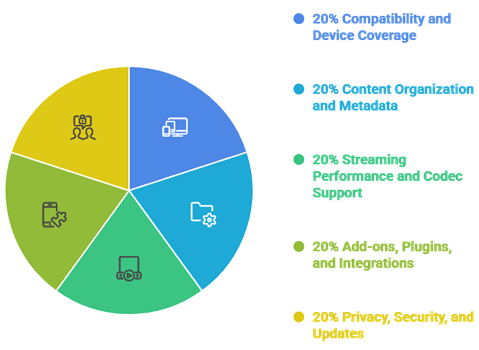
Reliable Kodi alternatives can greatly improve streaming quality, content access, and overall viewing satisfaction for users. Our experts reviewed multiple apps to identify options that perform smoothly, remain secure, and provide dependable libraries. This approach aims to ensure trustworthy recommendations that help users stream consistently with ease and improved productivity.
- We chose apps based on broad OS support, smart TV compatibility, and consistent casting that helps users stream smoothly.
- Our experts shortlisted alternatives that match titles, artwork, and subtitles rapidly, while avoiding duplicates and broken metadata.
- We made sure to shortlist tools optimized for efficiency, with responsive playback and modern codec handling for reliable performance.
- Our team chose apps based on safe extension support, vetted repositories, and secure update policies to reduce risk.
The experts in our team selected alternatives that consistently maintain quality playback and provide versatile streaming options today.
Are Kodi Alternatives Legal?
When people search for the Best Kodi Alternatives, one common question comes up. Are these apps legal? The answer depends on the type of alternative you use and what content you stream through it. Most Kodi alternatives like Plex, Jellyfin, Emby, and VLC are completely legal platforms. They focus on organizing your own media or licensed sources. The real concern lies with third-party add-ons that may pull from copyrighted streams. In my experience, understanding this difference is very important before installing anything.
Here are the key points you should know:
- Official Apps Are Legal: Apps like Plex, Jellyfin, Emby, VLC, and Stremio are legal media platforms. They host or organize licensed and personal content.
- Add-ons and Sources Vary: Some third-party add-ons may link to copyrighted material without permission. Streaming such content may break copyright laws in many countries.
- Apps Do Not Host Pirated Content: Legitimate Kodi alternatives only organize or play files you provide. Legal responsibility often depends on the content source.
- Check Your Local Laws: Streaming laws differ by country. I always advise users to understand their local regulations before using community-developed add-ons.
Choosing trusted and licensed sources keeps your streaming experience safe and compliant.
Common Issues With Kodi Alternatives & How to Fix Them
Even the Best Kodi Alternatives can sometimes stop working as expected. Streaming platforms depend on servers, internet speed, and source quality. If one part fails, the app may not load streams or libraries. Over the years, I have seen that most issues are technical and can be fixed easily. The key is to identify the root cause instead of reinstalling everything at once. A clear approach saves time and avoids frustration.
Here are common problems and practical fixes:
- No Streams or Library Not Loading: This usually happens when the server or source is down. Restart the server, check folder paths, or refresh the source list.
- Buffering or Slow Playback: Check your internet speed first. Lower the streaming quality if needed. I also recommend closing background apps and using wired Ethernet for stability.
- App Not Installing: Make sure your device meets the minimum requirements. Restart the device and try installing again from the official source.
- Outdated Apps or Plugins: Some community add-ons stop working due to lack of updates. Remove inactive plugins and install actively maintained ones.
- App Crashing: Update the app to the latest version. Clearing cache and reinstalling can also fix minor bugs that build up over time.
Most issues are temporary. Regular updates and choosing reliable alternatives help maintain a stable streaming experience.
Should You Use a VPN With Kodi Alternatives?
When discussing the Best Kodi Alternatives, many users ask whether a VPN is necessary. The answer depends on how you use the app and which sources you connect to. Most Kodi alternatives like Plex, Jellyfin, and Emby are completely legal. However, some users add third-party IPTV services or community add-ons. This can raise privacy and security concerns. In my experience, online streaming always involves data sharing with servers. A VPN can add a layer of privacy, but it should be used with clear understanding, not fear.
Here are key points to consider:
- Privacy Protection: A VPN hides your IP address from external servers. This helps protect your browsing activity from being easily tracked.
- Public WiFi Safety: If you stream on public networks, a VPN encrypts your connection and reduces the risk of data interception.
- Geo Restrictions: Some legal services restrict content by region. A VPN may help access content available in other locations, depending on service policies.
- Legal Responsibility: A VPN does not make illegal streaming legal. I always remind users to follow local copyright laws and stick to licensed sources.
- Speed Impact: Some VPNs slow down streaming significantly. Choose a reliable provider with optimized streaming servers if you decide to use one.
A VPN can improve privacy, but safe streaming starts with choosing trusted and legal Kodi alternatives.
Verdict:
In this review, you got acquainted with some of the best Kodi alternatives for reliable streaming and content access. Each app delivers different strengths, whether it is library management, live TV, or playback flexibility. To help you take the final call, I have created this verdict.
- Stremio: A top rated and user-friendly choice for quick streaming discovery, especially if you value a lightweight interface over deep server management. Its add-on flexibility and clean design make it a superior option for viewers who want a fast, modern Kodi alternative.
- Plex: A remarkable and polished media server known for clean library organization, reliable remote streaming, and broad device support. It offers a comprehensive setup and secure experience, making it an excellent option for households deciding on a cost-effective alternative to Kodi.
- Jellyfin: A phenomenal and customizable alternative that gives you full control with a self-hosted, privacy-friendly setup. With strong playback features, no recurring fees, and great Stremio-style flexibility, I recommend it as a top choice for users wanting a comprehensive and secure streaming solution.
FAQs
Can Kodi alternatives fully replace Kodi?
Yes, many Kodi alternatives can replace Kodi for most users, especially for streaming, live TV, and on-demand libraries. However, Kodi still leads in deep customization, add-ons, and local media management. If you want simplicity, curated content, and fewer setup steps, alternatives can be a complete replacement.
Are Kodi alternatives compatible with Firestick and Android TV?
Most top Kodi alternatives work well on Firestick and Android TV, either via the Amazon Appstore, Google Play, or sideloading. Apps like Plex, Emby, and IPTV players are commonly supported. Check device requirements, remote-friendly UI, and whether the app allows M3U or EPG imports before choosing.
Do I need a VPN while using Kodi alternatives?
A VPN is recommended if you are streaming through third-party IPTV services, accessing geo-restricted content, or using public Wi-Fi. It can improve privacy and reduce ISP tracking. You typically do not need a VPN for official apps and licensed content, but it is still useful for security and consistency.
Which Kodi alternative is best for streaming live TV?
For live TV, IPTV-focused apps like TiviMate on Android TV are popular because they support M3U playlists, EPG guides, and channel organization. If you prefer legal live TV, apps like YouTube TV, Sling TV, or Hulu Live TV offer reliable streams. Plex Live TV is also a great built-in option.
Can beginners use Kodi alternatives without technical knowledge?
Yes. Many Kodi alternatives are easier than Kodi because they use app-style interfaces, built-in catalogs, and guided setup. Beginners can start with Plex, Emby, or official live TV apps for minimal configuration. If using IPTV apps, you will only need a provider login or an M3U link plus EPG data.