
Key Takeaway: Each Kodi Addons for Firestick option was reconsidered for official repositories, authorized media sources, traceable publishing details, everyday device usability, and accessible account information. For most Firestick users, POV is the quickest debrid-first choice, Umbrella offers the deepest controls, and Elementum is the strongest no-debrid option for advanced users who understand torrent privacy. I also included official, legal picks for YouTube, personal media, live channels, public-domain content, and baseball.
A long addon list is useless when half the repositories are dead or every entry serves the same purpose. I refreshed this guide around what a Firestick owner actually needs: one fast movie and television addon, one reliable backup, one legal live-TV choice, and a few official specialists. That approach keeps Kodi lighter, easier to troubleshoot, and less likely to fail after an update.
current-status note: “current” here means the official listing or developer repository was reachable and current evidence supported Kodi 21 Omega use on August 7, 2026. It does not guarantee that every external provider, channel, or title will remain available. Kodi 21.3 Omega is still the stable release; Kodi 22 Piers remains a pre-release choice and can break third-party dependencies.
Important Note: When choosing among Kodi Addons for Firestick options, account for local availability, hardware support, plan limits, and the operator’s documented rights. Validate the company behind the service, its current fees, supported platforms, and catalog for your location. The article does not endorse redirected mirrors, unidentified feeds, or platforms that fail to document lawful distribution.
Best Kodi Addons for Firestick: Top Recommendations!
| Addon | Best For | Cost | Install Source |
|---|---|---|---|
| POV | Fast movies and TV with debrid | Free addon; debrid required | View Source |
| Umbrella | Best configurable debrid addon | Free addon; provider required | View Source |
| Elementum | Free torrent streaming for advanced users | Free | View Source |
| The Crew | All-in-one backup addon | Free; debrid optional | View Source |
| YouTube | Official videos, trailers, and channels | Free | View Source |
1) POV
POV is my first pick for Firestick users who want a fast, uncluttered movie and TV interface. I confirmed that the Kodifitzwell repository is reachable and still supplies its repository ZIP. The addon is designed around premium debrid sources, so it suits viewers who value quick menus, cached results, Trakt lists, and fewer failed links.
Features:
- Firestick-Friendly Menus: POV keeps its navigation lean, so category pages and information screens feel quicker than heavier all-in-one addons on memory-limited Fire TV hardware during daily browsing.
- Debrid Source Results: The addon searches supported premium services for cached sources, helping you avoid the slow hoster checks and unreliable free links that often waste time.
- Trakt and List Support: You can connect Trakt, IMDb, and MDBList options to surface watchlists, collections, popular rows, and personal discovery lists inside the same interface.
- Source Filtering: Quality, size, language, codec, and provider filters let you remove unsuitable results before playback, which matters when storage, bandwidth, or television support is limited.
- Resume and Progress: Watched status and resume points can follow your Trakt account, making POV useful when you move between a Firestick, television box, and computer.
- Current Repository Check: I opened the official repository address on August 7, 2026; the repository ZIP loaded correctly, giving this entry a stronger maintenance signal than copied download pages.
- Account Requirement: POV does not provide a useful zero-account experience; plan to authorize a supported debrid provider before expecting dependable movie and television search results.
| Pros | Cons |
| Very responsive menus | Paid debrid account required |
| Strong source filters | Third-party repository |
| Useful Trakt and MDBList tools | Setup has more steps |
| Good fit for older Firesticks |
Pricing:
- Cost: Free
- Access: Supported debrid account sold separately
Link: https://kodifitzwell.github.io/repo/
2) Umbrella
Umbrella is the addon I would choose when control matters more than a minimal settings page. Its official repository currently lists version 6.7.76 and supports Kodi 19 through 21, with a Kodi 22 branch already present. You must connect debrid, Easynews, Plex, or Google Drive, but the payoff is detailed filtering and dependable account-based playback.
Features:
- Supported Provider Choice: Umbrella supports Real-Debrid, AllDebrid, Premiumize, TorBox, OffCloud, Easynews, Plex, and Google Drive, giving you more account flexibility than most competitors in one setup.
- Detailed Sorting Rules: You can sort sources by resolution, file size, provider, cached status, codec, and language, reducing repeated trial-and-error on a television remote during daily use.
- Current Version Signal: The official project page lists Umbrella 6.7.76 and repository 2.2.6, while separate Omega and Piers folders show continued compatibility work.
- Trakt Integration: Watchlists, collections, progress, and scrobbling can sync through Trakt, so your viewing history remains organized reliably even after reinstalling Kodi on another device.
- External Provider Model: Umbrella separates its interface from external provider packages, which can simplify updates but requires you to install and maintain the correct provider module.
- Firestick Performance Tuning: Limiting pre-emptive termination, maximum file size, and unsupported codecs helps weaker Firesticks stop searching sooner and avoid files they cannot play smoothly.
- Repository Verification: I checked the official source on August 7, 2026; its current repository ZIP downloaded from the listed address and the project documentation remained available.
| Pros | Cons |
| Extensive provider support | No useful playback without an account |
| Excellent filtering controls | Provider setup can confuse beginners |
| Active project branches | Many settings need tuning |
| Works well with Trakt |
Pricing:
- Cost: Free
- Access: Debrid, Easynews, Plex, or cloud account
Link: https://umbrellaplug.github.io/
3) Elementum
Elementum is the strongest no-debrid option here, but it is also the one that needs the clearest warning. The addon streams through BitTorrent rather than ordinary web hosts. I verified the official page still offers version 0.1.114 and Android ARM builds, although its developers describe support as limited. Use only lawful torrents you are allowed to access.
Features:
- No Debrid Needed: Elementum can search and play torrents without a premium resolver account, which removes a monthly service requirement but changes the privacy and legal risk.
- Firestick Build Options: The download page provides universal and Android ARM packages, letting you choose a build suited to common 32-bit and 64-bit Fire TV devices.
- Trakt Library Tools: The addon can sync Trakt activity and manage a virtual library, giving frequent viewers lists, history, and familiar movie or television browsing sections.
- Burst Provider Addon: Elementum Burst supplies searchable provider definitions separately, so provider changes can be updated without replacing every part of the main playback engine.
- Peer-to-Peer Exposure: Torrent playback shares data with peers and may expose your IP address; a VPN adds privacy, but it never makes unlicensed viewing legal.
- Storage and Memory Load: Large buffers and download paths can overwhelm a Firestick, so use modest cache values and confirm that temporary files are not filling internal storage.
- Limited Support Notice: I checked the official documentation on August 7, 2026; downloads work, but the maintainers explicitly warn that Elementum and Burst now receive limited support.
| Pros | Cons |
| No debrid subscription required | Peer-to-peer privacy exposure |
| Multiple Android builds | Limited official support |
| Trakt and library support | Heavier on storage and memory |
| Direct torrent playback |
Pricing:
- Cost: Free
- Access: VPN service sold separately
Link: https://elementumorg.github.io/
4) The Crew
The Crew remains a practical backup when you prefer one addon with movies, shows, sports, and other categories. I confirmed its public GitHub repository is online and contains repository packages through version 0.3.8. Its menus are broader and heavier than POV, while free links can be inconsistent, so it works best as a secondary choice with debrid enabled.
Features:
- Broad Content Sections: Movies, television, sports, kids, and specialty categories live inside one addon, reducing the need to install several separate interfaces on your Firestick.
- Free and Premium Sources: The Crew can return ordinary hoster links and premium resolver results, though free availability changes quickly and usually needs more retries during busy periods.
- Debrid Compatibility: Connecting a supported premium service normally produces more cached high-resolution links and faster starts than relying entirely on unstable public hosting sources during routine use.
- Trakt Account Support: Trakt authorization adds watchlists, collections, watched status, and resume tracking, making the large menu easier to personalize across multiple Kodi devices during daily use.
- Repository Availability: The public Team Crew repository includes several repository ZIP versions, providing a transparent installation source you can inspect instead of an anonymous shortened Downloader code.
- Firestick Resource Use: Because The Crew covers many sections, clearing old cache and disabling unused providers can reduce menu delays and repeated scraping on lower-memory Firesticks.
- Status Check: I opened the project repository on August 7, 2026; it was reachable with repository packages present, although individual streaming sources can still disappear without warning.
| Pros | Cons |
| Many content categories | Free links are inconsistent |
| Debrid is optional | Menus feel heavier than POV |
| Useful as a backup | Third-party sources change often |
| Public repository source |
Pricing:
- Cost: Free
- Access: Supported debrid account sold separately
Link: https://github.com/team-crew/team-crew.github.io
5) YouTube
YouTube is the official-repository addon I recommend to every Firestick Kodi setup. Version 7.4.4 reached the Omega repository in June 2026, making it one of the freshest entries here. I like it for trailers, creator channels, live streams, and music videos, although account sign-in and personal API configuration can require more work than the native Fire TV app.
Features:
- Official Kodi Repository: You can install YouTube directly from Kodi Add-on Repository without enabling unknown sources, reducing the risk of cloned ZIP files and abandoned repositories.
- Fresh Omega Release: Kodi lists version 7.4.4 from June 26, 2026, which is a clearer current-maintenance signal than addons whose last package predates Omega.
- Subscriptions and History: After authorization, you can open subscriptions, playlists, history, and recommendations from Kodi, keeping familiar account features inside a television-friendly interface across supported devices.
- Trailer Dependency: Many Kodi skins and movie addons call the YouTube plugin for trailers, so installing it can improve features outside its own main menu.
- Quality Controls: Stream quality and MPEG-DASH settings help balance picture clarity against Firestick Wi-Fi limits, while InputStream Adaptive handles available format changes across changing network conditions.
- Setup Tradeoff: Basic playback is straightforward, but full signed-in functionality may require Google authorization or personal API keys depending on current quota and account behavior.
- Verified Listing: I checked Kodi’s official Omega listing on August 7, 2026; the addon page, source link, package details, and installation route were all available.
| Pros | Cons |
| Official repository install | Sign-in can be fiddly |
| Very recent Omega update | Personal API setup may be needed |
| Huge legal catalog | Native Fire TV app is simpler |
| Useful for trailers |
Pricing:
- Cost: Free
- Access: YouTube Premium is separate
Link: https://kodi.tv/addons/omega/plugin.video.youtube/
6) Samsung TV Plus
Samsung TV Plus gives this roundup the free live-TV option competitors often mention without explaining. The SlyGuy addon offers region and genre browsing, search, bookmarks, and IPTV Merge support without a Samsung account. I confirmed the developer page, repository instructions, and GitHub mirror remain online. Channel availability changes by region, but installation and viewing cost nothing.
Features:
- Free Live Channels: The addon exposes Samsung TV Plus linear channels without a subscription, covering news, entertainment, sports highlights, food, kids programming, and themed streams.
- No Login Required: You can browse and play supported channels without creating a Samsung account, which makes setup quick on shared or newly reset Firestick devices.
- Region and Genre Browsing: Channel lists can be explored by country and category, helping you avoid one enormous unsorted list when navigating with a simple Fire TV remote.
- Kodi TV Integration: IPTV Merge and IPTV Simple Client can place channels and guide data inside Kodi’s main TV section for a more familiar grid experience.
- Search and Bookmarks: Search helps locate a particular station quickly, while bookmarks keep frequently watched channels reachable without repeating region and genre navigation every session.
- Geo-Availability Limits: The developer notes that some channels remain geographically restricted, so a missing station may reflect Samsung’s regional catalog rather than a broken addon.
- Source Verification: I checked the developer guide and SlyGuy GitHub mirror on August 7, 2026; both were available, and the Samsung TV Plus package remained listed.
| Pros | Cons |
| Free and account-free | No on-demand library |
| Legal live channel source | Channels vary by region |
| Optional EPG integration | Requires third-party SlyGuy repository |
| Good Firestick remote navigation |
Pricing:
- Cost: Free
- Access: Not required
Link: https://www.matthuisman.nz/2021/06/samsung-tv-plus-kodi-add-on.html
7) Plex
Plex remains the safest choice when your priority is your own movie, television, music, and photo library. The official Kodi addon connects a Firestick to Plex Media Server and uses the server for organization or transcoding. I verified its Omega page still works, but the package itself has not changed since April 2024, so I rank it below fresher addons.
Features:
- Official Plex Integration: The addon signs into a Plex account and displays libraries from your Plex Media Server inside Kodi, keeping personal media separate from scraper sources.
- Server-Side Transcoding: When a file exceeds Firestick codec or bitrate limits, a capable Plex server can transcode it into a format the device handles more reliably.
- Remote Library Access: Correctly configured remote access lets you reach home media while traveling, although upload speed and server power determine the quality you can sustain.
- Profiles and Watch State: Plex accounts can preserve watched status, continue-watching rows, and shared access, which helps households keep separate histories across televisions and devices.
- Direct Play Controls: Direct play avoids unnecessary conversion when files already match Firestick capabilities, reducing server load and often improving seeking, subtitles, and playback stability.
- Older Addon Package: Kodi still lists the official addon, but version 0.3.5 dates to April 2024, so users wanting newer features may prefer maintained alternatives.
- Listing Check: I opened the official Omega page on August 7, 2026; downloads and source details were present, but the older package date keeps Plex outside my top five.
| Pros | Cons |
| Excellent for owned media | Requires a Plex server |
| Official Kodi repository | Addon package is older |
| Supports transcoding | Some features need Plex Pass |
| Reliable watch-state sync |
Pricing:
- Cost: Free
- Access: Plex Pass sold separately
Link: https://kodi.tv/addons/omega/script.plex/
8) DailyMotion
DailyMotion earns a place because it is both official-repository friendly and genuinely current. Kodi lists version 2.4.5 from July 13, 2026, newer than most legal video plugins in the present article. I recommend it for searchable creator clips, music, news, and available live streams. It will not replace a full movie service, but it is simple and lightweight.
Features:
- Recent Omega Update: Version 2.4.5 arrived in July 2026, giving DailyMotion one of the newest official package dates among the legal video addons checked here.
- Official Repository Install: Installation happens through Kodi Add-on Repository, so you do not need unknown sources, a manual ZIP, or a separate third-party update channel.
- Searchable Video Catalog: Keyword search surfaces creators, clips, music, news, and other hosted videos in a clean list that remains manageable with a Firestick remote.
- Channels and Livestreams: Where publishers make them available, you can open user channels and live broadcasts alongside ordinary videos without switching to a separate application.
- Kodi Player Controls: Playback uses Kodi’s familiar controls for pausing, seeking, audio, and subtitles when supplied, keeping behavior consistent with the rest of your setup.
- Lightweight Footprint: The official package is small compared with feature-heavy scraper addons, which helps reduce installation time and storage pressure on entry-level Fire TV hardware.
- Verified Listing: I checked the Kodi page on August 7, 2026; the addon, current version, source repository, screenshots, and download route were all available for current installs.
| Pros | Cons |
| Very recent official update | Limited long-form catalog |
| No separate repository | Availability changes by uploader |
| Small package | Discovery filters are basic |
| Free searchable content |
Pricing:
- Cost: Free
- Access: Not required
Link: https://kodi.tv/addons/omega/plugin.video.dailymotion_com/
9) Internet Archive
Internet Archive is my pick for classic films, historic recordings, old television, concerts, and other openly accessible collections. It installs from Kodi’s official repository and needs no account. The current Omega listing shows version 1.0.0 from February 2025. Metadata and video quality vary by uploader, yet the legal catalog is far broader than most niche official addons.
Features:
- Public-Domain Discovery: The addon opens films, television, audio, and other collections hosted by Internet Archive, including substantial material that is public domain or openly licensed.
- Official Kodi Source: You can install it from Kodi Add-on Repository without enabling unknown sources, which keeps updates and dependency handling inside Kodi’s normal workflow.
- No Account Requirement: Browsing and playback usually work without registration, making the addon useful on guest devices or family Firesticks where account setup is unnecessary.
- Collection Search: Targeted keywords and curated collections produce better results than broad browsing because archive metadata, titles, dates, and descriptions vary widely between uploads during browsing.
- Variable Source Quality: Some items offer several encodes while others are low resolution or incomplete, so checking alternate files before watching can improve playback and picture quality.
- Small Firestick Burden: Streaming directly from the archive avoids local library storage, while the addon’s focused interface places less menu load on Firestick than large aggregators.
- Official Status Check: I opened the Omega listing on August 7, 2026; its page and package were available, though the February 2025 release date is not especially recent.
| Pros | Cons |
| Large legal archive | Inconsistent metadata |
| Official repository | Picture quality varies |
| No account needed | Search works better than browsing |
| Includes video and audio |
Pricing:
- Cost: Free
- Access: Not required
Link: https://kodi.tv/addons/omega/plugin.video.archive.org/
10) official baseball service
official baseball service is the clearest sports-subscription option for Firestick users who already pay for baseball. Kodi lists version 2026.4.9+matrix.1 from April 26, 2026, with live and archived out-of-market games. I kept it in the roundup because its seasonal package is current and official, but an active official baseball service plan and blackout awareness are essential before installation.
Features:
- Current 2026 Package: The Omega repository lists a season-specific 2026 build, providing a stronger currency signal than sports plugins that still advertise older league years.
- Live Out-of-Market Games: Subscribers can watch eligible live regular-season games, subject to location rules, blackouts, account package, and the availability published by Major League Baseball.
- Archived Game Playback: Full-game archives and replays make the addon useful when live schedules do not suit you or a blackout ends after the original broadcast.
- Official Repository Route: Installation comes from Kodi Add-on Repository, avoiding unknown ZIP sources while allowing Kodi to deliver compatible package and dependency updates automatically without manual downloads.
- Account Authentication: The addon acts as a client rather than a free service, so valid official baseball service credentials and an eligible subscription are required for premium game streams.
- Firestick Network Needs: High-quality sports streams need stable bandwidth; using 5 GHz Wi-Fi or Ethernet and selecting realistic quality can reduce freezes during fast action.
- Price Accuracy: I checked the official subscription destination on August 7, 2026; because packages and in-season offers change, this guide avoids an outdated fixed price and directs readers to baseball.
| Pros | Cons |
| Official current season package | Paid subscription required |
| Live games and archives | Blackouts still apply |
| Clean team-and-date navigation | Baseball only |
| Kodi repository updates |
Pricing:
- Cost: Free
- Access: Active official baseball service package; current price varies
Link: https://kodi.tv/addons/omega/plugin.video.mlbtv/
Which Kodi addons are safest to install on Firestick?
Kodi 21.3 Omega remains the sensible daily-driver release for Firestick because official packages target it and major third-party repositories document Omega support. Kodi 22 Piers is useful for testing, but installing a pre-release build can expose dependency problems that look like addon failures. I recommend keeping Omega unless a specific Piers feature matters more than addon stability.
- Stable Choice: Use Kodi 21.3 Omega for the widest current addon compatibility and the lowest chance of repository dependencies failing during installation.
- Firestick Architecture: Most Fire TV Stick models use the Android ARMV7A package; confirm your device before choosing ARM64 or another build.
- Piers Testing: Kodi 22 branches are appearing in active repositories, but an addon folder existing does not prove every dependency and provider is ready.
- Clean Upgrades: Back up your Kodi profile before major-version changes, then test important addons before removing the stable installation you already trust.
- Auto Updates: Keep official and trusted repositories enabled so compatible fixes arrive normally, but avoid mixing duplicate repositories that distribute conflicting versions.
How did we Choose the Best Kodi Addons for Firestick?
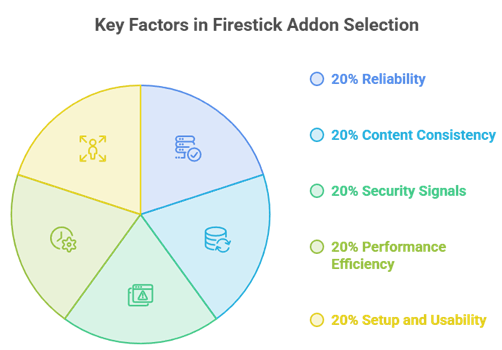
I compared current competitor lists, then checked each candidate against a developer-controlled source or Kodi’s official Omega catalog. Popularity alone was not enough. An addon also needed a clear use case, a reachable link, realistic account disclosure, and a reason to exist on constrained Firestick hardware. That removed several dated niche picks and prevented ten nearly identical movie scrapers.
- Source Ownership: Official Kodi pages, maintainer sites, and public project repositories ranked above reposted ZIP files, URL shorteners, or anonymous Downloader codes.
- Update Evidence: Recent versions, current-season packages, active branches, or maintained repositories indexes counted as stronger signals than an unchanged marketing article date.
- Firestick Fit: I favored lightweight menus, sensible caching, Android ARM availability, remote-friendly navigation, and settings that limit unsupported files or excessive searches.
- Coverage Balance: The final ten include debrid, non-debrid, torrent, live television, official video, personal media, archives, and subscription sports instead of one repeated category.
- Honest Costs: Every addon is labelled free, account-required, optional-premium, or subscription-based so “free download” is not confused with free access to content.
What Kodi addons are best for legal and free content?
Official-repository addons are easier to trust because Kodi distributes their packages and updates through a known channel. Third-party addons are not automatically malicious, but they require more judgment about the maintainer, repository, dependencies, and content sources. I treat the repository address as part of the product: if it disappears, the addon becomes harder to verify and maintain.
- Prefer Known Sources: Type the maintainer’s exact domain yourself and avoid mirrors that bundle extra wizards, builds, or unrelated repositories with the requested addon.
- Review Requirements: A debrid account, streaming subscription, Plex server, or torrent engine changes cost and privacy; understand that before enabling unknown sources.
- Limit Permissions: Avoid addons that demand Android APK installation, unexplained device access, or browser popups when the documented Kodi package needs none of those.
- Respect Content Rights: Addons are software clients, while the legality of playback depends on the source, license, location, and whether you have permission to watch.
- Use VPNs Correctly: A VPN can hide traffic from the local network and ISP, but it cannot license a copyrighted stream or remove subscription obligations.
Why do some Kodi addons stop current, and how can I prevent it?
Most addon failures come from one of five places: the repository, a dependency, an expired account token, a provider outage, or Firestick storage. Start with the smallest fix and stop when playback returns. If your issue is specific to cached premium links, compare the current options in our best Real-Debrid addons guide before replacing your entire Kodi setup.
- Check Repository Updates: Open Add-ons, Available updates, and install pending packages from the original repository before clearing data or reinstalling the whole application.
- Reauthorize Accounts: Expired debrid, Trakt, Plex, Google, or league tokens often produce empty lists and playback errors even when the addon itself loads normally.
- Clear Addon Cache: Remove cached providers and old search results inside the addon first; clearing all Kodi data erases settings and should be the last resort.
- Free Device Storage: Keep meaningful space available on Firestick because thumbnails, packages, logs, and torrent buffers can silently fill internal storage and cause crashes.
- Read the Log: Kodi’s event log can reveal a missing dependency, authentication failure, or HTTP error, making it more useful than repeatedly selecting random sources.
What setup tips improve Kodi addon streaming quality on Firestick?
How to Install a Kodi Addon on Firestick
Official and third-party addons begin in different places but finish through Kodi’s Add-on Browser. Official options install directly from Kodi Add-on Repository. A third-party option first requires its exact developer source, then the repository ZIP, and finally the addon package from that repository. I avoid short links because they hide the destination and make a later broken source much harder to diagnose.
- Open Add-on Browser: From Kodi’s home screen select Settings, Add-ons, and Install from repository for an official addon already distributed through Kodi.
- Allow Unknown Sources Carefully: Enable unknown sources only when installing a verified third-party repository, read the warning, and disable the setting afterward if preferred.
- Add the Exact Source: In File Manager choose Add source and type the maintainer URL exactly; misspellings can lead to errors or an unsafe copy.
- Install Repository First: Choose Install from zip file, open the named source, select its repository package, and wait for Kodi’s installed notification before continuing.
- Install the Addon: Return to Install from repository, open the new repository, choose Video add-ons, select the addon, and approve only the documented dependencies.
Most Firestick slowdowns are caused by accumulated thumbnails, oversized caches, duplicate addons, or searches that return files the device cannot play. More maintenance tools are rarely the answer because they consume storage too. I keep one main addon, one backup, and a few official specialists, then tune source limits before changing advanced Kodi memory files or installing an all-in-one build.
- Keep Free Storage: Remove unused APK files, abandoned repositories, and old Kodi packages so updates, artwork, logs, and temporary playback data have room to work.
- Limit Search Results: Set practical resolution, file-size, codec, and provider limits so debrid addons stop scraping once they find sources your television can actually play.
- Avoid Duplicate Addons: Several addons using the same providers create extra updates and cache without meaningfully improving the sources available for a given title.
- Use Stable Networking: Prefer 5 GHz Wi-Fi near the router or a compatible Ethernet adapter, then lower stream quality before blaming Kodi for packet loss.
- Restart Periodically: A proper Firestick restart clears stuck background processes and memory pressure more effectively than repeatedly force-closing Kodi during a failing stream.
Verdict
The best Firestick setup is smaller than most competitor lists suggest. Choose one primary addon, one backup, and official specialists that match what you genuinely watch. My top three cover different needs, so there is no reason to install all ten on day one. Start lean, verify playback, and add another option only when it fills a real gap.
- POV: Best overall for responsive movie and television browsing when you already use a supported debrid account and want strong list and source controls.
- Umbrella: Best for advanced users who want broad provider support, detailed sorting, Trakt integration, and settings that can be tuned around Firestick limitations.
- Elementum: Best no-debrid choice for experienced users who understand BitTorrent exposure, legal limits, device storage, and the project’s current limited-support warning.
FAQs
What are the best Kodi addons for Firestick right now?
POV is my best overall choice for debrid users, Umbrella offers the most configuration, and Elementum is the main no-debrid option for advanced users. YouTube, Samsung TV Plus, DailyMotion, Internet Archive, Plex, and official baseball service cover safer official or service-backed use cases.
Which Kodi addons work without Real-Debrid?
Elementum works without debrid by using torrents, while YouTube, Samsung TV Plus, DailyMotion, Internet Archive, Plex, and official baseball service do not require Real-Debrid. Some still require their own server, account, or subscription. The Crew can return free links, but quality and availability are inconsistent.
Can I install these addons on Kodi 22 Piers?
Some active projects already include Piers branches, but Kodi 22 remains a pre-release platform at the time of this refresh. For a daily Firestick setup, use Kodi 21.3 Omega unless the addon’s maintainer explicitly confirms its package and dependencies work with your exact Piers build.
What is the best free and legal Kodi addon?
YouTube is the broadest free official pick, DailyMotion has a very recent Omega update, Samsung TV Plus adds free live channels, and Internet Archive is excellent for public-domain and historical media. Availability may vary by region, uploader, and the underlying service.
What is the best Kodi addon for live sports?
official baseball service is the clearest official subscription choice for baseball, while Samsung TV Plus carries selected sports channels and highlights. For event-specific alternatives and their setup tradeoffs, see our best Kodi addons for sports roundup.
Do I need a VPN for Kodi addons on Firestick?
Kodi itself does not require a VPN. A VPN can improve privacy on shared networks and is particularly relevant to peer-to-peer tools such as Elementum, but it does not make unauthorized viewing legal, guarantee better speeds, or replace a required debrid or streaming subscription.