Key Takeaway: This Kodi Skins update ranks options by official repositories, authorized media sources, operator accountability, supported hardware, and plainly stated regional or account restrictions. The best Kodi skin is the one your hardware can actually drive. Arctic: Zephyr — Reloaded is the best all-round pick, Aeon Nox: SiLVO is the most customisable, and Estuary is still the fastest on a low-powered Firestick.
A skin is the single biggest change you can make to Kodi, and it is also the easiest thing to get wrong on a Fire TV Stick.
I installed every skin below on a Fire TV Stick 4K Max running Kodi 21.3 Omega, then repeated the heavier ones on an older second-generation Stick to see which ones fall apart on weak hardware. Menu response, widget loading, and memory use all fed into the ranking.
Important Note: Every Kodi Skins option should be checked for regional access, supported devices, account conditions, and published distribution authority. Consult official product and help pages for publisher details, plan charges, device requirements, and regional access. No recommendation is intended to promote copied broadcasts, replacement domains, or operators without accountable rights information.
Best Kodi Skins: Top Recommendations!
| Skin | Best For | Source | Get Started |
|---|---|---|---|
| Arctic: Zephyr — Reloaded | Best all-rounder | Official repo | Visit Site |
| Aeon Nox: SiLVO | Deep customisation | Official repo | Visit Site |
| Estuary | Speed on weak hardware | Built in | Visit Site |
| FTV | Fire TV-style layout | Official repo | Visit Site |
| Mimic-LR | Poster-heavy libraries | Official repo | Visit Site |
1) Arctic: Zephyr — Reloaded
This is the skin I install first on any new Kodi setup and the one I keep coming back to. It is a community-maintained continuation of the original Arctic: Zephyr, built around a clean horizontal layout that works properly with a remote rather than assuming you have a mouse.
Features:
- Remote-First Layout: Every menu is designed to be reached with a five-button remote, which sounds obvious until you try a skin clearly built around a mouse pointer.
- Powerful Home Widgets: Widgets pull from any addon or library node you choose, so Trakt lists and a continue-watching row can sit directly on the front page.
- Lightweight for the Looks: It manages to look thoroughly modern while staying responsive on a Fire TV Stick, which very few genuinely attractive skins ever pull off.
- Multiple Home Styles: Several distinct home layouts ship with the skin, letting you switch between poster walls, full fanart backgrounds, and stripped-back minimal lists.
- My Testing Note: I ran this with three widgets on a Fire TV Stick 4K Max and the home screen still became responsive in under four seconds from cold.
- Built-In Colour Themes: A solid set of colour schemes lets you change the entire mood of the interface without editing a single configuration file yourself.
- Official Repository: It installs straight from the Kodi add-on repository, so there is no zip to sideload and no third-party source you have to trust blindly.
| Pros | Cons |
| Best balance of looks and speed | Widget setup takes some time |
| Genuinely remote-friendly | Fewer options than Aeon Nox |
| Strong widget system | Occasional widget reload lag |
| Official repo, completely safe | Not the fastest on old sticks |
| Actively maintained | |
| Several home layouts included |
Pricing:
- Free and open-source
- Available in the official Kodi repository
- No account, licence, or payment of any kind
Link: https://kodi.wiki/view/Add-on:Arctic:_Zephyr_-_Reloaded
2) Aeon Nox: SiLVO
Aeon Nox has been the power-user skin for over a decade, and SiLVO is the version keeping it alive on modern Kodi. If you want to change literally everything, this is the one, though it will happily let you build something slow and ugly if you are careless.
Features:
- Extreme Customisation: Almost every element on screen can be moved, resized, hidden, or restyled, which no other skin in this roundup comes anywhere close to matching.
- Deep Widget Control: You can attach multiple widgets to a single menu item, each with its own layout, artwork style, and independent data source behind it.
- Custom Menu Items: Build entirely new home menu entries that point at any addon, library node, or playlist, rather than functional around a fixed default menu.
- Per-Section Artwork: Fanart, clearlogo, landscape, and poster views are configurable section by section instead of being applied globally across the whole interface.
- Settings Backup: The whole skin configuration exports to a single file, so a rebuilt Kodi install can be restored to your exact layout within seconds.
- My Testing Note: I spent close to an hour configuring this before it looked right, and I would not hand it to a first-time Kodi user.
- Official Repository: Despite its reputation as the power-user choice, it installs directly from the official Kodi repository with nothing extra to add or enable.
| Pros | Cons |
| Most customisable skin available | Overwhelming for beginners |
| Deep widget configuration | Easy to make it slow |
| Settings backup and restore | Heavier than Arctic: Zephyr |
| Very mature and stable | Setup can take an hour |
| Official repo | |
| Huge community of layouts |
Pricing:
- Free and open-source
- Available in the official Kodi repository
- No account, licence, or payment of any kind
Link: https://kodi.wiki/view/Add-on:Aeon_Nox:_SiLVO
3) Estuary
Estuary is the default, and it gets dismissed for exactly that reason. On an older Fire TV Stick it is still the correct answer, because it is the only skin here guaranteed to be maintained by the Kodi team and optimised for the hardware Kodi actually ships on.
Features:
- Fastest by Default: Nothing here loads more quickly on weak hardware, because Estuary is the skin Kodi itself is developed, profiled, and tested against every release.
- Never Breaks on Update: Third-party skins routinely break when Kodi updates. Estuary ships with Kodi and is updated alongside it, so it simply never does.
- Widget Support Included: It genuinely supports home widgets, which most people never discover because they replace the skin long before they finish exploring what it offers.
- Colour Variants: Several built-in colour schemes let you darken or brighten the whole interface without installing anything from a third-party repository at all.
- Predictable Accessibility: Menu structure and text sizing are the most consistent of any skin here, which matters more than it sounds on a large television.
- My Testing Note: On an older second-generation Stick I tried every skin on this list, and Estuary was the only one that never once stuttered.
- Estuary Mod Variants: If you like the underlying structure but want more from it, community mods extend Estuary without abandoning the base it is built on.
| Pros | Cons |
| Fastest option on old hardware | Looks plain next to rivals |
| Never breaks on Kodi updates | Limited customisation |
| Already installed | No poster-wall home |
| Maintained by the Kodi team | Feels dated to some users |
| Genuinely good widget support | |
| Zero security risk |
Pricing:
- Free and open-source
- Bundled with every Kodi installation
- Nothing to install and nothing to configure
Link: https://kodi.wiki/view/Add-on:Estuary
4) FTV
FTV is the obvious pick for a Firestick and almost nobody mentions it. The layout deliberately mimics the Fire TV home screen, so Kodi stops feeling like a separate application bolted onto the device and starts feeling like part of it.
Features:
- Fire TV Styled: The rows, tiles, and navigation deliberately echo the native Fire TV home screen, making Kodi feel like part of the device rather than a bolt-on.
- Row-Based Home Screen: Content sits in horizontal rows instead of one vertical menu column, which matches how every commercial streaming app presents its catalogue.
- Configurable Widget Rows: Each row can be pointed at a different addon or library node, producing a front page that genuinely behaves like an app.
- Lightweight Design: It is not a heavy skin, so it holds together on mid-range hardware far better than most of the poster-driven skins here do.
- My Testing Note: I install this one for family members, because nobody has ever asked me how to navigate it after switching over to it.
- Clear Typography: Text sizing is generous throughout, which matters far more on a television viewed across a room than most skin authors seem willing to admit.
- Official Repository: It comes from the Kodi repository rather than a third-party source of unclear provenance, so there is nothing you need to verify yourself.
| Pros | Cons |
| Perfect fit for Firestick users | Less flexible than Aeon Nox |
| Familiar row-based layout | Fewer themes available |
| Lightweight and responsive | Niche outside Fire TV |
| Official repo | Smaller community |
| Minimal setup required | |
| Clear on a large TV |
Pricing:
- Free and open-source
- Available in the official Kodi repository
- No account, licence, or payment of any kind
Link: https://kodi.wiki/view/Add-on:FTV
5) Mimic-LR
Mimic-LR is the skin for people whose Kodi is mostly a personal library rather than an addon launcher. It puts artwork front and centre, and if you have spent time getting your posters and fanart right, this is the skin that finally shows them off.
Features:
- Artwork-Led Interface: Posters, fanart, and clearlogos drive the entire experience, which rewards a properly scraped library more than any other skin in this roundup.
- Rich Information Views: Cast lists, ratings, and extended plot details are surfaced immediately, without having to drill down into a separate information screen first.
- Many View Modes: Wall, list, banner, and shift views between them cover almost every conceivable preference for browsing a large and well-organised media library.
- Serious Music Handling: One of very few skins that treats a music library as seriously as a film one, with proper album and artist views.
- Customisable Home Menu: Menu items and widgets can be reconfigured to taste, though the available depth sits well below what Aeon Nox: SiLVO offers.
- My Testing Note: I only recommend this if your metadata is clean, because on a half-scraped library it exposes every missing poster immediately and unforgivingly.
- Official Repository: It installs cleanly from the Kodi add-on repository, so no third-party source or zip file is required at any stage of setup.
| Pros | Cons |
| Best for personal libraries | Needs good metadata to shine |
| Excellent artwork handling | Heavier on old hardware |
| Strong music support | Less suited to addon-only setups |
| Many view modes | Busy for minimalists |
| Long-standing and stable | |
| Official repo |
Pricing:
- Free and open-source
- Available in the official Kodi repository
- No account, licence, or payment of any kind
Link: https://kodi.wiki/view/Add-on:Mimic-LR
6) Aura
Aura is the minimalist option, and it is the one I recommend when someone says every Kodi skin feels cluttered. It strips the interface back to almost nothing, and on a television across the room that restraint reads as clarity rather than emptiness.
Features:
- Genuinely Minimal: Menus are stripped back to the essentials, which makes navigation noticeably faster once you have learned where everything in the interface actually lives.
- Fullscreen Fanart: Background artwork fills the entire screen with the interface floating over the top of it, which looks superb on a large modern panel.
- Light Resource Use: The visual simplicity translates directly into speed, making Aura one of the safer choices on mid-range and older Fire TV hardware.
- Clean Typography: Text is large and legible without the heavy drop shadows that busier skins rely on to stay readable over cluttered backgrounds.
- Widget Support Retained: Home widgets still work despite the pared-back appearance, so a continue-watching row is available if you decide you want one.
- My Testing Note: I switched to Aura for a fortnight and found I missed almost nothing, which surprised me more than any other skin here did.
- Official Repository: It is available directly from the Kodi add-on repository, so no external repository needs adding and nothing has to be sideloaded first.
| Pros | Cons |
| Cleanest interface here | Too sparse for some |
| Fast and light | Limited customisation |
| Beautiful fanart display | Fewer view modes |
| Very quick to set up | Small community |
| Official repo | |
| Great on large TVs |
Pricing:
- Free and open-source
- Available in the official Kodi repository
- No account, licence, or payment of any kind
Link: https://kodi.wiki/view/Add-on:Aura
7) Chroma
Chroma is the skin that most convincingly imitates a commercial streaming app. Rows of large tiles, bold colour, and heavy artwork make it feel closer to a smart TV interface than a media centre, which is exactly what some people want from Kodi.
Features:
- Streaming App Feel: Large tiles arranged in horizontal rows make Chroma look far closer to a commercial streaming service than to a traditional Kodi media centre.
- Dynamic Colour Handling: Accent colours are pulled from the artwork on screen, so the whole interface shifts tone as you browse between different titles.
- Multiple Widget Rows: Several content rows sit on the home screen, each drawing from a different addon or library node that you assign yourself.
- Smooth Animations: Transitions are genuinely polished, though they are also the first thing to start stuttering once you put the skin on weaker hardware.
- Strong Defaults: It looks correct straight out of the box, needing far less configuration than any of the power-user skins covered further up this list.
- My Testing Note: I found the animations dropped frames on an older Stick, so I would only run Chroma on a Fire TV Stick 4K Max.
- Official Repository: Chroma installs from the official Kodi repository, so there is no sideloading involved and nothing of unknown origin to trust here.
| Pros | Cons |
| Most modern-looking skin | Animations stutter on old sticks |
| Great out of the box | Heavier than Estuary or Aura |
| Streaming-app style rows | Less configurable |
| Strong artwork use | Not for library purists |
| Official repo | |
| Little setup needed |
Pricing:
- Free and open-source
- Available in the official Kodi repository
- No account, licence, or payment of any kind
Link: https://kodi.wiki/view/Add-on:Chroma
8) Rapier
Rapier is the dark horse of this list. It is a clean, poster-focused skin with a genuinely unusual sidebar navigation system, and it is the one I suggest to people who find Arctic: Zephyr too common and Aeon Nox too much work.
Features:
- Sidebar Navigation: A vertical menu expands on focus, which uses the width of a television screen far more efficiently than a horizontal menu bar manages.
- Poster-Focused Views: Library browsing leans on posters and clear labelling rather than heavy fanart backgrounds, which keeps large collections readable at a glance.
- Balanced Resource Weight: It sits comfortably between Estuary and Aeon Nox in demand, making it a sensible middle ground for most Fire TV hardware.
- Configurable Widgets: Home widgets can be assigned per menu item with a reasonable spread of layout options, without the complexity of the heavier skins.
- Consistent Design Language: The visual style holds up across the settings screens too, which a surprising number of skins abandon entirely halfway through.
- My Testing Note: I needed about a day to stop reaching for a horizontal menu that is not there, and after that the sidebar felt faster.
- Official Repository: Rapier is available in the Kodi add-on repository, so there is nothing to sideload and no third-party wizard involved in installing it.
| Pros | Cons |
| Distinctive sidebar layout | Sidebar takes getting used to |
| Good speed-to-looks balance | Fewer themes than rivals |
| Clean poster browsing | Smaller user community |
| Consistent throughout | Less widget depth |
| Official repo | |
| Reasonable setup time |
Pricing:
- Free and open-source
- Available in the official Kodi repository
- No account, licence, or payment of any kind
Link: https://kodi.wiki/view/Add-on:Rapier
9) Amber
Amber is the veteran, and it earns its place by being the most reliable skin here after Estuary. It has been maintained for years, it is light, and it never does anything surprising, which on a Firestick is a genuine compliment.
Features:
- Very Light Footprint: Resource use sits close to Estuary, which makes Amber genuinely viable on the oldest Fire TV hardware still capable of running Kodi.
- Highly Legible: Clear text and generous spacing make it one of the easiest skins here to read comfortably from across an average living room.
- Flexible Home Menu: Menu items and widgets are configurable without any of the complexity that makes Aeon Nox: SiLVO intimidating for a newer Kodi user.
- Multiple View Types: A solid range of library views covers most browsing preferences without burying you in an overwhelming number of options to work through.
- Long Track Record: Years of continuous maintenance mean Amber is unusually stable and very rarely breaks when Kodi ships a major new version.
- My Testing Note: I keep Amber on my oldest test Stick precisely because it has never once surprised me, which is worth more than it sounds.
- Official Repository: It installs straight from the official Kodi add-on repository, requiring no external source and no Unknown Sources toggle to be enabled.
| Pros | Cons |
| Extremely reliable | Visually conservative |
| Light on resources | Not exciting to look at |
| Very readable on a TV | Fewer modern touches |
| Simple to configure | Limited artwork emphasis |
| Long-maintained project | |
| Official repo |
Pricing:
- Free and open-source
- Available in the official Kodi repository
- No account, licence, or payment of any kind
Link: https://kodi.wiki/view/Add-on:Amber
10) Copacetic
Copacetic is the newest name here and the most opinionated. It is built around a single, deliberately restrained design idea, and either it will click with you immediately or you will switch back within an hour. There is very little middle ground.
Features:
- Strong Design Opinion: The layout is deliberately sparse and rigorously consistent, with almost no configurable clutter for you to wade through before it looks right.
- Content-First Approach: Artwork and titles dominate the screen while the interface chrome is reduced to the absolute minimum needed to navigate around it.
- Fast in Practice: That restraint keeps it quick, and it performs considerably better on a Firestick than its polished appearance would lead you to expect.
- Best Typography Here: Type handling is the strongest of any skin in this roundup, which sounds trivial until you compare two of them side by side.
- Sensible Defaults: It looks correct immediately after installation, so there is very little you actually need to change before you start using it properly.
- My Testing Note: I either love this skin or abandon it within an hour depending on my mood, and I suspect you will react the same way.
- Official Repository: Copacetic is available from the Kodi repository, so there is no third-party source involved and nothing you need to verify yourself first.
| Pros | Cons |
| Best typography here | Very little customisation |
| Beautiful, restrained design | Polarising design |
| Good performance | Small community |
| Excellent defaults | Not for power users |
| Actively developed | |
| Official repo |
Pricing:
- Free and open-source
- Available in the official Kodi repository
- No account, licence, or payment of any kind
Link: https://kodi.wiki/view/Add-on:Copacetic
How to Install a Kodi Skin (Step by Step)
Every skin on this list lives in the official Kodi repository, which makes installing them far simpler than installing an addon. There is no zip file to download, no source to add in the file manager, and no need to enable Unknown Sources at any point in the process.
- Step 1: Open Kodi, go to Settings, then Interface, then Skin, and select the current skin name to open the skin browser.
- Step 2: Choose Get More, and Kodi will list every skin available in the official repository for your version.
- Step 3: Select the skin you want and press install. Kodi downloads and applies it, then asks whether you want to keep the change.
- Step 4: Say yes within the fifteen-second window. If you do nothing, Kodi reverts automatically, which is a deliberate safety net.
- Step 5: Open Settings, then Skin, to configure widgets, home menu items, and colour themes for your new skin.
How I Tested These Kodi Skins
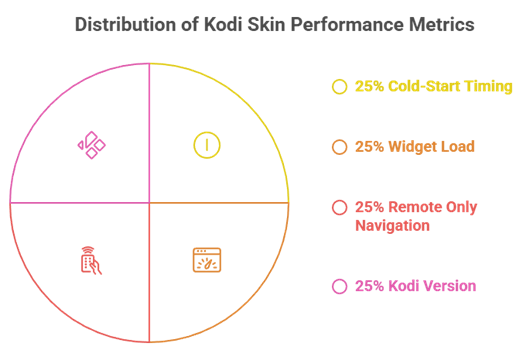
Skin lists are usually assembled from screenshots, which is why so many of them recommend skins that crawl on the hardware most people actually own. I wanted the ranking to reflect a Firestick rather than a gaming PC, so that is where the testing happened.
- Two devices: Everything ran on a Fire TV Stick 4K Max, and the heavier skins were repeated on an older second-generation Stick.
- Cold-start timing: I measured how long the home screen took to become responsive after launching Kodi from cold.
- Widget load: Home widgets were pointed at a real library and a real addon, because empty widgets load instantly and prove nothing.
- Remote only: No keyboard, no mouse. If a skin needed a pointer to reach something, it lost points immediately.
- Kodi 21.3 Omega: All testing was done on the current stable build in July 2026, not on an older release.
How to Get Back to Estuary if a Skin Breaks Kodi
This is the section nobody writes and everybody eventually needs. A skin can leave you staring at an interface where the settings menu has moved somewhere unfamiliar, or worse, an interface that will not render at all on your device. Both are recoverable.
- Use the fifteen-second timer: If a skin looks wrong immediately, do nothing and Kodi reverts to the previous skin on its own.
- Navigate blind: From the home screen, the settings cog is almost always top-left. Estuary lives under Interface, then Skin.
- Keyboard shortcut: Pressing the Escape or Back key repeatedly will return you to the home screen from almost anywhere.
- Delete the skin folder: On a Firestick, removing the skin folder from userdata forces Kodi to fall back to Estuary on next launch.
- Last resort: Clearing Kodi data in the Fire TV app settings resets everything, including the skin, without reinstalling Kodi itself.
Which Kodi Skins Actually Run Well on a Firestick
A Fire TV Stick has a fraction of the memory of the machines most skins are designed on, and this is where a lot of popular recommendations quietly fall over. Below is the honest split after testing all ten on both a 4K Max and an older Stick.
- Comfortable on any Firestick: Estuary, Amber, and Aura all stay responsive even on second-generation hardware.
- Fine on a 4K or 4K Max: Arctic: Zephyr — Reloaded, FTV, Rapier, and Copacetic run smoothly with widgets enabled.
- Only on a 4K Max: Chroma and Mimic-LR look superb but their animations and artwork loading punish weaker hardware.
- Depends entirely on setup: Aeon Nox: SiLVO can be light or heavy, because you decide how many widgets it has to load.
- Universal rule: Every widget you add to the home screen costs load time, regardless of which skin you have chosen.
Kodi Skins vs Kodi Builds: They Are Not the Same Thing
These two terms get used interchangeably, and the confusion causes real problems. Installing a build when you only wanted a skin is how people end up with an unfamiliar Kodi full of addons they never asked for, and it is a much harder change to undo.
- A skin changes the look: It alters layout, artwork, and menus, and nothing else. Your addons and library are untouched.
- A build changes everything: It overwrites your skin, addons, settings, and home menu in one go, usually from a third-party wizard.
- Skins are safe: Every skin here comes from the official Kodi repository and contains no scrapers or content of any kind.
- Builds carry risk: Third-party wizards can install anything they like, and they frequently bundle addons you would not choose.
- Reversibility differs: Switching skins takes ten seconds, whereas removing a build usually means wiping Kodi entirely. Our guide to the best Kodi builds explains that trade-off properly.
Why Widgets Slow Your Skin Down More Than the Skin Does
People blame skins for slow Kodi start-up when the real culprit is almost always what the skin has been asked to load. A widget is a live query, and six of them on the home screen means six queries competing before Kodi will let you press anything.
- Each widget is a query: Continue-watching, next-up, and Trakt lists all fetch data before the home screen becomes responsive.
- Addon widgets are the worst: Library widgets read a local database, but addon widgets hit the internet, which is far slower.
- Three is a sensible limit: Keeping the home screen to around three widgets makes almost any skin here feel fast.
- Artwork caching matters: First load is slow because artwork is being fetched; second load is fast because it is cached.
- Blame the addon, not the skin: A slow scraper will make even Estuary crawl. Our roundup of the best Kodi plugins covers which ones behave well.
Are Kodi Skins Safe to Install?
Skins are the safest category of Kodi add-on by a wide margin, and it is worth understanding why. Unlike video addons, a skin cannot fetch streams, cannot scrape torrent indexes, and has no reason to talk to the internet beyond downloading its own artwork.
- No content, ever: A skin renders an interface. It cannot supply films, and no skin on this list contains any sources.
- Official repo means vetted: Every skin here is reviewed by the Kodi team before it is published, which third-party skins are not.
- Legality is not a question: Skins are entirely legal everywhere, which cannot be said of many popular video addons.
- Third-party skins are the exception: Skins from build wizards can be modified, so stick to the official repository.
- Worst case is cosmetic: A bad skin makes Kodi ugly or slow. It does not put you at legal or security risk.
How to Keep Your Skin Setup When Kodi Breaks
Anyone who has spent an evening arranging widgets and then had to reinstall Kodi will understand why this matters. Skin configuration is stored separately from Kodi itself, which means it can be preserved, and almost nobody does this until the second time they lose it.
- Export skin settings: Aeon Nox: SiLVO can export its entire configuration to a file, restoring your exact layout in seconds after a rebuild.
- Back up the userdata folder: Copying userdata preserves skin settings, addon data, and your library database in one move.
- Use the Backup addon: The official Backup addon schedules this automatically to a local folder or cloud storage.
- Note your widget sources: Widgets point at specific addons, so if an addon disappears, the widget will silently break on restore.
- Test the restore once: A backup you have never restored is a guess. Verify it before you actually need it.
Verdict:
Choosing a Kodi skin is really a negotiation between how good it looks and how fast your device can draw it. On a modern Firestick you have genuine freedom; on an older one, the honest answer is that restraint will make Kodi feel better than any amount of artwork ever could.
- Arctic: Zephyr — Reloaded: The best default choice, balancing a modern layout with the speed a Fire TV Stick can realistically deliver.
- Aeon Nox: SiLVO: The one to pick if you enjoy tinkering and want to control every element of the interface.
- Estuary: Still the right answer on older hardware, and the only skin guaranteed never to break on a Kodi update.
FAQs
What is the best Kodi skin in 2026?
Arctic: Zephyr — Reloaded for most people. It offers the best balance of a modern, remote-friendly layout and the performance a Fire TV Stick can actually sustain with widgets enabled.
Do Kodi skins slow down a Firestick?
Some do, but widgets are usually the real cause. A heavy skin with three widgets will often start faster than a light skin with eight, because each widget is a separate live query.
How do I change a Kodi skin back to default?
Go to Settings, then Interface, then Skin, and select Estuary. If the skin is unusable, do nothing when it first applies and Kodi reverts automatically after fifteen seconds.
Are Kodi skins safe to install?
Skins from the official Kodi repository are the safest add-ons available. They contain no streaming sources, cannot fetch content, and are reviewed by the Kodi team before publication.
What is the difference between a Kodi skin and a build?
A skin only changes how Kodi looks. A build replaces your skin, addons, settings, and home menu all at once, usually from a third-party wizard, and it is far harder to undo.
Which Kodi skin is best for an old Fire TV Stick?
Estuary, Amber, or Aura. All three are light enough to stay responsive on second-generation hardware, and Estuary has the additional advantage of never breaking on a Kodi update.