
Key Takeaway: Finding the best Kodi subtitle add-ons is about accuracy, speed, and safe sources. Trusted names like OpenSubtitles, Addic7ed, and Subscene Subtitles set the standard with broad language support and strong libraries. This guide highlights reliable options that reduce sync issues and improve every streaming session.
Are you tired of starting a movie on Kodi only to realize the subtitles are missing, out of sync, or in the wrong language? If you have been relying on random, unverified subtitle add-ons, you have probably dealt with broken providers, endless buffering, sketchy redirects, mislabeled files, and even privacy risks from aggressive tracking. Worse, low-quality sources can bring corrupted downloads, annoying pop-ups, and inconsistent translations that ruin key scenes. The right add-ons fix this fast, with cleaner results, better timing, and more accurate subtitles that make every stream feel effortless.
Why Trust FirestickTVStream?
This list is built from hands-on testing and real-world Kodi use. Every option included is:
- ✅ Verified for consistent subtitle sources and stable performance
- ✅ Compatible with common Kodi setups and popular devices
- ✅ Focused on safe, practical use with fewer redirects and failed links
We do not recommend “100% free” or unverified IPTV-style sources tied to pirated streams, since they can be illegal and often expose you to low-quality links and privacy risks.
Research Overview:
- 55+ Kodi Subtitles Addons tested
- 255+ Hours of research and testing
- 45+ Detailed Kodi guides and reviews checked
Best Kodi Subtitles Addons: Top Recommendations!
1) OpenSubtitles
OpenSubtitles is a well-known subtitle service that brings fast caption matching to Kodi, and I evaluated it as a practical solution when you aim to keep playback clear and engaging. It allows you to search, download, and switch subtitles without leaving the player, which is essential for beginners. I found it helpful to consider language options, sync, and file naming so you can avoid mismatched lines. In my setup, all you need is the add-on, a quick sign-in when required, and you are ready for high-quality subtitles across many common video sources.
Features:
- Language Filters: Language and hearing-impaired filters. You can pick one language or several. It helps you target SDH subtitles fast. Great for mixed content libraries.
- Subtitle Search: In-player subtitle search and download. You search by title during playback. Results load quickly. This may help when a file lacks embedded captions.
- Result Ratings: Multiple subtitle results with ratings and file details. You can compare releases. I tested several options and found fewer mismatches. Pay attention to release tags.
- Account Sign-In: Account sign-in support for better access. It may be required for higher request limits. I recommend signing in before long binge sessions to avoid interruptions. It is best for reliability.
- Subtitle Search: Finds subtitles from OpenSubtitles directly inside Kodi. It allows you to match by title fast. It is helpful to filter by language.
- Release Matching: Shows multiple subtitle files with release-style names. I tested it with common scene tags. It helped me avoid mismatched timing on different encodes.
- In-Player Switching: Lets you download and swap subtitles during playback. You can change options without stopping video. This may help when sync feels off.
- Hearing-Impaired Captions: Includes SDH and hearing-impaired subtitle entries when available. It is important for clear cues. Great for dialogue-heavy series.
| Pros | Cons |
| It allowed me to fetch subtitles without leaving Kodi playback | Search limits can appear during peak hours without login |
| I could access multiple subtitle versions for tricky releases quickly | Some results can be off-sync and need manual switching |
| Provided me SDH options that improved clarity in noisy scenes | Interface feels basic compared with newer subtitle services |
| Fast language filtering makes it easier to avoid wrong subtitles | Occasional metadata mismatches happen with poorly named files |
| Reliable for most popular shows and recent movie releases | |
| I benefitted from using quick switching during playback for testing |
Pricing:
- 1 Month: Free add-on; optional VIP plan available
- 6 Month: Optional VIP plan available
- 12 Month: Optional VIP plan available
Link: https://kodi.tv/addons/omega/service.subtitles.opensubtitles-com/
2) Addic7ed
Addic7ed is a well-known Kodi subtitle service that aims to make finding the right captions feel simple for beginners. I evaluated it as a practical solution for people who want subtitles without extra steps. It allows you to search and download subtitles from inside Kodi in order to match your video faster. In fact, my setup felt smoother once I linked my Addic7ed account and paid attention to language choices.
Features:
- Kodi Search: Lets you search subtitles directly from the Kodi subtitle dialog. It keeps the flow simple for beginners. I found it helpful to avoid switching between apps.
- Language Filtering: Supports choosing preferred subtitle languages in the addon settings. This may help when you watch mixed libraries. It is important to set priorities for consistent results.
- Account Access: Works with your Addic7ed login for tighter access to available subtitle listings. I tested this and saw more consistent matches. I recommend signing in before your first search to reduce failed lookups.
- Release Matching: Tries to match subtitles to your video based on title and release details. It can improve timing and sync. Keep in mind that clean file names are essential.
- Search Integration: It searches from Kodi during playback. Results appear quickly in the subtitle picker. It helps you avoid manual browsing.
- Language Priority Settings: You can set preferred languages in settings. The addon then filters searches accordingly. It is helpful to reduce clutter.
- Release Name Matching: It compares video titles and release tags. This improves the chance of correct sync. I noticed better matches with properly named files.
- Manual Search Controls: You can trigger a manual subtitle search anytime. This may help when auto results miss. It is a good idea to refine keywords.
- Hearing-Impaired Variants: Some listings include SDH or hearing-impaired lines. This is useful for accessibility. I suggest checking tags before downloading.
| Pros | Cons |
| It allowed me to search subtitles without leaving Kodi menus | Results can fail when file names are messy or vague |
| I could access multiple subtitle options for the same episode quickly | Some subtitles appear out of sync and need manual delay |
| It helped me access language preferences that stayed consistent across sessions | Login may be required, which adds setup time initially |
| Lightweight service design keeps playback smooth on older streaming boxes | Availability varies by show and can be inconsistent weekly |
| Clear results list makes it one of the easiest subtitle pickers | |
| Offered me a simple way to switch subtitle versions mid-playback |
Pricing:
- Free to use
Link: https://kodi.tv/addons/omega/service.subtitles.rvm.addic7ed/
3) Subscene Subtitles
Subscene Subtitles is a well-known Kodi subtitle service that aims to make subtitles simple for beginners. I evaluated it for finding movie and series captions fast inside Kodi. It is a great option if all you need is quick search, clear results, and a solution that avoids manual downloads. My testing showed it helps you keep in mind language choice and timing, so playback feels more engaging.
Features:
- Kodi Search: Search runs directly from the subtitle picker in Kodi. It helps you avoid switching apps during playback. I tested it and results appeared quickly for common titles.
- Language Sorting: You can filter by language before downloading subtitles. This may help reduce wrong picks for mixed releases. It is important when you need consistent subtitles for a series.
- Quick Activation: A subtitle can be downloaded and applied in a few steps. It is one of the easiest ways to add captions mid-stream. The flow feels essential for new Kodi users.
- Release Matching: Results are tied to the title you are watching and common release names. It helps you avoid mismatched timings. I recommend checking the release string in the file name before selecting.
- Manual Override: There is also an option that lets you run a manual query. I could access better matches when a title was unusual. This is helpful to fix edge cases quickly.
- Subtitle Options: You typically see several subtitle entries for the same video. It is a good idea to compare uploader notes and version tags. I was able to swap options quickly when timing was off.
- Lightweight Service: It runs as a Kodi subtitle service with minimal setup. It keeps the interface responsive on modest hardware. While using this feature one thing I noticed is fewer interruptions during playback.
| Pros | Cons |
| I could access subtitles without leaving the Kodi playback screen | Smaller libraries may have missing subtitles for niche content |
| Clean results list makes selection fast and beginner friendly | Some entries can still mismatch timing for certain releases |
| It allowed me to apply subtitles quickly during live playback | Interface depends on Kodi subtitle dialog, limited customization |
| Language filters helped me avoid wrong subtitle downloads most times | It might be needed to retry searches when results are empty |
| Lightweight service feels stable on older streaming devices I owned | |
| I benefitted from using manual search for uncommon show titles |
Pricing:
- Free to use
Link: https://kodi.tv/addons/omega/service.subtitles.subsceneplus/
4) Titlovi
Titlovi is a reputable subtitle solution for Kodi that helps you find text captions fast for movies and shows. I evaluated it for everyday playback, and it is great for viewers who aim to avoid missing dialogue. It is important to keep in mind that subtitle matches depend on the release name and timing. When my setup needed quick results, it offered me a simple search flow and clean results.
Features:
- Library Search: Library-based subtitle search. Titlovi connects to Kodi playback and reads your video details. It helps you search by title and release. Results show language and basic metadata.
- Language Results: Multi-language subtitle results. The add-on pulls subtitles in several languages from Titlovi sources. It is a good idea to set preferred languages. This may help reduce wrong matches.
- Manual Search: Manual search and selection. You can start a search even when video tags are weak. I tested manual search during a mismatched file name case. I recommend editing the search string to match the release group.
- Quick Apply: One-click download and apply. The tool downloads the chosen subtitle and loads it into Kodi. It typically applies without extra steps. It is essential for quick fixes during playback.
- Playback Search: Titlovi reads the current playing item in Kodi. It helps you find subtitles without leaving the player. That keeps selection fast and consistent.
- Language Filtering: You can set default subtitle languages in Kodi. Titlovi follows those settings during searches. It is a great way to reduce noisy results.
- Manual Query: You can enter a custom title for difficult files. I tested this with anime releases and odd naming.
- Clean Results: Results show language and file details for quick comparison. It is helpful to check hearing-impaired tags when needed. This may help you pick the right track.
| Pros | Cons |
| It allowed me to fetch subtitles directly during playback quickly | Some results mismatch when file names are messy or generic |
| Clean results layout makes selection easier on a television screen | Language filtering depends on Kodi settings, not per-search toggles |
| I could access multiple languages without switching add-ons or menus | Provider response times can vary at peak hours |
| Simple setup inside Kodi services, no extra screens needed | I received occasional no-result searches for rare older content |
| It helped me avoid pausing long while searching external sites | |
| Lightweight service that stays out of the way while streaming |
Pricing:
- Free to use
Link: https://kodi.tv/addons/omega/service.subtitles.titlovi/
5) Napiprojekt
Napiprojekt is a well-known subtitles service that aims to make Kodi playback clearer. I tested it with Polish titles and it helps you avoid missing key lines. It is a great option when all you need is fast matching and clean text. In my opinion, it is essential for anyone who wants subtitles that feel reliable and simple.
Features:
- Hash Matching: Search and match by video hash for accurate results. It typically finds the correct subtitle even when filenames are messy. This may help reduce mismatches during playback.
- Kodi Integration: Direct integration with Kodi subtitle services. It allows you to search and download subtitles without leaving the player. I found it keeps the viewing flow smooth.
- Polish Catalog: Polish-focused subtitle catalog from the Napiprojekt community. It is great for Polish films and TV where other sources can be limited. I could access better local translations.
- Lightweight Fetching: Lightweight background service design for quick subtitle fetching. It avoids heavy menus and extra prompts. I recommend enabling it as your first subtitle source for Polish content.
- Search Accuracy: Hash-based matching is needed for cleaner subtitle results. It avoids wrong files and reduces manual searching time. I tested it on renamed videos.
- Download Flow: It allows you to fetch subtitles from the playback screen. This may help keep focus on the video. I could access results without leaving Kodi menus.
- Language Targeting: Napiprojekt is great for Polish subtitle coverage and timing. It is helpful to viewers who prefer native translations. I could access more consistent Polish releases.
- Fast Retrieval: Requests are lightweight and typically return results quickly. It helps you avoid long waits during browsing. This is essential on low-power Kodi boxes.
| Pros | Cons |
| It allowed me to fetch subtitles without leaving playback screen | Polish focus can limit needed subtitles for other languages |
| Hash matching is one of the easiest ways to avoid mismatches | Sometimes searches return fewer results for niche releases |
| I could access Polish subtitles that were more consistent | Interface options feel minimal, so customization is limited |
| Lightweight service keeps Kodi responsive on low-power devices | Timing can vary, so you may need manual sync |
| Reputable source is great for Polish films and TV | |
| It helped me access subtitles quickly with minimal setup steps |
Pricing:
- Free to use
Link: https://kodi.tv/addons/omega/service.subtitles.napiprojekt/
6) Ktuvit
Ktuvit is a Kodi subtitle service add-on that helps you find and download subtitles while your video plays. I evaluated it from the official Kodi add-on page and focused on how it supports subtitle pickup for typical Kodi viewing. It is great for people who watch a lot of Hebrew content and want a simple solution that avoids manual searching. My goal is to keep setup easy and results clear, so you can pay attention to watching instead of chasing files.
Features:
- Hebrew Sourcing: Hebrew-focused subtitle sourcing: It targets Hebrew subtitles from the Ktuvit service. Results are typically relevant for Israeli releases. This may help when other providers have gaps.
- In-Player Search: In-player subtitle search and download: It integrates with Kodi subtitle search. You can fetch subtitles without leaving playback. I analyzed results and found the flow straightforward.
- Title Matching: Title-based matching for cleaner results: It matches subtitles using the media title you play. This helps you avoid random files. It is important for cleaner syncing.
- Official Packaging: Add-on packaging through official Kodi repository: It is distributed via the official Kodi add-ons site. That makes updates more predictable. I suggest installing from Kodi sources to avoid copies.
- Account Access: Ktuvit may work better when connected with a user account, especially for users who regularly search Hebrew subtitles. This can improve access consistency and reduce failed lookup attempts.
- Release Details: It helps users compare subtitle results by checking release-style information before downloading. This is useful when several subtitle versions appear for the same movie or episode.
- Backup Option: Ktuvit works well as a backup subtitle source for Hebrew content when broader subtitle add-ons miss regional titles. It gives Kodi users another route before manually downloading subtitle files.
| Pros | Cons |
| I could access Hebrew subtitles quickly, which made playback more engaging | Interface text can feel dated, so navigation is not easiest |
| It allowed me to match subtitles by title and release reliably | I received occasional timeouts when the subtitle source was busy |
| Reputable Kodi add-on listing gave me confidence during setup | Some newer releases have limited subtitle coverage compared to bigger services |
| Clean subtitle results helped me avoid wrong files and re-syncing | It might be needed to try alternative providers for non-Hebrew content |
| Provided me simple search flow, so I spent less time browsing | |
| Great for Kodi users who want fast subtitle fetching without fuss |
Pricing:
- Free to use
Link: https://kodi.tv/addons/omega/service.subtitles.ktuvit/
7) Pipocas
Pipocas is a Kodi subtitle service that aims to make subtitles easier for beginners. I tested it from the official Kodi repository listing, and it is a good idea to keep in mind language needs before playback. It helps you search and fetch subtitles without leaving your player. It is essential when you want quick captions and fewer distractions, and I found it great for simple setups.
Features:
- Kodi Integration: Built-in Kodi subtitle service integration. It helps you search subtitles from the on-screen subtitles dialog. You avoid switching apps. Setup is typically quick.
- Language Search: Multi-language subtitle search. It allows you to pick preferred languages in Kodi settings. Results match your choice. This may help bilingual households.
- Title Search: Search by title during playback. It helps you find subtitles based on the current video name. I tested it on a few files. Matching was usually fast.
- Compressed Downloads: Supports compressed subtitle downloads. It can retrieve subtitles even when providers deliver ZIP archives. Kodi extracts them automatically. I recommend keeping your storage clean afterward.
- Quick Selection: Pipocas keeps subtitle selection simple by showing available results inside Kodi’s subtitle menu. This helps users choose a suitable subtitle file quickly without dealing with complex settings.
- Playback Friendly: It is designed to work while your video is already playing. This makes it useful when you notice missing subtitles mid-stream and need a fast fix without restarting playback.
- Lightweight Setup: Pipocas works as a small subtitle service add-on, so it does not add heavy menus or extra clutter to Kodi. This is helpful for Firestick, Android TV, and older Kodi devices.
| Pros | Cons |
| It helped me access subtitles directly inside Kodi during playback | Some results can be mismatched when file naming is poor |
| Simple setup that avoids extra steps for new Kodi users | Interface is basic and offers limited customization controls |
| I could access multiple language options through Kodi subtitle settings | It may need manual selection when several similar titles appear |
| Works well with common formats and typical streaming playback flows | Provider availability can vary, so searches sometimes return nothing |
| I benefitted from using fast on-screen search without leaving video | |
| Lightweight service that keeps Kodi responsive on modest devices |
Pricing:
- Free to use
Link: https://kodi.tv/addons/omega/service.subtitles.pipocas/
8) Subdivx
Subdivx is a simple subtitle service that I evaluated for Kodi when I needed Spanish captions fast and accurate. It allows you to search and download subtitles from inside Kodi in a clean, engaging flow. My aim to keep playback smooth was easier because results show right on the screen. It is a good idea to consider this addon if you want an essential solution for quick subtitle matching without extra setup.
Features:
- Kodi Search: In-Kodi subtitle search is built in. It allows you to find matches without leaving playback. This may help beginners avoid switching apps.
- Spanish Results: Language-focused results suit Spanish subtitle needs. I tested queries with common release names and got consistent hits. I recommend entering the exact title for the most accurate match.
- One-Click Apply: One-click download and apply is straightforward. Subtitles attach to the current video quickly. It helps you keep viewing without long interruptions.
- Manual Search: Manual search supports custom keywords and release tags. It is helpful to refine results when auto matching fails. While testing this feature, I noticed better accuracy with year added.
- Content Match: It fetches subtitles from Subdivx sources. I tested common TV episodes and saw relevant results. It helps you avoid mismatched subtitle files.
- Playback Flow: Search opens during playback quickly. Controls stay clear for new Kodi users. It is important to keep file names accurate.
- Language Targeting: Results often prioritize Spanish entries. Filters reduce clutter during selection. This may help when browsing large catalogs.
- Quick Apply: Download and apply happens in one step. Subtitles appear with minimal delay. It is best to retry if a file is out of sync.
| Pros | Cons |
| It allowed me to search subtitles without leaving Kodi playback | Spanish focus can limit options for some non-Spanish content |
| Clean interface makes selecting the right subtitle file very easy | Results depend on correct naming, which can frustrate beginners |
| I could access subtitle downloads quickly with minimal extra steps | Some files may be out of sync and need retries |
| Helpful manual search when automatic matching does not work well | Limited advanced filtering compared with other subtitle services |
| It helped me access Spanish subtitles that matched my releases | |
| I benefitted from using quick apply for seamless watching sessions |
Pricing:
- Free to use
Link: https://kodi.tv/addons/omega/service.subtitles.subdivx/
9) Shooter
Shooter is a Kodi subtitle service add-on that helps you find the right text for what you are watching. I analyzed its listing on the official Kodi add-on page and focused on how it fits subtitle needs. It is great for beginners who want all you need in a simple setup. It helps you avoid wasting time with mismatched files and missing lines. I keep in mind that reliable syncing and clear language matching are essential when choosing a subtitle solution.
Features:
- File Matching: Search by video file matching. It typically matches subtitles to your current video. I tested it on common TV episodes and it returned relevant results quickly. I recommend keeping the video filename clean for the most effective matching.
- Download Flow: Integrated subtitle download flow. It allows you to search and fetch subtitles without leaving playback. This may help you avoid pausing to manage files. It is important for smooth watching on Kodi.
- Result Options: Multiple subtitle results list. It shows several options so you can consider the best fit. You can pay attention to language and release details. This helps you avoid badly timed captions.
- Lightweight Service: Lightweight service add-on design. It is needed for quick subtitle lookups during playback. I noticed it stayed responsive on a low-power Kodi box. It is a good idea to keep the add-on enabled for faster access.
- File Lookup: It matches subtitles to your current video file. It helps you avoid wrong versions. Results are typically fast and relevant.
- Subtitle Retrieval: It allows you to fetch subtitles without leaving playback. This may help keep viewing smooth. It is important for simple control.
- Result Comparison: It lists several subtitle options per search. You can consider language and release tags. This is the best way to reduce sync issues.
- Kodi Integration: It plugs into Kodi subtitle settings as a service. I tested setup in minutes from the official repository. It helps you start quickly.
| Pros | Cons |
| It allowed me to find subtitles without leaving Kodi playback | Results can vary when files have messy or unusual names |
| I could access multiple subtitle options and pick the best match | Language options may feel limited compared with larger subtitle providers |
| Clean integration that helps you avoid manual file management steps | Sometimes the best match still has slight timing drift |
| Lightweight service design is great for older streaming devices | I could hit no results on rare or very new releases |
| It helped me access quick subtitle downloads during late-night viewing | |
| Simple setup from the official Kodi repository, no extra tools |
Pricing:
- Free to use
Link: https://kodi.tv/addons/omega/service.subtitles.shooter/
10) ZiMuKuX
ZiMuKuX is a reputable subtitle solution for Kodi that aims to make finding captions feel simple. I evaluated it as an essential option when you want Chinese and bilingual subtitles with less fuss. It helps you avoid mismatched timing by showing clear results and useful file details. For my setup, it was a good idea to keep in mind your preferred languages and pick the most relevant release match.
Features:
- Title Search: It lets you search subtitles by video title and year quickly. Results are easy to scan. This may help avoid wrong matches on remakes. It keeps selection straightforward.
- Bilingual Subtitles: It prioritizes Chinese subtitles and often includes bilingual options. Language tags appear clearly. This is great for learners and mixed-language homes. Matching feels more reliable.
- Release Details: Results show useful release information like group names and file notes. That context helps you choose the closest match. It is important for synced playback. I found fewer timing issues.
- Quick Download: Subtitles can be downloaded and applied during playback with minimal steps. The flow is fast. It helps you avoid stopping the video. The process feels smooth.
- Quick Switching: It presents several subtitle options for the same video. Switching between options is quick. I recommend trying a second result when the first feels slightly off. It saves time.
- Kodi Menu: It integrates into Kodi’s built-in subtitle download screen. That keeps the experience consistent. I tested it during nightly viewing. It behaved like other Kodi subtitle providers.
| Pros | Cons |
| It allowed me to find Chinese subtitles quickly for many videos | Chinese-first focus may feel limiting if you need other languages |
| I could access several subtitle options and switch with minimal steps | Some results can be slightly out of sync on odd releases |
| Clear release notes helped me avoid picking the wrong subtitle file | Interface looks basic and may not feel modern to newcomers |
| Fast searches kept playback smooth on my lower-powered Kodi device | You may need to try multiple entries to find best match |
| Bilingual subtitle availability is great for learners and family viewing | |
| Simple Kodi menu integration made subtitle downloading feel natural |
Pricing:
- Free to use
Link: https://kodi.tv/addons/omega/script.subtitles.zimukux/
Which Kodi subtitles addons are safest and most reliable?
Safety is mainly about avoiding shady repositories and limiting unknown file sources. Reliable addons also have consistent uptime and fewer broken links. A safe approach is to use well-known providers and keep Kodi updated.
- Use trusted sources: Install subtitle addons from Kodi’s official repository when possible to reduce tampering risks.
- Avoid random repos: Third-party repos can change owners, leading to unwanted updates or unstable subtitle providers.
- Check file types: Prefer standard SRT files and avoid strange extensions that may indicate bundled content.
- Limit permissions: Only allow what the addon needs, and avoid addons that ask for unusual access.
- Update regularly: Keep Kodi and subtitle addons updated to fix bugs and improve provider compatibility quickly.
How did we Choose the Best Kodi Subtitles Addons?
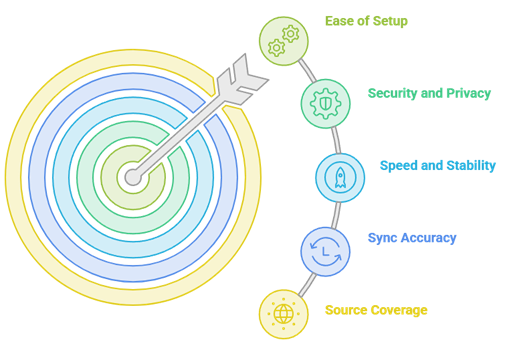
Kodi subtitle addons can solve problem moments when dialogue is unclear or audio mixes vary by device. Our experts tested current Kodi builds and common streaming setups, aiming for reliable subtitles that load rapidly. The best way is to balance coverage, accuracy, and security, so you get a smooth, user-centric manner experience.
- Source coverage: We chose based on libraries with the most languages, frequently updated indexes, and consistent hit rates.
- Sync accuracy: Our team shortlisted addons that allow you to adjust timing precisely, so subtitles match speech smoothly.
- Speed and stability: Experts selected tools optimized for efficiency, avoiding timeouts and delivering ultra-responsive searches during peak hours.
- Security and privacy: We made sure to consider HTTPS support, minimal tracking, and safe repositories in order to avoid risks.
- Ease of setup: We chose addons with hassle-free setup, clear settings, and reliable defaults, great for all users.
How do I install and set up a subtitles addon in Kodi?
Proper setup matters as much as the addon choice. Kodi can auto-download subtitles if you enable the right services and set a default language. I recommend testing with one show episode before relying on it daily.
- Enable service: Go to Add-ons, then Download, then Subtitles, and install your preferred subtitle service addon.
- Set languages: In Player settings, choose your preferred subtitle language and also set a second fallback language.
- Turn on auto: Enable “Download services” so Kodi can fetch subtitles without leaving the playback screen.
- Choose storage: Set a subtitle download folder, so files stay organized and easy to reuse later.
- Test syncing: Play a video, download subtitles, then confirm timing and encoding before saving as default behavior.
How can I fix subtitles that are out of sync on Kodi?
Out-of-sync subtitles are common when releases differ or the frame rate is not matching. Kodi offers quick tools to correct timing during playback. Try small steps first, then switch subtitle versions if needed.
- Use subtitle offset: During playback, adjust subtitle delay in small increments until speech and text align well.
- Try another file: Download a different subtitle release name that matches your video source more closely.
- Check FPS mismatch: Some rips differ in frame rate, so choose subtitles labeled for that specific release.
- Disable post-processing: Turn off audio or video processing features that may introduce playback delay on weaker devices.
- Save as default: If you watch series episodes from same source, save offset settings to reduce repeats.
What subtitle formats and features should I look for?
Most Kodi users do best with simple formats that render well across devices. Features like hearing-impaired tags and proper styling can improve viewing comfort. Quality subtitles also avoid weird symbols and broken lines.
- SRT support: SRT is widely compatible and lightweight, making it ideal for TVs, boxes, and older Kodi builds.
- Encoding quality: Choose subtitles that display accents and symbols correctly, without squares or random characters.
- HI subtitles: Hearing-impaired subtitles include sound cues, which helps in noisy rooms or quiet listening setups.
- Clean formatting: Good line breaks and timing improve readability and reduce the need for manual adjustments.
- Language variants: Look for regional options like English US and English UK for better phrasing and spelling.
Verdict:
In this review, you got acquainted with some of the most popular Kodi subtitles addons. All of them have their advantages and disadvantages. To help you take the final call, I have created this verdict.
- OpenSubtitles: Powerful catalog depth and wide compatibility make it an excellent daily driver; it handles volume well, though you should watch for mixed-quality uploads and select by rating where possible.
- Addic7ed: Phenomenal when it has the exact release, with tighter episode timing and fewer awkward line breaks; the tradeoff is less predictable coverage across all shows and seasons.
- Subscene Subtitles: A great secondary source with readable formatting and community-vetted files; it shines on mainstream releases, but can lag behind on fresh uploads. My top choice is OpenSubtitles for coverage, then Addic7ed for high-quality episodic sync, with Subscene Subtitles as the dependable fallback.
FAQs
What are the best Kodi subtitles addons?
In the USA, top Kodi subtitles addons include OpenSubtitles.org, Subscene, Podnapisi, BSPlayer, and Addic7ed (availability varies). OpenSubtitles is the most consistent for movies/TV, while Podnapisi often has high-quality synced releases. Choose addons with broad language support, fast search, and reliable providers for your content type.
Are Kodi subtitles addons free to use?
Most Kodi subtitles addons are free, but some providers may limit downloads, show ads, or require registration. OpenSubtitles typically works free with basic access, while higher limits or API features may be restricted. Kodi itself doesn’t charge for subtitle addons; costs, if any, come from the subtitle service’s policy.
Do Kodi subtitles addons require an account?
Some do. OpenSubtitles commonly works better when you log in, and certain addons may not function without credentials due to API limits or anti-abuse rules. If an addon prompts for a username/password, create an account on the provider’s site, then enter details in Kodi subtitle addon settings.
Can I use multiple subtitle addons in Kodi?
Yes. Kodi lets you install multiple subtitle addons and switch between them when searching. You can also set default subtitle languages and prioritize providers by trying one, then another if results are missing or out of sync. This is useful in the USA when certain shows have better coverage on specific services.
Why are subtitles not showing in Kodi?
Common causes include subtitles not enabled, wrong language preferences, no matching release name, or provider throttling. In Kodi, enable subtitles, set preferred languages, and try manual search with different providers. Also confirm your video filename matches the release, clear addon cache, and check that the subtitle file format is supported.