Key Takeaway: Kodi is not in the Apple TV App Store, but Kodi 21.3 Omega can run natively on Apple TV HD and every Apple TV 4K. The reliable 2026 route is to sign Kodi’s official tvOS package on a Mac, then install the resulting IPA through Xcode. Apple TV HD can connect by USB-C; Apple TV 4K must pair over the network.
Installing Kodi on Apple TV is more involved than sideloading an APK on Android. Apple requires every tvOS app to carry a valid signature and provisioning profile, so downloading Kodi is only half the job. The good news is that you do not need to jailbreak a modern Apple TV, and the software itself remains free.
I built this guide around Apple’s current pairing language and Kodi’s official tvOS package, because older tutorials often send readers toward Cydia Impactor, a nonexistent tvOS Developer Mode switch, or a USB cable that Apple TV 4K does not have. Read the account-expiry section before starting: a free Apple Account makes Kodi stop launching after seven days unless you re-sign it.
How to Install Kodi on Apple TV HD or 4K: Step by Step
This is the recommended method for Apple TV HD and all three Apple TV 4K generations. You will use Xcode to register the box and create a provisioning profile, iOS App Signer to turn Kodi’s official DEB package into a signed IPA, and Xcode again to install that IPA. Complete the four parts in order.
Part 1: Pair the Apple TV With Your Mac
- Update the Apple TV under Settings > System > Software Updates, then update macOS and Xcode. Version mismatches often leave Xcode stuck on “Preparing.”
- Put both devices on the same home network. Avoid guest Wi-Fi, client isolation, and a VPN while pairing; Apple also requires IPv6 locally.
- On Apple TV, open Settings > Remotes and Devices > Remote App and Devices and leave that screen visible.
- In current Xcode versions, choose Xcode > Open Developer Tool > Device Hub. Older releases use Window > Devices and Simulators.
- Choose Pair Nearby Device, select the Apple TV, and enter the six-digit PIN shown on the television.
- Accept the trust dialog if one appears. tvOS has no separate Privacy & Security > Developer Mode toggle.
- Wait until the box shows as available. If Preparing loops, unpair other Macs, restart both devices, and pair again.
Part 2: Create a tvOS Signing Profile in Xcode
- Choose File > New > Project, select tvOS, then App. Single View Application is an obsolete Xcode label.
- Name the project KodiSigner and use a unique organization identifier such as com.yourname.
- Under Xcode > Settings > Accounts, add your Apple Account. A free account appears as a Personal Team.
- Open Signing & Capabilities, enable automatic signing, and choose your team so Xcode generates the certificate and profile.
- Select the paired Apple TV as the run destination and run the blank project once. This registers the device and proves signing works.
- If the identifier is unavailable, change the organization or bundle identifier and let automatic signing refresh.
Part 3: Sign the Official Kodi tvOS Package
- Download Kodi 21.3 Omega from Kodi’s official tvOS download page.
- Get iOS App Signer from its maintained GitHub releases, never an unverifiable pre-signed Kodi IPA.
- Choose Kodi’s tvOS DEB as the input and select the Apple Development certificate tied to your Xcode team.
- Select the KodiSigner provisioning profile, set the display name to Kodi, and start signing.
- Save the output as Kodi-21.3-tvOS-signed.ipa. If no profile appears, run the blank project again and reopen the signer.
Part 4: Install the Signed IPA on Apple TV
- Return to Device Hub or Devices and Simulators and select the paired Apple TV.
- Under Installed Apps, choose the add button, select the signed IPA, and wait for verification to finish.
- Apple TV HD may connect through USB-C. Every Apple TV 4K must receive the install over its paired network connection.
- Open Kodi from the Apple TV Home Screen; the first launch takes longer while it creates its database.
- Keep the Xcode project, certificate, profile, and bundle identifier for the next re-signing.
Check Your Apple TV Model Before Starting
The name shown in Settings matters more than the remote style. Modern Kodi supports tvOS hardware beginning with Apple TV HD, while the first three Apple TV generations need completely different legacy methods. The table prevents the most expensive mistake: buying a cable for a 4K box that has no service port.
| Apple TV model | Modern Kodi route | Connection | Recommendation |
| Apple TV 4K, 3rd generation | Sign and install tvOS IPA | Wireless or Ethernet network | Fully suitable |
| Apple TV 4K, 2nd generation | Sign and install tvOS IPA | Wireless or Ethernet network | Fully suitable |
| Apple TV 4K, 1st generation | Sign and install tvOS IPA | Wireless or Ethernet network | Works, but older hardware |
| Apple TV HD, 4th generation | Sign and install tvOS IPA | USB-C or network pairing | Works at up to 1080p |
| Apple TV 3 | No supported modern tvOS app route | Legacy hacks only | Do not buy for Kodi |
| Apple TV 2 | Obsolete jailbreak-era Kodi build | Legacy SSH method | Not practical in 2026 |
| Apple TV 1 | Replace Apple software with OSMC | USB installer and Ethernet | Hobby project only |
- 4K Connection: All Apple TV 4K generations use network pairing because none includes the USB-C service port found on Apple TV HD.
- HD Limitation: Apple TV HD runs the modern tvOS package but outputs 1080p, so it cannot deliver Kodi video in 4K resolution.
- Model Check: Open Settings > General > About and compare the model number before buying accessories or following generation-specific instructions.
- Legacy Warning: Apple TV 2 and 3 guides usually install outdated Kodi versions whose addon dependencies and secure connections increasingly fail.
- Best Starting Point: Use Apple TV 4K for native tvOS performance, or choose Android hardware when easy Kodi sideloading matters more.
What You Need Before You Install Kodi
Collect the software and account pieces before opening Xcode. The install is free if you already own a Mac, but it is not computer-free and a Windows PC cannot wirelessly provision an Apple TV 4K through Apple’s supported workflow. Keep every download first-party or open-source and verifiable.
- Compatible Hardware: Use an Apple TV HD or Apple TV 4K; modern Kodi builds are not realistic upgrades for second- or third-generation boxes.
- Mac and Xcode: Xcode is free from Apple, but it requires a supported macOS release and significant storage for the app and tvOS components.
- Apple Account: A free Personal Team works for testing on your own device, while paid membership reduces how often you must renew the signature.
- Official Kodi Package: Download the tvOS DEB from Kodi, never a pre-signed IPA offered by a file locker, Telegram channel, or anonymous app store.
- App Signer: iOS App Signer combines Kodi with your certificate and provisioning profile, producing the IPA that Xcode can install on the paired box.
| Requirement | Cost | Why it is needed |
| Xcode on a Mac | Free | Pairs the Apple TV, registers it, and installs the IPA |
| Apple Account | Free | Creates a Personal Team signing certificate |
| Apple Developer Program | $99 per membership year | Optional; provides longer-lived provisioning and developer benefits |
| Kodi tvOS DEB | Free | Official Kodi application package |
| iOS App Signer | Free | Signs Kodi and creates an installable IPA |
| USB-C cable | Optional | Apple TV HD only; useless for Apple TV 4K |
Free Apple Account vs Paid Developer Membership
The initial steps are the same for both account types, but maintenance is not. Kodi’s official Apple TV guide warns that a free developer account requires re-signing and reinstalling every seven days. Apple describes Personal Team apps as periodically re-provisioned, while its full Developer Program costs $99 per membership year.
- Free Personal Team: Costs nothing and is adequate for proving Kodi works, but the short signing window turns the install into a weekly maintenance task.
- Paid Membership: Better suits a permanent living-room setup because development provisioning can last much longer, though membership still does not put Kodi in the App Store.
- Data Preservation: Reinstall the newly signed IPA over the existing app with the same bundle identifier; deleting Kodi first can remove its database, addons, and settings.
- Certificate Revocation: Third-party signing stores can stop working when Apple revokes their enterprise certificate, so a promised one-year install may fail without warning.
- Best Choice: Try the free route first. Pay only if Kodi works well for your library and weekly renewal is the one limitation you cannot accept.
Kodi Installation Errors and the Fix That Matches
Treat pairing, signing, installation, and launching as four separate stages. Repeating the entire tutorial hides the useful clue. Match the exact message to the table below, change one thing, and retry that stage only. Most failures come from network discovery, a mismatched profile, or the free signature expiring normally.
| Symptom or message | Likely cause | Targeted fix |
| Apple TV never appears | Guest network, disabled IPv6, or Remote App screen closed | Use the same normal network, enable IPv6, and reopen the pairing screen |
| Stuck on Preparing | Version mismatch or paired to several Macs | Update both devices, unpair other Macs, and restart |
| Signing requires a development team | No team selected | Add the Apple Account and choose Personal Team under Signing & Capabilities |
| Bundle identifier unavailable | Identifier is not unique | Change the organization identifier and regenerate signing |
| No provisioning profiles in App Signer | Blank project never ran on the physical box | Run it once in Xcode, then reopen App Signer |
| IPA cannot be installed | Profile, certificate, and bundle do not match | Re-sign with the profile from the same Xcode project and team |
| Kodi stopped opening after a week | Personal Team signature expired | Re-sign and install over the existing app |
| Two Kodi icons appear | Bundle identifier changed | Use the original project and exact bundle identifier next time |
- Preserve the Evidence: Copy the exact Xcode or App Signer message before changing anything, because “install failed” is too broad to diagnose reliably.
- Test the Blank App: If Xcode cannot run its own project on the Apple TV, Kodi signing is not yet the problem; fix pairing first.
- Reopen the Signer: Certificates and profiles created after iOS App Signer opened may not appear until the application is relaunched.
- Avoid Random IPAs: A pre-signed package may use incompatible entitlements or an expired certificate even when the filename claims it supports current tvOS.
- Keep One Project: Reusing the same Xcode project prevents duplicate bundle identifiers and gives the best chance of retaining Kodi data during renewal.
Can You Install Kodi Without a Mac or Xcode?
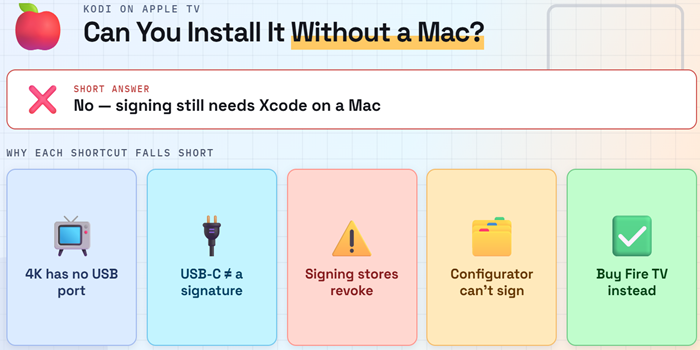
Not through the supported self-signing route on Apple TV 4K. Windows utilities can target the USB-C-equipped Apple TV HD, but many tutorials still depend on abandoned Cydia Impactor workflows. Remote signing stores can install apps without your Mac, yet they introduce an outside certificate, payment, and revocation risk.
- Apple TV 4K: Lacks a USB service port, making Apple’s Mac-based network pairing and signing workflow the dependable route for a non-jailbroken device.
- Apple TV HD: Has USB-C, but a cable only solves transport; the Kodi package still needs a valid Apple signature and compatible provisioning profile.
- Remote Signing Stores: May feel convenient, but their certificate can be revoked and their privacy practices are harder to audit than your own Xcode project.
- Apple Configurator: Can install an appropriately provisioned IPA, but it does not magically sign Kodi or remove the need for a valid profile.
- Practical Alternative: If you have no Mac and want low-maintenance Kodi, an Android TV device or Fire TV Stick is the more sensible purchase.
What About Apple TV 1, 2, and 3?
Legacy hardware deserves an honest answer rather than twenty lines of decade-old terminal commands. Apple TV 1 can still become an OSMC hobby box, Apple TV 2 is limited to obsolete jailbreak-era Kodi releases, and Apple TV 3 has no supported route to modern Kodi. None follows the tvOS steps above.
- First Generation: OSMC still lists the original silver Apple TV as supported, but installation replaces Apple’s interface and performance is modest without Crystal HD acceleration.
- Second Generation: Old SSH and jailbreak instructions target Kodi builds that no longer match modern addon dependencies, TLS requirements, or current streaming services.
- Third Generation: It cannot install Kodi 21.3 through Xcode and should not be purchased for this project, regardless of marketplace claims about “Kodi ready.”
- Security Reality: Unsupported firmware and default jailbreak credentials create more risk than value on a device used for account-based streaming or shared network storage.
- Better Upgrade: Replacing these boxes costs less time than maintaining them; choose current Apple TV hardware for tvOS or a cheaper Android device for easy Kodi installation.
Is Kodi on Apple TV Legal and Safe?
Kodi is legal, open-source media-center software, and Apple allows free accounts to test self-signed applications on personal devices. The risk comes from the package and content sources you choose. For safer use, keep the application official, the certificate yours, and the media or service properly licensed.
- Software Legality: Kodi itself supplies no films or channels, so installing the official application is separate from the legality of any later addon or playlist.
- Package Integrity: Start from Kodi’s official website and sign the package yourself instead of trusting an unknown person’s ready-made IPA.
- Apple Account Safety: Enter account credentials only into Xcode or Apple’s own sign-in flow; do not hand them to a remote signing website or modified utility.
- Addon Judgment: Prefer Kodi’s official repository and services you subscribe to legitimately, and investigate a repository before enabling unknown sources or installing its ZIP.
- Privacy Limits: A VPN may protect network traffic but cannot make an unlicensed source legal, repair a revoked certificate, or make a malicious addon trustworthy.
How to Update or Re-Sign Kodi Without Starting Over
The safe renewal rule is simple: install over Kodi, do not delete it first. Use the same Xcode project, team, and bundle identifier, sign the new DEB, and add the resulting IPA through Device Hub. Before a major upgrade, back up the userdata folder or Kodi profile to a network share.
- Keep Identity Consistent: The same bundle identifier tells tvOS that the signed IPA is an update to the existing Kodi installation rather than another application.
- Renew Before Expiry: With a free account, re-sign near the end of the seven-day window so Kodi stays available without an unexpected living-room failure.
- Back Up First: Kodi’s Backup addon or a copied userdata folder protects sources, databases, skins, and addon settings if a package update goes wrong.
- Update Deliberately: Check the Kodi release notes and addon compatibility before moving between major versions, because an older binary addon may not load on the new branch.
- Easier Device Option: Readers tired of weekly signing can use our Kodi on Firestick installation guide, where the official Android package has no Apple provisioning expiry.
Final Verdict
Kodi 21.3 works well on Apple TV HD and Apple TV 4K once it is installed, but Apple’s signing process makes it an enthusiast setup rather than a ten-minute App Store task. Pair the box in Xcode, prove the blank project works, sign Kodi’s official DEB with that same profile, and install the IPA through Device Hub. Use a free account for the trial; consider paid membership only after the seven-day renewal becomes your sole frustration.
FAQs
Can I install Kodi directly from the Apple TV App Store?
No. Kodi does not have an Apple TV App Store listing. On Apple TV HD and Apple TV 4K, you must sign the official tvOS package with an Apple development certificate and install the resulting IPA through Xcode or another valid provisioning workflow.
Does Kodi work on every Apple TV 4K generation?
Yes, current Kodi tvOS builds work on first-, second-, and third-generation Apple TV 4K models. All three lack a USB-C service port, so pair them with a Mac over the local network and deploy the signed IPA wirelessly or through the network connection.
Why does Kodi stop opening after seven days?
A free Apple Account signs Kodi through Xcode’s Personal Team, and Kodi’s official Apple TV guidance says that installation must be re-signed and reinstalled every seven days. Reuse the same project and bundle identifier and install over the existing copy to preserve data.
Do I need to enable Developer Mode on Apple TV?
No. Apple’s documentation explicitly says tvOS has no Developer Mode toggle. Open Settings > Remotes and Devices > Remote App and Devices, begin pairing in Xcode’s Device Hub, enter the displayed PIN, and Developer Settings become available through that pairing process.
Can I install Kodi on Apple TV 4K using Windows?
There is no comparable supported Windows route for a stock Apple TV 4K because the box has no USB-C port and Apple’s wireless development pairing belongs to Xcode on macOS. Remote signing services exist, but their certificate and privacy tradeoffs make them harder to recommend.
Which addons should I install first on Apple TV?
Start with Kodi’s official repository for legal video services, subtitles, music, weather, and personal-media integrations. If you want a broader overview of maintained options, our best Kodi addons guide explains what each addon provides and why source licensing still matters.