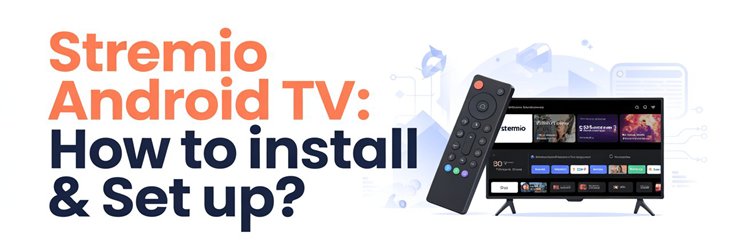
Key Takeaway: Install Stremio from Google Play first because that route supplies automatic updates and the correct television interface. If the listing is missing, use only the official Android TV APK. After signing in, tune the player, subtitles, storage, and remote controls before adding the services you are authorized to watch.
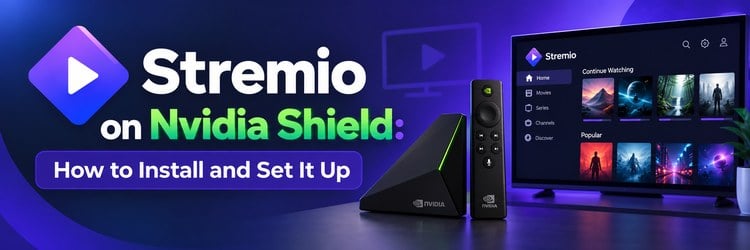
Stremio Android TV puts catalogs, watchlists, and video sources in one television interface. Menus vary between Sony, TCL, Hisense, Xiaomi, Nvidia Shield, onn, and other certified devices. This guide covers both supported installation routes and the settings that matter afterward.
I checked Stremio’s current downloads page, Play Store record, June 2026 release notes, and recently updated help articles. The television build adds MPV, Usenet support, progressive seeking, automatic subtitle selection, and redesigned navigation, so many older tutorials no longer match.
Before You Install: Confirm Your Android TV Is Ready
Stremio supports televisions running Android TV 5.0 or later. Confirm the device has a working Play Store, free storage, and the correct Google account before troubleshooting the app. Stremio’s updated Smart TV support page confirms Play Store and official-download options.
| Check | Recommended State | Why It Matters |
|---|---|---|
| Operating system | Android TV 5.0 or newer | Older firmware may reject the current package |
| Free storage | At least 500 MB available | Allows room for the app, cache, and updates |
| Google account | Signed in and syncing | Required for normal Play Store installation |
| Network | Stable Wi-Fi or Ethernet | Prevents incomplete downloads and login timeouts |
| Date and time | Automatic network time | Avoids certificate and authentication errors |
| Remote | D-pad and Select working | Needed for the television interface and menus |
- Check the platform: Open Settings, Device Preferences, About, and confirm the operating system says Android TV rather than a manufacturer-only smart-TV platform.
- Clear some space: Remove abandoned games, duplicate players, or large cached downloads until the Storage page shows comfortable room for installation and future updates.
- Update the firmware: Install pending system updates before Stremio because older Play Services components can hide compatible listings or interrupt account sign-in.
- Restart once: A full power restart clears a stalled Play Store session and is more effective than simply returning to the television home screen.
- Verify the connection: Open another streaming app and play a short video so you know the device, router, and DNS path are currently responsive.
Install Stremio From Google Play
Google Play is preferred on certified Android TV hardware. It selects the television package, checks the signature, and delivers updates. Search carefully because similarly named utilities can appear nearby. The publisher should be Stremio, and the listing should describe a video-organizing app powered by addons.
Part 1: Find the Official Listing
- Open Apps from the Android TV home screen, then launch the Google Play Store or choose Get More Apps.
- Select the search icon and use the on-screen keyboard or voice button to search for Stremio.
- Open the listing named Stremio and confirm the publisher name before choosing Install.
- Wait until the button changes to Open. Do not unplug the television or streaming box during package verification.
- Select Open once so Android TV can create the app data folder and finish the first-run setup.
Part 2: Complete the First Launch
- Accept only necessary requests: Read each permission request and avoid granting broad file access unless a feature you deliberately use requires it.
- Choose sign-in: Use the QR or pairing method when offered because entering a long email and password with a remote is error-prone.
- Let catalogs load: Give the first synchronization a minute before assuming the library is empty, especially on a large account or slow connection.
- Test a lawful source: Open a trailer, public channel, or subscription service you already use to confirm video and audio output.
Use the Official APK When Play Store Search Fails
A missing Play Store result does not prove incompatibility. Region, certification, account filters, or stale store data can suppress a listing. Sideload only a package from Stremio itself. Avoid bundles from forums, shorteners, or modified installers.
- On a phone or computer, open the official Stremio downloads page and locate the Android TV option rather than the mobile build.
- Download the current APK directly, then transfer it with a USB drive or a trusted local-network file-transfer method.
- On Android TV, open Settings, Apps, Special App Access, and Install Unknown Apps. The exact path may sit under Security or Privacy.
- Allow installation only for the file manager you are using. Do not enable every app in the list.
- Open the APK, select Install, and wait for Android to verify the package. If Android asks to update an existing Stremio installation, confirm the signature matches.
- After Stremio opens successfully, turn off the file manager’s unknown-app permission to restore the safer default.
Choose the Correct Android Package
Android packages can target different processors and screens. Choose the labeled Android TV download because it is designed for a D-pad and television controls. Processor-specific files matter mainly on older boxes. Prefer a universal television build before guessing an architecture.
| Package Choice | Typical Hardware | Use It When |
|---|---|---|
| Android TV / universal | Most certified televisions and boxes | The official page recommends it for television devices |
| ARM 64-bit | Newer Shield, premium boxes, recent TVs | Device information explicitly reports arm64-v8a |
| ARM 32-bit | Older budget boxes and televisions | The 64-bit package returns an incompatibility error |
| Android mobile | Phones and tablets | Not recommended for remote-only television use |
- Prefer the TV build: It provides remote-focused navigation, larger controls, and a player layout that fits a television screen without touch gestures.
- Check the filename: Confirm the package references Android TV and comes from the official download location before opening it on your device.
- Avoid forced downgrades: Android may block an older package over a newer installation, and forcing it can erase local settings or create crashes.
- Do not mix variants: Repeatedly switching between mobile and TV packages can leave incompatible data behind, even when both use the same account.
- Use device details: If architecture matters, read the processor ABI from a reputable device-information app instead of assuming from the product year.
Sign In and Sync Your Library
Signing in connects the television to the account used on desktop, mobile, or web. Catalogs, library entries, progress, and account-level addons can appear without rebuilding everything. Use a QR or pairing code only on the official Stremio page.
- Use the QR screen: Scan it with a phone already connected to the intended account, then confirm the television shown on the approval page.
- Check the profile: Verify the displayed email or account name before adding library items, especially on a shared household television.
- Wait for synchronization: Leave the home screen open while posters and addon catalogs populate; rapid back-and-forth navigation can look like a failed sync.
- Refresh once: If content stays empty, close Stremio from the Android TV Apps settings and reopen it before signing out.
- Protect shared devices: Sign out before selling, returning, or giving away the television box, and remove it from your account where supported.
Add Services Without Typing Long URLs on the TV
Stremio’s addon system connects catalogs and sources to the account, but a television remote is a poor tool for long addresses or configuration forms. Configure reputable official or community addons from a phone or computer signed into the same account, then return to Android TV and refresh. Only install addons whose purpose, operator, permissions, and content rights you understand.
- Start with official choices: Built-in catalog and public-content options make a safe test before adding any account-linked third-party service.
- Configure elsewhere: Complete complex setup on a phone or desktop where addresses, tokens, filters, and consent screens are easier to inspect.
- Refresh the television: Restart Stremio or sign out and back in only if the newly installed addon does not appear after synchronization.
- Remove abandoned entries: Uninstall addons you no longer recognize or use so their catalogs and source requests do not slow everyday navigation.
- Keep access lawful: An addon interface does not grant rights to a movie, channel, or subscription; use only content available to you legally.
Tune Playback, Subtitles, and Remote Controls
The current Android TV build includes both ExoPlayer-style playback and MPV-related improvements, plus automatic subtitle selection and progressive seeking. Defaults work on many televisions, but matching the player to the device can reduce audio problems, black frames, and awkward remote behavior. Change one setting at a time and replay the same lawful test video after each change.
- Choose the player: If one engine stutters or shows a blank frame, switch to the other built-in option before changing network settings.
- Match frame rate: Enable display-rate matching only when the television and receiver handle refresh changes without losing the HDMI signal.
- Set subtitle behavior: Pick preferred languages and automatic selection, then adjust size, color, and timing for your viewing distance.
- Adjust seeking: Progressive seeking moves farther the longer a direction is held, so short taps remain better for precise corrections.
- Check audio output: Use stereo when a soundbar or older receiver cannot decode the selected surround format reliably.
Fix Installation, Login, and Update Errors
Most setup failures fall into a small number of categories: an unsupported package, too little storage, stale Play Store data, incorrect system time, or damaged app data. Diagnose the message before clearing everything. Clearing cache is low impact; clearing storage signs the app out and removes local preferences. Uninstalling should be the final step after account access is confirmed.
| Symptom | Likely Cause | Best First Action |
|---|---|---|
| App not shown in Play Store | Region, certification, or stale store data | Update firmware and clear Play Store cache |
| Package appears invalid | Wrong build or incomplete download | Download the Android TV APK again officially |
| App not installed | Low storage or signature conflict | Free space and remove mismatched variants |
| QR sign-in expires | System clock or slow approval | Enable automatic time and request a new code |
| Update will not apply | Different package signature | Update through the same original source |
| Home screen loads empty | Account sync or addon request stalled | Force stop, reopen, and allow synchronization |
- Read the exact message: Compatibility, storage, parsing, and signature errors require different fixes, so record the wording before dismissing it.
- Clear cache first: Use Settings, Apps, Stremio, Clear Cache, then reopen the app without deleting account information.
- Correct system time: Authentication can fail when the television clock is wrong even though browsing and other apps still appear normal.
- Stay with one source: Play Store installations should update through Play Store; official APK installations should use the matching official package path.
- Reinstall carefully: Confirm your login method before clearing data or uninstalling so account recovery does not become the next problem.
Stop Buffering, Freezing, and Black Screens
Playback problems can originate from the source, local network, decoder, display chain, or the app. Test a second known-good video before changing settings. If only one title or service fails, the television is probably not the cause. If every source fails, compare Wi-Fi and Ethernet, restart the device, and switch the player engine in a controlled order.
- Compare another source: A single stalled stream points to that provider or file, while universal failures point toward the device or network.
- Test network stability: Run a sustained video in another app and watch for drops, not merely a high speed-test result.
- Restart the chain: Power-cycle the television box, router, television, and receiver when HDMI handshakes or audio formats suddenly fail.
- Switch decoding: Change the built-in player or hardware-decoding option when video is black but menus, subtitles, or audio still appear.
- Control the cache: Clear Stremio’s cache if repeated crashes follow long sessions, but avoid constant clearing because cached data can improve navigation.
Keep Stremio Updated Without Losing Settings
Play Store installations normally update automatically, while sideloaded packages require periodic manual checks. Update from the same distribution route used for installation so Android recognizes the signature and preserves app data. Avoid installing an older version over a newer one unless Stremio documents a rollback path. A failed downgrade can force a clean reinstall and remove local preferences.
- Review the changelog: Read player, navigation, and compatibility changes before updating a household television that is currently stable.
- Update one device first: Try the release on a secondary television box before changing every room when practical.
- Preserve account access: Confirm the login email and recovery method before any reinstall, factory reset, or major operating-system update.
- Keep enough storage: Android needs temporary space to download and unpack an update even when the finished app is relatively small.
- Remove old APK files: Delete installers from Downloads after a successful update so they do not consume space or get opened accidentally later.
Protect Privacy and Use Stremio Lawfully
Stremio is a media-organizing application, while addons determine which catalogs and sources appear. That separation means the app’s availability does not verify every third-party source. Review addon operators, permissions, account tokens, and content rights independently. Do not paste private API keys into unfamiliar configurators, and do not assume a result is licensed merely because it loads in a polished interface.
- Limit permissions: Grant files, notifications, or local-network access only when a feature you actively use needs that capability.
- Protect credentials: Enter passwords and service tokens only in official apps or trusted configuration pages reached directly, not through copied short links.
- Review addons: Remove tools with unclear ownership, abandoned documentation, unexpected redirects, or requests unrelated to their stated function.
- Respect content rights: Use subscriptions, public media, personal libraries, and streams available under the laws and terms that apply to you.
- Secure shared televisions: Avoid saving payment details in browsers and sign out of sensitive services before lending or returning the device.
Where Android TV Differs From Google TV and Firestick
Google TV uses Android TV underneath but changes discovery, home-screen, and settings labels. Firestick runs Amazon’s Fire OS and usually relies on the Amazon Appstore or sideloading. The Stremio account can synchronize across them, yet installation menus should not be copied word for word. If your device has the Google TV home experience, use our Stremio on Google TV guide for those exact paths.
- Android TV: Uses the Play Store and a traditional Apps row, though manufacturers may rename security and storage pages.
- Google TV: Adds content recommendations and different settings navigation while keeping Android packages and Play Store distribution underneath.
- Firestick: Uses Fire OS, an Amazon account, and different unknown-app controls despite supporting many Android-compatible APK files.
- Manufacturer TVs: Sony, TCL, Hisense, and others may delay operating-system or Play Services updates compared with standalone boxes.
- Account sync: Libraries and account-level addons can follow the login, but player, subtitle, display, and storage settings remain device-specific.
Final Verdict
For most viewers, the best Stremio Android TV setup is the official Play Store app, QR-based sign-in, and a small set of clearly understood addons. The official Android TV APK is a practical fallback when a certified device hides the listing. Keep installation sources consistent, test settings one at a time, and treat source legality separately from the app.
- Best installation route: Google Play for compatibility checks, signature verification, and automatic updates.
- Best fallback: The official Android TV APK transferred with a trusted local method.
- Best troubleshooting habit: Identify whether the failure belongs to the source, network, player, or device before clearing data.
FAQs
Is Stremio available on Android TV?
Yes. Stremio’s current support information says the app is available for smart televisions running Android TV 5.0 or later. Search Google Play first. If the listing is unavailable on a compatible device, use the official Android TV download from Stremio rather than an unofficial mirror.
Which Stremio APK should I use for Android TV?
Choose the package explicitly labeled for Android TV. Use a processor-specific build only when the official page provides it and your device information confirms the matching architecture. Avoid the touch-focused Android mobile package because navigation and player controls may not work correctly with a television remote.
Why is Stremio missing from Google Play on my TV?
The listing can disappear because of device certification, region, account restrictions, outdated firmware, or stale Play Store data. Update Android TV and Play Services, clear the Play Store cache, restart, and search again. If the device is supported, the official APK remains the safer fallback.
Why does Stremio keep buffering on Android TV?
First compare another known-good source and another streaming app. If every app struggles, troubleshoot Wi-Fi, Ethernet, or the router. If only Stremio fails, switch the built-in player, restart the app, and clear cache. Our broader Stremio not working guide covers source, addon, and account failures.
Can I install addons from the Android TV app?
Simple addons may be available in the television interface, but detailed configuration is easier on a phone or computer signed into the same Stremio account. Install only addons you trust and are authorized to use, then restart or refresh the TV app so account-level changes synchronize.
Does Stremio update automatically on Android TV?
Play Store installations normally update automatically when that setting is enabled. Sideloaded installations require you to check Stremio’s official downloads and install the newer matching package manually. Update from the same source and package family to preserve the app signature, account data, and television-specific settings.