Key Takeaway: Stremio works very well on the Nvidia Shield. Install the official Stremio app from the Google Play Store on the Shield, open it, and link your account by scanning the QR code or entering the 4-character code at link.stremio.com on your phone. The Shield handles 4K HDR, Dolby Vision, and HEVC streams in hardware, but it has no hardware AV1 decoding, so pick HEVC or H.264 streams when you have a choice. Turn on frame rate matching and check your audio settings for the best results.
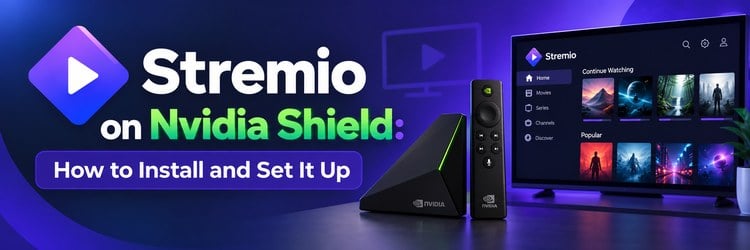
The Nvidia Shield TV has been a favorite streaming box for years, and it is still one of the most capable Android TV devices you can buy. It is fast, it supports Dolby Vision and Dolby Atmos passthrough, and it runs the regular Android TV version of Stremio straight from Google Play. That makes it one of the easiest places to run Stremio on a big screen.
In this stremio nvidia shield guide I explain which Shield models work, how to install Stremio from Google Play or with the official APK, how to sign in with a code instead of typing on the remote, and which Shield and Stremio settings matter for 4K HDR, frame rate, and surround sound. I also cover the known playback limits on the Shield and the fixes for the most common problems.
| Task | Where to do it | Notes |
|---|---|---|
| Install Stremio | Google Play Store on the Shield | Official app, updates automatically |
| Install without Play | Official APK from stremio.com | Choose the Android TV build |
| Sign in | link.stremio.com on your phone | Enter the 4-character code shown on the TV |
| 4K HDR and Dolby Vision | Shield Display and Sound settings | Dolby Vision modes must be enabled manually |
| Smooth motion | Match content frame rate on the Shield | Reduces judder on 24 fps movies |
| Surround sound | Shield audio settings and your receiver | Dolby Atmos and DTS:X are passthrough only |
Does Stremio Work on Nvidia Shield?
Yes. The Nvidia Shield runs Android TV with the Google Play Store, and Stremio publishes an official Android TV app there under the package name com.stremio.one. On the Shield you do not need any workaround: search for Stremio, install it, and it appears on your home screen like any other app.
The app is free. Like on every other platform, Stremio itself does not host movies or shows. It organizes content through add-ons you choose, then plays the streams those add-ons return. On the Shield, playback is handled by the app’s built-in player, and you can also send streams to an external player app if you prefer.
Stremio keeps the Android TV app updated through Google Play. Its October 7, 2026 update, for example, fixed a crash related to the frame rate matcher, which shows the app is actively maintained for TV devices like the Shield.
Which Nvidia Shield Models Work With Stremio?
Every Shield TV model runs Android TV and can install apps from Google Play, so Stremio works across the range. The two current 2019 models are the most common today.
| Model | Processor and memory | Storage | Notes for Stremio |
|---|---|---|---|
| Shield TV Pro (2019) | Tegra X1+, 3GB RAM | 16GB, expandable with USB drives | Best choice: more RAM, two USB ports, Plex server support |
| Shield TV (2019, tube) | Tegra X1+, 2GB RAM | 8GB, expandable with microSD | Works well; watch the smaller storage |
| Older Shield TV (2015 and 2017) | Tegra X1, 3GB RAM | 16GB or more depending on model | Still supported by Nvidia updates; no AI upscaling |
According to Nvidia, both 2019 models play up to 4K HDR at 60 fps in HEVC, play up to 4K at 60 fps in VP9 and H.264, and support Dolby Vision and HDR10. They also pass Dolby Atmos and DTS:X through to a compatible receiver or soundbar. The full list is on the official SHIELD TV Pro specifications page.
Nvidia also keeps updating the Shield. SHIELD Experience 9.2.4, released in early 2026, added newer Android security patches and fixes for remote, HDMI-CEC, and Bluetooth issues. Keeping the Shield updated is one of the simplest ways to avoid playback problems. If you are still choosing hardware, our list of the best devices for Stremio compares the Shield with newer streaming boxes.
What You Need Before You Start
- A Shield connected to the internet: Gigabit Ethernet is the most reliable option for high-bitrate 4K streams. Wi-Fi works, but use the 5 GHz band.
- A Google account on the Shield: Needed for the Play Store install method.
- A Stremio account: Free. Create one at stremio.com or in the app on your phone first.
- A phone or computer: Used to link the TV app with a code, so you never type your password with the remote.
- Enough free storage: Especially on the 8GB Shield TV tube. Check Settings and clear unused apps if space is low.
- Up-to-date software: Check for a SHIELD Experience upgrade in the Shield settings before you install.
How to Install Stremio on Nvidia Shield From Google Play
This is the recommended method. It installs the official Android TV app and keeps it updated automatically.
- Turn on the Shield and go to the home screen.
- Open the Google Play Store, or use the search option on the home screen.
- Search for Stremio. You can also hold the microphone button on the Shield remote and say “Stremio”.
- Select the official Stremio app, published by Stremio’s developer, Smart Code.
- Select Install and wait for the download to finish.
- Select Open, or find Stremio in the Apps row on the home screen.
You can confirm you have the right app by checking the Stremio listing on Google Play. Avoid apps with similar names or icons from other developers.
To keep Stremio easy to reach, move it to the front of your favorites row on the home screen.
Install Stremio on Shield With the Official APK
If the Play Store does not show Stremio for some reason, or you need a specific version, you can install the official APK. The Stremio downloads page lists Android TV builds hosted by Stremio itself.
- Install a downloader or file manager app on the Shield from Google Play.
- Allow that app to install unknown apps in the Shield security settings.
- Open the official Stremio downloads page and choose the Android TV build, not the phone build.
- Download the file and open it to install.
- Turn the unknown apps permission off again once Stremio is installed.
An app installed from an APK does not update itself from Play, so check for new versions now and then. Our Stremio APK guide explains how to choose the right build and spot unsafe files. Never install modified or “premium” Stremio APKs from other sites.
Sign In to Stremio on the Shield With a Code
Typing an email and password with a TV remote is slow. Stremio’s Android TV app avoids that with its Link Account screen.
- Open Stremio on the Shield. On first launch it shows a QR code and a short code.
- On your phone, scan the QR code, or open link.stremio.com in any browser.
- Enter the 4-character code shown on the TV if you used the website.
- Sign in with your Stremio email and password on the phone.
- Wait a few seconds. The Shield links to your account and loads your library and installed add-ons.
If you sign in with the same account you use on other devices, your library, watch progress, and add-ons follow you to the Shield. For password resets, Facebook-created accounts, and other sign-in problems, see our full Stremio login guide.
Best Shield Settings for Stremio
The Shield has several settings that change how Stremio looks and sounds. These are the ones worth checking first. Menu names can vary slightly between SHIELD Experience versions.
4K, HDR, and Dolby Vision
The Shield switches to an HDR10 mode automatically when it detects an HDR display. Dolby Vision is different: Nvidia says Dolby Vision display modes are not enabled by default. If your TV supports Dolby Vision at 4K and 60Hz, go to Settings > Device Preferences > Display & Sound > Dolby Vision to turn it on. You can also pick a display mode under Display & Sound > Resolution.
Match Content Frame Rate
Most movies are filmed at 24 frames per second, while TVs often run at 60Hz. Matching the output to the content reduces judder during camera pans. The Shield has a match frame rate option in its display settings, and Nvidia improved it in recent SHIELD Experience updates. Stremio’s Android TV app also includes a frame rate matcher of its own; its latest update fixed a crash related to it. Try the Shield setting first, and if you see a black flash or a short delay when a video starts, that is the TV switching modes.
AI Upscaling
The 2019 Shield models can upscale lower-resolution video to 4K. In the Shield user guide, Nvidia explains that “Enhanced” upscaling is on by default and that you can choose “AI-Enhanced” under Settings > AI upscaling. AI-Enhanced mode falls back to Enhanced for some content, such as video below 480p. It is most useful for 720p and 1080p streams on a 4K TV. Older Shield models do not offer AI upscaling. See the SHIELD TV Pro user guide for details.
Surround Sound and Passthrough
If you use a soundbar or AV receiver, check the surround sound options in the Shield display and sound settings. The Shield passes Dolby Atmos and DTS:X through to compatible equipment rather than decoding them itself, so your receiver must support those formats. If you hear no sound on some streams, try changing the surround sound setting or choosing a stream with a different audio track.
Storage and Cache
On the 8GB Shield TV, free space can run low after a few apps. Clearing the Stremio cache from the app settings in Android, or removing apps you no longer use, keeps things running smoothly. The Shield Pro accepts USB drives and the tube model accepts microSD cards, which can be set up as extra storage.
Playback Limits on the Shield and How to Work Around Them
The Shield is powerful, but it was released in 2019, and that shows with some newer stream formats.
- No hardware AV1 decoding: The Shield decodes HEVC, VP9, and H.264 in hardware, but not AV1. Stremio bug reports on GitHub describe AV1 streams opening with audio but a black screen on the Shield. Choose HEVC or H.264 streams instead.
- Dolby Vision profiles: The Shield supports Dolby Vision, but not every Dolby Vision file found online uses a profile it can display correctly. If colors look wrong, try a different stream.
- Very high bitrates: Large 4K files need a fast, stable connection. Use Ethernet and test a lower-bitrate version if a stream keeps buffering.
- Occasional black screen or missing audio: Some users report this after pausing or resuming in Stremio on the Shield. Backing out and starting the stream again, updating the app, or switching to another player usually helps.
Stremio on Android TV can also hand streams to an external player app. If the built-in player struggles with a file, an external player is worth trying. Our guide to the best external players for Stremio covers the main options and how to set them up.
Fix Common Stremio on Nvidia Shield Problems
| Problem | Likely cause | What to try |
|---|---|---|
| Stremio not found in Play | Search typo or region listing issue | Search for Stremio again, or install the official Android TV APK |
| Stuck on the Link Account screen | Code expired or phone signed in to another account | Refresh the code and sign in again at link.stremio.com |
| Library or add-ons missing | Different Stremio account | Check you linked the same account you use on other devices |
| Black screen with audio | AV1 stream or player issue | Choose an HEVC or H.264 stream, update Stremio, or try an external player |
| No sound through the receiver | Surround sound or passthrough setting | Change the Shield surround sound option or pick another audio track |
| Dolby Vision not working | Dolby Vision mode not enabled | Enable it under Display and Sound, and check your TV supports it |
| Judder on movies | Frame rate not matched | Turn on match content frame rate in the Shield settings |
| App crashes or freezes | Outdated app or full storage | Update Stremio and the Shield, and free up storage |
If a problem only happens with one stream, it is usually the stream or the add-on, not the Shield. Try another source before changing system settings.
Is the Nvidia Shield Still a Good Stremio Device?
For most people, yes. The Shield remains one of the most capable Android TV boxes for Stremio thanks to its fast processor, Dolby Vision and HDR10 support, audio passthrough, AI upscaling, and long software support from Nvidia.
- Pros: Official Stremio app on Google Play, strong 4K HDR playback, Dolby Vision, Atmos and DTS:X passthrough, Ethernet, expandable storage, and regular updates from Nvidia.
- Cons: No AV1 hardware decoding, older hardware from 2019, a high price compared with newer streaming sticks, and only 8GB of storage on the base model.
If you watch mostly AV1 content, a newer box with AV1 support may suit you better. Otherwise, the Shield is still an excellent home for Stremio. For setup tips that apply to every Android TV device, see our Stremio Android TV setup guide.
Stay Safe and Legal With Stremio on Nvidia Shield
Installing the official Stremio app on your Shield is legal in most countries, because Stremio does not host any content. What you watch depends on the add-ons you install. Use add-ons and services you are entitled to use, install Stremio only from Google Play or stremio.com, and avoid modified builds. A VPN can protect your privacy on shared networks, but it does not make any content legal.
Final Verdict
Stremio on Nvidia Shield is one of the smoothest ways to use Stremio on a TV. Install the official app from Google Play, link your account with the code at link.stremio.com, enable Dolby Vision if your TV supports it, and turn on frame rate matching. Choose HEVC or H.264 streams over AV1, use Ethernet for 4K, and keep both the Shield and Stremio updated. With those steps, your Stremio Nvidia Shield setup delivers excellent picture and sound.
Frequently Asked Questions
Does Stremio work on Nvidia Shield?
Yes. The official Stremio app for Android TV is available on the Google Play Store on the Nvidia Shield. Install it, open it, and link your Stremio account.
How do I install Stremio on Nvidia Shield?
Open the Google Play Store on the Shield, search for Stremio, select the official app, and choose Install. If Play does not show it, use the official Android TV APK from stremio.com.
How do I sign in to Stremio on the Shield?
Open Stremio on the Shield, then scan the QR code with your phone or go to link.stremio.com and enter the 4-character code shown on the TV. Sign in on the phone and the Shield links automatically.
Which Nvidia Shield is best for Stremio?
The 2019 Shield TV Pro is the best choice because it has 3GB of RAM, 16GB of storage, and USB ports. The 2019 Shield TV tube also works well but has 8GB of storage.
Can the Nvidia Shield play 4K HDR in Stremio?
Yes. The Shield supports 4K HDR10 and Dolby Vision playback, and it decodes HEVC in hardware. Dolby Vision must be enabled in the Shield display settings.
Why do some streams show a black screen on the Shield?
The Shield has no hardware AV1 decoding, so AV1 streams may play audio with a black screen. Choose an HEVC or H.264 stream, update Stremio, or try an external player.
Should I turn on match frame rate for Stremio?
Yes, if your TV supports it. Matching the content frame rate reduces judder on 24 fps movies. A short black flash when playback starts is normal while the TV switches modes.
Is Stremio free on Nvidia Shield?
Yes. Stremio is free to install and use on the Shield. What you watch depends on the add-ons you choose, so use only content you have the right to access.