Key Takeaway: Installing Syncler on Firestick takes about ten minutes: sideload the app with the Downloader tool, add a provider package, then connect Real-Debrid for fast, high-quality streams. Always run it behind a VPN to keep your streaming private.
Syncler has quietly become one of the best streaming apps for Firestick, and it is easy to see why once it is set up. It pulls high-quality links from provider packages, works beautifully with Real-Debrid, and keeps a clean, Netflix-style interface. The catch is that Syncler is not on the Amazon Appstore, so you have to sideload it, and the provider setup confuses a lot of first-time users.
I have installed it on every Fire TV model I own, so in this guide I walk you through the whole process: installing Syncler on your Firestick, adding provider packages, connecting Real-Debrid for better streams, and fixing the issues that trip people up. Follow along and you will have Syncler running smoothly in about ten minutes. Let us begin with what Syncler is and why it is worth the short setup.
What Is Syncler and Is It Worth Installing?
Syncler is a media-browsing app that organises movies and TV shows into a slick interface, then finds streaming links through add-on style provider packages. On its own it is just the front end; the providers supply the links, and a debrid service supplies the high-quality ones. That design is exactly why enthusiasts rate it so highly. Before you install it, here is what makes Syncler worth the effort:
- Clean Interface: Presents content in a polished, Netflix-style layout with posters, trailers, and progress tracking, which feels far tidier than older streaming apps.
- Provider Packages: Pulls links from installable provider packages rather than bundled add-ons, so you control your sources and update them independently.
- Debrid Integration: Works seamlessly with Real-Debrid, Premiumize, and AllDebrid, unlocking fast, high-resolution links that free sources rarely match.
- Trakt Sync: Connects to Trakt to sync your watch history and lists across devices, so you resume shows exactly where you left off.
- Cross-Device Use: Runs on Firestick, Android TV, and mobile, letting you set it up once and carry your library between screens.
How to Install Syncler on Firestick (Step-by-Step)
Because Syncler is not in the Amazon Appstore, you install it by sideloading the app with the free Downloader tool. It sounds technical, but it takes only a few minutes and the same steps work on every Fire TV Stick. Make sure you enable one setting first, then follow the sequence exactly. Here is how I install Syncler on a Firestick from scratch:
- Enable Unknown Sources: Open Settings, then My Fire TV, then Developer Options, and turn on Apps from Unknown Sources so the Firestick can install Syncler.
- Install Downloader: From the Appstore, search for and install the free Downloader app, then open it and allow the permissions it requests.
- Enter the Syncler Address: In Downloader’s URL box, type the official Syncler download address from the developer’s site, then select Go to fetch the file.
- Download the File: Wait for the Syncler installation file to download fully, keeping your connection stable so the file does not arrive corrupted.
- Install the App: When the installer opens, select Install, wait for it to finish, then choose Done rather than Delete when prompted.
- Delete the Installer: Return to Downloader and delete the downloaded file to free up the limited storage space on your Firestick.
- Launch Syncler: Open Syncler from your apps list, accept the initial prompts, and you are ready to add the provider packages covered next.
How to Set Up Providers in Syncler
Syncler does nothing useful until you add a provider package, because the providers are what actually find streaming links. This is the step that confuses newcomers, but it is straightforward once you know where to look. You add a provider package by entering its URL and a name inside Syncler’s settings. Here is how to set up providers correctly:
- Open Package Settings: In Syncler, go to Settings, then Providers, then Install Package, which opens the fields for adding a new provider package.
- Enter the Package URL: Type the provider package URL and give it a name, then confirm; Syncler fetches and installs the package automatically.
- Enable the Providers: After installing, open the provider list and switch on the sources you want, since some packages ship with providers disabled by default.
- Set Source Priority: Arrange providers so your most reliable sources rank first, which helps Syncler surface working links faster when you press play.
- Update Regularly: Refresh your provider package occasionally, because sources change and an updated package keeps links working and reduces dead results.
How to Add Real-Debrid to Syncler
Real-Debrid is the single biggest upgrade you can make to Syncler. It turns a patchy list of free links into a wall of fast, high-definition streams, and it costs only a few dollars a month. Connecting it takes a minute. If you are new to it, our explainer on what Real-Debrid is covers the basics; here is how to link it inside Syncler:
- Open Account Settings: In Syncler, navigate to Settings, then Accounts, then Debrid Services, and choose Real-Debrid from the list of supported providers.
- Start Authorisation: Select Authorise, and Syncler displays a short code along with a device-pairing web address to visit on your phone.
- Enter the Code: On your phone, open the pairing page, sign in to Real-Debrid, and enter the code shown on your Firestick screen.
- Confirm the Link: Once authorised, Syncler confirms the connection, and Real-Debrid links now appear marked separately from standard free sources.
- Prioritise Debrid Links: In provider settings, rank debrid results first so Syncler plays the fast, high-resolution streams before falling back to free links.
How to Fix Common Syncler Problems
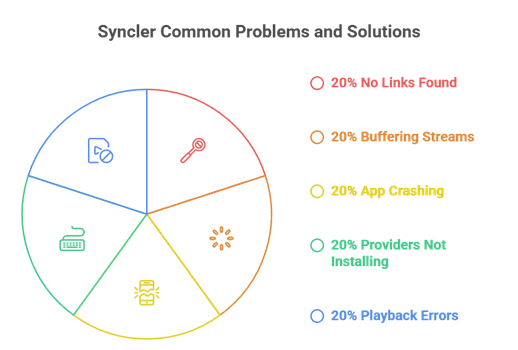
Even a clean Syncler install occasionally throws up an issue, usually around providers or links rather than the app itself. The good news is that the common problems have quick fixes, and you rarely need to reinstall. During my testing these solutions cleared almost every issue. Here is how to fix the Syncler problems people hit most often:
- No Links Found: If no sources appear, reinstall or update your provider package, since an outdated or broken package is the usual cause of empty results.
- Buffering Streams: Connect Real-Debrid and prioritise its links, because free sources buffer far more than the high-speed debrid streams do.
- App Crashing: Clear Syncler’s cache in Fire OS settings, and confirm you installed the current version, as older builds can crash on newer Fire OS.
- Providers Not Installing: Re-enter the package URL carefully, since a single mistyped character stops the package from installing correctly.
- Playback Errors: Switch to a different link or source, and make sure your VPN is not blocking the debrid connection during playback.
Should You Use a VPN With Syncler?
I always run Syncler with a VPN, and I recommend you do too. Because Syncler streams through third-party providers, your internet provider can see and log that activity unless you encrypt it. A VPN hides your streaming, prevents throttling, and protects your privacy for just a small monthly cost. Our roundup of the best VPNs for Firestick lists the fastest options; here is why it matters with Syncler:
- Hides Your Streaming: A VPN encrypts your traffic so your internet provider cannot see what you watch through Syncler’s third-party providers.
- Prevents Throttling: By masking streaming activity, a VPN stops ISPs from selectively slowing your connection, which keeps Syncler playback smooth.
- Protects Your Privacy: Encryption shields your IP address from the sources Syncler connects to, an important safeguard with sideloaded streaming apps.
- Works on Firestick: Leading VPNs offer native Fire TV apps, so you protect Syncler with a couple of clicks and no complicated configuration.
- Keep It Always On: Run the VPN whenever you open Syncler, so every session stays private rather than only the ones you remember to protect.
Best Syncler Alternatives
Syncler is excellent, but it is worth knowing the alternatives in case you want a different interface or a backup app. Each of these offers a similar link-scraping experience on Firestick, and most also support Real-Debrid. Here are the Syncler alternatives I would install alongside or instead:
- Stremio: A polished, free streaming app with add-ons and Real-Debrid support, offering a similar clean interface and an easy setup for beginners.
- CyberFlix TV: A long-running app that scrapes links with minimal setup, making it a lightweight backup when Syncler providers act up.
- Kodi: A powerful open-source media centre whose add-ons replicate Syncler’s link-finding, ideal if you want deep customisation and control.
- BeeTV: A simple sideloaded app with quick link scraping and debrid support, useful as a fast, no-fuss secondary streaming option.
Verdict:
Installing Syncler on Firestick is well worth the ten minutes it takes. Once you sideload the app with Downloader, add a working provider package, and connect Real-Debrid, you get one of the cleanest and most reliable streaming setups available on Fire TV. In my testing, the Real-Debrid pairing was the difference between constant buffering and instant high-definition playback, so do not skip it.
Always run Syncler behind a VPN to keep your streaming private, and refresh your provider package now and then to keep links healthy. Follow the steps above in order and Syncler will run smoothly. Bookmark this guide so you can repeat the setup whenever you add a new Firestick to your home.
FAQs
Is Syncler free to use?
Syncler offers a free version with ads and a low-cost Syncler+ upgrade that removes them and adds features. The app itself is inexpensive, but you get the best experience by pairing it with a Real-Debrid subscription for fast, high-quality streaming links.
Is Syncler safe and legal to use?
The Syncler app is legal; legality depends on the providers and content you stream through it. Because it uses third-party sources, always run a VPN to protect your privacy. Stick to legitimate content and a debrid service to reduce risk.
Do I need Real-Debrid for Syncler?
Not required, but it dramatically improves Syncler with fast, high-resolution links and far less buffering. Free providers work but are less reliable. Our guide on what Real-Debrid is explains how it works and why most Syncler users add it.
Why does Syncler say no links found?
This almost always means your provider package is outdated or missing. Reinstall or update the package in Settings, then enable its providers. Connecting Real-Debrid also increases available links significantly, so add it if you have not already.
Can I install Syncler on Firestick without a computer?
Yes. You install Syncler entirely on the Firestick using the free Downloader app to sideload it, so no computer is needed. Just enable Apps from Unknown Sources first, then follow the download steps in this guide.