AirPlay is the quickest way to throw an iPhone, iPad, or Mac onto a big screen, but the Fire TV Stick makes you work for it. Amazon and Apple never struck a deal here, so there is no AirPlay switch in the Fire TV settings menu. The good news is that a small receiver app closes the gap in roughly five minutes, and once it is running your Firestick appears in the AirPlay list exactly like an Apple TV would. In this guide I walk through every method that still works in 2026, the apps worth installing, and the fixes for the problems that catch people out.
Does the Fire TV Stick Actually Support AirPlay?
This needs clearing up first, because plenty of guides get it wrong. Native AirPlay 2 exists inside the Fire TV family, but not on the stick behind your television.
- Sticks Excluded: no Fire TV Stick model ships with AirPlay 2, including the 4K Max and the Fire TV Cube, so a receiver app is your only route.
- Omni And 4-Series: Amazon built AirPlay 2 and HomeKit into its own Fire TV Omni and 4-Series smart televisions back in late 2021.
- Fire TV Editions: selected 2020 Toshiba and Insignia 4K Fire TV Edition sets also received AirPlay 2 through a firmware update.
- No Amazon Roadmap: Amazon has never announced plans to bring AirPlay to its streaming sticks, so do not wait for an update.
- Receiver Apps Work: third-party receivers make the Firestick advertise itself over Bonjour, which is exactly what your iPhone looks for.
What You Need Before You Start
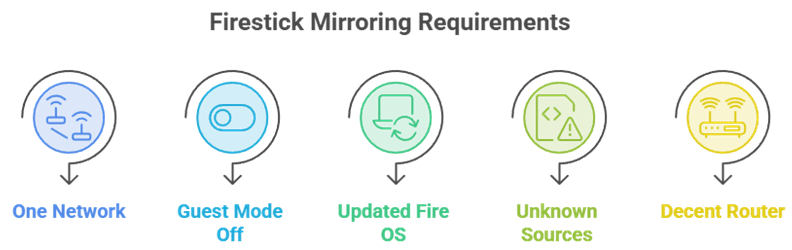
Getting this wrong is the biggest reason mirroring fails. Run through the list below before installing anything and most connection headaches disappear.
- One Network: the iPhone and the Firestick must sit on the same Wi-Fi network and the same band wherever possible.
- Guest Mode Off: guest networks and client isolation block device discovery entirely, so switch to your main SSID first.
- Updated Fire OS: open Settings, My Fire TV, About, then Check for Updates so the receiver app installs cleanly.
- Apps From Unknown Sources: only needed if you sideload; the apps in this guide come straight from the Amazon Appstore.
- Decent Router: a 5GHz band and a router within a couple of rooms keeps mirroring latency down noticeably.
How to Use AirPlay on Firestick Step by Step
Both methods take about five minutes. AirScreen is free and the one I reach for first; AirReceiver is a small one-off payment that holds a steadier connection.
Method 1: Mirror With AirScreen (Free)
- Open the Firestick home screen, select Find, then Search, and type AirScreen.
- Download and install the app, then launch it from the results screen.
- Leave AirScreen open on the confirmation page showing your device name.
- On your iPhone, swipe down for Control Centre and tap Screen Mirroring.
- Pick your Firestick from the list and your display appears within seconds.
If a passcode appears on the television, type it into your iPhone to finish the handshake. AirScreen is ad-supported, and the Pro tier removes those ads through a subscription.
Method 2: Mirror With AirReceiver (Paid)
- Search AirReceiver in the Firestick Appstore and buy it for 2.99 dollars.
- Install, open the app, and tick the AirPlay and AirTunes boxes.
- Rename the device if you own several Fire TV units around the house.
- Open Control Centre on your iPhone and tap Screen Mirroring as before.
- Select the Firestick and confirm the connection on your television screen.
AirReceiver is a one-time purchase with no recurring fee and also handles Google Cast and DLNA. I found it noticeably more stable than the free option across long matches.
How to AirPlay From a Mac or MacBook
Mirroring from macOS works the same way but the menu sits elsewhere. The receiver app does not care which Apple device calls it.
- Control Centre Route: click the Control Centre icon in the macOS menu bar, choose Screen Mirroring, then select your Firestick from the device list.
- Display Preferences: System Settings then Displays lets you decide between mirroring the built-in screen or extending your desktop across both.
- Audio Only: AirReceiver supports AirTunes, so you can push music from the Mac without sending any video at all.
- Safari Video: the AirPlay icon inside the Safari player streams the video file directly and looks far sharper than full mirroring.
- Resolution Caps: most receiver apps top out at 1080p on a Firestick, so expect a softer image than native AirPlay.
Best AirPlay Apps for Firestick Compared
Three receiver apps cover almost every use case, and all install from the Amazon Appstore. Pricing is what separates them.
| App | Price | Protocols | Best for |
| AirScreen | Free with ads; Pro subscription | AirPlay, Google Cast, Miracast, DLNA | Checking that mirroring works on your setup |
| AirReceiver | $2.99 one-time purchase | AirPlay, AirTunes, Google Cast, DLNA | Mirroring regularly without a recurring fee |
| AirBeamTV Receiver | Free to install; sender apps paid | AirPlay | Mac owners who want a simple receiver |
| Native AirPlay 2 | Free, built in | AirPlay 2 | Fire TV Omni and 4-Series television owners |
- AirScreen: free all-rounder covering AirPlay, Cast, Miracast, and DLNA in one app.
- AirReceiver: a single $2.99 purchase, no recurring fee, plus Bluetooth audio support.
- AirBeamTV Receiver: free to install, though the Mac and iPhone sender apps are paid.
- Native AirPlay 2: costs nothing but only works on Omni and 4-Series televisions.
- Which To Pick: start with AirScreen, then buy AirReceiver if you mirror often.
I keep AirReceiver on my main Firestick and AirScreen on the spare.
Which Fire TV Devices Support AirPlay 2 Natively?
With the right hardware you can skip every app here. Native support is limited to televisions with Fire TV built in, never the plug-in sticks.
| Device | Native AirPlay 2 | What you need |
| Fire TV Stick Lite, 4K, and 4K Max | No | AirScreen or AirReceiver |
| Fire TV Cube | No | AirScreen or AirReceiver |
| Fire TV Omni Series | Yes | Nothing, it is built in |
| Fire TV 4-Series | Yes | Nothing, it is built in |
| Toshiba and Insignia Fire TV Edition (2020 4K models) | Yes | Nothing, added by firmware update |
- Fire TV Omni: Amazon own-brand Omni sets carry AirPlay 2 and HomeKit natively.
- Fire TV 4-Series: the cheaper Amazon 4-Series televisions received the same rollout.
- Toshiba Fire TV Edition: 2020 Toshiba 4K models gained AirPlay 2 by firmware update.
- Insignia Fire TV Edition: matching 2020 Insignia 4K sets picked it up as well.
- Every Stick Excluded: Lite, 4K, 4K Max, and the Cube all need a receiver app.
Tips for Smoother AirPlay Mirroring on Firestick
Receiver apps sit above the hardware, so they are more sensitive to network conditions than native AirPlay. These made the biggest difference in my testing.
- Use 5GHz: put both devices on the 5GHz band, since the crowded 2.4GHz band is where most stuttering originates.
- Close Background Apps: force-stop other Firestick apps first, because a 4K stick has limited memory to spare for decoding.
- Enable Background Service: on Fire OS 8 and above, allow the receiver to run in the background or it disconnects.
- Lower The Frame Rate: dropping the mirroring quality setting one notch cuts lag dramatically on older Firestick models.
- Restart Both Devices: a quick reboot of the stick and the router clears stale Bonjour records that block discovery.
Is AirPlay on Firestick Safe to Use?
Yes, provided you install from the Amazon Appstore rather than a random APK site. Receiver apps only listen on your local network, so nothing you mirror travels outside your home. The risk comes from sideloaded clones that copy these app names and bundle adware, which is why I never recommend downloading a mirroring app through Downloader. One genuine limitation is worth knowing about: DRM-protected apps such as Netflix and Disney Plus will refuse to mirror and show a black screen or trailer only. That is Apple and the studios enforcing copy protection, not a fault in the receiver app you installed.
Common AirPlay Problems & How to Fix Them
Almost every failure traces back to one of five causes. Work down this list in order.
- Firestick Not Listed: the receiver app has closed in the background; reopen it and keep it on screen while you connect.
- Black Screen With Audio: you are mirroring a DRM-protected app, so use that service native Firestick app instead.
- Constant Buffering: switch to the 5GHz band and move the router closer, since mirroring needs steady bandwidth throughout.
- Audio Out Of Sync: lower the mirroring resolution in the receiver settings, which lets the stick decode without falling behind.
- Connection Drops: disable Wi-Fi power saving on the router and turn off Low Power Mode on the iPhone.
AirPlay vs Miracast vs Chromecast on Firestick
Receiver apps expose three protocols at once, and picking the right one for your device makes a real difference.
- AirPlay For Apple: use this from an iPhone, iPad, or Mac, since it is the only protocol those devices offer natively without extra software.
- Miracast For Windows: Windows laptops connect through Miracast, which the Firestick also supports natively under Settings, Display and Sounds, Enable Display Mirroring.
- Google Cast For Android: Android phones and Chrome tabs use Cast, which streams the video file itself rather than mirroring the whole screen.
- Cast Beats Mirroring: where an app offers a cast button, use it, because sending the stream directly always looks sharper than mirroring the display.
- DLNA For Local Files: photos and video sitting on a home network drive reach the Firestick through DLNA without involving your phone at all.
How to AirPlay Photos, Music, and Audio Separately
Full screen mirroring is the blunt instrument. Sending one type of content alone uses less bandwidth and looks better.
- Photos App: open an image, tap the share icon, then choose AirPlay to send just that photo or album to the television.
- Music Without Video: AirReceiver supports AirTunes, so audio from Apple Music or Spotify plays through the television with the screen left alone.
- Video From Safari: tapping the AirPlay icon inside a video player streams the file itself, which stays sharp instead of re-encoding your display.
- Phone Stays Usable: because these methods send content rather than the screen, you can reply to messages without interrupting what is playing.
- Lower Battery Drain: targeted AirPlay uses far less power than continuous mirroring, which flattens an iPhone quickly during a long film.
Does AirPlay Work Without Wi-Fi on a Firestick?
Not in any practical sense, and this trips up people mirroring in a hotel room.
- Same Network Required: receiver apps advertise themselves over the local network, so both devices must be joined to the same router.
- No Direct Connection: unlike an Apple TV, a Firestick cannot accept a peer-to-peer AirPlay link without any shared network present.
- Phone Hotspot Works: connect the Firestick to your iPhone personal hotspot, then mirror to it, which is the standard hotel workaround.
- Hotel Wi-Fi Usually Fails: captive portals and client isolation block device discovery, so the hotspot route is more reliable than the room network.
- Watch Mobile Data: mirroring over a hotspot consumes data quickly, so keep an eye on your allowance during longer viewing sessions.
Verdict:
No Fire TV Stick supports AirPlay out of the box, and Amazon shows no sign of changing that. A receiver app is the answer, and the choice is straightforward.
- AirScreen is the best free starting point, covering AirPlay, Cast, Miracast, and DLNA in one app, with ads you can remove through the optional Pro subscription.
- AirReceiver is worth the one-off 2.99 dollars if you mirror regularly, since it held the steadiest connection in my testing and adds Bluetooth audio.
- AirBeamTV Screen Mirroring Receiver suits Mac owners who want a simple receiver without the extra protocols, and it installs from the Amazon Appstore in seconds.
FAQs
Does the Fire TV Stick 4K Max support AirPlay in 2026?
No. Amazon has never added native AirPlay 2 to any Fire TV Stick, including the 4K Max and the Fire TV Cube. Only the Fire TV Omni Series, 4-Series, and certain 2020 Fire TV Edition televisions from Toshiba and Insignia support it directly.
Can I AirPlay Netflix or Disney Plus to my Firestick?
Not through mirroring. Both apps use DRM that blocks screen mirroring, so you will see a black screen or hear audio only. Install the official Netflix or Disney Plus app on the Firestick and sign in there instead, which also gives better quality.
Is AirScreen completely free to use?
AirScreen is free to download and mirror with, funded by advertising. Removing the ads and unlocking the Pro features requires a subscription rather than a single payment, with monthly and yearly options available. AirReceiver is the alternative if you prefer paying once.
Why does my iPhone not see the Firestick in Screen Mirroring?
Nine times out of ten the two devices are on different networks, or the receiver app has been closed in the background. Check both are on the same Wi-Fi, reopen the receiver app, and disable guest mode or client isolation on your router.
Do I need a VPN to use AirPlay on Firestick?
Not for mirroring itself, since everything stays on your local network. A VPN running on the Firestick can actually break device discovery, so disconnect it before you mirror and turn it back on afterwards if you use one for streaming.
Can I AirPlay to a Firestick from an iPad?
Yes, and the process is identical to an iPhone. Install AirScreen or AirReceiver, open Control Centre on the iPad, tap Screen Mirroring, then select your Firestick. The wider iPad aspect ratio may leave black bars on a widescreen television.
Why is my AirPlay picture blurry on the Firestick?
Receiver apps cap mirroring at 1080p and re-encode in real time, so it will never match native AirPlay on an Apple TV. Where possible, use the AirPlay icon inside a video player rather than mirroring the whole screen.