Key Takeaway: Stremio Addon Manager can reorder installed addons, move Cinemeta catalogs, remove non-protected entries, and export a local JSON backup. Create the backup before the first edit, move only a few items, sync once, and restart Stremio before deciding whether the new order worked.
Stremio normally displays addon catalogs according to the installed addon sequence, yet its regular interface does not provide a complete drag-and-drop organizer. The unofficial browser manager fills that gap by reading the account’s addon collection through Stremio’s API, letting you adjust the list, and writing the revised collection back after confirmation.
I reviewed the original open-source project, the enhanced browser edition, Stremio’s protected-addon data, and current backup-capable alternatives. The safest workflow is deliberately conservative: export first, preserve Cinemeta, record configured manifest addresses privately, and verify the result on one client before touching a second account.
What the Manager Changes Inside Your Stremio Account
The manager edits the ordered addon collection attached to one Stremio account. That collection influences catalog placement and which addon manifests remain installed, but it does not rearrange Continue Watching or repair an addon’s remote server.
- Addon Sequence: dragging an entry changes where that addon’s catalogs are considered relative to catalogs returned by other installed manifests.
- Catalog Scope: moving one addon can shift several movie, series, channel, or discovery rows because a single manifest may declare multiple catalogs.
- Removal Action: the trash control deletes a non-protected manifest from the account collection; it does not merely hide the corresponding home-screen shelves.
- Protected Entries: core manifests such as Cinemeta may be movable while removal remains blocked, protecting metadata functions that ordinary Stremio navigation expects.
- Client Boundary: Continue Watching, Library, and some application-owned rows are generated by Stremio itself, so an external addon manager cannot freely reposition them.
| Manager action | Account effect | What it cannot do |
|---|---|---|
| Reorder addon | Changes addon collection order | Move client-owned rows |
| Remove addon | Deletes eligible manifest | Disable it temporarily |
| Export backup | Saves collection as JSON | Back up watch history automatically |
| Sync | Writes edited collection | Repair a dead addon server |
Make a Rollback File Before Reordering Anything
A JSON export is the practical undo button because the original manager warns that it carries no warranty and Stremio does not expose a native order history. Keep one untouched snapshot and label it with the account and date.
- Export First: load the current collection and download a backup before dragging, deleting, hiding, resetting, or importing any addon configuration.
- Inspect Locally: open the JSON in a plain-text viewer and confirm it contains an addon array without editing tokens, URLs, flags, or braces.
- Private Storage: save the file in an encrypted or access-controlled folder because configured transport URLs can contain personal settings or service credentials.
- Clear Naming: include the Stremio account nickname and export date in the filename so household backups are not restored to the wrong identity.
- Second Copy: I keep one untouched baseline and a separate working copy, which makes accidental overwrites or partial imports much easier to recover.
Sign In Safely with Password or a Temporary AuthKey
The enhanced edition offers direct email-and-password authentication or an AuthKey route for accounts that use Google or Facebook sign-in. Both grant meaningful account access, so verify the tool’s address and source before entering either credential.
- Direct Login: use only the verified manager page whose published code sends credentials from the browser to the official Stremio API over HTTPS.
- OAuth Accounts: sign into Stremio Web normally, then obtain the current AuthKey only when direct email-and-password authentication is unavailable for that account.
- Key Exposure: treat the AuthKey as a temporary password; never paste it into screenshots, chat messages, public issue reports, or shared browser profiles.
- Session End: close the manager tab after syncing, then sign out of borrowed computers and remove any downloaded backup from shared locations.
- Source Review: an attractive interface is not proof of safety, so compare its destination and open-source repository before granting write access to addons.
Reorder Addons Without Creating Duplicate Catalog Rows
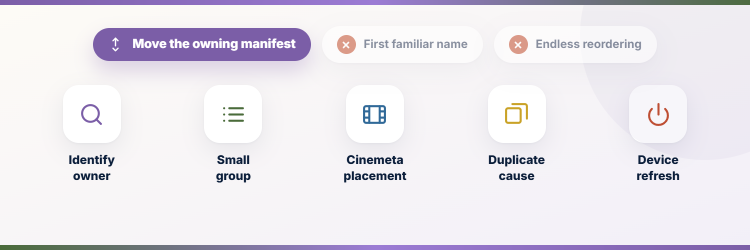
Move the manifest that supplies the catalog you care about, not merely the first familiar name. Several addons may publish similarly titled rows, so small edit groups reveal which movement actually changed the home screen.
- Identify Owner: note the addon label shown beside a catalog or inspect the manifest before deciding which entry should move upward or downward.
- Small Group: reposition two or three addons, sync once, restart Stremio, and compare results before making a second group of changes.
- Cinemeta Placement: move Cinemeta carefully when another metadata addon should lead, while preserving it if installed clients still depend on its metadata identifiers.
- Duplicate Cause: identical catalog names can come from separate manifests or repeated configurations of one addon, requiring removal rather than endless reordering.
- Device Refresh: force-close and reopen the television client after synchronization because an already-open session may continue showing cached catalog order.
Remove an Addon Without Losing Its Configuration Record
Removal is safest when you can reconstruct the exact configuration. A personalized manifest may encode provider choices, languages, filters, or account authorization that the public configuration page cannot infer later.
- Save Address: copy the configured transport URL into a private password manager before removing the addon, provided the URL itself is trusted and expected.
- Check Dependence: confirm another addon does not rely on the same metadata, subtitles, library, or catalog behavior before deleting the manifest.
- Remove Eligible: use the manager’s trash control only for non-protected entries, leaving guarded core addons in place unless Stremio provides a supported route.
- Sync Once: commit the revised list one time and wait for confirmation rather than repeatedly clicking sync while the API request is still processing.
- Verify Account: open My Addons on a second client using the same login to confirm that the intended entry disappeared and unrelated manifests remain.
Restore a Backup or Clone a Known-Good Layout
Import should be treated as a replacement operation, not a harmless preview. Compare the destination account, addon count, protected entries, and personal manifest addresses before allowing the imported collection to overwrite the current arrangement.
- Fresh Export: download the destination account’s present state immediately before import, even when the older backup appears complete and recently created.
- Schema Check: confirm the file contains the array and manifest fields expected by the selected manager instead of assuming every project’s JSON format matches.
- Account Match: verify the active email or account label before restore because household layouts can contain different libraries, services, and regional catalogs.
- Protected Merge: preserve required official manifests when the import tool warns that a backup omits or conflicts with protected addon records.
- Controlled Restart: sync the restored list, reopen Stremio, and test metadata plus one authorized catalog before declaring the rollback successful.
| Restore symptom | Likely reason | Safest response |
|---|---|---|
| Missing addon array | Different export structure | Use matching manager or valid backup |
| Protected addon warning | Backup conflicts with core records | Keep the protected manifest |
| Order unchanged | Client cache or unsaved sync | Restart after confirming sync |
| Configured addon fails | Expired token inside old URL | Reconfigure from official page |
Fix Stremio Addon Manager Login, Sync, and Order Problems
Troubleshoot the stage that failed: authentication, collection loading, editing, API synchronization, or client refresh. For broader playback failures after the layout is correct, use our Stremio not working guide rather than changing addon order again.
- Login Rejected: refresh Stremio Web and obtain a new AuthKey when the earlier key has expired, then avoid reusing a copied stale value.
- Empty Collection: confirm the correct Stremio account loaded and disable privacy extensions only for the verified page if they block the official API request.
- Sync Error: restore the untouched export when the tool reports a partial write, then retry once on a stable connection and current browser.
- Order Ignored: restart every open Stremio client and inspect which addon owns the catalog before concluding that drag-and-drop failed.
- Broken Addon: reconfigure the affected manifest from its official destination when the order is correct but its remote service or authorization has changed.
Three Related Tools for Larger or Safer Stremio Setups
The simple manager is ideal for one account, but different tools fit multi-account deployment, automated recovery, or export-only backups. These three options solve separate management problems and should be evaluated from their maintained source before receiving account access.
1) Stremio Account Manager
Stremio Account Manager is the strongest companion for households maintaining several Stremio identities. Its client-side dashboard can reorder addons, store a reusable addon library, apply tags, perform bulk changes, and export or import account data. I would choose it when the same verified configuration must be deployed carefully across family accounts without repeating each installation manually.
Features:
- Multiple Accounts: manages one to ten or more Stremio identities from a single dashboard while keeping each account’s installed collection visibly separate.
- Local Encryption: stores account data locally with encrypted credentials rather than advertising a remote cloud database for household configuration records.
- Saved Library: captures trusted addon manifests in a reusable collection that can be applied to selected accounts without finding every configuration page again.
- Tag Controls: groups addons by purpose, allowing targeted installation or removal of metadata, subtitle, catalog, or stream tools across chosen accounts.
- Bulk Operations: adds, removes, or updates several account collections together, reducing inconsistent household setups when the same manifest needs replacement.
- Order Editing: I can drag entries into a preferred sequence per account, then compare the resulting catalog layout before wider deployment.
- Backup Exchange: exports and imports accounts plus saved addons, providing a portable rollback path when local browser storage is cleared or corrupted.
| Pros | Cons |
|---|---|
| Excellent multi-account controls | More complex than a single-account tool |
| Open-source MIT project | Self-hosted network access needs HTTPS |
| Local encrypted storage | |
| Reusable tagged addon library |
Pricing:
- Software: Free and open-source under the MIT license
- Hosted Use: Public client-side web edition available without a subscription
- Self-Hosting: Requires personal hardware or hosting resources when deployed privately
Link: https://github.com/Asymons/stremio-account-manager
2) AIOManager
AIOManager targets power users who want addon deployment, saved configurations, cross-account control, health monitoring, and deeper history tools in one self-hosted interface. Its scope is much broader than basic reordering. I would reserve it for users comfortable reviewing Docker settings and protecting stored tokens, because operational convenience comes with a larger configuration and security surface.
Features:
- Deployment Library: saves configured addons for repeatable deployment, making it easier to reinstall updated manifests without disturbing the surrounding collection order.
- Cross-Account Sync: pushes selected saved configurations to several Stremio accounts, which suits managed household profiles and backup identities with deliberate differences.
- Health Automation: can pair primary and backup addon instances so availability rules determine which configured service should be active for an account.
- History Metrics: adds viewing and operational dashboards beyond ordinary addon ordering, helping advanced users understand activity across the managed environment.
- OAuth Login: recent releases document a Stremio OAuth sign-in path, reducing the need to copy credentials into an unfamiliar authentication form.
- My Deployment: I would run AIOManager behind private HTTPS, review environment variables, and export its data before enabling automatic account changes.
- Container Support: provides Docker-oriented deployment material for persistent self-hosting, updates, and controlled access instead of relying only on a public page.
| Pros | Cons |
|---|---|
| Broad automation for power users | Requires careful administration |
| Saved addon deployment | Overkill for one simple account |
| Backup-instance workflows | |
| Open-source self-hosting path |
Pricing:
- Software: Free and open-source for self-hosted use
- Infrastructure: Hosting, storage, and domain costs depend on personal deployment
- Managed Hosting: Third-party hosting offers may use separate provider pricing
Link: https://github.com/Sonicx161/AIOManager
3) Stremio Addon Importer
Stremio Addon Importer is a narrow Chrome extension for people who want a local JSON export without typing a Stremio password into another site. It reads the existing Stremio Web session only after a click and excludes the session token from the download. I prefer this limited role when backup matters more than editing, reordering, or multi-account automation.
Features:
- Session Reuse: reads the current authenticated Stremio Web session after explicit activation instead of presenting a separate password field inside the extension.
- Local Export: downloads the installed addon collection as JSON, creating a portable snapshot for inspection, archival, or compatible account-management tools.
- Manifest Detail: includes manifest data, transport addresses, and addon flags needed to understand what was installed when the snapshot was created.
- Token Exclusion: the published description says the in-memory session token is not written into the downloaded backup, reducing one obvious exposure risk.
- Small Scope: does not promise reordering, account syncing, catalog editing, or automatic repair, which keeps its permission purpose easier to evaluate.
- My Precaution: I would inspect extension permissions and source updates before every export because browser extensions can change behavior between versions.
- Current Listing: the Chrome Web Store reports version 0.1.0 updated April 29, 2026, with a very small early user base.
| Pros | Cons |
|---|---|
| No separate password request | Chrome-only workflow |
| Simple local JSON export | Cannot reorder or restore by itself |
| Session token excluded from file | |
| Useful least-function backup option |
Pricing:
- Extension: Free to install from the Chrome Web Store
- Subscription: No paid plan is listed for version 0.1.0
- Account: Requires an existing free Stremio account and active web session
Link: https://chromewebstore.google.com/detail/stremio-addon-importer/jcgikobbddpgkdjajhahmelhnefnbogm
The Safest Way to Manage a Stremio Addon Order
For one account, use the browser manager only after exporting the untouched collection. Move a few manifests, preserve protected entries, sync once, and restart the client. Stremio Account Manager is better for households, AIOManager fits self-hosted automation, and the importer is the smallest backup-only option. The decisive safety control is always a private, verified rollback file.
- Stremio Account Manager: Best for repeatable changes across several household accounts with local encrypted storage, tags, bulk operations, and export or import support.
- AIOManager: Best for technically confident users who need saved deployments, backup-instance automation, metrics, and a privately administered container.
- Stremio Addon Importer: Best when the only requirement is a local addon snapshot created from an already authenticated Stremio Web session.
FAQs
Is Stremio Addon Manager an official Stremio tool?
No. The original and enhanced projects explicitly describe themselves as unofficial community tools. Verify the address and source code, keep a backup, and use them at your own risk.
Can the manager move Continue Watching below addon catalogs?
No. Continue Watching is controlled by the Stremio client rather than an addon manifest, so external managers cannot freely reposition it like an addon-supplied catalog.
Why did my addon order not change after syncing?
Restart every open Stremio client, confirm the sync succeeded, and identify which addon supplies the catalog. Duplicate names from separate manifests often make a correct reorder look ineffective.
Does an addon backup include my Stremio watch history?
Not necessarily. An addon collection export focuses on installed manifests and their order. Treat library, progress, account, and manager-specific exports as separate data unless documentation states otherwise.
Can I restore addons on a new Firestick?
Normally the same Stremio account synchronizes installed addons automatically after login. Use a manager backup for rollback or account migration, then follow our Stremio on Firestick guide for the client installation itself.