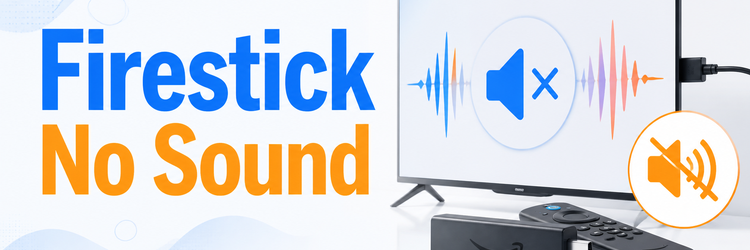
Key Takeaway: Firestick no sound usually comes from the wrong output path, an incompatible surround format, a muted television, or one faulty app. Start by proving where silence begins, then restart the complete HDMI chain and simplify the audio route. Save app-data deletion and a factory reset for the end.
A picture with no audio is frustrating because the screen makes the Firestick appear healthy. Sound still travels through several layers: the app, Fire OS, HDMI, the television, and sometimes an ARC soundbar, receiver, Bluetooth speaker, or Echo home-theater pair. One wrong setting can silence the entire chain. Pay attention to when the silence started, too. A new soundbar, changed HDMI port, app update, paired headset, or television reset is often the most useful clue. Reversing that single recent change can restore audio before deeper troubleshooting becomes necessary.
I troubleshoot that chain from the listener backward. A menu click, navigation tone, and second app reveal more than changing five settings at once. Work through the fixes in order and stop when sound returns. That approach protects your logins, downloads, and preferences while showing which device or connection actually failed.
Diagnose Where the Silence Begins
Before changing surround settings, identify the narrowest place where audio fails. Keep the same video playing and change only one variable at a time. The result separates a muted television from a broken app, an HDMI negotiation problem, or an external speaker that is listening to the wrong input.
- Menu Tone: Move between Fire TV tiles and listen for navigation sounds or feedback from the television speakers.
- Second App: Play a known title in another service to distinguish one app from device-wide silence.
- TV Source: Open a built-in television app or antenna channel to prove the speakers can still play audio.
- Speaker Display: Check whether the soundbar or receiver shows the expected HDMI, optical, or Bluetooth input.
- Headphone Clue: Disconnect Bluetooth headphones because Fire TV may continue routing sound to a device in another room.
| What you observe | Most likely layer | Start with |
|---|---|---|
| No sound anywhere, including menus | Output route, HDMI, TV, or speaker | Fixes 1–5 |
| Only one app is silent | App session, cache, or stream | Fixes 2 and 8 |
| TV speakers work but soundbar does not | ARC/eARC, CEC, or soundbar input | Fixes 5 and 6 |
| Sound returns with Bluetooth disconnected | Wireless output selection | Fix 7 |
| Another HDMI device is also silent | Television or audio-system setting | Fixes 1 and 5 |
| Firestick works on another television | Original display or audio chain | Fixes 4–6 |
How Did We Evaluate These Firestick No Sound Fixes?
The order matters more than the number of possible causes. We prioritized checks that expose one layer of the audio chain without erasing data, buying hardware, or masking the problem with several simultaneous changes.
- Output Path: Each check identifies whether sound stops inside the app, Fire OS, HDMI, television, or speaker system.
- Reversibility: Mute, input, format, and restart checks come before cache clearing, app-data deletion, or a factory reset.
- Format Coverage: The sequence accounts for stereo, Dolby output, ARC/eARC, optical audio, Bluetooth, and Echo home-theater routes.
- Model Variations: Instructions allow for Firestick, Fire TV Cube, and televisions whose menu labels differ slightly.
- Primary Guidance: Current Amazon help pages informed the restart, speaker-output, equipment-control, and external-audio checks used below.
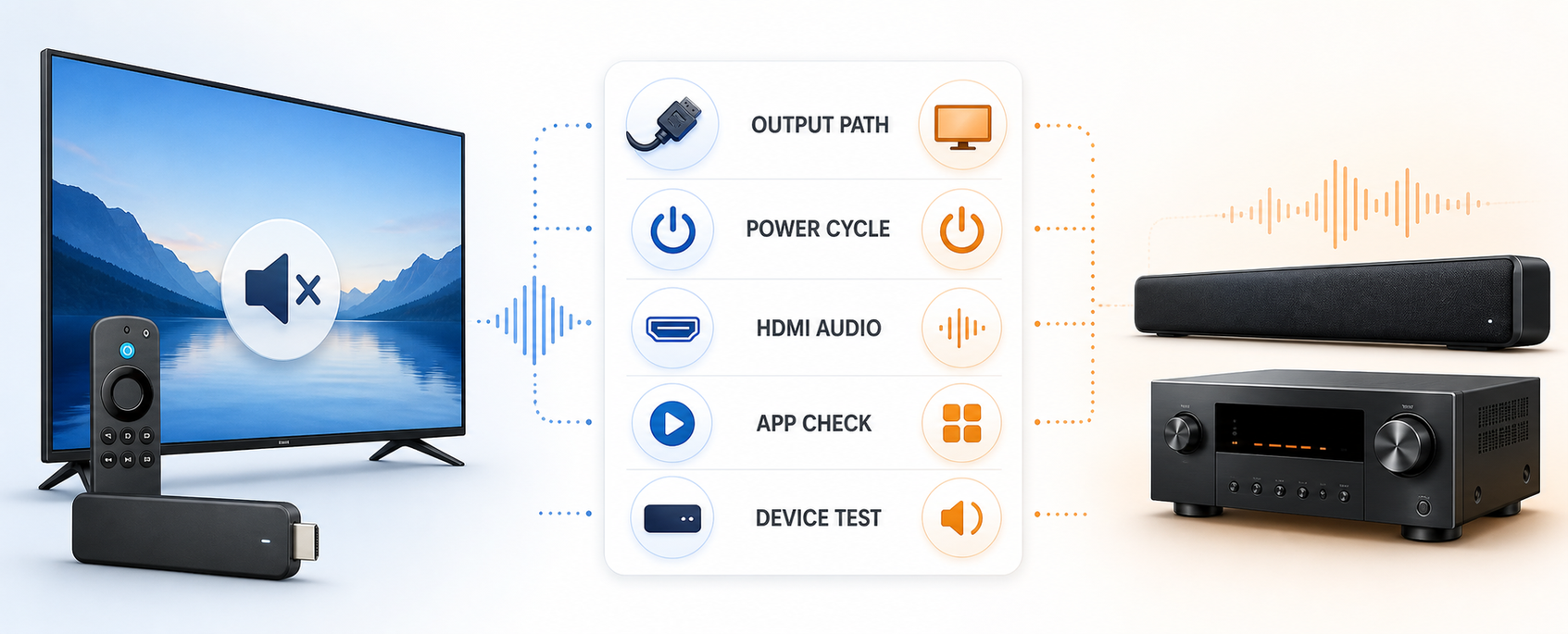
Fix 1: Prove the Television Is Sending Sound Somewhere
Start outside Fire OS. A television can show HDMI video while muting its speakers or sending audio to a disconnected receiver. Amazon’s no-audio guidance likewise begins with mute, volume, speaker output, and a restart.
- Unmute Directly: Use the television remote, not only the Fire TV remote, and raise volume above a known audible level.
- Choose Speakers: Set television audio output to TV Speakers when no soundbar or receiver should be active.
- Check Headphones: Remove anything from the television’s headphone jack because many models automatically disable internal speakers.
- Open TV Audio: Play a built-in television app to confirm the screen can produce sound independently.
- Read the Display: A visible mute icon or fixed-volume message points to the television rather than Firestick.
Fix 2: Separate One Silent App From a Silent Firestick
If navigation tones or another service still plays audio, the HDMI chain is already working. Focus on the silent app and the specific title before changing system-wide sound settings.
- Change the Title: Play different content because one damaged stream can have video without a usable audio track.
- Switch the App: Test a second major service with familiar content and a known stereo soundtrack.
- Check Track Selection: Open Audio or Languages and choose the original or standard English track instead of commentary.
- Force Stop: Close the affected app from Settings > Applications > Manage Installed Applications, then reopen it.
- Note the Boundary: Sound in every other app means the remaining fixes should not begin with cables or factory reset.
Fix 3: Restart the Entire Audio Chain in Order
A restart rebuilds the HDMI audio handshake without deleting anything. Restart every powered device instead of rebooting only the Firestick while the receiver keeps a stale route.
- Restart Firestick: Open Settings > My Fire TV or Device & Software > Restart when the menu still responds.
- Power Down: Turn off the television, soundbar, receiver, HDMI switch, and any ARC-connected equipment.
- Remove Power: Unplug the Firestick adapter and audio devices for at least 30 seconds before reconnecting them.
- Start Downstream: Power the television and speaker system first, select their inputs, and start Firestick last.
- Retest Consistently: Use the same title and volume level so the before-and-after result is meaningful.
Fix 4: Use a Compatible Surround Sound Setting
Video can survive a format mismatch while audio disappears. Temporarily choose the simplest output your television can decode, then restore a richer format only after ordinary stereo sound works.
- Open Audio Settings: Go to Settings > Display & Sounds > Audio > Surround Sound on supported Fire TV devices.
- Try PCM: PCM is a useful diagnostic choice when a television or older audio device rejects compressed surround sound.
- Try Best Available: Return to automatic negotiation when every device in the chain supports the selected audio format.
- Avoid Random Cycling: Change one option, play the same scene, and record whether sound returns before continuing.
- Confirm All Inputs: A receiver may store different audio modes for different HDMI inputs, so check the active one.
Fix 5: Rebuild the HDMI, ARC, or eARC Route
External audio adds a return path that must agree on port, input, and control settings. Amazon’s current Fire TV Soundbar setup places Firestick on a non-ARC HDMI port and the soundbar on the television’s ARC/eARC port.
- Check Port Labels: Connect the soundbar or receiver to the HDMI port marked ARC or eARC when using audio return.
- Select the Input: Set the soundbar or receiver to HDMI ARC, TV, optical, or the exact connected source.
- Enable Return Audio: Turn on ARC/eARC and HDMI-CEC in the television menu when that route requires them.
- Reseat Connections: Power everything off, unplug each HDMI cable, and reconnect it firmly without bending the plug.
- Bypass Temporarily: Send sound to television speakers to prove whether the external audio return path is responsible.
Fix 6: Set Up Equipment Control Again
Equipment Control does not carry the audio stream, but incorrect device and input assignments can leave the remote changing volume on the wrong destination. Recreating the relationship is useful after moving HDMI cables or replacing a soundbar.
- Open Equipment Control: Choose Settings > Equipment Control > Manage Equipment and review the listed television and audio device.
- Verify the Brand: Confirm the selected television, soundbar, or receiver brand matches the hardware in front of you.
- Update the Port: Change the saved HDMI input when any device has moved to a different connector.
- Run the Test: Complete the power and volume prompts until the correct device responds to the Fire TV remote.
- Use Native Controls: If setup fails, verify audio with the television or soundbar remote before blaming Firestick playback.
Fix 7: Disconnect an Unwanted Bluetooth or Echo Output
A previously paired headset can reconnect silently, while an incomplete Alexa Home Theater can reserve the audio route. Remove wireless destinations long enough to prove ordinary HDMI sound.
- Check Bluetooth: Open Settings > Controllers & Bluetooth Devices > Other Bluetooth Devices and review connected speakers or headphones.
- Disconnect Nearby Gear: Turn off paired headphones and portable speakers that may reconnect automatically when Firestick wakes.
- Forget the Device: Remove an unwanted audio device when disconnecting it once does not prevent later reconnection.
- Review Home Theater: Open Display & Sounds > Alexa Home Theater and confirm the intended output is selected.
- Return to Television: Choose television output temporarily; if sound returns, rebuild the wireless speaker group afterward.
Fix 8: Repair the App Without Erasing It First
When only one app is silent, clear its temporary state before reinstalling it. Cache removal preserves the account and is safer than clearing data, which signs you out and resets local preferences.
- Force Stop First: Close the app completely from Manage Installed Applications so its stuck audio session cannot remain active.
- Clear Cache: Remove temporary files, reopen the app, and play a different title with a standard stereo track.
- Check the App: Install its available update from the Appstore before deleting settings or downloads.
- Clear Data Carefully: Use this only after cache fails and only when you know the account credentials.
- Reinstall Last: Uninstall and install again when every other app has sound but the affected app remains silent.
Fix 9: Install Fire OS and App Updates
Updates can repair playback and device-compatibility bugs, but they work best after the output path is already correct. Keep the Firestick on stable power and do not unplug it while installation is in progress.
- Open Device Info: Go to Settings > My Fire TV or Device & Software > About.
- Check for Updates: Download and install the available Fire OS package, then allow the device to restart.
- Update the App: Open the Appstore page for the silent service and install its latest available version.
- Restart Again: Reboot after updates when sound does not return immediately, rebuilding the HDMI negotiation with new software.
- Retest Broadly: Compare menus, two apps, and television speakers before changing surround formats again.
Fix 10: Reset Only After a Clean Hardware Cross-Check
A factory reset removes accounts, installed apps, and preferences, so first prove that the Firestick remains silent with a simple connection. A reset cannot repair a damaged HDMI port, failed speaker, or incompatible receiver.
- Use TV Speakers: Disconnect the soundbar or receiver and send audio directly through the television.
- Change the Port: Move Firestick to another known-working HDMI input and select that exact source.
- Try Another Display: Connect to a second television or monitor with speakers to separate device failure from display failure.
- Record Your Access: Note account credentials, Wi-Fi details, and needed apps before erasing the device.
- Reset Deliberately: Choose Settings > My Fire TV or Device & Software > Reset to Factory Defaults only last.
Use the Result Before You Reset Anything
The first place where audio returns tells you what to keep and what to repair. If a force stop or cache removal fixes one service, follow our Firestick cache guide before considering app-data deletion. If television speakers work but ARC does not, leave Firestick settings alone and rebuild the external audio route.
- App-Level Result: Sound everywhere except one app points to its session, audio track, cache, data, or installation.
- Format Result: Sound only with PCM identifies a decoder or pass-through limitation somewhere after Firestick.
- Speaker Result: Television audio with a silent soundbar points to input, ARC/eARC, CEC, optical, or equipment setup.
- Display Result: Sound on a second television isolates the original display, HDMI port, or attached audio system.
- Device Result: Silence on two simple displays after reset makes Firestick hardware or its HDMI connector the likely cause.
| Sound returns after | What that proves | What to do next |
|---|---|---|
| Unmuting or selecting TV Speakers | Firestick audio was reaching the display | Keep the corrected television output |
| Changing to PCM | The existing chain rejected the richer format | Check decoder and pass-through support |
| Bypassing the soundbar | External audio routing caused the silence | Rebuild ARC/eARC, optical, or input setup |
| Disconnecting Bluetooth | Wireless audio captured the output | Forget or re-pair the unwanted device |
| Clearing one app’s cache | The hardware and system route are healthy | Update or reinstall only that app |
| Moving to another television | The original television chain is responsible | Service its port, settings, or speakers |
Final Verdict
Firestick no sound is usually an output-path problem, not a dead streaming stick. Prove the television speakers, compare two apps, restart the complete HDMI chain, and simplify surround output before touching data. External-audio users should give special attention to ARC/eARC, CEC, saved equipment ports, and Bluetooth connections. Reset only after the device stays silent on a second, simple display.
FAQs
Why does my Firestick have picture but no sound?
HDMI can carry usable video while audio is muted, routed elsewhere, or encoded in a format the television or receiver cannot decode. Check television speakers, Fire TV surround output, external-audio input, Bluetooth devices, and a second app before restarting the whole chain.
Should I set Firestick surround sound to PCM?
PCM is a useful diagnostic setting because it simplifies the audio signal for many televisions and older receivers. If sound returns with PCM, a device in the HDMI chain likely rejects the previous surround format. Keep PCM or verify every component’s Dolby and pass-through support.
Why is only one Firestick app silent?
One silent app usually indicates a stuck playback session, incorrect language track, damaged cache, outdated app version, or problem with that specific stream. Force stop the app, try another title, clear cache, update it, and reinstall only if every other service still has sound.
Why do the Firestick volume buttons work but audio stays silent?
The remote may be changing volume on the wrong television, receiver, or soundbar while audio is routed elsewhere. Recheck Equipment Control and the active speaker input. If the buttons do not control any device, use our Firestick remote troubleshooting guide to repair that separate problem.
Can Bluetooth headphones cause Firestick no sound?
Yes. A paired headset or speaker can reconnect after Firestick wakes and capture audio even when it is in another room. Open Other Bluetooth Devices, disconnect or forget the device, and return output to the television or intended home-theater system.
When should I factory-reset a Firestick with no sound?
Reset only after confirming device-wide silence, testing television speakers, trying another HDMI port, bypassing external audio, updating Fire OS, and checking a second display. A reset erases apps and accounts but cannot repair a faulty HDMI port, receiver, speaker, or television.