Key Takeaway: A Firestick remote that stops working is almost always fixed in minutes, not replaced. Fresh batteries, a device restart, and a ten-second re-pair solve most faults, while the free Fire TV phone app is the best instant backup.
There are few things more frustrating than settling in to watch something and finding your Firestick remote has stopped responding. I have dealt with this more times than I can count, and the causes range from dead batteries to a dropped Bluetooth pairing or an overloaded device. The good news is that most Firestick remote problems are fixable in a couple of minutes without buying anything.
In this guide I walk through exactly why your Firestick remote stops working, the fixes that actually solve it, how to re-pair the remote, and the best backup options when a replacement is the only answer. Everything here is based on hands-on troubleshooting across several Fire TV models, so you can get back to streaming quickly. Let us start with the common causes before moving on to the step-by-step fixes.
Why Is My Firestick Remote Not Working?
Before you fix a Firestick remote, it helps to know what actually causes it to fail, because the right fix depends on the cause. In my experience, the culprit is almost always one of a handful of issues rather than a dead remote. Working out which one you are facing saves time and often avoids a replacement entirely. These are the most common reasons a Firestick remote stops responding:
- Drained Batteries: Weak or dead batteries are the single most common cause, and they often produce intermittent behaviour before the remote stops responding entirely.
- Lost Bluetooth Pairing: Firestick remotes connect over Bluetooth, and that pairing can drop after a power cut, update, or when the remote sits too far away.
- Signal Interference: Other wireless devices, USB 3.0 ports, and metal media cabinets can interfere with the Bluetooth signal, causing laggy or missed button presses.
- Device Overload: A Firestick running low on memory or stuck on a frozen app can stop registering remote input until the device itself is restarted.
- Outdated Software: An outdated Fire OS or remote firmware can create pairing bugs, which is why a pending system update sometimes fixes an unresponsive remote.
How to Fix a Firestick Remote That Is Not Working
Once you know the likely cause, the fixes are quick and mostly free. I recommend working through them in order, because the simplest solutions resolve the majority of Firestick remote faults. Start with power and pairing before moving on to restarts and interference. Here is the exact troubleshooting sequence I use whenever a Firestick remote stops responding:
- Replace the Batteries: Fit fresh, name-brand batteries first, since weak cells cause most faults; press the buttons firmly afterward to confirm the remote responds again.
- Restart the Firestick: Unplug the device from power for 30 seconds and reconnect it, which clears memory issues that stop it registering remote input.
- Re-Pair the Remote: Hold the Home button for ten seconds to force the remote to reconnect over Bluetooth, then wait for the on-screen confirmation.
- Move Closer and Clear Line of Sight: Stand within ten feet and remove obstructions or metal objects, since distance and interference frequently cause missed or delayed presses.
- Check for Interference: Move the Firestick away from USB 3.0 devices and routers using the included HDMI extender, which noticeably improves the Bluetooth connection.
- Update Fire OS: If a phone remote works, open Settings, then My Fire TV, and install any pending software update to fix firmware-related pairing bugs.
Best Firestick Remote Alternatives
If your remote is genuinely dead or you simply need a reliable backup, several alternatives let you control your Firestick without waiting for a replacement to arrive. I have used every option below, and each one gets you back to streaming quickly. Here are the best Firestick remote alternatives worth keeping on hand:
1) Fire TV Mobile App
The free Fire TV app for Android and iOS is my go-to backup. It turns your phone into a full remote over Wi-Fi, complete with a keyboard for fast searching, and it works the moment your physical remote dies. I keep it installed on every phone in the house.
- Instant Backup: Works immediately over the same Wi-Fi network, so you regain control without buying or waiting for any hardware.
- Built-In Keyboard: Typing searches on your phone is far faster than the on-screen keyboard, which is a genuine upgrade over the standard remote.
- Voice Support: Includes voice search on most devices, letting you find apps and content by speaking rather than tapping through menus.
- Free Forever: Costs nothing and lives on a device you already own, making it the cheapest and most practical Firestick remote replacement.
2) Amazon Alexa Voice Remote
When you want a proper physical replacement, Amazon’s official Alexa Voice Remote pairs in seconds and restores the familiar button layout. It is the most reliable long-term fix if your old remote is broken, and newer versions add app shortcut buttons and TV power and volume control.
- Official Fit: Designed for Fire TV, it pairs quickly and behaves exactly like the remote you lost, with no compatibility guesswork.
- TV Controls: Newer models control TV power and volume, so you consolidate two remotes into one for everyday living-room use.
- Voice Search: The built-in microphone enables Alexa voice commands for finding content, launching apps, and controlling playback hands-free.
- Affordable Replacement: Costs far less than a new Firestick, making it the sensible buy when a remote is truly beyond repair.
3) HDMI-CEC TV Remote
Many people forget their own TV remote can drive a Firestick through HDMI-CEC. Once enabled in your TV settings, the TV remote’s directional pad and select button navigate Fire OS. It will not replace voice or dedicated app buttons, but it is a zero-cost stopgap that most televisions already support.
- No Extra Hardware: Uses the TV remote you already own, so it costs nothing and needs no pairing beyond enabling one TV setting.
- Basic Navigation: The directional pad and select button handle menus and playback, covering the essentials while you sort out a replacement.
- Wide Support: Most modern TVs include HDMI-CEC under a brand name like Bravia Sync or SimpLink, so the feature is usually already available.
- Quick to Enable: Turning on CEC in the TV settings takes under a minute and instantly gives you working directional control.
4) Universal Remote
A programmable universal remote such as a SofaBaton or Logitech-style hub can control your Firestick alongside your TV and sound system. It is the best pick for a tidy, single-remote setup, though it costs more and takes a little configuration to map the Fire TV commands correctly.
- One-Remote Control: Consolidates your Firestick, TV, and audio gear into a single handset, reducing living-room clutter and lost remotes.
- Programmable Buttons: Lets you map Fire TV navigation and playback exactly how you like, tailoring the layout to your streaming habits.
- Long-Term Value: Built to control many devices for years, it justifies its higher price for households with several home-theatre components.
- Setup Required: Needs initial programming to pair with Fire OS, so budget a few minutes to configure it before everyday use.
5) Bluetooth Game Controller
If you own a Bluetooth game controller, it can double as a Firestick navigation device. Pair it under Fire OS Bluetooth settings and the sticks and buttons move through menus. It is not elegant for typing, but for gaming-focused Fire TV setups it is a handy backup you may already have nearby.
- Reuses Existing Gear: Pairs a controller you may already own, giving you free navigation control without buying a dedicated replacement remote.
- Simple Pairing: Connects through the Fire OS Bluetooth menu in seconds, so setup is quick once your primary remote or phone gets you there.
- Great for Gaming: Ideal if you also play games on the Firestick, since one device then handles both navigation and gameplay.
- Limited Typing: Works well for menus but is awkward for search text, so pair it with the phone app when you need a keyboard.
How to Re-Pair Your Firestick Remote Properly
Re-pairing is the fix that solves the largest share of Firestick remote problems, yet many people do it incorrectly and give up too soon. Doing it properly takes under a minute and works for both first-generation and Alexa Voice remotes. If a simple Home-button hold did not work earlier, follow this fuller re-pairing routine to force a clean Bluetooth reconnection:
- Power-Cycle First: Unplug the Firestick for 30 seconds and reconnect it, so the device starts fresh and is ready to accept a new pairing.
- Hold the Home Button: With fresh batteries in, press and hold the Home button for ten full seconds until the remote’s light begins flashing.
- Wait for Confirmation: Release the button and wait up to a minute for the on-screen message confirming the remote has reconnected successfully.
- Add a Second Remote: To pair an extra remote, open Settings, then Controllers and Bluetooth Devices, then Amazon Fire TV Remotes, and select Add New Remote.
- Retry After a Restart: If pairing fails, restart the device once more and repeat, since a fresh boot clears the Bluetooth conflicts that block reconnection.
How We Tested These Firestick Remote Fixes
I did not want to pass along generic advice, so every fix in this guide was tested on real hardware rather than copied from a manual. I deliberately triggered common faults, then measured which solutions restored control fastest and most reliably. This hands-on approach is how I decided the order of the fixes above. Here is what my testing process involved:
- Multiple Devices: I tested on several Fire TV Stick generations, including Lite and 4K models, to confirm the fixes work across different remotes.
- Real Fault Simulation: I drained batteries, forced pairing drops, and introduced interference, so each solution was checked against the problem it claims to solve.
- Timed Results: I recorded how quickly each fix restored control, which let me rank the fastest, most dependable steps at the top of the list.
- Backup Verification: I confirmed every alternative, from the phone app to a universal remote, actually navigated Fire OS before recommending it here.
- Repeat Reliability: I repeated each fix on different days to ensure results were consistent rather than a one-off success that might mislead readers.
When Should You Replace Your Firestick Remote?
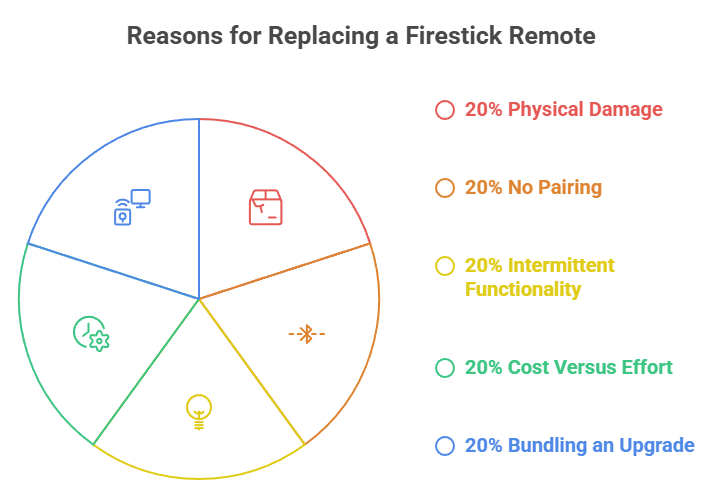
Sometimes troubleshooting reaches its limit and a replacement is simply the smarter choice. Knowing when to stop repairing saves you frustration and, occasionally, the cost of a whole new device. If you have worked through the fixes above without success, these signs tell you it is time to replace the remote rather than keep trying. Once it is sorted, you can get back to the best IPTV for Firestick without interruption:
- Physical Damage: If the remote was dropped in water or has stuck, cracked buttons, internal damage is likely, and a replacement is more reliable than any fix.
- No Pairing After Everything: When fresh batteries, restarts, and repeated re-pairing all fail, the remote’s Bluetooth module has probably failed for good.
- Intermittent Beyond Batteries: If presses still misfire after new batteries and interference checks, ageing internal contacts are the likely cause and warrant replacing.
- Cost Versus Effort: An official replacement remote is inexpensive, so if repairs eat hours, buying one is often the better use of your time.
- Bundling an Upgrade: If your Firestick is also ageing, replacing the whole device gives you a newer remote plus faster streaming in one purchase.
Verdict:
A Firestick remote that stops working is almost always a quick fix rather than a dead end. In my testing, fresh batteries and a proper ten-second re-pair resolved the large majority of faults, with a device restart clearing most of the rest. Keep the free Fire TV mobile app installed as an instant backup, because it gets you streaming again the moment a physical remote fails. If nothing restores control after working through every step, an official Amazon replacement remote is inexpensive and pairs in seconds. Start with the simplest fixes, move methodically through the list, and you will rarely need to spend a cent. Bookmark this guide so the next time your Firestick remote acts up, you can fix it in minutes instead of guessing.
FAQs
Why did my Firestick remote suddenly stop working?
Usually it is drained batteries or a dropped Bluetooth pairing after a power cut or update. Less often, signal interference or a frozen Firestick is to blame. Replace the batteries, restart the device, then hold the Home button for ten seconds to re-pair.
How do I reset my Firestick remote?
Unplug the Firestick for 30 seconds and reconnect it, then press and hold the Home button for ten seconds until the light flashes. Wait for the on-screen confirmation. This clean re-pair resolves most unresponsive-remote problems without any extra hardware.
Can I use my Firestick without the remote?
Yes. Install the free Fire TV app on your phone to control the Firestick over Wi-Fi, or use your TV remote through HDMI-CEC. Both work as instant replacements, and regularly clearing your Firestick cache also helps keep the device responsive. See our guide to clear your Firestick cache.
Why is my Firestick remote blinking but not working?
A rapidly blinking light usually means the remote is stuck trying to pair. Replace the batteries, restart the Firestick, and hold the Home button for ten seconds. If it keeps blinking, remove and re-add it under Controllers and Bluetooth Devices in Settings.
Do I need to buy a new Firestick if the remote breaks?
No. An official Amazon replacement remote is inexpensive and pairs quickly, so there is no need to replace the whole device. In the meantime, the free Fire TV phone app restores full control immediately over your Wi-Fi network.