Key Takeaway: The safest way to get NordVPN on Firestick is to install the official app from the Amazon Appstore, sign in with the on-screen QR code, and connect with NordLynx. Most Fire TV Stick 4K, 4K Max, Cube, and Fire TV smart TV models are supported, but first and second generation sticks are not, and the Kill Switch is not available on Fire TV.
Installing NordVPN on a Firestick usually takes about five minutes, but small mistakes can turn it into an hour of frustration. A missing app in the Appstore, a login code that will not accept, a connection request you accidentally dismissed, or a streaming app that suddenly refuses to play can all make it look like NordVPN does not work on your device.
This guide walks you through every step, from checking whether your Fire TV model is supported to choosing the best settings, fixing common errors, and confirming that the VPN is actually protecting your connection. Follow it in order and you will have a stable, private setup ready before your next show starts.
Why You Can Trust FirestickTVStream?
This NordVPN setup guide is based on hands-on installation and testing across multiple Fire TV devices. Every step here is:
✅ Verified on current Fire OS and Vega OS Fire TV devices
✅ Checked against NordVPN’s official setup and support documentation
✅ Compatible with Fire TV Sticks, Fire TV Cube, and Fire TV smart TVs
✅ Reviewed and updated as NordVPN and Amazon release changes
Important Note: We do not recommend installing VPN apps from unofficial APK sites or modified files that may contain malware or leak your data. Every method in this guide uses the official NordVPN app or NordVPN’s own router instructions.
Research Overview:
- 8+ Fire TV devices tested
- 120+ Hours of setup, speed, and troubleshooting tests
- 25+ NordVPN support articles and Firestick VPN guides checked
Check Whether Your Fire TV Supports NordVPN
Do this check before you search the Appstore, because an unsupported model is the most common reason the NordVPN app does not appear. Open Settings, select My Fire TV, and choose About to see your device name and software version. If an update is waiting, follow our guide on how to update your Firestick first.
- First Generation Stick: The original Fire TV Stick does not allow VPN connections at all, so the NordVPN app cannot work on it.
- Second Generation and Basic Edition: These models run Android versions that are too old for the current NordVPN app, unless the device runs Fire OS 7 or later.
- Fire OS 7 and Newer: Fire TV Stick 3rd Generation, Fire TV Stick 4K, 4K Max, Fire TV Cube, and most Fire TV smart TVs can install the app directly.
- Vega OS Devices: The Fire TV Stick 4K Select runs Vega OS. NordVPN has a dedicated app for it, but some settings are temporarily missing.
- Fire Tablets: Amazon Fire tablets released after 2014 support NordVPN through a separate tablet version of the app.
| Device software | NordVPN support | Best action |
|---|---|---|
| Fire OS 7 or newer | Fully supported | Install from the Amazon Appstore |
| Vega OS (Fire TV Stick 4K Select) | Supported with basic features | Install from the Appstore; sideloading is not possible |
| First generation Fire TV Stick | Not supported | Use a VPN router or upgrade the device |
| Second generation or Basic Edition (older Fire OS) | Not supported | Use a VPN router or upgrade the device |
Install NordVPN on Firestick From the Amazon Appstore
The Amazon Appstore is the safest and simplest way to install NordVPN, because the app comes from an official source and updates itself automatically. You need an active NordVPN subscription to connect, but the app itself is free to download.
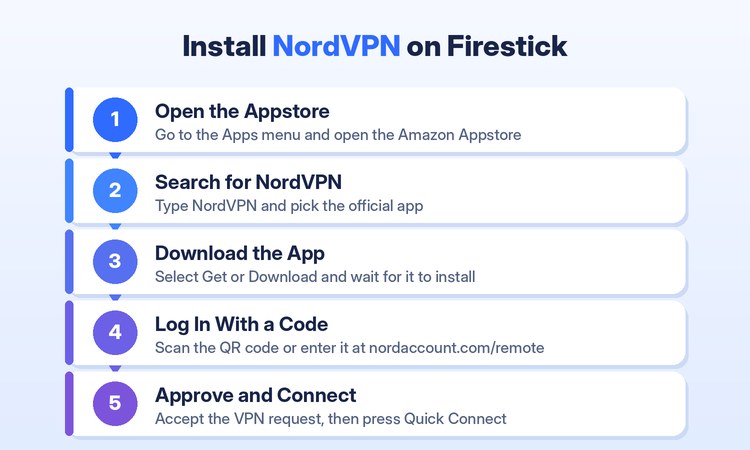
- Open the Appstore: From the Fire TV home screen, select the Apps menu and open the Appstore, or use the Find search option on the top menu.
- Search for NordVPN: Type NordVPN in the search bar and select the official NordVPN app from the results, not a lookalike listing.
- Download the App: Select Get or Download and wait for the installation to complete. This usually takes less than a minute on a good connection.
- Open NordVPN: Choose Open from the app page, or find NordVPN later under Your Apps and Channels on the home screen.
- Move It to the Front: Hold the Options button on the remote and select Move to place NordVPN on your home row for quicker access.
If the app does not appear in search results, confirm your device model, check that your Amazon account region matches your location, and restart the Firestick before trying again.
Sign In to NordVPN and Make Your First Connection
NordVPN avoids typing long passwords with a remote by using a code-based sign-in. Keep your phone or computer nearby, because you will finish the login on another device.
- Start Sign-In: Open NordVPN on the Firestick and select Log in. New users can select Sign up to create an account instead.
- Scan or Enter the Code: Scan the QR code with your phone, or open nordaccount.com/remote on another device and type the code shown on your TV.
- Approve the Connection Request: Fire OS shows a standard VPN connection request the first time you connect. Select OK, and tick the checkbox if one appears.
- Use Quick Connect: Press Quick Connect on the home screen to let NordVPN pick a fast server automatically based on your location and server load.
- Confirm the Status: Wait until the app shows a connected status and a server location before you open a streaming app.
If you prefer a specific location, scroll down to the Countries section, where you will find recent connections, popular locations, and a full list from A to Z.
Choose the Best NordVPN Settings for Firestick Streaming
The default settings work for most people, but a few changes make NordVPN faster and more convenient on a TV. Open the app menu on the left side and scroll down to the cogwheel icon to reach Settings.
- Use NordLynx: Under Protocol, select NordLynx or leave it on Automatic. NordLynx is based on WireGuard and gives the best speed for HD and 4K streaming.
- Enable Auto-Connect: Turn on Auto-connect and choose the fastest server or a preferred country. You can apply it to all networks, Wi-Fi only, or Ethernet only.
- Turn On Threat Protection: Enable Threat Protection to block many intrusive ads and malicious domains through DNS filtering, either always or only while the VPN is connected.
- Keep the Default DNS: Leave the DNS server on NordVPN’s default. NordVPN notes that a custom DNS can cause problems with streaming services.
- Test Post-Quantum Encryption: Turn on Post-Quantum encryption for extra future-proof protection, then check that streaming speed is still comfortable on your device.
| Setting | Recommended choice | Why it helps |
|---|---|---|
| Protocol | NordLynx or Automatic | Fastest option for streaming |
| Auto-connect | On, fastest server | Protection starts without opening the app |
| Threat Protection | On, VPN only | Fewer ads with lower risk of app conflicts |
| DNS server | Default | Avoids streaming errors |
| Local network discovery | On only if needed | Helps reach printers or casting devices |
Use Split Tunneling and Local Network Discovery
Split tunneling lets you keep some Fire TV apps outside the VPN while everything else stays protected. It is useful when a local service blocks VPN connections or when an app needs your real location.
- Open Split Tunneling: In Settings, select Split tunneling. The screen shows two columns for excluded apps and tunneled apps.
- Exclude an App: Move an app to the excluded column so it uses your normal internet connection while the rest of your Firestick stays protected.
- Reconnect After Changes: Disconnect and reconnect NordVPN after editing the list so the new rules apply to every app.
- Enable Local Network Discovery: Turn this on if you cannot reach printers, casting devices, or other gadgets on your home network while connected.
- Review Exclusions Regularly: Excluded apps reveal your real IP address to the services they use, so keep the list as short as possible.
Set Up NordVPN on a Vega OS Fire TV Stick
The Fire TV Stick 4K Select is the first Fire TV device to run Vega OS, a Linux-based system that replaces Android-based Fire OS on that model. Amazon added VPN support with a late 2025 update, and NordVPN was one of the first providers with a compatible app.
- Install From the Appstore Only: Vega OS does not support sideloading, so the Amazon Appstore is the only way to get NordVPN on the 4K Select.
- Same Sign-In Process: Log in with the QR code or the remote code, exactly as you would on a Fire OS device.
- Expect Basic Features: At launch, the Vega OS app offered every server location, auto-connect to a selected location, and the NordLynx protocol.
- Some Settings Are Missing: NordVPN says Vega OS devices will temporarily miss some features, so split tunneling and other options may not appear yet.
- Check Before Buying: If you need the full settings menu today, a Fire OS model such as the Fire TV Stick 4K or 4K Max is the safer choice.
Understand the Kill Switch Limitation on Fire TV
NordVPN states that its Kill Switch feature is not available on Amazon Fire TV Stick because of technical limitations. That means your Firestick may use your normal connection for a moment if the VPN drops.
- No Built-In Kill Switch: You will not find a Kill Switch toggle in the Fire TV app, even though NordVPN offers it on phones and computers.
- Use Auto-Connect Instead: Auto-connect starts the VPN with your Firestick, which reduces the chance of streaming without protection.
- Watch the Status: Check that NordVPN still shows a connected status after the Firestick wakes from sleep or reconnects to Wi-Fi.
- Use a Wired Connection: A stable Ethernet connection drops less often than Wi-Fi, which lowers the risk of a brief unprotected moment.
- Consider a VPN Router: A router running NordVPN protects every device at the network level, which is the strongest option if leaks are a concern.
Install NordVPN on Unsupported Firesticks
If your Firestick is too old for the app, do not download a random APK to force it. Unofficial files may contain malware, and Amazon may restrict sideloaded VPN apps. Our guide on how to set up a VPN on Firestick covers the general options in more detail.
- Use a VPN Router: Set up NordVPN on a compatible router so every connected device, including an older Firestick, is protected automatically.
- Connect the Firestick: Join the Firestick to the VPN router’s Wi-Fi network. No app is needed on the Firestick itself.
- Pick the Server on the Router: Server location is controlled from the router, so changing countries takes a few extra steps.
- Upgrade the Device: A newer Fire TV Stick 4K or 4K Max supports the native app and gives you full control from the TV screen.
- Avoid Modified Apps: Never install modified NordVPN files from third party websites, because they can steal your login or expose your traffic.
Fix Common NordVPN Problems on Firestick
Most NordVPN problems on a Firestick come from the network, the server you picked, or a setting change. Work through these fixes in order. If your Firestick cannot get online at all, start with our guide on what to do when your Firestick is not connecting to Wi-Fi.
- App Missing in Appstore: Check your model and Fire OS version, confirm your Amazon account region, and restart the device before searching again.
- Login Code Rejected: Codes expire quickly. Restart the sign-in on the Firestick to get a fresh code and enter it immediately.
- Will Not Connect: Switch to another nearby server, change the protocol, or restart both the Firestick and your router.
- Streaming App Shows an Error: Try a different server, reset custom DNS to default, or exclude that app with split tunneling.
- Amazon Prime Video Problems: Prime Video may not work with a VPN connection. Disconnect NordVPN or exclude the app if playback fails.
| Problem | Likely cause | First fix |
|---|---|---|
| NordVPN not found | Unsupported model or region mismatch | Check Settings, then My Fire TV, then About |
| Login code rejected | Code expired | Request a new code on the TV |
| Stuck on connecting | Network blocks VPN traffic | Try NordWhisper or OpenVPN |
| Streaming app error | Server or DNS conflict | Change server and reset DNS |
| Slow playback | Distant or busy server | Use Quick Connect or a nearby server |
Reduce Buffering While Using NordVPN
Buffering does not always mean NordVPN is slow. Compare your speed with the VPN on and off before changing settings. For device-level fixes, see our guide on how to fix buffering on Firestick.
- Test Your Baseline: Run the same speed test with NordVPN connected and disconnected to see how much speed the VPN actually costs.
- Pick a Closer Server: Servers near your real location usually give lower latency and higher speeds than distant countries.
- Stay on NordLynx: NordLynx is the fastest protocol in the app. Use OpenVPN only when NordLynx cannot connect.
- Improve Your Wi-Fi: Use the 5 GHz band, move the router closer, or add an Ethernet adapter for a steadier connection.
- Restart Cleanly: Disconnect NordVPN, restart the Firestick and router, then reconnect to clear temporary slowdowns.
Verify NordVPN Is Working on Your Firestick
A connected screen shows that the app created a VPN tunnel, but it is worth confirming that your traffic really leaves through NordVPN.
- Note Your Real IP: With NordVPN disconnected, open a browser on the Firestick and visit an IP checker such as NordVPN’s IP lookup page.
- Connect and Check Again: Connect to a server, reload the same page, and confirm that the IP address and location have changed.
- Match the Location: The location shown should match the server country you selected in the app, not your real city.
- Repeat After Restarts: Check again after the Firestick restarts to confirm that Auto-connect brought the VPN back up.
- Contact Support if Needed: If the IP does not change, send diagnostics from the Profile section of the app and contact NordVPN support.
How to Turn Off or Uninstall NordVPN on Firestick
You may need to turn NordVPN off for a local app or remove it completely when troubleshooting. Both take less than a minute.
- Disconnect Quickly: Open the NordVPN app and select Disconnect. Your Firestick returns to your normal internet connection right away.
- Pause Auto-Connect: Turn off Auto-connect in Settings if you do not want the VPN to start the next time your Firestick wakes up.
- Log Out: Open the Profile section at the bottom of Settings and select Log out to free up one of your device slots.
- Uninstall the App: Go to Settings, then Applications, then Manage Installed Applications, select NordVPN, and choose Uninstall.
- Reinstall Fresh: Download the app again from the Appstore if you are fixing a persistent error, then sign in with a new code.
Is NordVPN the Right VPN for Your Firestick?
NordVPN is a strong fit if you want a native Fire TV app, fast speeds, and support for newer Vega OS devices. Before you buy, compare it with other options in our best VPNs for Firestick guide.
- Choose NordVPN: Pick it if you want a polished TV app, NordLynx speeds, Threat Protection, and one account for up to 10 devices.
- Use the Guarantee: NordVPN offers a 30-day money-back guarantee, so you can test it on your own Firestick during peak hours.
- Check Your Model: Confirm your Fire TV is supported first, because older sticks need a router-based setup instead.
- Know the Limits: There is no Kill Switch on Fire TV, and the Vega OS app is still missing some settings.
- Skip Free VPNs: Free VPN apps often limit speed, data, or privacy, which makes them a poor fit for regular streaming.
Verdict
Setting up NordVPN on Firestick is straightforward when you use the official Amazon Appstore app, sign in with the QR code, and connect with NordLynx. Auto-connect, Threat Protection, and split tunneling cover the settings most streamers need, and the app now works on Vega OS devices as well as Fire OS models.
The important caveats are just as clear: first and second generation Fire TV Sticks are not supported, the Kill Switch is unavailable on Fire TV, and the Vega OS app is still catching up on features. Check your model first, and use a VPN router if your Firestick is too old for the app.
FAQs
Is NordVPN free on Firestick?
No. The NordVPN app is free to download from the Amazon Appstore, but you need a paid subscription to connect. NordVPN offers a 30-day money-back guarantee, so you can test it on your Firestick and request a refund if it does not suit you.
Which Firestick models support NordVPN?
NordVPN supports the Fire TV Stick 3rd Generation, Fire TV Stick 4K models, Fire TV Cube, most Fire TV smart TVs, and the Vega OS based Fire TV Stick 4K Select. The first generation Fire TV Stick does not allow VPN connections, and second generation sticks run software that is too old for the app.
Why can I not find NordVPN in the Amazon Appstore?
Your Firestick model may be too old, or your Amazon account region may not match your location. Check your device under Settings, My Fire TV, and About, then restart the Firestick. If the model is unsupported, set up NordVPN on a compatible router instead.
Does NordVPN have a kill switch on Firestick?
No. NordVPN states that its Kill Switch is not available on Amazon Fire TV Stick due to technical limitations. Turn on Auto-connect so the VPN starts with your device, and check the connection status after the Firestick wakes from sleep.
Will NordVPN slow down my Firestick?
Any VPN can reduce speed slightly because traffic is encrypted and routed through a server. Using NordLynx and a nearby server keeps the loss small. If you still see buffering, a wired Firestick Ethernet adapter often helps more than changing VPN settings.
How do I update NordVPN on Firestick?
You do not need to do anything. When NordVPN is installed from the Amazon Appstore, the app updates itself automatically in the background. If an update seems stuck, restart the Firestick or uninstall and reinstall the app from the Appstore.