Setting up IPTV on a Firestick sounds technical, but it is one of the easiest streaming upgrades you can make once you know the steps. I have set up dozens of IPTV services on Fire TV devices over the years, and the process almost always comes down to installing a player, adding your playlist, and loading a guide. In this walkthrough, I will show you exactly how to set up IPTV on your Firestick the right way, from the app you install to the settings that keep playback smooth. Everything here is written from hands-on experience so you can avoid the common mistakes that cause buffering and missing channels.
What You Need Before Setting Up IPTV on Firestick
Before you start, it helps to have a few things ready so the setup goes smoothly without stopping halfway. In my experience, gathering these first saves a lot of back-and-forth once you are in the app.
- An active IPTV subscription: You need login details from a provider, usually an M3U URL or Xtream Codes username, password, and server URL.
- A Firestick connected to the internet: Any Fire TV Stick, 4K, or Cube works. A wired connection or strong Wi-Fi keeps streams stable.
- An IPTV player app: A dedicated player handles your playlist and EPG far better than a basic media app.
- Optional EPG URL: Many providers include a guide link so you can see what is playing and coming up.
- A VPN (optional): If you want added privacy while streaming, install one before you begin.
How to Set Up IPTV on Firestick
There are two reliable ways to get an IPTV player onto your Firestick. The first uses the Amazon Appstore and is the easiest for most people. The second uses the Downloader app to sideload a player that may not be in the store. I will cover both so you can pick whichever fits your situation.
Method 1: Install a Player From the Amazon Appstore (Easiest)
- From the Fire TV home screen, go to Find and then Search.
- Type the name of a popular IPTV player and select it from the results.
- Choose Get or Download to install the app, then wait for it to finish.
- Open the app and allow any permissions it requests to run properly.
This method is quick because the app updates automatically through the Appstore. If your preferred player is not listed, use Method 2 instead.
Method 2: Sideload an IPTV App With Downloader
- Install the Downloader app from the Amazon Appstore and open it.
- Go to Settings > My Fire TV > Developer Options and turn on Install Unknown Apps for Downloader.
- In Downloader, enter the official APK link for your IPTV player and select Go.
- Wait for the file to download, then choose Install and open the app when it finishes.
Only sideload apps from official sources. I always avoid random APK sites because they can bundle unwanted software that puts your device at risk.
How to Add Your Playlist (M3U or Xtream Codes)
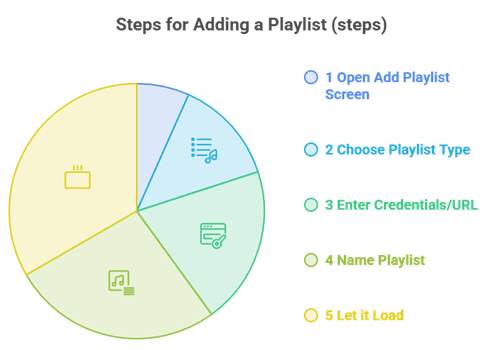
Once your player is installed, loading your subscription is the step that actually brings your channels to life. Most providers give you one of two formats, and both take only a minute to enter.
- Xtream Codes login: Open the add playlist screen, choose Xtream Codes, then enter the server URL, username, and password your provider sent.
- M3U URL: Choose the M3U option and paste your playlist URL exactly as provided, with no extra spaces.
- Name your playlist: Give it a clear label so you can find it later if you add more than one.
- Let it load: The app pulls in your channel groups automatically, which can take a few seconds on first load.
If channels do not appear right away, double-check your details and confirm your subscription is active. A single wrong character in the URL is the most common reason a playlist fails to load.
How to Set Up EPG and Catch-Up on Firestick
An electronic program guide turns a plain channel list into a proper TV experience with schedules and show details. If your provider supplies an EPG URL, adding it is well worth the extra step.
- Open your player settings and find the EPG or program guide section.
- Paste the EPG URL from your provider and save the setting.
- Allow the guide to download, then match any channels that do not line up automatically.
- Enable catch-up if your provider supports it, so you can rewind recent programming.
Best IPTV Players to Use on Firestick
The player you choose shapes your whole experience, from how the guide looks to how smoothly channels switch. In my testing, a few players consistently stand out for Fire TV. I recommend trying a well-known Android TV player with strong EPG support first, since it handles both M3U and Xtream Codes cleanly. If you want a lighter option, a simple player with quick channel switching works well on older Firestick models. Whichever you pick, keep it updated and stick to trusted names to avoid unstable builds. You can also pair your player with a reliable, well-reviewed provider for the smoothest results.
Which Firestick Models Support IPTV?
Good news: every current Fire TV device supports IPTV once you install a compatible player. That said, hardware makes a difference in how smooth things feel.
- Fire TV Stick (3rd Gen): Handles HD IPTV well and suits most everyday viewers.
- Fire TV Stick 4K and 4K Max: Best for 4K streams and the fastest app performance.
- Fire TV Cube: The most powerful option, with quick loading and hands-free control.
- Older Fire TV Sticks: Still work, but lower quality settings help avoid buffering on heavy channels.
Tips to Get the Most Out of IPTV on Firestick
- Use Ethernet where possible: A wired adapter reduces buffering far more than any app tweak.
- Clear cache regularly: This keeps your player responsive and prevents slowdowns over time.
- Match quality to your speed: Drop to HD during peak hours if 4K feeds stutter.
- Restart the app after adding a playlist: This ensures the full channel list loads correctly.
- Keep the app updated: Updates fix playback bugs and improve stability.
Is It Safe to Use IPTV on Firestick?
Using an IPTV player on Firestick is safe as long as you stick to trusted apps and licensed providers. The app itself is just a tool that plays a playlist. The safety question really comes down to where your content and downloads come from. In my experience, most problems happen when people sideload random APKs or subscribe to unverified providers. To stay safe, download players from official sources, choose providers with clear terms and secure payment options, and consider a VPN if you want extra privacy while streaming.
Choosing the Right IPTV Service for Firestick
Your setup is only as good as the service behind it. A strong provider gives you stable streams, accurate channel lists, a working EPG, and responsive support. I always look for realistic pricing, secure payment methods, and a free trial or short first plan so I can test reliability before committing. Avoid providers promising every channel in the world for a few dollars forever, since those often signal unlicensed streams and sudden shutdowns. If you want vetted options, look for providers with realistic pricing, secure payment, and a short first plan to test reliability.
Common IPTV Setup Problems & How to Fix Them
- Playlist Not Loading: Recheck your M3U URL or Xtream Codes details and confirm your subscription is active.
- Buffering Channels: Switch to Ethernet or lower the stream quality, especially during peak hours.
- EPG Not Showing: Confirm the EPG URL is correct and refresh the guide inside the app.
- App Crashing: Update the player, clear its cache, or reinstall it to fix minor bugs.
- Missing Channels: Restart the app after loading your playlist so the full list appears.
Should You Use a VPN With IPTV on Firestick?
A VPN is optional, but many users like the added privacy it brings while streaming. It hides your IP address from external servers and encrypts your connection, which is especially useful on shared networks. A VPN does not make unlicensed streaming legal, and it can slightly reduce speed, so choose one with fast servers. If you want a step-by-step, see our guide on how to set up a VPN on Firestick.
Final Thoughts
Setting up IPTV on Firestick really comes down to three things: install a reliable player, add your playlist correctly, and load an EPG for the full experience. Once those are in place, a few small habits like using Ethernet, clearing cache, and matching quality to your speed keep everything smooth. Pair a good player with a trusted provider, and your Firestick becomes a complete live TV setup. Take your time with the first setup, and every one after that will feel effortless.
FAQs
Do I need a special app to set up IPTV on Firestick?
Yes, you need an IPTV player app to load your playlist and guide. The Firestick does not play M3U or Xtream Codes links on its own. A dedicated player handles channel lists, EPG, and catch-up far better than a basic media app, and most install directly from the Amazon Appstore in a minute.
Can I set up IPTV on Firestick without sideloading?
In most cases, yes. Many popular IPTV players are available directly in the Amazon Appstore, so you can install them without Developer Options or the Downloader app. Sideloading is only needed when your preferred player is not listed in the store. To pick a provider, see our guide to the best IPTV for Firestick.
Why are my IPTV channels buffering on Firestick?
Buffering usually comes from weak Wi-Fi, an overloaded provider server, or a stream quality set too high for your connection. Try a wired Ethernet adapter, lower the quality to HD during peak hours, and clear the player cache. If it continues, test a backup link or contact your provider.
Is it legal to set up IPTV on Firestick?
Setting up an IPTV player is legal, since the app is just a tool. Legality depends on your provider. Licensed services that hold proper rights are legal, while unverified providers streaming copyrighted channels without permission may not be. Always choose reputable, licensed services and check your local streaming laws.
Do I need a VPN to use IPTV on Firestick?
A VPN is not required, but it adds privacy by hiding your IP and encrypting your connection while streaming. It is especially helpful on public or shared networks. Keep in mind a VPN does not make unlicensed streaming legal and may slightly reduce speed, so pick one with fast, reliable servers.