
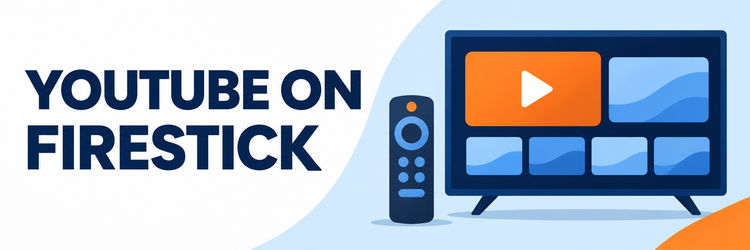
Key Takeaway: For straightforward YouTube viewing, choose the official YouTube app. SmartTube is a capable free alternative for compatible older Fire TV devices, while YouTube TV is for US viewers who want live channels alongside on-demand video.
Best YouTube apps for Firestick depend on what you want to watch: the familiar official app, an alternative playback interface, live television, or a browser fallback. Your specific device generation matters too: newer Fire TV models use a different operating system, and apps built for older Android-based Fire TV devices may not install.
I checked official support pages, current app documentation, and device compatibility details to separate the simple options from the ones that need extra setup. Below are nine practical YouTube apps and viewing tools for Firestick, what each one costs, and the compatibility details to check before installing.
9 Best YouTube Apps for Firestick: Top Recommendations!
| App | Best For | Cost | Get Started |
|---|---|---|---|
| YouTube | Everyday viewing | Free | Visit Site |
| SmartTube | Alternative player on older devices | Free | Visit Site |
| Kodi YouTube Add-on | Kodi users | Free | Visit Site |
| YouTube TV | Live TV in the US | $82.99/mo. plus tax | Visit Site |
| Amazon Silk | Browser fallback | Free | Visit Site |
1. YouTube
The official YouTube app is the easiest starting point for Firestick owners. Amazon and YouTube support it on Fire TV, where you can find it through search or the Appstore. Sign in for subscriptions and watch history, or browse public videos without an account. The app is free; YouTube Premium is optional.
Features
- Remote Search: Use the directional pad or supported Fire TV voice search to find videos, channels, playlists, and topics without navigating a phone-sized screen.
- Account Sync: Signing in brings subscriptions, saved playlists, watch history, and personalized recommendations to the television when those account features are enabled.
- Free Library: Browse public videos across music, tutorials, news, sports, entertainment, and creator channels without paying for a basic YouTube account.
- Cross-Device Resume: Continue watching across supported devices when account watch history and syncing are on, making a video started elsewhere easy to find.
- Captions: Turn on captions for videos that provide them, with available languages and options varying by the individual creator upload and device app.
- Casting: Send compatible YouTube playback from a phone when both devices and the selected cast workflow are supported on your network.
- Simple Setup: I recommend this official app first for familiar navigation, broad public-video access, and installation through the Fire TV Appstore on supported models.
| Pros | Cons |
| Official app-store availability | Advertising on free playback |
| Familiar account and subscriptions | Features vary by device and region |
| Free access to public videos | Some content requires a subscription |
Pricing
- Free to install and watch ad-supported videos. YouTube Premium is optional and separately priced by region.
Link: https://www.youtube.com/
2. SmartTube
SmartTube is a free, open-source YouTube client with a television interface, playback controls, and SponsorBlock. It is distributed outside Amazon’s Appstore, so installation takes more steps and care. Its developer says newer Fire TV devices using VegaOS are incompatible; check your model, release notes, and official instructions before sideloading on supported models.
Features
- TV Navigation: Move through a television-oriented interface designed around directional remotes, giving couch viewers larger controls than a typical phone-first video app.
- Playback Speed: Adjust video speed when the installed build and selected video support the control, which can help viewers move through longer tutorials.
- SponsorBlock: Use optional community-submitted segment markers to skip supported sponsor sections, while remembering that community data may be incomplete or inaccurate.
- Quality Controls: Select playback resolution and related video controls where available, with choices depending on the Fire TV hardware and current app build.
- No Google Services: The project documentation says SmartTube can run without Google services, which may suit viewers avoiding those background dependencies.
- Official Releases: Download builds from the developer’s project release channel and review current installation notes before sideloading onto a compatible device.
- Device Check: I would consider SmartTube only after confirming older Fire OS compatibility, because the developer excludes newer VegaOS Fire TV devices.
| Pros | Cons |
| Free and open source | Not listed in Amazon Appstore |
| TV-friendly controls | Requires sideloading |
| Extra playback options | Not compatible with VegaOS devices |
Pricing
- Free. Download only from the official project source and verify that your Fire TV operating system is supported.
Link: https://github.com/yuliskov/SmartTube
3. Kodi YouTube Add-on
If Kodi is already on your Firestick, its official YouTube add-on lets you browse videos inside Kodi. The add-on is free and installed through Kodi’s browser. Service quota limits mean some users need personal YouTube API credentials, so setup takes more work than the native app on compatible Fire TV.
Features
- Kodi Integration: Open YouTube content inside Kodi, keeping video browsing beside other media sources in a single interface already familiar to Kodi users.
- Remote Browsing: Explore channels and videos through Kodi menus and remote-friendly navigation instead of switching to a separate television app.
- Repository Install: Find the add-on in Kodi’s official repository listing and use Kodi’s add-on browser to install the package from its maintained source.
- Account Access: Sign in through the add-on’s current authorization steps when needed, following Kodi documentation instead of entering credentials into unofficial sites.
- API Configuration: Add personal YouTube API credentials if service quota limits interrupt playback, a setup step that requires careful account and project configuration.
- Existing Setup: Keep subscriptions and video browsing within the media-center environment already configured on your device, without purchasing another app.
- Best for Kodi Users: I would choose this add-on when Kodi is already installed, since a new user may find API setup more involved.
| Pros | Cons |
| Free add-on | Requires Kodi installation |
| Official repository listing | API setup may be needed |
| Useful for existing Kodi users | More steps than native YouTube |
Pricing
- The add-on is free. Kodi and a personal API configuration do not require a paid subscription.
Link: https://kodi.tv/addons/omega/plugin.video.youtube/
4. YouTube TV
YouTube TV is a paid live-TV service, separate from ordinary YouTube. It suits US viewers who want live channels, sports, and cloud DVR on supported Fire TV models. The main plan costs $82.99 per month plus tax; confirm availability and current terms before subscribing. Check model support before choosing a plan.
Features
- Live Channels: Watch live television through a separate YouTube TV subscription on supported Fire TV devices, with availability limited to eligible US households.
- On-Demand Library: Browse available programs alongside live schedules in the service’s television interface, with catalog access governed by its current subscription terms.
- Cloud DVR: Record eligible programming with the included cloud DVR feature, then manage recordings according to current storage and plan conditions.
- Separate Service: Switch between YouTube TV and standard YouTube when both apps are installed, since the live-TV subscription is not required for videos.
- Device Support: Check Google’s current supported-device list before subscribing because Fire TV model compatibility and service access can change over time.
- Google Account: Manage household settings and subscription access with a Google account, while location rules help determine local channels and regional programming.
- Best for Live TV: I recommend this only to US viewers seeking channels and DVR, not to anyone who simply wants free YouTube videos.
| Pros | Cons |
| Live TV and on-demand content | US-only service |
| Cloud DVR included | Monthly subscription costs $82.99 plus tax |
| Separate from standard YouTube | Not a free YouTube viewer |
Pricing
- The main plan is $82.99 per month plus applicable tax. Offers and plan terms can change.
Link: https://tv.youtube.com/
5. Amazon Silk Browser
Silk is Amazon’s browser for Fire TV. If the YouTube app is missing, open YouTube’s website in Silk and use its television-friendly web experience. Browsing and playback can be less convenient than in the native app, but Silk is a straightforward fallback supported by Amazon on supported Fire TV software.
Features
- Fire TV Browser: Install Amazon Silk on supported Fire TV models and use the remote to open websites, search pages, and control browser playback.
- Website Fallback: Visit YouTube’s website through Silk when the native app is missing or unavailable, subject to current site and browser compatibility.
- Web Playback: Use browser video controls for supported web content, understanding that navigation, sign-in, and playback may differ from the dedicated YouTube app.
- Account Features: Sign in to YouTube through its website when supported, while using the television remote to navigate available account pages and videos.
- Multiple Websites: Keep a general-purpose browser for help articles and other websites in addition to video, without installing a dedicated client.
- Amazon Support: Review Amazon’s current Silk documentation for Fire TV availability and browser behavior before relying on a particular device model.
- Fallback Choice: I would use Silk when YouTube’s app is unavailable, while preferring the native app for everyday searches and couch navigation.
| Pros | Cons |
| Amazon browser for Fire TV | Less convenient than a dedicated app |
| Useful fallback for YouTube website | Website controls vary |
| Free to use | Remote navigation takes practice |
Pricing
- Free. Internet access is required, and the websites you visit may offer paid content or subscriptions.
Link: https://www.amazon.com/gp/help/customer/display.html?nodeId=TZ6CJ7nVQJW26yiItl
6. YouTube Kids
YouTube Kids offers child-focused video browsing with parent-managed settings. Amazon lists it for compatible Fire TV devices, though availability varies by model and region, so check the Appstore. Parents should review profiles, content settings, and viewing controls before sharing the remote. Settings should reflect each child’s age and viewing preferences.
Features
- Child-Focused Browse: Explore a video experience designed for children, with content presentation and available features varying by age settings, family preferences, and region.
- Parent Controls: Use supported parent-managed settings and profiles to shape the viewing experience before a child begins browsing videos on their account.
- Content Settings: Select restrictions and viewing options that reflect your family’s preferences, then revisit them as children and household needs change.
- Fire TV Availability: Search the Amazon Appstore on your specific model because YouTube Kids availability can vary across Fire TV devices and regions.
- Kid Categories: Browse child-oriented categories and recommendations, recognizing that filters cannot determine every family’s preferences or replace careful adult supervision.
- Cross-Device Option: Use the YouTube Kids website on other compatible devices when the Fire TV Appstore does not offer the app for your model.
- Family Setup: I would choose this for supervised child viewing after reviewing parental controls and confirming the app is available on that Fire TV.
| Pros | Cons |
| Child-oriented browsing | Availability varies by Fire TV model |
| Parent settings and profiles | Adults should review content settings |
| Free to use | Not the full standard YouTube experience |
Pricing
- Free; availability and features depend on device and region.
Link: https://www.youtubekids.com/
7. TV Bro
TV Bro is an open-source browser made for television, with remote-friendly navigation, tabs, bookmarks, and search. It can open YouTube’s website on compatible Android-based Fire TV devices. It is not a native YouTube player and may not run on VegaOS, so check device compatibility and install only from the official project.
Features
- Remote Controls: Browse with a television-focused interface designed for directional remotes, making basic web navigation easier from across the living room.
- YouTube Website: Open YouTube in the browser rather than installing another YouTube client, with playback depending on the current website, browser build, and Fire TV hardware.
- Bookmarks: Save frequently visited websites as bookmarks so returning to YouTube or other video pages takes fewer remote-control steps during ordinary viewing.
- Tab Management: Open and manage multiple browser tabs on supported devices, helping viewers switch between a video page and other websites.
- Search Navigation: Enter searches and web addresses from the television interface, although typing with a remote can be slower than using a phone.
- Project Updates: Check the open-source release page for current installation and compatibility notes before sideloading the browser onto Fire TV.
- Compatibility Choice: I would try TV Bro only on a supported Android-based Fire TV, because VegaOS support is not assured.
| Pros | Cons |
| TV remote-focused controls | Not a dedicated YouTube app |
| Open-source project | Fire OS/Android compatibility required |
| Bookmarks and tabs | Not suitable for VegaOS unless supported |
Pricing
- Free. Check the project’s official release page and verify your device OS before installing.
Link: https://github.com/truefedex/tv-bro
8. AirScreen
AirScreen turns compatible Fire TV devices into receivers for supported casting and screen-sharing protocols. Start YouTube on a phone and send it to the TV when both devices support the same method. AirScreen is a receiver, not a standalone YouTube catalog; protocol support varies by model, network, and sender device.
Features
- Casting Receiver: Turn a compatible Fire TV into a receiver for media sent from a phone or computer using supported streaming protocols.
- Protocol Options: Choose among the screen-sharing and casting methods listed by the developer, noting that sender-device support differs between protocols.
- Phone Playback: Start a YouTube video on a compatible mobile device and send playback to the receiver when the selected workflow supports it.
- Other Media: Receive supported photos, music, or video as well as screen content, depending on protocol support and permissions on the receiving device.
- Appstore Check: Confirm the current Amazon Appstore listing supports your Fire TV model and region before setting up the receiver.
- Network Setup: Connect sender and receiver to the same network when the chosen casting protocol requires local discovery or device pairing.
- Phone Control: I would use AirScreen when phone-based search is easier, after confirming both devices support the same casting method.
| Pros | Cons |
| Convenient phone-to-TV workflow | Requires a compatible sender and receiver |
| Supports multiple protocols | Not a YouTube browsing app |
| Can receive more than video | Network and protocol support vary |
Pricing
- Free download with a free tier; optional paid features may be offered. Check the current Appstore listing for terms.
Link: https://www.airscreen.app/
9. Video & TV Cast for Fire TV
Video & TV Cast pairs a phone app with a Fire TV receiver, letting you browse web videos on your mobile device and send supported playback to the television. Its developer documents YouTube casting for Fire TV. Both apps may be needed, and some videos or site changes can prevent playback.
Features
- Phone Browsing: Search for web videos on a companion phone app, then send supported playback to a Fire TV receiver for larger-screen viewing.
- Fire TV Receiver: Install the matching receiving component and follow the developer’s setup process so the phone can discover the television.
- YouTube Casting: Use the developer-described YouTube workflow for supported videos on compatible devices, while recognizing site changes can affect which clips play.
- Mobile Search: Browse and choose videos on a phone keyboard, then use the television for playback when sender and receiver remain compatible.
- Source Limits: Check video-source support before troubleshooting because protected streams and changes to websites may prevent successful casting within the companion app.
- Support Guidance: Consult the developer’s current setup and troubleshooting notes when pairing, network discovery, or a particular video source fails.
- Companion Workflow: I would pick this when phone browsing is preferable and the companion app reliably detects the Fire TV on your network.
| Pros | Cons |
| Browse with a phone | Usually needs companion apps |
| Designed for Fire TV casting | Some video sources may not cast |
| Remote-friendly receiver playback | Network discovery can fail |
Pricing
- Free version with optional premium features; confirm current pricing in the official app listing.
Link: https://video-tv-cast.com/
How We Ranked These Firestick YouTube Options
I compared these choices by how directly they deliver YouTube on a television, how clearly the provider documents Fire TV support, and how much setup or cost they involve. This is a practical fit ranking: YouTube comes first for most viewers, while the other entries serve specific needs or device situations.
- Compatibility: Prefer apps with clear Fire TV support and flag operating-system limits.
- Ease of setup: Give simple Appstore installation an advantage over sideloading or API configuration.
- Purpose: Distinguish video viewing from a paid live-TV subscription.
- Cost: Separate free options from recurring plans.
- Documentation: Use official developer, platform, or service sources for key claims.
Which YouTube Option Fits Your Fire TV?
For everyday viewing, start with YouTube. Kodi suits existing media-center setups; browser and casting tools fill narrower gaps. Explore our best Firestick apps guide for more options.
- Everyday viewing: Use the official app for quick Appstore installation, signed-in subscriptions, and familiar video browsing across supported Fire TV models.
- Alternative player: Consider SmartTube only after checking older Fire OS support, its sideloading requirements, and the developer’s warning for VegaOS devices.
- Existing Kodi setup: Choose Kodi’s add-on when Kodi is already part of your setup and you’re comfortable with optional API configuration.
- Browser fallback: Use Silk or TV Bro when the native app is unavailable and your device supports the browser’s operating system.
- Phone control: Pick AirScreen or Video & TV Cast if your phone and television support a shared casting method and network.
How to Choose and Install Safely
Start with the Fire TV Appstore and confirm your model’s software before installing anything from outside it. Avoid download pages that imitate official listings or promise paid YouTube features for free. New Fire TV devices may run VegaOS, which changes compatibility for apps designed for Android-based Fire TV devices.
- Official listing: Search YouTube through the Fire TV home screen or Appstore and select the result published by YouTube.
- Device software: Check your exact model and operating system before following any third-party installation directions or troubleshooting guide.
- Kodi setup: Use Kodi’s own add-on browser and the project’s official listing when installing its YouTube extension.
- SmartTube builds: Read current release notes and device warnings at the official repository before sideloading anything to Fire TV.
- Account safety: Never share your Google password with third-party installers or unofficial download sites claiming to unlock paid features.
Final Verdict
The official YouTube app is the best fit for everyday viewing on a supported Firestick because it is simple to find and use. SmartTube and Kodi can suit experienced users with specific preferences, while YouTube TV, Silk, YouTube Kids, and casting tools address different needs. Match your choice to your device, location, and whether you want live television.
- YouTube: The easiest free starting point for videos and subscriptions on supported Fire TV devices. Choose it when you want familiar search, account syncing, and an Appstore installation without sideloading or a separate live-TV plan.
- SmartTube: A free alternative player for compatible older Fire TV systems, with extra setup involved. It makes sense for viewers who value its television controls and are comfortable checking the official release notes and their device operating system before installing.
- YouTube TV: A paid US live-TV service for viewers who also want channels and DVR. Consider its monthly cost, local availability, and supported-device list first; ordinary YouTube videos do not require this subscription, so it serves a different viewing need.
Frequently Asked Questions
What is the best YouTube app for Firestick?
The official YouTube app is the best option for most Firestick owners. It is the simplest to install from the Fire TV Appstore and supports sign-in, subscriptions, and familiar video browsing. Check Amazon’s store on your own device because availability can vary by model or region.
Is YouTube free on Firestick?
Yes. The official YouTube app is free to install, and many videos are free to watch with ads. YouTube Premium is optional. YouTube TV is a separate paid live-TV service and is not required to use ordinary YouTube.
Can I install SmartTube on every Firestick?
No. SmartTube’s developer documents compatibility limits for newer Fire TV devices running Amazon’s VegaOS, including Fire TV hardware released from late 2025 onward. Confirm your operating system and check the project’s current release notes before attempting installation.
Can I watch YouTube through Kodi?
Yes. Kodi has an official YouTube add-on that can be installed from its repository. Some configurations may need personal API credentials because of quota limits. Follow Kodi’s current setup instructions, and use the add-on only if you are comfortable configuring Kodi.
Does YouTube TV work on Firestick?
YouTube TV supports select Fire TV devices in the United States. It is a separate subscription with live channels and cloud DVR, not a free YouTube video app. Check the official device list and current plan details before subscribing.
What can I do if YouTube is missing from my Firestick?
Search the Appstore again and check for device software updates. You can also open YouTube in Amazon Silk or a compatible TV browser, or cast from a phone using a compatible receiver. If you’re troubleshooting Kodi specifically, see our YouTube Kodi add-on installation guide for setup details.