Key Takeaway: The AIOMetadata Stremio addon replaces one-size-fits-all metadata with selectable movie, series, anime, artwork, catalog, and search providers. The public ElfHosted configuration page was running version 2.12.0 on August 14, 2026. It does not supply streams; use it to improve discovery and title information, then keep a separate stream addon for playback sources.
AIOMetadata is unusually powerful, but its configuration can become messy if you enable every provider, catalog, filter, and integration at once. I checked the maintainer repository, current release, live public configuration, community listing, and Stremio installation documentation to build a clean starting setup. This guide explains what each important control changes, how to avoid Cinemeta conflicts, and how to diagnose missing or incorrect metadata.
What the AIOMetadata Stremio Addon Changes
AIOMetadata controls how Stremio discovers and describes media. It can replace several Cinemeta functions, but it does not fetch playable video, subtitles, or debrid links.
- Metadata Pages: selects movie, series, and anime data providers for titles, summaries, cast, episodes, ratings, release details, and identifier mapping inside Stremio.
- Catalog Rows: creates sortable discovery rows from TMDB, TVDB, MAL, AniList, MDBList, streaming services, personal lists, and other supported integrations.
- Search Results: exposes separate movie, series, anime, people, collection, and optional AI search catalogs, each using a selected search engine.
- Artwork Layer: chooses different poster, background, logo, landscape, and episode-thumbnail sources while supporting language preferences, fallbacks, proxies, and custom URL patterns.
- Playback Boundary: supplies no stream resource, torrent scraper, subtitle source, or player, so another addon must return the actual viewing options.
| Stremio layer | AIOMetadata handles it? | What you still need |
|---|---|---|
| Catalogs and search | Yes | Choose and order sources |
| Title and episode metadata | Yes | Pick compatible identifiers |
| Posters and backgrounds | Yes | Optional provider keys |
| Streams and subtitles | No | Separate source addons |
| Video playback | No | Stremio’s player or external player |
Which AIOMetadata Version Is Current?
The live hosted page and the community directory currently show different versions. Use the hosted configuration header and install confirmation instead of relying on an old catalog card.
- Hosted Version: the public ElfHosted configuration displayed AIOMetadata v2.12.0 when checked on August 14, 2026, matching the latest stable maintainer release.
- Stable Release: GitHub lists v2.12.0 as the latest release, dated August 7 and published on August 9, with authentication and catalog-builder changes.
- Directory Lag: Stremio Addons still displayed version 1.35.2, last updated July 8, alongside 157 stars and four available instances during research.
- Testing Tags: newer testing tags existed on August 14, but they are development snapshots rather than proof that every public instance runs unreleased code.
- My Check: I compare the page header and Stremio approval screen before installation, because a directory record can remain stale after its hosted instance updates.
Choose a Preset Before Individual Settings
The six-step preset wizard provides a safer baseline than enabling everything manually. Pick the library type first, then adjust safety, labels, keys, services, curators, and AI catalogs.
- Movies and Shows: uses TMDB for films and TVDB for series while disabling anime catalogs and anime search, keeping a conventional library compact.
- Kitsu Anime: combines TMDB movies, TVDB series, and Kitsu anime metadata with Kitsu search plus anime artwork sourced from metadata and IMDb.
- TVDB Anime: keeps TMDB for movies, uses TVDB for series and anime, retains Kitsu identifiers, and mixes MAL posters with IMDb backgrounds and logos.
- MAL Seasons: builds an anime-first layout around grouped MyAnimeList catalogs and IMDb matching, which can improve compatibility with addons expecting IMDb identifiers.
- Guided Choice: use the built-in question flow when unsure, then review every selected provider and catalog instead of treating the recommendation as permanent.
Install AIOMetadata on Stremio Step by Step
Configure AIOMetadata on a phone or computer, save the profile, and approve its generated manifest in Stremio. Do not copy another person’s UUID, password, or saved configuration URL.
- Open Configure: visit the AIOMetadata configuration page, confirm the expected version and domain, then choose a preset matching your library.
- Review Sections: check General, Integrations, Meta Providers, Art Providers, Filters, Search, Catalogs, and Configuration carefully before saving your first profile.
- Save Profile: create the requested password; the service then provides a UUID and personalized install URL linked to that stored configuration.
- Approve Install: open the generated Stremio link, confirm the addon name and resources, and approve it only after inspecting the destination.
- Confirm Sync: reopen Stremio, find AIOMetadata under My Addons, open one configured catalog, and verify its title page loads before disabling alternatives.
Saving changes updates the hosted profile, but Stremio may continue using the manifest already attached to your account. After changing catalogs, search resources, or metadata behavior, reinstall or reload the generated addon and confirm the new resource list. Repeatedly editing a profile without refreshing Stremio can make a correct setting appear broken.
Pick Movie, Series, and Anime Providers
Provider selection affects title details and identifiers, not just descriptions. Start with the preset defaults, test real titles, and change one content type at a time.
- Movie Baseline: TMDB is the default movie provider and offers broad film coverage, regional language data, artwork, credits, release dates, and watch-provider information.
- Series Baseline: TVDB is marked recommended for series; keep Aired Order initially, then change season ordering only when a specific show requires it.
- Anime Baseline: MyAnimeList is the initial anime provider, while Kitsu, AniList, AniDB, TVDB, IMDb, and related mappings improve cross-addon compatibility.
- Smart Fallback: when the preferred provider lacks a title, AIOMetadata can use the item’s original source instead of returning an empty metadata page.
- Identifier Choice: IMDb usually works with more stream addons, while retaining Kitsu, MAL, or requested IDs can preserve anime-specific numbering and metadata relationships.
Control Artwork, Spoilers, and Family Filters
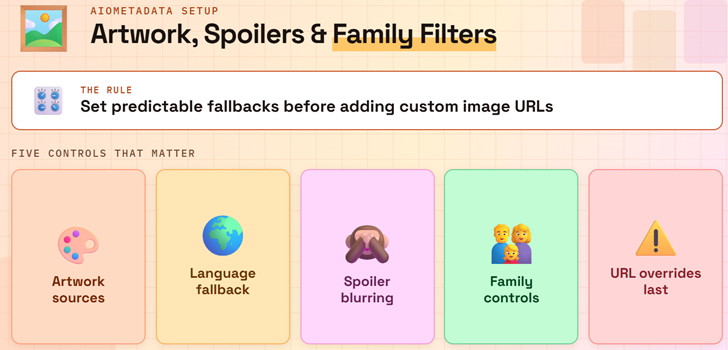
AIOMetadata separates artwork from metadata and applies several content filters together. A clean setup chooses predictable fallbacks before adding rating posters or custom image URLs.
- Artwork Sources: select poster, background, and logo providers separately for movies, series, and anime instead of forcing one source across every visual asset.
- Language Rules: English-only artwork and original-language poster fallback help avoid blank or region-mismatched images when your preferred localization has limited assets.
- Spoiler Protection: Hide Episode Spoilers blurs thumbnails, while rating-poster controls can be limited for Continue Watching and Library items to preserve artwork.
- Family Controls: set a maximum movie or series rating, enable anime SFW mode, exclude unwanted genres, and filter title or description keywords.
- Override Caution: custom poster, background, landscape, logo, and episode-thumbnail URL patterns override ordinary sources, so remove them first when artwork fails.
Build Search and Catalogs Without Clutter
Search engines and home-screen catalogs are independent. Keep only rows you use, order them deliberately, and verify the saved manifest after every substantial catalog change.
- Default Search: the initial setup enables TMDB movies, TVDB series, MAL anime series, and MAL anime movies as separate searchable Stremio catalogs.
- Optional Search: TVDB collections and TMDB people searches are available but disabled initially, preventing niche search rows from overwhelming ordinary title results.
- AI Queries: natural-language search requires a Gemini or OpenRouter API key; leave it disabled unless you need descriptive queries and accept external processing.
- Catalog Start: choose curated defaults for a quick setup or begin empty with the Catalog Builder, then reorder and hide rows inside Catalog Management.
- Manifest Size: if installation fails after adding many catalogs, disable low-value rows and regenerate a smaller profile before investigating unrelated network or player issues.
| Area | Good starting point | Common mistake |
|---|---|---|
| Movie search | TMDB enabled | Adding duplicate engines |
| Series search | TVDB enabled | Changing several providers together |
| Anime search | One MAL or Kitsu route | Mixing incompatible identifiers |
| AI search | Disabled initially | Adding an exposed API key |
| Catalogs | Only frequently used rows | Oversized, repetitive home screen |
Use AIOMetadata With Cinemeta and Cinebye
Competing metadata addons can return different details for the same identifier. Decide which provider should lead, keep a recovery path, and retest ordering after every manifest change.
- Official Baseline: Cinemeta supplies Stremio’s standard catalogs, search, and metadata; review our Cinemeta Stremio addon guide before changing its protected functions.
- Hosted Advice: the AIOMetadata public page recommends Cinebye to deactivate Cinemeta metadata for optimal behavior, preventing Cinemeta from winning the metadata request first.
- Gradual Switch: verify AIOMetadata catalogs and title pages before deactivating competing metadata, because an incorrect profile can otherwise leave every detail page empty.
- Addon Order: keep the chosen metadata provider above stream and subtitle addons, then preserve that order when reinstalling an updated AIOMetadata profile.
- Recovery Plan: retain your original Cinemeta state until several movies, series, and anime titles work, allowing a quick rollback after provider or instance trouble.
A safe transition is AIOMetadata install, three-title test, addon-order check, and only then Cinemeta adjustment. If a title fails afterward, restore Cinemeta before rebuilding AIOMetadata. This order preserves a working metadata source while you identify whether the problem came from the hosted instance, provider selection, identifier mapping, or Stremio synchronization.
Sync AIOMetadata to Firestick and Android TV
AIOMetadata installs to your Stremio account rather than directly onto a television. Configure it where typing is safe, then synchronize the same account to Fire TV or Android TV.
- Same Account: confirm the browser or desktop Stremio account matches the Firestick account before approving the manifest, because addon installs synchronize by account.
- Safer Keyboard: enter configuration passwords and API keys on a trusted computer or phone where the complete domain and connection security remain visible.
- Refresh Client: force-close Stremio on the television after installation, reopen it, and verify AIOMetadata appears under My Addons before changing the profile again.
- Known Titles: test one common movie, one multi-season series, and one anime entry to expose provider-specific mapping or season-order problems early.
- No APK: AIOMetadata is a remote Stremio addon manifest, so never sideload an application claiming to be an AIOMetadata player or Firestick optimizer.
Fix Missing Metadata, Catalogs, or Episodes
Troubleshoot the failing layer instead of rebuilding everything. A catalog can load while its metadata provider, identifier mapping, artwork source, or saved manifest remains wrong.
- Empty Details: restore the preset provider, test the same title through its original source, and confirm Cinemeta or another addon is not intercepting metadata.
- Missing Catalogs: verify each row is enabled, save the profile, reinstall its generated manifest, restart Stremio, and inspect the correct account.
- Wrong Episodes: compare TVDB Aired Order with the required season order, then review anime detection and the selected stream-compatibility identifier.
- Broken Artwork: remove custom URL overrides, return artwork to Meta Provider, test without language restrictions, and verify any optional provider key separately.
- Failed Search: confirm search is enabled, inspect its engine and content type, loosen exclusion filters, and test an exact title before natural-language queries.
| Symptom | Likely layer | First action |
|---|---|---|
| Catalog row missing | Saved manifest | Save and reinstall |
| Title opens without details | Metadata provider | Restore preset source |
| Wrong season or episode | Order or ID mapping | Compare TVDB and anime IDs |
| Poster is blank | Artwork source | Remove URL override |
| No search results | Search engine or filter | Enable exact-title search |
| Firestick unchanged | Account synchronization | Restart the matching account |
Change only one layer between tests and reuse the same title. Start with the manifest and account, then metadata provider, identifier, artwork, search, and filters. This sequence produces comparable results and avoids the common trap of changing five controls before discovering that the television was signed into a different Stremio account.
Public ElfHosted, Personal Hosting, or Self-Hosting?
The software is open source, but hosting choices change cost, cache behavior, limits, maintenance, and credential responsibility. Most readers should begin on the maintained public instance.
- Public Instance: ElfHosted provides shared cache and required core keys without a subscription, while reasonable rate limits protect capacity for every public user.
- Personal Instance: the hosted page advertised a seven-day trial for $1 and $9 monthly afterward, providing dedicated cache behavior and personal API quota.
- Self-Hosting: the current repository supplies Docker Compose with AIOMetadata, Redis, persistent data, health checks, and optional SQLite or PostgreSQL configuration storage.
- Operator Duties: self-hosters manage HTTPS, updates, backups, secrets, rate limits, provider keys, database durability, monitoring, and the security of personalized manifest endpoints.
- Anime Deadline: maintainer documentation says the public Jikan API closes October 1, 2026, with September brownouts, so self-hosters need a supported replacement.
Protect API Keys and Shared Configurations
AIOMetadata can store several third-party credentials and a personalized configuration address. Treat the password, UUID, generated manifest, exports, and every API key as account secrets.
- Minimum Keys: add optional TMDB, TVDB, Fanart, RPDB, MDBList, PublicMetaDB, Gemini, or OpenRouter credentials only when their specific feature is needed.
- Separate Password: create a unique configuration password rather than reusing your Stremio, email, Google, payment, dashboard, or metadata-provider account password.
- Safe Export: the export screen excludes API keys by default; keep that protection enabled before sharing a backup or moving settings between devices.
- Private Manifest: never publish screenshots, logs, or URLs containing your UUID, compressed configuration, password, API keys, or personalized manifest path.
- Legal Limit: AIOMetadata organizes information and discovery; it neither licenses titles nor proves that a separate stream source is authorized in your jurisdiction.
Link: https://github.com/cedya77/aiometadata
AIOMetadata Stremio Addon Verdict
AIOMetadata is one of Stremio’s most capable discovery and metadata tools, provided you configure it as a focused replacement rather than enabling every option. Start with a preset, keep one provider per media type, protect the generated profile, and test before changing Cinemeta. Version 2.12.0 makes catalogs, search, artwork, filters, and cross-provider mapping powerful without pretending to be a streaming addon.
FAQs
What is the AIOMetadata Stremio addon?
It is a configurable metadata, catalog, search, artwork, and identifier-mapping addon. It can use different sources for movies, series, anime, posters, backgrounds, logos, lists, and discovery rows.
Does AIOMetadata provide movie or TV streams?
No. AIOMetadata supplies catalogs and title information, not playable video, debrid results, or subtitle resources. Keep a separate, legally appropriate stream addon and player for viewing content.
What is the latest AIOMetadata version?
The live ElfHosted page and latest stable GitHub release showed v2.12.0 on August 14, 2026. The community directory’s v1.35.2 card was older than the hosted instance, so confirm the version during installation.
Is AIOMetadata free?
The public ElfHosted instance is free with reasonable shared limits. A personal hosted instance was advertised at $1 for seven days and $9 monthly afterward; self-hosting has infrastructure costs.
Do I need API keys for AIOMetadata?
The public instance reports its required TMDB and TVDB keys as ready. Optional integrations such as Gemini, OpenRouter, Fanart, RPDB, MDBList, or tracking services may need personal credentials entered through the trusted configuration page.
How do I use AIOMetadata on Firestick?
Configure and install it on a phone or computer using the same Stremio account, then restart Stremio on Fire TV. If needed, follow our Stremio on Firestick installation guide first.