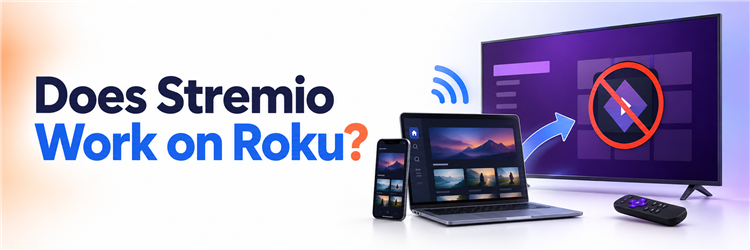
Key Takeaway: Roku does not offer a native Stremio app, and an Android APK cannot be installed on Roku OS. The practical routes are screen mirroring from compatible Android or Windows devices, AirPlay from supported Apple devices, or connecting a Stremio-supported player directly to an HDMI input.
The short answer is no: Stremio does not run directly on Roku in 2026. Your phone, computer, or another streaming device does the playback work, while Roku or the television receives a mirrored picture. This guide separates reliable workarounds from misleading “sideload” claims.
I compared Stremio’s current download directory with Roku’s current mirroring, AirPlay, casting, and developer documentation. The important distinction is between installing software on Roku and displaying video generated elsewhere. Start with the compatibility table, choose the route your source device actually supports, then use the troubleshooting sections if discovery, audio, or video fails.
Does Stremio Work on Roku Directly?
Roku OS and Stremio target different application platforms. The official Stremio downloads page lists desktop, mobile, television, web, and specialist builds, but it does not list Roku. Roku’s store therefore has no official Stremio channel to add, sign into, or control with the Roku remote. Any site promising a normal Roku installation should be treated cautiously.
- No Native Channel: Searching Roku’s Store does not produce an official Stremio application, so the familiar add-app workflow cannot install it on the home screen.
- Different Operating System: Roku OS does not run Android TV packages, Windows installers, Linux builds, or desktop application files merely because they share television hardware.
- Remote Limitation: Without a Roku channel, Stremio cannot use Roku’s normal remote navigation, background playback, home-screen tiles, or automatic store updates.
- Account Separation: Signing into a Roku account does not sync a Stremio library; synchronization occurs only inside supported Stremio clients using the relevant Stremio account.
- Display Workaround: Roku can still show a source device’s picture through supported mirroring or AirPlay, while Stremio remains installed and controlled elsewhere.
Choose the Right Roku Workaround
The best route depends on the device already running Stremio and the receiver features built into your Roku model. Mirroring sends the whole source display; AirPlay provides Apple’s wireless display route; an HDMI device bypasses Roku software; and ordinary casting works only when both ends support the same application protocol. Compare control, stability, and setup requirements before changing settings.
- Android Mirroring: Choose this when a compatible non-Pixel Android phone exposes Smart View, Wireless Display, or another Miracast-style screen-mirroring control.
- Windows Mirroring: Use a Miracast-capable Windows laptop when you want a larger source interface, easier subtitle control, and power connected throughout viewing.
- Apple AirPlay: Select AirPlay when your Roku model supports it and Stremio playback can run through the available iPhone, iPad, or Mac route.
- Direct HDMI Device: Add a supported Android TV, Google TV, Fire TV, computer, or other Stremio-capable device for dependable remote-friendly playback.
- Avoid False Casting: Do not assume every Cast icon targets Roku; Stremio documents Chromecast support, while Roku app casting expects a matching receiver application.
| Method | Source Device | Roku Requirement | Main Trade-off |
|---|---|---|---|
| Screen mirroring | Compatible Android phone or Windows PC | Mirroring-capable Roku model | Source screen stays active and controls playback |
| AirPlay | Compatible iPhone, iPad, or Mac | AirPlay-capable Roku model and software | Stream and application restrictions can cause black video |
| Ordinary app casting | Phone or tablet with a casting app | Matching Roku receiver app | Not a direct Stremio-to-Roku route |
| HDMI workaround | Stremio-supported streamer or computer | Open HDMI input on the television | Requires another device and input change |
Mirror Stremio from an Android Phone
Android mirroring is practical only when the phone implements the screen-mirroring technology Roku accepts. Roku notes that many Android 10-or-later devices may support it, while Google-branded Pixel devices generally do not use the same Miracast route. Menu names vary by manufacturer, so look for Smart View, Wireless Display, Screen Cast, or a comparable full-screen option rather than Stremio’s Cast icon.
- Prepare Roku: Open Settings, System, Screen mirroring, then set Screen mirroring mode to Prompt so an unfamiliar source cannot connect silently.
- Join One Network: Connect the phone and Roku to the same home Wi-Fi and disable guest isolation, mobile hotspots, or VPN routes that block discovery.
- Open Mirroring: Pull down Android Quick Settings, choose Smart View or the manufacturer’s equivalent, and select the Roku name shown under System information.
- Approve Once: Accept the request with the Roku remote for the current session; use Always allow only for a private device you control.
- Start Playback: Rotate the phone to landscape, begin an authorized stream, keep the display awake, and use the phone for seeking, subtitles, and volume.
If Roku never appears, confirm that the Android menu is genuine screen mirroring rather than Google Cast. Pixel phones commonly expose Google Cast but not the Miracast implementation Roku’s screen-mirroring feature expects. In that case, use a Windows computer, compatible Apple device, or direct HDMI streamer instead of installing unknown mirroring receivers.
Mirror Stremio from Windows 11 or Windows 10
Windows is often the clearest wireless workaround because the full desktop Stremio client and Windows display controls remain on one machine. The computer and Roku still need compatible wireless-display hardware, current drivers, and a network that permits device discovery. A wired Ethernet connection on either device does not automatically prevent mirroring, but Wi-Fi Direct support and adapter compatibility still matter.
- Check Roku Mode: Leave Screen mirroring mode on Prompt and remove an accidentally blocked computer from the Roku list before starting another connection.
- Open Wireless Display: Press Windows and K on Windows 11, or use Action Center and Connect on Windows 10, then select Roku.
- Accept the Request: Approve the named computer on the television, confirming that the prompt matches the device currently attempting the connection.
- Choose Projection: Select Duplicate when you want the television to copy Stremio exactly; Extend requires moving the player window onto the Roku display.
- Keep Power Stable: Connect the laptop charger, prevent sleep, and leave Stremio visible because closing the lid or locking Windows may stop playback.
| Windows Symptom | Likely Cause | First Action |
|---|---|---|
| Roku absent from Win+K | Miracast, driver, or discovery limitation | Update Windows and wireless/display drivers, then restart both devices |
| Connected but no picture | Projection mode or protected video path | Choose Duplicate and test personal local media |
| Video stutters | Wireless interference or source overload | Move to clearer Wi-Fi and reduce source resolution |
| Audio remains on laptop | Wrong Windows output device | Select the Roku wireless display as audio output |
Use AirPlay from iPhone, iPad, or Mac
Compatible Roku players and Roku TVs can receive AirPlay from Apple devices, but support depends on the exact Roku model and software version. Stremio’s available Apple experience also varies by device, region, and playback source. AirPlay mirrors or streams what the Apple device produces; it does not install Stremio on Roku or create a Roku-native library screen.
- Verify the Model: On Roku, open Settings, System, About and compare the model and software with Roku’s current AirPlay compatibility guidance.
- Enable AirPlay: Open Settings, Apple AirPlay and HomeKit, turn AirPlay on, and leave the access requirement appropriate for your home network.
- Share the Screen: Open Control Center on iPhone or iPad and choose Screen Mirroring, or use Screen Mirroring from macOS Control Center.
- Select Roku: Choose the correct Roku name and enter the television code when prompted, avoiding similarly named devices on shared networks.
- Test Safe Media: Begin with personal local media or an authorized unprotected source because DRM, codec, or application limits can produce audio-only playback.
Roku’s official AirPlay support guide lists compatible models and minimum Roku OS versions. If the AirPlay menu is missing, update Roku first; if the exact model is excluded, software updates cannot add unsupported receiver hardware.
Why the Stremio Cast Button Does Not Solve Roku
Casting and mirroring are not interchangeable. With ordinary Roku app casting, a supported mobile application tells its matching Roku channel what to play, so the phone can leave the app or power down. Screen mirroring continuously copies the source device. Stremio advertises Chromecast casting, not a Roku receiver channel, which is why a Roku device may never appear in Stremio’s casting target list.
- Receiver Required: Roku casting normally launches a matching Roku channel, but no official Stremio Roku channel exists to receive that playback instruction.
- Chromecast Difference: A Roku television is not automatically a Chromecast target, even when both products accept wireless video from certain phones and applications.
- Mirroring Continues: Full-screen mirroring works without a matching channel because Roku displays the source screen rather than independently fetching and decoding the program.
- Controls Stay Elsewhere: During mirroring, use the phone or computer for search, subtitles, seeking, and stopping; Roku’s remote mainly handles television-level functions.
- Protocol Apps: Third-party receiver channels add another vendor, advertisements, permissions, and format limits, so verify privacy and never enter Stremio credentials casually.
Why Roku Developer Mode Cannot Install the Stremio APK
Developer mode is often described online as universal sideloading, but Roku uses it to test Roku applications built for Roku’s SDK. It does not add Android compatibility. Uploading a Stremio Android APK, Windows installer, or Linux package to Roku’s development installer will not convert the program into a Roku channel, and renamed archives do not change their executable format.
- SDK Boundary: Roku developer mode accepts applications designed for Roku OS, not arbitrary packages compiled for Android, Windows, macOS, or Linux systems.
- APK Rejection: Stremio’s Android APK depends on Android frameworks and processor targets that Roku OS neither provides nor translates during developer installation.
- One Test Channel: Roku’s developer documentation allows one sideloaded development application at a time, emphasizing testing rather than a general alternative app store.
- No Conversion Trick: Renaming an APK to ZIP or extracting its files cannot recreate Roku-specific scene graphs, components, permissions, and application behavior.
- Security Choice: Avoid unofficial “Stremio for Roku” downloads that request developer credentials, device passwords, or unknown archives without reproducible Roku source code.
The official Roku developer setup demonstrates loading a Roku sample application. It offers no supported pathway for Android APK installation, so developer mode should not appear in consumer Stremio instructions as a working solution.
Understand Browser, DLNA, and Local-Network Limits
Three frequently suggested routes sound plausible but do not produce a dependable native experience. Roku lacks a supported general-purpose browser for running Stremio Web as a full television client. Stremio removed its older DLNA/UPnP “Cast to TV” feature. A local network alone also cannot make one application discover another unless both devices implement a compatible sender-and-receiver protocol.
- Web App Limit: Stremio Web needs a capable browser and, for some formats, a companion service; Roku does not provide that supported desktop-style environment.
- DLNA Removed: Old guides referencing Stremio’s Cast to TV menu describe discontinued DLNA and UPnP functionality rather than a current Roku workflow.
- Network Is Transport: Sharing Wi-Fi only creates reachability; it does not supply a Roku Stremio channel, codec support, or an agreed casting protocol.
- Media Servers Differ: Plex, Jellyfin, and Roku Media Player can expose authorized library files, but they do not reproduce Stremio addons or its interface.
- HDMI Is Direct: Connecting a computer to the television with HDMI bypasses wireless discovery and Roku OS while preserving the real Stremio desktop application.
Fix Discovery, Black Screen, Audio, and Lag
Troubleshoot the stage that failed instead of reinstalling Stremio immediately. A missing Roku target is discovery or protocol compatibility. A visible desktop with black video usually points to protected playback, decoding, or capture restrictions. Audio-only and delayed controls belong to output routing and wireless performance. Test personal local video first so rights protection and changing stream servers do not confuse the diagnosis.
- Roku Not Listed: Confirm one network, Prompt mode, supported hardware, and the correct Miracast or AirPlay menu before resetting accounts or reinstalling Stremio.
- Black Video: Try authorized local media; if menus mirror but protected video remains black, the source or application may block wireless capture.
- Missing Audio: Raise both device volumes, select Roku as the Windows output, and reconnect after closing Bluetooth headphones or another active audio route.
- Heavy Delay: Reduce playback resolution, pause downloads, move devices nearer the router, and avoid congested 2.4 GHz channels when 5 GHz coverage is strong.
- Session Drops: Disable aggressive battery saving, prevent computer sleep, update Roku and the source device, then restart both before testing the same short clip.
| Symptom | Layer to Check | Useful Test | Likely Next Step |
|---|---|---|---|
| No Roku target | Protocol and discovery | Check model, network, and mirroring mode | Switch source device or connection method |
| Menus visible, video black | Protection or capture path | Play personal local media | Use direct HDMI or a supported app device |
| Picture without sound | Audio routing | Change source output to Roku | Reconnect after disabling competing outputs |
| Frequent buffering | Original stream or source device | Play on the source without mirroring | Fix the stream before tuning Wi-Fi |
| Smooth source, laggy television | Wireless display link | Lower resolution and shorten distance | Use HDMI for consistent playback |
Pick a Better Long-Term Setup
If Stremio is part of your regular television routine, a supported device is usually simpler than maintaining a mirrored session. A Fire TV device can use the official Amazon listing, while Android TV and Google TV devices use Stremio’s television build. A computer connected by HDMI is less elegant but avoids wireless delay. Keep Roku for its native channels and switch inputs when needed.
- Fire TV Route: Choose a compatible Fire TV model when you want an official store installation, television interface, remote navigation, and automatic application updates.
- Android TV Route: Select a certified Android TV or Google TV device for Stremio’s dedicated television interface and straightforward Play Store installation.
- Computer HDMI: Use a laptop or compact computer for full desktop capability, predictable wired video, and fewer wireless-display compatibility variables.
- Keep Roku Separate: Continue using Roku for its native channels instead of replacing familiar services simply because Stremio requires another input or device.
- Avoid Unknown Boxes: Prefer supported, updateable hardware from accountable vendors over unbranded Android boxes with uncertain security patches, codecs, and store certification.
Use Stremio Responsibly on Any Workaround
Changing the display path does not change what a source is permitted to provide. Stremio is a media hub, while addons and linked services determine available streams. Use official catalogs, public-domain media, personal files, and subscriptions that permit the selected device path. The complete Stremio beginner guide explains account, library, addon, subtitle, and playback basics after you choose suitable hardware.
- Check the Source: Confirm that each addon or service is official, authorized, and appropriate for your location rather than assuming Stremio supplies viewing rights.
- Protect Accounts: Enter credentials only in the official Stremio app or verified service pages, never inside an unknown Roku receiver or mirroring utility.
- Secure Mirroring: Keep Roku on Prompt, review allowed devices, and remove old computers or phones after using a shared household or accommodation network.
- Avoid Public Wi-Fi: Hotel and guest networks commonly isolate devices, expose confusing receiver names, and create approval risks that make mirroring unreliable or unsafe.
- Update Both Ends: Install current Stremio, operating-system, wireless-driver, and Roku updates from official channels before investigating third-party patches or modified packages.
Verdict:
Stremio does not work as a native Roku app, and Roku developer mode cannot install the Android APK. Use Android or Windows screen mirroring when the source supports Roku’s wireless-display route, or AirPlay on a compatible Roku model. For frequent viewing, a supported Fire TV, Android TV, Google TV, or HDMI-connected computer provides cleaner controls and fewer playback compromises.
FAQs
Can I install Stremio from the Roku Store?
No. Roku’s Store does not offer an official Stremio channel, and Stremio’s current platform directory does not list Roku. Search results or private codes claiming otherwise should be verified carefully because a similarly named channel is not proof of an official Stremio release.
Can I sideload the Stremio APK in Roku developer mode?
No. Roku developer mode loads applications built for Roku OS and its SDK; it does not provide Android compatibility. An APK depends on Android frameworks Roku lacks, and renaming or extracting the package cannot turn it into a functioning Roku channel.
Why does Stremio not see my Roku when I press Cast?
Stremio’s documented casting target is Chromecast, while Roku casting normally requires a matching Roku channel. Because Roku has no official Stremio receiver app, use compatible full-screen mirroring, AirPlay, direct HDMI, or a separate Stremio-supported streaming device.
Can a Pixel phone mirror Stremio to Roku?
Usually not through Roku’s Miracast-style screen mirroring because Google-branded Pixel phones do not implement that route. A Pixel may show Google Cast targets instead. Use a compatible Windows computer, AirPlay-capable Apple device, HDMI connection, or supported television streamer.
Is AirPlay better than Android screen mirroring for Roku?
Neither is universally better. AirPlay is the natural route for compatible Apple and Roku hardware, while Roku screen mirroring serves supported Android and Windows devices. Both can encounter DRM, codec, network, or application limits, so test authorized local media first.
What is the easiest permanent Stremio setup for a Roku TV?
Connect a Stremio-supported streamer to another HDMI port and keep Roku for its native apps. The Stremio Android TV setup guide covers a remote-friendly route that avoids keeping a phone or computer awake during playback.