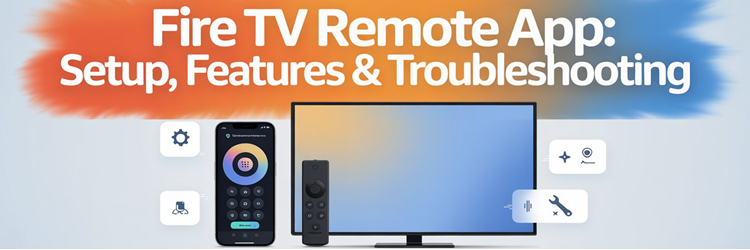
Key Takeaway: The official Fire TV Remote App is free and now does much more than replace a lost remote. It can navigate Fire TV, enter text, use Alexa, browse recommendations, manage profiles and watchlists, and launch supported titles. Reliable control still depends on an Amazon account, compatible hardware, and both devices sharing the same local Wi-Fi network.
Losing the physical remote is frustrating, but the bigger problem is often getting the phone app to discover the correct Fire TV. This guide explains the current 2026 setup, the redesigned app’s useful features, and a symptom-first troubleshooting process for missing devices, rejected PINs, lag, keyboard failures, voice problems, and unsupported volume or power controls.
I recommend installing only the app named Amazon Fire TV from Amazon’s verified store listing. The interface changed substantially in 2026, so older tutorials that open directly to a simple remote may no longer match what you see. The remote is now one part of a broader companion app with Home, search, profiles, personalized discovery, and My Stuff or watchlist tools.
Fire TV Remote App Setup Requirements
Setup is quick when the phone and Fire TV can see each other on the same private network. Confirm the basics before reinstalling anything, because most discovery failures happen before the pairing code stage. The current app also requires an Amazon account, and mobile operating-system support can change faster than older help pages or screenshots.
- Official App: Choose Amazon Fire TV from AMZN Mobile LLC or Amazon Mobile LLC, not a similarly named subscription-based third-party remote.
- Mobile Support: Amazon lists Android 7.0 or newer, while the current US App Store listing requires iOS or iPadOS 15.1 or later.
- Shared Network: Connect the phone and Fire TV to the same local Wi-Fi, avoiding guest networks that isolate connected devices from one another.
- Amazon Account: Sign in inside the app; Amazon requires an account for companion features, personalized content, profiles, and launching titles on Fire TV.
- Visible Screen: Keep the television on the correct Fire TV input so you can read and approve the on-screen connection request or PIN.
| Requirement | What to check | Why it matters |
|---|---|---|
| Phone or tablet | Supported iOS, iPadOS, Android, or Fire tablet | The app must install and receive updates |
| Fire TV | Powered on and connected to the home network | Local discovery cannot find an offline device |
| Wi-Fi | Same private LAN, not an isolated guest network | The app discovers Fire TV locally |
| Account | Valid Amazon sign-in | Required for the redesigned companion experience |
| Permissions | Local network and microphone when needed | Discovery and Alexa depend on allowed access |
Download the verified Android release from Google Play or the verified iPhone and iPad release from the Apple App Store.
How to Connect the Fire TV App to Your TV
Amazon’s current flow places the remote behind a remote icon instead of always opening on the controller. The exact wording can vary, but the connection process remains straightforward: sign in, choose the remote area, select a discovered Fire TV, and confirm the request shown on the television. Complete the steps while both screens remain awake.
- Join Wi-Fi: Open network settings on the phone and verify its network name matches the connection used by the Fire TV device.
- Open and Sign In: Launch Amazon Fire TV, complete the Amazon-account sign-in, and allow local-network access if your phone requests it.
- Choose Remote: Tap the remote icon, select the available Fire TV, or choose Set Up New Fire TV when configuring supported hardware.
- Enter the PIN: Type the four-digit code displayed in the Fire TV Remote App Connection Request on the television, not an account PIN.
- Test Control: Move one item with the directional pad, press Select, open Home, and test the keyboard before treating setup as complete.
If several devices appear, compare their names under Settings > My Fire TV or Device & Software > About. Renaming devices in your Amazon account can also make a multi-TV household easier to manage, although a renamed device may take time to refresh inside the mobile app.
What the Redesigned Fire TV App Can Do
The 2026 app is a Fire TV companion rather than a remote-only utility. Amazon’s current help page divides it into Remote, Search, Home, Profiles, and My Stuff. Recent store releases add content hubs, sports discovery, watchlist filters, and one-tap playback on a Fire TV or phone, although rollout and catalog availability can differ by region.
- Remote Navigation: Use the directional pad to move focus, select items, return home, go back, and open available menus on the connected Fire TV.
- Faster Search: Search across supported Fire TV content with text or voice instead of moving through the television’s on-screen keyboard one letter at a time.
- Content Home: Browse recommendations and title details, then open supported content on the connected television without first finding it through the Fire TV home screen.
- Profiles and Watchlist: Switch profiles, refine recommendations, like or dislike titles, and manage a watchlist that synchronizes across Fire TV devices within that profile.
- Current Hubs: Recent versions organize movies, television, sports, and free content, with watchlist filters that separate films from TV shows for quicker browsing.
| Feature | Best use | Important limitation |
|---|---|---|
| Directional remote | Everyday Fire TV navigation | Requires a local connection |
| Mobile keyboard | Search boxes and sign-in fields | Appears only in compatible text fields |
| Alexa voice | Search and supported playback commands | Microphone permission and cloud processing apply |
| Home and discovery | Browse recommendations away from the TV | Content availability varies by service and region |
| My Stuff | Manage and sync watchlists | Uses the selected Amazon profile |
| Volume and power | Supported televisions and equipment | Depends on Fire TV support and HDMI-CEC |
How the On-Screen Remote Behaves
A phone screen cannot reproduce every hardware button or infrared command. The app sends navigation over the local network, while television power, volume, and connected-speaker control may depend on compatible Fire TV equipment settings and HDMI-CEC. Understanding that split prevents you from repeatedly pairing the app when only an equipment-control feature is unavailable.
- Directional Pad: Swipe or tap the displayed navigation area to move focus, then use the center control to select the highlighted item.
- Core Buttons: Home, Back, and menu controls act like their Fire TV remote equivalents, though placement can change between mobile app releases.
- Keyboard Trigger: The mobile keyboard becomes useful when Fire TV exposes a compatible text field; it may remain hidden in custom or protected inputs.
- Voice Button: Hold the voice control while speaking and release it when finished; a blue bar on the television indicates audio transmission.
- Equipment Commands: Volume and power appear only on supported combinations, so their absence does not mean ordinary navigation pairing has failed.
Fire TV Not Showing in the App
When the device list is empty, troubleshoot discovery before the pairing code. The phone must reach the Fire TV across the local network, and routers can block that traffic even when both devices have internet access. Check the exact network, permissions, isolation settings, device power, and temporary tunnels in that order instead of immediately factory-resetting Fire TV.
- Compare Network Names: Confirm both devices use the same router and private LAN; matching internet service alone is not enough for local discovery.
- Leave Guest Wi-Fi: Guest and client-isolated networks commonly prevent devices from seeing one another, even when streaming and ordinary web browsing still work.
- Allow Local Access: Re-enable the Fire TV app’s local-network or nearby-device permission in phone settings, then completely reopen the app.
- Pause VPNs: Temporarily disconnect a phone VPN, private relay, or security tunnel that may route local discovery away from the home network.
- Wake Fire TV: Turn on the television and correct input, then restart Fire TV if it remains asleep, offline, or absent after network checks.
The phone and Fire TV do not necessarily need the same Wi-Fi frequency. A 2.4 GHz phone can often reach a 5 GHz Fire TV when both bands belong to the same LAN. The real blockers are separate guest networks, wireless isolation, incompatible mesh settings, or a router that prevents multicast and local device discovery.
The Pairing PIN Appears but Connection Fails
Reaching the four-digit PIN means discovery worked; the failure has moved to authorization or session setup. Use the newest code shown on the television and avoid confusing it with a Prime Video, parental-control, or Amazon account PIN. Then clear stale sessions methodically without resetting the whole streaming device or changing unrelated account security settings.
- Use the Current Code: Enter the four digits from the active Fire TV Remote App Connection Request before that screen disappears or refreshes.
- Keep Screens Awake: Prevent the phone from locking and leave the television on the connection request until the app confirms successful pairing.
- Retry the Device: Return to the app’s Fire TV list, select the correct device again, and enter the newly generated code rather than reusing the old one.
- Restart Both Ends: Force-close the mobile app, restart Fire TV from Settings, and reopen the app only after the Fire TV home screen returns.
- Refresh the App: Update Amazon Fire TV from the official store; reinstall only after network, permissions, time, and restart checks have failed.
Fix Lag, Freezes, and Repeated Disconnects
A connected app that responds slowly has a different problem from a missing device. Delayed button presses usually point to local Wi-Fi quality, a busy Fire TV, mobile power restrictions, or a stale app session. Work from the least disruptive fix upward, and never tap a control repeatedly because queued commands can all execute after the delay clears.
- Test One Command: Press a direction once and wait; repeated taps can create overshooting or unexpected volume changes when delayed commands finally arrive.
- Improve Local Signal: Move closer to the router, reduce interference, and compare performance on the home network rather than cellular or guest Wi-Fi.
- Remove Phone Restrictions: Disable battery optimization or background suspension for the Fire TV app if the connection drops whenever the screen dims.
- Restart the Network: Power-cycle the modem and router, reconnect the modem first, then restart other devices after the network is fully available.
- Update Both Devices: Install the current mobile app and Fire TV software, keeping enough Fire TV storage available for a complete system update.
| Symptom | Most likely layer | First useful action |
|---|---|---|
| Fire TV missing | Local discovery | Match network and permissions |
| PIN rejected | Pairing session | Generate and enter a fresh code |
| Commands delayed | Wi-Fi or device load | Wait after one press and check signal |
| Disconnects when phone locks | Mobile power management | Remove background restrictions |
| Keyboard absent | Unsupported text field | Select a standard Fire TV search field |
| Voice button silent | Microphone permission | Allow microphone and retry |
| Volume or power missing | Compatibility or HDMI-CEC | Check equipment control support |
Keyboard, Alexa, Volume, or Power Not Working
These controls use different services, so ordinary navigation can work while one advanced feature fails. The keyboard depends on a compatible Fire TV text field, Alexa needs microphone access and sends voice audio for cloud processing, and equipment commands need a supported Fire TV plus properly configured television or speaker control. Diagnose only the missing function.
- Keyboard: Place focus inside a normal Fire TV search or sign-in field; custom app keyboards and protected password boxes may not accept phone input.
- Alexa: Allow microphone access, hold the voice button while speaking, and watch for the blue Fire TV indicator that confirms audio is being sent.
- Power Control: Look for the setup option in the app; Amazon says it appears only when the connected Fire TV supports the feature.
- Television Volume: Enable HDMI-CEC in television settings and confirm the physical Fire TV remote can already control volume before blaming the mobile app.
- External Audio: Configure the soundbar or receiver under Fire TV Equipment Control when the app navigates correctly but cannot adjust connected-speaker volume.
Use the App to Pair a Replacement Fire TV Remote
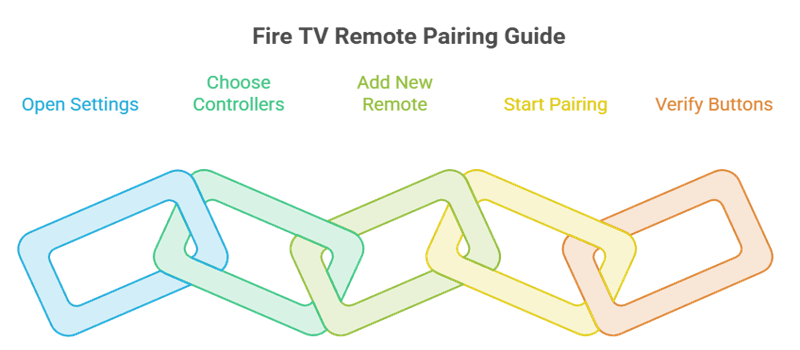
The mobile app is especially valuable when the original remote is lost but Fire TV is still online. It can navigate to the pairing screen for a new or replacement controller. This solves a physical-remote problem without resetting Fire TV, removing apps, or signing out, and it preserves the phone as a backup controller afterward.
- Open Settings: Connect the mobile remote and navigate directly from the Fire TV home screen to the main Settings menu.
- Choose Controllers: Select Controllers & Bluetooth Devices, then open Amazon Fire TV Remotes to see controllers associated with the streaming device.
- Add New Remote: Select Add New Remote and place the replacement controller close to Fire TV with fresh alkaline batteries installed.
- Start Pairing: Hold Home on the replacement remote for about ten seconds when instructed, then select that remote using the mobile app.
- Verify Buttons: Test navigation, Home, Back, voice, volume, and power separately because equipment-control buttons can require additional setup after Bluetooth pairing.
When the Phone Remote Is Not Enough
The app cannot control a Fire TV it cannot reach on the local network, making first-time setup or a changed router the hardest case. Before factory-resetting anything, try a compatible television remote through HDMI-CEC, a known working Fire TV remote, or wired Ethernet on supported hardware. For controller-specific recovery, follow our Firestick remote not working guide.
- New Network: If Fire TV remembers an old Wi-Fi network, the phone app cannot discover it until the streaming device joins the current LAN.
- HDMI-CEC Fallback: A compatible television remote may navigate Fire TV when CEC is enabled, providing enough control to update the Wi-Fi settings.
- Ethernet Option: Supported Fire TV devices or adapters can establish a wired connection, allowing local discovery while you repair wireless settings.
- Borrowed Controller: A compatible physical remote can be temporarily paired to complete setup, after which the mobile app becomes a reliable backup.
- Avoid Resetting: Factory reset removes accounts, apps, and settings and can leave you at a setup screen that still requires working input.
Fire TV App Privacy and Safe Use
The official app is free, but it still processes account, usage, diagnostic, and voice-related data according to Amazon’s privacy disclosures. Use the minimum permissions needed for your chosen features and keep remote control on a trusted home network. A third-party remote can introduce separate subscriptions, advertising, trackers, or data practices without improving Fire TV compatibility.
- Verify Publisher: Confirm AMZN Mobile LLC or Amazon Mobile LLC on the store page before installing an app with a similar Fire TV name.
- Limit Microphone: Grant microphone permission only when using Alexa voice features; text search and directional navigation do not need recorded speech.
- Watch the Indicator: Amazon displays a blue bar on Fire TV when the app’s voice button is sending audio for cloud processing.
- Protect the Network: Avoid remote pairing on shared public Wi-Fi, and do not weaken router isolation settings merely to make untrusted devices discoverable.
- Review Profiles: Confirm the selected household profile before changing recommendations, likes, dislikes, or watchlists that synchronize across associated Fire TV devices.
Verdict
The official Amazon Fire TV app is the best first backup for a lost remote because it is free, account-aware, and designed for Fire TV. Its 2026 redesign adds meaningful discovery and watchlist tools, but local-network pairing remains the foundation. Match the Wi-Fi, approve the current PIN, test one function at a time, and treat power or volume as compatibility-dependent extras rather than guaranteed remote buttons.
FAQs
Is the Amazon Fire TV Remote App free?
Yes. The official Amazon Fire TV app is free on Google Play and Apple’s App Store. Check the publisher carefully because third-party remote apps may charge subscriptions.
Does the phone and Fire TV need the same Wi-Fi?
Yes. They need access to the same local network. Separate guest networks or wireless client isolation can block discovery even when both devices have working internet.
Where do I find the four-digit Fire TV app code?
Select your Fire TV inside the mobile app. The television displays a Fire TV Remote App Connection Request with the four-digit code needed for that pairing session.
Can the Fire TV app turn on my television?
Only on supported device and television combinations. Amazon says the setup option appears when available, and power control may depend on compatible HDMI-CEC equipment.
Why is the Fire TV app keyboard not appearing?
The keyboard normally appears for supported Fire TV text fields. Custom in-app keyboards, protected password inputs, or an unfocused search box may not trigger mobile typing.
Can I use the app when Fire TV is on a different Wi-Fi network?
No. The remote connection is local. Use HDMI-CEC, a compatible physical remote, or supported Ethernet to bring Fire TV onto the phone’s current network first.
Why does the app disconnect when my phone locks?
Mobile battery optimization can suspend the session. Allow appropriate background activity, keep Wi-Fi active during sleep, update the app, and reconnect after reopening it.
Should I clear the Fire TV cache to fix the remote app?
Usually not first. Start with network, permissions, pairing, and restarts. If Fire TV itself is slow or low on storage, use our Firestick cache-clearing guide and remove only the data you intend to clear.