Key Takeaway: If your Firestick is not working, start with power, HDMI input, and a forced restart before changing apps or resetting anything. Then isolate whether the failure affects the whole device, the network, one app, or only the remote. Most problems are recoverable without a factory reset, which should remain the final software step.
A Fire TV Stick can look completely dead, freeze on its logo, lose Wi-Fi, open to a blank screen, ignore its remote, or fail only inside one streaming app. Those symptoms feel similar from the sofa, but they have different causes. Working through them in the wrong order often creates more work and can erase app logins unnecessarily.
I recommend diagnosing the smallest failing layer first: television input, Firestick power, Fire OS, network, application, and remote. This guide follows that order and gives you exact menu paths, button combinations, and stop points. It also explains when a reset is justified, what it removes, and when replacement or Amazon support is the more sensible next move.
Firestick Not Working? Start With This Five-Minute Recovery Order
Begin with checks that are fast, reversible, and capable of fixing several symptoms at once. Do not clear data, uninstall apps, or reset the device yet. This sequence distinguishes a television-input mistake from a power problem, a temporary Fire OS lockup, a home-network failure, or one damaged application. Stop as soon as the Firestick behaves normally again.
- Confirm Input: Match the television source to the exact HDMI port holding the Firestick, especially after using a console, receiver, or soundbar.
- Restore Power: Connect the original power adapter to a reliable wall outlet instead of depending on a low-output television USB port or questionable extension lead.
- Force Restart: Hold Select and Play/Pause together for about five seconds, or unplug power for 60 seconds when the remote cannot respond.
- Test Scope: Open Settings and another app; if only one service fails, treat it as an application problem rather than a device failure.
- Check Network: Test Wi-Fi on a phone and run Fire TV Network Diagnostics before restarting or resetting equipment that is already working correctly.
| What You See | Most Likely Layer | First Action |
|---|---|---|
| No light, logo, or HDMI signal | Power, outlet, input, or HDMI path | Use the supplied adapter, correct input, and direct HDMI connection |
| Logo remains on screen | Fire OS startup or unstable power | Power-cycle for 60 seconds and remove USB accessories |
| Home screen works but one app fails | App cache, data, update, or service outage | Force stop, clear cache, and check the app version |
| Everything buffers or says offline | Wi-Fi, router, DNS, or ISP | Run Network Diagnostics and test another device |
| Screen moves through the phone app only | Physical remote batteries or pairing | Replace batteries, pair again, then reset the remote |
Why a Firestick Suddenly Stops Working
A Firestick depends on several systems outside the stick itself. The television supplies the display path, the adapter supplies stable power, Fire OS manages limited memory and storage, the router handles connectivity, and each app maintains its own temporary files and login state. A failure in any layer can produce the same vague complaint, so the symptom matters more than guessing a single universal cause.
- Weak Power: Underpowered television USB sockets or damaged cables can cause boot loops, random restarts, a frozen logo, and unexplained shutdowns during playback.
- HDMI Conflict: The wrong input, an unreliable hub, an incompatible cable, or a receiver handshake can leave the television blank while Fire OS runs.
- Memory Pressure: Fire TV apps share limited RAM, so background activity, heavy streaming software, or a bad app update can trigger freezes and crashes.
- Storage Pressure: A nearly full device may struggle to update Fire OS, install applications, build caches, or retain enough working space for smooth navigation.
- Network Failure: Router outages, changed passwords, weak signal, DNS trouble, or app-server downtime can make a healthy Firestick appear broken or unresponsive.
Fix a Firestick That Will Not Turn On or Shows No Signal
If the television reports “No Signal,” do not assume the Firestick has failed. First prove that power reaches the device and that the picture has a clean route to the correct input. Amazon recommends using the equipment supplied with the device, removing hubs during diagnosis, and connecting directly to the television. These checks also catch many intermittent black-screen complaints.
- Use Wall Power: Plug the original adapter into a known-good wall socket; television USB ports may not deliver enough consistent current for reliable startup.
- Reseat Connections: Disconnect the Firestick from HDMI and power, wait 60 seconds, then reconnect power and select the matching television input.
- Bypass Equipment: Remove HDMI hubs, splitters, receivers, and soundbars temporarily, connecting the Firestick directly to an available television HDMI port for diagnosis.
- Change HDMI Port: Try a different television port and, when using an extender or cable, replace it with a known working high-speed connection.
- Cycle Resolution: Hold Up and Rewind together for five seconds, allowing Fire TV to cycle resolutions when the selected mode is incompatible.
Recover a Frozen Logo, Black Screen, or Restart Loop
A Firestick that displays its logo has power and at least some HDMI communication, which narrows the problem to startup, software, attached equipment, or unstable power. A brief black flicker while 4K playback changes modes can be normal; a screen that stays black is not. Work from a clean restart toward display settings before considering a factory reset.
- Wait Once: After an update, allow a single extended startup before interrupting power, because repeated unplugging can prolong installation or recovery work.
- Force Reboot: Hold Select and Play/Pause for roughly five seconds; if nothing changes, disconnect power for a full 60 seconds instead.
- Remove Accessories: Disconnect OTG adapters, USB storage, Ethernet adapters, and HDMI hubs until the device reaches Home, then reconnect accessories individually.
- Reset CEC: When menus remain accessible, open Settings, Display & Audio, HDMI-CEC Device Control, then switch the setting off and on.
- Control Heat: Move the stick away from enclosed spaces and television exhaust vents, letting an unusually hot device cool before another startup attempt.
Fix Wi-Fi, Buffering, and a Home Screen That Will Not Load
When the interface opens but tiles remain blank, videos buffer, or “Unable to Connect” appears, separate a Firestick problem from a home-network outage. Amazon includes an on-device Network Status Tool that checks connection details and can offer a speed test on compatible models. Use it before changing router settings, DNS, subscriptions, or applications.
- Run Diagnostics: Open Settings, Network, highlight the current network, and press Play/Pause to view connection status and device-specific recommendations.
- Compare Devices: Test the same Wi-Fi on a phone; multiple offline devices point toward the router, modem, ISP, or broader outage.
- Reset Wi-Fi: Turn Wi-Fi off and back on, then forget the network and re-enter its password if authentication remains stuck.
- Restart Network: Unplug modem and router for one minute, reconnect the modem first, wait for service, then reconnect the router afterward.
- Improve Signal: Reduce distance and interference, or test another available band; a strong nearby connection helps distinguish coverage from device failure.
Repair Apps That Crash, Refuse to Open, or Will Not Install
If Home, Settings, and other applications work, the Firestick itself is functioning. Treat the affected app as the failing layer and preserve its login data until simpler steps fail. Temporary files, an interrupted update, insufficient storage, or a service-side outage can all break one app. Clearing data is more disruptive than clearing cache because it resets the application.
- Force Stop: Go to Settings, Applications, Manage Installed Applications, choose the app, select Force Stop, and reopen it from the Apps library.
- Clear Cache: Use the same application screen and choose Clear Cache, which removes temporary files without normally deleting your account sign-in.
- Clear Data Carefully: Select Clear Data only after cache fails, because the app returns to its initial state and usually requires authentication again.
- Check Availability: Confirm whether the service works on another device before reinstalling; an operator outage cannot be repaired through Fire TV settings.
- Reinstall Last: Remove and reinstall the app from its official store listing after checking free storage and completing any pending Fire OS update.
Reconnect a Firestick Remote That Is Not Responding
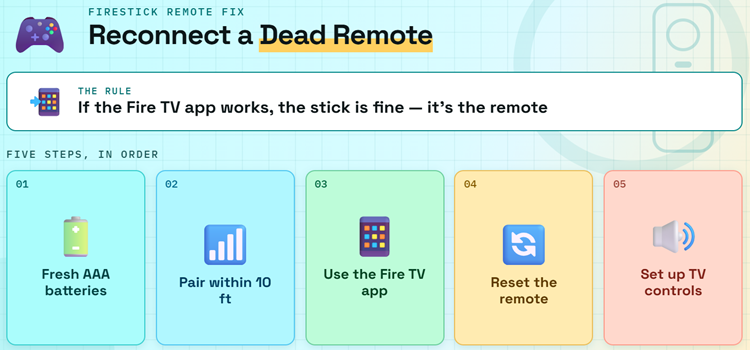
A remote failure is easy to mistake for a frozen Firestick. Try the Fire TV mobile app on the same Wi-Fi network; if the app controls the screen, focus on batteries and Bluetooth pairing. Amazon’s current instructions place the remote within 10 feet during pairing and use a specific reset combination for most Alexa Voice Remotes.
- Replace Batteries: Install a fresh pair of alkaline AAA batteries, checking polarity and contacts instead of assuming partially used cells provide enough voltage.
- Pair Nearby: Stand within 10 feet of the Firestick and hold Home for about 10 seconds until pairing completes or a confirmation appears.
- Use Mobile Control: Connect the official Fire TV app to the same network so you can navigate Settings while diagnosing the physical remote.
- Reset Remote: Unplug Fire TV for 60 seconds, hold Left, Menu, and Back for 12 seconds, then follow Amazon’s full pairing sequence.
- Separate TV Controls: Volume and power buttons may need equipment-control setup even when navigation works, because those commands can use different control methods.
Update Fire OS and Recover Space Without Erasing Everything
Software and storage problems often appear together: the Firestick needs working space to download and install updates, while outdated software can leave apps unstable. Check available storage before repeatedly starting an update. Remove apps you no longer use, clear temporary cache, restart, and then run the official update path with stable power and Wi-Fi.
- Check Storage: Open Settings, My Fire TV or Device & Software, and About to review available space before installing large applications or updates.
- Remove Unused Apps: Uninstall games and streaming applications you no longer need, prioritizing large downloads instead of repeatedly clearing tiny caches.
- Clear Temporary Files: Under Applications, manage installed apps individually or use Clear All Application Caches when that option appears on your device.
- Check Updates: Follow Amazon’s Fire TV update path: Settings, My Fire TV or Device & Software, About, then Check for System Update.
- Protect Installation: Keep the device on wall power and connected to stable Wi-Fi until it restarts, avoiding power interruption during the update process.
Factory Reset or Replace? Choose the Right Final Step
A factory reset is appropriate when device-wide software problems survive every targeted fix, not when one app or remote is failing. It removes the registered account and downloaded content, so note your logins and recovery details first. Persistent power loss, physical HDMI damage, or overheating usually points beyond software and should not be “fixed” by repeatedly resetting.
- Reset Software Faults: Consider a reset for recurring device-wide freezes, corrupted settings, or update failures after power, storage, network, and app checks pass.
- Avoid Unnecessary Loss: Do not reset for one broken app, a router outage, dead batteries, the wrong television input, or a service-side outage.
- Prepare Accounts: Record Wi-Fi credentials and confirm access to streaming accounts, authenticators, and email before removing the Firestick’s locally stored registrations.
- Use Official Reset: Open My Fire TV and choose Reset to Factory Defaults, or hold Back and Right together for 10 seconds.
- Replace Hardware: Compare current Firestick alternatives when stable power and direct HDMI cannot stop recurring hardware-like failures on an older device.
| Situation | Factory Reset? | Better Next Step |
|---|---|---|
| Only one app crashes | No | Force stop, clear cache, update, then reinstall that app |
| Remote fails but phone control works | No | Replace batteries, pair, reset, or replace the remote |
| All devices lost internet | No | Restart network equipment or contact the ISP |
| Device-wide freezes survive targeted fixes | Possibly | Back up access details, then use the official reset path |
| No power on verified adapter and outlet | No | Contact Amazon support or replace failed hardware |
How I Prioritized These Firestick Fixes
The most useful troubleshooting order restores service quickly while protecting the reader’s accounts and settings. I prioritized reversible actions that isolate one layer at a time, then placed destructive recovery last. Current Amazon guidance supplied the menu paths and remote combinations, while symptom boundaries determined when a network, application, television, accessory, or hardware response was more appropriate.
- Low Risk First: Input, cable, power, restart, and network checks can solve broad failures without removing applications, logins, preferences, or downloaded content.
- One Layer: Each step tests a specific dependency, preventing an app outage from being misdiagnosed as defective Fire TV hardware or internet service.
- Current Paths: Menu names account for both My Fire TV and Device & Software labels used across different device generations and interfaces.
- Official Combinations: Forced restart, resolution cycling, remote reset, pairing, and factory-reset button sequences all follow Amazon’s currently documented Fire TV support instructions.
- Clear Stop Points: Hardware-like symptoms, widespread network outages, and service failures redirect you toward support rather than repeating irrelevant resets or reinstalls.
Verdict
Most “Firestick not working” complaints become manageable once you identify the failing layer. Start with correct input and wall power, force a restart, then decide whether the fault follows the network, one app, or the remote. Save factory reset for persistent device-wide software trouble, and move to support or replacement when verified power and direct HDMI still cannot produce stable operation.
- No Picture: Verify wall power, television input, direct HDMI, and resolution settings before treating the stick itself as permanently failed hardware.
- Device Works Partly: Diagnose Wi-Fi, a single application, or the remote separately so one small failure does not trigger an unnecessary reset.
- Nothing Lasts: Reset only after targeted fixes fail; repeated power loss or HDMI instability deserves support or replacement instead of another software change.
FAQs
Why is my Firestick not working even though it has power?
Power does not guarantee a valid picture or completed startup. Confirm the television is on the matching HDMI input, bypass any hub or receiver, reseat the Firestick, and force a restart. If the logo appears but Home never loads, remove USB accessories, allow one full startup, and check whether unstable power or a pending update is causing the loop.
How do I restart a frozen Firestick without using Settings?
Hold the Select button and Play/Pause button together for about five seconds. If the remote is also unresponsive, unplug the Firestick’s power cable for 60 seconds and reconnect it. Use the wall adapter rather than a television USB port during diagnosis. A restart preserves apps and logins, unlike a factory reset.
Why does my Firestick work but the remote does not?
The remote may have weak batteries, lost Bluetooth pairing, dirty contacts, or a separate equipment-control problem. Use the mobile Fire TV app to confirm the stick responds, then replace batteries and hold Home for 10 seconds. Our Firestick remote troubleshooting guide covers the full reset sequence and button-specific failures.
Will clearing cache delete my Firestick app login?
Clearing cache normally removes temporary files without deleting the account sign-in. Clearing data is different: it resets the application and commonly requires you to log in again. Use Force Stop first, then Clear Cache. Choose Clear Data only when the app still fails and you know the credentials needed to reconnect it.
Does factory resetting a Firestick remove everything?
It removes registered account information and downloaded content from the device, returning Fire TV to its setup state. You will need to pair a remote, join Wi-Fi, register the Amazon account, reinstall apps, and sign back into services. Content held in online accounts remains available after you authenticate again, subject to each service’s rules.
How do I know whether the Firestick itself has failed?
Hardware failure becomes more likely when the device shows no output with a verified compatible adapter, working wall outlet, direct HDMI connection, alternate HDMI port, and no attached accessories. Repeated shutdowns despite stable power or visible physical damage also justify support. Before replacing it, test the same television port with another device to rule out the display.