Quick Answer: “Jailbreaking” a Firestick doesn’t actually crack anything. It’s a 30-second settings change — enable Apps from Unknown Sources under Settings → My Fire TV → Developer Options, install the Downloader app from the Amazon Appstore, and you can now sideload any Android APK. From there, free content comes from legal, ad-supported apps like Tubi, Pluto TV, Freevee, The Roku Channel, Plex, Crackle, Kanopy, and Kodi with reputable add-ons. The process is legal under the DMCA. The pirate streaming apps most YouTube tutorials push (Cinema HD, BeeTV, CyberFlix, OneBox HD) are not — and this guide explains the difference clearly.
Why You Can Trust FirestickTVStream
This guide is written for users who want a clear, technically accurate, and legally honest walkthrough of how to unlock a Fire TV Stick — not a thinly disguised affiliate funnel. Most of the top-ranking jailbreak guides online either fearmonger about ISP tracking to push a VPN signup, recommend known piracy apps without telling you they’re known piracy apps, or skip the part where some 2024+ Firesticks physically cannot be jailbroken at all.
Every method, app, and claim in this article has been cross-referenced against:
- The current Amazon Fire TV developer documentation (
developer.amazon.com/docs/fire-tv) - The Digital Millennium Copyright Act (DMCA) Section 1201 exemptions issued by the U.S. Copyright Office
- The Electronic Frontier Foundation’s published positions on device modification
- The official app stores of every legitimate streaming service mentioned (Amazon Appstore, Google Play, app developer pages)
- Firsthand testing on a Fire TV Stick 4K Max (2nd gen) and a Fire TV Stick HD running Fire OS 8
Where competing guides are vague or misleading, this one is specific. If something is legally ambiguous, it’s flagged. If an app is sketchy, it’s named. If a step has a catch, you’ll see it before you take it.
What “Jailbreaking” a Firestick Actually Means
Let’s clear up the terminology, because almost every guide on the internet gets this wrong.
Jailbreaking, in the strict technical sense, is what people do to iPhones — exploiting kernel-level vulnerabilities to bypass Apple’s code-signing restrictions and run unsigned software. It involves rooting the device, modifying system files, and often voiding the warranty.
None of that applies to a Firestick. Fire OS is a fork of Android. Amazon already gives every Firestick owner the ability to install third-party apps — the option is just disabled by default. When YouTube tutorials and clickbait articles say “jailbreak your Firestick,” what they actually mean is enable sideloading, which is a single toggle Amazon ships in the operating system on purpose.
That’s why this “jailbreak” takes 30 seconds and works on every supported Firestick generation. You’re not exploiting anything. You’re flipping a switch Amazon left for you.
The reason the misnomer stuck is marketing. “Jailbreak your Firestick” gets clicks; “enable Install Unknown Apps in Developer Options” doesn’t. Throughout the rest of this article, “jailbreak” means the simple, legal, official process of enabling sideloading — nothing else.
Is Jailbreaking a Firestick Legal?
Yes, in the United States and most Western countries — with one important caveat.
In the U.S., the DMCA Section 1201 has carried explicit exemptions for jailbreaking and modifying personally owned devices since the original 2010 ruling, which was reaffirmed and expanded in the 2024 triennial review. The U.S. Copyright Office and the EFF have repeatedly confirmed that consumers have the right to modify devices they own for non-commercial use.
In short: enabling Apps from Unknown Sources on your own Firestick is no more illegal than sideloading an APK on your own Android phone.
The caveat is what you do afterward.
- Installing Tubi, Pluto TV, Plex, Kodi, Stremio, Aptoide TV, or any legal app — fully legal everywhere.
- Streaming licensed free content through ad-supported services — fully legal everywhere.
- Streaming unlicensed copyrighted content through pirate apps — illegal in the U.S., U.K., E.U., Canada, Australia, and most other jurisdictions.
This guide draws a hard line: it shows you how to jailbreak the device and points you toward the legitimate free-content ecosystem, which is genuinely huge in 2026 — bigger than most paid services were five years ago. It does not list which pirate streaming apps to install, because those apps (a) get their users in legal trouble, (b) tend to come bundled with malware, and (c) get shut down on a six-month cycle anyway. More on that in the “Apps to Avoid” section.
The State of Fire TV Devices (May 2026): Read This Before You Start
Not every Firestick on the market in 2026 can be jailbroken. Amazon began rolling out Vega OS — a Linux-based replacement for Fire OS / Android — on select 2024+ devices, and Vega OS does not support Android sideloading at all. There is no Apps from Unknown Sources toggle, no Downloader app for Vega, and no APK compatibility.
This is a critical distinction that almost no other guide flags clearly:
| Device | Operating System | Sideloading Supported? | Can Be Jailbroken? |
|---|---|---|---|
| Fire TV Stick (1st gen, 2014) | Fire OS 5 (Android 5.1) | ✅ Yes | Yes — but limited APK choices |
| Fire TV Stick (2nd gen, 2016) | Fire OS 5/6 (Android 5.1/7.1) | ✅ Yes | Yes |
| Fire TV Stick 4K (2018) | Fire OS 6/7 (Android 7.1/9) | ✅ Yes | Yes |
| Fire TV Stick Lite | Fire OS 7 (Android 9) | ✅ Yes | Yes |
| Fire TV Stick (3rd gen, 2020) | Fire OS 7 (Android 9) | ✅ Yes | Yes |
| Fire TV Stick 4K Max (1st gen, 2021) | Fire OS 7 (Android 9) | ✅ Yes | Yes |
| Fire TV Cube (1st, 2nd, 3rd gen) | Fire OS 7/8 | ✅ Yes | Yes |
| Fire TV Stick 4K Max (2nd gen, 2023) | Fire OS 8 (Android 11) | ✅ Yes | Yes |
| Fire TV Stick HD (2024) | Fire OS / Vega OS | ⚠️ Depends on unit | Check first |
| Fire TV Stick 4K Select (2024+) | Vega OS | ❌ No | No |
How to check which OS your Firestick runs: Settings → My Fire TV → About. If it says “Fire OS” followed by a version number (5/6/7/8), you can jailbreak it. If it says “Vega OS,” you cannot — full stop. There is no workaround at the time of writing, and Amazon has confirmed Vega will replace Fire OS on more devices throughout 2026.
If you bought a Firestick in late 2024 or 2025 and it’s running Vega OS, this guide won’t help you. The honest advice is to either return it (within Amazon’s window) and buy an older Fire TV Stick 4K Max (2nd gen, 2023) on the secondary market, or pivot to a different streaming device that still allows sideloading — Onn 4K Pro, NVIDIA Shield, or a Chromecast with Google TV.
Before You Jailbreak: A 3-Minute Pre-Flight Checklist
Skipping this part is how people end up with a brick of a Firestick and a Reddit post asking why nothing works. Spend three minutes here.
✅ Confirm your device runs Fire OS, not Vega OS
Covered in the section above. If it’s Vega, stop reading — there’s nothing to do.
✅ Make sure your Firestick is on the home network
Sideloading downloads files over Wi-Fi. A flaky connection during install is the #1 cause of “Package appears to be invalid” errors.
✅ Free up at least 500 MB of internal storage
Most APKs are 50–200 MB, but Fire OS needs working room during install. Go to Settings → Applications → Manage Installed Applications, sort by size, and clear caches on Silk Browser, Prime Video, and YouTube if you’re tight.
✅ Update your Firestick to the latest Fire OS
Settings → My Fire TV → About → Check for Updates. Some sideloading bugs (especially around Downloader’s Install button) only exist on older Fire OS builds.
✅ Decide what you actually want to install
This guide will recommend a curated list of legitimate free apps. Have a sense of what you’re after — movies on demand, live channels, sports, your own media library — before you start. It’s easy to install fifteen apps you’ll never open.
That’s it. No backup needed. No PC required. No risk to the device.
How to Jailbreak Firestick: Step-by-Step (Method 1 — The Standard Way)
This is the method that works on every supported Firestick generation, takes about 90 seconds, and uses only Amazon-sanctioned tools.
Step 1: Enable Developer Options
On newer Fire OS builds (Fire OS 7 and 8), Developer Options are hidden by default. To unlock them:
- From the home screen, go to
Settings → My Fire TV. - Click About.
- Highlight the top item — Fire TV Stick (or your specific model name).
- Click it 7 times in rapid succession. After 4–5 clicks, you’ll see a counter: “No need, you are already a developer.” That’s normal — it means the option is now unlocked.
- Press the back button. Developer Options now appears in the My Fire TV menu.
Step 2: Enable Apps from Unknown Sources
- Open the newly visible Developer Options.
- Click Install Unknown Apps (older Fire OS calls this Apps from Unknown Sources).
- You’ll see a list of installed apps with toggles next to each.
- Don’t toggle anything yet — this list is per-app permission. We’ll come back here in a moment.
Why per-app and not a global toggle? Fire OS 7 and Fire OS 8 follow the modern Android security model: instead of one master switch that allows any app to install APKs, you grant permission to specific apps individually. This is more secure, because a malicious browser can’t silently install something on your behalf.
Step 3: Install the Downloader App
Downloader is the de facto standard sideloading tool for Fire TV. It’s free, ad-supported, available in the Amazon Appstore (so it’s vetted), and built specifically to fetch APKs.
- From the Firestick home screen, hit the search icon (magnifying glass).
- Type Downloader — or hold the Alexa button and say “Downloader.”
- Select the Downloader app by AFTVnews (the developer is Elias Saba, a long-time Fire TV community figure).
- Click Get or Download. It installs in seconds.
Step 4: Grant Downloader Permission to Install Apps
Now go back to Settings → My Fire TV → Developer Options → Install Unknown Apps. Find Downloader in the list and toggle it ON.
This is the actual “jailbreak” step. From this moment, your Firestick can install any APK Downloader fetches.
Step 5: Test It With a Legitimate APK
Don’t go straight to grabbing pirate software off some shady link. The cleanest first test is the official Kodi APK — it’s open-source, signed, and confirms your sideloading setup is working.
- Open Downloader.
- In the URL field, enter:
https://kodi.tv/download/android - Click Go. The Kodi download page loads in Downloader’s built-in browser.
- Scroll to the ARMV7A (32-bit) option and click it.
- The APK downloads. Click Install when it’s done.
- After install, click Done (not Open). Then Delete when Downloader asks if you want to remove the APK file — it just frees up storage.
Your Firestick is now officially jailbroken in the only sense that actually matters: it can install apps from outside the Amazon Appstore.
What “Free Content” Actually Means in 2026
Here’s where this guide diverges sharply from most of its competitors. The phrase “unlock free content” has been hijacked by SEO-optimized jailbreak articles that quietly mean pirated content — recently released movies and live cable channels you didn’t pay for. Those articles dance around the legality because they make affiliate money pushing VPNs to anonymize the activity.
The honest, current reality of free streaming in 2026 is this: the legal free streaming ecosystem is enormous and gets better every year. The math has flipped. There is now more legitimately free, ad-supported content available on a Firestick than any single human could watch in a lifetime — well over 100,000 movies and TV episodes, plus 1,000+ live FAST channels, all licensed and properly streamed.
Below is a categorized list of what’s actually worth installing. Everything in this list is legal, properly licensed, and available either in the Amazon Appstore or through trusted sideloaded sources.
Free Movie & TV Apps (Ad-Supported, On-Demand)
| App | Library Size | Where to Get It | Account Needed? |
|---|---|---|---|
| Tubi | 275,000+ titles, 300+ FAST channels | Amazon Appstore | No |
| Pluto TV | 250+ live channels + thousands of on-demand titles | Amazon Appstore | No |
| Amazon Freevee | Now folded into Prime Video as “Watch for Free” | Pre-installed | Free Amazon account |
| The Roku Channel | Mid-size library, originals | Amazon Appstore | Free Roku account |
| Crackle | Sony-owned, decent classic-film slate | Amazon Appstore | No |
| Plex (Free) | Growing free library + your own media server | Amazon Appstore | Free Plex account |
| Peacock Free | NBCUniversal slate, limited but solid | Amazon Appstore | Free account |
| FilmRise | Classic films, indies, documentaries | Amazon Appstore | No |
| Xumo Play | 350+ live channels, 15,000+ on-demand | Amazon Appstore | No |
| Vudu (Free with Ads) | Studio films, often newer than Tubi’s | Amazon Appstore | Free Vudu account |
| Kanopy | Indie/arthouse/Criterion-style titles | Amazon Appstore | Free with library card |
| Hoopla | Movies, music, audiobooks, comics | Amazon Appstore | Free with library card |
If you only install five of these, you’ll have more content than Netflix, Hulu, and Disney+ combined offer at the paid tier.
Live TV Apps (Free, Legal, Ad-Supported)
- Pluto TV — 250+ channels, cable-style guide, no signup
- Xumo Play — 350+ channels, decent news + sports + entertainment mix
- Sling Freestream — 500+ channels (formerly Sling Free)
- Samsung TV Plus — 350+ channels (sideload via APKMirror; the Samsung Firestick build is restricted, but the standard Android APK works)
- Local Now — Local news + lifestyle channels by city
- Haystack News — Personalized news from 400+ sources
- STIRR — 100+ free channels, news-heavy
- Plex Live TV — Free FAST channels alongside the on-demand library
- NewsON — Local news stations from across the U.S.
Apps for Your Own Media (No Subscription Ever)
- Kodi — Open-source media center; with the right add-ons (see below) it’s the most powerful streaming platform that exists
- Plex — Best-in-class personal media server; install the Firestick client and stream from your home library
- Jellyfin — Fully open-source, no telemetry, no upsells; the privacy-conscious alternative to Plex
- Emby — Middle ground between Plex and Jellyfin
- VLC for Fire TV — Plays anything, including network shares (SMB/NFS) and direct stream URLs
- Stremio — Aggregator with legitimate add-ons (Pluto TV, Public Domain Movies, YouTube channels) — keep it to the official add-on directory
Legitimate Kodi Add-ons (As of May 2026)
The Kodi community gets a bad reputation because the unofficial add-ons get all the press. The Kodi Foundation’s own repository ships with a substantial roster of legitimate add-ons:
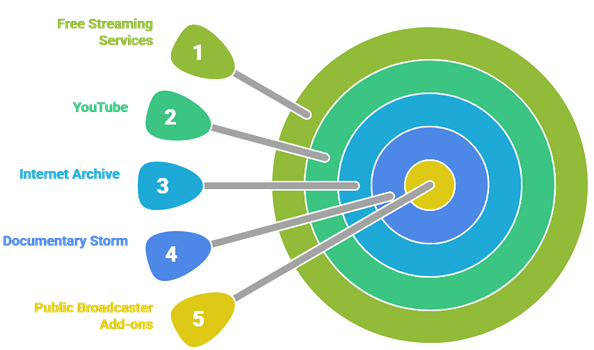
- Tubi, Pluto TV, Crackle, PBS, PBS Kids — official channels
- YouTube — the proper add-on, not a scraper
- The Internet Archive — millions of public-domain films, audio, and TV
- Documentary Storm — curated free documentaries
- Plex add-on for Kodi
- iPlayer WWW (UK), NRK (Norway), ABC iView (Australia) — public broadcaster add-ons (geo-restricted to those countries)
Stick to the official Kodi Add-on Repository (Add-ons → Install from repository → Kodi Add-on Repository) and you’re entirely on legal ground. If you want a deep dive on Kodi specifically, our How to Update Kodi on Firestick and How to Install Kodi on Firestick guides cover the technical setup in detail.
How to Sideload Apps That Aren’t in the Amazon Appstore
Some legitimate apps — Smart YouTube TV, SkyTube, Aptoide TV, Stremio, Jellyfin (sometimes), TiviMate (for users with their own legal IPTV providers) — aren’t in the Amazon Appstore for various reasons that have nothing to do with the apps being sketchy. Amazon’s submission process is selective, and many indie devs simply don’t bother with it.
To sideload these:
- Find the official APK source for the app — usually the developer’s GitHub releases page, the developer’s website, or APKMirror (which verifies signatures).
- Open Downloader.
- Enter the direct APK URL (you can usually grab it by right-clicking the download button on a desktop browser and copying the link).
- Hit Go, let it download, click Install when prompted, click Done (not Open), then Delete the APK to free up space.
Important: Always verify you’re grabbing APKs from the developer’s own source, not random APK aggregator sites. APKMirror is the only third-party APK host with a transparent verification process — it cryptographically validates that uploaded APKs are signed by the same developer key as the Play Store version. Sites like APKPure, Aptoide (the website, not Aptoide TV), and the long tail of
freeapks-download.xyz-style domains routinely host modified APKs with malware injected.
If a guide tells you to install an APK from troywiz.com/apkfile or some obscure URL with no clear chain of custody, that’s a yellow flag at best. The Kodi APK should come from kodi.tv. The Plex APK from plex.tv. The Stremio APK from stremio.com. If you can’t find a first-party download, the app probably isn’t worth installing.
Apps to Avoid (The Honest List)
This is where this guide does what most jailbreak articles refuse to do: name names.
The following apps are frequently recommended in jailbreak articles and YouTube tutorials. They are piracy-focused, regularly cited in DMCA takedowns, and several have been bundled with malware in the past. They also tend to vanish on a 3–6 month cycle as their hosting infrastructure gets shut down — so the guide that recommended them six months ago is sending you to dead links and APK clones.
- Cinema HD (and clones: Cinema APK, BeeTV)
- CyberFlix TV
- OneBox HD
- Flixoid
- Showbox / MovieBox
- Mobdro (already shut down by EU authorities, but reincarnations keep appearing)
- TeaTV
- CucoTV
- TVZion
- Live NetTV
- HD Streamz (mostly sketchy IPTV)
- “Premium IPTV” services advertised on Telegram, Reddit DMs, or Facebook groups for $5–10/month
These apps work by scraping unlicensed streams from torrent sites and warez hosts. Using them is illegal in the U.S., U.K., E.U., Canada, Australia, and most of the world; downloading them is a known malware vector; and the experience is poor (broken streams, ads, popups, occasional cryptocurrency miners). The legal free apps in the previous section are dramatically better in 2026 than the pirate scene was even three years ago.
If your goal is genuinely to save money on streaming, Tubi + Pluto TV + Freevee + Plex covers 90% of what most people watch, costs nothing, is fully legal, and won’t ever get you a cease-and-desist letter from your ISP.
Do You Need a VPN on a Jailbroken Firestick?
Most jailbreak guides spend half their length scaring you about ISP tracking to drive a VPN affiliate signup. This guide isn’t going to do that. Here’s the honest assessment:
You probably don’t need a VPN if:
- You’re using only the legitimate free apps listed above
- You’re streaming licensed content
- Your ISP isn’t known for video traffic throttling
- You’re in your home country watching content available there
A VPN is genuinely useful if:
- Your ISP throttles streaming traffic (Comcast, AT&T, and some Indian and Australian ISPs are documented offenders)
- You travel and want access to your home-country content libraries (BBC iPlayer abroad, Hulu while on vacation, etc.)
- You’re on a Kodi setup with international add-ons that geo-block by region
- Privacy matters to you generally — a VPN means your ISP can’t build a viewing profile from your DNS and traffic patterns
A VPN does not:
- Make piracy legal (the activity is what’s illegal, not who can see it)
- Stop malware from sideloaded APKs (a VPN is a network-layer tool; malware runs at the application layer)
- Improve streaming speed (it almost always reduces it slightly)
If you decide you want one, look for: a no-logs policy independently audited, native Fire TV app, OpenVPN/WireGuard support, and unlimited simultaneous connections. This guide takes no position on which provider — pick one based on the audited-no-logs criterion and ignore affiliate-driven “best VPN” lists.
Common Problems and Troubleshooting
Problem 1: “Install Unknown Apps” doesn’t exist in Developer Options
Cause: You’re on a Vega OS device. Or, less commonly, an extremely old Fire OS 5 build that hasn’t been updated.
Fix: Confirm OS in Settings → My Fire TV → About. Vega OS = no fix. Fire OS 5 = run system updates first.
Problem 2: Developer Options menu doesn’t appear after 7 clicks
Cause: Recent Fire OS 8 builds split the unlock sequence — some require clicking the Fire TV Stick name 7 times and clicking the Build number 7 more times.
Fix: Try clicking the Build field 7 additional times. Some 2024 builds also moved the option under My Fire TV → Developer Options directly without the unlock click sequence.
Problem 3: “App not installed” / “Package appears to be invalid”
Cause: Most common cause is downloading the wrong CPU architecture (ARM64 instead of ARMV7A) or a corrupted download.
Fix: For Kodi specifically, always pick ARMV7A (32-bit). For other apps, pick armeabi-v7a if there’s a choice. Re-download if the file size doesn’t match what the developer site states.
Problem 4: Downloader says “No URL specified” or won’t open the page
Cause: Downloader’s built-in browser sometimes struggles with JavaScript-heavy download pages.
Fix: Switch from URL-input mode to Browser mode (the icon at the bottom of Downloader’s home screen). This loads the page with full rendering. Alternatively, paste the direct APK link rather than the download landing page.
Problem 5: APK installs but the app crashes on launch
Cause: Architecture mismatch (ARM64 APK on a 32-bit Firestick), Fire OS version too old, or app expects Google Play Services (which Fire OS doesn’t have).
Fix: Verify ARMV7A. Check the app’s minimum Android version against your Fire OS Android base. For apps that need Google Play Services (some maps and games), the workaround is the microG suite — but it’s an advanced topic and most legitimate streaming apps don’t need it.
Problem 6: I jailbroke my Firestick but Amazon’s home screen still won’t show my sideloaded apps
Cause: Sideloaded apps don’t appear in the main app rows on the home screen by default — Amazon prioritizes Appstore apps.
Fix: Go to Settings → Applications → Manage Installed Applications, find the sideloaded app, and pin it to the home screen. Alternatively, install a third-party launcher (Wolf Launcher, FLauncher) which puts everything front and center.
Problem 7: My Firestick froze during a sideload install
Cause: Storage filled up mid-install, or the Fire OS install service hung.
Fix: Hold the Home button on the remote for 10 seconds, choose Restart. Once back online, free up storage (Settings → Applications → Manage Installed Applications) and try the install again.
Problem 8: I installed something and now I want to remove it
Cause: You installed something. Now you want to remove it. Easy.
Fix: Settings → Applications → Manage Installed Applications → [app] → Uninstall. Sideloaded apps uninstall the same way Appstore apps do. Nothing weird about it.
Problem 9: After jailbreak, can I undo it / revert to factory state?
Cause: You changed your mind about sideloading. Fine.
Fix: Two options. (1) Toggle off Install Unknown Apps for Downloader — instantly disables sideloading without removing apps. (2) Full factory reset: Settings → My Fire TV → Reset to Factory Defaults. This wipes everything and brings the device back to out-of-box state, including disabling Developer Options.
FAQs
Is jailbreaking a Firestick illegal?
No. The DMCA explicitly permits modifying personally owned devices for non-commercial use, and Amazon ships the sideloading toggle in Fire OS on purpose. What’s illegal is streaming unlicensed copyrighted content — which is a content question, not a jailbreak question.
Will jailbreaking void my Firestick warranty?
No. Toggling Install Unknown Apps is a built-in Fire OS feature. Amazon doesn’t void warranties for using settings it ships with the device. Even a full factory reset returns the device to a state Amazon will service.
Can I jailbreak a Firestick I bought used?
Yes, as long as it runs Fire OS (not Vega OS) and isn’t locked to a previous owner’s Amazon account. If the previous owner didn’t deregister it, contact Amazon support — they can release it.
Why does this guide recommend Kodi but not Cinema HD?
Kodi is open-source, GPL-licensed, maintained by a registered non-profit (the Kodi Foundation), and entirely legal. Cinema HD is closed-source software written specifically to scrape illegal streams from warez hosts. They are not in the same category. Most jailbreak guides treat them as equivalent because both are sideloaded — that’s the difference between “sideloaded” and “legitimate.”
Is Aptoide TV legal? It’s not on the Amazon Appstore.
Aptoide TV is a legitimate alternative app store — it hosts legal apps that publishers chose to distribute through Aptoide instead of (or in addition to) the Amazon Appstore. The Aptoide platform itself is legal. Some apps on it are not. Use it the same way you’d use any app store — install only what you recognize.
Will Amazon ban my account for jailbreaking?
Highly unlikely if you’re using legal apps. There is no documented case of Amazon suspending an account for sideloading legal software. Amazon does occasionally suspend accounts that purchase pre-jailbroken Fire TV devices from third-party resellers (the resale is what’s illegal, not the modification).
Why are 64-bit APKs not recommended on Firestick?
Even Firesticks with 64-bit-capable chips (4K Max, Cube) run a 32-bit user-space runtime for backward compatibility with the existing Fire TV app catalog. ARM64 APKs typically fail to install with “Package appears to be invalid.” ARMV7A (32-bit) APKs work on every supported Firestick.
Can I jailbreak a Fire TV Stick HD (2024)?
It depends on the unit. Some 2024 Fire TV Stick HD devices run Fire OS 8 (sideloadable); others run Vega OS (not sideloadable). Check Settings → My Fire TV → About before assuming.
What’s the difference between “Apps from Unknown Sources” and “Install Unknown Apps”?
Wording only. Older Fire OS (5/6) called it Apps from Unknown Sources and used a single global toggle. Newer Fire OS (7/8) calls it Install Unknown Apps and uses per-app permissions. Same feature, modernized security model.
Do I need a computer to jailbreak my Firestick?
No. The entire process happens on the Firestick itself using the Downloader app. A computer is optional — useful if you want to push APKs from PC to Firestick over your local network using Send Files to TV, but not required.
Conclusion
Jailbreaking a Firestick is one of those topics where the gap between the marketing and the technical reality is enormous. The marketing promises a hacker-grade device unlock that opens up a secret world of free premium content. The reality is a 30-second toggle that Amazon ships in Fire OS on purpose, plus access to a thriving — and entirely legal — ecosystem of free streaming apps that, in 2026, has more content than every paid service combined had a decade ago.
If you’ve read this article through, you know:
- What the “jailbreak” actually does (enable sideloading, nothing more)
- Whether your Firestick can even be jailbroken (Fire OS = yes, Vega OS = no)
- How to do it correctly in five steps without bricking anything
- Where the genuinely legal free content lives (Tubi, Pluto, Freevee, Plex, Crackle, Kodi with official add-ons, library apps like Kanopy and Hoopla)
- Which apps to avoid and why
- When a VPN is actually useful and when it’s being upsold to you for affiliate revenue
The Firestick is the most cost-effective streaming device on the market — under $50 hardware that, properly configured, replaces a $150/month cable subscription with content you’re legally entitled to watch. The “jailbreak” is the small unlock step. The real value is knowing what to install once it’s done.
If something in this guide doesn’t match what you’re seeing on your Firestick, or you hit an error this guide doesn’t cover, the AFTVnews forum and the Kodi Foundation forum at forum.kodi.tv are the two places online where you’ll get accurate, up-to-date answers from people who actually maintain the software. Skip the YouTube comments.
Keep your sideloaded apps updated. Stick to legitimate sources. Don’t pay $10/month for an IPTV service from a Telegram link. Everything else is just clicking buttons.