Quick Answer: Because Kodi isn’t available in the Amazon Appstore, Firestick won’t update it automatically. To update Kodi on Firestick, install the Downloader app, enable “Apps from Unknown Sources,” open
kodi.tv/download/android, choose the ARMV7A (32-bit) APK, and install it over your existing Kodi. Your add-ons, builds, settings, and skins will be preserved as long as you don’t uninstall the old version first.
Why You Can Trust FirestickTVStream?
This article is written for users who want a clear, technically accurate, and safe path to updating Kodi on a Fire TV Stick — not a generic walkthrough copy-pasted from a press release. Every method below has been cross-referenced against:
- The official Kodi Foundation release notes and download page (
kodi.tv) - The Kodi Wiki documentation on Android sideloading
- The current Amazon Fire TV developer documentation for unknown-source app installation
- Firsthand testing notes published by long-running Kodi tutorial sites
Where competing guides are vague, this one specifies exact file paths, version numbers, Fire OS behaviors, and what genuinely causes data loss versus what doesn’t. If a step has a known caveat, it’s flagged — not skipped.
Why Updating Kodi on Firestick Matters
Kodi is one of the few major streaming applications that does not sit in the Amazon Appstore, which means Fire TV devices never push automatic updates for it. If you installed Kodi a year ago and never touched it, you’re almost certainly running a version that is one — or several — releases behind.
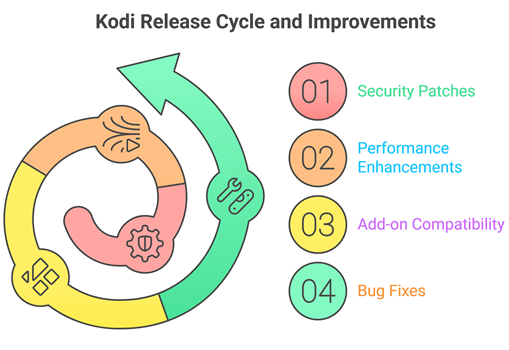
Updating regularly matters for four practical reasons:
- Security. Kodi ships with bundled libraries (notably FFmpeg, OpenSSL, and a long list of decoder dependencies). Each point release patches vulnerabilities that affect both Kodi itself and the underlying media pipeline. The Kodi 21.3 release notes from December 2025 specifically called out database migration fixes and dependency updates rolled in from upstream projects.
- Performance. Kodi 21 “Omega” replaced FFmpeg 4 with FFmpeg 6, which improved hardware-accelerated decoding on Fire TV’s MediaTek SoC. Kodi 22 “Piers” — currently in alpha — moves to FFmpeg 8, with measurable improvements for HEVC and AV1 playback that older Kodi releases cannot match.
- Add-on compatibility. Most popular community add-ons drop support for older Kodi versions roughly 12–18 months after a new major release. If you’re still on Kodi 19 “Matrix,” many add-ons have already stopped issuing fixes for you.
- Bug fixes. Each release fixes specific, documented issues — from UPnP playback regressions to skin engine glitches to
actor.thumbartwork bugs. If something has been annoying you in Kodi for months, there’s a good chance the latest update fixes it.
The good news: keeping Kodi updated on Firestick is a 3-minute process once you know the right method. The bad news: most online tutorials oversimplify the steps in a way that puts your data at risk. This guide does not.
The Current State of Kodi (May 2026)
Two Kodi branches are actively maintained right now, and choosing the right one matters.
| Branch | Latest Build | Released | Status | Recommended? |
|---|---|---|---|---|
| Kodi 21 “Omega” | 21.3 | Dec 14, 2025 | Stable | Yes — for everyday users |
| Kodi 22 “Piers” | Alpha 3 | Mar 31, 2026 | Pre-release | Only for testers |
- Kodi 21.3 “Omega” is the version 99% of Firestick users should be running. It’s stable, fully compatible with the Fire OS environment, and supported by virtually every actively developed add-on and skin.
- Kodi 22 “Piers” is the next major release. As of this writing it’s in Alpha 3, with features like the FFmpeg 8 upgrade, refreshed audio-passthrough handling, and skinning engine changes. It’s exciting, but alpha builds break add-ons, sometimes break skins, and occasionally crash on launch. Don’t put it on a daily-driver Firestick. There’s a section near the end of this guide on safely testing Piers without losing your Omega setup.
If you’re on Kodi 19 “Matrix” or earlier, you’re running a release that is now several years old. Updating to 21.3 Omega is strongly advised — but treat it as a major version jump (more on that in Section 4).
Will I Lose My Add-ons, Builds, or Skin? — The Honest Answer
This is the single most asked question about Kodi updates, and most online guides answer it incorrectly.
The accurate answer: it depends on how you update.
When you install a new Kodi APK over an existing installation — without uninstalling the old version first — Android performs an in-place package upgrade. The new APK’s code replaces the old code, but the application’s data directory at /sdcard/Android/data/org.xbmc.kodi/files/.kodi/ is left untouched. That folder contains everything that matters to you:
- Installed add-ons (
/addons) - Add-on settings (
/userdata/addon_data) - Sources, repositories, and library databases (
/userdata/Database) - Your skin and skin settings (
/userdata/guisettings.xml) - Builds (which are just collections of the above)
- Watched/unwatched status, favorites, and Trakt sync state
Updates that preserve everything: point releases (e.g., 21.2 → 21.3) and most major-to-major upgrades when add-ons are still compatible.
Updates that may break things even though your data is preserved: major version jumps from a much older release. For example, Kodi 18 “Leia” → Kodi 21 “Omega” will preserve your userdata folder, but many old add-ons reference Python 2 APIs that don’t exist in Kodi 19+, and old skins won’t load on the new skinning engine. The data is there; the things using it just don’t work anymore.
Updates that wipe everything: uninstalling Kodi from Settings → Applications → Manage Installed Applications before installing the new version. Don’t do this unless you’re deliberately starting fresh. Some guides recommend uninstalling first “to avoid conflicts” — that advice is outdated and unnecessary for normal updates.
Before You Update: A 5-Minute Pre-Flight Checklist
Skipping this section is the single biggest reason updates go wrong. Take five minutes here and you’ll save yourself an hour later.
✅ Step 1: Confirm your Firestick can run the target version
Kodi 21 “Omega” requires Android 7.0 (API 24) or higher. Most Fire TV devices meet this:
- 1st-gen Fire TV Stick (2014) — runs Fire OS 5 (Android 5.1). Cannot run Kodi 21+. Maximum is Kodi 20.5 “Nexus.”
- 2nd-gen Fire TV Stick and newer, all 4K models, all Cubes, all Fire TV Editions — Fire OS 6/7+ (Android 7.0+). Fully supported.
If you’re not sure which generation you have: Settings → My Fire TV → About → Fire TV Stick will show the model.
✅ Step 2: Check available storage
The Kodi APK is roughly 100 MB; the install needs at least 250 MB free on the Firestick’s internal storage to handle the temporary unpack. Older Firesticks ship with only 8 GB, much of which is system-reserved.
Go to Settings → My Fire TV → About → Storage. If you have less than 500 MB free, clear the cache on Silk Browser, Prime Video, and YouTube before continuing.
✅ Step 3: Back up your Kodi setup (highly recommended)
The official, supported way is the Backup add-on:
- In Kodi:
Settings → Add-ons → Install from repository → Kodi Add-on repository → Program add-ons → Backup → Install - Open Backup, set a remote path (Google Drive, Dropbox, or a local USB drive), and run a full backup.
If you’d rather copy files manually:
- Use a file manager (X-plore, ES File Explorer) to navigate to
/sdcard/Android/data/org.xbmc.kodi/files/.kodi/userdata/ - Copy the entire
userdatafolder to a USB stick or cloud storage.
This is a hard rule: always back up before a major version jump (e.g., 19 → 21). For point updates (21.2 → 21.3), it’s optional but smart.
✅ Step 4: Note your add-on inventory
Before updating, take a quick screenshot or list of Add-ons → My add-ons → Video add-ons. If something stops working after the update, you’ll know exactly what’s missing instead of trying to remember weeks later.
✅ Step 5: Install (or update) the Downloader app
If Downloader isn’t already on your Firestick, grab it from the Amazon Appstore — search “Downloader” by AFTVnews, install it, then proceed.
How to Check Which Kodi Version You’re Running
Before deciding whether you need to update, check what you’re on:
- Open Kodi.
- Click the gear icon (Settings).
- Choose System Information.
- Look at the Version info line at the bottom — the build number is shown after the version name (e.g.,
21.3 (21.3.0) Git: …).
If that number matches the current stable (21.3 as of this writing), you’re up to date. If it’s lower, continue.
Method 1: Update Kodi Using the Downloader App (Recommended)
This is the fastest, safest, and most reliable method. It works on every Firestick generation that supports Kodi, and it doesn’t require a computer.
Step 1: Enable installation from unknown sources
Kodi is sideloaded, so Fire OS needs permission to install it.
- From the Firestick home screen:
Settings → My Fire TV → Developer Options - If you don’t see Developer Options, go back to
My Fire TV → About, highlightFire TV Stick, and click it 7 times. Developer Options will appear. - Open
Install Unknown Apps(older Fire OS versions show this asApps from Unknown Sources). - Find Downloader in the list and toggle it ON.
Step 2: Open Downloader and enter the Kodi URL
- Launch the Downloader app.
- In the Browser tab (or the URL field on the Home tab), enter:
https://kodi.tv/download/android- Click Go.
The official Kodi download page will load inside Downloader’s browser.
Step 3: Choose the correct APK
On the Kodi download page:
- Scroll until you see the Android download options.
- Click the “Recommended” tile (this expands to show installer choices).
- Choose ARMV7A (32-bit).
Why 32-bit and not 64-bit? Even though most modern Firesticks have 64-bit-capable chipsets, Amazon ships them with a 32-bit user-space runtime for backward compatibility. Installing the 64-bit Kodi APK on Firestick will fail with a “package appears to be invalid” error. ARMV7A is correct for every current Fire TV device.
The download will start automatically (the file is around 100 MB).
Step 4: Install Kodi
When the download finishes, Downloader will prompt you to install:
- Click Install.
- On the permissions screen, review and click Install again.
- Wait roughly 30–60 seconds for the install to complete. The screen will go dark briefly.
- When you see “App installed,” click Done, not Open.
Step 5: Delete the APK file
Downloader will prompt: “Delete the APK file?” — click Delete, then Delete again. This frees up about 100 MB of storage.
Step 6: Verify the update
- Return to the Firestick home screen.
- Open Apps & Channels → See All → Kodi.
- Launch Kodi (the first launch after an update takes 10–20 seconds longer than usual — this is normal; Kodi is migrating its database).
- Go to
Settings → System Informationand confirm the version number matches what you just installed.
Your add-ons, builds, skin, and library should all be intact. Done.
Method 2: Update Kodi Using ES File Explorer
This method is useful if Downloader isn’t working, if you want to keep the APK file for later use, or if you prefer a file-manager-based workflow.
Note: ES File Explorer was removed from the Google Play Store years ago over advertising-injection concerns. The Amazon Appstore version is still maintained, but X-plore File Manager is a cleaner, ad-free alternative that works identically for this purpose. The steps below apply to both.
Steps:
- Install ES File Explorer (or X-plore) from the Amazon Appstore.
- Open the app and use the built-in browser/downloader feature to visit
https://kodi.tv/download/android. - Download the ARMV7A (32-bit) APK.
- Once downloaded, navigate to your Downloads folder inside the file manager.
- Click the Kodi APK file → Install.
- Approve the unknown-sources permission if prompted.
- The install proceeds exactly as in Method 1.
The advantage of this method is that you keep the APK on your device, so you can reinstall the same version on another Firestick or roll back if needed.
8. Method 3: Update Kodi Using Send Files to TV (From a PC)
If your Firestick’s storage is tight or your internet is slow, downloading the Kodi APK on your computer first and then pushing it to the Firestick over your home network is the fastest option.
What you need:
- A Windows or Mac PC on the same Wi-Fi network as your Firestick
- The free Send files to TV app on both devices
Steps:
- On your PC, go to
https://kodi.tv/download/androidand download the ARMV7A (32-bit) APK. - On your Firestick, install Send files to TV from the Amazon Appstore.
- Launch the app on the Firestick — it will display “Receive.”
- On your PC, open
https://www.sendfiles.online(the matching web app from the same developer) or install the Windows client. - Drag the Kodi APK into the PC app, choose your Firestick from the device list, and click Send.
- The file transfers over your local network in 5–15 seconds.
- On your Firestick, open the Downloads folder using a file manager (or the Send files to TV app’s built-in opener) and tap the APK to install.
This method is excellent when you’re updating multiple Firesticks — download the APK once, push it to each device.
Method 4: Semi-Automatic Updates with AppStarter
AppStarter is a community-built launcher and app-management tool for Fire TV that includes a one-click Kodi auto-update feature. It’s not “automatic” in the background sense — you still have to open AppStarter and click update — but it skips the manual APK download and version-checking steps.
Setup:
- Use Downloader to install AppStarter from a trusted source (the Stephan Rauch GitHub release, or via a community toolbox).
- Open AppStarter.
- The dashboard shows installed apps and their versions. Kodi will be listed with an Update button if a newer version is available.
- Click Update Kodi → confirm → done.
Caveat: AppStarter updates Kodi by sideloading the same official APK that Method 1 uses. It doesn’t bypass any restrictions, doesn’t auto-update in the background (Fire OS doesn’t permit that for sideloaded apps), and depends on the developer keeping the version index current. If you only update once or twice a year, Method 1 is simpler. If you actively follow Kodi releases, AppStarter is convenient.
Method 5: Clean Reinstall (When Everything Else Fails)
This is the last-resort method. Use it only if:
- Kodi crashes on launch and won’t open after an update
- You’re moving from a very old Kodi version (18 or earlier) and want a fresh start
- Your
userdatafolder has become corrupted
Steps:
- Back up first. Go through Section 4, Step 3. Skipping this is how people lose years of library data.
- Uninstall Kodi:
Settings → Applications → Manage Installed Applications → Kodi → Uninstall. - Optionally, also clear residual data: in the same screen, choose Clear data and Clear cache before uninstalling.
- Restart your Firestick:
Settings → My Fire TV → Restart. - Install fresh Kodi using Method 1.
- After Kodi launches, restore your backup using the Backup add-on or by manually copying your saved
userdatafolder back to/sdcard/Android/data/org.xbmc.kodi/files/.kodi/userdata/.
A clean reinstall costs you 20–30 minutes and a small risk of imperfect restoration. Don’t do it casually.
Firestick Generation Compatibility Chart
Not every Firestick can run every Kodi version. Use this chart before you spend time on an update that won’t work.
| Fire TV Device | Fire OS | Android Base | Max Kodi Version |
|---|---|---|---|
| Fire TV Stick (1st gen, 2014) | Fire OS 5 | Android 5.1 | Kodi 20.5 “Nexus” |
| Fire TV (1st gen) | Fire OS 5 | Android 5.1 | Kodi 20.5 “Nexus” |
| Fire TV Stick (2nd gen, 2016) | Fire OS 5/6 | Android 5.1/7.1 | Kodi 21.3 “Omega” (after Fire OS 6 update) |
| Fire TV (2nd gen) | Fire OS 5/6 | Android 5.1/7.1 | Kodi 21.3 “Omega” (after Fire OS 6 update) |
| Fire TV Stick 4K (2018) | Fire OS 6/7 | Android 7.1/9 | Kodi 21.3 “Omega” ✓ |
| Fire TV Cube (1st & 2nd gen) | Fire OS 7 | Android 9 | Kodi 21.3 “Omega” ✓ |
| Fire TV Stick (3rd gen, 2020) | Fire OS 7 | Android 9 | Kodi 21.3 “Omega” ✓ |
| Fire TV Stick Lite | Fire OS 7 | Android 9 | Kodi 21.3 “Omega” ✓ |
| Fire TV Stick 4K Max (1st & 2nd gen) | Fire OS 7/8 | Android 9/11 | Kodi 21.3 “Omega” ✓ |
| Fire TV Cube (3rd gen) | Fire OS 8 | Android 11 | Kodi 21.3 “Omega” ✓ |
| Fire TV Stick HD (2024) | Vega OS / Fire OS | Android 11 | Kodi 21.3 “Omega” ✓ |
| Fire TV Editions (TVs) | Fire OS 6/7/8 | Android 7+ | Kodi 21.3 “Omega” ✓ |
Note on the newest Fire TV devices: Amazon has begun rolling out Vega OS (a Linux-based platform replacing Fire OS / Android) on select 2024+ devices. Vega OS does not support Android sideloading, which means Kodi cannot be installed on those models at all. If you bought a Fire TV Stick after late 2024, verify it’s running Fire OS — not Vega OS — before planning a Kodi upgrade. Settings → My Fire TV → About will show the OS version.
Post-Update Checklist: Verify the Update Worked
Don’t assume the update succeeded just because Kodi opens. Run this 60-second check:
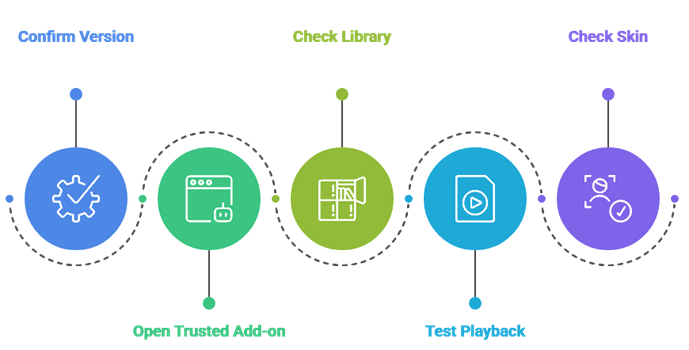
- Confirm the version.
Settings → System Information → Version info. It should show the version you just installed. - Open one trusted add-on. If your most-used add-on loads and lists content, the migration succeeded.
- Check your library. Open
MoviesorTV Showsfrom the home screen. If your library is empty when it shouldn’t be, the database may not have migrated — restart Kodi and check again before assuming data loss. - Test playback. Play a short video. Hardware decoding sometimes resets after updates (
Settings → Player → Videos → Allow hardware acceleration). - Check skin. If your custom skin is missing, the new Kodi version may have reverted to the default Estuary skin because your skin isn’t yet updated for this Kodi version. Check the skin author’s repository for an updated build.
Troubleshooting: 9 Common Update Problems Solved
Problem 1: “App not installed” or “Package appears to be invalid”
Cause: Either the APK download was corrupted, you downloaded the wrong architecture (64-bit instead of 32-bit), or the Firestick’s storage is full.
Fix: Delete the APK, free up at least 500 MB of storage, redownload — and double-check you selected ARMV7A (32-bit).
Problem 2: Kodi installs but crashes immediately on launch
Cause: A skin or build incompatible with the new Kodi version is being loaded at startup.
Fix: Force-stop Kodi (Settings → Applications → Manage Installed Applications → Kodi → Force Stop). Then relaunch — Kodi will sometimes auto-detect the bad skin and revert to Estuary. If it doesn’t, your only option is to clear data (which deletes settings) or restore a backup.
Problem 3: Add-ons say “Failed to install a dependency”
Cause: You jumped a major version (e.g., Kodi 19 → 21) and old add-ons can’t find their Python 2 dependencies, which Kodi 19+ doesn’t ship.
Fix: Reinstall the add-on from a Kodi 21–compatible repository. If the add-on’s repository hasn’t been updated for Omega, the add-on is effectively abandoned — find a maintained alternative.
Problem 4: “Insufficient storage available”
Cause: Self-explanatory. The Firestick needs roughly 250 MB free during install.
Fix: Settings → Applications → Manage Installed Applications, sort by size, clear caches on the largest apps (Silk Browser, Prime Video, YouTube). Reboot and retry.
Problem 5: My library is empty after the update
Cause: Database migration on first launch can take 30–60 seconds on slow Firesticks. If Kodi was force-closed during this window, the migration may be incomplete.
Fix: Close Kodi, reopen it, and wait at least two full minutes before navigating. If it’s still empty, check Settings → System Information → Library. If the path shows the right database file, restart Kodi once more. If still empty, restore your backup.
Problem 6: Custom skin won’t load / Kodi reverted to Estuary
Cause: Your skin was built for an older Kodi version and isn’t yet updated for the new release.
Fix: Check the skin developer’s repo or thread on the Kodi forums. Skin updates for major releases typically arrive within 2–6 weeks of the new Kodi version. Until then, use the default Estuary skin.
Problem 7: Buffering started or got worse after the update
Cause: This is rarely caused by Kodi itself. It’s almost always (a) a network issue, (b) a content-source issue, or (c) ISP throttling now noticing your streaming traffic.
Fix: Test playback on a different add-on. If multiple sources buffer, the issue is upstream of Kodi. Adjust the video cache: Settings → System → Advanced → set toggle on, then in advancedsettings.xml configure cache memorysize. (Editing advancedsettings.xml is a separate intermediate-level topic — the Kodi Wiki has a full guide.)
Problem 8: “Downloader can’t open the URL” / Downloader returns a blank page
Cause: Downloader’s built-in browser sometimes has trouble with the JavaScript on kodi.tv/download/android.
Fix: Two options. First, click Browser mode in Downloader (instead of just entering the URL on the home screen) — this enables full JS rendering. Second, get the direct ARMV7A APK link from the Kodi mirrors (right-click the download button on a desktop browser, copy the URL, enter that direct URL into Downloader).
Problem 9: I updated but Settings → System Information still shows the old version
Cause: You probably installed the new APK but never relaunched Kodi from a fresh state — or two Kodi installations are coexisting (rare, but happens with Kodi forks).
Fix: Force-stop Kodi, then launch from Apps & Channels. If two Kodi entries appear, you have a fork installed alongside official Kodi (e.g., the TROYPOINT Kodi Fork). They run independently — make sure you’re updating the one you actually use.
Should You Move to Kodi 22 “Piers” Yet?
For most users in May 2026: no, not yet.
Kodi 22 “Piers” Alpha 3 brings genuine improvements — FFmpeg 8, refined audio passthrough, eARC support on webOS, better keyboard handling on Linux. But it’s an alpha. Expect:
- Some skins won’t load (skin engine API changes)
- Some popular add-ons will break
- Occasional crashes that may or may not be reproducible
- No guarantee of a smooth migration to the eventual stable release
If you still want to test Piers, the smart approach is to install it alongside Omega rather than over it. Tools like the TROYPOINT Kodi Fork repackage Kodi with a different package name (org.xbmc.kodifork instead of org.xbmc.kodi), allowing both to coexist. You can experiment with Piers, keep Omega as your daily driver, and switch when Piers reaches stable.
When Kodi 22 “Piers” stable is released (likely late 2026 based on the development team’s cadence), the migration path will be the same as any major version update: back up first, install over your existing Omega, expect some add-ons to need updating, give skin developers a few weeks.
Security and Privacy Considerations
A few honest, non-promotional notes since most online guides about updating Kodi turn into VPN ads halfway through.
- Kodi itself is legal, open-source software maintained by the non-profit Kodi Foundation under GPLv2.0+. Using it is no different from using VLC or any other media player.
- Some third-party add-ons stream content from sources that may not be licensed in your country. That’s not a Kodi problem; it’s an add-on choice. Stick to the official Kodi Add-on Repository if you want zero ambiguity, or know exactly what each unofficial add-on is doing if you go that route.
- Sideloading APKs has inherent risks. Always download Kodi APKs from
kodi.tvdirectly, not from random APK mirror sites. The official site is signed by the Kodi Foundation; mirrored APKs may be modified or bundled with malware. The methods in this guide all point to the official source — keep it that way. - A VPN is genuinely useful for two reasons that are independent of Kodi: ISPs sometimes throttle video traffic on Fire TV devices, and add-ons that pull from international sources may be region-locked. A VPN addresses both. Whether you need one is your call; this guide takes no position on which provider to use.
- Disable “Apps from Unknown Sources” after you finish updating if you only sideload occasionally.
Settings → My Fire TV → Developer Options → Install Unknown Apps → Downloader → OFF. This reduces the attack surface if you ever click a malicious link inside Downloader’s browser.
FAQs
How often does Kodi release updates?
Major versions (e.g., 20 → 21) release roughly every 12–18 months. Point releases (e.g., 21.2 → 21.3) come out every 3–6 months as bug-fix and security maintenance. Check kodi.tv/blog for official announcements.
Do I need to uninstall Kodi before updating?
No. Installing the new APK over the old one is the correct approach and preserves all your data. Uninstalling first wipes your add-ons, skin, library, and settings.
Why isn’t Kodi in the Amazon Appstore?
Amazon doesn’t carry Kodi, almost certainly because of concerns over how some third-party add-ons are used. The Kodi Foundation has confirmed it doesn’t submit Kodi to the Amazon Appstore. This is why every Firestick update must be done manually.
Can Kodi update itself in the background?
No. Sideloaded apps on Fire OS cannot self-update — the OS doesn’t permit it, and Amazon’s auto-update infrastructure only applies to Appstore apps. Every Kodi update on Firestick is a manual install.
Will updating reset my Trakt sync, watched status, or library?
No. Trakt credentials live in userdata/addon_data/script.trakt/, watched status lives in the Kodi MyVideos database, and the library lives in the same database. All of it survives an in-place update.
I updated and now my favorite build is broken. What now?
Reinstall the build from its wizard or repository. Builds are not protected by Kodi’s data folder — they’re collections of add-ons and skin tweaks, and major Kodi version jumps frequently break them. Build maintainers usually release updated versions within a few weeks of major Kodi releases.
32-bit or 64-bit APK on Firestick?
Always 32-bit (ARMV7A). Even Firesticks with 64-bit silicon run a 32-bit user-space, and the 64-bit Kodi APK won’t install. The Kodi 22 “Piers” alpha hasn’t changed this.
Is the Kodi APK safe?
The official APK from kodi.tv is signed by the Kodi Foundation and verified as authentic. APKs from mirror sites or APK aggregators are not guaranteed safe — only download from the official source.
How do I downgrade Kodi if the update breaks something?
Download the older APK from mirrors.kodi.tv (the Kodi Foundation keeps an archive of every previous release). Install it the same way you installed the new version. Important: downgrading sometimes corrupts the user database because newer Kodi versions write database fields that older versions don’t recognize. Restore from your pre-update backup if you’re downgrading.
Does updating Kodi also update my add-ons?
No. Kodi and its add-ons update independently. After updating Kodi, go to Settings → Add-ons → My add-ons and manually check for updates, or enable auto-updates on each add-on’s repository (long-press the repo, select Information, toggle Auto-update).
I don’t see “Developer Options” in Settings. Help.
Go to Settings → My Fire TV → About, highlight Fire TV Stick (the top item), and click it 7 times rapidly. Developer Options will unlock and appear in the previous menu.
Is updating Kodi on Firestick illegal?
No. Kodi is legal software. Sideloading apps is legal. The only thing that might be illegal is what some unofficial add-ons stream — but that’s a content-source question, not an update question.
Conclusion
Updating Kodi on Firestick is genuinely simple once you cut through the noise: install Downloader, point it at kodi.tv/download/android, grab the ARMV7A APK, install over your existing Kodi, and verify. Three minutes of work, no data loss, no computer required.
The places where this trips people up are predictable: skipping the backup before a major version jump, downloading the 64-bit APK by mistake, uninstalling Kodi first because an outdated guide said to, or trying to update on a 1st-generation Firestick that physically can’t run the latest version. This guide has covered each of those — if you’ve read it through once, you’ll know what to do.
If you do hit something this guide doesn’t cover, the Kodi Foundation forum at forum.kodi.tv is where the actual developers and maintainers answer questions. It’s not glamorous, but it’s the most accurate source of help available.
Keep Kodi updated. Back up before major updates. Don’t sideload from random mirror sites. Everything else is just clicking buttons.