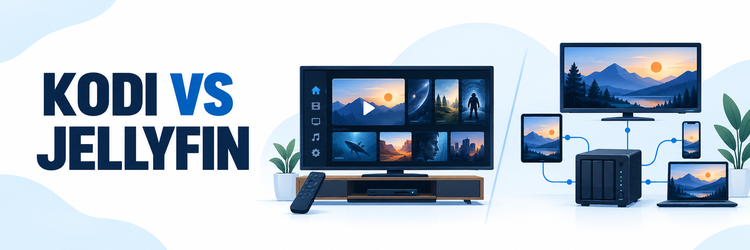
Key Takeaway: Kodi is a free media-center player that runs on the device in front of you; Jellyfin is a free, self-hosted media server with client apps for your other screens. Choose Kodi for a flexible TV interface and direct playback from local or network files. Choose Jellyfin when one household library needs users, progress, remote access, and server-side format conversion. You can also connect Kodi to a Jellyfin server.
“Kodi vs Jellyfin” sounds like a choice between two streaming apps, but the more useful question is where your library should live. A Fire TV Stick can run a player, yet it is not the same thing as a computer or NAS maintaining a library and serving several clients. That distinction determines setup effort, playback compatibility, privacy, and what happens when the internet or your server is down.
I compare the documented capabilities rather than claim a speed or picture-quality winner from an unrecorded device test. Both projects are free and open source, and neither supplies a movie catalog. You provide media you are entitled to use. Device software, codecs, network conditions, add-ons, and app releases can change individual results.
Kodi vs Jellyfin at a Glance
Neither is a replacement for the other in every household. Kodi can play a video directly on a television from USB storage, a shared folder, or another supported source. Jellyfin indexes files on a machine you operate, then offers that library to clients such as a TV app, browser, or phone. Its server may convert media when a client cannot use the original format.
| Decision point | Kodi | Jellyfin |
|---|---|---|
| Primary role | On-device media player and library interface | Self-hosted server plus client apps |
| Where library lives | Usually per Kodi installation; advanced shared-database options exist | Central server maintains libraries and users |
| Playback conversion | Player decodes supported media on its device; no equivalent automatic central server transcoding | Server can direct play, remux, or transcode for client needs |
| Away from home | Requires a reachable source or separate server/network arrangement | Possible after secure remote-access configuration |
| Fire TV role | Android-based Fire OS devices can run Kodi through the appropriate installation route | Android TV/Fire TV client connects to a separately running server |
| Software charge | Free and open source | Server and official clients are free; hardware and network costs remain |
The Architectural Difference: Player or Server?
Kodi is the interface and playback engine on the screen you are using. Point it at files on that device or a reachable network share, scan them into its library, and navigate with a remote. Jellyfin begins with a server installation on a computer, NAS, or other supported host. You add media folders there, create users, and sign client apps into that server. The server must be reachable while those clients browse or stream.
- One-screen home: Kodi is a sensible starting point if the media is attached to one living-room box or an always-available NAS share and you prefer direct control.
- Several screens: Jellyfin avoids independently building and maintaining a full library on each phone, television, and browser; the server becomes the household source of truth.
- Storage is separate: Installing either application does not include licensed films or magically create disk space. You still maintain files, backups, and permissions.
- Server uptime matters: Jellyfin clients need their server online; a Kodi device can still play its locally stored files if another machine or internet connection fails.
- Neither is a cloud subscription: Remote Jellyfin access uses your infrastructure. Kodi add-ons and third-party services have their own availability and legal terms.
Library Organization and Watching Across Devices
Kodi scans named movie and television folders into an artwork-rich local library, with scraper settings and optional local NFO data, as its library guide explains. Each installation normally has its own database and watch state. An advanced MySQL/MariaDB setup can share a Kodi library database, but every client still needs consistent network file paths and compatible versions. Kodi’s UPnP sharing is useful for browsing media; its own wiki says a UPnP source does not become a normal client-side Kodi library.
- Kodi upkeep: File naming, source paths, metadata agents, and a backup of settings determine whether a rebuilt device reproduces your preferred library cleanly.
- Jellyfin upkeep: The server scans media libraries and presents them to signed-in clients. Users and playback permissions are managed centrally rather than on every screen.
- Progress: Jellyfin’s server-centered model is better suited to a shared household with separate accounts and continuity between supported clients; actual client features vary.
- Metadata privacy: Both can contact external metadata providers when configured to fetch artwork or descriptions. Self-hosting is not the same as zero outbound requests.
- Migration: Changing systems does not automatically preserve every play state, artwork edit, or add-on setting. Keep original files and back up configuration before switching.
Direct Play, Formats, and Transcoding
Kodi usually decodes the media on the playback device. If the device and Kodi build support the file’s video, audio, subtitles, and container, this is straightforward. If not, a different player device, file version, or separate server may be needed. Jellyfin checks the client profile and can deliver the original file, change its container, convert audio, or transcode video. Its transcoding documentation distinguishes these modes. Conversion consumes server resources and may alter quality; it is not automatically the best mode.
- Direct Play: Jellyfin sends compatible media without conversion. This minimizes server load and is generally preferable when the client and connection can handle the source.
- Remux or audio conversion: The server can change packaging or audio while preserving video, depending on client constraints and the media’s tracks.
- Video transcoding: A lower bitrate or unsupported codec may trigger re-encoding. Hardware acceleration requires a compatible GPU, drivers, and correct server configuration.
- Subtitles and HDR: Subtitle burn-in and HDR-to-SDR tone mapping can be demanding. A weak NAS may struggle with multiple simultaneous high-resolution conversions.
- Do not assume speed: Codec support differs by Fire TV generation and client release. Check Jellyfin’s playback dashboard to see the actual mode before upgrading hardware.
Fire TV and Other Client Platforms
Kodi’s official downloads cover Android and several desktop and television operating systems; its Android page currently lists stable Kodi 21.3 Omega. On an Android-based Fire TV device, Kodi is a local player installed through a suitable supported download route, not a Jellyfin-style server. Jellyfin’s client directory lists an official Android TV app for Android TV and Fire TV, but that app needs a separate Jellyfin server and its address or discovery on your network. Verify current store availability and device OS before planning either installation.
- Fire OS versus Vega OS: A newer Linux-based Vega device should not be assumed to run an Android APK. Check each project’s current device-specific support before purchase or sideloading.
- Kodi platforms: The official downloads page lists Windows, Linux, Android, Raspberry Pi, macOS, iOS, tvOS, and webOS routes, with different installation complexity.
- Jellyfin clients: Official listings include web, desktop, Android, Android TV/Fire TV, iOS, Roku, webOS, Tizen, and Xbox; availability can vary by store and region.
- Remote navigation: Kodi was designed for a ten-foot interface. Jellyfin’s TV client focuses on connecting to and browsing the server’s library.
- Offline fallback: A Kodi device with local files can play without its server. A Jellyfin client does not independently hold the server’s complete library merely because its app is installed.
Setup Paths on a Firestick
For Kodi, first identify the Fire TV operating system and hardware generation, obtain a compatible official Android build if applicable, and point Kodi at authorized local files or a home-network share. For Jellyfin, install and configure the server on an always-on host first, add media folders, then install the Android TV/Fire TV client and connect it over the local network. Neither app turns the Stick itself into a recommended always-on transcoding server.
| Task | Kodi-first route | Jellyfin-first route |
|---|---|---|
| Prepare media | Keep files locally or expose a stable SMB/NFS share | Store files where the server can read them |
| Install | Use a compatible Kodi package on the playback device | Install server on host, then supported client on TV |
| Build library | Add sources, set content type, scan on Kodi | Add server libraries and let the server scan |
| Connect second screen | Configure another Kodi install and shares or an advanced shared database | Sign another supported client into the same server |
| Handle unsupported format | Try compatible media or another playback device/server | Inspect server playback mode and transcoding capacity |
Remote Streaming and Security
Jellyfin can stream outside your home, but remote access is a configuration project, not a button that securely exposes everything by default. Its networking guide warns against directly opening its HTTP port to the internet and describes reverse proxy or VPN approaches. Protect accounts, patch the host, use HTTPS where appropriate, and limit remote permissions. Kodi can use a remote source if you arrange secure access to that source, but Kodi alone does not provide Jellyfin’s account-based household server workflow.
- Local-only choice: Keep the Jellyfin server accessible only on your LAN if away-from-home playback is unnecessary. Metadata fetching can still use the internet.
- Remote route: A properly configured VPN to the home network or maintained HTTPS reverse proxy can avoid exposing a bare media-server port.
- Bandwidth: Your home’s upload speed and a client’s download speed affect remote playback; transcoding can reduce bitrate at a CPU or GPU cost.
- User permissions: Jellyfin can restrict remote connections or transcoding per user. Grant media deletion or administrator rights only when needed.
- Kodi control: Do not expose Kodi’s remote-control web interface or UPnP services to the public internet as a shortcut to remote streaming.
Privacy, Cost, and Maintenance
Kodi and Jellyfin do not require a software subscription for their core use. Jellyfin says its server and official clients need no subscription; Kodi describes itself as free, open-source software. That does not make a multi-user server free to operate. Storage, an always-on host, electricity, backups, internet service, domain or proxy arrangements, and time are separate costs. Optional third-party metadata providers and extensions have separate data practices, so review them rather than treating either product as an absolute privacy guarantee.
- Kodi footprint: A single-device installation can be simple, but multiple libraries, add-ons, skins, and shares increase maintenance and require backups of local settings.
- Jellyfin footprint: The administrator maintains host updates, drives, users, network access, and possibly GPU support; clients remain easier to provision after that groundwork.
- Account model: Jellyfin users are local to your server. Its documentation says login information is not sent to a remote Jellyfin service during authentication.
- External lookups: Artwork and metadata providers may see requests when enabled. Restrict unnecessary plugins and protect both systems with updates.
- No included content: Official Kodi packages and Jellyfin software do not grant access to copyrighted catalogs. Use media and add-ons lawfully.
Can Kodi and Jellyfin Work Together?
Yes. Jellyfin maintains the central library and users, while Kodi provides the TV-facing player and interface. Jellyfin documents both a Kodi integration that syncs server content into Kodi’s library and JellyCon, a lighter add-on that browses a Jellyfin server without the same full local metadata sync. This pairing can solve the false either-or choice: keep Kodi’s familiar remote interface while using Jellyfin to organize media for other devices.
- Pick the integration: The full Jellyfin for Kodi approach suits users who want server media represented inside Kodi’s library; JellyCon emphasizes browsing the server directly.
- Install carefully: Jellyfin publishes an official Kodi repository and Fire TV/Android TV instructions. Use the maintained repository, not an unrelated ZIP mirror.
- Keep server online: The integrated interface still depends on the Jellyfin host and media paths for server content; Kodi’s local sources remain separate.
- Per-profile setup: Jellyfin’s guide says each Kodi user profile needs its own add-on configuration. Do not copy another client’s database to shortcut synchronization.
- Version caution: Add-on behavior can change with Kodi or Jellyfin releases, so follow the current official compatibility and setup instructions.
Common Mismatches to Diagnose Before Switching
A new application cannot repair every weak link in a media system. If a Fire TV file stalls, first identify where it is stored, whether the TV can decode it, and whether the network or server is saturated. Jellyfin’s dashboard can tell you when a transcode is occurring; Kodi’s playback information and logs can narrow a local decode or source-path problem. Change one variable at a time rather than moving an entire library on a guess.
- Server offline: A Jellyfin client cannot fetch its library if the host is asleep or unreachable; check power, local address, and network first.
- File inaccessible: Kodi and Jellyfin both need their respective processes to read the media path; permissions and moved drives can masquerade as app bugs.
- Format mismatch: A codec or subtitle constraint may force Jellyfin transcoding or fail in Kodi. Test a simple known-compatible file to isolate the cause.
- Remote buffering: Compare home upload bandwidth, selected bitrate, and host transcode load before assuming the Jellyfin client itself is slow.
- Wrong platform: Confirm the actual Fire TV operating system and app package; an Android-only instruction is not proof of Vega OS compatibility.
Which One Should You Choose?
Choose based on the bottleneck you actually have. If a single television needs a rich playback interface for files that already live on USB or a NAS share, Kodi is the smaller system to start with. If your issue is coordinating a family library on televisions, browsers, and phones, Jellyfin is the clearer foundation. A capable always-on server also gives Jellyfin an answer when clients cannot direct play a source; it does not guarantee a transcode on weak hardware.
- Choose Kodi: You favor customization, direct playback, a living-room remote interface, and no additional server just to play files on one screen.
- Choose Jellyfin: You have an always-on host and want central libraries, individual users, supported clients, and controlled remote streaming across devices.
- Choose both: You want Kodi’s TV interface but Jellyfin’s centralized library, with the extra setup and maintenance that the integration entails.
- Check Fire TV OS: Confirm current app support for your exact Fire OS or Vega OS device before committing to a purchase or installation plan.
- Plan the storage: A server is only as dependable as its drive health and backups. Our NAS selection guide explains hardware considerations that also matter for a self-hosted media library.
FAQs
Is Jellyfin better than Kodi for a Firestick?
It depends on your arrangement. Kodi is a player on a compatible Android-based Fire TV device. Jellyfin’s Fire TV client is useful when a separate server already maintains your library. Verify the exact operating system and current app availability; do not assume an Android APK works on Vega OS.
Does Kodi need a server to play my files?
No. Kodi can play supported files stored on the device or attached storage. It can also read network shares, which require the sharing device to be available. A separate media server is optional, though it can simplify serving several clients.
Can Jellyfin play files without transcoding?
Yes. Jellyfin’s Direct Play mode sends a compatible source unchanged, and its dashboard reports the playback mode. Conversion happens when client capability, bitrate, subtitles, or other conditions require it. Whether your particular Fire TV file direct plays depends on its codec and client version.
Can I use a Jellyfin library in Kodi?
Yes. Jellyfin’s official Kodi integration guide explains its full-library add-on and JellyCon browsing option. Install the maintained repository, connect it to your server, and follow the mode that suits your Kodi setup.
Are Kodi and Jellyfin free?
The software is free and open source. Jellyfin requires no subscription for its server or official clients, and Kodi’s official player is free. You still pay for any hardware, power, storage, network service, or licensed content your setup uses.
Which is easier to access away from home?
Jellyfin has an explicit client-server route with user permissions, but you must configure remote networking securely. Its documentation discourages exposing a bare port directly to the internet. Kodi can reach a securely available media source too, yet it does not provide the same central account-and-transcoding model. For local Kodi setup, see our Firestick installation guide.