Key Takeaway: Proton VPN is easiest to install directly from the Amazon Appstore on a Fire TV device running Fire OS 7 or newer. The Free plan provides unlimited encrypted use but chooses the free location automatically; a paid plan is the practical choice when you need a specific country, supported streaming, NetShield, or split tunneling.
Installing ProtonVPN for Firestick is usually a five-minute job, but device compatibility now matters more than it once did. Older sticks can run unsupported Fire OS versions, while some new models use Vega OS instead of Android-based Fire OS. That difference determines whether the standard Proton VPN application can install at all.
I built this guide around Proton’s current Fire TV requirements, Amazon’s device specifications, and the controls actually documented for the television application. You will learn the normal Appstore method, the safe sideloading fallback, the best streaming settings, and the fixes that solve sign-in, connection, and buffering problems without resorting to unverified APK websites.
Check Whether Proton VPN Supports Your Fire TV
Do this check before searching the Appstore. Proton’s official Fire TV guide currently requires Fire OS 7 or newer, while Amazon now sells both Fire OS and Vega OS devices.
- Find Your Version: Open Settings, choose My Fire TV, select About, and read the software version shown beside your device before installing anything.
- Fire OS 7+: Fire OS 7, 8, 14, and 16 meet Proton’s stated minimum, although the Amazon Appstore listing can still vary by region.
- Fire OS 5–6: These releases fall below the supported requirement, so installation failures or missing listings are compatibility problems rather than account faults.
- Vega OS: Proton’s support page does not currently claim Vega OS compatibility, and Android APK files cannot be assumed to work on Amazon’s newer platform.
- Model Matters: Check Amazon’s exact model table when the device name is ambiguous, because visually similar Firesticks may run completely different operating systems.
| Device software | Current Proton VPN position | Best action |
|---|---|---|
| Fire OS 7 or newer | Officially supported | Install from Amazon Appstore |
| Fire OS 5 or 6 | Below stated requirement | Use router-level VPN or upgrade device |
| Vega OS 1.1 | Not covered by Fire OS 7+ statement | Check the Appstore; do not sideload Android APKs |
| Version unknown | Compatibility unconfirmed | Check Settings → My Fire TV → About |
Install ProtonVPN for Firestick From the Amazon Appstore
The Amazon Appstore is the safest and simplest installation route because it supplies a television-compatible build and handles updates. Proton also notes that typed search is more dependable than voice search.
- Open Appstore: From the Fire TV home screen, select Find, open Appstore, and choose Search rather than relying only on the microphone button.
- Search Precisely: Enter “Proton VPN” with a space, then select the purple Proton VPN application published by Proton rather than a similarly named utility.
- Download App: Select Get or Download and wait for installation to finish; avoid opening other applications while an older Firestick processes the package.
- Launch Proton: Choose Open from the product page, or find Proton VPN later under the Your Apps and Channels section of Fire TV.
- Approve Connection: Accept the VPN connection request when Fire TV asks, because declining it prevents Proton from creating the encrypted system tunnel.
Sign In and Make Your First VPN Connection
The television sign-in flow is designed to avoid typing a long password with the remote. Keep a phone or computer nearby, use the displayed instructions, and confirm the correct Proton account.
- Start Sign-In: Select Sign in on the television application and note the web address, QR code, or short authorization code displayed on screen.
- Use Another Device: Open the displayed Proton address on a trusted phone or computer, sign in, and enter the television code before it expires.
- Confirm Account: Verify that the television shows the intended Proton profile and subscription tier, especially when your household uses several Proton accounts.
- Connect Once: Free users select Connect for an automatically chosen free location; paid users can open a country and choose a suitable Plus server.
- Read Status: Wait for the interface to show Connected before opening a streaming app, then note the chosen country, server load, and active protocol.
Choose Between Proton Free and a Paid Plan
Proton Free is unusually useful for basic privacy because it has no data cap. However, Proton only includes supported streaming, location choice, NetShield, and split tunneling with paid plans.
- Free Data: The Free plan does not impose a monthly data allowance, making it suitable for encrypted everyday use without watching a usage meter.
- Automatic Location: Free television users press Connect and receive a suitable free location automatically instead of choosing any country or individual server themselves.
- Streaming Support: Proton’s streaming guide says supported access to services such as Netflix, Prime Video, and Disney+ requires one of its paid plans.
- Paid Features: VPN Plus adds country selection, highest speeds, supported streaming, NetShield, split tunneling, and access across multiple simultaneous devices.
- Variable Pricing: Promotions, billing periods, currencies, and renewal rates change, so confirm the complete charge on Proton’s official pricing page before purchasing.
| Feature | Proton Free | Paid Proton VPN plan |
|---|---|---|
| Data limit | Unlimited | Unlimited |
| Choose a country | No; automatic free location | Yes |
| Supported streaming access | Not included | Included |
| Split tunneling on TV | Not included | Included |
| NetShield | Not included | Included |
| Devices at once | One | Up to ten |
Tune Proton VPN for Faster Firestick Streaming
A VPN normally adds some overhead, but the right server and protocol keep it small. Start with the automatic option, change one setting at a time, and retest the same video.
- Pick Nearby: Choose a paid server near your real location when privacy is the goal, because shorter routing usually produces lower latency and better throughput.
- Watch Server Load: Avoid heavily loaded servers when alternatives exist; reconnecting within the same country can improve speed without changing the content region.
- Use WireGuard: Proton supports WireGuard UDP and TCP on Android TV, and UDP is generally the sensible first choice for fast video playback.
- Try Stealth: Switch to Stealth only when ordinary VPN connections are blocked or unstable, since its main purpose is disguising VPN traffic.
- Avoid Secure Core: Proton does not recommend Secure Core for streaming because its additional route can reduce performance and final servers may not support streaming.
Use Split Tunneling and LAN Access Correctly
Paid users can decide which Fire TV applications use the VPN and whether local media devices remain reachable. These controls are helpful, but changes require a VPN reconnection before they apply.
- Open Setting: In Proton VPN, go to Settings and Split Tunneling, then switch the feature on before selecting applications with the remote.
- Exclude Mode: Protect every application by default and add only services that should bypass the VPN, such as a local app rejecting VPN connections.
- Include Mode: Leave most Fire TV applications outside the tunnel and add only the apps that need Proton VPN protection or another region.
- Reconnect Required: Disconnect and reconnect after editing the app list, because Proton states that split-tunneling changes do not affect the current tunnel immediately.
- Keep LAN Access: Paid Android TV accounts allow local network connections by default, helping Plex servers, casting devices, and network storage remain discoverable.
Understand NetShield, Auto-Start, and Kill Switch Limits
Television controls differ from Proton’s phone and desktop apps. Confirm features in the Fire TV interface itself rather than following screenshots from another platform or assuming every Android option exists.
- Enable NetShield: Paid users can open Settings and NetShield to block many ad, tracker, and malicious domains through Proton’s encrypted DNS service.
- Expect App Ads: NetShield cannot remove advertisements served from the same domain as video content, and it does not replace a streaming subscription.
- Check Auto-Connect: If your build offers default or automatic connection controls, choose the fastest or last server and verify behavior after restarting Fire TV.
- Kill Switch Caveat: Proton lists kill switch support for Android through operating-system controls, but its current lifecycle table does not list Android TV support.
- Avoid False Confidence: Never assume traffic is blocked after a dropped tunnel; confirm the television build’s available protection and reconnect before sensitive activity.
Sideload Proton VPN Only From an Official Source
Sideloading is a fallback for compatible Android-based Fire OS devices, not the preferred method. Proton says its Android TV app can be sideloaded, but the Amazon Appstore remains easier to update.
- Confirm Fire OS: Continue only on Fire OS 7 or newer; do not try an Android APK on Vega OS or an unsupported older Firestick.
- Use Proton GitHub: Proton instructs manual installers to obtain its APK from the official ProtonVPN Android repository and warns against every other APK source.
- Enable Temporarily: Allow installation for the specific downloader or file manager, install the verified package, then disable that unknown-app permission again afterward.
- Expect Manual Updates: APK installations do not update themselves, so you must revisit Proton’s official release source and install newer signed versions manually.
- Prefer Appstore Return: Remove the sideloaded build and install the Amazon version if it becomes available, avoiding two installations and simplifying future security updates.
Fix Proton VPN When the App Is Missing or Will Not Install
A missing Get button is usually caused by compatibility, region, storage, or account state. Work through those causes in order before resetting the Firestick or installing an unrelated mobile package.
- Retype Search: Search for “Proton VPN” inside Appstore instead of using Alexa, because Proton specifically describes voice search as unreliable for this application.
- Update Fire TV: Open Settings, My Fire TV, About, and Check for Updates, then restart before searching the store again.
- Free Storage: Delete unused applications and clear large caches when download remains queued, since Fire TV needs working space beyond the package’s final size.
- Check Region: Appstore availability follows the country attached to your Amazon account, so a listing may be absent even on technically supported hardware.
- Verify Platform: If Settings reports Vega OS, stop following Android sideloading instructions and check whether Proton has released a compatible Amazon listing for your model.
Solve Sign-In, Connection, and Streaming Errors
Separate account, tunnel, and streaming failures instead of changing everything together. The table gives the fastest first action, while the checks below help identify the layer actually causing trouble.
- Expired Code: Return to the sign-in screen and generate a fresh television code, then enter it promptly on a trusted phone or computer.
- No Connection: Restart Proton VPN, choose another nearby server, and change between WireGuard UDP, WireGuard TCP, or Stealth only if required.
- Streaming Block: Confirm you have a paid plan, connect to a Plus server in the correct country, and restart the affected streaming application.
- Local Device Missing: Enable LAN connections, reconnect Proton VPN, and verify that the Firestick and media server share the same home network.
- Settings Conflict: Temporarily disable NetShield or split tunneling, reconnect, and test again to learn whether DNS filtering or app routing caused the failure.
| Problem | Likely cause | First fix |
|---|---|---|
| Authorization code rejected | Code expired or wrong account | Generate a new code and retry |
| Connected but no internet | Server or protocol problem | Reconnect to another nearby server |
| Streaming app detects VPN | Unsupported plan or flagged server | Use a paid Plus server and restart the app |
| Plex or casting disappears | LAN traffic blocked | Enable LAN and reconnect |
| One app fails, others work | Split-tunneling or app cache issue | Review routing and clear that app’s cache |
Reduce Buffering Without Weakening Protection
Buffering does not automatically mean Proton is slow. Measure performance with and without the tunnel, keep the video and Wi-Fi conditions identical, and change only one variable per test.
- Test Baseline: Run the same speed test disconnected and connected, remembering that encryption and longer routing always create some measurable overhead.
- Improve Wi-Fi: Use the 5 GHz band near the router, reduce obstacles, or add Ethernet when the Firestick’s wireless signal fluctuates.
- Change Server: Try a lower-load server in the same country before changing protocol, region, DNS, and streaming quality at the same time.
- Lower Resolution: Temporarily select a lower video quality when your available encrypted speed cannot sustain the bitrate required for stable 4K playback.
- Restart Cleanly: Disconnect Proton, restart the Firestick and router, reconnect first, and only then reopen the streaming app to clear stale network sessions.
Verify Proton VPN Is Actually Working
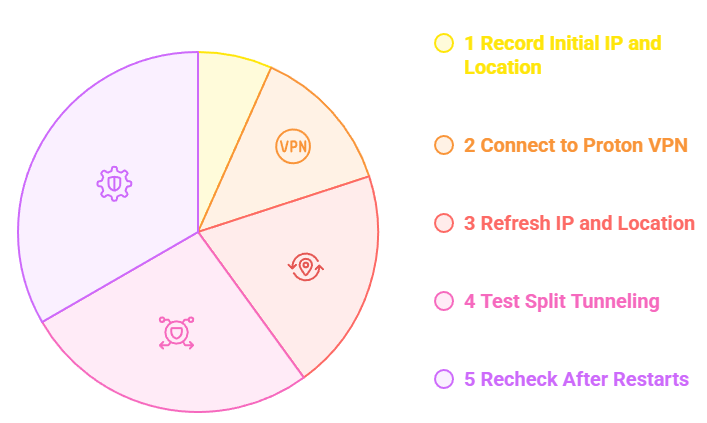
A green Connected screen proves the app built a tunnel, but an independent address check confirms that Fire TV traffic is leaving through the expected server and country.
- Record First: Before connecting, use Amazon Silk to note your public IP address and approximate location without sharing either value publicly.
- Connect Proton: Return to Proton VPN, select the intended server, and wait until its television interface clearly reports a connected state.
- Check Again: Refresh the address-checking page in Silk; the public IP and location should now match Proton’s exit server rather than your provider.
- Test Routed Apps: When split tunneling is active, confirm an included app uses Proton and an excluded app behaves normally outside the encrypted route.
- Recheck Restarts: Restart Fire TV and repeat the address check if you depend on automatic connection, ensuring protection returns before other applications open.
Know What Proton VPN Protects—and What It Does Not
Proton provides meaningful network privacy, but a VPN is not antivirus software, a content subscription, or permission to ignore licensing rules. Clear boundaries make the product easier to use responsibly.
- Encrypted Traffic: Proton hides destinations and unencrypted traffic contents from the local network and internet provider while the VPN tunnel remains connected.
- Changed Address: Websites and streaming services see the Proton exit server’s public IP instead of the address assigned to your home connection.
- Audited Logging: Proton published a fifth consecutive independent no-logs infrastructure audit in 2026 and makes its applications open source for review.
- No Malware Shield: A VPN cannot make an untrusted sideloaded application safe, remove malicious code, or repair a compromised Fire TV account.
- No Legal Exemption: Changing location does not grant viewing rights; use legitimate subscriptions and follow the streaming service’s terms and applicable laws.
Is Proton VPN the Right Choice for Your Firestick?
Proton is a strong fit when privacy transparency and a genuinely usable free tier matter. Before paying, compare its Fire TV feature set with the alternatives in our best VPNs for Firestick guide.
- Choose Proton Free: Pick it for unlimited basic encryption on one device when automatic location selection and the absence of supported streaming are acceptable.
- Choose Paid: Upgrade when you need a specific country, reliable streaming support, faster server choice, NetShield, split tunneling, or several simultaneous devices.
- Skip Old Hardware: Replace or protect an unsupported Fire OS 5 or 6 stick at router level instead of forcing incompatible application builds.
- Check Vega First: Owners of Vega OS models should verify a compatible Amazon listing because Proton’s current requirement specifically names Fire OS 7 and newer.
- Value Transparency: Open-source applications, published security work, Swiss jurisdiction, and repeated no-logs audits distinguish Proton from opaque free VPN services.
Verdict
Proton VPN is easy to recommend for a supported Firestick because the native Appstore installation is simple, the Free plan has no data cap, and the paid television controls cover the features most streamers need. The important caveats are equally clear: paid service is required for supported streaming, older Fire OS versions are excluded, and Vega OS compatibility should be verified before purchase.
FAQs
Is Proton VPN free on Firestick?
Yes. You can install the application and use Proton Free without a monthly data cap. Free users press Connect and receive an automatically selected free location. Supported streaming, country choice, NetShield, split tunneling, highest speeds, and multiple simultaneous connections require a paid plan.
Which Firestick models support Proton VPN?
Proton currently states that its Fire TV app works on Fire OS 7 or newer. Fire OS 5 and 6 are below that requirement. New Vega OS devices are a separate platform, so check the Amazon Appstore on the exact model instead of assuming Android compatibility.
Why can I not find Proton VPN in the Amazon Appstore?
Typed search is more reliable than Alexa voice search. If the listing remains absent, check the operating system, update Fire TV, restart it, verify the Amazon account region, and free storage. Do not install an Android APK if the device runs Vega OS.
Can Proton Free unblock Netflix on Firestick?
Do not rely on it for that purpose. Proton’s current streaming guide says supported streaming is included with paid plans, while Free does not let television users choose a specific country. A normal video may still load, but service-specific access is not a Free-plan promise.
What should I do if Proton VPN slows my Firestick?
Choose a nearby, lower-load server, try WireGuard UDP, improve the Wi-Fi signal, and restart the Firestick before retesting. Compare disconnected and connected speeds under identical conditions. For device-side causes, follow our guide to fix buffering on Firestick.
Does Proton VPN have a kill switch on Firestick?
Do not assume it does. Proton documents kill switch support on Android through operating-system controls, but its current product-lifecycle table does not list Android TV among supported kill switch platforms. Check the settings available in your installed television build and reconnect after any drop.