Key Takeaway: Stremio Chromecast works best when the sending device and receiver share one home network, the receiver is discoverable, and the selected stream uses video and audio formats Chromecast can decode. First choose the correct route for your hardware: cast from the Stremio player, cast a Chrome tab, or install Stremio directly on Chromecast with Google TV.
Casting Stremio is not one universal button. A classic Chromecast receives a stream from a phone or computer, while Chromecast with Google TV can run the Android TV app directly. TVs with Google Cast built in behave like receivers, but network permissions and codec support still decide whether playback starts.
I separate discovery, stream compatibility, playback quality, and controls before changing anything. That makes it clear whether Stremio cannot see the television, the receiver rejects one file, or Wi-Fi simply cannot deliver the selected bitrate.
Choose the Right Stremio Route for Your Chromecast
The device name determines the simplest setup. A puck-style Chromecast without an app store needs another device to send or mirror video. Chromecast with Google TV and many Android TV televisions can install Stremio. A Google TV Streamer also favors a native TV app rather than continuous casting from a phone.
- Classic Chromecast: Start playback on a supported Stremio phone or desktop app, then choose the available Cast receiver from the player controls.
- Chromecast Ultra: Use the same receiver workflow, but select a compatible source and stable network before attempting a high-bitrate 4K stream.
- Chromecast with Google TV: Install the Android TV version when available, sign in, and control playback directly with the television remote.
- Google Cast Television: Treat the built-in receiver like a Chromecast; confirm the TV and sender appear under the same home network.
- Google TV Streamer: Prefer the current Android TV app route, reserving Cast for quick handoffs or sources that open more reliably elsewhere.
| Hardware | Recommended Stremio Route | Main Control Device |
|---|---|---|
| Classic Chromecast | In-app Cast or compatible fallback | Android phone or computer |
| Chromecast Ultra | In-app Cast with compatible stream | Android phone or computer |
| Chromecast with Google TV | Native Android TV app | Google TV remote |
| TV with Google Cast | In-app Cast | Phone or computer |
| Android TV television | Native Android TV app | Television remote |
| Google TV Streamer | Native Android TV app | Voice remote |
Prepare Stremio, Google Cast, and the Home Network
Most missing-receiver problems begin before a stream is selected. Update Stremio, finish the Chromecast or television setup in Google Home, and place both devices on the same private Wi-Fi network. Guest networks often isolate clients, while mobile data prevents a phone from discovering a home receiver.
- Update First: Install the current stable Stremio build and available Chromecast firmware before diagnosing a problem already corrected by a release.
- Match the SSID: Confirm the sender and receiver show the identical Wi-Fi network name, including any separate 2.4 GHz or 5 GHz suffix.
- Finish Google Home Setup: Open the receiver tile, verify it is online, and check its device information before launching Stremio.
- Allow Local Access: Grant the operating system’s nearby-device or local-network permission so Stremio or the casting app can discover receivers.
- Avoid Isolated Networks: Guest, hotel, dormitory, and business Wi-Fi may block device-to-device traffic even when both connections reach the internet.
Cast Stremio from an Android Phone or Tablet
Android is the most practical sender for a receiver-only Chromecast. Open Stremio, choose an authorized source, and begin playback before looking for the Cast control. The receiver should take over the media session, leaving the phone as a controller rather than mirroring every movement on its screen.
- Open a Known Source: Begin with ordinary resolution and a familiar title so an extreme bitrate or unusual codec does not confuse setup.
- Start the Player: Let playback begin locally, then open the player controls and select the Cast icon if the current build displays it.
- Select One Receiver: Tap the exact television or Chromecast name and wait for the TV session to initialize before pressing more controls.
- Control from Stremio: Use pause, seek, audio, and subtitle controls cautiously; some tracks cannot be converted for the receiver.
- Disconnect Cleanly: Open the Cast control and stop casting when finished so the receiver releases the session for another app or user.
Send Stremio Playback from a Desktop Computer
Desktop casting depends on the Stremio version, operating system, and selected stream. Keep the computer awake and connected because it may need to remux or transcode media that Chromecast cannot accept directly. Laptops on VPNs or wired networks can also lose receiver discovery if local traffic is separated.
- Update the Desktop App: Use the current stable release rather than assuming an older Cast menu behaves like the present player.
- Play Locally First: Confirm the source opens on the computer before sending it, separating add-on failure from Chromecast negotiation.
- Choose Chromecast: Use the player or device menu exposed by the current Stremio build and select the correct receiver once.
- Keep the Computer Awake: Disable temporary sleep during the session because closing the lid or suspending the network can end conversion and playback.
- Check Local Firewall Rules: Allow trusted home-network discovery for Stremio without broadly disabling the firewall or exposing services to public networks.
Install Stremio Directly on Chromecast with Google TV
A Chromecast with Google TV runs apps, so it does not need a phone to relay every session. Search Google Play on the device for Stremio, choose the Android TV version, and sign in. This route usually gives better remote navigation, track selection, and resume behavior than mirroring.
- Confirm the Model: A voice remote and Google TV home screen indicate an app-capable device, unlike a classic receiver-only Chromecast.
- Use Google Play: Search for Stremio on the television device and install the official Android TV listing when it is available locally.
- Sign In Once: Use the same Stremio account to synchronize library, settings, and installed add-ons without rebuilding the television profile manually.
- Choose the TV Player: Start with the default playback engine, changing it only when a specific stream exposes a repeatable compatibility problem.
- Update Through the Store: Keep the TV app current and restart it after major updates before troubleshooting older cached behavior.
Pick Streams Chromecast Can Decode Reliably
Stremio’s official Chromecasting guidance explains that add-ons can return many media formats while Chromecast accepts only some of them. Unsupported video or audio may require processor-heavy conversion, fail to start, or produce video without sound. Test another legitimate source before resetting the receiver.
- Begin Conservatively: Choose a moderate-resolution source with a common container before trying a large 4K file with advanced video and audio tracks.
- Change One Variable: Select another source for the same title so the receiver, network, and Stremio account remain comparable.
- Watch the Failure: Endless loading suggests negotiation or delivery trouble, while picture without sound points more directly to audio compatibility.
- Avoid Filename Guessing: A resolution label alone does not reveal every codec, profile, audio format, subtitle type, or bitrate inside the stream.
- Prefer Native Playback: On Google TV hardware, the Android TV app may handle a source that the receiver-only Cast path cannot convert cleanly.
| Symptom | Likely Layer | Best Next Check |
|---|---|---|
| Receiver never appears | Discovery or network permission | Same SSID and local access |
| One source loads forever | Stream or codec compatibility | Try a moderate alternate source |
| Picture but no sound | Audio format conversion | Choose another audio/source option |
| Video pauses repeatedly | Bitrate or Wi-Fi capacity | Lower quality and reduce congestion |
| Subtitles disappear | Subtitle format or track handling | Use another subtitle track |
| All Cast apps fail | Receiver or router | Restart Chromecast and network |
Keep Audio Tracks and Subtitles Working
Audio and subtitles travel differently from the picture, so a successful connection does not guarantee every track works. Embedded subtitles may need extraction or conversion, while an advanced surround track may be unsupported by the receiver, television, or soundbar. Compare tracks before changing network settings.
- Try Another Audio Track: Switch from an advanced surround option to a simpler available track when video plays but the room stays silent.
- Test Television Speakers: Temporarily bypass a soundbar or receiver to learn whether HDMI audio negotiation, not Stremio, causes the silence.
- Choose External Subtitles: A separate subtitle track may cast more reliably than image-based or unusually styled subtitles embedded in the media.
- Reduce Styling: Select a plain language track and default appearance before diagnosing font size, color, positioning, or timing adjustments.
- Compare Native Playback: If casting loses a track, play the same source in the Google TV app to isolate Cast conversion from source quality.
Fix Stremio When the Chromecast Does Not Appear
Discovery fails when the sender cannot exchange local-network messages with the receiver. Google’s local-network casting guidance requires the same Wi-Fi and the relevant permission. Router client isolation, denied access, VPN routing, or a stale Google Home session can hide an otherwise online Chromecast.
- Verify in Google Home: If the receiver is also missing there, fix its power, Wi-Fi, and setup before changing Stremio.
- Restore Permissions: Enable nearby devices or local-network access for Stremio, Google Home, and Chrome where the operating system exposes those controls.
- Pause the VPN: Disconnect only for a trusted-home-network test because some VPN profiles prevent multicast discovery or route local traffic elsewhere.
- Disable Client Isolation: Check the router or extender for AP isolation, wireless isolation, or guest controls that prevent devices from seeing one another.
- Restart in Order: Close Stremio, reboot the receiver and router, reconnect the sender, then open Google Home before relaunching Stremio.
Repair a Black Screen, Endless Loading, or No Sound
Once the receiver appears, playback errors usually move from discovery to source delivery. Test whether another Cast-enabled app works, whether another Stremio source works locally, and whether a native TV app can play it. Those three comparisons prevent a factory reset for one incompatible media file.
- Confirm Local Playback: If the source also fails on the sender, choose another authorized stream or repair the add-on before touching Chromecast.
- Try a Simple Source: Use moderate resolution and a different audio track to reduce the conversion demanded from the sending device.
- Restart the Session: Stop casting, close the player, wait for the receiver’s home screen, then establish one clean connection.
- Remove Extra Hardware: Temporarily connect the Chromecast directly to the television and test its speakers, bypassing receivers, splitters, and soundbars.
- Switch the Route: Use native Android TV playback or an approved external player when Cast conversion repeatedly fails on one format.
Reduce Buffering and Quality Drops While Casting
Casting adds another active network path and may add live conversion on the sender. A source that barely plays on a phone can stall more often when delivered to a television. Lowering bitrate, improving receiver signal, and reducing simultaneous traffic are more useful than repeatedly clearing unrelated app caches.
- Lower the Source Quality: Compare a smaller stream for the same title; immediate stability points to bitrate, conversion load, or network capacity.
- Use One Wi-Fi Band: Keep sender and receiver on the same network path when separate bands or extenders isolate discovery and traffic.
- Move the Router Closer: Reduce walls, cabinets, television interference, and distance around the Chromecast rather than boosting signal through an isolated guest extender.
- Pause Competing Transfers: Stop cloud backups, game downloads, and other high-resolution streams, then replay the same scene for a fair comparison.
- Consider Ethernet: Compatible adapters can stabilize Google streaming hardware, although the sender and wired receiver must still share a discoverable local network.
Know When Mirroring or an External Player Is Better
A fallback is useful only when it solves the failing layer. Android screen mirroring can display an interface but may reduce quality and keep the phone busy. An external player can support a different format, yet it also changes controls, subtitle handling, privacy exposure, and the path used by the source.
- Mirror for Short Tests: Use screen casting to confirm the television path, not as the first choice for long high-resolution viewing sessions.
- Choose Trusted Players: Open a stream only in a reputable installed player and review what URL or local data it receives.
- Expect Different Controls: Seeking, subtitle selection, audio tracks, and playback history may no longer return cleanly to Stremio.
- Protect the Phone: Mirroring keeps the display session active, can expose notifications, and generally consumes more battery than receiver-controlled playback.
- Prefer the Native TV App: On app-capable Google TV hardware, direct installation is usually cleaner than adding a mirroring or relay layer.
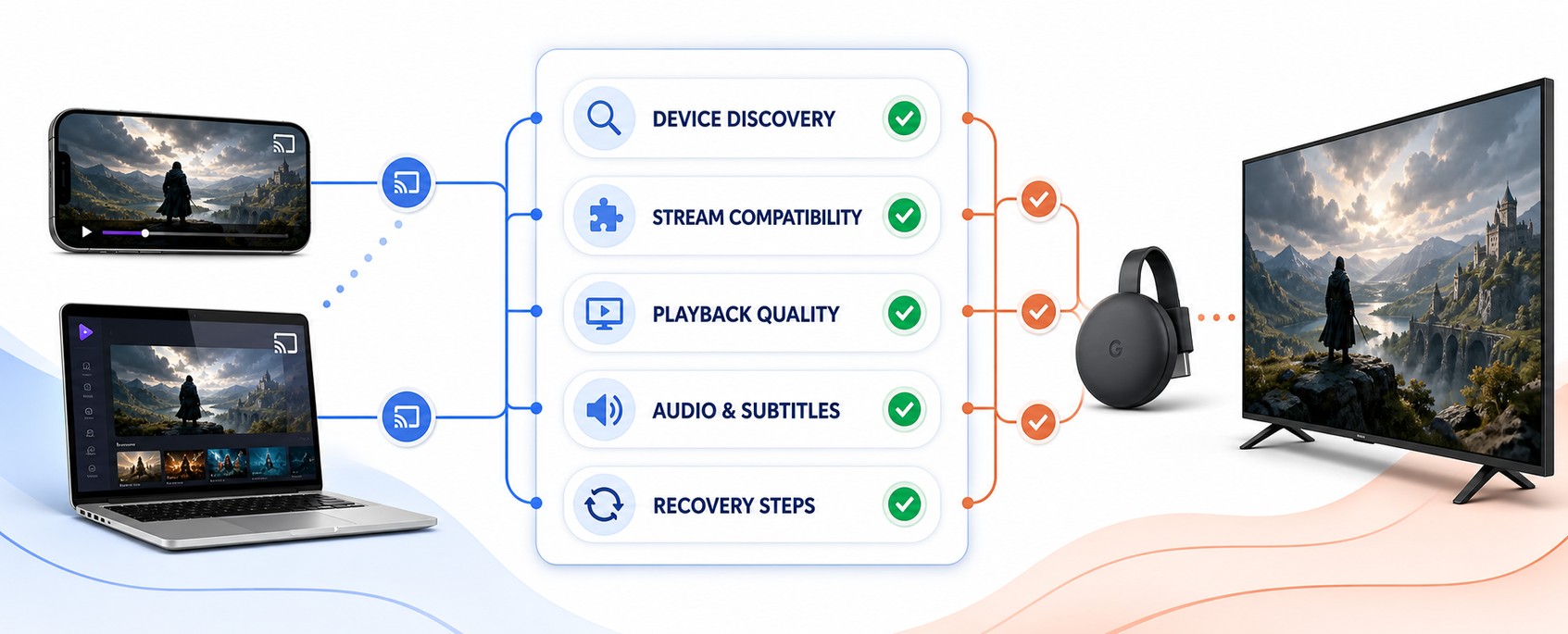
How We Evaluated Stremio Chromecast Methods
The evaluation follows the full path from receiver discovery to stable playback instead of treating every failure as a Wi-Fi problem. I prioritize reversible checks, current official guidance, and results that clearly separate Stremio, the selected stream, Google Cast, and the television’s audio-video chain.
- Device Discovery: We checked network identity, local permissions, Google Home visibility, router isolation, and VPN behavior before opening a media source.
- Stream Compatibility: We separated a failing file or track from receiver setup by comparing local playback, alternate sources, and native TV playback.
- Playback Quality: We considered bitrate, conversion load, Wi-Fi congestion, receiver signal, wired options, and competing household traffic.
- Audio and Subtitles: We compared alternate tracks, television speakers, soundbars, embedded captions, external subtitles, and the native application route.
- Recovery Steps: We ranked permission and restart checks before app resets, mirroring, external players, or factory restoration of Google hardware.
A method passes only when the receiver is consistently discoverable, the same authorized source starts more than once, controls respond, and picture, sound, and subtitles remain usable under ordinary network conditions.
Use Stremio and Chromecast Responsibly
Stremio is a media organizer and player, while add-ons determine where streams come from. Review the source, local copyright rules, and account permissions before casting. For app-capable televisions, our Stremio Android TV setup guide explains the cleaner native route instead of relaying playback from another device.
- Use Authorized Sources: Choose official services, personal media, public-domain works, or content you otherwise have permission to access and display.
- Review Add-ons: An add-on’s source, privacy practices, availability, and legality are separate from the Stremio application and Google Cast protocol.
- Protect Local Access: Allow discovery only on trusted networks and avoid leaving broad device permissions enabled for apps you no longer use.
- Keep Accounts Private: Do not enter debrid, streaming, or Stremio credentials into unknown players, mirrors, add-ons, or setup pages.
- Respect Shared Screens: Stop casting after viewing and check the receiver name before sending media in a household with multiple televisions.
Final Verdict
Stremio Chromecast is dependable when the setup matches the hardware. Use in-app casting for a classic receiver, but install the Android TV app on Chromecast with Google TV or similar devices. If the receiver is missing, fix local discovery first. If only one source fails, change the stream or playback route before resetting hardware.
- Best First Check: Confirm the exact model, identical Wi-Fi name, Google Home visibility, and required local-network permissions on the sender.
- Best Playback Fix: Choose a moderate compatible source or native TV app when one cast session loads forever, loses sound, or drops subtitles.
- Best Long-Term Route: Use direct Stremio installation on supported Google TV hardware for remote navigation and fewer relay or conversion dependencies.
FAQs
Can Stremio cast directly to Chromecast?
Supported Stremio builds can expose a Chromecast control, but availability and results depend on platform, app version, receiver discovery, and the selected stream’s formats. Start playback locally, choose the receiver once, and try another authorized moderate-resolution source if the television cannot load it.
Why does Chromecast not appear in Stremio?
The devices may use different Wi-Fi names, local-network permission may be denied, a VPN may block discovery, or the router may isolate wireless clients. Confirm the receiver appears in Google Home, disable guest-network isolation, restore nearby-device access, and restart the receiver before reopening Stremio.
Can I install Stremio on Chromecast with Google TV?
Yes, app-capable Chromecast with Google TV hardware can use the Stremio Android TV app where it is available in Google Play. Install the official listing, sign in, and use the remote. A classic Chromecast without a Google TV interface cannot install television apps.
Why does Stremio cast video without sound?
The source may contain an audio format that the Chromecast, television, soundbar, or conversion path cannot handle. Choose another audio track or source, test the television speakers, and compare native Android TV playback. A working picture does not prove that every embedded track is compatible.
Can I cast Stremio Web from Chrome?
You can cast a Stremio Web browser tab when the source plays in Chrome, although protected or unsupported media may remain blank. Choose Cast tab for browser audio and keep the computer awake. Our Stremio Web App guide covers browser setup and playback basics.
Does a VPN stop Stremio Chromecast discovery?
It can. Some VPN profiles route or block local multicast traffic, so the receiver disappears even though both devices have internet access. Pause the VPN only for a trusted-home-network test, confirm the Chromecast returns, then look for a local-network or LAN-access option in the VPN.