Key Takeaway: A Stremio login is how you sync your library, watch progress, and installed add-ons across phones, TVs, PCs, and the web. Guest mode works for a quick look, but it does not keep a backend account sync. Create a free account at stremio.com/register, sign in from the app or site, and use the official password-reset flow if you get locked out.
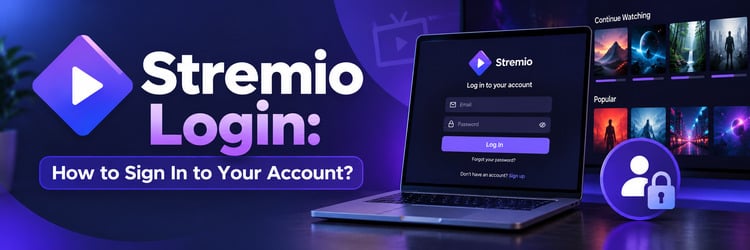
Signing in to Stremio on every device you use is the reliable way to keep the same library and add-ons in sync. Searching for stremio login usually means one of three jobs: create an account, sign in on a new screen, or fix a password or Facebook-linked account that will not open.
In this guide I cover why login matters, guest vs account, how to sign in on desktop, mobile, TV, and web, what syncs after you log in, password reset, Facebook-created accounts, common login failures, a short note on supporter profiles, and safe habits. For day-to-day browsing and add-ons after you are signed in, see our how to use Stremio guide; this post owns the login and multi-device sign-in path.
| Mode | What you get | Sync across devices | Best for |
|---|---|---|---|
| Signed-in account | Library, progress, and installed add-ons tied to your email | Yes, through Stremio’s account backend | Daily use on more than one screen |
| Guest / continue without account | Local session only on that install | No backend sync | A quick test on one device |
| Web sign-in at stremio.com | Same account in the browser client | Yes for account data the web client supports | Library checks when you are away from the app |
| New register at stremio.com/register | Free account with email and password | Starts syncing after first successful sign-in | First-time users |
Why Stremio Login Matters
Stremio is a media center. The app itself does not store your movies; your account stores the library board, continue-watching style progress, and which add-ons you installed. Without a login, each device starts empty. With a login, the phone you set up last week and the TV you open tonight share the same board.
Treat stremio login as the first step after install, not an optional extra. If you already know how add-ons and catalogs work, you still need a working sign-in before those choices follow you to the next screen. Login itself is fine and expected; what you stream still depends on legal sources you are allowed to use.
People also search for stremio login when something breaks: wrong password, an old Facebook-created account, or a TV app that will not accept the email. Those fixes belong here too, so you do not have to bounce between unrelated how-to pages.
Create a Stremio Account vs Guest Mode
If you are new, open the official register page and create a free account with an email and password you control. You can also start registration from inside the desktop or mobile app when it prompts you to sign up. Use a real inbox you can check, because password reset and some account emails land there.
- Create an account when: you plan to use Stremio on more than one device, you care about library sync, or you want add-ons to reappear after a reinstall.
- Use a guest option, if your client offers one, when: you only want a one-time look at the interface on a single install and do not need backend sync.
- Do not mix habits: if you build a library as a guest and later create an account, that guest board does not magically become the cloud library. Sign in early if sync matters.
- Password tip: pick a unique password. Stremio login protects your library and add-on list, so reuse from other sites is a bad idea.
Guest use is not wrong; it is just local. TV apps generally ask you to link an account before you can use them, so for regular watching, create or sign in to an account first.
How to Sign In on Desktop, Mobile, TV, and Web
The sign-in fields look similar everywhere: email and password for a normal account. The button labels may say Log in, Sign in, or Login depending on the client. Download official builds from the Stremio downloads page or the stores Stremio lists there, then follow the path for your screen.
Desktop (Windows, macOS, Linux)
- Install Stremio from the official downloads page for your OS.
- Open the app and choose Sign in or Log in when the account prompt appears.
- Enter the email and password for your Stremio account.
- Confirm you land on your library or home board with previous items if this is not a brand-new account.
- If you do not have an account yet, use Create account or open stremio.com/register first, then return to the app.
On Linux Flatpak builds and native Windows or macOS installs, the account flow is the same idea. After a successful stremio login, give the app a moment to pull library and add-on state before you assume sync failed.
Mobile (Android and iPhone)
- Install the official Stremio app for your phone.
- Open the app and find Sign in from the first-run screen or from Settings / Account.
- Type the same email and password you use on desktop.
- Stay on Wi-Fi the first time so the library and add-ons can sync without a slow mobile connection.
- If the keyboard hides the Sign in button, rotate the phone or dismiss the keyboard and tap again.
On a phone, sign in before you install a long list of add-ons. That way the next device inherits the same set instead of forcing you to rebuild it by hand.
TV, Android TV, and Firestick-style boxes
- Install Stremio from the official source that matches your TV or stick.
- Open the app. The TV app shows a Link Account screen with a QR code and a short code instead of asking you to type everything with the remote.
- Scan the QR code with your phone, or open link.stremio.com in any browser and enter the 4-character code shown on the TV.
- Sign in with your Stremio email and password on the phone or computer when asked.
- Wait a few seconds; the TV links to your account and loads your home board, library, and add-ons. If the app offers a manual login option instead, type your email and password carefully with the remote.
If you are new, create the account on a phone or PC first, then link the TV with the code. That reduces the chance of creating a second accidental account with a mistyped email on the big screen. For device-specific steps, see our guides on installing Stremio on Firestick and the Stremio Android TV setup.
Web at stremio.com
- Open stremio.com in a current browser.
- Use the site Sign in control and enter your email and password.
- Confirm you see your account library data the web client supports.
- Remember that many streams still need a desktop streaming server; web sign-in is great for account checks, not always for full playback.
Web login is useful when you are on a locked-down PC and only need to confirm the account or tweak something the browser allows. For regular watching, the desktop or TV app is the better choice after the same stremio login.
What Syncs After You Log In
A successful sign-in attaches this device to your account backend. Three main things follow the account:
- Library board: titles you added or continue watching style entries tied to the account.
- Watch progress: where you left off, so another device can resume more cleanly than a guest session.
- Installed add-ons: the add-on set linked to the account, so you are not starting from a blank catalog on every screen.
Guest mode does not get that backend sync. If two devices disagree after login, sign out and back in on the lagging device, confirm the same email, and check the network. Do not install random third-party “sync tools”; the account is the sync path.
Sync is not a full clone of every local cache file. Playback quirks on one device can still be local (codec, network, or add-on health). Login gets the account state aligned; it does not replace basic troubleshooting when a single stream fails.
How to Reset a Forgotten Stremio Password
If sign-in fails with a wrong-password style error, use the official reset path instead of creating a duplicate account.
- Go to stremio.com and click Sign in.
- Type your account email address and any password, then press Enter. For an account created with Facebook, use the email linked to Facebook.
- A link to the password reset page appears below the login form. Click it.
- Request the reset, then open the reset message in that inbox and follow the link to set a new password.
- Return to the app and sign in with the new password on each device you use.
Stremio documents this flow in its help center article on how to reset my password. If the email never arrives, check spam, confirm you used the same address you registered with, and wait a few minutes before requesting another reset. Do not use unofficial “password unlock” sites.
Facebook-Created Accounts: Email and Password Access
Some older accounts were created through Facebook login. If that is your case, you may need to attach a normal email and password before every device accepts a classic stremio login.
Stremio’s help article on using a Facebook-created account with email and password describes the steps: open the Stremio web login page it links to, try to log in with the email you use for Facebook and any password, then click the Set Password option shown in the yellow message under the form. On the Password Reset page click Reset Password, then use the link Stremio emails you to set a new password. From then on you can sign in with email and password, and your Facebook login keeps working too.
Finish that password setup on a phone or PC browser. Once the password exists, linking a TV works like any other account.
Fix Common Stremio Login Problems
| Problem | Likely cause | What to try |
|---|---|---|
| Wrong email or password | Typo, caps lock, or old password | Retype carefully; use password reset if needed |
| Reset email never arrives | Spam folder or wrong inbox | Check spam; confirm the registered address; retry once |
| Facebook account will not sign in on TV | Needs email and password set first | Complete the official Facebook-created account password flow on phone or PC |
| Signed in but library empty | New account or different email | Confirm the email matches your main account; wait for sync |
| Works on phone, fails on TV | TV keyboard typo or stale session | Sign out, re-enter email slowly, or sign in on phone first to confirm credentials |
| Two nearly identical accounts | Accidental second register | Pick the account with your real library; avoid creating more duplicates |
| App opens offline errors at login | No network or blocked DNS | Switch Wi-Fi, retry, and avoid VPNs that break the auth host |
| Need a different email on the account | Email change required | Follow Stremio’s official how to change email address help article |
If you are done with an account entirely, Stremio also documents how to delete my account. That is a permanent account action, not a login fix, so only use it when you mean to remove the account.
When login succeeds but streams fail afterward, that is usually an add-on or network issue, not the account. Our how to use Stremio guide covers day-to-day app use after you are signed in. If the app will not open at all, a broader troubleshooting pass may help more than repeating the password.
Profiles and Supporter Notes (Brief)
On supporter plans, Stremio can offer multiple profiles (up to 6), with optional PIN protection and per-profile addon controls. Availability varies by platform and plan, so treat profiles as an extras layer on top of the same login, not as a separate stremio login per person.
For most free-account users, one sign-in and one library is enough. Profiles are mentioned here so you do not confuse a profile PIN prompt with a failed password. If you see a PIN gate after a successful login, that is profile protection, not a broken account password.
Stay Safe While You Sign In
Only enter your Stremio password on official apps and on stremio.com. Do not type credentials into random “Stremio login fixer” pages, cracked APKs, or chat bots that ask for your password. Download builds from the official downloads list or trusted stores Stremio points to.
Signing in does not make unauthorized streams legal. Stremio is a media center; keep add-ons and content inside what you have the right to access, and follow local law. For a wider safety overview, read whether Stremio is legal and safe.
On a shared living-room TV, use the code-based Link Account method so you never have to type your password on the TV, and keep the password in a password manager on your phone.
Final Verdict
A clean stremio login is the foundation for multi-device use. Create one free account, sign in on each screen, and let library, progress, and add-ons sync through the official backend. Use guest mode only for throwaway tests.
When something fails, stay on official paths: password reset from the sign-in form, the Facebook-created account password flow when that applies, and careful email entry on TV keyboards. Skip third-party login tools.
Once you are signed in everywhere you watch, switch to normal Stremio use: add-ons you trust, legal sources, and the desktop or TV client for playback. Login gets you aligned; good habits keep each device useful.
Frequently Asked Questions
What is a Stremio login?
A Stremio login signs you into a free account so your library, watch progress, and installed add-ons can sync across devices instead of staying local like guest mode.
How do I create a Stremio account?
Open stremio.com/register or use Create account inside the app, enter an email and password you control, then sign in on each device with those credentials.
Does guest mode sync my library?
No. Guest or continue-without-account mode stays local on that install and does not provide Stremio backend sync across phones, TVs, and PCs.
How do I reset my Stremio password?
Go to stremio.com, click Sign in, enter your email and any password, then click the reset link that appears below the form. Use the emailed link to set a new password, then sign in again on each device.
How do I use a Facebook-created Stremio account with email?
Follow Stremio’s official help article to run the Set Password flow for Facebook-created accounts, then sign in with that email and the password you set.
Why is my library empty after I sign in?
You may be on a different email than your main account, or sync may still be loading. Confirm the email, wait briefly, and sign out and back in on a stable network.
Can I sign in to Stremio on my TV and phone with one account?
Yes. Sign in with the same email and password on your phone, and link the TV app to that account with the QR code or the 4-character code at link.stremio.com. One account then works across desktop, mobile, TV, and web.
Is it safe and legal to sign in to Stremio?
Signing into your own Stremio account is fine. Stremio is a media center; what you watch still depends on add-ons and local law, so use only content you have the right to access.