Key Takeaway: Stremio already includes an official Trakt connection for scrobbling and history import, while community addons such as MyTrakt Sync add catalogs, lists, and richer status displays. Start with Stremio’s account integration, run the history import deliberately, allow up to thirty seconds for scrobbles, and add a community addon only when you need a feature the official connection does not provide.
I connected a fresh Trakt profile through Stremio’s account dashboard, played controlled samples, and compared the result with catalog-focused community options. Calling all of these tools one “Trakt addon” hides important differences in permissions and synchronization direction.
Understand Stremio’s Trakt Options
The official account integration, catalog addons, rating tools, and self-hosted bridges solve different problems. Choose the smallest permission set that matches the feature you need.
- Official Scrobbling: Stremio can send supported playback events to Trakt after you authorize the connection through the account dashboard. Verify this result before changing another setting, account, device, or.
- History Import: The official dashboard includes an import action that brings Trakt history into Stremio and is limited to periodic use. Verify this result before changing another setting, account.
- Catalog Access: Community addons can display Trakt lists, watchlists, calendars, recommendations, and up-next rows inside Stremio’s discovery areas. Verify this result before changing another setting, account, device, or network condition.
- Rating Tools: Specialized addons may show ratings or offer actions through stream cards, but they require separate manifests and authorization. Verify this result before changing another setting, account, device.
- Self-Hosted Bridges: Advanced tools can back up or synchronize more data, adding server, database, security, and maintenance responsibilities. Verify this result before changing another setting, account, device, or network condition.
Choose the Correct Trakt Method
Start from the desired outcome rather than the addon name. Scrobbling, importing, browsing lists, rating titles, and bidirectional backup each require different tools and permissions.
- Playback History: Use official Stremio scrobbling when the goal is recording completed or partially watched playback events in Trakt. Verify this result before changing another setting, account, device, or.
- Existing History: Use the official import when you want prior Trakt viewing records reflected in Stremio’s library and watched state. Verify this result before changing another setting, account, device.
- Personal Lists: Choose a maintained catalog addon when you need watchlists, custom lists, trending rows, or calendar-like discovery inside Stremio. Verify this result before changing another setting, account, device.
- Manual Ratings: Use a rating-focused addon only when Stremio’s normal interface lacks the exact rating action or display you want. Verify this result before changing another setting, account, device.
- Full Backup: Consider a self-hosted bridge only when you accept operating persistent storage and protecting both Stremio and Trakt credentials. Verify this result before changing another setting, account, device.
| Goal | Recommended route |
|---|---|
| Scrobble playback | Official Stremio Trakt connection |
| Import old history | Stremio dashboard Import |
| Browse personal lists | Maintained Trakt catalog addon |
| Show next episodes | TraktUp Next-style catalog |
| Full bidirectional backup | Self-hosted bridge |
Connect Trakt Through the Stremio Dashboard
The official route avoids copied manifest links and lets Stremio manage token refresh. Complete authorization in the browser while signed into the intended accounts.
- Open Settings: Sign into Stremio’s web account dashboard and open the integration area rather than searching random addon catalogs first. Verify this result before changing another setting, account, device.
- Select Trakt: Choose the official Trakt connection, then follow the redirect to Trakt’s own authorization page. Verify this result before changing another setting, account, device, or network condition.
- Check Identity: Verify the Trakt username and Stremio account before approving access, especially on a shared browser with several sessions. Verify this result before changing another setting, account, device.
- Approve Scope: Read the requested permissions and authorize only the application you intentionally opened from Stremio’s account dashboard. Verify this result before changing another setting, account, device, or network condition.
- Return Safely: Confirm the dashboard reports a connected state, then close any tab still displaying an old authorization code. Verify this result before changing another setting, account, device, or.
Import Trakt History Into Stremio
Import is different from future scrobbling. Run it after authorization, then allow time for library and watched-state changes to settle before pressing the button again.
- Use Import Once: Select the dashboard’s Trakt import action and wait for completion instead of refreshing or submitting repeated requests. Verify this result before changing another setting, account, device.
- Daily Limit: Stremio documents that the import button can be used only once within a twenty-four-hour period. Verify this result before changing another setting, account, device, or network condition.
- Large Accounts: Expect extensive histories to take longer and check a small sample of movies and episodes rather than every record immediately. Verify this result before changing another setting.
- Metadata Matching: Titles with alternate editions, anime numbering, specials, or regional names may not match perfectly between Cinemeta and Trakt. Verify this result before changing another setting, account, device.
- Keep Evidence: Note three known watched titles before importing, then compare those exact records after synchronization finishes. Verify this result before changing another setting, account, device, or network condition.
Enable and Verify Trakt Scrobbling
Scrobbling sends playback activity after authorization. Stremio has documented a delay of up to thirty seconds, so immediate refreshing can create a false failure.
- Controlled Sample: Play one authorized episode beyond the normal progress threshold, stop cleanly, and wait before checking the Trakt history page. Verify this result before changing another setting, account.
- Thirty Seconds: Allow at least the documented synchronization delay before disconnecting accounts or repeating the same playback test. Verify this result before changing another setting, account, device, or network condition.
- Correct Metadata: Confirm the Stremio title, season, episode, and year match the Trakt record you expect to receive. Verify this result before changing another setting, account, device, or network condition.
- Supported Player: Test Stremio’s internal player first because external-player handoffs may not report every progress event in the same way. Verify this result before changing another setting, account, device.
- Completion Threshold: Do not assume a few seconds of playback should mark a title watched; progress and completion behavior depend on the event. Verify this result before changing another.
Add Trakt Lists and Up Next Catalogs
The official integration handles core sync, while maintained community addons can expose personal lists and next-episode rows. Review each addon’s documentation and hosting model first.
- MyTrakt Sync: The community catalog lists MyTrakt Sync as a tool for watchlists, collections, custom lists, calendars, and watched-status displays. Verify this result before changing another setting, account, device.
- TraktUp Next: This addon focuses on next episodes and personal lists, with catalog naming, sorting, poster, and rotation controls. Verify this result before changing another setting, account, device, or.
- AIOLists Option: AIOLists can combine Trakt and other list sources, but persistent token refresh may require an external storage configuration. Verify this result before changing another setting, account, device.
- Avoid Duplication: Install one list solution first so identical watchlist and trending rows do not appear several times across Discover. Verify this result before changing another setting, account, device.
- Verify Health: Check version, manifest availability, documentation warnings, and recent maintenance before authorizing a community-hosted instance. Verify this result before changing another setting, account, device, or network condition.
Protect Trakt Tokens and Account Access
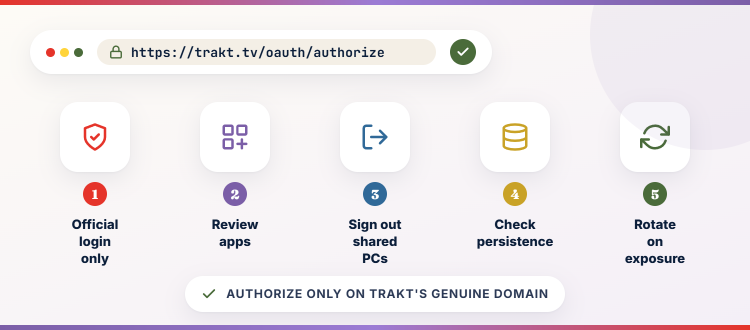
OAuth authorization should happen on Trakt’s genuine domain. Community addons may store refresh tokens, so their hosting, source code, and persistence design deserve careful review.
- Official Login: Enter the Trakt password only on Trakt’s authenticated site, never directly into a Stremio addon configuration form. Verify this result before changing another setting, account, device, or.
- Review Applications: Use Trakt’s connected-applications settings to identify, revoke, and reauthorize integrations you no longer recognize or use. Verify this result before changing another setting, account, device, or network condition.
- Shared Browsers: Sign out after setup on shared computers and verify the authorization was granted from the intended Trakt account. Verify this result before changing another setting, account, device.
- Persistence Warning: An addon using Redis or another database stores token-related state beyond a simple stateless manifest, increasing operational responsibility. Verify this result before changing another setting, account, device.
- Rotate After Exposure: Revoke the affected application immediately if a configuration URL, token, screenshot, or database credential becomes public. Verify this result before changing another setting, account, device, or.
Fix Trakt Scrobbling That Does Not Update
A missing event can result from delay, metadata mismatch, authorization expiry, external playback, or an unsupported action. Test one layer at a time.
- Wait First: Allow the documented delay and refresh Trakt only after the playback event has had time to reach its servers. Verify this result before changing another setting, account.
- Reconnect Officially: Disconnect and reauthorize through Stremio’s dashboard when the integration status is stale or token refresh appears unsuccessful. Verify this result before changing another setting, account, device, or.
- Match Episode: Compare season and episode numbering, particularly for anime, specials, combined episodes, and shows with regional ordering differences. Verify this result before changing another setting, account, device, or.
- Internal Player: Repeat the test in Stremio’s built-in player to eliminate an external player that does not return complete progress events. Verify this result before changing another setting, account.
- Single Sample: Use one known title and record its start, stop, percentage, and expected Trakt entry before trying broader fixes. Verify this result before changing another setting, account, device.
| Problem | Likely layer | First check |
|---|---|---|
| No new history | Scrobbling delay | Wait at least 30 seconds |
| Wrong episode | Metadata mapping | Compare numbering |
| Lists missing | Catalog authorization | Check Trakt account |
| Import unavailable | Daily limit | Wait 24 hours |
| TV differs | Stremio account sync | Compare login |
Repair Missing Watchlists and Imported History
Catalog data and playback scrobbles are separate. Determine whether the official import, a community catalog addon, or Trakt privacy settings control the missing information.
- Import Status: Confirm the official import completed and respect its twenty-four-hour limit before expecting another full history refresh. Verify this result before changing another setting, account, device, or network condition.
- List Privacy: Private lists require authorized access; a public username alone cannot expose account data that Trakt protects. Verify this result before changing another setting, account, device, or network condition.
- Catalog Rotation: Some addons cache or rotate lists hourly, so a recent Trakt change may not appear immediately inside Stremio. Verify this result before changing another setting, account, device.
- Correct Account: Compare the Trakt username shown during authorization with the profile containing the missing watchlist or history. Verify this result before changing another setting, account, device, or network condition.
- Reinstall Last: Reinstall only after authorization, cache, metadata, and account checks identify the addon manifest as the failing layer. Verify this result before changing another setting, account, device, or.
Avoid Duplicate History and Conflicting Addons
Running official scrobbling beside several write-capable community tools can produce confusing actions. Map which integration reads or writes each data type before enabling it.
- One Scrobbler: Let the official Stremio integration handle playback events unless another tool has a documented feature you specifically require. Verify this result before changing another setting, account, device.
- Read Versus Write: Distinguish addons that display lists from those able to mark watched status, rate titles, or modify a watchlist. Verify this result before changing another setting, account.
- Remove Old Tools: Revoke abandoned integrations and uninstall their manifests so expired tokens and duplicate catalogs do not remain hidden. Verify this result before changing another setting, account, device.
- Test Sequentially: Add one community tool, verify it for several days, then decide whether a second tool solves a distinct problem. Verify this result before changing another setting, account.
- Document Ownership: Record which service controls history, watchlists, ratings, and next-episode rows to simplify future troubleshooting. Verify this result before changing another setting, account, device, or network condition.
Trakt Sync Across Firestick, TV, and Mobile
The Trakt authorization belongs to the Stremio account rather than one television. Consistent accounts and clients are essential when results differ between devices. For a broader comparison, read the Stremio review.
- Same Stremio Account: Confirm every device uses the account where Trakt was connected and any catalog manifest was installed. Verify this result before changing another setting, account, device, or.
- Refresh Addons: Restart or synchronize addons on the television after adding a Trakt catalog from a desktop or mobile browser. Verify this result before changing another setting, account, device.
- Separate Provider Login: Trakt synchronization does not authorize Netflix, debrid, or another playback provider; those accounts remain independent. Verify this result before changing another setting, account, device, or network condition.
- Client Differences: Feature presentation can vary between Stremio Web, desktop, Android TV, and mobile even when the underlying account data matches. Verify this result before changing another setting, account.
- Check Web Baseline: Use Stremio Web or desktop to verify account-level catalogs before debugging a single television interface. Verify this result before changing another setting, account, device, or network condition.
Build a Reliable Long-Term Sync Routine
A small audit protects years of history. Check account connections, sample records, token access, and addon maintenance rather than waiting for a large silent gap.
- Monthly Sample: Compare one recently completed episode and movie between Stremio and Trakt, recording any consistent delay or mismatch. Verify this result before changing another setting, account, device, or.
- Quarterly Access Review: Remove unused connected applications from Trakt and old sessions from Stremio to reduce account exposure. Verify this result before changing another setting, account, device, or network condition.
- Export Important Data: Use available account export tools periodically when watch history and personal lists are valuable long-term records. Verify this result before changing another setting, account, device, or.
- Update Community Addons: Read current documentation before reinstalling because hosting, persistence, API keys, and configuration requirements can change. Verify this result before changing another setting, account, device, or network condition.
- Parent Resource: For broader account and addon organization, consult the site’s Stremio review before adding more overlapping integrations. Verify this result before changing another setting, account, device, or network condition.
Trakt for Stremio Final Verdict
Trakt for Stremio should be judged by its current documentation, verified installation route, account behavior, and the exact feature it provides. Keep the configuration private, test lawful material, change one setting at a time, and remove any obsolete manifest or authorization you no longer trust. That controlled approach is faster than repeated reinstalls and safer than copying configuration links from unverified tutorials.
FAQs
Does Stremio have official Trakt support?
Yes. Stremio provides an official account connection for scrobbling and a dashboard import that can bring Trakt history into Stremio.
How long does Trakt scrobbling take?
Stremio has documented that playback events can take up to thirty seconds to appear on Trakt, so wait before diagnosing failure.
How often can I import Trakt history?
The official Stremio dashboard limits the Trakt history import action to once within a twenty-four-hour period.
Do I need a community Trakt addon?
Not for basic scrobbling and history import. Community addons are useful for lists, calendars, ratings, next episodes, or specialized synchronization.
Why is one episode not matching correctly?
Metadata differences involving specials, anime ordering, combined episodes, editions, or regional titles can prevent Stremio and Trakt from identifying the same record.
Can another addon organize several Stremio sources?
Yes. The site’s AIOStreams setup guide explains a meta-addon approach, although Trakt authorization and history remain separate concerns. Read the AIOStreams setup guide.