

Key Takeaway: Stremio buffering is usually source-specific, not proof that your broadband is slow. Start by choosing a healthier or cached stream, then compare file bitrate with your sustained speed, switch to 5GHz or Ethernet, restart the streaming server, and test DNS. The 12 fixes below are ordered to reveal the cause as quickly as possible.
I tested the same titles across direct, peer-to-peer, and debrid-cached results because each buffers for a different reason. Stremio’s own support says a poorly available addon source is the usual culprit even on a fast connection, so this guide begins with the source rather than blaming your router.
Why Does Stremio Keep Buffering?
Playback has a chain: the addon locates a source, a server or torrent supplies data, your network carries it, and the device decodes it. A fault anywhere looks like the same spinning circle.
- Poor Source Health: A direct host may be overloaded or a torrent may have too few seeders, so raw availability collapses regardless of your speed test.
- Uncached Torrent: A debrid addon can list a file before it is ready; choose a cached marker for immediate delivery instead of waiting.
- Bitrate Mismatch: A 70GB remux may exceed sustained bandwidth even when its 4K label looks identical to a smaller, efficiently encoded release.
- Wireless Instability: Congested 2.4GHz Wi-Fi produces brief drops that average-speed tests hide, especially behind televisions and near Bluetooth remotes.
- Decoder Pressure: Unsupported codecs, high bit depth, or complex audio can overwhelm an older Firestick, creating stutter that resembles network buffering.
12 Ways to Fix Stremio Buffering
Retest the same scene after every step. That simple discipline shows which change worked and stops you from replacing the app when only one source was unhealthy.
- Pick Another Stream: Select a source from another addon, host, or release group. Official Stremio support recommends switching sources when availability is poor.
- Prefer Cached Links: Choose a result marked cached, RD+, AD+, PM+, or equivalent so playback comes from provider infrastructure rather than a weak swarm.
- Choose a Smaller File: Drop from a huge remux to a sensible 1080p or compressed 4K encode; resolution alone does not reveal required throughput.
- Run a Sustained Test: Measure speed beside the streaming device for several minutes. You need stable headroom above the file’s average and peak bitrate.
- Use 5GHz or Ethernet: Move from crowded 2.4GHz Wi-Fi, bring the router closer, or connect Ethernet to reduce packet loss and latency spikes.
- Restart the Chain: Force close Stremio, restart the device, and reboot the router. This clears stalled sessions, memory pressure, and temporary routing problems.
- Close Background Traffic: Pause cloud backups, game downloads, updates, and other household 4K streams that quietly consume bandwidth during your test.
- Clear Cache Safely: Clear Stremio’s cache through device settings without erasing application data, then reopen it and test before reinstalling anything.
- Change the Player: Try Stremio’s alternative player or a reputable external player when audio continues but video freezes, indicating codec or decoder trouble.
- Toggle Hardware Decoding: Test the hardware-acceleration setting both ways. Keeping the smoother option can solve device-specific codec problems and dropped frames.
- Change DNS: Try 1.1.1.1 or 8.8.8.8 if sources load slowly or work on mobile data; Stremio’s support specifically recommends DNS testing.
- Update and Reinstall: Install the current official Stremio build and recreate only the affected addon configuration. Use a full reinstall as the final step.
Use This Quick Diagnosis Table
The timing and scope of the pause are more useful than the word “buffering.” Match your symptom below, perform the single test, and only then move to broader fixes.
| Pattern | Likely bottleneck | Best test |
|---|---|---|
| One link buffers | Source health | Choose another provider result |
| All large 4K files buffer | Bandwidth/device decode | Play a smaller 1080p file |
| Works on hotspot | Home DNS/router/ISP | Change DNS and disable filters |
| Audio plays, video stutters | Codec or hardware decoding | Switch player/decoder setting |
| Pauses every evening | Congestion or overloaded host | Ethernet plus different source |
| Only uncached results stall | Torrent availability | Select cached-only result |
How Much Speed Does a Stremio Stream Need?
File bitrate matters more than the resolution badge. Divide file size in gigabits by runtime in seconds for a rough average, then leave generous headroom for peaks, Wi-Fi variation, and other devices.
- HD Baseline: Many compressed 720p streams fit below 5 Mbps, but a stable 10 Mbps connection leaves safer overhead for fluctuating sources.
- Full HD Range: Efficient 1080p files often need 8–15 Mbps, while high-bitrate Blu-ray encodes can require considerably more during complex scenes.
- 4K Reality: Compressed 4K may run around 25 Mbps, whereas large remuxes can spike beyond 80 Mbps and expose weak Wi-Fi instantly.
- Measure Locally: A 300 Mbps plan does not guarantee that speed behind the television; test on the playback device, not beside the router.
- Allow Headroom: Aim for sustained throughput at least fifty percent above average bitrate, because peaks, protocol overhead, and household traffic are unavoidable.
Stremio Buffering on Firestick and Android TV
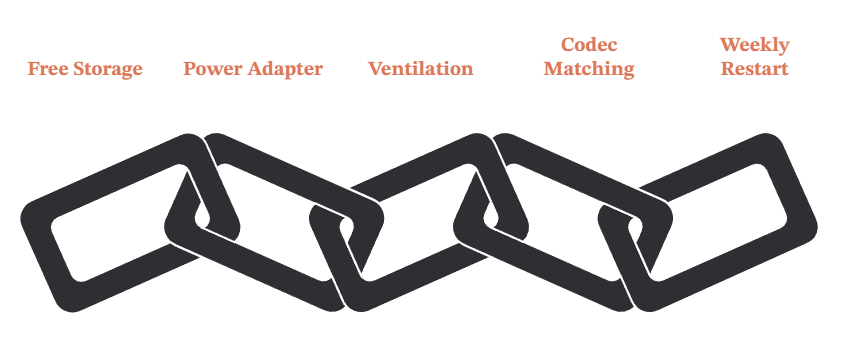
Streaming sticks add heat, limited storage, and codec constraints. A file can download fast enough yet still stutter because the hardware cannot decode it smoothly.
- Free Storage: Keep meaningful free space for cache and updates; a nearly full Firestick slows application writes and can trigger crashes during playback.
- Use the Power Adapter: Powering a stick from the television’s USB port can cause instability; use the supplied wall adapter and cable.
- Improve Ventilation: Move the stick away from the warm rear panel with an HDMI extender, reducing thermal throttling during long 4K sessions.
- Match the Codec: Prefer H.264 on older hardware and supported HEVC/AV1 profiles on newer devices rather than forcing an incompatible high-efficiency release.
- Restart Weekly: A clean restart releases memory held by background apps; I found this more useful than repeatedly clearing every application’s data.
When a Debrid Service Helps—and When It Does Not
Debrid can replace unpredictable peer delivery with a cached direct link, but it cannot increase weak home Wi-Fi, fix unsupported video, or repair an overloaded direct host outside its system.
- Helps Weak Torrents: Cached copies do not depend on live seeders, which makes older and peak-hour playback start faster and remain steadier.
- Helps Source Speed: Provider infrastructure can deliver at line speed when the original host is slow, subject to service and host availability.
- Cannot Fix Wi-Fi: If every legitimate streaming app pauses on the same device, repair the local network before buying another subscription.
- Cannot Fix Decoding: Smooth downloads still stutter when hardware cannot decode the codec, profile, audio format, or bitrate of the chosen file.
- Test Before Paying: A smaller healthy source playing smoothly proves the pipeline works and identifies file selection—not the app—as the practical issue.
Tune Stremio for Large 4K Files
Large 4K streams expose every weak link at once: source speed, wireless stability, device decoder support, audio passthrough, and storage. A controlled setup prevents remux playback from becoming guesswork.
- Read the File Size: Compare gigabytes with runtime before playback, estimating average bitrate and leaving substantial headroom for action-scene peaks and protocol overhead.
- Prefer Supported Video: Match HEVC, AV1, HDR profile, and bit depth to the playback device instead of assuming every product labeled 4K decodes identically.
- Check Audio Compatibility: Unsupported TrueHD or DTS formats can trigger transcode, silence, or stutter, so select a release matching the television or sound system.
- Use Wired Networking: Ethernet removes interference and signal variation, making it the clearest test when files above normal streaming-service bitrates pause repeatedly.
- Keep a Smaller Backup: Install a second source addon and choose a compressed 4K or 1080p encode when the remux exceeds practical household bandwidth.
Separate Buffering From Video Stutter
The spinner is not the only failure pattern. Stremio may have plenty of buffered data while the device drops frames, struggles with audio, or hands an unsupported format to the player.
- Watch the Progress Bar: Data accumulating ahead while pictures jerk indicates decoding trouble, whereas an empty buffer points toward source or network throughput.
- Listen for Continuous Audio: Smooth sound with frozen video strongly suggests codec, HDR, hardware acceleration, or player compatibility rather than a slow internet connection.
- Try Another Player: Compare Stremio’s available player engines or a reputable external player using the same file, keeping the source and network unchanged.
- Lower One Variable: Select the same resolution with a smaller bitrate or simpler codec, identifying hardware limits without confusing resolution and bandwidth simultaneously.
- Check Device Temperature: Repeated stutter after prolonged playback can indicate thermal throttling, particularly when a compact streaming stick sits behind a warm television.
Router Settings That Affect Stremio Playback
Home routers can pass a quick speed test yet disrupt long video sessions through band steering, security filtering, channel congestion, or overloaded quality-of-service rules.
- Separate Wi-Fi Bands: Temporarily give 2.4GHz and 5GHz different names, ensuring the streaming device remains on the faster band instead of roaming unexpectedly.
- Select a Clean Channel: Use the router’s automatic channel scan or a lawful analyzer, then avoid heavily congested frequencies common in apartments and dense neighborhoods.
- Review Security Filters: Disable advanced protection only for a controlled test because DNS filtering or threat inspection may block addon and debrid endpoints selectively.
- Inspect Quality of Service: Old QoS limits can cap a television below available broadband speed; remove stale device priorities and test again before replacing hardware.
- Update Router Firmware: Install the vendor’s current stable firmware and restart cleanly, correcting memory leaks, wireless bugs, and DNS issues that accumulate over long uptimes.
How to Build a Buffer-Free Source Routine
Once the system works, consistent source selection prevents most repeat problems. Use the same quick checks whenever you open a title rather than waiting for a poor stream to fail halfway.
- Start With Cached: Choose clearly marked cached results from a trusted configured addon before public peer-to-peer or unknown direct hosts whenever lawful access permits.
- Match the Device: Filter out codecs, HDR formats, audio tracks, and file sizes the television cannot reproduce reliably, keeping the result list practical.
- Keep Two Providers: A second reputable addon reveals whether one public instance is overloaded and provides a clean alternative without rebuilding the entire Stremio account.
- Test Early: Seek several minutes into the selected file before settling down, exposing weak sources, incorrect episodes, broken audio, and slow recovery immediately.
- Change One Thing: When playback fails, preserve the title and timestamp while switching only source, network, or player, producing a diagnosis instead of random troubleshooting.
Measure Whether Each Fix Actually Worked
Buffering improvements are easy to imagine when titles, sources, and networks change together. A short controlled test turns subjective impressions into repeatable evidence and reveals regressions later.
- Choose One Scene: Use a lawful title with a demanding five-minute sequence, keeping timestamp, source, file, player, and device identical throughout every comparison.
- Record Start Time: Measure seconds from pressing play to stable video, then record seek recovery and the number of pauses rather than relying on general smoothness.
- Change One Variable: Swap only source, Wi-Fi band, DNS, player, or decoder per run, preserving all remaining conditions so the result has a clear cause.
- Repeat at Peak Time: Run the winning configuration during normal evening viewing, because a successful morning test may hide household, ISP, host, or peer congestion.
- Keep the Simplest Winner: Retain the configuration requiring the fewest special settings when two tests perform similarly, reducing future maintenance and troubleshooting uncertainty.
When to Replace the Device or Router
Hardware replacement should follow evidence, not frustration. Confirm the bottleneck with alternate equipment before spending money because weak sources and incompatible files survive an expensive upgrade.
- Test Another Device: Play the same source on a newer phone, computer, or television using the same network; smooth playback identifies device decoding or thermal limits.
- Test Ethernet First: Wire the current device temporarily before replacing a router, proving whether interference and band steering—not broadband or source speed—cause pauses.
- Check Codec Support: Compare the manufacturer’s supported profiles with the failing file, since a faster router cannot make an older decoder understand unsupported AV1 or HDR.
- Inspect Router Load: Persistent latency spikes across several legitimate services and devices justify router investigation more than a failure isolated to one community addon source.
- Upgrade for a Measured Need: Choose hardware supporting the required codec, bitrate, Ethernet speed, Wi-Fi standard, storage, and audio formats instead of buying by 4K branding.
Stremio Final Playback Checklist
Before acting, write down the result of each check. A short evidence-based record prevents repeated troubleshooting, exposes assumptions, and makes later support or buying decisions far more reliable.
- Confirm the Baseline: Verify source health, cached status, realistic file size, sustained device speed, and compatible player decoding without changing several settings together or relying on an old screenshot, cached page, or forum claim.
- Retest Consistently: Keep the same lawful title, file, timestamp, device, network, and player whenever comparing a configuration, provider, or repair step.
- Protect Credentials: Remove passwords, tokens, customer identifiers, personalized links, billing details, and private filenames from notes, screenshots, and support conversations.
- Record the Outcome: Note what changed, what remained broken, and when the test occurred, giving future troubleshooting a trustworthy starting point instead of guesswork.
- Choose the Simple Result: Prefer the working setup with fewer moving parts, clearer official support, transparent limits, and the least ongoing maintenance burden.
Recommended File Sizes by Connection and Device
These are conservative starting ranges rather than guarantees. Source health, codec efficiency, bitrate peaks, wireless stability, and decoder support can change the practical result.
| Playback setup | Practical starting file | Preferred connection | Fallback |
|---|---|---|---|
| Older Firestick, 1080p | 2–5GB film | Stable 5GHz Wi-Fi | H.264 encode |
| Modern Firestick, compressed 4K | 8–18GB film | 5GHz or Ethernet | Smaller HEVC release |
| Android TV, high-bitrate 4K | 20–45GB film | Ethernet preferred | Compressed 4K |
| Remux-capable media box | 45GB and above | Gigabit Ethernet | Lower-bitrate encode |
Verdict:
The fastest fix is usually another healthy source, followed by a smaller cached file. If every source fails, test sustained device speed, use 5GHz or Ethernet, restart the chain, and change DNS. Only reinstall after isolating app corruption. This source-first approach matches Stremio’s support guidance and avoids turning one bad result into an afternoon of unnecessary resets.
FAQs
Why does Stremio buffer with fast internet?
A speed test measures your connection, not the addon source. Poor seeders, an overloaded host, excessive file bitrate, or device decoding can still cause pauses.
Will clearing the Stremio cache stop buffering?
It helps when temporary files or a stalled session are corrupt, but it cannot repair a weak source. Clear cache safely, then compare another stream.
What is the best cache size for Stremio?
There is no universal value across every platform and Stremio version. Leave adequate device storage and use defaults unless measured behavior improves after a controlled change.
Does a VPN stop Stremio buffering?
Only when routing or ISP throttling is the bottleneck. VPN encryption can also reduce speed, so compare the same source connected and disconnected.
Why does only 4K buffer in Stremio?
The file may exceed sustained bandwidth or the device’s codec capability. Try a smaller 4K encode, then 1080p, to separate throughput from decoder limits.
Should I use Ethernet for Stremio?
Ethernet is the most consistent option when available. A strong 5GHz connection can also work, but wired networking removes wireless interference from diagnosis.