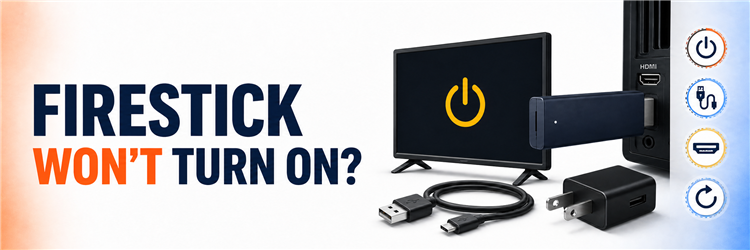
Key Takeaway: If your Firestick won’t turn on, prove the power path, connect directly to HDMI, and select that exact input before resetting. A second-TV test separates device faults from display-chain failures.
A Firestick with no picture may lack power, be stuck during startup, use the wrong input, or face a failed HDMI handshake. Follow the ten checks in order.
Use the Fire TV logo as the dividing line: no logo points toward power or HDMI, while a frozen logo shifts attention to startup recovery.
Match the Symptom to the Correct Starting Point
Describe exactly what the television shows. “Won’t turn on” may mean no logo, a frozen logo, black video with audio, no signal, or a working Fire TV that ignores the remote. The table separates those branches so each test changes one meaningful variable.
- No Logo: Begin with outlet, adapter, cable, direct HDMI, and a second display because the Firestick has not yet proved it can start.
- Frozen Logo: Use the non-destructive restart shortcut, stable power, and one patient boot before considering an interrupted update or reset.
- No Signal: Verify the selected input, direct HDMI connection, port fit, receiver bypass, and second television before blaming Fire OS.
- Black With Audio: Treat this as a display or HDMI-handshake branch rather than a completely unpowered Firestick until direct testing disproves it.
- Remote Only: When video appears but navigation fails, replace batteries and pair the remote instead of changing the Firestick power supply.
| What You See | Most Useful First Check | Do Not Start With |
|---|---|---|
| No Fire TV logo on any input | Verified wall power, cable, adapter, and direct HDMI | Factory reset |
| TV says No signal | Exact input, port seating, receiver bypass, second HDMI | Clearing app cache |
| Logo remains frozen | Select + Play/Pause restart, then 60-second power cycle | Buying a new remote |
| Picture appears but remote fails | Fresh batteries and Home-button pairing | Replacing the Firestick |
| Starts cold, fails when warm | Cool-down, airflow, extender, repeatable timing | Changing Wi-Fi password |
| Fails identically on two TVs | Recheck power components, then support or replacement | Reconfiguring the original TV |
Fix 1: Move From TV USB to a Stable Power Source
Many Fire TV models expect steadier power than a television USB port supplies, especially during boot, Wi-Fi connection, or an update. Amazon’s current setup guidance tells owners of most models to use the included adapter and wall outlet. The 2026 Fire TV Stick HD setup supports direct TV USB power, so identify your model rather than applying one rule blindly.
- Identify Model: Check the device packaging or Amazon account device list before assuming a USB-powered 2026 HD model behaves like an older Stick.
- Prefer Supplied Hardware: For models shipped with a wall adapter, use that adapter and cable because their output was selected for the device.
- Test Another Outlet: Plug a lamp or charger into the same socket, then test the Firestick from a different firm wall outlet without a power strip.
- Avoid Overloaded Strips: Temporarily bypass switched extensions, smart plugs, loose multi-way adapters, and surge strips shared with televisions, receivers, or game consoles.
- Watch the Logo: If wall power produces the Fire TV logo immediately, the television USB source or intervening accessory was the likely bottleneck.
Fix 2: Prove the Cable and Adapter Separately
A cable can look perfect while an internal conductor has broken near the plug, and an adapter can provide voltage at idle but fail as startup demand rises. Test one component at a time with compatible, reputable replacements. Changing the cable, adapter, outlet, and HDMI port simultaneously may restore the picture, but it will not tell you which faulty part should be retired.
- Inspect Both Ends: Stop using any cable with fraying, bent metal, discoloration, looseness, or a connector that changes behavior when moved gently.
- Swap Cable First: Keep the known wall outlet and correct adapter, then test a short compatible cable capable of carrying the required current.
- Swap Adapter Second: Keep the successful cable and outlet, then try an Amazon-branded or reputable adapter meeting the model’s stated electrical requirements.
- Avoid Long Leads: Very long or thin USB cables can lose voltage, so diagnose with a short cable before restoring a hidden-wall installation.
- Retire the Failure: Label and remove the component that changes the result so it cannot quietly return to the setup during later troubleshooting.
Fix 3: Verify the TV Input Before Blaming the Stick
A powered Firestick cannot appear when the television is tuned to another HDMI socket. This becomes confusing after moving cables, using an AV receiver, or letting HDMI-CEC switch inputs automatically. Use the television’s own remote, not the Fire TV remote, to select the exact numbered port where the stick is connected and confirm the television itself is fully awake.
- Trace the Cable: Follow the Firestick or extender physically to the labeled HDMI port instead of guessing from the television’s previous source name.
- Select Manually: Press Source or Input on the television remote and choose the matching port, even when HDMI-CEC normally switches automatically.
- Wake the Television: Confirm the TV displays its own menus because a dark or standby television can make a healthy Firestick appear powerless.
- Bypass Receiver: Connect directly to the television while diagnosing, removing soundbars, capture devices, splitters, and AV receivers from the video path.
- Read the Message: Distinguish “No signal” from a black picture; no signal points toward HDMI negotiation, port selection, or incomplete device startup.
Fix 4: Remove HDMI Hubs and Use the Extender
HDMI switches and receivers add handshakes that can fail before the Fire TV logo appears. A stick wedged behind a warm television may also sit at an angle, strain the connector, or receive less airflow. Amazon advises direct connection when troubleshooting. The included short HDMI extender can reduce port strain and move the device away from the hottest part of the television chassis.
- Connect Directly: Remove the Firestick from every HDMI hub, splitter, capture card, receiver, or soundbar and attach it straight to the television.
- Try the Extender: Use the short supplied HDMI extender when adjacent ports, a wall mount, or the television casing prevents a square connection.
- Check Port Fit: Reinsert the connector firmly without forcing it; a partly seated stick may power up while producing no usable video signal.
- Test Another HDMI: Move to a second known-working television input and select that new port manually using the television remote.
- Leave CEC Later: Do not change multiple HDMI-CEC settings until direct video works, because equipment control is separate from basic Firestick startup.
Fix 5: Force a Restart When the Logo Is Frozen
A Firestick stuck on its logo is receiving power, so the problem has moved beyond a completely dead device. Amazon documents a non-destructive restart: hold Select and Play/Pause together for about five seconds. This restarts Fire OS without erasing apps or accounts. If the remote cannot communicate, a 60-second power disconnect provides the same clean-start goal.
- Use the Shortcut: Hold the center Select button and Play/Pause simultaneously for about five seconds, then release when the device begins restarting.
- Power Cycle Instead: If the remote does nothing, unplug power for 60 seconds, reconnect once, and avoid repeated rapid disconnects during startup.
- Allow Extra Time: Give the first boot several minutes when the freeze followed an update, because interrupting installation can prolong the recovery loop.
- Note the Stage: Record whether the Amazon wordmark, Fire TV animation, or Home screen appears; each stage narrows the failing startup layer.
- Preserve Data: Do not use the reset button combination yet, because a normal restart keeps installed applications, settings, and account registration intact.
Fix 6: Re-Pair the Remote Only After Video Appears
Remote trouble is frequently mistaken for a dead Firestick. The stick itself has no normal power button, while the remote’s power key generally controls the television through infrared or HDMI-CEC. If the TV displays a Fire TV screen but the interface does not respond, then replace the remote batteries and pair it. Do not expect remote pairing to create video from an unpowered stick.
- Separate Functions: Understand that the remote Power button usually controls the television, not the Firestick’s incoming electrical power or boot process.
- Replace Batteries: Install two fresh matching AAA batteries with correct polarity rather than mixing an old cell with a new replacement.
- Hold Home: Stand close to the device and hold Home for roughly ten seconds when the Fire TV screen appears but navigation fails.
- Remove Interference: Move dense objects, USB 3 accessories, and other wireless devices away temporarily while the Bluetooth remote attempts to pair.
- Use the App Carefully: The Fire TV mobile remote can help only when the phone and already-configured Firestick share the same active network.
Fix 7: Let an Interrupted Update Finish
Power loss during a Fire OS update can leave the device on a logo, a blank transition screen, or a repeating boot stage. The safest first response is stable power and patience, not repeated unplugging. If Home eventually loads, check for updates through Settings and let the complete download, installation, and restart sequence finish without changing HDMI ports or power sources.
- Stabilize Power: Use the correct adapter, short reliable cable, and direct wall outlet before allowing an interrupted startup to continue.
- Wait Once: Permit one extended boot of at least ten minutes when the failure began during or immediately after a system update.
- Check Storage: After Home loads, remove unused apps or downloads if the device reports very little free space for update processing.
- Install Fully: Open Settings, My Fire TV or Device & Software, About, and Check for Updates, then leave the device untouched.
- Avoid Rapid Pulls: Repeated power interruptions can prevent a legitimate recovery or installation stage from completing and make the boot behavior harder to interpret.
Fix 8: Cool the Device and Clear Heat Traps
A completely cold Firestick that never displays a logo is more likely to have a power, HDMI, or hardware fault than a heat problem. Heat becomes relevant when the stick works initially, fails after a repeatable warm-up period, or sits against a hot exhaust vent. Normal warmth is expected, so use timing and a controlled cool-down instead of touch alone.
- Cool Completely: Disconnect power and HDMI until the device returns to room temperature, then repeat the same clean startup configuration once.
- Move From Exhaust: Position the stick away from television vents, receivers, game consoles, radiators, and enclosed cabinet surfaces releasing warm air.
- Use Short Extender: Create a small air gap behind the television without adding a long unverified HDMI or USB run to the test.
- Compare Timing: A much longer stable period after cooling supports heat involvement, while an instant cold-start failure directs attention elsewhere.
- Stop if Damaged: Unplug a scorched, swollen, cracked, or unusually hot device and contact qualified support rather than repeatedly energizing it.
Fix 9: Test the Firestick on Another Television
A second display is the fastest way to divide the problem between the Firestick and the original entertainment setup. Keep the same verified power adapter and cable, connect directly to another television, and choose its matching HDMI input. A successful boot there points back to the first TV, HDMI port, receiver, or handshake rather than the Firestick itself.
- Keep Power Constant: Use the adapter and cable that passed earlier checks so the second television changes only the display side of the test.
- Connect Directly: Avoid receivers, soundbars, switches, and capture devices on the second screen until the Fire TV Home interface appears reliably.
- Select Exact Input: Use the second television’s remote to manually choose the physical HDMI socket where the Firestick is connected.
- Compare Outcomes: Success on another TV implicates the first display chain; identical failure makes the stick, cable, or adapter more suspicious.
- Retest Original: Return only after proving startup elsewhere, then try another port and simplified direct connection on the original television.
Fix 10: Factory Reset Only as the Last Software Test
Factory reset is appropriate only when the Firestick receives stable power, produces video, and remains responsive enough to accept the command. It erases downloaded apps, account registration, Wi-Fi details, preferences, and local data. Reset cannot repair a damaged USB cable, weak adapter, loose HDMI port, or failed storage chip, so complete every physical isolation step first.
- Confirm Control: Attempt reset only when the remote pairs and the device can remain powered through the entire erase and setup sequence.
- Record Access: Keep the Amazon login, Wi-Fi password, app credentials, and any legitimate configuration details available before removing local data.
- Use Settings: When Home loads, open Settings, My Fire TV or Device & Software, Reset to Factory Defaults, and confirm carefully.
- Use Shortcut Sparingly: If menus are inaccessible but video and remote work, hold Back and Right together for about ten seconds to request reset.
- Test Before Restoring: After setup, verify stable startup before reinstalling apps or accessories; immediate failure on a clean system suggests hardware or power.
Decide Between Reset, Support, and Replacement
Once every physical variable has been isolated, choose the least destructive remaining action. A device that reaches menus can complete a controlled reset; a device that never produces video cannot be repaired by a menu it cannot access. If you want a broader decision tree for failures beyond power and HDMI, compare the symptoms with the site’s complete Firestick not-working guide before replacing working equipment.
- Reset Candidate: Video appears, controls respond, stable power is proven, and software remains stuck after a normal restart and patient update attempt.
- Support Candidate: The device is under warranty, fails consistently with supplied hardware, or shows electrical damage, swelling, scorching, or abnormal heat.
- Replacement Candidate: Two televisions, multiple verified power components, direct HDMI, no accessories, and a clean startup attempt all produce the same failure.
- TV-Side Candidate: The Firestick starts normally on another display, proving the original port, receiver, input selection, or HDMI settings need attention.
- Accessory Candidate: The problem returns only after reconnecting a hub, drive, Ethernet adapter, splitter, or extension lead to an otherwise stable setup.
| Result After Testing | Next Action | Reason |
|---|---|---|
| Works with wall power | Replace or avoid the previous USB power source | The Firestick itself completed startup |
| Works on a second TV | Repair the original HDMI/display chain | The device and power path are functional |
| Frozen logo but remote responds | Restart, wait, then reset only if necessary | Software recovery remains possible |
| No logo on two TVs with verified power | Contact Amazon or replace the device | Display and common power variables are eliminated |
| Visible electrical damage or extreme heat | Disconnect immediately and seek support | Continuing power tests is unsafe |
Final Verdict
When a Firestick won’t turn on, the decisive test is not a remote shortcut or factory reset. It is a simple, controlled chain: correct power, proven cable and adapter, direct HDMI, exact television input, then a second display. That sequence protects your data and identifies most external failures. Reset only a stable, controllable device; escalate hardware that remains blank everywhere or shows physical damage.
- Best First Move: Disconnect for 60 seconds, remove every accessory, use the model-appropriate power source, and connect directly to one television HDMI port.
- Best Diagnostic Split: No logo means power, HDMI, or hardware; a frozen logo means the device has power and needs startup recovery.
- Best Final Proof: Repeat the simplified setup on another television before paying for replacement hardware or erasing a device that still works.
FAQs
Why is my Firestick not showing any light?
Most Fire TV Sticks lack a prominent status light, so darkness does not prove failure. Select the correct HDMI input and look for the Fire TV logo while using a verified outlet, compatible adapter, reliable cable, and direct connection.
Can I power a Firestick from my TV USB port?
It depends on the model. The 2026 Fire TV Stick HD supports compatible television USB power, while many earlier and 4K models use a wall adapter. Identify the exact device and follow its supplied instructions.
How long should I unplug a Firestick that will not turn on?
Disconnect power and HDMI for at least 60 seconds, reconnect the simplified setup once, select the exact input, and allow several minutes for startup. Avoid rapid repeated unplugging, especially after an update.
Does the Firestick remote power button turn on the Firestick?
Usually, no. The remote Power button controls compatible televisions or equipment through infrared or HDMI-CEC. A Fire TV Stick boots when it receives power. Pair the remote only when video appears but navigation fails.
Why does my Firestick turn on and then go off again?
Repeatable shutdowns suggest unstable power, a damaged cable, heat, an interrupted update, or failing hardware. Test the adapter and cable first. For logo-stage reboots, use the separate Firestick restart-loop troubleshooting guide.
When should I replace a Firestick that will not boot?
Seek Amazon support or replacement after verified power, a reliable cable, direct HDMI on two televisions, no accessories, and one patient startup all fail. Physical damage, scorching, or abnormal heat should end home testing immediately.