Key Takeaway: WatchHub is a discovery addon that shows where movies and series are available across supported streaming services and countries. It does not unlock subscriptions or host video. Install it through a verified Stremio catalog entry, select your country correctly, and treat every provider link as a route to that service’s own app, account, price, and regional catalog.
I installed WatchHub on a clean Stremio profile and compared several title cards across different provider selections. Its value is organization rather than free playback, and that distinction prevents nearly every misleading expectation.
What WatchHub Does Inside Stremio
WatchHub adds availability information to Stremio so you can identify services carrying a title. It is a navigation layer, not another subscription or stream host.
- Availability Map: WatchHub compares supported services and presents provider choices beside a movie or series within Stremio’s interface. Verify this result before changing another setting, account, device, or network condition.
- No Free Unlock: The addon does not bypass payments, geographical rights, advertisements, or account requirements imposed by the destination service. Verify this result before changing another setting, account, device.
- Country Aware: Results depend on the selected region because licensing catalogs differ substantially between countries even for the same subscription brand. Verify this result before changing another setting, account.
- External Handoff: Choosing a provider may open its website or application, where normal login, plan, rental, and playback rules still apply. Verify this result before changing another setting, account.
- Catalog Companion: WatchHub works alongside metadata and stream addons because its purpose is explaining availability rather than resolving community streams. Verify this result before changing another setting, account, device.
WatchHub Requirements and Compatibility
A useful installation needs the correct Stremio account, region, destination applications, and provider subscriptions. Confirm these basics before judging whether a displayed link works.
- Stremio Login: Use one account across configuration and playback devices so the addon remains installed wherever Stremio supports account synchronization. Verify this result before changing another setting, account, device.
- Correct Country: Select the country where you actually watch, since a VPN location alone does not change subscription billing or content rights. Verify this result before changing another setting.
- Provider Apps: Install or update destination applications on television devices when you expect WatchHub links to hand playback to them. Verify this result before changing another setting, account, device.
- Active Accounts: A listed service may require an active subscription, rental payment, advertisement-supported account, or television-provider authentication. Verify this result before changing another setting, account, device, or network condition.
- Supported Client: Desktop and mobile browsers handle external links more predictably than some television clients, which may require manual provider search. Verify this result before changing another setting, account.
| Requirement | Why it matters |
|---|---|
| Home country | Controls regional availability |
| Provider subscriptions | Determines included playback |
| Official provider apps | Handles television playback |
| Same Stremio account | Synchronizes addon installation |
| Known test title | Confirms expected routing |
How to Install the WatchHub Stremio Addon
Use the community catalog listing or Stremio’s verified addon interface. Avoid third-party APK packages because a standard Stremio addon installs through a manifest, not Android software.
- Open Listing: Visit the WatchHub catalog page and confirm the displayed name and description before choosing its installation action. Verify this result before changing another setting, account, device, or.
- Launch Stremio: Allow the browser to open Stremio, then verify WatchHub appears on the confirmation screen rather than approving blindly. Verify this result before changing another setting, account, device.
- Approve Install: Install the addon against the account currently used on your television and other Stremio clients. Verify this result before changing another setting, account, device, or network condition.
- Check My Addons: Confirm one WatchHub entry appears in the installed list, removing obsolete duplicates that could produce conflicting provider rows. Verify this result before changing another setting, account.
- Open Known Title: Test a popular movie available on a subscription you already own, providing a clear expectation for the first result. Verify this result before changing another setting.
Set the Correct Country and Streaming Services
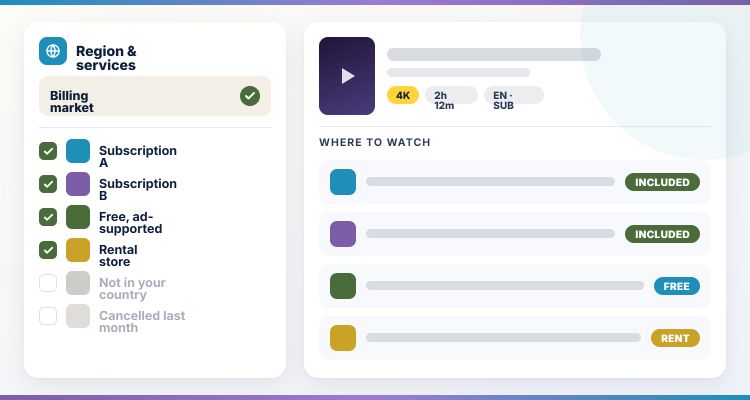
Regional accuracy matters more than the number of selected providers. Choose services you can genuinely access and retest after travel or a permanent account-region change.
- Home Region: Use the billing and viewing market attached to your services, not a country chosen only because its catalog looks larger. Verify this result before changing another setting.
- Owned Services: Prioritize subscriptions already paid for so actionable choices appear before rental stores or unavailable premium platforms. Verify this result before changing another setting, account, device, or network condition.
- Free Options: Keep legitimate advertisement-supported services visible when they operate in your country and clearly carry the selected title. Verify this result before changing another setting, account, device, or.
- Rental Labels: Distinguish included subscription playback from rent or buy offers, because the same provider can show several payment routes. Verify this result before changing another setting, account, device.
- Periodic Refresh: Recheck preferences after adding or canceling a service, preventing old subscriptions from cluttering every title card. Verify this result before changing another setting, account, device, or network condition.
How WatchHub Provider Links Behave
A provider result is availability guidance, not guaranteed one-click playback. Device support, deep-link formats, authentication state, and catalog changes determine what happens after selection.
- Desktop Browser: Web links usually open a title or search page where the provider can verify region, subscription, and current availability. Verify this result before changing another setting, account.
- Mobile Handoff: Phones may open an installed provider application, but operating-system link preferences can redirect to a browser instead. Verify this result before changing another setting, account, device, or.
- Television Limits: Some Stremio television clients cannot pass every external deep link, requiring a manual title search in the destination app. Verify this result before changing another setting, account.
- Login State: An expired provider session can show a sign-in page even when WatchHub correctly identified that service’s catalog. Verify this result before changing another setting, account, device, or.
- Catalog Drift: Licensing changes can make a recently indexed provider result stale, so verify availability on the provider before paying. Verify this result before changing another setting, account, device.
Use WatchHub on Firestick and Android TV
Treat WatchHub as the decision screen and the provider app as the playback screen. Preparing both sides makes the living-room workflow much less frustrating.
- Sync First: Install WatchHub on an easier browser device, then restart the television client using the same Stremio account. Verify this result before changing another setting, account, device, or.
- Install Providers: Download only official destination apps from the device store, avoiding modded packages advertised as subscription bypasses. Verify this result before changing another setting, account, device, or network condition.
- Open Manually: If a deep link fails, note the displayed provider and search for the title inside that provider’s official application. Verify this result before changing another setting, account.
- Remote Friendly: Keep the selected service list short so provider options remain readable and useful with a television remote. Verify this result before changing another setting, account, device, or.
- Account Separation: Remember that a Stremio login does not sign you into Netflix, Prime Video, or another external provider automatically. Verify this result before changing another setting, account, device.
WatchHub Features Worth Using
The addon is most helpful when you use it to reduce searching across applications. Its features support comparison and routing rather than playback enhancement.
- Cross-Service Search: One Stremio title page can reveal several legitimate subscription, rental, purchase, or supported free viewing routes. Verify this result before changing another setting, account, device, or network condition.
- Regional Results: Country-aware availability reduces recommendations for services that do not operate or carry the title in your viewing market. Verify this result before changing another setting, account, device.
- Price Context: Provider labels help separate included subscription choices from transactional stores, although the destination confirms the current price. Verify this result before changing another setting, account, device, or.
- Device Continuity: Account-based addon synchronization keeps the same discovery layer available across compatible Stremio clients and household screens. Verify this result before changing another setting, account, device, or network condition.
- My Test: I found WatchHub most useful when a title moved between subscriptions and the old provider application no longer returned it. Verify this result before changing another setting.
WatchHub Not Showing a Provider
Missing providers usually reflect region, indexing delay, title metadata, or an unavailable catalog rather than a broken installation. Check those layers in order.
- Country Check: Verify the selected market before searching, because rights frequently differ between neighboring countries and account regions. Verify this result before changing another setting, account, device, or network condition.
- Title Match: Open the correct year, season, and edition so WatchHub does not compare providers against a similarly named record. Verify this result before changing another setting, account, device.
- Direct Search: Search the provider’s official application to determine whether the title exists there but has not reached the addon’s index. Verify this result before changing another setting, account.
- Addon Presence: Confirm WatchHub remains installed on the same Stremio account and that other addon-provided information still loads normally. Verify this result before changing another setting, account, device, or.
- Licensing Change: Accept that a provider may remove a title quickly, leaving a temporary mismatch until third-party availability data refreshes. Verify this result before changing another setting, account, device.
| Problem | Meaning | First action |
|---|---|---|
| Provider absent | Region or indexing mismatch | Check home country |
| Link opens login | Provider session expired | Sign in officially |
| Wrong application opens | Device link preference | Reset default handler |
| Title unavailable | Catalog changed | Search provider directly |
| Works on desktop only | TV handoff limitation | Open provider manually |
Fix Broken Links and Incorrect Availability
Separate an inaccurate provider listing from a failed handoff. One concerns catalog data; the other concerns the device opening the destination application or webpage.
- Verify Provider: Check the title directly on the provider’s official search before changing Stremio, subscriptions, DNS, or device settings. Verify this result before changing another setting, account, device, or.
- Refresh Session: Sign back into the provider when the correct page opens but refuses playback or displays an unexpected account tier. Verify this result before changing another setting, account.
- Reset Defaults: Clear operating-system link preferences if a supported service repeatedly opens the wrong browser or application. Verify this result before changing another setting, account, device, or network condition.
- Try Another Client: Test the same WatchHub result on desktop to determine whether the television client is blocking external handoff. Verify this result before changing another setting, account, device.
- Report Evidence: When reporting stale data, include title, year, country, expected provider, and the provider’s current official result. Verify this result before changing another setting, account, device, or network condition.
WatchHub Privacy, Pricing, and Legal Position
WatchHub points toward conventional providers, but account and tracking rules still belong to each destination. Read those terms instead of assuming Stremio controls them.
- Addon Cost: The community listing presents WatchHub as an installable addon, while destination subscriptions, rentals, and purchases remain separate. Verify this result before changing another setting, account, device, or.
- Provider Tracking: Opening an external service subjects the session to that service’s cookies, account data, personalization, and privacy policy. Verify this result before changing another setting, account, device, or.
- Licensed Routes: A correct WatchHub result normally identifies a licensed provider, making it different from addons that surface unlicensed files. Verify this result before changing another setting, account, device.
- Regional Terms: Do not use the addon as proof that a title is licensed for every location; availability is market-specific and time-sensitive. Verify this result before changing another setting.
- No Credentials: WatchHub should not need the password for a streaming provider merely to display where a title is available. Verify this result before changing another setting, account, device.
Keep WatchHub Results Accurate
Review the setup whenever subscriptions or regions change. A short maintenance routine preserves the addon’s main benefit: fewer wasted searches across services. For a broader comparison, read the best Stremio addons guide.
- Remove Canceled Plans: Deselect providers you no longer pay for so unavailable choices stop occupying the most visible positions. Verify this result before changing another setting, account, device, or.
- Add New Services: Update preferences after starting a subscription, then test one known title to confirm it appears in results. Verify this result before changing another setting, account, device.
- Check Country: Correct the home region after a permanent move or provider-account migration rather than relying on temporary network routing. Verify this result before changing another setting, account, device.
- Update Clients: Keep Stremio and destination applications current so link handling does not fail because of an obsolete application version. Verify this result before changing another setting, account, device.
- Retest Quarterly: Compare a few current titles against provider searches periodically, identifying whether regional data remains useful. Verify this result before changing another setting, account, device, or network condition.
When WatchHub Is the Wrong Tool
WatchHub cannot solve every viewing problem. Choose another route when you need playback sources, personal-library management, or deeper recommendation and tracking features.
- Need Streams: Use licensed provider apps or a suitable lawful stream source when you need playback rather than availability information. Verify this result before changing another setting, account, device.
- Local Library: Choose Plex, Jellyfin, or Stremio local-file features when the content belongs to your own server or storage. Verify this result before changing another setting, account, device, or.
- Watch History: Use Stremio’s account history or a properly configured Trakt integration when cross-service progress matters more than provider discovery. Verify this result before changing another setting, account, device.
- Catalog Addons: Choose metadata and recommendation addons when you want new rows, genres, lists, or discovery feeds rather than availability links. Verify this result before changing another setting, account.
- Broader Setup: Review the site’s Stremio addon guide when deciding which separate catalog, subtitle, and playback roles your setup still needs. Verify this result before changing another setting, account.
Verdict
WatchHub should be judged by its current documentation, verified installation route, account behavior, and the exact feature it provides. Keep the configuration private, test lawful material, change one setting at a time, and remove any obsolete manifest or authorization you no longer trust. That controlled approach is faster than repeated reinstalls and safer than copying configuration links from unverified tutorials.
FAQs
What does the WatchHub Stremio addon do?
It shows which supported streaming services may carry a movie or series in a selected country, then routes you toward those providers.
Does WatchHub provide free Netflix or Prime Video?
No. It does not unlock subscriptions or host their videos. Normal provider accounts, plans, advertisements, rentals, and regional restrictions still apply.
Why does WatchHub show the wrong streaming service?
The selected country, stale availability data, or a mismatched title record can cause errors. Verify the title directly on the provider.
Can WatchHub play videos directly?
Its main role is discovery and provider routing. Playback occurs through the destination service, its website, or its official application.
Is WatchHub legal?
An availability guide is legal to install. The destination provider controls licensing and access; use legitimate accounts and services available in your region.
What if every Stremio addon is missing?
That indicates a wider account or application issue rather than WatchHub alone. Follow the site’s Stremio not working guide for account, network, and client checks. Read the Stremio troubleshooting guide.