Key Takeaway: Install Downloader from the Amazon Appstore before changing any security setting. It works on compatible, Android-based Fire OS devices, but not on Vega OS models such as the Fire TV Stick 4K Select. Enable installation access only for Downloader, use verified APK sources, and switch that permission off when setup is complete.
Downloader is the simplest way to enter a direct file address, open a download page, or use a numeric short code with a Fire TV remote. The app can download an Android package and hand it to the Fire OS installer without requiring a computer, USB drive, or command-line tools.
I reviewed Downloader’s current documentation, July 2026 release history, Amazon’s Fire TV development guidance, and the new Fire OS-versus-Vega OS divide before preparing these instructions. The result is a setup path for supported Firesticks, plus clear stopping points when a device, file, or permission is incompatible.
The steps also separate installing Downloader from using Downloader to install another app, because those actions require different permissions and carry different risks.
How to Install Downloader on Firestick from the Amazon Appstore
Start with the official store listing. Installing Downloader itself does not require Developer Options or permission for unknown apps. Those controls matter only later, if you ask Downloader to install an APK that did not come from Amazon. Keep the Firestick online and signed in to the Amazon account used during device setup.
- Open Search: From the Fire TV home screen, select Find and then Search, or hold the Alexa button and say “Downloader.”
- Choose Carefully: Select the orange Downloader listing published by AFTVnews.com; avoid similarly named utilities, unofficial clones, and unrelated download managers.
- Install the App: Select Get or Download and wait for the progress indicator to finish before pressing Open from the product page.
- Grant Sensible Access: Accept storage or media access only if your Fire OS version requests it; newer releases may use their managed download folder automatically.
- Confirm the Interface: The current Downloader 2.0 layout has one address bar for websites, direct files, searches, and numeric short codes.
If the store search is crowded, open the official Downloader page on another device and compare the icon and Amazon product link. Do not sideload Downloader from an APK mirror merely because the official listing is difficult to find.
Before Setup, Check Whether Your Firestick Uses Fire OS or Vega OS
This compatibility check now belongs before every Downloader tutorial. Traditional Firesticks use Android-based Fire OS and can install Android APK files when permitted. Amazon’s newer Vega OS is a different platform, so an Android package cannot run there. A missing Downloader listing may therefore be a device limitation rather than a temporary Appstore error.
| Device or software | Downloader status | APK installation | What to do |
|---|---|---|---|
| Fire TV Stick 4K Max | Supported on Fire OS | Supported with permission | Follow this guide |
| Fire TV Stick 4K / 4K Plus | Supported on Fire OS | Supported with permission | Follow this guide |
| Compatible Fire TV Cube | Supported on Fire OS | Supported with permission | Follow this guide |
| Fire TV Stick 4K Select | Not Android-compatible | Android APKs do not run | Use Vega Appstore apps |
| Fire TV Stick HD with Vega OS | Not Android-compatible | Android APKs do not run | Use Vega Appstore apps |
- Check the Model: Open Settings, My Fire TV or Device & Software, and About to read the exact retail model and software family.
- Identify Fire OS: A Fire OS device remains Android-based, although its menu names and permission screens can differ between software generations.
- Identify Vega OS: Amazon confirms that Vega OS began with the Fire TV Stick 4K Select and powers newer non-Android streaming players.
- Stop on Vega: Do not follow Android APK instructions, register as a developer, or use “unlock” videos claiming to convert Vega OS into Fire OS.
- Use Official Apps: On Vega hardware, install only compatible software offered for that platform or choose a Fire OS or Android TV device.
Amazon’s operating-system guidance treats Fire OS and Vega OS as separate development targets. That distinction is more reliable than the shape of the remote, the packaging color, or a marketplace seller’s shortened product name.
Enable Install Unknown Apps for Downloader
Skip this section if you only want Downloader’s browser, search, or file-management features. The permission is required when Downloader hands an APK to Fire OS for installation. Newer versions grant access per app, which is safer than the old global “Apps from Unknown Sources” switch because other applications remain blocked.
- Open Device Settings: Select the gear icon, choose My Fire TV or Device & Software, and look for the Developer Options menu.
- Reveal the Menu: If Developer Options is hidden, open About, highlight the device name, and press the remote’s center button seven times.
- Select Install Access: Return one screen, open Developer Options, choose Install Unknown Apps, and locate Downloader in the application list.
- Allow Downloader Only: Change Downloader to On while leaving unrelated apps disabled, especially browsers, file managers, and applications you do not recognize.
- Avoid Unneeded ADB: Downloader does not require ADB debugging for normal APK installation, so leave debugging off unless a separate trusted task needs it.
Older Fire OS releases may show one global Apps from Unknown Sources option instead of a list. Turn it on only for the installation window, then return to the same screen and disable it. Amazon also documents the seven-click method in its Fire TV developer guidance.
Configure Downloader 2.0 Before Your First File
Downloader 2.0 replaced the separate home and browser workflow with a unified address bar and a wider page view. A few minutes spent learning its controls prevents wrong addresses, duplicate files, and unnecessary browser permissions. The current v2.0.4 release, dated July 31, 2026, also fixes failed MediaFire downloads on affected devices.
| Downloader control | Recommended starting choice | Change it when |
|---|---|---|
| APK Auto-Install | On for one verified package | You need to inspect several files first |
| Browser JavaScript | Off when the page works without it | A trusted site requires scripts |
| Favorites | Save official developer pages only | A publisher changes its domain |
| Files | Review after every installation | You need to remove old APKs |
| Fullscreen browser | Optional | Page controls are difficult to read |
- Unified Address Bar: Enter a full HTTPS address, a search phrase, or a valid short code in the same field on the Home screen.
- Numeric Keypad: Select the # button when entering a Downloader code so the on-screen keyboard shows a cleaner, number-focused layout for remote input.
- APK Auto-Install: Leave automatic installation enabled for a single verified APK, or disable it when downloading several files for later inspection.
- JavaScript Control: Keep JavaScript disabled when possible; enable it from the browser menu only when a trusted download page genuinely requires scripts.
- Download Location: Current Fire TV releases use the managed Download/Downloader folder, helping newer Fire OS versions retain access without broad storage permission.
Downloader v2.0.2 stopped registering itself as a system-wide browser on Fire TV because of an Amazon policy requirement. That does not remove Downloader’s built-in browser; it only means another app may no longer send a link directly into Downloader. Enter the address inside Downloader instead.
How to Download and Install an APK Safely
An APK is an Android installation package, not proof that an app is safe or compatible. Use the developer’s official HTTPS page whenever possible, confirm the device requirements, and stop if the page redirects through unrelated advertising networks. Downloader retrieves the file; Fire OS still controls whether the package can be installed.
- Verify the Source: Find the developer’s official download page on a phone or computer, then confirm its domain and current release information independently.
- Enter the Address: Type the complete HTTPS URL into Downloader, checking spelling before selecting Go so a look-alike domain cannot intercept the request.
- Inspect the File: Confirm the filename ends in .apk, the stated version is expected, and the package targets Android or Fire OS television devices.
- Review the Installer: Read the app name and requested access on the Fire OS installation screen; cancel if they differ from the developer’s description.
- Finish Cleanly: Choose Done after installation, return to Downloader, and delete the APK because the installed application no longer needs its setup file.
If Fire OS reports that the package is invalid, do not repeatedly download different mirror copies. The APK may be corrupt, built for an unsupported processor, require a newer Android API, or use split packages that the standard installer cannot handle. Return to the official developer and check its Fire TV instructions.
URLs, Search Terms, and Downloader Codes Explained
Downloader accepts three kinds of input, but they offer different levels of transparency. A full official URL is easiest to inspect, a search term requires careful result selection, and a short code hides its destination until resolved. Codes are convenient for television remotes, not an independent safety check or developer signature.
- Direct File URL: A verified HTTPS link ending in .apk provides the shortest path, although redirects and package compatibility still require attention.
- Official Web Page: Opening the developer’s download page lets you read release notes and select the correct television build before downloading.
- Built-In Search: Search results can include advertisements and clones, so verify the publisher’s domain before pressing any download button or permitting scripts.
- Numeric Short Code: A code expands to a URL through a shortening service; confirm the final destination before accepting a file or opening the installer.
- Saved Favorite: Bookmark a trusted developer page after verification, but revisit its security and version information before every later update.
A code can expire, change destination, or be copied incorrectly. Treat the resolved domain as the real instruction. If it leads to a generic file host, an unrelated store, a login request, or a page promising “unlocked” premium services, press Back and use the developer’s published route instead.
Security and Storage Steps After Sideloading
The safest Downloader session ends with fewer permissions and no leftover installer. Firesticks have limited internal storage, while abandoned APK files consume space without helping the installed app. This cleanup also reduces the chance that someone later opens an outdated installer or grants download access to another application by mistake.
- Delete the APK: Open Downloader’s Files section, highlight the completed package, press the menu button, and confirm deletion after installation succeeds.
- Disable Install Access: Return to Install Unknown Apps and switch Downloader off until you intentionally need to install another verified package.
- Keep Debugging Off: ADB debugging expands local administrative access and provides no benefit to Downloader’s ordinary address, browser, file, or installation workflow.
- Review Codes: Consult our updated Downloader codes guide, then independently confirm each resolved publisher, destination domain, and file before installation begins.
- Manage App Data: Use Settings, Applications, Manage Installed Applications to clear Downloader’s cache without erasing favorites or files unless troubleshooting requires it.
Deleting an APK does not uninstall the application it created. To remove an installed app, use Manage Installed Applications, select that app, and choose Uninstall. Clear data first only if you understand that doing so removes the application’s settings, accounts, and locally saved information.
Downloader App Not Working: Match the Symptom to the Fix
Troubleshooting is faster when you identify which stage failed: Appstore discovery, Downloader transfer, or Fire OS installation. Clearing every cache and changing network settings at once hides the cause. Start with the exact message on screen, then apply the narrowest fix in the table before changing permissions or resetting the device.
| Symptom | Likely cause | Best first fix |
|---|---|---|
| Downloader missing in search | Vega OS, region, or store indexing | Confirm the model and software family |
| Install button is blocked | Downloader lacks installation access | Enable Install Unknown Apps for Downloader |
| Download remains on Connecting | Network, redirect, DNS, or weak power | Restart router and use the supplied wall adapter |
| MediaFire download fails | Older Downloader release | Update to v2.0.4 or later |
| Page loops on verification | Site rejects embedded browsers | Use an official direct file URL |
| Package appears invalid | Corrupt or incompatible APK | Check architecture and Android requirements |
| Not enough storage | Old APKs, cache, or unused apps | Delete files and uninstall unused apps |
- Restart One Layer: Close Downloader and restart the Firestick before resetting the router, account, or device; temporary installer services often recover cleanly.
- Update Downloader: Open the Amazon Appstore product page and install the newest release before diagnosing download-host compatibility or repeated random crashes.
- Check Free Space: Leave enough room for both the APK and installed application because Fire OS temporarily holds both during the installation stage.
- Avoid Verification Loops: When a host blocks Downloader’s browser, obtain a direct link from the official developer instead of disabling protections or using mirrors.
- Reset Last: Clear Downloader data only after saving needed favorites, because this removes its settings and may erase information useful for diagnosing the failure.
What Downloader Can and Cannot Do on a Firestick
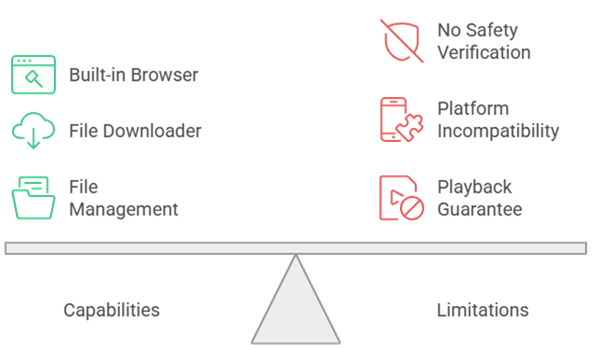
Downloader is best understood as a remote-friendly browser, file retriever, and handoff to the Android package installer. It does not modify Fire OS, grant rights to media, make an incompatible APK work, or remove platform restrictions. Keeping that boundary clear prevents misleading “jailbreak” claims and unsafe expectations.
- It Can Browse: The built-in browser opens ordinary pages, supports remote cursor movement, and can enable JavaScript selectively when a trusted site needs it.
- It Can Download: Downloader saves compatible files into its managed folder and lists them for opening, installation, review, or deletion from the Files screen.
- It Cannot Verify Safety: A completed transfer does not certify the publisher, scan malicious code, validate copyright permission, or guarantee that an APK is authentic.
- It Cannot Convert Platforms: Android packages remain incompatible with Vega OS, iOS, Roku OS, webOS, Tizen, and other non-Android television platforms.
- It Cannot Guarantee Playback: Streaming quality, subscriptions, geographic availability, codecs, and content rights belong to the installed application or service, not Downloader.
For software that does not require sideloading, prefer the official Appstore version. It usually provides simpler updates, clearer compatibility checks, and fewer installation permissions than downloading an external package from the web.
Downloader App for Firestick: Final Verdict
Downloader remains a practical Fire OS utility because it combines remote-friendly address entry, browsing, file management, and APK handoff in one free app. The correct setup is deliberately narrow: confirm Fire OS compatibility, install the official AFTVnews listing, permit unknown apps only when required, verify every source, and clean up immediately afterward.
- Best Device Match: Use Downloader on an Android-based Fire OS model, not a Vega OS Fire TV Stick that cannot execute Android APK files.
- Best Installation Route: Obtain Downloader from Amazon’s Appstore and obtain every later APK from its developer’s official, independently verified HTTPS location.
- Best Permission Choice: Enable Install Unknown Apps for Downloader alone, keep ADB debugging disabled, and revoke installation access when the task ends.
- Best Safety Habit: Treat codes as shortened addresses rather than endorsements, inspect the destination, and cancel any unexpected publisher, permission, or package name.
- Best Cleanup Habit: Delete the APK after installation, monitor remaining storage, update through trustworthy sources, and uninstall applications you no longer use.
FAQs
Is Downloader free on Firestick?
Yes. Downloader by AFTVnews is free through the Amazon Appstore. The interface may display advertising or donation options, but no subscription is required for its core browser, file, favorites, and download functions.
Why can I not find Downloader on my Firestick?
First check the exact model and operating system. Vega OS devices, including the Fire TV Stick 4K Select, do not run the Android Downloader app. On Fire OS, confirm your region, Amazon account, Appstore connection, and search spelling.
Do I need Developer Options to install Downloader?
No. Downloader itself installs from the Amazon Appstore normally. Developer Options and Install Unknown Apps are needed only when Downloader opens an external APK for installation on a supported Fire OS device.
Is it safe to use Downloader codes?
A code is safe only when its resolved URL and file are trustworthy. It merely shortens an address and can hide the destination. Verify the publisher, domain, filename, version, and installer identity before proceeding.
Where does Downloader save APK files?
Current Fire TV versions use Downloader’s managed folder under Download/Downloader. Open the Files section to review or delete completed packages. The exact underlying path can vary on older app and Fire OS releases.
Should I leave Install Unknown Apps enabled?
No. Enable it for Downloader only while installing a verified APK, then switch it off. Installed applications continue working after that permission is removed, and you can re-enable it for a future trusted installation.
Does Downloader work on the Fire TV Stick 4K Select?
No. The 4K Select uses Vega OS rather than Android-based Fire OS, so Android Downloader and APK sideloading instructions do not apply. Use applications made available for Vega OS instead.
Do I need Mouse Toggle to use Downloader?
No. Downloader 2.0 includes a remote-controlled browser cursor. Mouse Toggle is relevant only when another Android app exposes touch-only controls; our Mouse Toggle for Firestick guide explains that separate use case.