Key Takeaway: You normally cannot plug a Firestick into a laptop’s HDMI port and use its screen. A compatible HDMI capture device can bring an unprotected signal into viewing software, but HDCP may block Fire TV output entirely. For subscription streaming, the service’s laptop app or website is usually the better route.
I understand the appeal of using the screen you already carry instead of buying another TV. However, the connector that looks right can still send video in the wrong direction. This guide separates a genuine laptop-screen connection from adapters, wireless casting and an external monitor, so you can choose a workable setup before spending money.
My recommendations come from current laptop, capture-device and streaming-service documentation, not a hands-on Firestick capture test. I explain how to connect firestick to laptop hardware for an eligible signal, where the process can stop, and when software cannot fix that limitation. Seeing a picture in one app does not establish compatibility with another app’s protected video.
Connect an Eligible Firestick Signal to a Laptop: Step by Step
Start here only if you need the Firestick interface on the laptop screen and have checked the protection limitation. This is a general HDMI-capture workflow, not Amazon-supported assurance that your Firestick will display through a particular card. A protected signal can remain black even when every cable and software setting is correct. For watching subscription services, skip to the direct-playback alternatives instead.
Part 1: Confirm the Equipment Before Connecting
- Find your laptop’s exact model manual. Check for an explicit HDMI input; do not mistake HDMI 2.1, DisplayPort support or a USB-C display adapter for input capability.
- Choose a real capture device with HDMI input, USB data output and documented compatibility with your operating system. Ask its manufacturer about Fire TV and HDCP before buying; generic HDMI capture capability is insufficient.
- Prepare the Firestick remote, the model’s correct power cable and an adequate power source. Have an HDMI extender available if the stick’s body would strain the capture device’s socket.
Part 2: Build the HDMI-to-USB Connection
- Plug the Firestick’s HDMI connector into the capture device’s HDMI IN. If the card also has HDMI OUT, that is for an optional separate display, not the laptop connection.
- Connect the capture device’s USB output to a laptop data port using its specified cable. A USB-C adapter is acceptable only when it supports the required data connection; avoid charge-only cables.
- Power the Firestick according to its model’s instructions. Power for the streaming stick and the USB data path from the capture device are separate parts of this arrangement.
Part 3: Open the Capture Preview, Not a Display Setting
- Install required drivers and supported viewing software from official sources. OBS capture-source documentation explains compatible device inputs; close other applications using the capture card.
- In OBS, create a scene and use the Sources plus button. Choose Video Capture Device on Windows or macOS, then select the capture hardware rather than the built-in webcam. Linux uses the appropriate V4L2 source.
- Begin with the device’s supported default capture mode. If a picture appears, fit the source to the canvas and use a full-screen preview/projector on the laptop display. No recording or live streaming is required.
- Check the audio meter and enable monitoring for the capture source if needed. If the device is recognized but video stays black, check protection and source compatibility before changing settings indefinitely.
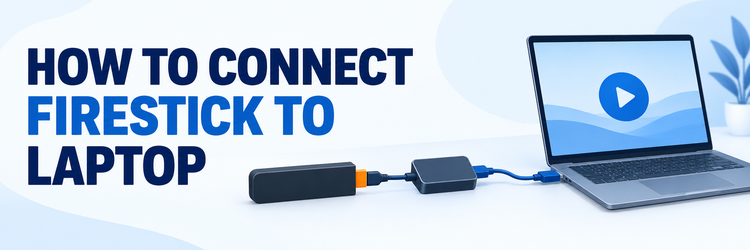
The intended path is Firestick HDMI output → capture HDMI input → capture USB output → laptop software preview. The laptop’s own HDMI output is not part of that path. Keep the Firestick remote nearby: the laptop keyboard does not automatically become its remote control.
Why the Laptop HDMI Port Does Not Work as a TV Input
HDMI describes a connection standard, not a promise that every socket works both ways. A television receives the Firestick’s output; a typical laptop sends its own desktop to another display. Connecting two outputs does not create a display input. I would check the manufacturer’s port description before trusting an adapter listing, because connector shape and version numbers cannot establish the direction of the signal.
- Input versus output: An HDMI input receives an external picture. An HDMI output sends the computer’s picture elsewhere. A reversible-looking cable cannot change the electronics behind either socket.
- Documented laptop example: Dell’s XPS 15 9530 specifications list USB-C DisplayPort and Thunderbolt connections, not HDMI input. Its adapter sends laptop video outward, rather than receiving Firestick output.
- Ordinary USB-C hubs: A hub’s HDMI socket connects your laptop to a television or monitor. It is not an HDMI capture interface unless its documentation explicitly says so.
- Rare input exceptions: Use a direct connection only when the exact computer manual documents incoming HDMI and explains its input mode. Do not infer this from another model.
- Windows display controls: Duplicate, Extend and Detect configure the laptop’s outgoing desktop. They cannot make the built-in screen receive a Firestick signal through an output-only HDMI port.
| Connection route | Laptop panel? | Important limitation |
|---|---|---|
| Firestick → laptop HDMI OUT | No | Two outputs; no receiving interface |
| Firestick → USB capture → software | Conditional | Eligible signal, compatible card; HDCP can block it |
| Firestick → monitor HDMI IN | No; monitor only | Separate screen and suitable audio required |
| Streaming service → laptop browser | Yes | Service account, supported browser and region |
Choose Capture Hardware by Its Specifications, Not Its Connector
Capture hardware converts eligible incoming video into data that a computer application can display. It adds expense, another cable path and potential compatibility problems, so it deserves more scrutiny than an HDMI adapter. I would not buy one solely because the listing mentions Firestick or 4K. Ask what signal it accepts, what it actually captures over USB, and what its manufacturer says about protected sources.
- Three different ratings: Separate maximum HDMI input, USB capture resolution and HDMI passthrough specifications. A 4K input label does not mean the laptop receives a 4K captured picture.
- Exact product revision: Elgato’s Cam Link 4K requirements distinguish revisions. Revision 3 requires USB 3.x, Windows 10+, or macOS Ventura 13+; older Mac requirements differ. Check your revision.
- Manufacturer confirmation: That example explains revision checks, not a Firestick recommendation. Confirm source compatibility and HDCP restrictions directly; meeting the computer requirements alone does not establish usable video.
- Audio capture support: Check whether HDMI audio reaches the computer with video or appears as a separate device. Silent video capture is not enough for watching a program.
- Return and support terms: Prefer clear specifications, documented drivers and a return policy. A seller’s vague compatibility claim offers little help when a recognized device produces no picture.
| Before purchase | Evidence to check | Why it matters |
|---|---|---|
| USB connection | Required generation and data cable | Socket shape alone says nothing about available bandwidth |
| Computer support | Exact OS, CPU and device revision | A driver or preview application may be unsupported |
| Video mode | Input, capture and passthrough separately | Advertising may quote a different stage’s maximum |
| Protected sources | Manufacturer’s HDCP policy | Correct hardware cannot guarantee Fire TV capture |
HDCP Can Block Fire TV Output Before Any App Plays
HDCP is copy protection applied to a digital video connection. It is different from a loose cable, a muted preview or an unsupported resolution, and it can prevent a capture device from receiving the picture at all. This is the decisive caveat for Firestick use. Even an inexpensive experiment may be unsuitable if your purpose is simply watching paid services on the laptop’s built-in screen.
- No universal menu guarantee: Do not assume Fire TV menus appear and only movies fail. Protection depends on the source and connection, not what you expect to see.
- Manufacturer limitation: Elgato states its game capture devices cannot receive protected HDMI. Its guidance notes some set-top boxes keep HDCP active, preventing video display through capture hardware altogether.
- OBS is not an unlock: Adding a source does not remove protection. Software detection proves a USB connection, not permission or technical capability to receive protected HDMI video.
- Lower resolution is different: Selecting a lower video mode may address format incompatibility. It does not establish HDCP is absent or grant access to a protected streaming signal.
- Stop at the restriction: Do not buy equipment to strip protection. Use supported laptop playback or an authorized HDMI display instead of attempting to bypass the source’s restrictions.
Keep Firestick Power Separate from the Laptop Capture Connection
A capture setup has two jobs to satisfy: keep the Firestick running reliably and carry captured data into the laptop. Combining those jobs mentally often leads to the wrong cable purchase. The stick’s power connection is not a video feed for the laptop screen. Model differences matter too, because newer Fire TV hardware does not necessarily use the same connector or bundled power arrangement as older sticks.
- Follow the exact model: Amazon’s model-specific setup instructions distinguish devices. The newer HD uses USB-C Direct Power; sticks differ. Do not assume every Firestick uses a micro-USB cable.
- Provide adequate power: Use the manufacturer-specified cable and appropriate supply for your model. A laptop USB port is not automatically a reliable substitute for the recommended power source.
- Separate USB paths: The capture card connects to the laptop for data. The Firestick’s lead supplies power. Connecting only that lead does not transfer its outgoing HDMI picture.
- Avoid shared bottlenecks: Connect the capture device directly where practical and keep required USB bandwidth available. A busy hub, incorrect cable or unsupported adapter can complicate device detection.
- Protect the connectors: Use an HDMI extender if the stick blocks neighboring sockets or hangs awkwardly. Arrange cables so their weight does not pull against the capture input.
Manage Capture Audio, Preview Delay and Remote Control
A moving audio meter and audible sound are different things. Capture software can receive audio without sending it to the laptop speakers, and duplicated routing can make the same sound play twice. Start with one listening route rather than changing every audio control. For a viewing-only setup, keep recording and streaming stopped, then check the capture source, its monitoring setting and the laptop’s chosen output device.
- Check incoming sound: Look for capture-source meter movement while eligible audio plays. No activity points toward the input or device configuration rather than the laptop’s speaker volume alone.
- Enable local monitoring: If the meter moves but the laptop stays silent, enable that source’s audio monitoring. Verify the chosen speakers or headphones, and avoid routing sound twice.
- Allow for preview delay: Capturing video can delay remote responses. Buffering trades delay for smoother playback. No latency figure is guaranteed because this hardware setup was not measured.
- Keep the Firestick remote: The remote controls the stick. Clicking the preview or using the laptop keyboard does not automatically send commands back through an HDMI capture connection.
- Keep sessions private: Preview viewing does not require Start Streaming or Start Recording. Avoid exposing account screens or personal viewing activity through an unnecessary broadcast or saved recording.
Troubleshoot the Failed Stage Before Replacing Equipment
Troubleshooting is more useful when you identify where the signal stops. An absent USB device, a black capture preview and a service-specific playback failure are not interchangeable symptoms. Test simple, reversible checks first, without resetting the Firestick or buying protection-removal accessories. The table below separates common failure points so you can decide whether the next action belongs to the power supply, capture hardware, software or supported playback method.
- No capture device listed: Reconnect the card with its specified cable, try a suitable port and check its required driver. Close other programs already using the capture device.
- Device present, picture absent: Confirm HDMI IN, power and supported capture mode, then consider HDCP. A listed device may still be unable to receive the stick’s protected signal.
- Another source works: An eligible camera can help isolate capture hardware. Success does not establish Firestick compatibility or prove protected streaming apps will display through the same device.
- Firestick fails on a TV: If the stick fails on television, investigate power, HDMI connection and startup separately. Laptop capture software is unlikely to explain both failures independently.
- Avoid premature resets: A factory reset cannot create HDMI input or remove a capture restriction. Record the failed stage first and contact the relevant manufacturer with specific details.
| Symptom | Check first | Appropriate next action |
|---|---|---|
| Card missing from software | USB cable, port, driver, competing app | Restore device detection |
| Card detected; black video | HDMI IN, power, mode, HDCP | Check source eligibility; do not bypass protection |
| Video with no audible sound | Input meter and monitoring output | Correct audio routing |
| Preview stutters or feels delayed | Supported mode and USB path | Reduce load; review buffering tradeoff |
| Firestick fails on normal TV too | Stick power and direct HDMI connection | Troubleshoot the stick independently |
Use Direct Laptop Playback or a Separate HDMI Monitor Instead
The most practical solution depends on what you want to watch. If the goal is a subscription program rather than the Firestick interface, opening the service on the laptop avoids buying capture hardware and encountering its restrictions. If you want the stick’s remote-driven interface, a separate HDMI display is the normal route. These options solve different problems, so choose by your viewing goal rather than connector availability.
- Netflix on the laptop: Netflix’s browser requirements specify Windows 10/11 and macOS 10.15.5 or later. Use a supported browser; quality depends on your plan, browser and computer hardware.
- Prime Video directly: Prime Video supports browser playback; Windows and Mac apps offer alternatives. Check account access rather than expecting the Firestick app to transfer over.
- Your other services: Check official websites or desktop apps for laptop support. Fire TV-only apps are not automatically computer applications, and subscriptions do not guarantee availability across platforms.
- Separate monitor setup: Plug the stick into the monitor’s HDMI input and select it. Supply correct power and verify the monitor’s audio output; many monitors lack built-in speakers.
- Different casting direction: Sending laptop video to television is separate. Our Chromecast-to-Firestick guide covers that direction; it does not make the laptop an HDMI receiver for the stick.
Conclusion: Choose the Screen Connection That Matches Your Goal
My recommendation is to start with the laptop’s supported streaming website or app when you simply want to watch a program. Consider capture hardware only for an eligible source after checking its specifications and protection policy. For the Firestick interface without that capture uncertainty, use a normal HDMI television or a suitable separate monitor with the correct power and audio arrangement.
- Laptop HDMI: Treat the port as output unless your manual explicitly documents input. Neither Windows display settings nor a basic adapter changes the direction of that connection.
- Capture preview: Check eligibility before buying hardware. USB and viewing software can display a compatible signal, but they cannot guarantee access to protected Fire TV output.
- Everyday watching: Use a supported browser or desktop app for laptop viewing. This avoids capture equipment without pretending every Firestick app has an identical version for computers.
- Remote-driven viewing: Choose HDMI input on a television or monitor when the Firestick interface matters. Confirm power and audio rather than involving the laptop in that connection.
- A sensible stopping point: If HDCP blocks capture, choose supported playback. More cables, resets or software changes do not establish permission to receive a protected digital video signal.
FAQs About Using a Laptop Screen for Firestick
Can I connect Firestick directly to a laptop with HDMI?
Usually not. A laptop’s HDMI port is normally an output, while the Firestick also sends an HDMI signal. Direct viewing requires an explicitly documented HDMI input. Otherwise, eligible incoming video needs compatible capture hardware and viewing software, subject to HDCP restrictions.
Will an HDMI-to-USB cable show Firestick on my laptop?
Only a genuine capture device can convert eligible HDMI input into video data for software. A basic cable, display adapter or hub is not equivalent. Check the device’s signal direction, capture specifications, operating-system support and protected-source policy before purchasing it.
Can I watch Netflix from Firestick through a capture card?
Do not rely on that method. Protected HDMI can be blocked by capture hardware, and a working USB connection or visible menu does not guarantee program playback. Use Netflix’s supported laptop browser or app instead of attempting to remove protection.
Can I use a MacBook screen for Firestick?
A normal MacBook display connection does not provide HDMI input to its built-in screen. A compatible capture device may preview an eligible signal, but macOS and USB requirements vary by product revision, and HDCP can still prevent Fire TV video from appearing.
Why is the capture device detected but the screen stays black?
Detection confirms the USB device is recognized, not that incoming HDMI is viewable. Check the correct HDMI input, source power and supported mode, then consider HDCP. If the stick also fails on a TV, use our Firestick no-signal troubleshooting guide.
Can I connect Firestick to a laptop wirelessly instead?
Wireless casting instructions usually send a laptop’s desktop to Fire TV on a television, not the Firestick interface back to the laptop. They do not create HDMI input. For laptop viewing without capture hardware, use the content service’s supported computer playback route.