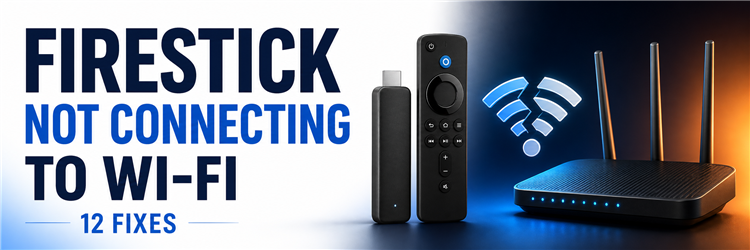
Key Takeaway: Decide whether the internet, router, or only one Firestick failed. Restart safely, reconnect with verified credentials, then compare bands, location, hotspot, or Ethernet before resetting.
A missing network differs from a wrong password, and “connected with no internet” differs from weak signal. Test after each meaningful change so recovery reveals what failed.
I begin with another device beside the television. That comparison prevents a household outage from being misdiagnosed and protects saved apps from an unnecessary reset.
Match the Message to the Network Layer
Use the displayed state to choose the first test. Missing SSID suggests range, band, or channel; authentication suggests credentials or security; connected without internet points beyond radio.
- Network Missing: Refresh the list, move closer, compare bands, use the HDMI extender, and verify the router broadcasts a supported regional channel.
- Password Rejected: Confirm the exact SSID and current credentials, forget the saved profile, then review mutually supported router security modes.
- Connected Without Internet: Test other devices, modem status, provider outage, DNS, captive portal, and router access controls before changing Firestick hardware.
- Connection Drops: Compare placement, interference, band congestion, router firmware, heat, and a wired test instead of repeatedly re-entering the password.
- Only Firestick Fails: Restart it, forget the profile, compare hotspot or Ethernet, update Fire OS, and preserve reset as the final step.
| Fire TV Message | Likely Layer | Best First Check |
|---|---|---|
| Network not listed | Signal, band, channel, or hidden SSID | Move closer and refresh |
| Authentication problem | Password or security mode | Forget and re-enter |
| Connected with problems | Router or upstream internet | Test another device |
| Drops during playback | Interference or congestion | Compare band and placement |
| Home network fails, hotspot works | Router compatibility or policy | Review controls and channels |
| Wi-Fi and Ethernet both fail | Fire OS, access policy, or hardware | Update, then support |
Fix 1: Determine Whether the Internet or One Firestick Failed
Test the same Wi-Fi with a phone beside the television and open fresh sites. Amazon’s network-outage guidance similarly starts by comparing another device. Separating a household outage from a single-device failure prevents unnecessary password changes, resets, and router experiments.
- Test Beside the TV: Connect a phone to the same network near the Firestick and load fresh pages rather than relying on cached content.
- Check Multiple Devices: When every phone, laptop, and television is offline, investigate the modem, router, power, or internet provider before Fire OS.
- Distinguish Wi-Fi: “Connected with problems” means the wireless link exists but internet access, DNS, login, or upstream service may still be failing.
- Check Provider Status: Use mobile data to view the internet provider’s outage page when household devices lose access at the same time.
- Record the Message: Note whether Fire TV reports no network, authentication failure, limited connection, disconnected Wi-Fi, or connected without internet access.
Fix 2: Restart the Firestick Before Changing Network Settings
A Fire OS network process can fail while saved router information remains correct. Restarting reloads wireless services without deleting apps or credentials. Use Settings when available, or hold Select and Play/Pause for five seconds. If controls are unresponsive, disconnect power for one minute.
- Use Settings First: Open Settings, My Fire TV or Device & Software, and Restart when the interface remains responsive enough for normal navigation.
- Use Remote Shortcut: Hold Select and Play/Pause together for about five seconds, then release as the Firestick begins its restart sequence.
- Power Cycle Carefully: If menus and remote shortcuts fail, unplug the adapter for one minute rather than repeatedly pulling power during startup.
- Wait for Home: Allow several uninterrupted minutes after the logo before testing Network settings, especially when a system update may be completing.
- Retest Once: Reopen the saved Wi-Fi network and test more than one service before assuming that the restart did not restore connectivity.
Fix 3: Restart the Modem and Router in the Right Order
Routers can broadcast a name while their internet session, address pool, or DNS forwarding has stalled. Amazon’s Fire TV Wi-Fi setup guidance recommends restarting network equipment. Power the modem first, let it reconnect, then start a separate router and test Fire TV.
- Disconnect Both Units: Unplug modem and router power for one minute, identifying each device before reconnecting anything to avoid reversing their roles.
- Start the Modem: Restore modem power first and wait until its connection lights stabilize according to the provider’s documentation or normal pattern.
- Start the Router: Reconnect the router only after the modem is online, then wait for wireless and internet indicators to settle completely.
- Avoid Reset Buttons: Do not press the recessed factory-reset control because a normal restart preserves provider and Wi-Fi configuration details.
- Reconnect Fire TV: Open Network settings after both devices stabilize, select the saved SSID, and verify an app instead of watching icons alone.
Fix 4: Forget the Saved Network and Enter It Again
A saved profile can contain an outdated password, security handshake, or address assignment. Forgetting one network removes it without resetting the Firestick. Have the current name and password ready, choose Forget, then reconnect carefully. This helps after changing routers, passwords, or security modes.
- Confirm Credentials: Verify the current Wi-Fi name and password on another connected device or the router’s trusted management page before removing anything.
- Forget One Network: Highlight the saved SSID, press the remote menu button, and confirm Forget without deleting unrelated household or travel networks.
- Scan Again: Refresh the network list and select the exact SSID, watching for similarly named guest, extender, or old router entries.
- Enter Password Slowly: Check capitalization, digits, punctuation, and accidental spaces because Fire TV hides most characters after they are entered.
- Test Fresh Session: After successful association, open two unrelated apps to verify both local Wi-Fi and actual internet access were restored.
Fix 5: Resolve Password, SSID, and Hidden-Network Mistakes
Authentication failures can resemble weak signal. Routers may reuse an old name with a new password, while hidden networks require exact manual entry. Remote-keyboard mistakes are easy, so compare Fire TV with a working device and never share screenshots exposing the password.
- Match the Exact SSID: Choose the current router name, not a neighboring network, stale extender label, or guest network with similar spelling.
- Reveal While Typing: Use the password visibility option briefly when available, then verify every character before submitting the connection request.
- Check Hidden Entry: For a hidden network, manually enter the precise SSID, security method, and password because automatic scanning cannot supply them.
- Remove Legacy Profile: Forget an old network that reused the same name so Fire TV negotiates security from a clean saved profile.
- Avoid Public Sharing: Keep router labels, QR codes, passwords, and administration addresses private when seeking help from forums or support channels.
Fix 6: Improve Signal Without Guessing From the Icon
A signal icon is only a snapshot and cannot reveal interference, retransmissions, or brief drops behind a television. Temporarily move the router or Firestick closer, use the short HDMI extender to bring the stick out from behind metal, and remove nearby USB 3 devices. A controlled location change is more useful than purchasing an extender immediately.
- Reduce the Distance: Test with the router and Firestick in the same room before concluding that credentials, software, or hardware are defective.
- Use HDMI Extender: Move the Firestick away from the television chassis, wall mount, and dense cable bundle while keeping its power path unchanged.
- Remove Interference: Temporarily disconnect nearby USB 3 drives, hubs, poorly shielded cables, cordless bases, and other radio equipment during diagnosis.
- Change One Position: Move only the router or Firestick per test so an improvement identifies which placement change actually mattered.
- Retest Peak Time: Compare morning and busy-evening performance because neighborhood congestion may affect reliability even when the displayed signal appears strong.
Fix 7: Compare the 2.4 GHz and 5 GHz Bands
Two network bands trade range for capacity. A 5 GHz connection may be faster nearby but weaken through walls, while 2.4 GHz travels farther and faces more household interference. If the router exposes separate names, test each intentionally. When one shared SSID handles band steering, temporarily split names only if you understand the router configuration.
- Try 2.4 GHz: Use the lower-frequency band when distance, walls, cabinets, or a floor separates the Firestick from the wireless router.
- Try 5 GHz: Use the higher-frequency band at close range when nearby networks crowd 2.4 GHz and the Firestick model supports it.
- Separate Names Temporarily: Give each band a distinct SSID during testing so the connection result identifies which radio the Firestick actually used.
- Respect Model Support: Confirm the Firestick and router support the chosen band and channel instead of assuming every generation accepts identical configurations.
- Restore Deliberately: After finding a stable band, document the working setting before returning to automatic steering or shared network names.
Fix 8: Use Compatible Router Security and Channels
Older Firestick generations and some routers disagree over security transitions, uncommon channels, or aggressive “smart” settings. Prefer standard WPA2/WPA3 compatibility modes supported by both devices, current router firmware, and legal channels for the router’s region. Never disable encryption simply to make a streaming device connect, because an open network creates a larger security problem.
- Keep Encryption Enabled: Use a compatible WPA2 or WPA2/WPA3 mode rather than open access, obsolete WEP, or an unsupported enterprise configuration.
- Update Router Firmware: Install the manufacturer’s current stable release using its official administration method, preserving a backup of working settings first.
- Choose Standard Channels: Test ordinary regional channels when automatic selection places 5 GHz on a channel the Firestick cannot detect reliably.
- Disable Experimental Options: Temporarily turn off router features that combine radios, block legacy clients, or enforce advanced roaming during a controlled compatibility test.
- Restore Security Promptly: Keep the strongest mutually supported protection and reverse temporary diagnostic changes that did not improve the Firestick connection.
Fix 9: Check Captive Portals, Guest Isolation, and Access Controls
Hotel, dormitory, workplace, and guest networks may require a browser sign-in or block devices from reaching each other. Home routers can also deny an unfamiliar MAC address through parental controls or an allowlist. A successful Wi-Fi association does not override those policies. Confirm the network owner permits streaming devices before attempting workarounds.
- Complete Authorized Sign-In: Follow the network owner’s supported captive-portal process when Fire TV connects locally but requests browser authentication before internet access.
- Check Guest Rules: Move from an isolated guest SSID to an approved main or device network when local discovery or streaming services are blocked.
- Review Access Controls: In the trusted router interface, confirm parental controls, schedules, MAC filters, and paused-device lists do not deny Fire TV.
- Respect Network Policy: Do not bypass institutional restrictions; ask the administrator whether streaming devices are allowed and how they should be registered.
- Compare Home Hotspot: A brief personal-hotspot test can separate Firestick wireless hardware from router policy, but monitor mobile data charges and limits.
Fix 10: Update Fire OS After a Temporary Connection
A software update can repair wireless drivers or network services, but the device needs stable temporary access to download it. If a hotspot or Ethernet works, use that path to check for updates. Keep reliable power throughout installation; if startup becomes unstable afterward, follow the separate Firestick restart-loop guide before interrupting another update.
- Create Temporary Access: Use an authorized phone hotspot or compatible Ethernet adapter only long enough to obtain updates and verify basic internet functionality.
- Open Update Menu: Go to Settings, My Fire TV or Device & Software, About, and Check for Updates while access remains stable.
- Protect the Installation: Keep wall power connected and avoid restarting the modem, changing inputs, or unplugging the Firestick during update processing.
- Restart Once: Allow the update to complete its own restarts, then perform one normal restart before testing the original home network again.
- Remove Temporary Path: Disconnect the hotspot or Ethernet only after the device fully boots, then reconnect to the home SSID with fresh credentials.
Fix 11: Test Ethernet to Separate Radio From Internet Problems
Compatible Fire TV models can use Ethernet through an appropriate adapter. A wired test bypasses wireless signal, band, and password variables while preserving the same internet service. If Ethernet works, focus on Wi-Fi compatibility or placement. If it also fails while other devices work, Fire OS, address assignment, account restrictions, or hardware deserve closer attention.
- Use Compatible Hardware: Choose an adapter documented for the Firestick generation and connect it with stable power rather than an unverified overloaded hub.
- Connect Directly: Run the cable to a working router LAN port, avoiding damaged wall jacks, powerline units, and unmanaged switches during the first test.
- Check Router Lease: Confirm the router assigns the Firestick an address and does not list it as paused, denied, or isolated.
- Compare Results: Working Ethernet specifically narrows the problem toward Wi-Fi radio, interference, band, channel, security, or the saved wireless profile.
- Keep Wi-Fi Goal Clear: Treat Ethernet as a diagnostic or permanent option according to room layout, not proof that every wireless setting is correct.
Fix 12: Reset Network or Device Only as the Last Step
Factory reset removes applications, account registration, saved networks, preferences, and local data. It cannot repair a router outage, weak signal, incompatible security mode, or failed internet service. Use it only after restarts, fresh credentials, band and placement tests, a hotspot or Ethernet comparison, and current software leave a device-specific fault unresolved.
- Document Working Details: Save the Amazon login, Wi-Fi password, app credentials, and legitimate configuration notes before erasing the Firestick completely.
- Prefer Smaller Fixes: Forget one network and restart equipment before reset because those actions preserve applications, profiles, and most device settings.
- Reset Through Settings: Open Settings, My Fire TV or Device & Software, Reset to Factory Defaults, and review the warning carefully.
- Maintain Stable Power: Keep the compatible wall adapter connected until erasure, restarts, setup, registration, and the first network test are fully complete.
- Escalate With Evidence: Contact Amazon or router support with exact errors and controlled-test results when a clean device still cannot use proven networks.
Decide What the Results Prove
Keep the smallest successful correction. Hotspot success proves the Firestick radio can connect and redirects attention to the home router. Ethernet success also narrows the problem.
- Household Outage: Multiple devices failing together directs the next action toward modem power, provider status, router restart, or ISP support.
- Credential Failure: A clean reconnect after forgetting the profile proves the saved password, SSID, security handshake, or address assignment was stale.
- Signal Failure: Improvement near the router or on another band supports placement, obstruction, interference, channel, or range as the dominant cause.
- Router Compatibility: Hotspot or Ethernet success with repeated home Wi-Fi failure justifies reviewing firmware, security mode, channels, steering, and controls.
- Device Failure: Failure on proven Wi-Fi, authorized hotspot, and compatible Ethernet after update and reset provides strong evidence for Amazon support.
| Controlled Result | Conclusion | Next Action |
|---|---|---|
| Other devices also offline | Household or provider outage | Restore modem/router service |
| Reconnect works after Forget | Saved profile was stale | Keep new profile |
| Hotspot works | Firestick wireless hardware responds | Review home router |
| Ethernet works | Internet and Fire OS path work | Fix Wi-Fi layer |
| Only one band works | Range or channel compatibility differs | Keep stable band |
| Clean reset fails everywhere | Device fault is plausible | Contact Amazon support |
Final Verdict
Resolve Firestick Wi-Fi failures by isolating the layer: verify household internet, restart equipment, forget the profile, confirm credentials, then compare placement and bands. Use hotspot or Ethernet as evidence. Reset only after controlled tests eliminate reversible causes.
FAQs
Why does my Firestick say connected but no internet?
The Firestick may be linked to the router while the modem, DNS service, captive portal, access control, or internet provider is unavailable. Test another device, restart network equipment in order, and compare a hotspot or Ethernet connection.
How do I forget a Wi-Fi network on Firestick?
Open Settings, Network, highlight the saved network, press the remote menu button, and choose Forget. Scan again, select the exact SSID, and carefully enter the current password.
Should I use 2.4 GHz or 5 GHz for Firestick?
Use 5 GHz at close range for capacity and 2.4 GHz when walls or distance weaken the higher band. The best choice depends on the Firestick model, router channels, interference, and placement.
Why can my phone connect to Wi-Fi but my Firestick cannot?
The phone may support a different band, security mode, or channel, or the router may have paused the Firestick. Forget the saved profile, compare bands, review router controls, and update both devices.
Can I use Ethernet if Firestick Wi-Fi keeps failing?
Yes, with a compatible adapter and stable power. Working Ethernet proves the internet path is available and narrows the fault toward wireless signal, security, band, channel, interference, or the saved profile.
What if Wi-Fi failure is part of a larger Firestick problem?
When remote, storage, apps, video, or repeated startup symptoms also occur, use the complete Firestick not-working troubleshooting guide after finishing the network isolation steps here.