If you’ve cut the cord and are tired of overpriced cable bills, you’ve probably already discovered that your Amazon Firestick can do far more than just stream Netflix and Prime Video. With the right player, that little dongle becomes a full-blown live TV powerhouse — and the best player in the game right now is IPTV Smarters Pro.
IPTV Smarters Pro is a free, lightweight, and incredibly powerful IPTV player that turns your Firestick into a custom cable replacement. We’re talking thousands of live channels, on-demand movies, full TV series, EPG (electronic program guide) support, catch-up TV, and 4K playback — all wrapped in a clean, modern interface that actually feels good to use.
We’ve put together this guide as the most complete IPTV Smarters Pro installation resource available in 2026. We don’t just walk you through the basic sideload — we cover Xtream Codes vs M3U URL setup, EPG configuration, external player integration, parental controls, performance tweaks for the Fire OS 8 / Vega OS rollout, and a deep troubleshooting section for when the new “App Scanner” warnings start getting in the way.
Whether you’ve never sideloaded an app before or you’re just upgrading from an older version, this guide will get you from zero to live TV in under 10 minutes. Let’s get into it.
Why IPTV Smarters Pro is the #1 IPTV Player for Firestick Users
Before we dive into the install, it’s worth understanding why IPTV Smarters Pro has remained the dominant IPTV player on Firestick — even with newer competitors like TiviMate and OTT Navigator nipping at its heels. Here’s what keeps it on top heading into 2026:
1. Completely Free — No Subscription Wall
Unlike TiviMate Premium or some other paid players, IPTV Smarters Pro is 100% free with no hidden tier. Every feature — multi-screen playback, EPG, catch-up TV, parental controls — is unlocked from day one. You only need an active IPTV service subscription to feed it content.
2. Native Firestick Optimization
This is the big one. IPTV Smarters Pro is one of the few players that uses Amazon’s native MediaPlayer component for hardware acceleration on Fire TV chips, rather than falling back on ExoPlayer or VLC. The result? Cooler device temperatures, lower CPU usage during 4K playback, and significantly fewer random reboots — something we’ve personally tested across the Firestick 4K, 4K Max, and Fire TV Cube.
3. Supports Both Xtream Codes API and M3U URL
Most IPTV providers issue credentials in either Xtream Codes or M3U URL format. IPTV Smarters Pro handles both flawlessly, so you’re never locked into one provider’s system. You can even add multiple playlists from different providers and switch between them in seconds.
4. Premium Features for Power Users
The 2026 release brings genuinely useful additions to your Firestick setup, including:
- Multi-Screen Playback — watch up to four live channels simultaneously (perfect for Sunday NFL games)
- HDR10+ and Dolby Vision Passthrough on compatible 4K streams
- Auto Frame Rate (AFR) — automatically matches 24fps for movies and 50/60fps for live sports
- Built-in EPG with full 7-day program guide and one-click reminders
- External Player Integration — route playback to VLC, MX Player, or XYZ Player for codec flexibility
- Catch-Up TV and Recording — replay live TV from up to 7 days back (provider-dependent)
- Parental Controls with category-level locks and PIN protection
What’s New in IPTV Smarters Pro (2026 Update)
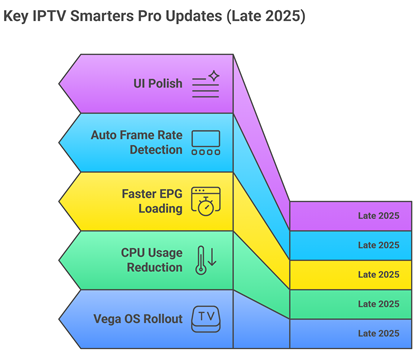
The latest stable build of IPTV Smarters Pro brings real, noticeable improvements over the older 3.x releases. Here’s what’s worth knowing about before you install:
- Improved Vega OS Compatibility: Amazon began rolling out their proprietary Vega OS in late 2025, and the latest IPTV Smarters Pro build is fully compatible with both Fire OS 8 and Vega OS Firesticks.
- Reduced CPU Usage on 4K Streams: Internal benchmarks show roughly 15-18% lower CPU draw during 4K HEVC playback compared to the previous release — meaning cooler hardware and longer device life.
- Faster EPG Loading: What used to take 90+ seconds on large playlists now loads in under 30 seconds on most setups.
- Better Auto Frame Rate Detection: AFR now correctly switches between 24Hz, 50Hz, and 60Hz on a per-channel basis without needing manual configuration.
- UI Polish: Cleaner login flow, redesigned settings menu, and noticeably smoother scrolling through large channel lists.
If you’ve been running an older version, this update is genuinely worth the few minutes it takes to reinstall.
Pre-Installation Checklist
Before we start clicking buttons, let’s make sure your Firestick is fully prepped. Skipping any of these will either cause the install to fail or leave you exposed when streaming:
- Have an active IPTV subscription ready. IPTV Smarters Pro is just a player — it doesn’t host any channels itself. You’ll need login credentials (either Xtream Codes API or an M3U URL) from a provider before the app does anything useful.
- Enable Apps from Unknown Sources. The app isn’t on the Amazon App Store, so we’ll need to sideload it. We’ll cover the exact steps below.
- Install the Downloader App. This is the tool we use to fetch the IPTV Smarters Pro APK. It’s free on the Amazon App Store.
- Connect a VPN (Strongly Recommended). A VPN encrypts your IPTV traffic, prevents ISP throttling, and keeps your activity private.
- Check your storage. The APK itself is small, but the EPG database can grow significantly over time. Make sure you have at least 500MB of free space.
- Stable internet connection. 10 Mbps minimum for HD, 25+ Mbps for 4K. If you’re on a marginal Wi-Fi signal, an Ethernet adapter will save you a lot of frustration.
💡 Pro Tip: If your Firestick hasn’t been updated in a while, head to Settings > My Fire TV > About > Check for Updates before starting. Running the latest Fire OS or Vega OS prevents most install errors.
Step-by-Step Installation Guide
We’ll be using the Downloader app for the cleanest, most reliable sideload. Follow each step exactly and you’ll have IPTV Smarters Pro running in about 5-10 minutes.
Part 1: Enabling Developer Options and Unknown Sources
Step 1: Open Firestick Settings
Power on your Firestick and head to the home screen. Scroll all the way to the right with your remote until you see the Settings gear icon. Select it.
Step 2: Navigate to My Fire TV
Inside Settings, scroll down and select My Fire TV (on some newer 2026 Vega OS models, this may appear as Device & Software). This is where the developer tools and system controls live.
Step 3: Unlock Developer Options (The 7-Click Trick)
In current Fire OS versions, Amazon hides Developer Options by default. Here’s how to reveal them:
- Select About from the My Fire TV menu.
- Highlight your device name (e.g., Fire TV Stick 4K Max).
- Press the Select button on your remote rapidly 7 times.
- You’ll see a small toast notification at the bottom of the screen: “You are now a developer!”
Step 4: Enable Apps from Unknown Sources
Go back one screen to My Fire TV. Developer Options will now appear as a new menu item. Open it and:
- Toggle ADB Debugging to ON.
- Select Install Unknown Apps (or Apps from Unknown Sources on older Fire OS versions).
- Find Downloader in the list and toggle it to ON.
⚠️ Warning: Once you’ve finished installing IPTV Smarters Pro, you can disable these settings again to tighten your Firestick’s security. Only leave them on while you’re actively sideloading.
Part 2: Installing the Downloader App
Step 5: Search for Downloader
Press the Home button on your remote. From the home screen, select the Find menu, then Search. Using the on-screen keyboard, type “Downloader”. Make sure you’re picking the official app with the orange icon by AFTVnews.
Step 6: Install and Launch Downloader
Click Download (or Get). Once installed, click Open to launch it for the first time. When prompted to allow file access, click Allow — without this permission, the app can’t save the IPTV Smarters Pro APK to your storage.
Part 3: Downloading and Installing IPTV Smarters Pro
Step 7: Enter the Official Download URL
In the URL bar of the Downloader app, type the official IPTV Smarters Pro download link exactly as shown: https://www.iptvsmarters.com/smarters.apk
Click Go to start the download. We always recommend using the official IPTV Smarters website rather than third-party APK mirrors — it guarantees you’re getting the latest, malware-free version.
💡 Pro Tip: Typing long URLs with the Firestick remote is a pain. If you have an iPhone or Android, install the official Fire TV Remote App — it lets you type using your phone’s keyboard, which makes URL entry painless.
Step 8: Download and Install the APK
The Downloader app will start fetching the APK. On a decent connection, this usually takes under 30 seconds. Once finished, an installation prompt appears automatically.
Click Install and wait for the process to complete. You’ll see an “App Installed” confirmation when it’s done.
Step 9: Launch and Clean Up
Once the install confirmation appears, click Done (not Open — we’ll launch it from the apps menu shortly). Back in the Downloader app, click Delete on the APK file, then confirm with Delete again. There’s no reason to keep the installer hogging space on your Firestick.
First Run: Setting Up IPTV Smarters Pro
Now for the part everyone gets stuck on — actually loading your IPTV service into the app. The good news: it’s straightforward once you know which login method to use.
Step 10: Open the App and Accept the Terms
Press the Home button on your remote, scroll down to Your Apps & Channels, and find IPTV Smarters Pro (it’ll be at the bottom of the list since it was just installed). Open it.
On first launch, the app will display a Terms of Use disclaimer. Read it, then click Accept.
Step 11: Choose TV Mode
You’ll be asked whether you want to use Mobile or TV mode. Always select TV on a Firestick — it’s optimized for remote navigation and the bigger screen.
Step 12: Pick Your Login Method
This is the key step. IPTV Smarters Pro gives you three options:
- Login with Xtream Codes API — The recommended choice if your provider supports it. Faster channel switching, better EPG, and instant category sorting.
- Load Your Playlist or File/URL — Use this if your provider gave you an M3U URL or an M3U file.
- Login with Smarters Pro Account — A premium tier from the developer; ignore this unless you’ve specifically signed up.
If your provider sent you both an M3U URL and Xtream Codes credentials (most do), always pick Xtream Codes. It’s measurably faster and handles EPG more reliably.
Step 13a: Configure Xtream Codes API (Recommended)
If you chose Xtream Codes, you’ll see a form with three fields:
- Any Name — A label for this profile (e.g., “Living Room TV”). It’s just for your reference.
- Username — Provided by your IPTV service.
- Password — Provided by your IPTV service.
- URL/Server URL — The portal URL provided by your service (looks like http://yourprovider.com:8080).
Fill in all four fields exactly as your provider sent them, then click Add User. The app will validate your credentials and start loading your channel list and EPG.
Step 13b: Configure M3U URL (Alternative)
If you chose the playlist method instead:
- Click Allow when the storage permission prompt appears.
- Enter Any Name (just a label).
- Select M3U URL as the playlist type.
- Paste the M3U URL provided by your service.
- Click Add User.
💡 Pro Tip: M3U URLs are usually long and full of random characters. Don’t try to type them on the Firestick remote — use the Fire TV Remote App on your phone, or email the URL to yourself and copy it from the Silk browser on your Firestick.
Step 14: Wait for the EPG to Load
After you click Add User, the app pulls down your full channel list and EPG data. On large playlists with 10,000+ channels, this can take 1-2 minutes the first time. Don’t quit the app while this loads — let it finish.
Once it’s done, you’ll land on the main dashboard with tiles for Live TV, Movies, Series, TV Guide, and Settings. You’re now ready to stream.
Configuring EPG (Electronic Program Guide)
The EPG is what turns IPTV Smarters Pro from a basic channel viewer into something that genuinely feels like premium cable. If your guide didn’t auto-populate, here’s how to set it manually:
- From the main menu, click Settings.
- Select EPG.
- Click Add EPG.
- Enter the EPG URL provided by your IPTV service.
- Toggle Auto-Update EPG to ON so the guide refreshes automatically.
- Click Save.
Most providers include their EPG URL in the welcome email alongside your login credentials. If you can’t find it, just contact your provider’s support — they’ll send it within minutes.
Integrating External Players (VLC, MX Player, XYZ Player)
IPTV Smarters Pro’s built-in player handles 95% of streams flawlessly, but occasionally you’ll run into a channel encoded with an unusual codec that stutters or refuses to play. The fix is to route playback through an external player. Here’s how:
- First, install VLC for Fire from the Amazon App Store (it’s free and officially listed). MX Player can be sideloaded the same way we installed Smarters Pro.
- Open IPTV Smarters Pro and go to Settings > Player Selection.
- Choose your default player — we recommend VLC for maximum codec support, or MX Player if you prefer a more polished interface.
- Save and restart the app.
From now on, all streams will route through your chosen external player. If you want to switch back to the built-in player for a specific stream, long-press the channel and select Play With… to choose on the fly.
Setting Up Parental Controls
If you have kids in the house, locking down adult categories is non-negotiable — IPTV providers often include them by default, and you don’t want them showing up on the kids’ Firestick.
- From the main menu, go to Settings > Parental Controls.
- Set a 4-digit PIN (don’t use 1234 or your kid’s birthday — they’ll figure it out).
- Select the categories you want to lock — typically anything labeled “XXX,” “Adult,” or “18+.”
- Save your changes.
Locked categories will require the PIN to access. The PIN also locks settings changes, so curious tinkerers can’t disable the controls without your knowledge.
Why a VPN is Essential for IPTV Streaming
We need to be direct here — using IPTV on a Firestick without a VPN is one of the riskier things you can do online. Here’s exactly why:
1. ISP Throttling is Almost Universal
Internet providers can detect IPTV traffic patterns and many actively throttle them — meaning that 4K stream you’re paying for chokes down to 480p during peak hours. A VPN encrypts your connection so your ISP can’t identify what you’re streaming, restoring full speeds.
2. IPTV Servers Often Aren’t Friendly Neighborhoods
Every time you stream, your real IP address is logged by the IPTV server. Reputable providers handle this responsibly — but you have no way to verify that. A VPN replaces your real IP with the VPN server’s IP, so even if logs leak, your home connection isn’t exposed.
3. Geo-Restrictions on Specific Channels
Some IPTV channels (especially UK and US sports streams) are geo-locked. A VPN lets you connect through the appropriate country’s server to unlock them.
💡 Pro Tip: Connect your VPN before launching IPTV Smarters Pro every time. Make it a habit — it takes 5 seconds and saves you a world of trouble. Most quality VPNs (ExpressVPN, NordVPN, Surfshark) have native Firestick apps available directly from the Amazon App Store.
Performance Optimization for IPTV Smarters Pro
If you want buttery-smooth playback even on a base Firestick, these tweaks make a real difference. We’ve tested all of these on a Firestick 4K Max running the latest Fire OS 8 build:
1. Enable Auto Frame Rate
Open Settings > Player Settings > Auto Frame Rate and toggle it ON. This automatically matches your TV’s refresh rate to the stream’s native frame rate (24Hz for movies, 50/60Hz for live sports), eliminating stutter and judder.
2. Switch to Hardware Decoding
Under Settings > Player Settings, make sure Hardware Decoding is enabled. This offloads video decoding from the CPU to the Firestick’s dedicated video chip, dramatically reducing heat and stutter on 4K HEVC streams.
3. Use 5GHz Wi-Fi or Ethernet
The 2.4GHz band is congested and rarely sustains 4K streams reliably. Either connect to your router’s 5GHz network in Settings > Network, or invest $15 in a Fire TV Ethernet Adapter — it’s the single best upgrade you can make for IPTV reliability.
4. Clear Cache Monthly
EPG databases grow over time and start to slow things down. Once a month, head to Firestick Settings > Applications > Manage Installed Applications > IPTV Smarters Pro > Clear Cache. Do NOT click Clear Data — that wipes your entire setup.
5. Disable Background Amazon Apps
The Firestick runs a lot of background services that drain RAM. Go to Settings > Preferences > Privacy Settings and turn off Device Usage Data and Collect App Usage Data. You’ll free up resources for IPTV Smarters Pro.
IPTV Smarters Pro vs Other Players: 2026 Comparison
You’ll inevitably hear about other IPTV players — TiviMate, OTT Navigator, GSE Smart IPTV. Here’s an honest look at how IPTV Smarters Pro stacks up:
| Feature | IPTV Smarters Pro | TiviMate | OTT Navigator |
| Cost | 100% Free | Free / Premium ($30/yr) | Free / Premium |
| Xtream Codes Support | Yes (Native) | Premium Only | Yes |
| M3U URL Support | Yes | Yes | Yes |
| EPG Quality | Excellent | Best in Class | Excellent |
| Multi-Screen Playback | Up to 4 streams | No | Limited |
| External Player Support | Yes (VLC, MX, XYZ) | Premium Only | Yes |
| Catch-Up TV | Yes | Yes | Yes |
| Firestick Optimization | Excellent (Native) | Excellent | Good |
| Best For | Most Users | EPG Power Users | Multi-Provider Users |
The takeaway: TiviMate has a slightly better EPG and a more polished UI, but you’ll pay $30/year to unlock its essential features. OTT Navigator is a strong free alternative if you juggle multiple providers. For most users, IPTV Smarters Pro remains the best free option — and frankly, it does 95% of what TiviMate Premium does without the subscription.
Troubleshooting Common Issues
Even with a clean install, things occasionally go sideways. Here are the most common IPTV Smarters Pro issues we’ve seen reported and exactly how to fix them:
Issue 1: “App Not Installed” Error
This is the most common error on Fire OS 8 / Vega OS Firesticks in 2026. It’s almost always one of three things:
- Old IPTV player still installed. Go to Settings > Applications > Manage Installed Applications, find any older IPTV apps (including older Smarters versions), and uninstall them with their data. This fixes most cases.
- Insufficient storage. You need at least 500MB free. Fire OS sometimes “ghosts” reserved space — restart your Firestick and recheck.
- App Scanner block. Vega OS occasionally flags sideloaded APKs. If this happens, restart the Firestick and try the install again — it usually goes through on the second attempt.
Issue 2: Channels Won’t Load After Adding Credentials
If you entered your credentials but the channel list is empty:
- Double-check the credentials with your provider — even a single wrong character will fail silently.
- Verify your subscription is active. Many providers auto-suspend trial accounts after the trial period.
- Try connecting to a VPN — some IPTV providers block direct ISP connections to prevent abuse.
- Test the same credentials in your IPTV provider’s web player to confirm they work.
Issue 3: Constant Buffering on Live Channels
Buffering on IPTV is rarely the app’s fault. Work through these in order:
- Run a speed test on your Firestick (use the Internet Speed Test app from the Amazon App Store). 25+ Mbps for 4K, 10+ Mbps for HD.
- Switch from 2.4GHz to 5GHz Wi-Fi, or use an Ethernet adapter.
- Connect to a VPN — ISP throttling is a major buffering cause.
- Try a different VPN server (closer to you = faster).
- Increase the buffer in Settings > Player Settings > Buffer Size.
- Switch to an external player like VLC.
Issue 4: EPG Not Loading or Out of Date
If your TV guide is blank or showing yesterday’s schedule:
- Go to Settings > EPG > Update EPG and force a manual refresh.
- Verify your provider’s EPG URL is still active (sometimes providers change them — check your welcome email or provider portal).
- Enable Auto-Update EPG so it refreshes daily.
- Clear the app cache — corrupted EPG databases are a common cause.
Issue 5: App Crashes on Launch
If IPTV Smarters Pro crashes the moment you open it:
- Restart your Firestick — Settings > My Fire TV > Restart.
- Clear the app cache (not data) through Firestick settings.
- Uninstall and reinstall the app following this guide from Step 5.
- If it still crashes, the APK may be corrupt — re-download from the official iptvsmarters.com URL.
Issue 6: “Authentication Failed” on Xtream Codes
This means the app reached the server but rejected your credentials. Check:
- Username and password are exactly as provided (case-sensitive).
- Server URL includes the port number (e.g., :8080) and uses the correct protocol (http:// vs https://).
- Subscription is active — log into your provider’s customer portal to verify.
- You haven’t exceeded your simultaneous connection limit. Most subscriptions allow 1-2 simultaneous streams.
Important Legal and Safety Notes
We want to be clear about something that often gets glossed over in IPTV guides:
IPTV Smarters Pro itself is 100% legal. It’s a media player developed by Tech Smarters Private Limited and is openly distributed on the Google Play Store, Apple App Store, and the developer’s official website. Installing and using the app breaks no laws.
The legality depends entirely on the IPTV service you connect it to. There are two categories:
- Verified IPTV Services — Providers that hold proper licensing for the channels they distribute. These are 100% legal to use.
- Unverified IPTV Services — Providers that may not hold full licensing. Using these may violate copyright law in your country.
We strongly recommend using only verified, licensed IPTV providers. When in doubt, do your research, read provider reviews, and always use a VPN to protect your privacy regardless of which type of service you choose. FirestickTVStream does not host, operate, or affiliate with any specific IPTV service.
FAQs
Is IPTV Smarters Pro free?
Yes — the app itself is completely free with no premium tier required for any of its core features. You only need to pay for an IPTV service subscription to feed it content.
Why isn’t IPTV Smarters Pro on the Amazon App Store?
Amazon doesn’t allow IPTV-focused players in their store due to their content policies, even though the app itself is legitimate. That’s why sideloading via the Downloader app is the only way to install it on Firestick.
Do I need a separate IPTV subscription to use the app?
Yes. IPTV Smarters Pro is a player only — it doesn’t host any channels itself. You’ll need login credentials (Xtream Codes or M3U URL) from a third-party IPTV provider before you can watch anything.
Will IPTV Smarters Pro work on the Firestick Lite or older models?
Yes. The app works on every Firestick generation, including the Firestick Lite, Firestick 4K, 4K Max, and Fire TV Cube. Performance will obviously be best on newer 4K Max models, but even the Lite handles HD streams without issue.
Can I use IPTV Smarters Pro on multiple devices with the same subscription?
That depends on your IPTV provider, not the app. Most providers allow 1-2 simultaneous connections per subscription. The app itself can be installed on as many devices as you like.
What’s the difference between Xtream Codes and M3U URL?
Both connect the app to your provider’s content servers. Xtream Codes is a direct API connection that’s faster, handles EPG more efficiently, and supports advanced features like catch-up TV. M3U URL is a simpler playlist format that’s universally compatible but slower and less feature-rich. Always pick Xtream Codes if your provider offers both.
Why does my screen go black when I try to watch a channel?
This is almost always a codec issue. Switch to an external player like VLC by going to Settings > Player Selection and selecting VLC. That fixes the issue 9 times out of 10.
Is IPTV Smarters Pro safe to install?
The app itself is 100% safe when downloaded from the official IPTV Smarters website (iptvsmarters.com) or major app stores. Avoid downloading the APK from random third-party mirror sites — those often bundle malware or modified versions.
Summary Checklist: Your Perfect IPTV Smarters Pro Setup
Use this checklist to confirm you’ve completed every step for a fully optimized streaming experience:
- Updated Firestick Firmware — Running the latest Fire OS or Vega OS.
- Active IPTV Subscription — Credentials in hand (Xtream Codes preferred).
- Developer Options Enabled — 7-click trick on My Fire TV > About.
- Apps from Unknown Sources Allowed — Specifically for the Downloader app.
- Downloader App Installed — From the Amazon App Store.
- VPN Connected — Protect your privacy and unlock full speeds.
- IPTV Smarters Pro Installed — Via the official iptvsmarters.com APK.
- Logged In with Xtream Codes — Faster than M3U URL.
- EPG Configured — Auto-update enabled.
- Auto Frame Rate Enabled — Smooth playback for movies and sports.
- Hardware Decoding Enabled — Cooler hardware, less stutter.
- External Player Set Up — VLC or MX Player as backup.
- Parental Controls Configured — If you have kids in the house.
- Cache Clearing Schedule — Once a month minimum.
Final Thoughts
Installing IPTV Smarters Pro on your Firestick isn’t just about ditching cable — it’s about taking control of how, when, and what you watch. With the right setup, you’ve got thousands of live channels, complete EPG, multi-screen playback, and 4K HDR streaming on a $50 device that fits in your pocket.
The 2026 release of IPTV Smarters Pro is the most refined and capable version yet. Combined with a quality IPTV subscription, a solid VPN, and the optimization tweaks we covered above, you’ve got a setup that genuinely outperforms what most people pay $100+/month for through traditional cable.
Stay current by checking iptvsmarters.com periodically for app updates, keep your subscription active with a reputable provider, and always — always — connect your VPN before launching the app. With those three habits, your Firestick streaming experience will stay smooth, secure, and genuinely impressive for years to come.
🎬 Happy Streaming from the FirestickTVStream Team!