Key Takeaways: BeeTV is not in the Amazon Appstore, so the only way onto a Firestick is to sideload the APK using the Downloader app. Open Settings > My Fire TV > Developer Options, turn on Install Unknown Apps for Downloader, install Downloader from the Appstore, then open the BeeTV APK link inside Downloader, download the file, and select Install. One thing almost every guide skips: BeeTV has no built in video player, so nothing will play until you also install an external player such as Bear Player, MX Player, or VLC. For HD links and far less buffering, connect a VPN and link a Real-Debrid account inside the app.
BeeTV is one of the most popular free streaming apps you can put on a Firestick. It pulls movies, TV shows, anime, and the occasional live event into a clean, remote friendly interface, and it asks for no account and no subscription. The catch is the same one you hit with most apps of this kind. Amazon does not list it in the Appstore, so the setup is not a one click affair, and that is exactly where most people get stuck.
This guide is the most complete BeeTV walkthrough for Firestick and Android TV you will find. We do not stop at the basic sideload. We cover how to enable sideloading the right way, the full step by step install, how to add the external player that BeeTV needs in order to play anything, how to set up Real-Debrid and Trakt for better links, how to deal with the ads, full device coverage, a real troubleshooting table for when things go wrong, and the safest way to stream. We set this up across the Fire TV Stick 4K, the 4K Max, and the Fire TV Cube, so the steps below reflect what actually happens on screen.
One honest note before we start. BeeTV has gone through quiet spells where updates paused for a while, and working builds still circulate and stream well. We keep this page current and we always list strong alternatives lower down, so you have a backup ready if the app ever has a bad week. Let us get into it.
🔧 Recommended for a smooth BeeTV setup
- A reliable VPN to keep your streaming private and stop your internet provider from throttling your speeds. BeeTV scrapes from unverified sources, so privacy matters here. See our recommended VPN for Firestick.
- An external video player such as Bear Player, MX Player, or VLC. BeeTV has no built in player, so this is not optional if you want anything to play.
- A debrid service such as Real-Debrid for fast, cached, buffer free links once the app is installed. See our Real-Debrid explainer.
What Is BeeTV APK?
BeeTV is a free, third party streaming app for movies and TV shows. Like most apps of this type, it does not host any content of its own. Instead it scrapes streaming links from across the web and lists them for you to pick from, which is why you sometimes see several links of different quality for the same title. It runs on Android phones, tablets, Android TV, Google TV, and the Amazon Firestick, and it is light enough to feel quick even on older hardware.
What sets BeeTV apart from many rivals is its breadth. Alongside the usual Hollywood and Bollywood catalog, it carries a dedicated anime section, subtitle support in several languages, and integration with both Real-Debrid and Trakt. The most important thing to understand, and the part most guides bury, is that BeeTV ships without a video player. The app finds the links, but a separate player such as Bear Player, MX Player, or VLC does the actual playback. Install BeeTV on its own and you will be staring at a blank screen wondering why nothing starts.
| Feature | Details |
|---|---|
| App type | Free third party streaming app for movies and TV shows |
| Cost | Free, with no account or sign up required |
| Latest version | v4.7.4 (older v4.6.8 also reported working) |
| Built in player | No, an external player is required |
| Player support | Bear Player, MX Player, VLC, and similar |
| Integrations | Real-Debrid and Trakt |
| Content | Movies, TV shows, anime, and some live events |
| Subtitles | Yes, multiple languages |
| Platforms | Firestick, Android TV, Google TV, Android phones and tablets |
| Ads | Yes, with workarounds covered below |
Is BeeTV Available in the Amazon Appstore?
No. BeeTV is not available in the Amazon Appstore, which is why you cannot simply search for it on your Firestick and install it. As a third party app, the only way to get it onto Fire TV is to sideload the APK using the Downloader app, which is exactly what the rest of this guide walks you through. The same is true on Android TV and Google TV, where it is also not listed in the Google Play Store.
Sideloading sounds technical, but it is just the manual installation of an app that is not in your device store. Firestick is built to allow it once you flip a single setting, and the whole process takes only a few minutes. The one rule worth repeating is to only download the APK from a source you trust, because clones and copycat versions of popular apps are common and not all of them are clean.
What You Need Before You Start
Running through this short checklist first will save you time and avoid the most common setup problems:
- The Downloader app. This free Amazon app is how you fetch the BeeTV APK. We install it together in Part 2 below.
- An external video player. BeeTV cannot play anything by itself. Have Bear Player, MX Player, or VLC ready to install, because you will need one before your first stream.
- A VPN (recommended). BeeTV pulls from sources your internet provider would rather throttle. A VPN keeps your activity private and your speeds steady, and it can also help if the app is geo restricted in your region.
- A stable internet connection. For smooth 1080p playback, connect your Firestick to a 5 GHz Wi-Fi band or use an Ethernet adapter.
- A Real-Debrid account (optional). Not required, but it is the single biggest upgrade for link quality and buffering. We cover the setup later in this guide.
💡 Pro Tip: Decide on your external player before you begin. If you want the simplest path, MX Player or VLC are the easiest to install and pair with BeeTV. Bear Player is the one most often recommended for these apps, but its newest build ships as an XAPK that needs an extra extraction step, which we explain below.
Which Fire TV Devices Support BeeTV?
The sideload process is the same across every Fire TV device. The only real difference is performance, where the newer 4K models handle high resolution links more comfortably. The table below shows where BeeTV runs.
| Device | BeeTV Support | Notes |
|---|---|---|
| Fire TV Stick (3rd Gen / HD) | Yes, sideload | Smooth for 1080p and everyday use |
| Fire TV Stick Lite | Yes, sideload | Best for 1080p content |
| Fire TV Stick 4K | Yes, sideload | Handles high resolution links well |
| Fire TV Stick 4K Max | Yes, sideload | The best all round choice for BeeTV |
| Fire TV Cube | Yes, sideload | Fastest hardware, ideal for heavy use |
| Older Fire TV Stick (1st / 2nd Gen) | Yes, sideload | Works, but expect slower menus |
| Fire TV built in (Smart TVs) | Yes, sideload | Same steps as the stick models |
How to Install BeeTV APK on Firestick (Step by Step)
The full process has three parts. First you prepare the Firestick to allow sideloading, then you install the Downloader app, then you use Downloader to fetch and install BeeTV. Follow them in order and you will be done in a few minutes.
Part 1: Allow Apps From Unknown Sources
This setting tells your Firestick that it is allowed to install an app that did not come from the Amazon Appstore. You only have to do this once.
- From the Firestick home screen, open Settings.
- Select My Fire TV, then choose About.
- Highlight your device name and press the select button on your remote seven times. A message will confirm that you are now a developer. This unlocks Developer Options.
- Go back to My Fire TV and open Developer Options.
- Select Install Unknown Apps on newer devices, or Apps from Unknown Sources on older ones.
- Find Downloader in the list and turn it On. If you do not have Downloader yet, install it first in Part 2 and then return here.
⚠️ Note: Newer Fire OS versions ask you to enable unknown apps for each app individually, which is why you turn it on specifically for Downloader. Older Fire OS versions use a single global toggle instead. Either way, the goal is the same.
Part 2: Install the Downloader App
Downloader is a free, official Amazon app that lets you open a web address and download files. It is the tool you will use to grab the BeeTV APK.
- From the Firestick home screen, select Find, then Search.
- Type Downloader and select it from the results. Look for the orange icon with a white download arrow, made by AFTVnews.
- Open the app page and click Get or Download to install it.
- Open Downloader once and accept the prompts so it is ready, then return to Part 1 if you have not already enabled unknown apps for it.
Part 3: Sideload BeeTV Using Downloader
Now you will fetch the BeeTV APK and install it. Connect your VPN first so this download and your first session stay private.
- Open the Downloader app from your apps screen.
- Select the URL box on the Home tab and enter the BeeTV APK web address from a source you trust, then click Go.
- Wait for the file to download. On a decent connection this takes under a minute. If you see a list of files, choose the latest BeeTV APK.
- When the install screen appears, select Install. If a second prompt asks you to allow BeeTV itself to install unknown apps, select Allow, then go back and finish.
- When you see the success message, select Done rather than Open.
- Downloader will offer to remove the APK file. Select Delete, then Delete again to confirm. The app stays installed, and you are only clearing the leftover setup file to free up space.
That is it. BeeTV is now installed and you will find it on your apps and channels screen. Do not open it just yet, because there is one more piece to add before anything will play. Move on to the external player section next.
💡 Pro Tip: If Downloader will not load the page, double check the address for typos and try again. If the install screen never appears after the download finishes, reopen Downloader, open its history or browser tab, and select the file again to relaunch the installer.
How to Install Bear Player (the External Player BeeTV Needs)
This is the step that catches almost everyone. BeeTV finds the streaming links, but it hands the actual playback to a separate video player. Without one installed, you tap a link and nothing happens. You have two easy routes.
The simplest option is MX Player or VLC. Both are widely available, both play almost any link BeeTV throws at them, and both are quick to set up. If you just want BeeTV working with the least fuss, sideload one of these the same way you installed BeeTV, using the Downloader app.
The most commonly paired option is Bear Player, which is the player many of these apps recommend. The newest Bear Player build ships as an XAPK or APKM file, which needs an extra extraction step on Firestick, so a lot of users prefer to sideload the slightly older standalone APK that installs normally. Either works fine with BeeTV.
- Open the Downloader app on your Firestick.
- Enter the web address for your chosen player, Bear Player, MX Player, or VLC, from a trusted source and click Go.
- Let the file download, then select Install and wait for it to complete.
- Select Done, then delete the leftover file to save space.
- Open BeeTV, go to its Settings, and set your installed player as the default if the option is offered. Otherwise BeeTV will ask you to choose a player the first time you open a link.
💡 Pro Tip: Playing links through an external player has a bonus. It bypasses the in app advert that BeeTV sometimes shows when you start a stream, so playback begins cleaner. We cover the full ad workarounds in their own section below.
How to Install BeeTV on Android TV and Google TV
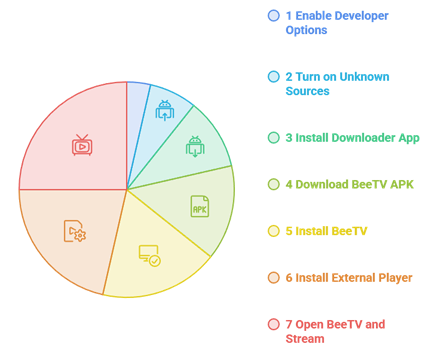
The process on Android TV and Google TV boxes, such as the Chromecast with Google TV, the ONN box, Nvidia Shield, and similar, is almost identical to the Firestick. The only differences are where you find the unknown sources setting and that you install Downloader from the Google Play Store.
- Open Settings on your Android TV or Google TV.
- Go to System or Device Preferences, then About, and click the Build number several times to enable Developer Options if needed.
- Return to Settings, open Apps or Security and restrictions, and turn on Unknown sources for the app you will use to install, usually Downloader.
- Install the Downloader app from the Google Play Store and open it.
- Enter the BeeTV APK web address, download the file, and select Install.
- Install your external player the same way, then open BeeTV and start streaming.
How to Set Up Real-Debrid on BeeTV for HD, Buffer Free Links
Real-Debrid is the single biggest upgrade you can make to BeeTV. It takes the links the app finds and serves them from fast, cached servers over an encrypted connection, which means high resolution playback with almost no buffering. It costs only a few dollars a month and the setup takes a minute. If you are new to it, start with our explainer on what Real-Debrid is.
- Open BeeTV and go to Settings from the side menu.
- Select Login to Real-Debrid. The app will show a short code on screen.
- On your phone or computer, open the Real-Debrid device activation page in a browser and sign in to your account.
- Enter the code shown on your TV and confirm to authorize the device.
- Return to BeeTV. Your Real-Debrid links will now appear in the stream list, usually tagged so you can spot them, and they play far more smoothly than free links.
How to Link Trakt to BeeTV
Trakt keeps your watch history, progress, and watchlist in sync across every app and device that supports it. Linking it to BeeTV means you can pick up where you left off and keep one tidy list of everything you are watching. The setup mirrors the Real-Debrid steps.
- Open BeeTV, go to Settings, and select Login to Trakt.
- Note the activation code shown on your TV screen.
- On a phone or computer, open the Trakt activation page in a browser and sign in.
- Enter the code and confirm. BeeTV is now linked, and your history and watchlist will sync automatically.
How to Use BeeTV on Firestick
Once the app, a player, and your optional add ons are in place, BeeTV is genuinely easy to live with. Here is a quick tour of the main sections so you know where everything lives.
- Home: Your landing screen, with rows for trending, popular, and recently added movies and shows.
- Movies and TV Shows: Browse the full catalog, sorted by genre, popularity, and release, with a separate area for series.
- Anime: A dedicated section that many rival apps do not offer, with a large library that is easy to browse.
- Search: Type a title and BeeTV checks its sources for available links in a couple of clicks.
- Watchlist: Save titles to come back to, kept in sync if you have linked Trakt.
- Settings: Where you set your default player, log in to Real-Debrid and Trakt, and adjust subtitles.
To play something, open any movie or episode, wait for the link list to populate, and pick one. Higher resolution labels such as 1080p give the best picture, and Real-Debrid tagged links play the most smoothly. When prompted, send the link to your installed player and it begins.
How to Remove or Reduce Ads on BeeTV
The most common complaint about BeeTV is the advertising. Free apps have to pay for themselves somehow, and BeeTV leans on ads to do it. The good news is that you can cut them down to almost nothing with a couple of simple habits.
- Play through an external player. Sending links to MX Player, VLC, or Bear Player skips the advert that sometimes appears when a stream starts, so playback begins clean.
- Use the Home button trick. If an advert appears while you are browsing, press the Home button on your remote, then reopen BeeTV. You usually land right back on the page you were on, advert gone.
- Turn on your VPN ad blocker. Some VPNs include a built in ad and tracker blocker that filters many of the banner adverts before they load, which also adds a layer of privacy.
Get Buffer Free Playback: VPN and Debrid
Installing BeeTV is only half the story. The experience you get afterward depends a lot on two tools. This is the value layer that turns a basic setup into a smooth one.
A VPN keeps your streaming private. BeeTV pulls from sources your internet provider may throttle, and a VPN hides your IP address while keeping your speeds steady. It can also unlock the app where it is geo restricted. We always connect one before opening BeeTV.
A debrid service such as Real-Debrid is the biggest jump in quality you can make. It serves cached, high resolution links almost instantly, which all but removes buffering. Paired with a VPN, it gives you a setup that feels close to a paid service.
| Setup | Streaming Quality | Buffering | Privacy | Cost |
|---|---|---|---|---|
| BeeTV only | Depends on the free links available | Common on less popular titles | Your IP can be exposed by the sources | Free |
| BeeTV plus VPN | Same links, but no provider throttling | Improved on throttled connections | IP hidden, traffic encrypted | A few dollars per month |
| BeeTV plus VPN and debrid | Consistent high resolution links | Near zero on cached links | Strong, with private, encrypted delivery | A few dollars per month each |
How to Update BeeTV on Firestick
Because BeeTV is sideloaded, your Firestick will not update it for you. When a new version is released, you update it manually, and your settings carry over because you simply install the new build over the old one.
- Open Downloader and enter the BeeTV APK web address again.
- Download the latest APK and select Install. It installs straight over your existing version.
- Select Done, delete the leftover file, and reopen BeeTV.
💡 Pro Tip: There is no need to uninstall the old version first. Installing the new APK over the top keeps your Real-Debrid and Trakt logins and your default player setting, so you do not have to set everything up again.
Installing BeeTV on Other Devices
BeeTV runs on more than just the Firestick. Here is how to get it onto each platform. Remember that whichever device you use, you will still need an external player for playback.
| Device | How to Install |
|---|---|
| Android phones and tablets | Enable unknown sources in Settings, download the APK in a browser, then open it to install |
| Android TV and Google TV | Use the Downloader app from the Play Store, then sideload the APK |
| Fire TV Cube and Fire tablets | Same Downloader method as the Firestick steps above |
| Windows PC | Install an Android emulator, then load the BeeTV APK inside it |
| iPhone and iPad | Not supported, since BeeTV is an Android app. Use a legal alternative instead |
BeeTV Not Working on Firestick? Troubleshooting Guide
Most BeeTV problems on Firestick come down to a handful of causes. Use the table below to find your issue and the fix.
| Problem | Likely Cause | How to Fix It |
|---|---|---|
| Install fails or will not finish | Unknown apps not enabled, or low storage | Enable Install Unknown Apps for Downloader, free up space, then download the APK again |
| Nothing plays when you pick a link | No external player installed | Sideload Bear Player, MX Player, or VLC, then set it as your player in BeeTV settings |
| Links load but will not play | Dead or slow source link | Go back and try a different link, or add Real-Debrid for reliable cached links |
| No links appear for a title | Sources are temporarily down | Try a more popular title to test, refresh, or check back a little later |
| Constant buffering | Slow source links or a weak connection | Use Real-Debrid, switch to 5 GHz Wi-Fi or Ethernet, or pick a lower resolution link |
| App is blocked in your region | Geo restriction | Connect a VPN and select a server in a supported region, then reopen the app |
| Too many adverts | Free app advertising | Play through an external player, use the Home button trick, or enable your VPN ad blocker |
| App keeps crashing | Outdated version or low memory | Update to the latest APK, clear the app cache, and restart the Firestick |
| Downloader cannot load the page | Wrong address typed | Re enter the web address carefully and try again |
💡 Pro Tip: A surprising number of BeeTV issues clear up after a simple restart. Hold the select and play or pause buttons together for a few seconds to restart your Firestick, then reopen the app.
Is BeeTV Safe and Legal to Use?
This deserves an honest answer rather than a sales pitch. BeeTV is a third party app that does not host content of its own. It scrapes links from across the web, and some of those links point to material that is not licensed for free distribution. Streaming copyrighted content you do not own may break the law in your country, and you are responsible for what you choose to watch.
On the safety side, the APK itself has generally scanned clean on antivirus services, though scanners have flagged advert related files in some builds, which is normal for free apps but worth knowing. Clones and fake versions of BeeTV are common, and those are the real risk, so the source you download from matters more than the app itself. To stay on the safe side, we recommend the following:
- Only download BeeTV and any player from a source you trust, never from random pop up links.
- Use a reputable VPN to keep your activity private while you stream.
- Lean on content that is in the public domain or licensed for free, and consider the legal apps listed below.
- Avoid entering personal or payment details into any third party streaming app.
Best BeeTV Alternatives for Firestick
BeeTV is good, but it is worth knowing your options, especially since apps of this type can have quiet weeks. These cover similar ground on Firestick, and the last group is fully legal.
| App | Type | Why Consider It |
|---|---|---|
| Stremio | Add on based media center | Clean, modern, and powerful once paired with add ons and Real-Debrid |
| Kodi | Open source media center | Deeply customizable with a huge add on ecosystem |
| CyberFlix TV | Free movies and TV app | Familiar BeeTV style layout with Real-Debrid and Trakt support |
| Nova TV | Free movies and TV app | Lightweight, fast, and easy on older devices |
| Viva TV | Free movies and TV app | Large library with subtitle and download support |
| Cinema HD | Free movies and TV app | Long standing favorite with strong link scraping |
| Syncler | Add on and debrid player | Clean interface and excellent Real-Debrid handling |
| Tubi, Pluto TV, Freevee | Legal free streaming apps | No setup or add ons needed, fully licensed and in the Appstore |
Tips to Get the Best Out of BeeTV
- Install a player first and set it as default, so your very first link plays without a hitch.
- Add Real-Debrid for the biggest jump in link quality and the least buffering.
- Run a VPN whenever you stream to stay private and avoid throttling.
- Play through an external player to skip the start of stream advert.
- Use a 5 GHz connection or an Ethernet adapter for steady high resolution playback.
- Keep an alternative ready from the list above so a bad week never leaves you stuck.
Conclusion
Installing BeeTV on Firestick takes a few more steps than a normal app because it is not in the Amazon Appstore, but none of them are hard. Once you have sideloaded the app through Downloader, added an external player so your links actually play, and optionally linked Real-Debrid and Trakt, you have a clean, free streaming hub for movies, shows, and anime.
Keep the key habits in mind. Install a player before you stream, run a VPN for privacy, add Real-Debrid for the smoothest links, and keep a backup app handy in case BeeTV has an off week. Do those and you will have a Firestick streaming setup that most people spend a long time piecing together.
FAQs
Is BeeTV available on the Amazon Appstore?
No. BeeTV is not listed in the Amazon Appstore, so you cannot search for it on your Firestick. You install it by sideloading the APK with the Downloader app, which the guide above covers step by step.
Is BeeTV free to use?
Yes. BeeTV is completely free and needs no account or sign up. The only optional costs are a VPN and a Real-Debrid subscription, each a few dollars a month, and both are worth it for privacy and link quality.
Why will nothing play when I select a stream on BeeTV?
BeeTV has no built in video player, so it needs an external one to play anything. Install Bear Player, MX Player, or VLC, set it as your player in BeeTV settings, and links will play normally.
Do I need a VPN to use BeeTV?
It is not strictly required, but it is strongly recommended. BeeTV scrapes from unverified sources, so a VPN hides your IP address, keeps your activity private, and can stop your internet provider from throttling your speeds. It can also unlock the app where it is geo restricted.
How do I get HD links and stop buffering on BeeTV?
Link a Real-Debrid account inside BeeTV settings. It serves cached, high resolution links that play almost instantly, which removes most buffering. Pair it with a 5 GHz Wi-Fi or Ethernet connection for the best results.
How do I remove the ads on BeeTV?
Play your links through an external player to skip the advert that appears when a stream starts. If an advert shows while browsing, press Home and reopen the app. A VPN with a built in ad blocker also filters many of the banner adverts.
How do I update BeeTV on Firestick?
Sideloaded apps do not update on their own. Open Downloader, enter the BeeTV APK address again, download the latest build, and install it over your existing version. Your player setting and your Real-Debrid and Trakt logins are kept.
Is BeeTV safe to use on Firestick?
The genuine APK has generally scanned clean, although advert related files have been flagged in some builds, which is common for free apps. The bigger risk is fake clones, so only download from a source you trust. Because BeeTV surfaces unlicensed links, we recommend a VPN for privacy and sticking to legal sources where you can.
📝 Update Log
- Latest review: Reverified the Downloader sideload steps and the install flow against the current BeeTV build (v4.7.4, with v4.6.8 also reported working).
- Player section: Expanded the external player guidance to make clear that BeeTV cannot play anything without Bear Player, MX Player, or VLC, including the Bear Player XAPK note.
- Add ons: Added full Real-Debrid and Trakt setup walkthroughs for better links and synced watch history.
- Ads: Added a dedicated section with three working ways to cut down BeeTV adverts.
- Troubleshooting: Added a full troubleshooting table covering install failures, playback issues, missing links, buffering, and geo restrictions.