Key Takeaways: Stremio is not in the Amazon Appstore, so to install it on Firestick you have to sideload it. Open Settings > My Fire TV > Developer Options and turn on Install Unknown Apps for the Downloader app, install Downloader from the Appstore, then inside Downloader open stremio.com, click Download Now, and choose the Android TV ARM APK. Install it, open Stremio, and link your free account using the on screen QR code. One important thing to know up front: you cannot install addons on the Firestick itself. You install them once on a phone, PC, or the web app, then press Sync Addons on your Firestick and they appear automatically.
Stremio is one of the best free streaming apps you can put on a Firestick. It pulls movies, TV shows, live channels, and anime into a single, clean interface that feels a lot like a paid service. The catch is that Amazon does not list it in the Appstore, so the setup is not a one click affair. That is exactly why so many people get stuck halfway through.
This guide is the most complete Stremio walkthrough for Firestick you will find. We do not stop at the basic sideload. We cover how to enable sideloading the right way, the full step by step install, how to create and link your free account using the new QR code method, how to actually get addons working through account syncing, how to update the app later, full device coverage, a real troubleshooting table for when things go wrong, and the best way to get buffer free playback. We have set this up across Fire TV Stick 4K, 4K Max, and the Fire TV Cube, so the steps below reflect what actually happens on screen.
Whether this is your first time sideloading anything or you have done it before and just want a clean, current process, you will find everything you need below. Let us get started.
🔧 Recommended for a smooth Stremio setup
- A reliable VPN to keep your streaming private and stop your internet provider from throttling your speeds. See our recommended VPN for Firestick.
- A debrid service such as Real-Debrid for fast, cached, buffer free links once your addons are in place.
- The Torrentio addon, the most popular Stremio addon for finding high quality streams. See our Torrentio setup guide.
What Is Stremio?
Stremio is a modern, open source media center that lets you watch movies, TV shows, live TV, and anime all in one place. On its own, Stremio does very little. It is the addons that bring the content, much like Kodi. The difference is that Stremio is far easier to navigate, the interface is built for a TV remote, and its addons live online instead of taking up space on your device.
There are two kinds of Stremio addons. Official addons such as YouTube and Public Domain Movies are safe and come ready to use. Community addons are third party and unlock a far wider catalog, but they are not vetted and may surface unlicensed content, so you use them at your own discretion. The built in player handles most formats, including 4K and HDR, which makes Stremio a strong fit for the Firestick 4K and 4K Max.
Is Stremio Available in the Amazon Appstore?
No. Stremio is not available in the Amazon Appstore, which is why you cannot simply search for it on your Firestick and install it. The app was removed from both the Amazon Appstore and the Apple App Store, and it is once again listed on Google Play for Android and Android TV devices. For Fire TV, the only way to get it is to sideload the Android TV APK using the Downloader app, which is exactly what the rest of this guide walks you through.
Sideloading sounds technical, but it is just the manual installation of an app that is not in your device store. It is completely safe when you download the file from the official Stremio website, and Firestick is built to allow it once you flip a single setting.
What You Need Before You Start
Running through this short checklist first will save you time and avoid the most common setup problems:
- A free Stremio account. The latest version of the app links to your account through a QR code, and your addons are tied to that account. You will want it ready before you log in. We show you how to create one below.
- A phone, PC, or web browser handy. You cannot add addons on the Firestick itself. You install them on another device and sync them over, so keep one nearby.
- A VPN (recommended). Many Stremio addons pull from sources that your internet provider would rather throttle. A VPN keeps your activity private and your speeds steady.
- A stable internet connection. For smooth 1080p and 4K playback, connect your Firestick to a 5 GHz Wi-Fi band or use an Ethernet adapter.
💡 Pro Tip: Create your free Stremio account first on your phone or computer. When the Firestick shows the QR code, you will be able to link it in seconds instead of scrambling to sign up on a TV screen.
Which Fire TV Devices Support Stremio?
The sideload process is the same across every Fire TV device. The only real difference is performance, where the newer 4K models handle high resolution streams more comfortably. The table below shows where Stremio runs.
| Device | Stremio Support | Notes |
|---|---|---|
| Fire TV Stick (3rd Gen / HD) | Yes, sideload | Smooth for 1080p, fine for everyday use |
| Fire TV Stick Lite | Yes, sideload | Best for 1080p content |
| Fire TV Stick 4K | Yes, sideload | Handles 4K and HDR well |
| Fire TV Stick 4K Max | Yes, sideload | The best all round choice for Stremio |
| Fire TV Cube | Yes, sideload | Fastest hardware, ideal for 4K libraries |
| Older Fire TV Stick (1st / 2nd Gen) | Yes, sideload | Works, but expect slower menus on heavy content |
How to Install Stremio on Firestick (Step by Step)
The full process has three parts. First you prepare the Firestick to allow sideloading, then you install the Downloader app, then you use Downloader to fetch and install Stremio. Follow them in order and you will be up and running in a few minutes.
Part 1: Allow Apps From Unknown Sources
This setting tells your Firestick that it is allowed to install an app that did not come from the Amazon Appstore. You only have to do this once.
- From the Firestick home screen, open Settings.
- Select My Fire TV, then choose About.
- Highlight your device name and press the select button on your remote seven times. A message will confirm that you are now a developer. This unlocks Developer Options.
- Go back to My Fire TV and open Developer Options.
- Select Install Unknown Apps on newer devices, or Apps from Unknown Sources on older ones.
- Find Downloader in the list and turn it On. If you do not have Downloader yet, install it first in Part 2 and then return here.
⚠️ Note: Newer Fire OS versions ask you to enable unknown apps for each app individually, which is why you turn it on specifically for Downloader. Older Fire OS versions use a single global toggle instead. Either way, the goal is the same.
Part 2: Install the Downloader App
Downloader is a free, official Amazon app that lets you open a web address and download files. It is the tool you will use to grab the Stremio APK.
- From the Firestick home screen, select Find, then Search.
- Type Downloader and select it from the results.
- Open the app page and click Get or Download to install it.
- Once it is installed, return to Part 1 if you have not already enabled unknown apps for Downloader.
Part 3: Sideload Stremio Using Downloader
Now you will fetch the Stremio APK from the official site and install it. Take care to choose the Android TV ARM version, because that is the build made for Fire TV.
- Open the Downloader app from your apps screen.
- Select the URL box and type stremio.com, then click Go. This loads the official Stremio website.
- When the page loads, select Download Now.
- Scroll down to the Android TV section and choose the first link, shown as Stremio (version number) ARM APK.
- Wait for the download to finish. Downloader will then bring up the install screen automatically.
- Select Install and let it complete.
- When you see the success message, select Done rather than Open.
- Downloader will offer to remove the APK file. Select Delete, then Delete again to confirm. The app stays installed, and you are only clearing the leftover setup file to free up space.
That is it. Stremio is now installed on your Firestick. You will find it on your apps and channels screen. Before you open it, connect your VPN so your very first session is private.
💡 Pro Tip: If Downloader will not load the page, try typing strem.io instead, which is the official short address. If the install screen never appears after the download, reopen Downloader, find the file in its history, and select it again to relaunch the installer.
How to Create a Free Stremio Account
You need a Stremio account to use the app on Firestick, and it is what keeps your addons, watch history, and library in sync across every device. Creating one is free and takes a minute. The easiest place to do it is on a phone or computer.
- On your phone or PC, go to the official Stremio website and select Login.
- Choose Sign up with email, or use the Facebook option if you prefer.
- Enter your email and a password, then select Sign Up.
- Open the confirmation email from Stremio and click the link to activate your account.
Keep these login details close, because you will use them in the next step to link the Firestick.
How to Log In to Stremio on Firestick (QR Code Method)
This is the part that trips people up, because the newest Stremio build no longer lets you type your email and password directly on the TV. Instead, it links your account through a QR code. Here is exactly how it works.
- Open Stremio from your Firestick apps screen.
- The app will show a QR code along with a short web address and a code.
- Scan the QR code with your phone camera, or open the web address shown on screen in any browser and enter the code.
- Log in with the Stremio account you created in the previous step.
- Once you confirm, your Firestick signs in automatically and lands on the Stremio home screen.
⚠️ Note: If the QR scan does not open anything, type the web address from the TV into your phone browser by hand and enter the code shown. It links the same way. Make sure you log in with the exact same account you plan to use for addons, otherwise your streams will not appear later.
How to Add Addons to Stremio on Firestick
This is the single most important section, and it is where most guides leave you confused. Stremio changed the way Fire TV and Android TV handle addons. You cannot install addons inside the Stremio app on your Firestick. Instead, you install them on the Stremio phone app, desktop app, or web app, and then sync them to your Firestick. Because addons are tied to your account, they carry across on their own.
Here is the workflow, using the desktop or mobile app as the example. The steps are the same on both.
- Open the Stremio app on your phone or PC and sign in with the same account you used on the Firestick.
- Go to the Addons section. You will see official addons, most of which are already installed. Switch to the Community Addons tab to see the rest.
- Select Install next to the addon you want. If you see a Configure button instead, the addon needs a quick setup before it installs.
- Return to your Firestick, open Stremio, and select Sync Addons.
- You will see an Addons Successfully Synchronized message, and your new addons will now appear on the Firestick.
The most popular community addon is Torrentio, which turns Stremio into a single search box for high quality streams. Because Torrentio has to be configured before it installs, we cover it in its own dedicated walkthrough. Once it is set up on your phone or PC and synced over, it works beautifully on the Firestick.
💡 Pro Tip: If you ever install or change an addon and it does not show up on the TV, open Stremio on the Firestick and press Sync Addons again. A sync forces the app to pull your latest account settings. See our full Torrentio on Stremio guide for the most powerful addon setup.
How to Use Stremio on Firestick
Once you are signed in and your addons are synced, the app is genuinely easy to live with. Here is a quick tour of the main sections so you know where everything lives.
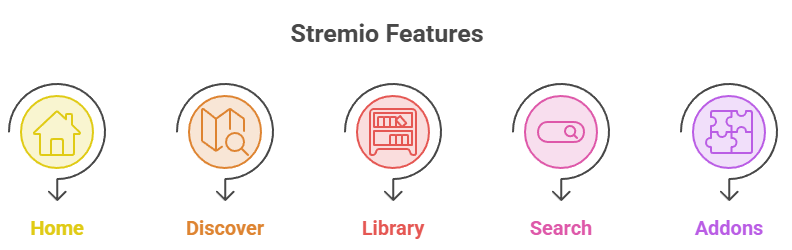
- Home (Board): Your landing screen, with rows for popular movies, popular series, featured titles, and channels like YouTube and Public Domain Movies.
- Discover: Browse by movies, series, or channels, and narrow things down with filters such as popularity, genre, and year.
- Library: Everything you have added or watched, which acts as your personal watchlist across devices.
- Search: Type a title and Stremio checks your installed addons for available streams in a couple of clicks.
- Addons: Where your synced addons appear, and where you confirm everything carried over from your phone or PC.
To play something, open any movie or episode, wait for the stream list to populate from your addons, and pick a link. Higher resolution labels such as 2160p and 1080p give the best picture, and links with more seeders or cached debrid tags play the most smoothly.
Get Buffer Free Playback: VPN and Debrid
Installing Stremio is only half the story. The experience you get afterward depends a lot on two optional tools. This is the value layer that turns a basic setup into a smooth one.
A VPN keeps your streaming private. Many community addons pull from torrent and peer to peer sources, and a VPN hides your IP address while stopping your internet provider from throttling traffic it identifies as streaming. We always connect one before opening Stremio.
A debrid service such as Real-Debrid is the single biggest upgrade you can make. It takes the links your addons find and serves them from fast cached servers over an encrypted connection, which means near instant playback with almost no buffering. It costs only a few dollars a month and pairs perfectly with addons like Torrentio. If you are new to it, start with our explainer on what Real-Debrid is and our list of the best Real-Debrid addons.
| Setup | Streaming Quality | Buffering | Privacy | Cost |
|---|---|---|---|---|
| Stremio only | Depends on the source and seeders | Common on less popular titles | Your IP can be exposed by some addons | Free |
| Stremio plus VPN | Same, but no ISP throttling | Improved on throttled connections | IP hidden, traffic encrypted | A few dollars per month |
| Stremio plus VPN and debrid | Consistent 1080p and 4K | Near zero on cached links | Strong, your device stays out of the swarm | A few dollars per month each |
How to Update Stremio on Firestick
Because Stremio is sideloaded, your Firestick will not update it for you. When a new version is released, you update it manually, and the good news is that your account, addons, and settings are all kept because they live online.
- Open Downloader and go to stremio.com again.
- Select Download Now and choose the latest Android TV ARM APK.
- When it finishes, select Install. It installs straight over your existing version.
- Select Done, delete the leftover APK, and reopen Stremio. You will still be signed in.
💡 Pro Tip: There is no need to uninstall the old version first. Installing the new APK over the top preserves everything and avoids having to link your account again.
Installing Stremio on Other Devices
Because your addons follow your account, you can configure them on whichever device is easiest and let them sync to your Firestick. Here is how to get Stremio itself onto each platform.
| Device | How to Install |
|---|---|
| Android phones and tablets | Install from the Google Play Store, then sign in |
| Android TV and Google TV | Install directly from the Google Play Store |
| Windows, macOS, and Linux | Download the desktop app from the official Stremio website |
| iPhone and iPad | Use the web app in your browser, since the native iOS app is not available |
| Smart TVs (Samsung, LG) | Install from the built in app store where listed, or use the web app |
For most people, the desktop app or the phone app is the most comfortable place to manage addons, especially when an addon asks you to paste an API key or a configuration link.
Stremio Not Working on Firestick? Troubleshooting Guide
Most Stremio problems on Firestick come down to a handful of causes. Use the table below to find your issue and the fix.
| Problem | Likely Cause | How to Fix It |
|---|---|---|
| Install fails or will not finish | Unknown apps not enabled, or low storage | Enable Install Unknown Apps for Downloader, free up space, then download the APK again |
| White or black screen on launch | App glitch or the wrong APK build | Force close and reopen, and reinstall the Android TV ARM APK if it persists |
| Cannot log in on the TV | QR scan not opening | Type the web address shown on screen into your phone browser and enter the code by hand |
| Addons do not appear | Installed on a different account, or not synced | Use the same account on phone or PC, install the addon there, then press Sync Addons on the Firestick |
| No streams for a title | No streaming addon installed, or the addon is offline | Install a community addon such as Torrentio and sync it, or try a popular title to test |
| Constant buffering | Slow source links or a weak connection | Use a debrid service, switch to 5 GHz Wi-Fi or Ethernet, or pick a lower resolution |
| App keeps crashing | Outdated version or low memory | Update Stremio to the latest APK, clear the app cache, and restart the Firestick |
| Downloader cannot load the site | Wrong address typed | Re enter stremio.com, or try the short address strem.io |
💡 Pro Tip: A surprising number of Stremio issues clear up after a simple restart. Hold the select and play or pause buttons together for a few seconds to restart your Firestick, then reopen the app.
Is Stremio Safe and Legal to Use?
Stremio itself is safe and legal. It is open source, available on Google Play and other official stores, and the app does not host any content. Think of it as a media player and search tool rather than a source of movies. What matters is how you use it.
The legal grey area comes from community addons, some of which surface content that is not licensed for free distribution. Streaming copyrighted material you do not own may break the law in your country, and you are responsible for what you choose to watch. To stay on the safe side, we recommend the following:
- Stick to official addons and content that is in the public domain or licensed for free streaming.
- Use a reputable VPN to keep your activity private.
- Only download Stremio from the official website, never from random APK mirrors.
- Consider a debrid service, which keeps your device out of the torrent swarm.
Best Stremio Alternatives for Firestick
Stremio is excellent, but it is worth knowing your options. If you ever want a different experience, these apps cover similar ground on Firestick.
| App | Type | Why Consider It |
|---|---|---|
| Kodi | Open source media center | The closest alternative, with a huge addon ecosystem and deep customization |
| Syncler | Addon and debrid based player | Clean interface, strong Real-Debrid support, popular with cord cutters |
| Plex | Personal media plus free channels | Great for your own library, with free ad supported movies and live TV |
| Tubi, Pluto TV, Freevee | Legal free streaming apps | No setup or addons needed, fully licensed and available in the Appstore |
Tips to Get the Best Out of Stremio
- Configure addons once on a phone or PC and let them sync to every device through your account.
- Always press Sync Addons on the Firestick after any addon change so the app loads your latest setup.
- Add a debrid service for the biggest jump in speed and reliability on community addons.
- Run a VPN whenever you stream to keep your activity private and avoid throttling.
- Use a 5 GHz connection or an Ethernet adapter for stable 4K playback.
- Update manually by installing the new APK over the old one whenever a fresh version lands.
Conclusion
Installing Stremio on Firestick takes a few more steps than a normal app because it is not in the Amazon Appstore, but the payoff is one of the best free streaming setups you can build. Once you have sideloaded the app through Downloader, linked your free account with the QR code, and synced your addons from a phone or PC, you have a clean, powerful hub for almost anything you want to watch.
Keep the key habits in mind. Add your addons on another device and sync them over, press Sync Addons after any change, run a VPN for privacy, and consider a debrid service for buffer free playback. Do those and you will have a Firestick streaming setup that most people spend a long time piecing together.
FAQs
Can I install Stremio directly from the Amazon Appstore?
No. Stremio is not listed in the Amazon Appstore, so you have to sideload it using the Downloader app. The full process is covered step by step above and only takes a few minutes.
Is Stremio free on Firestick?
Yes. Stremio is completely free, and all you need is a free account. Optional extras such as a VPN or a debrid service cost a few dollars a month, but the app itself never charges you.
Why can I not install addons on my Firestick?
Stremio no longer lets you add addons inside the app on Fire TV. You install them on the phone app, desktop app, or web app using the same account, then press Sync Addons on the Firestick and they appear automatically.
How do I log in to Stremio on Firestick?
The latest version uses a QR code. Open Stremio, scan the QR code on screen with your phone or open the web address shown and enter the code, then log in with your account. The Firestick signs in on its own once you confirm.
Do I need a VPN to use Stremio?
It is not required, but it is strongly recommended. Many community addons use sources that your internet provider may throttle. A VPN hides your IP address and keeps your streaming private and smooth.
How do I update Stremio on Firestick?
Sideloaded apps do not update on their own. Open Downloader, go to stremio.com, download the latest Android TV ARM APK, and install it over your existing version. Your account, addons, and settings are all kept.
Why is Stremio buffering on my Firestick?
Buffering usually means slow source links or a weak connection. The biggest fix is a debrid service such as Real-Debrid, which serves cached links instantly. You can also switch to a 5 GHz Wi-Fi band or Ethernet and choose a lower resolution.
Is Stremio safe to use on Firestick?
The app itself is safe when downloaded from the official website, and it has a clean record on virus scanners. Because some community addons surface unlicensed content, we recommend a VPN for privacy and sticking to official or public domain sources.
🎬 Happy streaming from the FirestickTVStream team.
📝 Update Log
- Latest review: Reverified the Downloader sideload steps and the Android TV ARM APK path against the current Stremio app build.
- Account linking: Updated the login section to reflect the QR code and code based sign in used by the newest version of the app.
- Addons: Rewrote the addon section to clearly explain the install on phone or PC, then Sync Addons workflow on Firestick.
- Troubleshooting: Added a full troubleshooting table covering install failures, login issues, missing addons, and buffering.