
Key Takeaway: Peerflix is a community Stremio addon commonly used for Spanish and English torrent results. Install it only through a current maintained community listing, verify that the hosted instance is online, configure it from a trusted browser, and remember that availability, language labels, debrid support, and legality depend on the exact deployment and file.
Peerflix attracts Stremio users who need Spanish-language releases that broad English-first scrapers may miss. It is not a streaming subscription or official Stremio catalog. The addon returns torrent stream metadata from community infrastructure, so a result can disappear, be mislabeled, depend on seeders or cache status, and remain restricted by copyright law in the viewer’s location during normal use on the intended device after checking current regional and device support.
I approached this setup as a verification workflow: confirm the current listing, inspect the configuration hostname, install one private manifest, test a lawful title, and separate search failures from playback or language problems. That matters because recent community reports show hosted addon instances can return gateway errors, and an outdated manifest is not repaired by repeatedly reinstalling the Stremio application after checking current regional and device support.
What Is the Peerflix Stremio Addon?
Peerflix is a community Stremio addon associated with Spanish and English torrent results. It does not own a licensed video catalog, and hosted instances can change or disappear while availability and compatibility still need checking with privacy, account, device, and network limits considered.
- Community Project: Peerflix is not an official Stremio service, so availability, maintenance, hosting, and support depend on community developers.
- Language Focus: Users commonly choose it for Spanish or Latino releases alongside English results that may be harder to find elsewhere.
- Stream Resource: The addon returns stream metadata for movies or series rather than replacing Stremio’s main catalog and account system.
- Torrent Dependence: Results depend on indexed torrent metadata, peers, caches, provider behavior, title matching, and the selected hosted instance.
- Volatile Hosting: A public configuration page can become slow or unavailable, which is why the current community listing must be checked.
Peerflix Features and Practical Limits
Peerflix can expand language choices, but every result still needs scrutiny. A longer list is not automatically safer, legal, correctly labeled, or playable while availability and compatibility still need checking with privacy, account, device, and network limits considered during normal use on the intended device.
- Spanish Results: The addon is primarily useful when Spanish-language or Latino releases are the main discovery requirement inside Stremio.
- Quality Labels: Resolution, codec, size, audio, seed, and cache labels depend on the metadata supplied by each indexed release.
- Account Sync: Installing the manifest on one signed-in Stremio client normally synchronizes it to other compatible devices on the account.
- Debrid Behavior: Some deployments or integrations may support debrid workflows, but users must verify the current configuration rather than assume.
- Hands-On Caution: I would test one authorized title and inspect its audio label before trusting a large result list on Firestick.
- No Guaranteed Uptime: Community hosting can return errors or disappear without the service-level commitments expected from a paid platform.
- No Content License: Peerflix surfaces metadata and does not prove that an individual file is licensed for viewing in your country.
What You Need Before Installing Peerflix
Prepare a Stremio account, trusted browser, verified listing, compatible device, and lawful test title. Do not begin from a copied manifest posted publicly while availability and compatibility still need checking with privacy, account, device, and network limits considered during normal use on the intended device.
- Stremio Account: Use one signed-in account so the installed manifest synchronizes without retyping sensitive configuration on the television.
- Verified Listing: Locate Peerflix through the current maintained community catalog and inspect its status before opening a configuration page.
- Trusted Browser: Configure on a phone or computer where the full hostname, options, warnings, and manifest destination are visible.
- Compatible Device: Use a supported Stremio client on Firestick, Android TV, Google TV, desktop, or mobile for the final test.
- Authorized Content: Choose a public-domain, personally owned, or otherwise permitted title when verifying search and playback behavior.
| Requirement | Recommended choice | Purpose |
|---|---|---|
| Stremio | One synchronized account | Installs manifest everywhere |
| Listing | Current community catalog | Confirms status and hostname |
| Browser | Trusted phone or computer | Reviews full configuration |
| First test | Authorized Spanish title | Checks labels safely |
| Fallback | Another maintained addon | Avoids depending on one host |
How to Install Peerflix on Stremio
Install from the current community listing because an old onrender address or copied manifest may be offline. The listing status is part of the installation check while availability and compatibility still need checking with privacy, account, device, and network limits considered.
- Open Community Catalog: Visit the maintained Stremio addons catalog and search for Peerflix rather than following an unknown shortened link.
- Review Status: Check recent availability, comments, version, description, and configuration hostname before sending anything to Stremio with privacy, account, device, and network limits considered.
- Open Configure: Use the listing’s configure control, select supported language or provider settings, and avoid entering unrelated account passwords.
- Install Manifest: Choose Install or copy the generated manifest into Stremio’s Add Addon field, then confirm the displayed addon identity.
- Verify My Addons: Open My Addons after installation and confirm one Peerflix entry appears without duplicate or obsolete manifests.
Install Peerflix for Firestick and Android TV
Configure on a phone or computer, then let the Stremio account synchronize to the television. This avoids typing long manifests with a remote while availability and compatibility still need checking with privacy, account, device, and network limits considered during normal use on the intended device.
- Match Account: Confirm the setup browser and Firestick Stremio client use the same account before installing the manifest.
- Configure Remotely: Complete options on a trusted phone or computer where hostnames and authorization prompts can be examined carefully.
- Restart Stremio: Close and reopen the television application after installation so the account refreshes its addon collection.
- Test Spanish Title: Open an authorized title expected to have Spanish audio and compare language, codec, size, and source labels.
- No APK Needed: Peerflix installs as a Stremio addon manifest, so never sideload an application claiming to be a special Peerflix player.
Configure Language, Quality, and Result Order
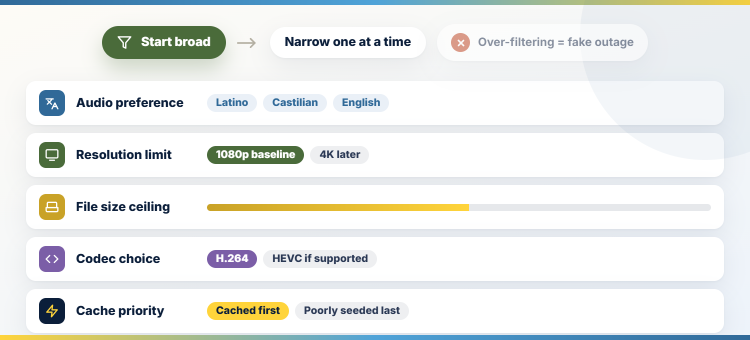
Keep the first configuration broad enough to produce results, then narrow one option at a time. Aggressive filters often look like addon outages while availability and compatibility still need checking with privacy, account, device, and network limits considered during normal use on the intended device.
- Audio Preference: Prioritize the required Spanish, Latino, Castilian, or English labels while remembering upload metadata can be inaccurate.
- Resolution Limit: Use 1080p as a reliable Firestick baseline before allowing large 4K results that need more bandwidth and decoding power.
- File Size: Set a ceiling appropriate for connection speed and title length rather than applying one number to films and short episodes.
- Codec Choice: Prefer H.264 for broad compatibility or HEVC only after confirming the Firestick, television, and audio chain support it.
- Cache Priority: Place cached provider results first when the current deployment supports debrid, reducing waits on poorly seeded transfers.
Peerflix Not Showing Streams
Separate an offline instance, title mismatch, restrictive filters, account synchronization, and missing source data before reinstalling the whole application while availability and compatibility still need checking with privacy, account, device, and network limits considered during normal use on the intended device.
- Check Status: Return to the community listing and confirm the current Peerflix instance is online rather than trusting an old configuration URL.
- Known Title: Test one authorized popular title with expected Spanish releases to distinguish global failure from limited source coverage.
- Reset Filters: Remove language, quality, size, codec, and exclusion rules temporarily in case the configuration filters every candidate.
- Account Refresh: Confirm Peerflix remains in My Addons, then sign out and back in only after a simple restart fails.
- Accept Empty Results: Some titles have no indexed Spanish or English release, and the correct response can legitimately be no stream.
| Symptom | Likely cause | First check |
|---|---|---|
| No results | Instance or filters | Catalog status and reset |
| 502 error | Hosted instance offline | Wait or use maintained alternative |
| Wrong language | Bad release label | Inspect audio track |
| Buffering | Uncached or slow source | Choose cached smaller file |
| Addon missing | Account did not sync | Check My Addons |
Fix Playback, Buffering, and Wrong Audio
A result can appear yet fail during provider resolution, transfer, network playback, decoding, or audio selection. Identify the failed stage while availability and compatibility still need checking with privacy, account, device, and network limits considered during normal use on the intended device.
- Cached First: Choose a clearly cached provider result when available instead of waiting for an uncertain uncached torrent transfer.
- Smaller File: Test a moderate 1080p file to determine whether bandwidth or device decoding caused the failure.
- Audio Label: Compare Castilian, Latino, dual-audio, dubbed, and original labels, then verify the selected track inside the player.
- Codec Fallback: Try H.264 video and standard audio when an older Firestick rejects HEVC, AV1, Dolby, or advanced surround formats.
- Provider Check: Review the connected debrid dashboard and authorization when searches work but every resolved playback link fails.
For alternatives with different maintenance and provider models, compare the options in our best Stremio addons guide after completing this troubleshooting section. I recommend retesting one authorized title afterward so the replacement can be judged under the same language, quality, and device conditions.
Peerflix Privacy, Safety, and Legality
Installing community software is not the same as receiving permission to stream every indexed file. Protect configuration links and follow local copyright rules while availability and compatibility still need checking with privacy, account, device, and network limits considered during normal use on the intended device.
- Open Source Check: Review the current project or catalog information, maintainer activity, hostname, and issue reports before trusting configuration.
- Manifest Privacy: Treat a configured manifest as sensitive when it contains provider tokens, identifiers, preferences, or private instance details.
- Torrent Exposure: Direct peer-to-peer transfers can expose an IP address to participants, while provider and hosting services keep separate logs.
- Content Rights: A working stream label never proves the uploader or viewer has permission to distribute or access that title.
- Regional Law: Copyright, privacy, and torrent rules differ by country, so test only lawful content and obtain qualified local advice.
Remove or Reinstall Peerflix Cleanly
Duplicate manifests and expired configurations make troubleshooting harder. Keep one current installation and revoke provider access when replacing it while availability and compatibility still need checking with privacy, account, device, and network limits considered during normal use on the intended device.
- Remove Duplicate: Open My Addons and uninstall older Peerflix entries so identical results do not appear several times.
- Revoke Token: Remove obsolete provider authorization through the official account dashboard before discarding a private configuration with privacy, account, device, and network limits considered.
- Recheck Listing: Confirm the current community status and hostname before generating a replacement manifest after an outage.
- Install Once: Add the new configuration to one signed-in Stremio account and let synchronization update every compatible client.
- Final Test: Verify search, language, playback, and removal with an authorized title before considering the maintenance complete.
Peerflix Stremio Addon Verdict
Peerflix is worth testing when Spanish or Latino torrent results are the specific gap in an existing Stremio setup, but it should not become the only source. Verify the current community host, keep the manifest private, begin with broad settings, and retain another maintained addon because public instances can fail during normal use on the intended device.
FAQs
What is the Peerflix Stremio addon?
Peerflix is a community addon that returns torrent stream metadata, with particular interest for Spanish, Latino, and some English releases.
How do I install Peerflix on Stremio?
Open its current maintained community listing, review the status and hostname, configure supported options, install the manifest, and verify the entry under My Addons.
Is Peerflix free?
The community addon or public instance may be free, but debrid services, private hosting, internet access, and any lawful content subscriptions are separate.
Why is Peerflix showing a 502 error?
A 502 usually means the hosted instance or upstream service is unavailable. Check the community status and wait rather than trusting a random replacement mirror.
Does Peerflix work on Firestick?
Yes, when installed to the same Stremio account. Configure it on a phone or computer, then restart Stremio on the Firestick to synchronize.
Is Peerflix legal and safe?
The software can be installed legally, but individual torrent files may be unauthorized. Verify the host, protect tokens, and access only content permitted in your region. If the base application needs reinstalling, follow our Stremio Firestick setup guide.