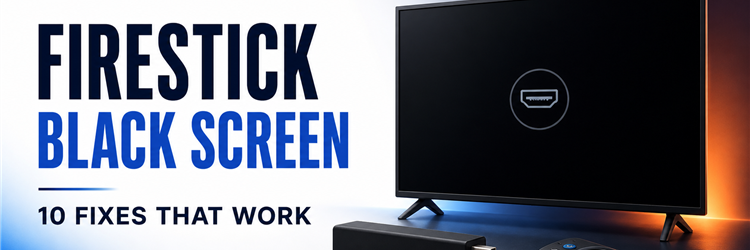
Key Takeaway: A Firestick black screen is easiest to solve when you identify exactly when the picture disappears. Prove the television can show its own menu, then simplify power and HDMI before changing Fire OS settings. Sound, logos, and app-specific failures each point to a different branch.
Do not start with a factory reset. A blank television input can come from the TV, power supply, HDMI negotiation, unsupported video mode, one application, or the Firestick itself. The sequence below changes one variable at a time and protects your account data until physical causes are eliminated.
I treat the last visible image as the strongest clue: no logo suggests power or input, a logo followed by darkness suggests startup or resolution, and Home followed by black playback suggests an app or HDCP path.
Identify the Black Screen Pattern
Before changing anything, note the last visible stage and whether sound or television menus remain. A precise observation prevents power fixes from being applied to an app failure, or a factory reset from being used against an input-selection mistake. Use this map to choose the first useful test.
- No TV Menu: Troubleshoot the television panel, power, brightness, or backlight before attributing the completely dark display to the connected Firestick.
- No Fire TV Logo: Begin with wall power, cable, input selection, direct HDMI, and another port because startup has not been proven.
- Logo Then Black: Try restart, patient boot, HDMI handshake reset, and resolution cycling before considering an interrupted update or damaged system.
- Home Then Black: When menus work but video fails, compare applications, titles, dynamic range, updates, network stability, and HDCP compatibility.
- Sound Without Picture: Focus on resolution and HDMI negotiation because working audio proves at least part of the source and application path remains active.
| Last Visible Stage | Most Useful First Test | Avoid First |
|---|---|---|
| No TV menu | Check television power and another source | Factory-resetting Firestick |
| No Fire TV logo | Stable wall power and exact HDMI input | Clearing app cache |
| Logo then darkness | Restart and resolution cycle | Buying a new remote |
| Home works, one app black | Force stop and clear app cache | Changing HDMI repeatedly |
| Audio continues | Direct HDMI and supported resolution | Resetting Wi-Fi |
| Fails on two displays | Verified power, support, or replacement | Rebuilding the first TV setup |
Fix 1: Prove Whether the Television or Firestick Is Black
A black panel does not identify the failing device. Open the television menu, change volume, or switch briefly to another source before touching Fire OS. If the TV cannot draw its own menu, troubleshoot the display first. When television controls remain visible but the selected HDMI input is empty, the Firestick path becomes the useful focus.
- Open TV Menu: Press the television remote’s Menu or Settings key and confirm that its native overlay appears clearly over the dark picture.
- Try Another Source: Switch to a known working console, antenna, or built-in app to prove the television panel can still produce normal video.
- Listen for Audio: Note whether navigation sounds or program audio continue because sound with no picture suggests a display negotiation issue, not lost power.
- Watch the Backlight: A faintly glowing gray panel differs from a fully unpowered television, helping separate source failure from television power trouble.
- Record the Trigger: Identify whether darkness began at boot, after the logo, inside one app, during playback, or after waking from sleep.
Fix 2: Rebuild the Power Path With Known-Good Parts
Marginal power can start a Firestick and then drop the video output as the device loads. Amazon’s current Fire TV Stick setup guidance directs most models to the supplied adapter and a wall outlet rather than television USB. Replace one component at a time so a recovery reveals whether the outlet, adapter, or cable caused the black screen.
- Use Wall Power: Connect the model’s compatible adapter directly to a firm wall outlet while removing television USB, hubs, smart plugs, and extension leads.
- Change the Cable: Test a short reputable USB power cable without fraying, loose plugs, severe bends, or heat damage near either connector.
- Verify the Outlet: Power a lamp or charger from the same socket, then repeat the Firestick test from a second proven wall outlet.
- Keep Variables Separate: Change only one power component per attempt, otherwise a successful boot will not reveal which weak part should be retired.
- Wait for Startup: After reconnecting stable power, allow several uninterrupted minutes for the logo and Home screen before declaring the attempt unsuccessful.
Fix 3: Select the Exact HDMI Input and Remove Intermediaries
The Firestick may be working while the television watches a different port or an AV receiver interrupts the signal. Trace the stick to its physical HDMI label and select that number with the television remote. During diagnosis, connect directly and remove every switch, splitter, capture device, receiver, and soundbar from the video path.
- Trace the Connector: Follow the Firestick or extender to the printed HDMI number instead of trusting a custom source label saved months earlier.
- Select Input Manually: Use the television remote’s Source or Input control even when HDMI-CEC usually changes inputs automatically for the Firestick.
- Connect Directly: Bypass receivers, soundbars, capture cards, splitters, and HDMI switches until the Fire TV Home screen remains visible reliably.
- Try the Extender: Use the short supplied HDMI extender when the television casing prevents a straight, fully seated connection or traps device heat.
- Test Another Port: Move to a known working HDMI socket, select its new number manually, and leave other equipment disconnected during testing.
Fix 4: Reset the HDMI Handshake in the Correct Order
A Firestick and television exchange resolution, color, and copy-protection information whenever HDMI reconnects. That handshake can stall after sleep, an input change, or a receiver update. A complete power-down clears more state than simply switching sources. Reconnect in a fixed order so the television is ready before the Firestick negotiates its output.
- Disconnect Everything: Unplug Firestick power and remove HDMI from the television, then turn the television fully off rather than leaving it in standby.
- Wait One Minute: Leave both devices disconnected long enough for temporary HDMI and power states to clear before rebuilding the simplified connection.
- Start the Television: Power the TV first, open its input list, and choose the empty HDMI port where the Firestick will be connected.
- Reconnect HDMI: Insert the Firestick or extender firmly into the selected port without twisting, forcing, or partially seating the metal connector.
- Apply Power Last: Connect the verified adapter and cable, then watch patiently for the first logo instead of repeatedly changing inputs during negotiation.
Fix 5: Cycle Through Supported Video Resolutions
A display may remain black when the Firestick resumes with a resolution or refresh mode the current television path cannot accept. Fire TV includes a remote shortcut that cycles available output modes without requiring visible menus. Hold Up and Rewind together for about five seconds, then wait while each candidate mode is tested on screen.
- Use Correct Buttons: Hold the directional Up key and Rewind simultaneously for roughly five seconds until the automatic resolution cycle begins.
- Wait Through Modes: Give every displayed option several seconds because the television may resynchronize and flash while resolution or refresh rate changes.
- Choose the Visible Option: Select Use Current Resolution only when a stable test picture appears and the television displays it without repeated blanking.
- Keep Direct HDMI: Run the resolution cycle without a receiver or splitter, since intermediary equipment may reject modes that the television supports.
- Avoid Blind Menu Changes: Do not memorize long remote sequences for display settings; the supported shortcut is safer when no interface is visible.
Fix 6: Restart Fire OS Without Erasing Personal Data
When video disappeared after the logo or while waking from sleep, Fire OS may be running but stuck. Amazon documents a non-destructive remote restart: hold Select and Play/Pause together for about five seconds. This reboots the system without removing applications, registration, Wi-Fi details, or settings, making it preferable to a factory reset.
- Use Restart Shortcut: Hold the center Select and Play/Pause buttons together for about five seconds, then release once the restart begins.
- Power Cycle if Needed: If the remote cannot communicate, unplug the power adapter for one minute and reconnect the simplified setup once.
- Allow a Full Boot: Wait several minutes after the logo because an update or storage check can make the first recovery startup unusually slow.
- Notice the Stage: Record whether the wordmark, animation, profile screen, or Home interface appears before darkness returns during this controlled restart.
- Preserve Data First: Repeat physical and restart checks before any reset because these steps retain downloaded apps, account registration, and preferences.
Fix 7: Correct Display Settings After the Picture Returns
If resolution cycling or a direct HDMI connection restores video, stabilize the configuration before reconnecting equipment. Open Display & Sounds and choose an output the complete chain supports. Automatic modes are normally appropriate, but older televisions and receivers may behave better with a fixed resolution or disabled processing feature that previously triggered blank transitions.
- Set Video Resolution: Open Settings, Display & Sounds, Display, and Video Resolution, then select Auto or a mode supported by every connected device.
- Review Dynamic Range: If blanking occurs when HDR content begins, choose a dynamic-range option that matches the television’s actual HDR capability.
- Test Color Depth: Restore default color settings when forced deep-color output causes intermittent synchronization through an older HDMI input or receiver.
- Reconnect Gradually: Add the extender, receiver, or soundbar one component at a time and replay the same content after each change.
- Leave CEC Until Last: Confirm stable video before modifying HDMI-CEC because equipment control and the underlying picture signal are separate troubleshooting layers.
Fix 8: Repair a Black Screen Limited to One App
A working Home screen proves the television, HDMI link, and basic Fire OS video path. When darkness occurs only inside one streaming application, focus on that app rather than resetting the entire device. Force stop it, clear temporary cache, install available updates, and compare another title or service before erasing stored sign-in data.
- Force Stop First: Open Settings, Applications, Manage Installed Applications, choose the affected app, and select Force Stop before launching it again.
- Clear Cache Safely: Remove cache before app data because cache is temporary, while clearing data usually deletes local settings and account sign-in.
- Update Both Layers: Install current Fire TV software and the latest app version, then restart once before testing the same program again.
- Compare Another Title: Play different content inside the app because one damaged stream, advertisement, or rights restriction may produce an isolated black screen.
- Test Another Service: Successful video in a second app confirms device output and narrows the fault to the original application or content provider.
Fix 9: Test HDCP and Display Compatibility on Another TV
Premium video may require HDCP support across the Firestick, HDMI port, cable path, receiver, and television. Amazon’s Prime Video troubleshooting guidance notes HDCP 1.4 for HD and HDCP 2.2 for UHD or HDR. A direct test on another television can expose an incompatible port or receiver.
- Use Another Television: Keep the verified power parts, connect directly to a second display, and manually select its matching HDMI input.
- Prefer Compatible Ports: For UHD or HDR, use a television input documented for HDCP 2.2 and enhanced-format video when the model requires it.
- Bypass Older Receivers: Connect Firestick directly when an AV receiver predates modern UHD copy protection or repeatedly loses the picture during playback.
- Compare Menus and Video: If Home appears but protected programs remain black, investigate application, account, network, and HDCP requirements instead of basic power.
- Retest the Original: After success elsewhere, return to the first display with direct HDMI and a proven port before reconnecting accessories.
Fix 10: Factory Reset Only After Video Paths Are Proven
Factory reset erases downloaded apps, Wi-Fi credentials, registration, preferences, and local data. It cannot repair weak power, a damaged connector, an incompatible receiver, or a failing television. Use it only after direct HDMI, stable power, resolution cycling, restart, and another-display tests show that a persistent Fire OS problem remains plausible.
- Prepare Credentials: Keep the Amazon login, Wi-Fi password, app accounts, and legitimate configuration details securely available before removing stored information.
- Use Settings When Visible: Open Settings, My Fire TV or Device & Software, Reset to Factory Defaults, and confirm the warning carefully.
- Use Shortcut Sparingly: When menus cannot be reached but the remote communicates, hold Back and Right for about ten seconds to request reset.
- Protect the Process: Maintain reliable wall power and avoid disconnecting HDMI while the Firestick erases data, restarts, and begins setup.
- Test Before Restoring: Confirm stable Home and video playback on the clean system before reinstalling applications, receivers, hubs, or display customizations.
Choose the Right Final Action
The correct endpoint depends on what your controlled tests proved. A Firestick that works on another display does not need replacement, and one black application does not justify erasing the whole device. For a wider fault tree covering remote, storage, network, and app symptoms, use the complete Firestick not-working guide after finishing the display checks here.
- Keep the Fix: When a new cable, wall adapter, direct port, or supported resolution restores video, remove the failed component from regular use.
- Repair the Display Chain: Success on a second television directs attention to the original port, receiver, enhanced HDMI setting, or compatibility path.
- Repair the Application: A visible Home screen with one failing service calls for cache, data, update, account, or provider troubleshooting.
- Contact Support: Warranty coverage, electrical damage, abnormal heat, repeatable clean-system failure, or no output on two displays deserves manufacturer assistance.
- Replace Last: Consider replacement only after verified power, direct HDMI on two televisions, restart, resolution cycling, and controlled reset all fail.
| Observed Result | Next Action | What It Proves |
|---|---|---|
| Works after stable wall power | Replace weak cable, adapter, or USB source | Video hardware can boot |
| Works through direct HDMI | Remove or reconfigure intermediary equipment | Receiver or switch interrupted the signal |
| Works on another television | Repair original HDMI/display chain | Firestick output remains functional |
| Only one app is black | Repair that app or provider path | System video output works |
| No output on two TVs | Contact support after power verification | Common display variables are eliminated |
| Damage or extreme heat | Disconnect immediately | Continued testing is unsafe |
Final Verdict
Most Firestick black screens are diagnosed before reset. Prove the television, rebuild power, connect directly to the exact HDMI input, clear the handshake, and cycle resolution. When Home appears, shift to display settings or the failing app. Reset or replace only after controlled tests eliminate the reversible causes.
FAQs
Why does my Firestick show a black screen after the logo?
The device has power and begins booting, but Fire OS, resolution negotiation, an interrupted update, or storage trouble may stall later. Try a non-destructive restart, one patient boot, direct HDMI, and the resolution shortcut before resetting.
How do I restart a Firestick when I cannot see the screen?
Hold Select and Play/Pause together for about five seconds. If the remote does not respond, unplug the power adapter for one minute, reconnect stable wall power, select the exact HDMI input, and wait for startup.
Why is there sound but no picture on my Firestick?
Audio with a black picture usually points toward HDMI negotiation, resolution, dynamic range, an app playback fault, or display compatibility. Test direct HDMI, cycle supported resolutions, and compare the Home screen with another app.
Can an HDMI cable cause a Firestick black screen?
A Fire TV Stick plugs directly into HDMI, but extenders, receivers, soundbars, switches, and internal television ports can interrupt the signal. Bypass every intermediary and test another known-working HDMI input before replacing the device.
Should I reset my Firestick if the screen is black?
Not initially. Reset erases local data and cannot repair power or HDMI faults. Prove stable power, direct HDMI, another port, resolution cycling, a normal restart, and another television before treating reset as the final software test.
What if my Firestick black screen keeps returning?
Record whether it returns after sleep, during HDR playback, inside one app, or when the device warms. Repeating logo-stage failures may also fit the Firestick restart-loop troubleshooting guide.