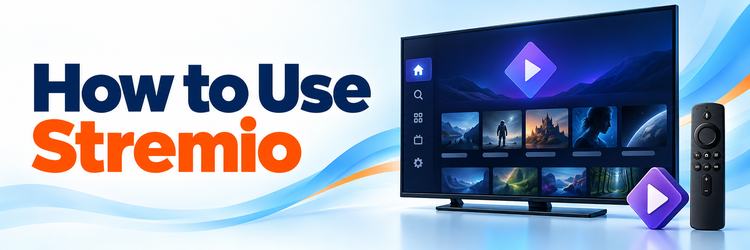
Key Takeaway: Learning how to use Stremio is mostly about understanding its workflow: install the correct app, sign in, add legitimate catalog sources, save titles to your library, and choose an authorized stream. Your account keeps the organizing layer synchronized, while each device still controls playback quality, subtitles, and local player settings.
Stremio is a streaming hub rather than a subscription bundle. It organizes movies, series, channels, and other video into one interface, but the actual viewing options come from installed addons and services you are permitted to use. That distinction explains why two people can open the same title and see different stream choices.
This beginner guide follows the normal journey from first launch to reliable everyday use. It covers the screens that matter, shows how the library and calendar fit together, and explains what to check before changing settings. Start with a single device and a small library; once that setup behaves predictably, sign in elsewhere and let Stremio synchronize it.
Choose the Right Stremio App for Your Device
Begin at the official Stremio downloads page, because the available build depends on the operating system rather than the logo printed on your television. Desktop, Android mobile, Android TV, supported smart televisions, and the web app do not expose identical controls. Pick the native television build for a remote-controlled screen and the desktop build when you need richer keyboard, subtitle, or local-service options.
- Desktop First: Windows, macOS, and Linux builds provide the broadest setup controls, making a computer a convenient place to organize addons and inspect account settings.
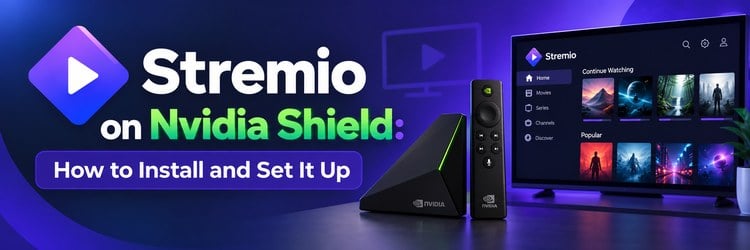
- Television Interface: Android TV and supported smart-TV versions use a ten-foot interface designed for directional controls, so menus and player buttons differ from desktop layouts.
- Mobile Expectations: Android mobile offers full account and browsing functions, while iPhone and iPad availability may have platform limitations shown on the current downloads page.
- Web Companion: The browser version is useful without a full desktop installation, although some stream types require Stremio Service or an external player on supported systems.
- Official Source: Download apps only from Stremio’s website or the recognized store for your device, then verify the publisher before entering account credentials or installing updates.
| Device type | Best starting option | What to expect | Check before setup |
|---|---|---|---|
| Windows, macOS, or Linux | Native desktop app | Full keyboard and player controls | Compatible operating-system build |
| Android TV or Fire TV | Android TV app | Remote-friendly television layout | Correct TV package and storage |
| Supported Samsung, LG, or Hisense TV | Official television app | Store-managed installation | Model year and regional availability |
| Android phone or tablet | Android mobile app | Touch interface and portable library | Play Store publisher details |
| Browser | Stremio Web | Quick access with possible playback limits | Whether Stremio Service is needed |
Create an Account and Let Your Setup Follow You
A Stremio account stores the organizing layer of your setup so that your library can appear on another signed-in device. Create the account with an address you control, use a unique password, and confirm any verification message. Sign in before spending time arranging titles or addons. Guest use can be convenient for a quick look, but it is the wrong foundation for a setup you expect to keep.
- Use One Account: Sign into the same Stremio account on each personal device so library changes and supported account data do not split across separate profiles.
- Protect Credentials: Choose a unique password and avoid entering it into unofficial download pages, addon websites, or prompts that imitate the regular Stremio sign-in screen.
- Verify Synchronization: Add one title on the first device, refresh Stremio elsewhere, and confirm it appears before organizing a large collection or changing numerous addons.
- Separate Households: Use distinct accounts or available profile features when viewers need different libraries and progress, rather than repeatedly removing each other’s saved titles.
- Sign Out Carefully: Remove your account from a borrowed television or shared browser when finished, especially if playback services or viewing activity remain accessible through that session.
Learn the Four Screens You Will Use Every Day
The interface becomes simple once every screen has one job. Home or Board surfaces recent activity and recommendations; Discover browses catalogs by type and filters; Library stores titles you deliberately saved; Calendar arranges upcoming series episodes associated with your library. Names and positions vary slightly by platform, but the underlying workflow remains consistent: discover something, open its details, add it, then return through Library or Calendar.
- Home or Board: Use this screen for recent items and shortcuts, but treat its recommendations as navigation aids rather than a permanent record of your collection.
- Discover: Choose a content type and catalog, then narrow results with available filters; changing the catalog can alter results more dramatically than changing genre.
- Library: Save movies and series you intend to revisit, creating a deliberate collection that is easier to scan than a long trail of recent activity.
- Calendar: Track dated episodes for series in your library, remembering that a scheduled listing does not guarantee an authorized stream will be available afterward.
- Search: Enter an exact title when possible, then confirm its year and artwork before saving it, because remakes and similarly named releases often share results.
| Screen | Primary job | Good beginner habit | Common misunderstanding |
|---|---|---|---|
| Home or Board | Resume and revisit | Clear abandoned items periodically | It is not the complete library |
| Discover | Browse addon catalogs | Change one filter at a time | Every catalog does not contain every title |
| Library | Keep chosen titles | Save only likely revisits | Adding a title does not add a stream |
| Calendar | See upcoming episodes | Confirm series is in Library | A date is not playback access |
| Search | Find a known title | Check release year | Matching artwork can represent another edition |
Build a Library That Stays Useful
Open a title’s detail page and use Add to Library when you want it available across supported signed-in devices. The library works best as a short list of genuine intentions, not a duplicate of every catalog. Organize around what you will continue, revisit, or monitor. After watching, update progress when the player does not do so automatically and remove abandoned titles that make the next choice harder.
- Save Selectively: Add series you actively follow and films you genuinely plan to watch, keeping the library useful instead of turning it into another oversized catalog.
- Confirm Editions: Check title, year, season count, and synopsis before saving, particularly when a remake, special edition, or identically named series appears nearby.
- Watch Progress: Let an episode finish or mark its state appropriately, then verify the next episode appears correctly before relying on automatic continuation across devices.
- Use Calendar Wisely: Keep continuing series in the library so their dated episodes can populate Calendar, while treating release information separately from stream availability.
- Prune Regularly: Remove finished or abandoned items after confirming progress, reducing visual clutter without uninstalling addons or changing the catalogs available through Discover.
Install Addons Without Treating Them Like Apps
Addons connect Stremio to catalogs, metadata, subtitles, and available stream sources. They are account-level integrations, not separate programs installed throughout your operating system. Open the Addons menu, review what an addon provides, and install only the ones you recognize. Stremio’s official addon instructions distinguish official and community options and show the normal install and removal process.
- Read the Purpose: Check whether an addon supplies catalogs, metadata, subtitles, or streams, because installing several products with overlapping roles can create confusing duplicate results.
- Prefer Recognizable Sources: Start with official or well-documented integrations whose operator and function are clear, and avoid addons that demand unrelated software or surprising account permissions.
- Install Deliberately: Select Install from the addon entry and wait for confirmation, then reopen a relevant title to see whether its catalogs or sources changed.
- Remove Cleanly: Use Uninstall from the same Addons area when an integration is no longer needed; clearing the entire Stremio application is usually unnecessary.
- Expect Account Sync: Installed addons generally follow your signed-in account, so a change made on desktop can affect catalog and source choices on a television.
Play a Title and Choose the Right Source
Selecting a poster opens the title page; selecting a specific episode narrows the choices further. Available streams appear according to your installed addons and region. Read the source label instead of pressing the first row automatically. Prefer services you subscribe to, licensed free sources, or your own local media. If no choices appear, that usually describes the current addon results rather than a broken Stremio installation.
- Select the Exact Episode: Open the intended season and episode before choosing a stream, since autoplay and recently watched rows can otherwise resume the wrong installment.
- Read Source Labels: Look for the provider, quality, language, and access requirements shown, then choose an option you recognize and are legally permitted to watch.
- Favor Direct Services: When an installed addon identifies a legitimate subscription service, follow its access route rather than assuming Stremio replaces the provider account or payment.
- Wait for One Attempt: Give the selected source a reasonable connection attempt, then return and try another authorized option instead of repeatedly tapping multiple rows.
- Interpret Empty Results: No streams available means the current addons returned no usable options for that title; it does not necessarily mean search, library, or account sync failed.
Tune Subtitles, Audio, and Player Controls
Start playback before changing media-specific options. The player menu normally exposes audio tracks, subtitle tracks, timing, size, and playback behavior when those choices exist. Set global preferences only after confirming that the problem affects several videos. One poorly labeled file can have the wrong language or offset even when every Stremio preference is correct, so compare another authorized source before changing defaults.
- Choose Audio Track: Open the audio menu and select the intended language or channel layout, noting that a source may include only one embedded track.
- Pick Subtitle Language: Select an available embedded or addon-provided subtitle track, then confirm that its language label matches the dialogue rather than relying on position alone.
- Correct Timing: Adjust subtitle delay in small steps when text consistently leads or follows speech, and reset the offset before testing a different video source.
- Use External Files: On supported desktop and web players, a compatible subtitle file can be loaded when the current source lacks an accurate synchronized track.
- Change Defaults Sparingly: Alter autoplay, hardware acceleration, cache, or external-player behavior only for a repeatable need, because device capabilities and source formats influence each setting.
Use Stremio Across TV, Phone, Desktop, and Web
Once the first device is organized, sign into the same account on a second platform and check the library before adjusting playback. Synchronization covers account data, but it does not make every platform technically identical. A television app favors remote navigation, a phone favors touch, desktop exposes broader controls, and the web app can depend on a companion service for certain formats. Keep the shared library simple while tuning each player locally.
- Sync the Organizer: Expect library entries and installed account integrations to travel across supported signed-in devices, while checking progress after switching platforms or player types.
- Keep Player Settings Local: Treat hardware acceleration, external-player choice, subtitle files, and cache behavior as device decisions rather than expecting one universal configuration everywhere.
- Use Desktop for Setup: Organize addons and inspect detailed preferences with a keyboard when television navigation feels slow, then return to the TV and refresh the account.
- Use Television for Viewing: Choose the native TV interface for remote-friendly browsing and playback, accepting that advanced file handling may remain easier on a computer.
- Test Web Playback: Confirm one authorized stream in the browser before relying on Stremio Web, because browser support and Stremio Service requirements vary by stream format.
| Platform | Account data | Device-specific behavior | Best use |
|---|---|---|---|
| Television app | Library and addons | Remote layout and TV decoder | Lean-back viewing |
| Desktop app | Library and addons | Keyboard, cache, local files | Initial setup and detailed control |
| Android mobile | Library and addons | Touch layout and mobile playback | Portable browsing and viewing |
| Stremio Web | Library and addons | Browser limits and possible service dependency | Quick access without a full app |
| Second household profile | Profile-specific activity where supported | Availability varies by app version | Separating viewer history |
Keep the Setup Legal, Private, and Maintainable
Stremio is neutral software, while the legality of a viewing choice depends on the source, rights, and local rules. Our Stremio legal and safety guide explains that distinction in more detail. For everyday use, keep your account private, understand each addon, and favor clearly licensed services. A long addon list makes source labels harder to interpret and increases maintenance without improving every search.
- Know the Provider: Choose sources operated by services you recognize, public institutions, licensed broadcasters, or your own media collection rather than trusting an unfamiliar label.
- Review Addons: Remove integrations whose purpose, operator, or access method is unclear, especially when they stop receiving updates or begin requesting unrelated information.
- Protect Account Data: Use a unique password, sign out from shared screens, and review active sessions when available after using Stremio outside your household.
- Avoid Credential Sharing: Do not paste subscription passwords into addon prompts unless the documented integration explicitly belongs to that provider and uses its expected authentication flow.
- Keep a Lean Setup: Retain only catalogs and services you actually use, reducing duplicate streams, faster-scrolling source lists, and uncertainty about where a result originated.
Troubleshoot the Problems Beginners Actually Hit
Fix the failing layer instead of reinstalling everything. If Stremio will not open, check the app and device. If titles appear but streams do not, check addons and source access. If playback begins but fails, compare another authorized stream and inspect player settings. If one device looks different, verify the account and allow synchronization. Recording the exact stage that works turns a vague problem into a short diagnostic sequence.
- No Titles Found: Change the Discover catalog or clear restrictive filters, then search an exact title and year before assuming the entire application lost connectivity.
- No Streams Listed: Confirm relevant addons remain installed and an authorized provider offers that title, remembering that metadata availability does not guarantee a playable source.
- Playback Fails: Try another legitimate stream, check provider access and network stability, then review hardware acceleration or external-player settings only when failures repeat.
- Subtitles Are Missing: Inspect the player’s subtitle menu, verify a subtitle addon is installed, and use an external file on supported platforms when necessary.
- Devices Disagree: Confirm both apps use the same account, refresh or restart them, and check platform support before rebuilding a library that already exists elsewhere.
| Symptom | Most likely layer | First check | Avoid doing first |
|---|---|---|---|
| App will not open | Device or installation | Restart and update the official app | Removing every addon |
| Title exists, no streams | Addon or provider | Relevant integration and access | Changing subtitle settings |
| Stream opens, then fails | Source, network, or player | Another authorized source | Deleting the library |
| Wrong subtitle timing | Track or source | Small delay adjustment | Changing account password |
| Library missing on one device | Account synchronization | Same signed-in account | Reinstalling all devices |
Verdict:
Stremio becomes easy when you keep its layers separate. The account organizes your library and addons; addons describe catalogs and available sources; the selected provider supplies viewing access; each device handles playback. Build that chain in order, keep only integrations you understand, and test one legitimate stream before customizing advanced settings. That approach makes a synchronized multi-device setup useful without making it fragile.
FAQs
Is Stremio free to use?
Yes. Stremio says its core application remains free. Some optional Supporter features may require a contribution, while streaming services surfaced through addons can still require their own subscription, rental, regional access, or account. Stremio does not replace those provider terms.
Do I need an account to use Stremio?
An account is strongly recommended for regular use because it keeps your library and installed addons associated with your setup across supported devices. Guest access may suit a quick look, but it is less appropriate for a collection you expect to retain.
Why does Stremio show no streams available?
The title metadata can exist even when installed addons return no playable source. Check the relevant addon, provider availability, region, and subscription status. If all titles are affected, confirm connectivity and refresh the app before changing unrelated library or subtitle settings.
Can I use Stremio on a Firestick?
Yes, supported Fire TV devices can use the Android TV version when installed through the appropriate official route. The television interface is designed for a remote. Confirm your model, available storage, and current package guidance before downloading any installer.
How do I use Stremio in a web browser?
Sign into Stremio Web with the same account and test an authorized source. Some stream formats need Stremio Service or an external player on supported systems. Our Stremio Web App guide covers that browser-specific setup and its limitations.
Can two people keep separate Stremio histories?
Current Supporter features include profiles on supported applications, with management available through designated desktop, web, and Android mobile versions. Availability differs by platform and app release, so check the current profile controls before relying on separation across every household screen.