Key Takeaway: When a Firestick keeps restarting, test its power path before touching apps or performing a reset. Use the adapter supplied for that model, a known-good USB cable, and a wall outlet, then remove every hub or accessory. The point at which the Fire TV logo returns usually reveals whether power, heat, software, or one application is responsible.
A Firestick reboot loop can interrupt setup, return to the logo during a film, or begin only after the device warms up. The pattern matters: a loop before Home needs different treatment from a restart limited to one streaming app.
I recommend changing one variable at a time and watching for the Amazon or Fire TV logo. Begin with controlled power, then use restart timing to check heat, accessories, storage, apps, and Fire OS. Reset comes last because it erases data but cannot repair weak hardware.
First, Confirm It Is Really Restarting
A genuine reboot ends the current Fire OS session and brings back the Amazon or Fire TV logo. A television that briefly goes black while switching resolution or HDR mode can look similar, but the Firestick may still be running. Confirming the symptom prevents you from replacing a power supply when the actual problem is an HDMI handshake, receiver, or display setting.
- Logo Returns: Treat the event as a real restart when the Amazon or Fire TV startup logo appears again and Home reloads afterward.
- Picture Only: Suspect HDMI negotiation when the screen flickers or goes black but audio continues, playback resumes, and no startup logo appears.
- App Reloads: If one app closes to Home without showing the Fire TV logo, diagnose an application crash rather than a system reboot.
- TV Reboots: Watch the television’s own brand logo; a television restart, soundbar reset, or receiver input change is outside the Firestick itself.
- Record Timing: Note the active app, playback quality, device temperature, and minutes since startup because repeatable timing identifies the most productive next test.
| Restart Pattern | Likely Starting Point | Best First Test |
|---|---|---|
| Loops before Home appears | Power, cable, accessory, interrupted startup | Original adapter, known-good cable, wall outlet, no accessories |
| Restarts during 4K playback | Power under load, heat, or one app | Wall-power test, cooler placement, then lower-quality playback |
| Restarts after a similar warm-up time | Heat or load-sensitive power hardware | Cool completely and retest with better airflow |
| Restarts inside only one app | App cache, data, update, or codec | Force stop, clear cache, update, and test another app |
| Black screen without Fire TV logo | HDMI, HDR, resolution, receiver, or TV | Direct HDMI port and a different display mode |
| Restarts on a clean factory setup | Power or device hardware | Do not reinstall apps; contact Amazon or replace the device |
Run This 15-Minute Power Test Before Anything Else
Unstable power is the highest-value cause to rule out because a Firestick can appear normal in menus and still restart when video decoding or Wi-Fi activity increases its demand. Do not merely reseat the same setup. Create a controlled test with the supplied adapter, a reliable cable, a direct wall socket, and no USB or HDMI accessories attached.
- Use Wall Power: Disconnect the cable from the television’s USB socket and power the Firestick through the adapter supplied for that specific device model.
- Match Output: If the original adapter is missing, use a reputable replacement that matches its printed voltage and meets or exceeds the stated current.
- Remove Extras: Detach OTG hubs, USB drives, Ethernet adapters, long extension cables, and split power leads so only the Firestick receives power.
- Wait Disconnected: Unplug power for at least 60 seconds, reconnect everything firmly, and allow one uninterrupted startup before judging the result.
- Recreate Load: If Home stays stable, run the same app and video quality that caused the reboot; a menu-only test does not reproduce peak demand.
Isolate the Adapter, USB Cable, and Outlet
If the controlled power test still fails, determine which part of the supply chain is unstable. Cables can develop internal breaks near either connector, adapters can sag only when warm or heavily loaded, and loose wall outlets can interrupt contact. Swap one component, repeat the same playback test, and keep the other components unchanged so the result means something.
- Cable First: Substitute a short, undamaged power cable known to carry the required current, then repeat the exact scene or app that triggered restarting.
- Adapter Second: Replace the adapter with a compatible reputable unit while keeping the successful cable and same wall outlet in the test.
- Outlet Third: Move directly to another firm wall socket, temporarily bypassing loose power strips, switched extensions, smart plugs, and overloaded multi-way adapters.
- Inspect Connectors: Look for fraying, bent plugs, looseness, heat discoloration, or a connector that changes behavior when touched, then retire damaged parts immediately.
- Keep Evidence: Mark the component that changed the result; replacing every part simultaneously may stop the reboot but leaves the failed part unidentified.
Remove Heat and Accessory Variables
A Firestick normally feels warm, so touch alone does not prove overheating. Timing is more useful: heat becomes a stronger suspect when the device works from cold and restarts after a similar period, especially behind a hot television or beside a receiver. Accessories can complicate the picture by adding both electrical load and software or storage activity.
- Cool Fully: Disconnect the device until it returns to room temperature, then record how long it operates before the next confirmed logo-stage reboot.
- Use Extender: Position the Firestick away from television exhaust vents and tight wall clearances with the short HDMI extender supplied in compatible packages.
- Clear Airflow: Avoid placing the stick against a receiver, console, cable box, radiator, enclosed cabinet surface, or another device releasing warm air.
- Strip USB Gear: Keep storage drives, hubs, Ethernet adapters, and power splitters disconnected until the Firestick runs reliably, then reconnect one item per test.
- Compare Timing: A much longer stable period after cooling and repositioning supports a heat diagnosis; an immediate cold-start loop points elsewhere.
Fix Restarts That Happen in Only One App
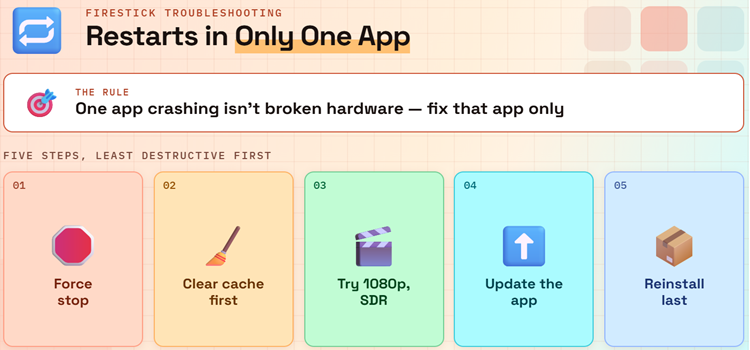
If Prime Video, Netflix, Kodi, or another app alone triggers the restart while Settings and other services remain stable, preserve the rest of the device and repair that app first. A damaged cache, incompatible update, unusually demanding video format, or app-level bug can overload or crash the software path without proving that the Firestick hardware has failed.
- Force Stop: Open Settings, Applications, Manage Installed Applications, choose the problem app, select Force Stop, and launch it again from the library.
- Clear Cache: Use Clear Cache before Clear Data because cache removes temporary files, while data reset commonly removes the app’s account and settings.
- Change Stream: Test a different title, 1080p instead of 4K, and standard dynamic range to separate one codec or format from general instability.
- Update App: Install the current official Appstore version; for a legitimately sideloaded app, obtain its compatible Fire TV build from the developer’s official source.
- Reinstall Carefully: Reinstall only that application after confirming login details, then test it before restoring custom plugins, large libraries, or optional integrations.
Free Storage and Install Fire OS Updates
Move to software maintenance only after the power and temperature tests pass and the Firestick can remain on long enough to use Settings. Updates need dependable power, Wi-Fi, and working space. A nearly full device can make downloads, installation, and app launches unreliable, but repeatedly interrupting an update is more dangerous than waiting for one complete attempt.
- Review Storage: Open Settings, My Fire TV or Device & Software, About, and Storage, then remove unused apps and old downloaded installers.
- Trim Selectively: Clear caches for large or frequently used apps instead of clearing data blindly and losing playlists, logins, preferences, or downloads.
- Restart Normally: Choose Settings, My Fire TV, Restart, or hold Select and Play/Pause together; this shortcut restarts but does not factory-reset Fire TV.
- Check Update: Follow Amazon’s documented update path exactly on screen: Settings, My Fire TV, About, then Check for System Update.
- Do Not Interrupt: Leave the Firestick on verified wall power and stable Wi-Fi while the update downloads, installs, and completes its own restart.
What to Do When the Firestick Never Reaches Home
A logo loop removes most menu-based fixes from consideration. Clearing app cache is impossible and unlikely to help when Fire OS never finishes loading. Return to the clean power configuration, disconnect accessories, and give one startup enough time to complete possible update work. Repeatedly pulling power every few seconds can prevent a legitimate recovery process from finishing.
- Power Cleanly: Use the model’s supplied adapter, a verified cable, direct wall power, and no USB accessories or hubs during every boot-loop recovery attempt.
- Allow Time: After reconnecting, permit one extended startup when the loop began during or immediately after an update instead of interrupting it repeatedly.
- Try Another Display: Test a second HDMI port or television to rule out a receiver, display, or handshake problem masquerading as incomplete startup.
- Restart Shortcut: Hold Select and Play/Pause together when the remote responds; this requests a normal restart and preserves installed applications and account data.
- Escalate Deliberately: If every hardware variable passes but the loop remains, prepare for the reset shortcut or contact Amazon before erasing the device.
Factory Reset: The Final Software Test
A reset can remove corrupted settings, app data, and account state, but it cannot stabilize a failing adapter, broken cable, overheating component, or damaged storage chip. Confirm your Amazon and streaming-account access first. The useful part of a reset is not merely reaching setup—it is testing the clean device before reinstalling everything that previously ran on it.
- Know the Loss: Factory reset removes account registration, downloaded apps, local settings, and stored content, requiring Wi-Fi connection and service sign-ins again.
- Use Settings: When Home remains accessible, choose Settings, My Fire TV, Reset to Factory Defaults, then read and confirm the warning shown.
- Use Remote: When menus are inaccessible, hold Back and Right on the navigation ring together for about 10 seconds to open reset confirmation.
- Test Clean: Complete setup and run built-in services before reinstalling third-party apps; stability now suggests the previous software environment caused the trouble.
- Stop Repeating: A clean device that still restarts on verified power is unlikely to improve through another reset and deserves hardware support.
| Result After Testing | What It Suggests | Next Move |
|---|---|---|
| Stable with a different USB cable | Original cable failed under load | Replace the cable and stop using the damaged one |
| Stable only when cool and repositioned | Heat or nearby heat source contributed | Keep open airflow and use the HDMI extender |
| Stable after one app is removed | App data, build, or workload was responsible | Use an updated compatible version or alternative app |
| Stable after reset, before apps return | Previous software or storage state was involved | Restore apps gradually and test between installs |
| Restarts during clean setup on verified power | Internal hardware or flash storage may be failing | Contact Amazon, use warranty options, or replace |
When Support or Replacement Makes More Sense
Hardware becomes the leading explanation when restarts survive a known-good power chain, cool placement, accessory-free setup, and a clean software state. Continuing to erase and rebuild the same device adds work without changing those variables. Collect its model, serial information, purchase details, and completed tests before contacting Amazon so support does not repeat the entire sequence.
- Clean Setup Fails: Restarting before third-party apps are restored points away from app clutter and toward power delivery or internal device hardware.
- Physical Damage: Stop testing a cracked case, loose power socket, burned connector, liquid-exposed device, or component producing an unusual smell or extreme heat.
- Document Pattern: Record whether the loop begins cold, under 4K load, after a fixed interval, or only with a particular accessory attached.
- Check Eligibility: Warranty, service, trade-in, and replacement options depend on model, seller, territory, purchase date, and the cause of the failure.
- Broader Diagnosis: If the symptom changes beyond rebooting, use the full Firestick not working guide to isolate display, Wi-Fi, or remote failures.
Prevent Another Firestick Restart Loop
Prevention is mostly about keeping the successful test configuration intact. Stable power, modest storage use, current software, and open airflow remove the common conditions that make an otherwise healthy stick unreliable. Avoid turning maintenance into constant tinkering: change settings only when a symptom justifies them, and preserve a note of the adapter and cable combination that proved stable.
- Keep Wall Power: Continue using the reliable adapter and cable combination instead of returning the Firestick to a television USB port after testing ends.
- Protect Airflow: Leave space around the stick, avoid hot equipment and television vents, and use the short HDMI extender where placement is cramped.
- Limit Accessories: Add hubs, storage, and Ethernet equipment only when needed, using powered and compatible hardware that does not overload the supply chain.
- Maintain Storage: Uninstall unused apps and follow the focused Firestick cache-clearing guide whenever one installed application becomes bloated or unstable.
- Update Safely: Check Fire OS periodically, but install updates only on stable wall power and Wi-Fi without unplugging the device during installation.
How I Prioritized These Restart Fixes
The order matters more than the number of fixes. I placed controlled power substitution first because it is reversible, fast, and relevant even when the device cannot reach Home. Timing and accessory tests follow because they isolate physical conditions. App, storage, update, and reset steps come later, once the Firestick is stable enough to use menus and hardware causes are less likely.
- Symptom Proof: Requiring the startup logo prevents HDMI picture loss and app crashes from being mislabeled as complete Fire OS reboots.
- Single Variables: Cable, adapter, outlet, accessory, app, and temperature changes are tested separately so a successful result identifies the responsible condition.
- Official Paths: Restart, update, application management, and reset instructions follow current Amazon support or Fire TV developer documentation rather than forum shortcuts.
- Data Protection: Cache precedes data clearing, application repair precedes device reset, and every destructive step includes its practical account or settings consequence.
- Clear Stop Point: Continued restarts during clean setup on verified power end the software sequence and redirect the reader toward hardware support.
Verdict
Start with evidence, not a factory reset. Confirm the Fire TV logo returns, run the Firestick from its proper wall adapter with a known-good cable, and remove accessories. Then use the timing of the reboot to test heat or one application. Update and reset only after the hardware path is stable; a clean Firestick that still restarts needs support, not another settings change.
- Before Home: Concentrate on adapter, cable, wall power, accessories, and uninterrupted startup because application maintenance cannot help a system that never loads.
- During Use: Compare apps, playback formats, temperature, and restart timing, then repair only the component or application that reproduces the failure.
- After Reset: Test the clean setup before reinstalling anything; another reboot on verified power is the point to contact Amazon or replace hardware.
FAQs
Why does my Firestick keep restarting at the logo?
A logo-stage loop usually starts before ordinary apps can run, so check power first. Use the supplied model-specific adapter, a known-good cable, a wall outlet, and no USB accessories. Allow one uninterrupted boot if the issue followed an update. If a clean power path changes nothing, the remaining possibilities include damaged Fire OS or failing internal hardware.
Can a television USB port make a Firestick restart?
Yes. Some television USB ports do not provide steady power for the Firestick’s demand, especially during startup, strong Wi-Fi activity, or high-quality playback. Move the cable to the adapter supplied with the Firestick and plug it into a wall outlet. If that stops the loop, leave the stable power arrangement in place instead of returning to television USB power.
Does Select and Play/Pause factory-reset a Firestick?
No. Holding Select and Play/Pause requests a normal restart and should preserve accounts, apps, and settings. The factory-reset remote combination is Back plus Right on the navigation ring for about 10 seconds, followed by a confirmation screen. That reset removes local account information and downloaded content, so do not confuse the two shortcuts.
Why does my Firestick restart only while streaming 4K?
4K playback can expose a marginal power cable, heat problem, app bug, or difficult video format because it creates more sustained work than browsing menus. Reproduce the title on proper wall power, then try 1080p and another app. If only one app or format fails, update that app and clear its cache before changing the entire device.
Will clearing cache stop a Firestick boot loop?
Cache clearing is useful only when the Firestick reaches Home and a particular app triggers instability. It cannot be selected when the device continuously restarts at the logo, and app cache is not the leading cause at that stage. For a startup loop, prioritize wall power, cable substitution, accessory removal, cooling, and one uninterrupted boot attempt.
How do I know the Firestick itself needs replacing?
Replacement becomes reasonable when the Firestick restarts during clean setup while using verified compatible power, a known-good cable, direct HDMI, cool placement, and no accessories. Stop sooner if the case, socket, adapter, or cable is physically damaged. Check Amazon support, warranty, trade-in, and recycling options for the exact model and purchase before buying another device.