Key Takeaway: Amazon Fire Stick lagging usually comes from one of four places: a busy Fire OS interface, low storage, an overloaded app, or a delayed network or remote. Identify which action is slow before changing settings. A restart, targeted cache cleanup, and available-storage check solve more cases than an immediate factory reset.
A Fire Stick can feel slow in several different ways. The Home screen may pause, an app may take too long to open, the remote may respond late, or video may buffer after playback begins. Those symptoms look similar from the sofa, but they point to different fixes.
I treat lag as a timing problem and first note exactly where the delay starts. Test the same simple actions after every change: move across the Home row, open Settings, launch one reliable app, and play a known title.
Is the Fire Stick Slow—or Is Something Else Delayed?
Begin with a one-minute symptom check. If Settings and the Home screen react normally but one service stutters, the Fire Stick itself is probably not overloaded. If every menu pauses before moving, focus on storage, software, heat, and background activity instead of changing Wi-Fi first.
- Menu Lag: Slow highlighting, delayed Settings pages, and hesitant app launching point toward Fire OS, storage pressure, heat, or too many installed applications.
- Playback Buffering: Smooth menus followed by spinning video usually indicate app, server, or network conditions rather than a generally slow streaming stick.
- Remote Delay: A selection that moves seconds after pressing a button can come from weak batteries, Bluetooth interference, pairing trouble, or rapid repeated input.
- Single-App Delay: If only one app opens slowly or freezes, clear that app’s cache, update it, or reinstall it before resetting the device.
- Heat-Related Slowdown: Performance that worsens during long sessions and improves after cooling suggests airflow, power, or aging hardware deserves closer attention.
| What Feels Slow | Best First Check | Do Not Start With |
|---|---|---|
| Home screen and Settings | Restart, storage, and software | Router replacement |
| One streaming app | Force stop and clear its cache | Factory reset |
| Every online video | Network test and router restart | Deleting every app |
| Remote navigation only | Fresh batteries and re-pairing | Changing video resolution |
| After long viewing sessions | Cooling and power inspection | Installing a booster app |
| Older device under every task | Reset once, then compare hardware | Repeated cache clearing |
Fix 1: Restart Fire OS Before Deleting Anything
A restart closes stuck processes, reloads the interface, and clears temporary memory without removing apps or sign-ins. Use Settings > My Fire TV or Device & Software > Restart when menus still respond. If navigation is nearly frozen, disconnect power for one minute and reconnect it.
- Use the Menu: A Settings restart is the cleanest option because Fire OS closes services in order before beginning a fresh startup.
- Power Cycle: Unplug the power adapter, wait a full minute, and reconnect it when the interface cannot reach the normal restart command.
- Wait for Home: Let the Home screen settle for about two minutes after booting before opening several apps or pressing multiple remote buttons.
- Repeat Baseline: Move through Settings, launch the same app, and replay the same title so the comparison uses identical actions and content.
- Read the Result: A temporary improvement suggests background load or an app process; no change means storage, heat, remote, or hardware remains possible.
Fix 2: Check Available Storage and Remove Dead Weight
Fire OS needs working room for updates, app data, thumbnails, and temporary files. Open Settings > My Fire TV or Device & Software > About to view storage. A nearly full bar is actionable evidence; uninstall unused games and large apps before touching the data of services you still use.
- Open Storage: Note the available figure before cleanup so you can confirm that removing an app actually returns space to the device.
- Remove Unused Apps: Start with games, duplicate players, abandoned trials, and sideloaded utilities you no longer recognize or use during normal viewing.
- Preserve Sign-Ins: Uninstalling an unused app is safer than clearing data from an active service, which can remove its account and downloaded settings.
- Restart Afterward: Reboot once the cleanup finishes so Fire OS rebuilds its interface and does not keep stale application processes in memory.
- Avoid Fixed Numbers: Fire TV models differ, so judge the storage bar, update reliability, and responsiveness together instead of chasing one universal free-space target.
Fix 3: Clear Cache Only Where the Delay Lives
Cache cleanup helps when temporary files for a particular app become oversized or inconsistent. Amazon places this control under Settings > Applications > Manage Installed Applications. Its current Fire TV cache guidance also distinguishes clearing cache from clearing app data.
- Choose the Culprit: Select the slow app first instead of clearing every cache repeatedly, which makes it harder to learn which change mattered.
- Force Stop First: Stop the app before clearing its cache so it is not actively reading or rebuilding the same temporary files.
- Clear Cache: This removes temporary app files and should preserve the account, preferences, and saved data that the application stores separately.
- Protect App Data: Treat Clear Data as a deeper reset because it can remove sign-ins, settings, downloads, and other locally stored information.
- Launch Once: The first launch after cleanup may be slower while thumbnails and indexes rebuild; compare the second launch before judging the result.
Fix 4: Update Fire OS and the Apps You Actually Use
Software mismatches can produce slow launches, crashes, and interface errors. Check Settings > My Fire TV or Device & Software > About > Check for System Update. Amazon’s current Fire TV update instructions use that route, though labels can vary by device.
- Update Fire OS: Install the offered system release, keep stable power connected, and allow the device to restart without changing HDMI inputs.
- Check App Updates: Update the services you regularly open because an outdated client can lag even when the Fire TV interface feels normal.
- Leave Working Space: An update may need temporary storage beyond its download size, so free space before repeating a failed installation.
- Expect Staged Rollouts: Fire TV updates can arrive at different times by device and region; the absence of a newer build is not automatically an error.
- Restart When Done: Reboot after all updates finish, then repeat the baseline before installing more utilities or making unrelated display changes.
Fix 5: Separate Network Delay From Interface Lag
Wi-Fi affects loading, search results, advertisements, and video delivery, but it does not explain every hesitant menu. Open Settings while disconnected from playback and move between local pages. If those pages react quickly, test the connection and router instead of deleting system data.
- Test Local Menus: Smooth Settings navigation proves the processor and remote can respond while removing the streaming server from the immediate test.
- Run Network Check: Open Settings > Network, highlight the connected network, and use the available status or speed check for your model.
- Restart the Router: Disconnect modem and router power, restore the modem first, then wait for stable lights before powering the router.
- Reduce Congestion: Pause large downloads and simultaneous high-resolution streams on other devices, then replay the same title under lighter network demand.
- Compare an App: If one service still struggles while another streams normally, investigate that app or provider rather than blaming the Fire Stick hardware.
| Result After a Fix | What It Suggests | Next Sensible Move |
|---|---|---|
| Menus improve after restart | Temporary process or background load | Find the app that recreates it |
| One app improves after cache clear | App-specific temporary files | Keep app updated and monitor storage |
| Video improves after router restart | Network session or congestion | Optimize Wi-Fi placement and demand |
| Lag returns as device heats | Airflow, power, or aging hardware | Cool and simplify the installation |
| Remote app is fast, physical remote is slow | Remote batteries or pairing | Re-pair or replace the remote |
| Reset device remains slow | Hardware limit or external factor | Compare a newer supported model |
Fix 6: Cool the Stick and Stabilize Its Power
A Fire Stick pressed against a warm television, receiver, or crowded cable bundle can retain heat. Weak USB power can also cause unstable performance without turning the device completely off. Simplify both conditions together, then compare a cold start with the same actions that previously lagged.
- Use Wall Power: Connect the compatible adapter and cable intended for the device instead of relying on a low-output television USB port.
- Add Breathing Room: Move the Stick away from the television casing with its compatible HDMI extender when the port leaves no airflow.
- Remove Cable Pressure: Reposition nearby HDMI and antenna leads that push the Stick against a hot panel or loosen its connector.
- Cool Before Testing: Disconnect power for fifteen minutes, reconnect it in the improved position, and repeat the same baseline after startup.
- Watch the Pattern: Speed that falls only after extended viewing is stronger heat evidence than a device that remains equally slow from startup.
Fix 7: Prove Whether the Remote Is Creating the Lag
A delayed remote makes a healthy interface feel slow. The giveaway is queued movement: nothing happens, then several highlights jump at once. Replace batteries before changing Fire OS. Compare the physical remote with the Fire TV mobile app to separate input delay from slow screen rendering.
- Install Fresh Batteries: Use a matched pair in the correct orientation, even if the current batteries still operate volume or power controls.
- Reduce Interference: Move Bluetooth speakers, game controllers, and busy wireless hubs away temporarily to see whether button response becomes immediate.
- Compare Mobile Control: Connect the official Fire TV app on the same network and repeat identical menu movements from the phone.
- Re-Pair Carefully: Restart the Fire Stick, then re-pair the remote without rapidly pressing multiple buttons.
- Interpret the Difference: Fast phone control with slow physical control points to the remote path; both being slow returns attention to Fire OS.
Fix 8: Remove Heavy Sideloads, Launchers, and Booster Apps
Utilities advertised as RAM cleaners or speed boosters can add startup services, notifications, and background work. Custom launchers and unofficial app stores may also rebuild tiles constantly. Remove nonessential software in reverse installation order and test after each uninstall rather than wiping everything at once.
- Review Recent Installs: Start with utilities added just before the slowdown, especially cleaners, launchers, download managers, and apps from unknown sources.
- Remove One App: Uninstall a single suspect, restart, and repeat the baseline so the result identifies a cause instead of a cleanup bundle.
- Disable Developer Features: Turn off ADB debugging and unknown-app installation when no longer needed, reducing unnecessary access and accidental background tools.
- Keep Trusted Services: Do not delete a working streaming app merely because it appears high on a generic cleaner’s unsourced recommendation list.
- Reject Memory Myths: Fire OS manages memory automatically; repeatedly force-closing everything can slow later launches because apps must reload from storage.
Fix 9: Reset App Data or Reinstall Only the Broken App
When one application stays slow after cache clearing and updates, reset that application before resetting the Fire Stick. Clear Data removes its local account and preferences; reinstalling also replaces its program files. Confirm you know the account credentials and settings before either action.
- Confirm the Scope: Launch two other apps and Settings first; if they respond normally, a device-wide reset would be unnecessarily broad.
- Record the Account: Make sure the email, password, subscription, server, or provider information is available before removing local app data.
- Try Clear Data: Use Manage Installed Applications, select the app, clear its data, and sign in again with a clean configuration.
- Reinstall if Needed: Uninstall and download the current official build when damaged application files or a failed update remain plausible causes.
- Stop if Unchanged: If the clean app still lags while others do not, its server, account, or compatibility may be the limiting factor.
Fix 10: Factory Reset Once, Then Judge the Hardware
A factory reset is the final software test because it removes accounts, downloaded apps, preferences, and local data. Save Wi-Fi and app credentials first. Reset through Settings > My Fire TV or Device & Software > Reset to Factory Defaults, then test the clean system before reinstalling everything.
- Prepare Credentials: Record Wi-Fi, Amazon, subscription, and sideloaded-app details before starting because the reset erases the local configuration.
- Use Stable Power: Keep the compatible adapter connected and do not unplug the Stick while it erases data and rebuilds Fire OS.
- Test It Clean: After setup, compare Home and Settings before installing extra apps; clean-system lag is important hardware evidence.
- Reinstall Gradually: Add essential apps one at a time and repeat the baseline so a returning delay can be tied to a particular change.
- Avoid Reset Loops: Repeating the same factory reset cannot overcome aging storage, limited memory, overheating, poor power, or a slow network.
How We Evaluated Amazon Fire Stick Lagging Fixes
The fixes are ranked by reversibility, diagnostic value, and how closely they match current Fire TV controls. Each step must change one variable and leave a clear result. That approach is more useful than promising a universal speed increase from one cache or display setting.
- Symptom Split: We separated menu, app, playback, remote, and heat-related delay because each involves a different part of the Fire TV chain.
- Risk Order: Restarting and measuring come before clearing data or resetting, protecting accounts while simple causes remain untested.
- Current Menus: Paths were checked against Amazon’s present Settings families while acknowledging that labels differ by Fire TV model and software.
- Observable Results: Every fix ends with the same short baseline, making improvement, no change, or a returning delay easier to interpret.
- Unsupported Claims: Cleaner apps, secret performance menus, invented free-space thresholds, and destructive hardware advice were excluded from the recommendations.
A result counts only when the same action becomes faster under comparable conditions. One unusually quick app launch after a reboot is not enough to prove a permanent repair.
Keep the Fire Stick Responsive After It Speeds Up
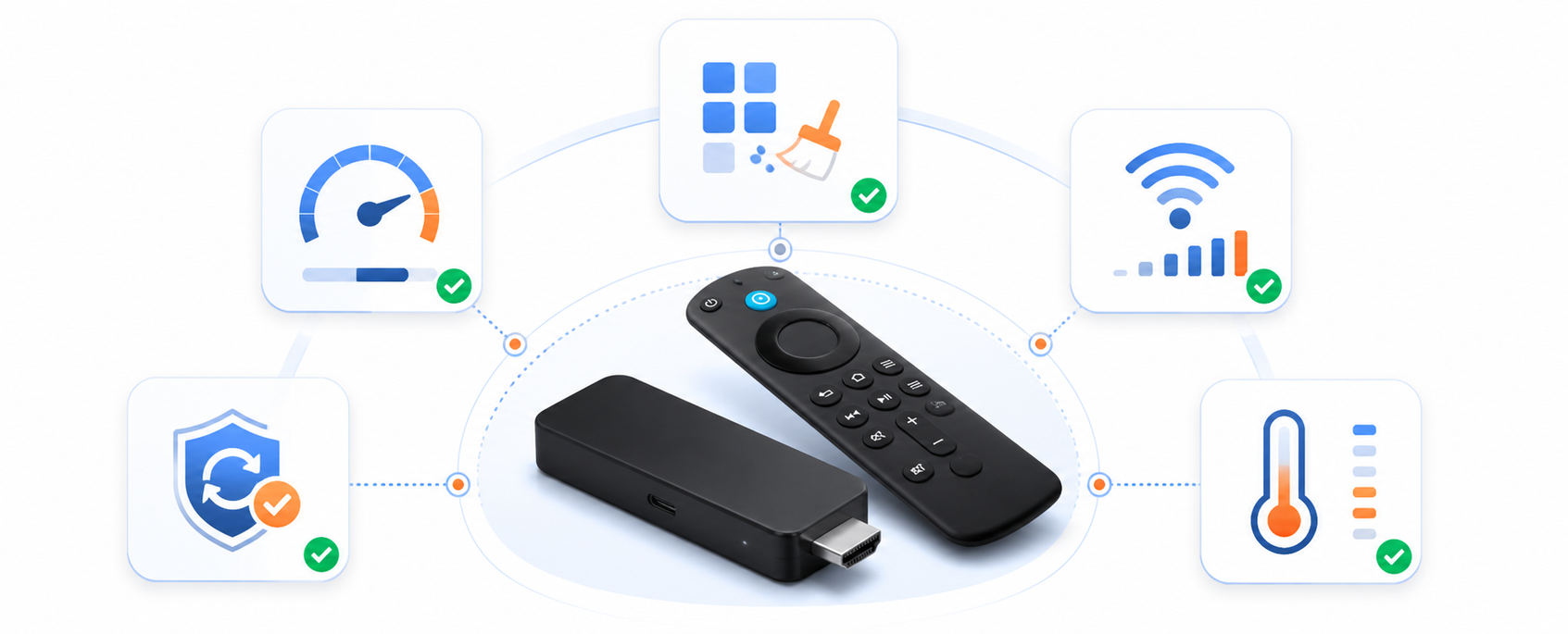
Once performance improves, preserve the known-good setup instead of adding several utilities. Review storage monthly, uninstall apps you no longer use, install Fire OS updates, and restart when menus begin hesitating. For a focused cleanup path, follow our Firestick cache guide rather than clearing every app’s data.
- Install Selectively: Keep apps that serve a real viewing need and remove abandoned trials before storage pressure becomes a recurring problem.
- Update Deliberately: Leave stable power and sufficient space for Fire OS and app updates, then restart once installations finish.
- Protect Airflow: Keep the HDMI area clear of heat-trapping cables and use the compatible extender when the television casing crowds the Stick.
- Measure Before Cleaning: Note which menu or app is slow so future maintenance targets evidence instead of repeating a device-wide purge.
- Plan Hardware Changes: If a clean, cool, updated device remains slow under basic navigation, compare supported newer hardware instead of adding boosters.
Final Verdict
Amazon Fire Stick lagging is easiest to solve when the delay is named first. Restart, inspect storage, and target one app before changing the network or erasing data. If the remote app is fast but the physical remote is not, fix the controller path. If a factory-fresh device still hesitates, the remaining suspects are power, heat, network conditions, or hardware limits.
- Fastest Safe Start: Restart, wait for Home to settle, and repeat a short baseline before deleting an app or account.
- Best Targeted Fix: Clear cache or reinstall only the app that stays slow while Settings and other services remain responsive.
- Final Decision: Reset once and test clean; persistent lag afterward supports replacing aging hardware or correcting an external condition.
FAQs
Why is my Amazon Fire Stick lagging?
Common causes include a stuck Fire OS process, low available storage, an oversized app cache, an outdated app, weak power, heat, delayed remote input, or slow networking. Identify whether menus, one app, all online video, or only the remote is delayed before choosing a fix.
How much free storage does a Fire Stick need?
Amazon does not publish one universal minimum that guarantees speed across every Fire TV model. Use the storage bar, failed updates, and interface behavior together. If storage is nearly full, remove unused apps, restart, and confirm whether responsiveness and update reliability improve.
Does clearing cache make a Fire Stick faster?
It can help when one application’s temporary files are oversized or inconsistent. Clear that app’s cache, relaunch it, and compare the second launch. Repeatedly clearing every cache is not a lasting speed strategy, and clearing data can remove sign-ins and preferences.
Why does the Fire Stick remote respond slowly?
Weak batteries, pairing trouble, Bluetooth interference, or rapid repeated button presses can queue commands. Install fresh batteries and compare the physical remote with the official Fire TV mobile app. Fast phone control with slow remote control isolates the input path.
Is Fire Stick lag the same as buffering?
No. Lag can affect local menus, app launches, or remote input, while buffering usually begins after online playback starts. If menus are smooth but video pauses, use the network-focused checks in our Firestick buffering guide instead of resetting the whole device.
Should I factory reset a lagging Fire Stick?
Reset only after restart, storage, cache, update, network, power, heat, and remote checks fail. A factory reset removes accounts, apps, and preferences. Test the clean system before reinstalling extras; persistent basic-menu lag then points beyond ordinary app clutter.